

Next-Gen App & Browser Testing Cloud
Trusted by 2 Mn+ QAs & Devs to accelerate their release cycles


How to Use Playwright to Run Tests
Explore how to use Playwright to run tests on different browsers. Learn how to install and configure Playwright to set up a reliable environment for test execution.

Kailash Pathak
December 24, 2025
Playwright is an open-source framework that supports end-to-end testing through multiple browser and OS combinations. You can use Playwright to run tests across various rendering engines like Chromium, WebKit, and Firefox using a single API. Its cross-browser support ensures your website works as expected across all major browsers and browser versions.
Overview
Playwright is an end-to-end testing framework to run tests across multiple browsers and operating systems using a single API. It supports web browsers such as Chromium, Firefox and WebKit.
Steps to Use Playwright to Run Tests
- Install Node.js.
- Download Playwright and its required dependencies and browsers using the npm init playwright@latest command.
- Write your first test using Playwright’s built-in test runner and an intuitive browser automation API.
- Run tests across all supported browsers using the npx playwright test command.
How to Run Tests in Playwright?
Below are the steps to install Playwright, write your first test, and run it across browsers such as Chromium, Firefox, and WebKit.
Install Playwright
1. Install the latest version of Node.js. Once installed, you can confirm your Node.js version by running the following command:
node -v
2. Install Playwright using the below given command, which sets up everything: project files, dependencies, and browsers:
npm init playwright@latest
Once the installation is completed, you’ll see a playwright.config.ts file (or .js if you chose JavaScript), a package.json with dependencies, and a sample test file.
Note: Playwright doesn’t rely on your system’s browsers. Instead, it fetches its versions of Chromium, Firefox, and WebKit (Safari’s engine). These browsers are tied to Playwright’s release.
Write Your First Test
The ltKaneAi.spec file below automates the process of filling out the “Schedule a Demo” form on the TestMu AI KaneAI page.
Test Scenario:
- Visit the KaneAI website.
- Click on the Book a Demo button.
- Fill in personal and contact information.
- Provide a custom message to schedule the demo.
// @ts-check
import { test, expect } from '@playwright/test';
test('Schedule a demo form automation', async ({ page }) => {
   await page.goto('https://www.lambdatest.com/kane-ai');
   await page.locator('section', { hasText: 'KaneAI - GenAI-Native Testing' }).getByRole('button', { name: 'Book a Demo' }).click();


   await page.getByRole('textbox', { name: 'First Name*' }).fill('Peter');
   await page.getByRole('textbox', { name: 'Last Name*' }).fill('Broke');
   await page.getByRole('textbox', { name: 'Work Email*' }).fill('[email protected]');
   await page.getByRole('textbox', { name: 'Phone Number*' }).fill('5676543210');
   await page.getByRole('textbox', { name: 'Your message' }).fill('Looking forward to exploring the capabilities of Kane AI');
});

Run the Test
To run the tests, execute the following command in the terminal:
npx playwright test
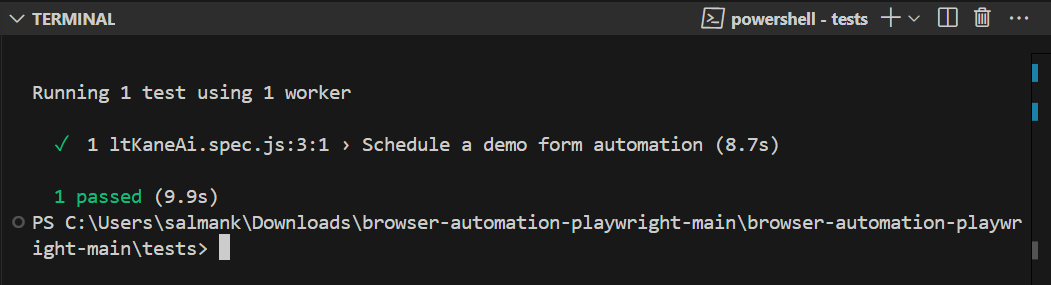
Using Playwright to run tests may help test how your website behaves on different browsers, such as Chromium, Firefox, and WebKit. However, there are a couple of challenges with scalability and reliability as your testing needs grow.
To overcome these challenges, opting for cloud-based testing solutions such as TestMu AI is a viable option.
How to Run Playwright Tests on TestMu AI?
TestMu AI is a GenAI-native test execution platform that allows you to perform Playwright automation across various browsers and operating systems.
By moving test execution to cloud testing platforms like TestMu AI, you can reduce costs related to setting up test infrastructure and accelerate your software release cycles.
To get started, refer to the documentation on Playwright testing with TestMu AI.

If you want to perform Playwright automation on the TestMu AI platform, update your test script to connect using the TestMu AI WebSocket URL.
wsEndpoint: `wss://cdp.lambdatest.com/playwright?capabilities=${encodeURIComponent(JSON.stringify(capabilities))}`
After that, add your TestMu AI Username and Access Key as environment variables and define automation capabilities for browser, browser version, platform and other settings.
const capabilities = [
  {
    browserName: "MicrosoftEdge",
    browserVersion: "latest",
    "LT:Options": {
      platform: "Windows 11",
      build: "Playwright Sample Build",
      name: "Playwright Schedule KaneAI Demo functionality on Windows 11 - MicrosoftEdge",
      user: process.env.LT_USERNAME,
      accessKey: process.env.LT_ACCESS_KEY,
      network: true,
      video: true,
      console: true,
    }
  }
];
You can generate the above Playwright capabilities from the TestMu AI Automation Capabilities Generator.
After that, you can run the tests using the following command:
node lambdatestPlaywright.js
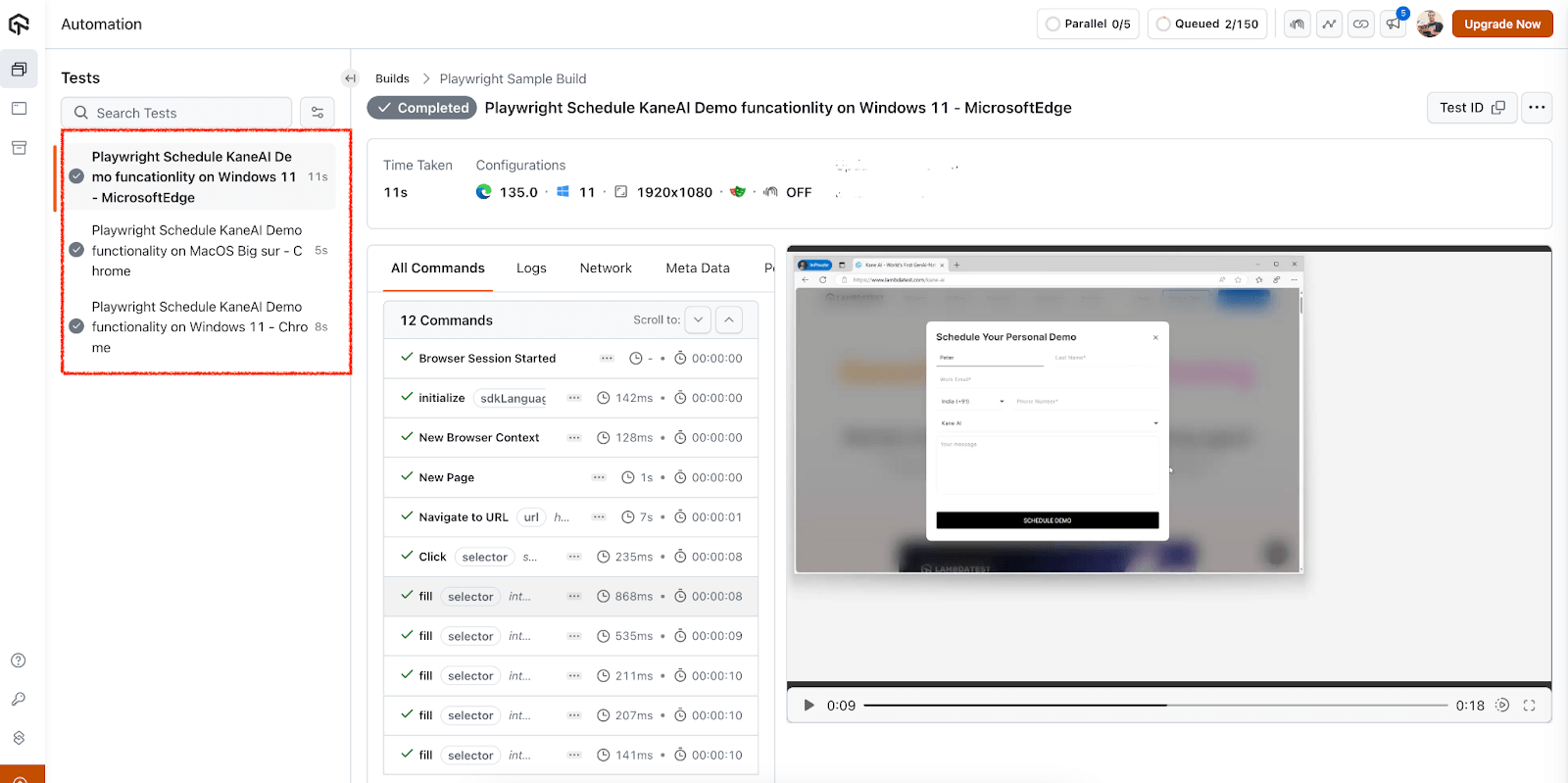
Now, visit the TestMu AI Web Automation dashboard to view the test execution results.
Methods to Run Playwright Tests
Playwright lets you run tests across different browsers with a single test suite. There are five different methods to perform Playwright automation.
Default Browser Configurations
By default, Playwright includes Chromium, Firefox, and WebKit rendering engines, and you can switch between them easily.
You can define multiple projects in your config file to target different browsers:
// playwright.config.js
import { defineConfig, devices } from '@playwright/test';


export default defineConfig({
  projects: [
    {
      name: 'Chromium',
      use: { browserName: 'chromium' },
    },
    {
      name: 'Firefox',
      use: { browserName: 'firefox' },
    },
    {
      name: 'WebKit',
      use: { browserName: 'webkit' },
    },
  ],
});
After doing the above configuration, run the command:
Let’s take a test scenario of the ltKaneAi.spec file and run it with default browser configurations using the below command:
npx playwright test --headed tests/ltKaneAi.spec.js
Specific Browser From CLI
You can run tests on a specific browser by passing the project name.
Execute the below command to run the test cases in all three browsers.
npx playwright test --project=Firefox
npx playwright test --project=chromium
npx playwright test --project=WebKit
UI Mode
Playwright UI Mode is a visual, interactive test runner that helps you explore, debug, and execute tests smoothly. You can launch UI mode by running the below command:
npx playwright test --ui
At the top-left corner of the UI Mode window, you’ll see a browser selector dropdown. From here, you can instantly switch between Chromium, Firefox, and WebKit.
Headed Mode
By default, you can perform Playwright browser testing in headless mode (no visible browser UI).
To launch browsers in headed mode, you can modify the playwright.config.js file and set the headless option to false.
use:
{
 headless: false,
},
projects: [
   {
     name: 'chromium',
     use: { ...devices['Desktop Chrome'] },
   },
    {
     name: 'firefox',
      use: { ...devices['Desktop Firefox'] },
    },
    {
      name: 'webkit',
     use: { ...devices['Desktop Safari'] },
    },
 ],
To run the test cases in headed mode, use the following command:
npx playwright test --headed
CI Pipelines
You can also perform Playwright browser testing through CI pipelines.
Here’s an example of using GitHub Actions with Playwright:
jobs:
  test:
    strategy:
      matrix:
        browser: [chromium, firefox, webkit]
    runs-on: ubuntu-latest
    steps:
      - uses: actions/checkout@v4
      - name: Install dependencies
        run: npm ci
      - name: Run tests
        run: npx playwright test --project=${{ matrix.browser }}

Note: Run Playwright tests across 3000+ real environments. Try TestMu AI Now!
How to Run Playwright Tests in Parallel?
To speed up test execution, you can use Playwright to run tests in parallel. By default, Playwright runs tests in parallel across multiple workers.
A worker in Playwright is an isolated environment that the test runner uses to run tests in parallel.
You can control the number of workers using the –workers flag:
npx playwright test --workers=4
You can also configure the workers property in your playwright.config.ts file:
export default {
  workers: 4,
};
For more advanced parallelization strategies, such as running tests fully in parallel or sequentially, you can use the fullyParallel and mode options in your configuration file.
Conclusion
Playwright makes it easy to get started with browser automation, from setup to writing and running your first test. It supports testing across all major browsers out of the box, ensuring cross-browser compatibility.
Moreover, you can also use Playwright to run tests on cloud-based testing platforms like TestMu AI to improve your testing efficiency and get much-needed scalability and reliability.
With different methods to run tests, such as through the default configuration file, CLI targeting, UI mode, headed mode, and CI/CD integration, Playwright can adapt to your various testing needs.
Additionally, integrating Playwright with AI can enhance test creation, maintenance, and defect detection, making automation smarter and more efficient.
Citations
- Running and debugging tests: https://playwright.dev/docs/running-tests


Frequently asked questions
Did you find this page helpful?
More Related Hubs
TestMu AI forEnterprise
Get access to solutions built on Enterprise
grade security, privacy, & compliance
- Advanced access controls
- Advanced data retention rules
- Advanced Local Testing
- Premium Support options
- Early access to beta features
- Private Slack Channel
- Unlimited Manual Accessibility DevTools Tests