

Next-Gen App & Browser Testing Cloud
Trusted by 2 Mn+ QAs & Devs to accelerate their release cycles


How to Use Playwright Locators: A Detailed Guide
This blog on Playwright locators explores various locator strategies to find WebElements for automation testing using Playwright.

Jaydeep Karale
December 24, 2025
Locators are one of the most effective ways to locate elements for web testing. They provide automatic waiting and retry features, making it simple for developers and testers to find and interact with specific elements on a web page, ensuring test scripts work smoothly with those elements.
Playwright, one of the most commonly used frameworks for end-to-end testing, provides various locator strategies to find and interact with WebElements. In this blog, we will learn various Playwright locators and see how to use them for effective end-to-end testing.
Overview
Playwright Locators are powerful objects that help identify and interact with web elements during automation testing. They automatically wait for elements to load, retry failed actions, and make tests faster, more stable, and easier to maintain. Locators form the foundation of Playwright’s smart, reliable testing model.
What are Playwright Locators used for?
Locators are used to perform real user actions like clicking buttons, typing into input fields, or validating element states. They connect test scripts with the live DOM, enabling smooth, human-like interactions without manual waits or delays.
How do you create locators in Playwright?
You can create locators in multiple ways:
- page.locator(): The standard method that accepts CSS, XPath, or text selectors.
- Built-in locators: Readable and accessibility-based selectors that make tests stable.
- getByRole(): Locate elements by ARIA role (e.g., button, textbox, link).
- getByText(): Match visible text.
- getByLabel() / getByPlaceholder(): Identify input fields by labels or placeholders.
- getByAltText() / getByTitle(): Target images or elements with titles.
- getByTestId(): Use custom attributes like data-testid for stable identification.
Key Aspects and Benefits of Playwright Locators
Playwright Locators offer several advantages that improve test reliability and maintainability:
- Auto-waiting: Locators automatically wait for elements to be ready before taking action.
- Retry mechanism: They retry interactions until conditions are met, reducing test flakiness.
- Dynamic element handling: Ideal for modern apps with frequently changing DOM structures.
- Accessibility-friendly: Built-in locators use ARIA attributes, improving code quality and inclusivity.
- Cross-browser reliability: Locators behave consistently across Chrome, Firefox, Safari, and Edge.
- Improved readability: Clear locator syntax (getByRole, getByText) makes scripts easier to debug.
- Smart synchronization: Locators work with live DOM updates, ensuring actions stay in sync with UI changes.
- Resilient testing: Built-in locators adapt better to minor UI changes than CSS or XPath selectors.
Best Practices for Using Locators
Follow these best practices to maximize efficiency and reliability in Playwright tests:
- Prefer built-in locators: Use them over CSS or XPath for cleaner, stable tests.
- Use data-testid: For dynamic or frequently changing elements.
- Avoid fixed delays: Rely on auto-wait instead.
- Use Playwright Inspector or codegen: Identify and refine locators visually.
- Chain locators: Improve precision on nested or complex elements.
What Are Playwright Locators?
Playwright locators allow your test scripts to interact with a specific element on a web page. They are equipped with auto-wait and retry abilities. This means the locator will wait for the elements to load and keep retrying automatically before throwing TimeoutError.
There are several ways of getting started with Playwright locators using the page.locator() method to create locators, which can work with CSS or XPath, and secondly, using the built-in locators. While Playwright is fully flexible in allowing us to build our custom locators using page.locator() the built-in locators are recommended and serve most use cases.
Key features of Playwright locators:
- Built-in support for auto-wait and retry, helping write resilient and non-flaky tests.
- Built-in methods are available to perform various actions on located elements.
- The page object offers the Playwright wait for navigation to pause until specific actions on a web page are completed or a timeout/exception occurs.
- Locators work on the most up-to-date DOM every time action is performed, ensuring reliable tests.
- Built-in locators capable of locating elements using ARIA roles, text, alt-text, placeholders, titles, labels, and custom test-ids.
- Ability to chain and filter locators provides precision to narrow the search for the element.
Enhance your testing strategy with our detailed guide on Playwright Headless Testing. Explore further insights into Playwright’s capabilities in this guide.
Types of Playwright Locators
These are the built-in locators that Playwright supports:
- page.getByRole(): Locates elements by explicit and implicit accessibility attributes.
- page.getByText(): Locates elements by their text content.
- page.getByLabel(): Locates form controls by the associated label’s text.
- page.getByPlaceholder(): Locates inputs by their placeholder text.
- page.getByAltText(): Locates elements, usually images, by their text alternative.
- page.getByTitle(): Locates elements by their title attribute.
- page.getByTestId(): Locates elements based on their data-testid attribute (other attributes can be configured).
Installing and Setting Up Playwright
In this section, we will learn how to install Playwright and set it up in a dedicated virtual environment:
- Create a dedicated folder for our project called playwright locators (This step is not mandatory but good practice).
- Inside the folder we just created, use the built-in venv module to create a virtual environment named playwright locators.
- Activate the virtual environment by calling the activate script.
- Install the Playwright module using pip install pytest-playwright.
- Lastly, install the required browsers using the playwright install.
Subscribe to the TestMu AI YouTube Channel and stay updated with the latest tutorials on Playwright end-to-end testing and more.
All tests in this blog use these versions: Python 3.12.4, pytest 8.2.2, and Playwright 1.44.0.
We will use the Python API of Playwright and, more specifically, the sync_api version. The reason for choosing sync_api, as mentioned in the answer on StackOverflow, is that the sync_api is simply a wrapper around Python’s asyncio_api. So Playwright makes async calls under the hood.
When executed, the Python test generates code using sync_api, as shown in the screenshot below:
So, when running the Playwright test, feel free to use sync_api unless you need fine control over the request behavior in which you can use async_api.
How to Use Playwright Locators?
Playwright locators are essential in automation testing, especially when testing on cloud platforms. It provides a way to interact with web page elements when testing websites across web browsers online.
Let’s demonstrate some use cases of Playwright locators using cloud-based testing platforms like TestMu AI. It is an AI-driven test execution platform that allows you to run automated Playwright tests at scale across 50+ browser versions.

When running tests in the cloud, efficient and reliable element identification is crucial due to the variety of browsers and environments involved. To use Playwright locators, you must set up the necessary imports and dependencies along with the username and access key to run the test on the TestMu AI cloud grid.
The load_dotenv() reads the username and access key required to access the Playwright on the TestMu AI Playwright grid. The username and access key are available in your TestMu AI Profile > Account Settings > Password & Security.
import json
import os
import re
import subprocess
import sys
import urllib

import pytest
from dotenv import load_dotenv

load_dotenv()
Setting Up the Capabilities
The capabilities dictionary contains the configuration of our test environment on the TestMu AI Playwright grid. The configurations encompass various parameters, such as the preferred browser, its specific version, the operating system required to execute the tests, and other relevant settings.
capabilities = {
    'browserName': 'Chrome',  # Browsers allowed: `Chrome`, `MicrosoftEdge`, `pw-chromium`, `pw-firefox` and `pw-webkit`
    'browserVersion': 'latest',
    'LT:Options': {
        'platform': 'Windows 10',
        'build': 'Playwright Locators Demo Build',
        'name': 'Playwright Locators Test For Windows 10 & Chrome',
        'user': os.getenv('LT_USERNAME'),
        'accessKey': os.getenv('LT_ACCESS_KEY'),
        'network': True,
        'video': True,
        'visual': True,
        'console': True,
        'tunnel': False,   # Add tunnel configuration if testing locally hosted webpage
        'tunnelName': '',  # Optional
        'geoLocation': '', # country code can be fetched from https://www.lambdatest.com/capabilities-generator/
    }
}
Setting Up the pytest Fixtures:
We set up two fixtures, one for our cloud grid and the other for our local grid. So, it becomes easy to switch between local and cloud depending on where you want to run the tests.
Use the local_grid_page fixture when you run the tests on the local machine:
@pytest.fixture(name="local_grid_page")
def playwright_local_grid_page():
    with sync_playwright() as playwright:
        browser = playwright.chromium.launch(headless=True)
        page = browser.new_
Use the cloud_grid_page fixture when you wish to run the tests on the TestMu AI cloud grid:
@pytest.fixture(name="cloud_grid_page")
def playwright_local_grid_page():
    with sync_playwright() as playwright:
        playwrightVersion = str(subprocess.getoutput('playwright --version')).strip().split(" ")[1]
        capabilities['LT:Options']['playwrightClientVersion'] = playwrightVersion
        lt_cdp_url = 'wss://cdp.lambdatest.com/playwright?capabilities=' + urllib.parse.quote(json.dumps(capabilities))
        browser = playwright.chromium.connect(lt_cdp_url)
        page = browser.new_page()
        yield page
Locating Elements by Role in Playwright
The locator get_by_role() allows locating elements by their ARIA role, ARIA attributes, and accessible name. ARIA stands for Accessible Rich Internet Applications. It’s a set of attributes that can be added to HTML elements to help people who use assistive technologies, like screen readers, navigate and understand web content more easily.
ARIA roles are like labels for different parts of a website, like headings, buttons, and links. These labels help people who use assistive technologies understand the different parts of the website and how to use them.
Let’s understand the get_by_role() locator using the TestMu AI eCommerce Playground website.
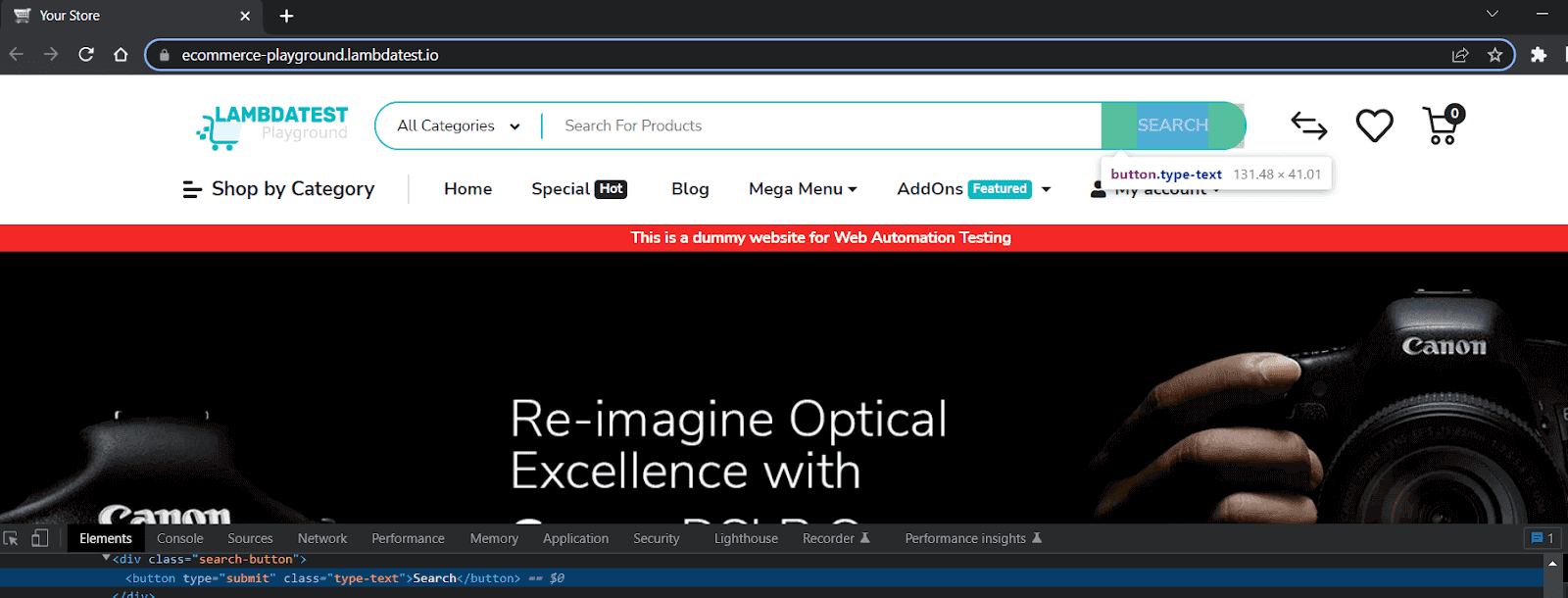
Test Scenario:
- The demo website home page should contain the Search button.
- The Search button should have a CSS class type-text.
Implementation:
# replace cloud_grid_page with local_grid_page while running on local
def test_homepage_contains_search_button(cloud_grid_page):
    cloud_grid_page.goto("https://ecommerce-playground.lambdatest.io/")
    search_button_locator = cloud_grid_page.get_by_role(role="button", name="Search")
    expect(search_button_locator).to_have_class("type-text")
Code Walkthrough:
- Upon inspecting the homepage, we see that Search is a button for the type submit with a CSS class ”type-text” assigned to it.
- Use the Playwright locator get_by_role() with arguments as role=”button” and name=”Search”.
- The expect() method then checks if the located element has class type-text using the to_have_class() method.
It’s worth mentioning that for the get_by_role() Playwright locator, only the role argument is mandatory. All other arguments are optional, including the name we used. An important optional argument is exact. It can be used to force an exact case-sensitive and whole-string match.
Test Execution:
Let’s now execute the test using the following command:
pytest -v -k “test_homepage_contains_search_button”
Locating Elements by Text in Playwright
The locator get_by_text() allows finding elements by the text it contains. This Playwright locator can match exact string and substring and allows using regular expressions.
It is recommended to find non-interactive elements such as those contained within HTML tags div, span, and p. Let’s see this Playwright locator in action using a few scenarios to explore exact matches and regular expressions.
For this, we will again use the TestMu AI eCommerce Playground website.
Test Scenario:
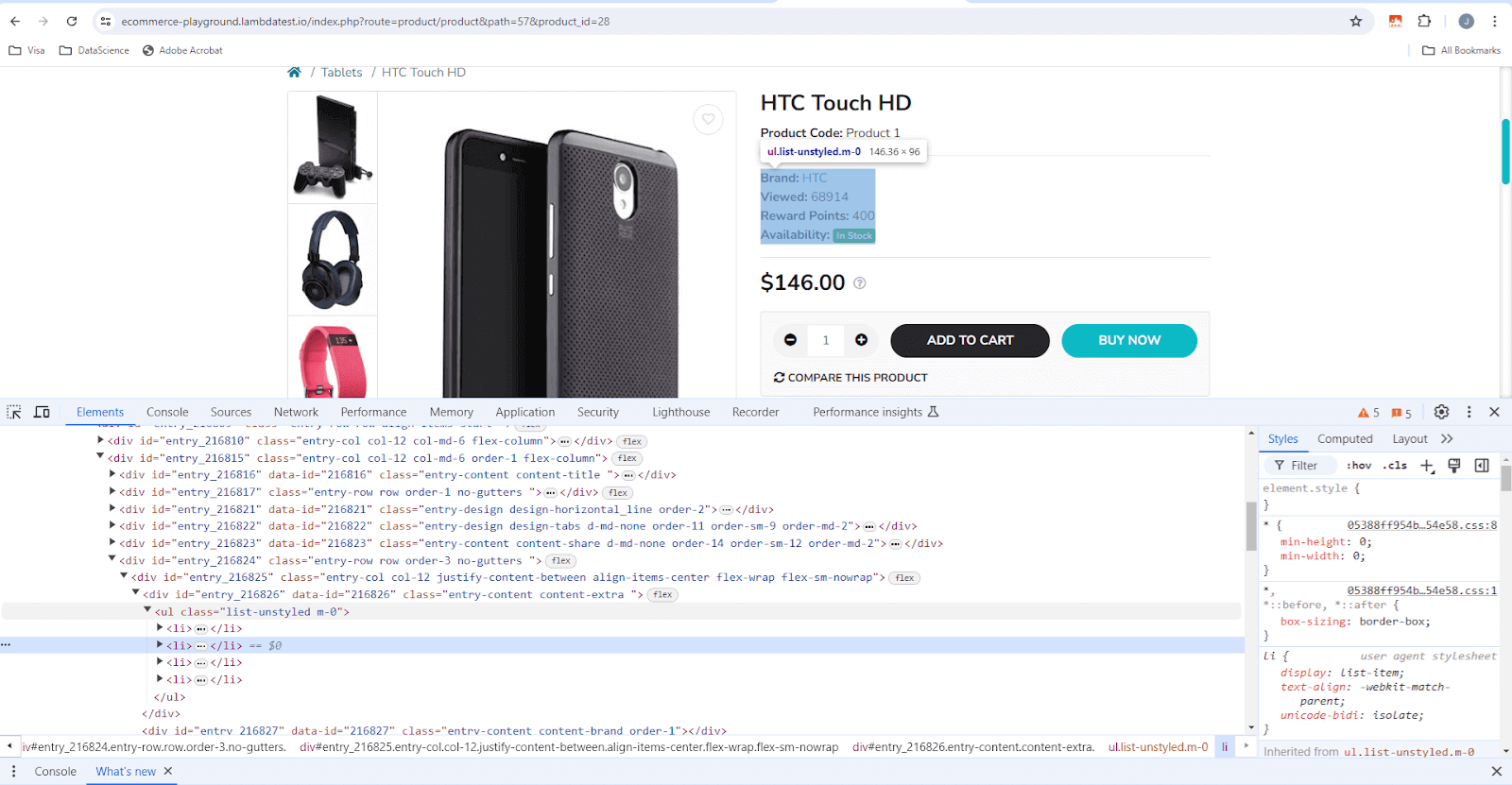
- The product page of the LambdaTest eCommerce Playground website should contain the exact text for product details:
- Brand
- Viewed
- Reward Points
- Availability
Implementation:
# replace cloud_grid_page with local_grid_page while running on local
def test_product_details_text_should_be_visible(cloud_grid_page):
    cloud_grid_page.goto(
        "https://ecommerce-playground.lambdatest.io/index.php?route=product/product&path=57&product_id=28"
    )
    brand_text_locator = cloud_grid_page.get_by_text(text="Brand:", exact=True)
    viewed_text_locator = cloud_grid_page.get_by_text(text="Viewed:", exact=True)
    points_text_locator = cloud_grid_page.get_by_text(text="Reward Points:", exact=True)
    availability_text_locator = cloud_grid_page.get_by_text(text="Availability", exact=True)
    expect(brand_text_locator).to_be_visible()
    expect(viewed_text_locator).to_be_visible()
    expect(points_text_locator).to_be_visible()
    expect(availability_text_locator).not_to_be_visible()
Code Walkthrough:
- Upon inspecting the product page, we see the details within the <span> tag.
- The steps to navigate the product page remain the same as in the previous test case.
- In the next steps, we use the get_by_text() Playwright locator to match the texts for Brand:, Viewed:, and Reward Points:. We use the expect() assertion on each of the three locators and call the to_be_visible() method.
- For the ‘Availability’, we exclude the ‘:’ to demonstrate that the exact argument works. Since we know the exact match, in this case, the test will fail on the expect() assertion, and we call the not_to_be_visible() method.
Test Execution:
Let’s run the test using the following command:
pytest -v -k “test_product_details_text_should_be_visible”
Locating Form Elements by Label in Playwright
Almost all websites have form fields, and most form controls usually have dedicated labels that could be conveniently used to interact with the form. Playwright locators provide a convenient way of locating form elements using the get_by_label() locator.
Let’s jump into a demo using the TestMu AI eCommerce Playground website.
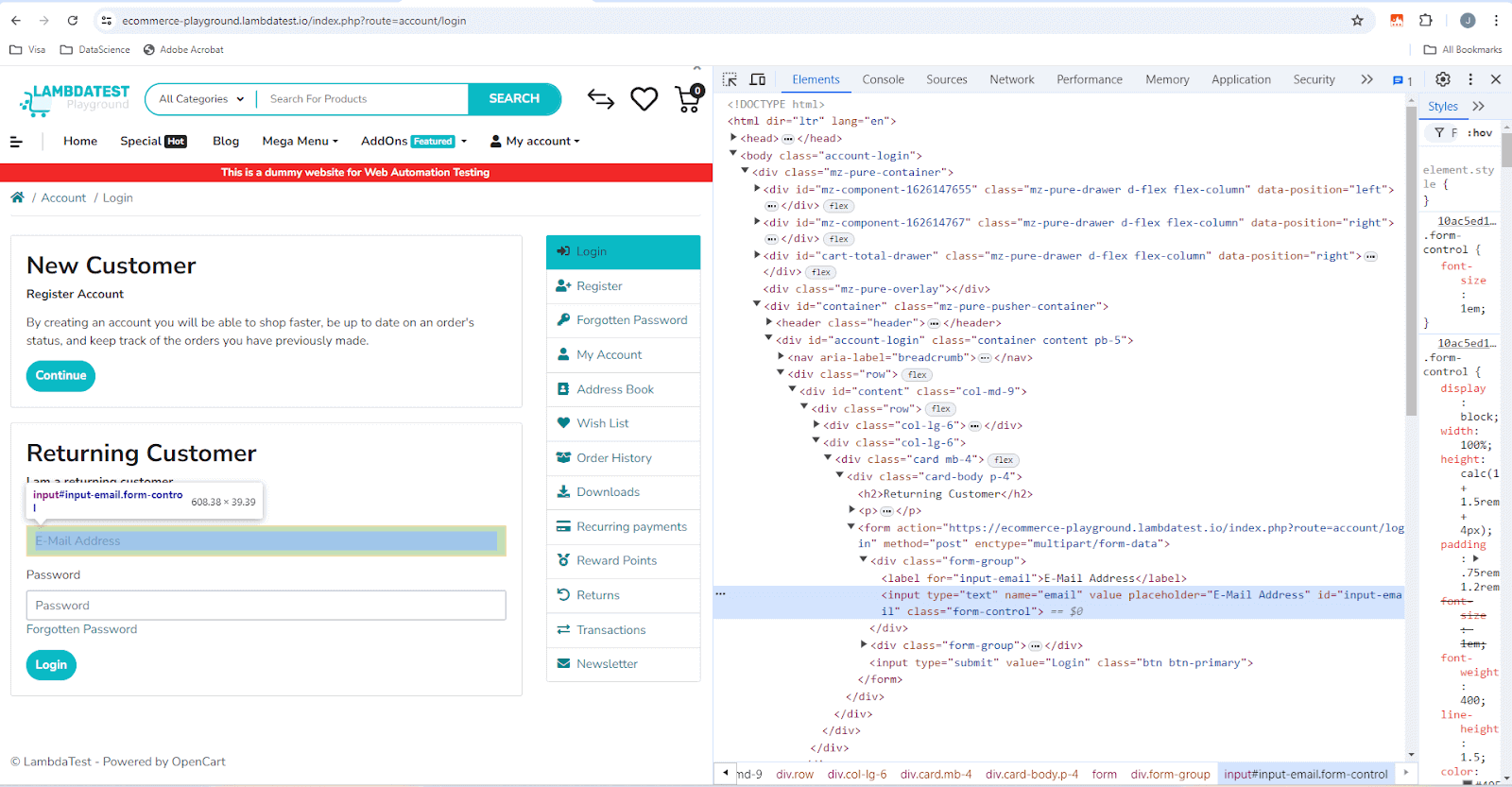
Test Scenario:
- The login form should have exactly one Email Address label.
- The login form should have exactly one Password label.
Implementation:
# replace cloud_grid_page with local_grid_page while running on local
def test_exactly_one_email_and_password_field(cloud_grid_page):
    cloud_grid_page.goto(
        "https://ecommerce-playground.lambdatest.io/index.php?route=account/login"
    )
    email_address_locator = cloud_grid_page.get_by_label(text="E-Mail Address", exact=True)
    password_locator = cloud_grid_page.get_by_label(text="Password", exact=True)
    expect(email_address_locator).to_have_count(1)
    expect(password_locator).to_have_count(1)
Code Walkthrough:
- The code snippet until the goto() method will keep the login page the same.
- Initialize two locators using get_by_label(), one of which is an email and password with the exact=True, to confirm that only one login form element exists.
- On the expect() assertion, we call the method to_have_count(1) to test only one of each email and password field.
Test Execution:
Let’s execute the test using the following command:
pytest -v -k “test_exactly_one_email_password_field”
Locating Input Elements by Placeholder in Playwright
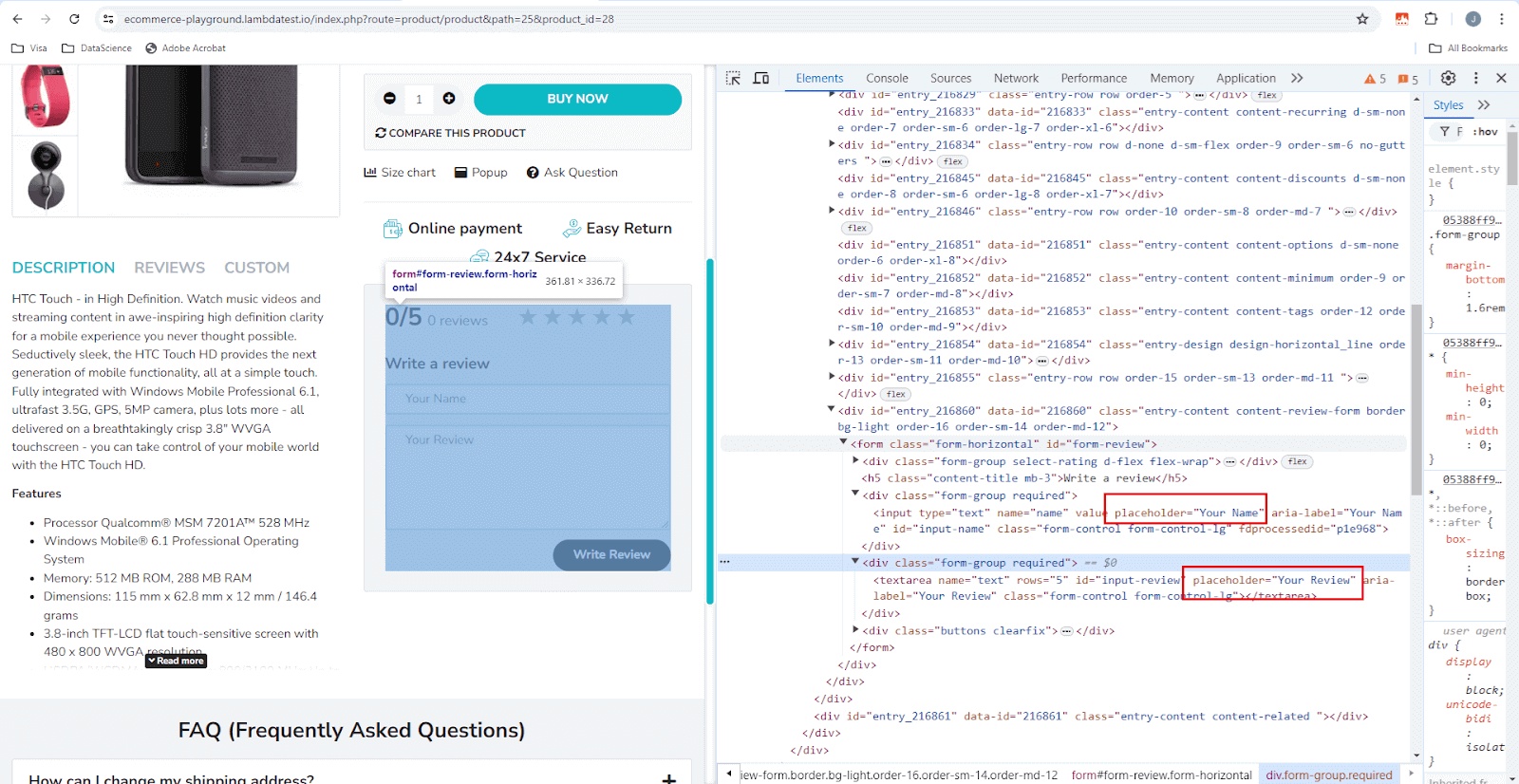
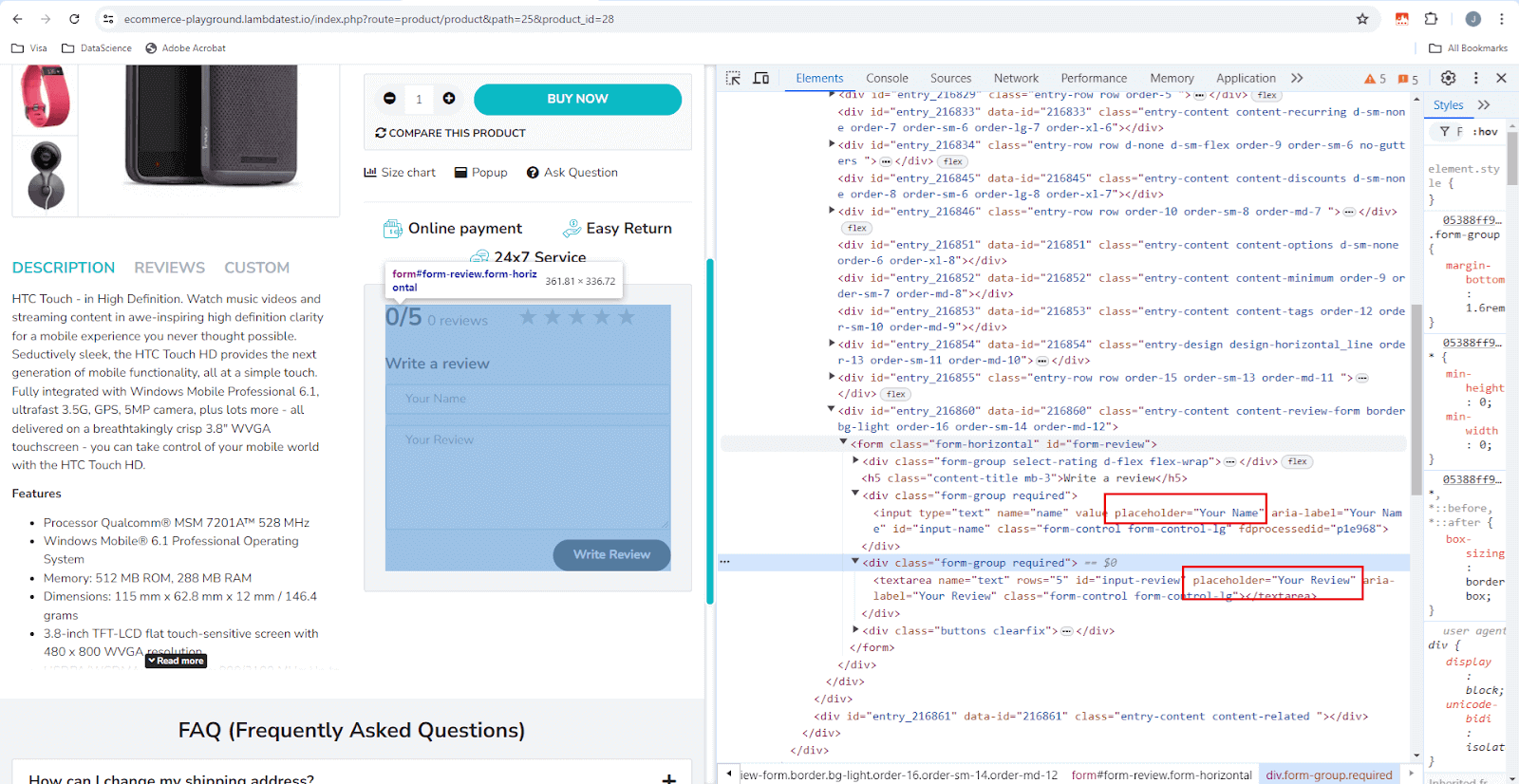
Most websites have several forms for login, registration, reviews, and customer support. Forms usually have a placeholder text to assist the user in correctly filling out forms.
Playwright locator get_by_placeholder() comes in handy when locating elements using the placeholder text. The TestMu AI eCommerce Playground website has a review form that can be used to explore this locator.
Test Scenario:
- The review form should have one field for the customer name.
- The review form should have one field for customer review.
Implementation:
# replace cloud_grid_page with local_grid_page while running on local
def test_review_form_has_customername_customerreview_fields(cloud_grid_page):
    cloud_grid_page.goto(
        "https://ecommerce-playground.lambdatest.io/index.php?route=product/product&path=25&product_id=28"
    )
    name_locator = cloud_grid_page.get_by_placeholder(text="Your Name", exact=True)
    review_locator = cloud_grid_page.get_by_placeholder(text="Your Review", exact=True)
    expect(name_locator).to_have_count(1)
    expect(review_locator).to_have_count(1)
Code Walkthrough:
- We use the name of the placeholders as an argument to the get_by_placeholder() locator. We also only look for an exact matching by setting the argument exact=True.
- Calling to_have_count(1) on the except() assertion helps to test our scenario of only one reviewer name field and review input field.
Test Execution:
Let’s execute the test using the following command:
pytest -v -k “test_review_form_has_customername_customerreview_fields”
Locating Image Elements by Alt Text in Playwright
All websites have images, and all images must have an alt-text. The reason it’s important to have alt-text is beyond the scope of this blog. Still, to provide a brief explanation, alt-text is important for accessibility, user experience, and image search SEO.
Playwright has an efficient get_by_alt_text() locator to locate image and area elements using the alt-text attribute.
Test Scenario:
- The logo with alt-text=”Poco Electro” should be visible.
Implementation:
# replace cloud_grid_page with local_grid_page while running on local
def test_logo_with_alt_text_should_be_visible(cloud_grid_page):
    cloud_grid_page.goto(
        "https://ecommerce-playground.lambdatest.io/index.php?route=common/home"
    )
    logo_locator = cloud_grid_page.get_by_alt_text(text="Poco Electro", exact=True).first
    expect(logo_locator).to_be_visible()
Code Walkthrough:
- We just get the alt-text from the Chrome Developer Tools and pass it onto the get_by_alt_text() locator.
- Since there could be multiple uses of the same alt-text, we use the attribute first to narrow down our results to the first element.
- The expect() then asserts if the selected element by the locator is visible.
Test Execution:
Let’s now execute the test using the following command:
pytest -v -k “test_logo_with_alt_text_should_be_visible”
Locating Elements by Title in Playwright
The HTML title attribute specifies additional information about an element. It is most commonly used on the <a> and <img> elements to provide a text description for screen readers and other assistive technologies. The text within the title attribute will typically appear as a tooltip when the mouse pointer hovers over the element.
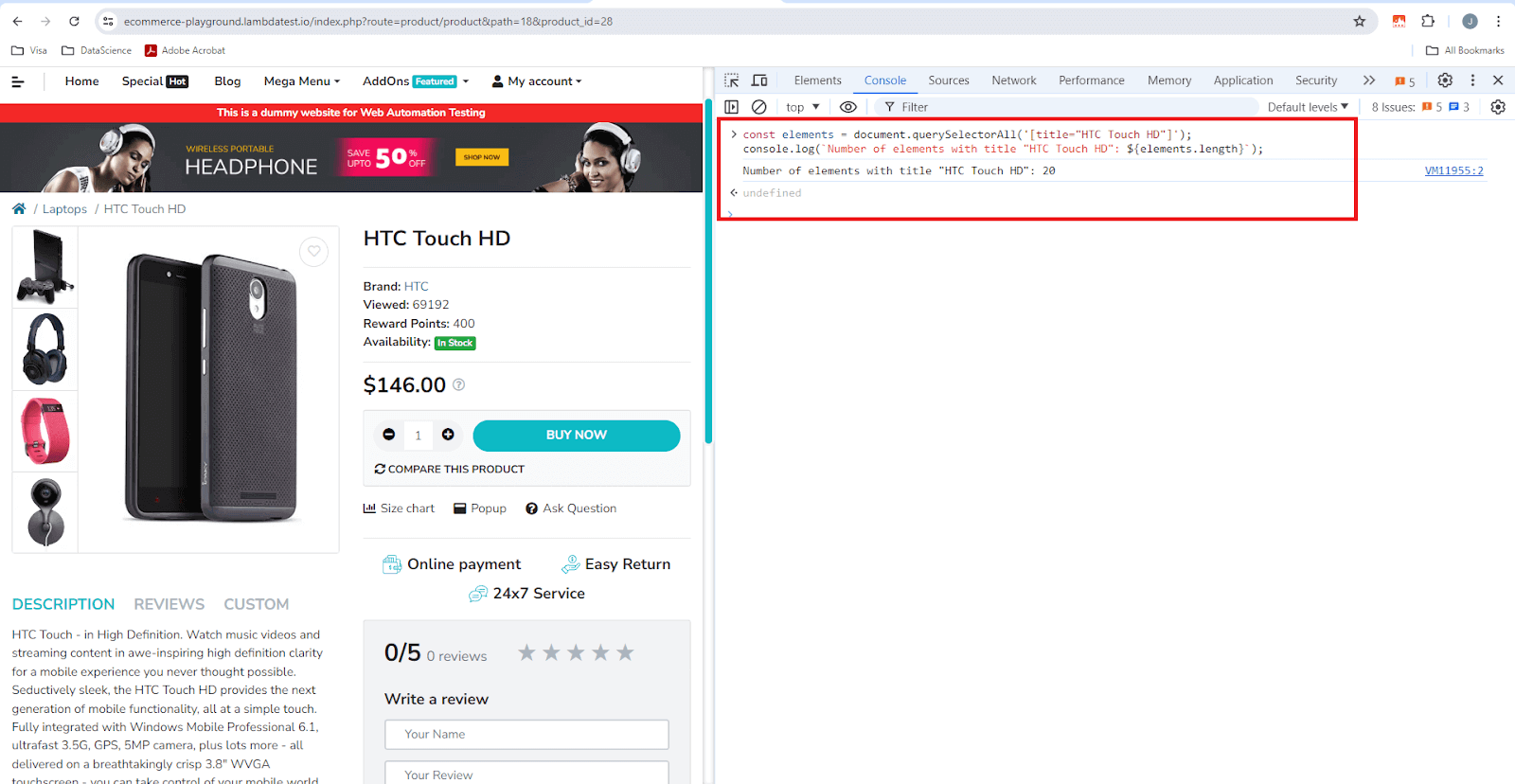
We can use the get_by_title() Playwright locator to locate elements by title. It’s worth noting that the TestMu AI eCommerce Playground website uses the same title text for all images. Hence, our locator will return more than one element(20).
Test Scenario:
- Twenty elements with title=’HTC Touch HD’ should be present.
Implementation:
# replace cloud_grid_page with local_grid_page while running on local
def test_display_count_of_all_elements_with_title_htc_touch_hd(cloud_grid_page):
    cloud_grid_page.goto(
        "https://ecommerce-playground.lambdatest.io/index.php?route=product/product&path=18&product_id=28"
    )
    alt_text_locator = cloud_grid_page.get_by_title(text=re.compile("htc touch hd", re.IGNORECASE))
    expect(alt_text_locator).to_have_count(20)
Code Walkthrough:
- As usual, we open the product page using the page.goto() method.
- Next, we pass the title text we want to locate. Notice the use of the regex Python module to ignore the case.
- The expect() assertion then verifies if the locator can detect all 20 elements.
Test Execution:
Let’s now execute the test using the following command:
pytest -v -k “test_display_count_of_all_elements_with_title_htc_touch_hd”
Locating Elements by Test ID in Playwright
The Playwright locators are based on HTML tags or attributes assigned to each element. However, the challenge with this approach is that these tags, such as roles and attributes may change over time. If this happens, our tests will fail and must be refactored to account for the changes.
To avoid this, Test IDs are the most resilient way of testing a web application. Testers can define explicit Test IDs for elements. Using these Test IDs to query the elements ensures that our tests continue to work even if the role, text, or title of the elements changes.
Playwright provides the get_by_test_id() locator for locating elements by predefined Test IDs. The default attribute that the get_by_test_id() locator looks for is data-testid. This behavior can be easily changed by setting a custom attribute to look for playwright.selectors.set_test_id_attribute(“data-pw”).
Locating Elements by CSS and XPath
Playwright is fully flexible, and while the recommended locators should always be used, there might be scenarios of personal preferences for using CSS or XPath to locate elements. For such cases, we need to use the page locator(), which takes a selector to describe how to find the element on the page.
Below are some examples of creating locators using the page.locator() method using CSS and XPath. We can omit the CSS and XPath prefixes, which will work fine.
# Construction locators using CSS
page.locator("css=button").click()
page.locator("button").click()
page.locator( "#tsf > div:nth-child(2) > div.A8SBwf > div.RNNXgb > div > div.a4bIc > input").click()

# Construction locators Xpath
page.locator("xpath=//button").click()
page.locator("//button").click()
    page.locator('//*[@id="tsf"]/div[2]/div[1]/div[1]/div/div[2]/input').click()
As evident from the examples above, CSS and XPath-based locators are tied to the Document Object Model (DOM) and quickly become complicated to read, maintain, and unreliable. The DOM is subject to change; hence, the locators that use them lead to non-resilient tests.
So, it’s best to develop tests using the recommended built-in locators such as role and text, or even better, define explicit testing contracts using Test IDs.
Locating Multiple Elements by Regular Expressions in Playwright
While we saw exact matches while testing modern web applications, we frequently may need to look for approximate matches, and Playwright locators have us covered.
We can use regular expressions to locate multiple elements. Let’s look at an example.
Test Scenario:
|
|---|
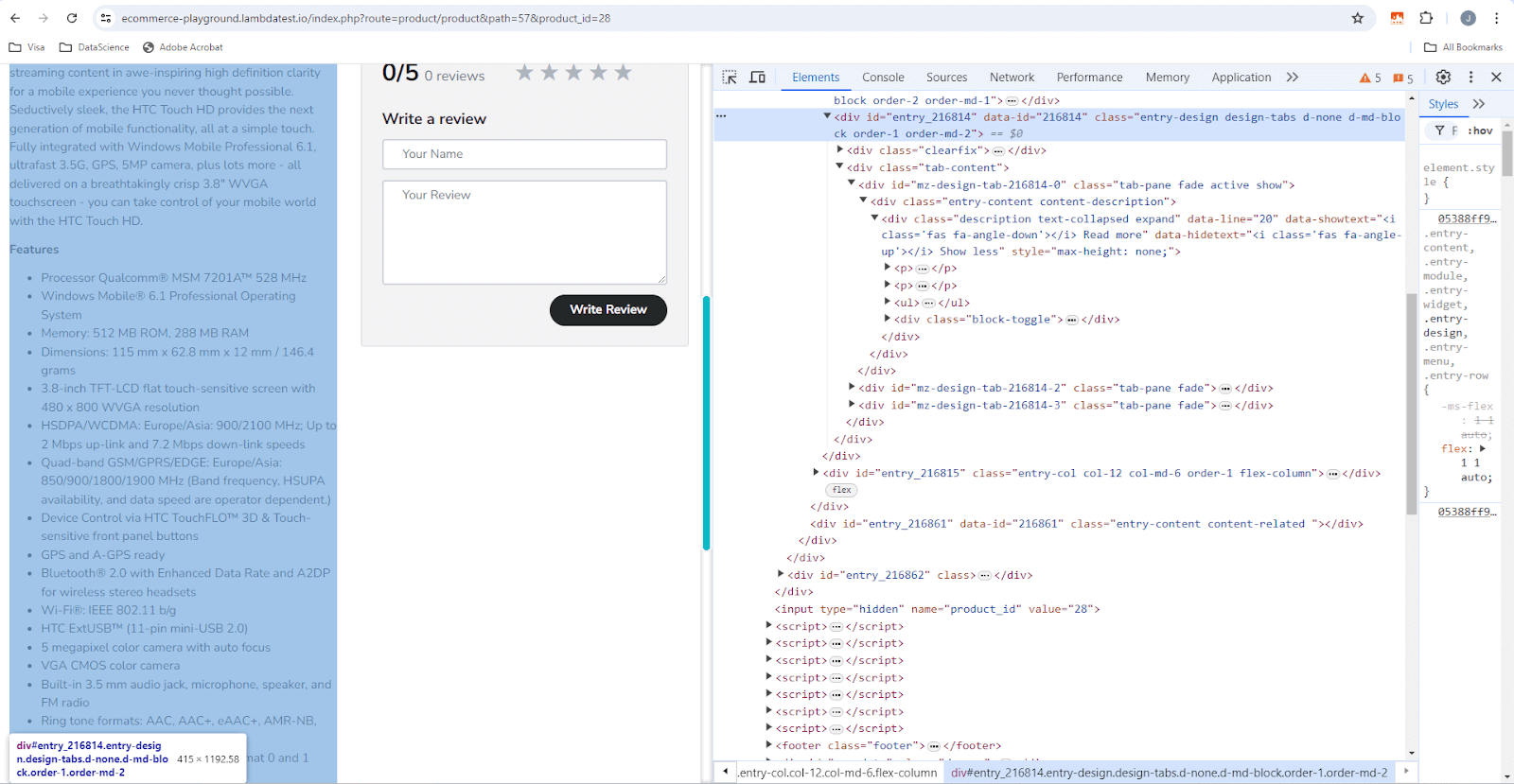
- On the product page of TestMu AI eCommerce Playground, there should be multiple occurrences of the brand HTC.
- There should be ten matches.
Implementation:
# replace cloud_grid_page with local_grid_page while running on local
def test_product_name_to_appear_more_than_once(cloud_grid_page):
    cloud_grid_page.goto(
        "https://ecommerce-playground.lambdatest.io/index.php?route=product/product&path=57&product_id=28"
    )
    brand_name_locator = cloud_grid_page.get_by_text(re.compile("htc", re.IGNORECASE))
    expect(brand_name_locator).to_have_count(10)

Code Walkthrough:
- Upon inspecting the product page, there are ten brand name ‘htc’ occurrences.
- In preparing the locator, we use the Python re module to match all occurrences and IGNORECASE.
- On the expect() assertion, we call the to_have_count() method to complete our test.
Test Execution:
Let’s run the test using the following command:
pytest -v -k “test_product_name_to_appear_more_than_once”
Locating Elements Using Playwright Test Generator
We have been writing the tests manually by inspecting the DOM. But since we are talking about an automation framework, it only makes sense that Playwright has something which can assist and automate part of locating elements on a web page. Playwright has a powerful feature called the Test Generator, which can help you locate the elements and make it easier to write tests.
My only feedback about this feature is that it’s called Test Generator. The command to start it has the word codegen, and the subsequent generator that starts has the title, Playwright Inspector. I wish Microsoft would fix this and agree on one name to simplify lives.
To start the Test Generator, we simply use the command shown below:
playwright codegen https://ecommerce-playground.lambdatest.io/
Feel free to replace the URL with the website you intend to write tests for.
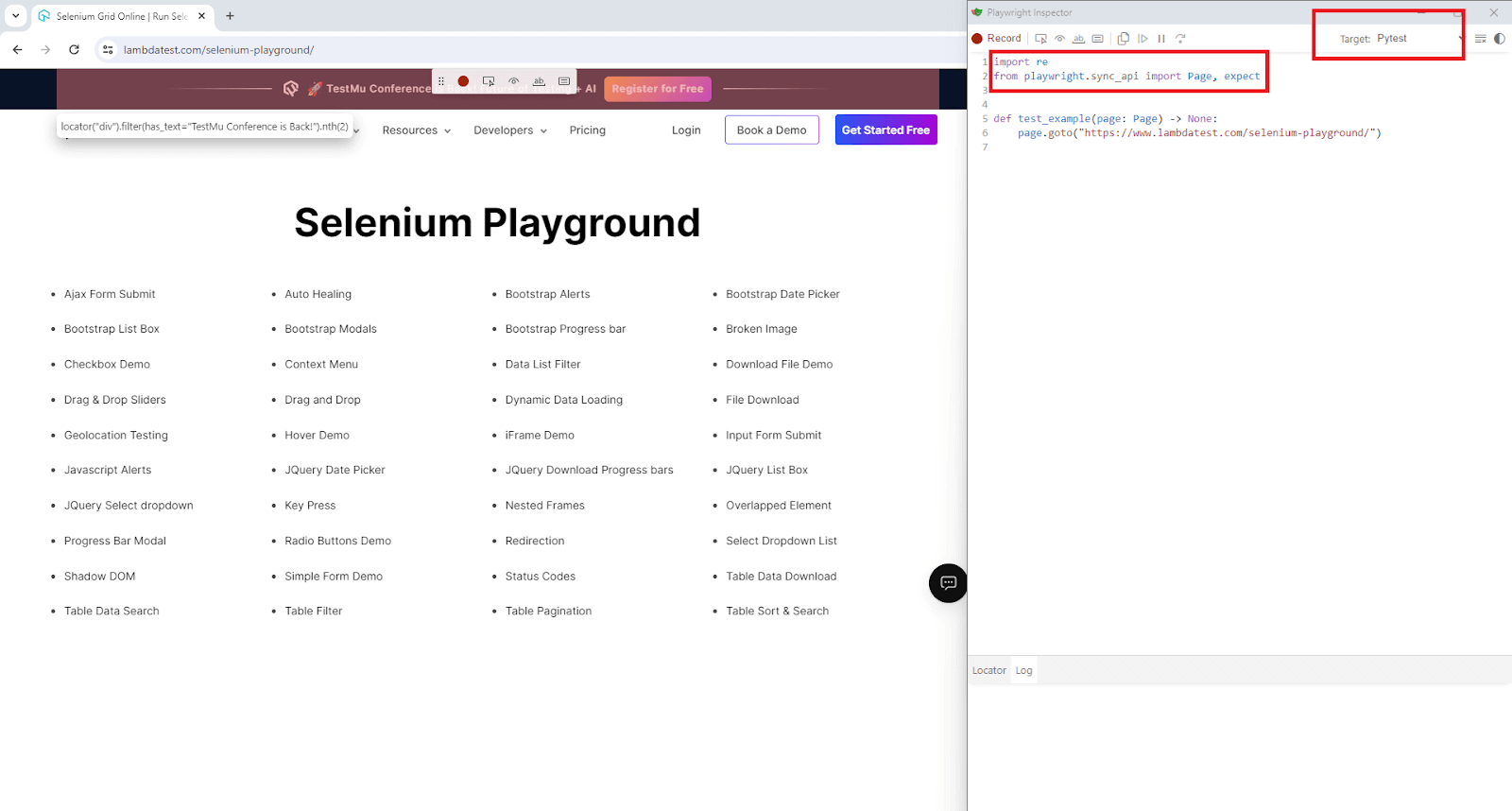
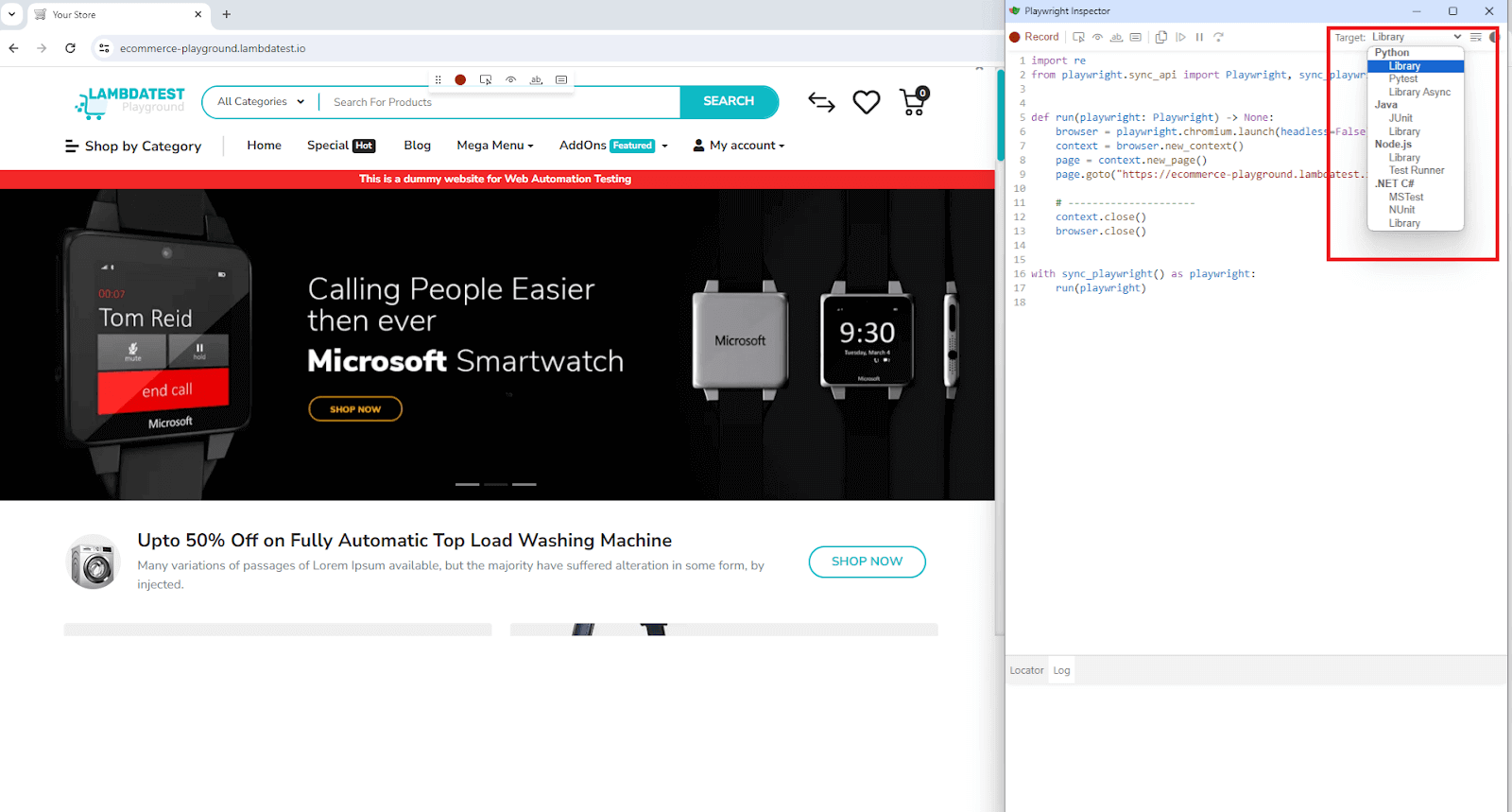
The Test Generator will generate the code for us based on our actions. The best thing about the Test Generator is that you can choose your intended programming language. I have chosen Python for this blog, but Playwright allows you to choose whichever you wish from the drop-down highlighted in red.
Based on your selection, the Test Generator will write the code for us.
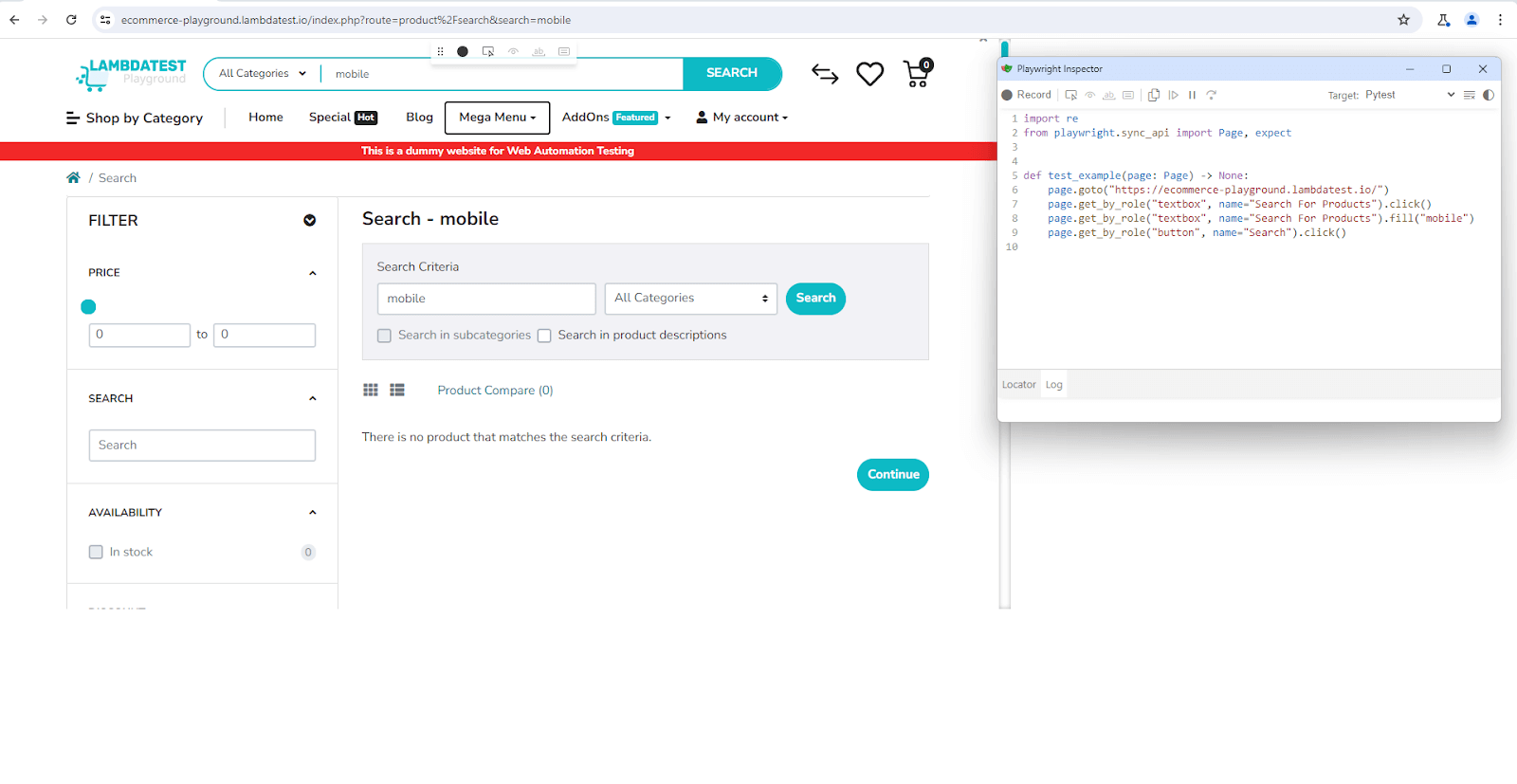
We want to locate the search bar, type in mobile, and hit the Search button. Here is the snapshot of the actions performed and the code the Test Generator was able to write code for us with all the locators. We can then use these locators to run tests using the except() assertion.
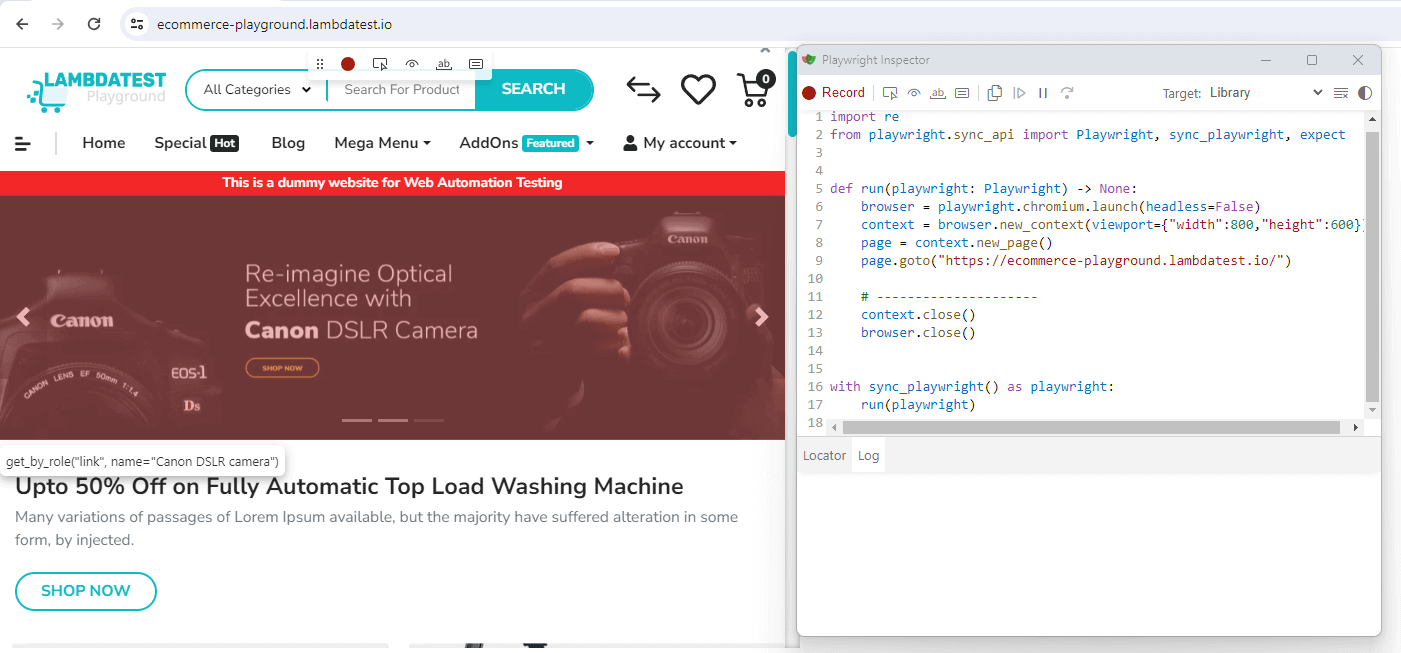
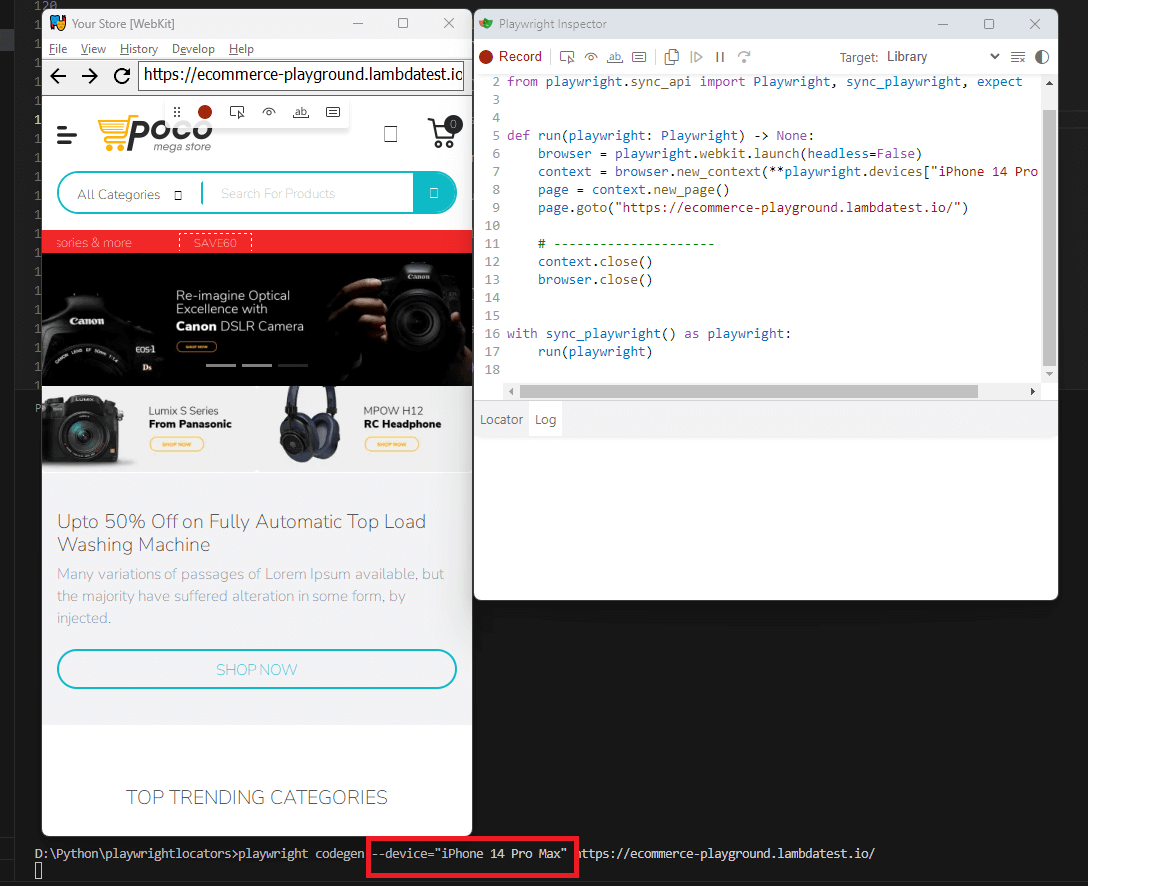
The Playwright Test Generator also has several built-in options to emulate devices, such as viewport sizes, color schemes, geolocation, time zones, etc.
- Emulate Viewport Size: Notice how Playwright generates all the boiler-plate code for setting the viewport as a fixture.
playwright codegen --viewport-size=800,600 https://ecommerce-playground.lambdatest.io/
playwright codegen --device=”iPhone 14 Pro Max” https://ecommerce-playground.lambdatest.io/
Understanding how to use Playwright locators effectively is an essential step in building reliable automation tests. Once you’re comfortable with these locators, you can move on to more advanced tasks, such as handling alerts and dropdowns, interacting with iframes, managing multiple windows, and performing other complex operations, enabling you to create robust and versatile Playwright automation scripts.

Note: Run automated Playwright tests online. Try TestMu AI Now!
Filtering and Chaining With Playwright Locators
In modern software development, which strongly advocates code reuse and principles like Don’t Repeat Yourself (DRY), there may be instances where we need to refine our results to pinpoint particular elements.
To handle this narrowing down of elements efficiently, Playwright has us covered by providing the ability to filter and chain locators.
Filtering is used to narrow down the search for elements on a web page by specifying additional conditions that must be met. For example, you can use the filter(has_text=) to find an element containing a specific text piece.
Chaining is used to combine multiple locators in a single search. For example, you can use the get_by_text() and get_by_role() locators to find an element with a specific text and a specific role.
Filtering Playwright Locators
Playwright locators can be filtered by text. This search is case-insensitive and can also be done via regular expression. Playwright locators can also be filtered by not having text. For both cases, the method used is the locator.filter().
Filtering by Text
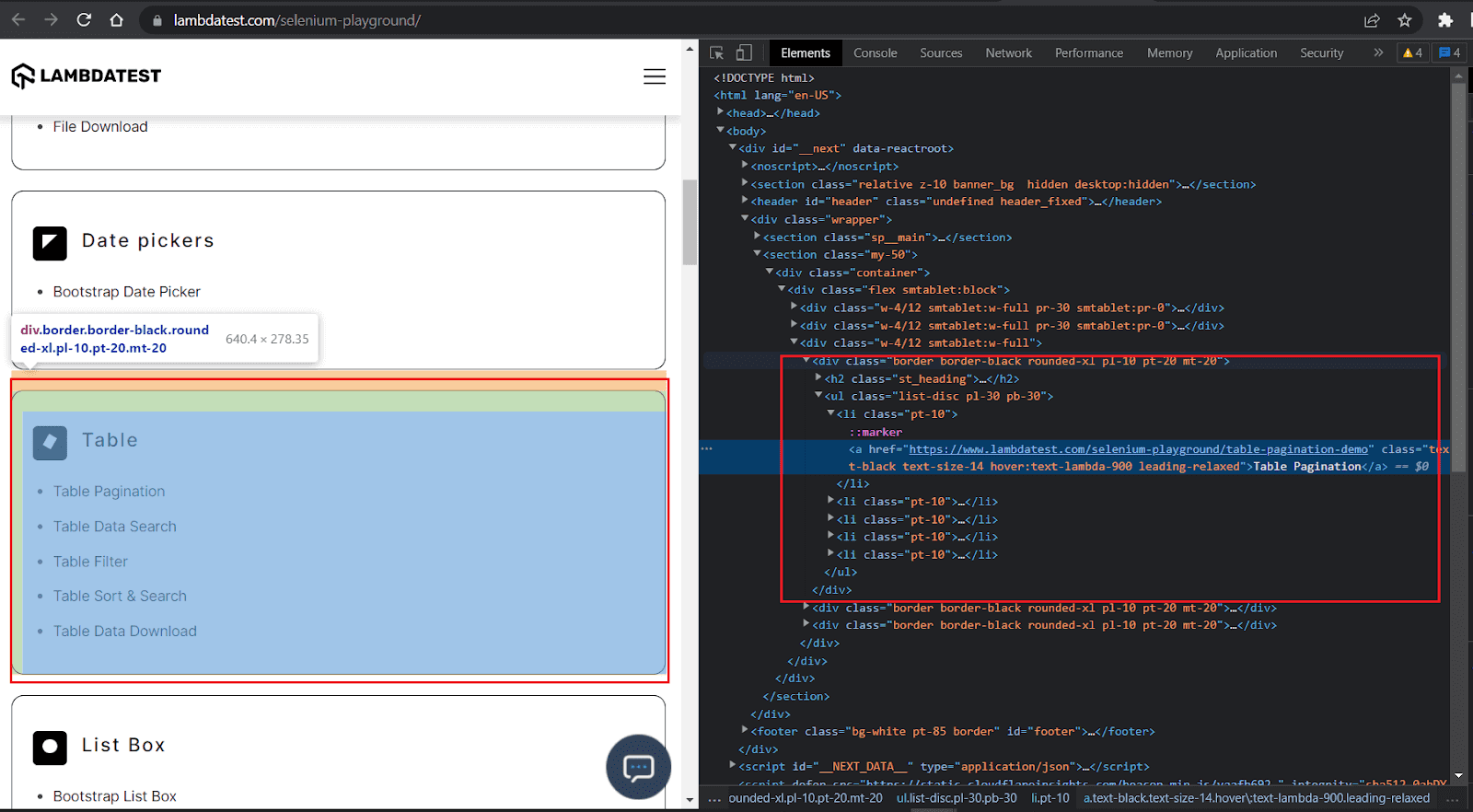
To understand filtering by text, let’s use the LambaTest Selenium Playground website but a different list with a lot of text with the word ‘Table’.
Test Scenario:
- Locate the list containing the word Table.
- Ensure the list has five items.
Implementation:
# replace cloud_grid_page with local_grid_page while running on local
def test_locator_filter_by_text(cloud_grid_page):
    cloud_grid_page.goto(
        "https://www.lambdatest.com/selenium-playground/"
    )
    base_locator = cloud_grid_page.get_by_role("listitem")
    table_list_locator = base_locator.filter(
        has_text=re.compile("table", re.IGNORECASE)
        )
    expect(table_list_locator).to_have_count(5)
Code Walkthrough:
- The steps till we set up the base_locator remain the same.
- From there, instead of using another locator-based filter, we filter based on text=’table’ by passing it to the filter() method.
- The demo website inspection clearly shows the table list has five items, which is what we assert in the except() method.
Test Execution:
Let’s execute the test using the below command:
pytest -v test_playwright_locators.py::test_locator_filter_by_text.
Filtering by not having Text
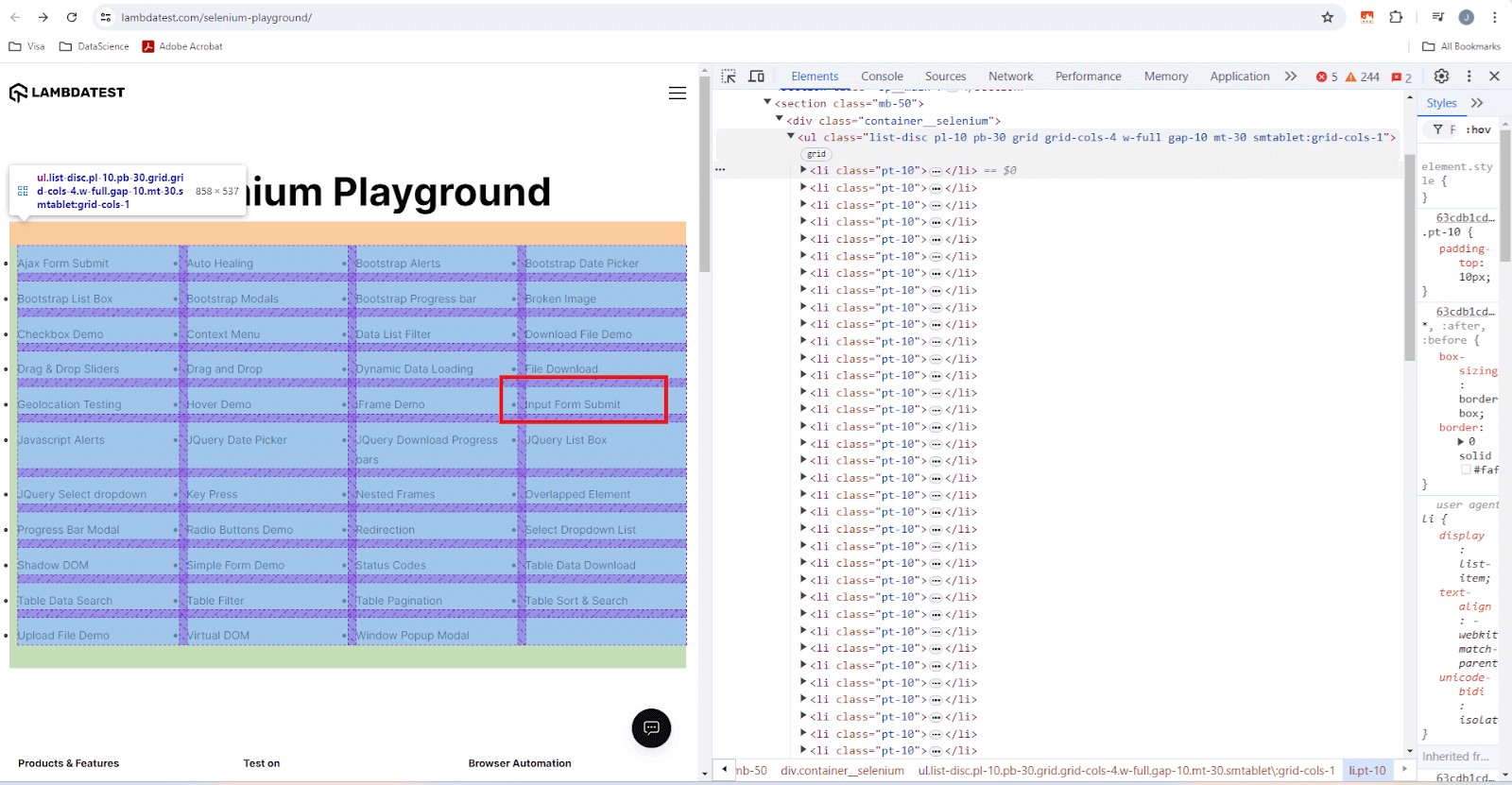
To understand filtering by not having text, let’s use the LambaTest Selenium Playground website, which has a nice block containing list items.
Test Scenario:
- Locate the list containing input forms.
- Filter and locate the Input Form Submit list item.
Implementation:
# replace cloud_grid_page with local_grid_page while running on local
def test_locator_filter_by_another_locator(cloud_grid_page):
    cloud_grid_page.goto(
        "https://www.lambdatest.com/selenium-playground/"
    )
    base_locator = cloud_grid_page.get_by_role("listitem")
    list_heading_locator = base_locator.filter(
        has=cloud_grid_page.get_by_text(text=re.compile("input form submit", re.IGNORECASE))
        )
    expect(list_heading_locator).to_have_text('Input Form Submit')
Code Walkthrough:
- We form the base_locator using the get_by_role() locator and the ARIA role listitem.
- The base_locator will contain all the lists on the page.
- We narrow our lookup by calling the filter() method on our base_locator.
- In the filter, we use the recommended get_by_text() locator and also make sure we handle case sensitivity using regular expressions by searching for the text ‘input for submit’. This filtered locator is called list_heading_locator.
- On the filtered list_heading_locator, we call the except() assertion and ensure we have only located the exact list item (for input form submission) that we intended to locate.
Test Execution:
Let’s execute the test using the following command:
pytest -v -k “test_locator_filter_by_another_locator”

Chaining Playwright Locators
It’s not always possible for a single locator to locate the exact element on a web page. In such scenarios, chaining is the second method to narrow the search to a specific element by combining multiple Playwright locators.
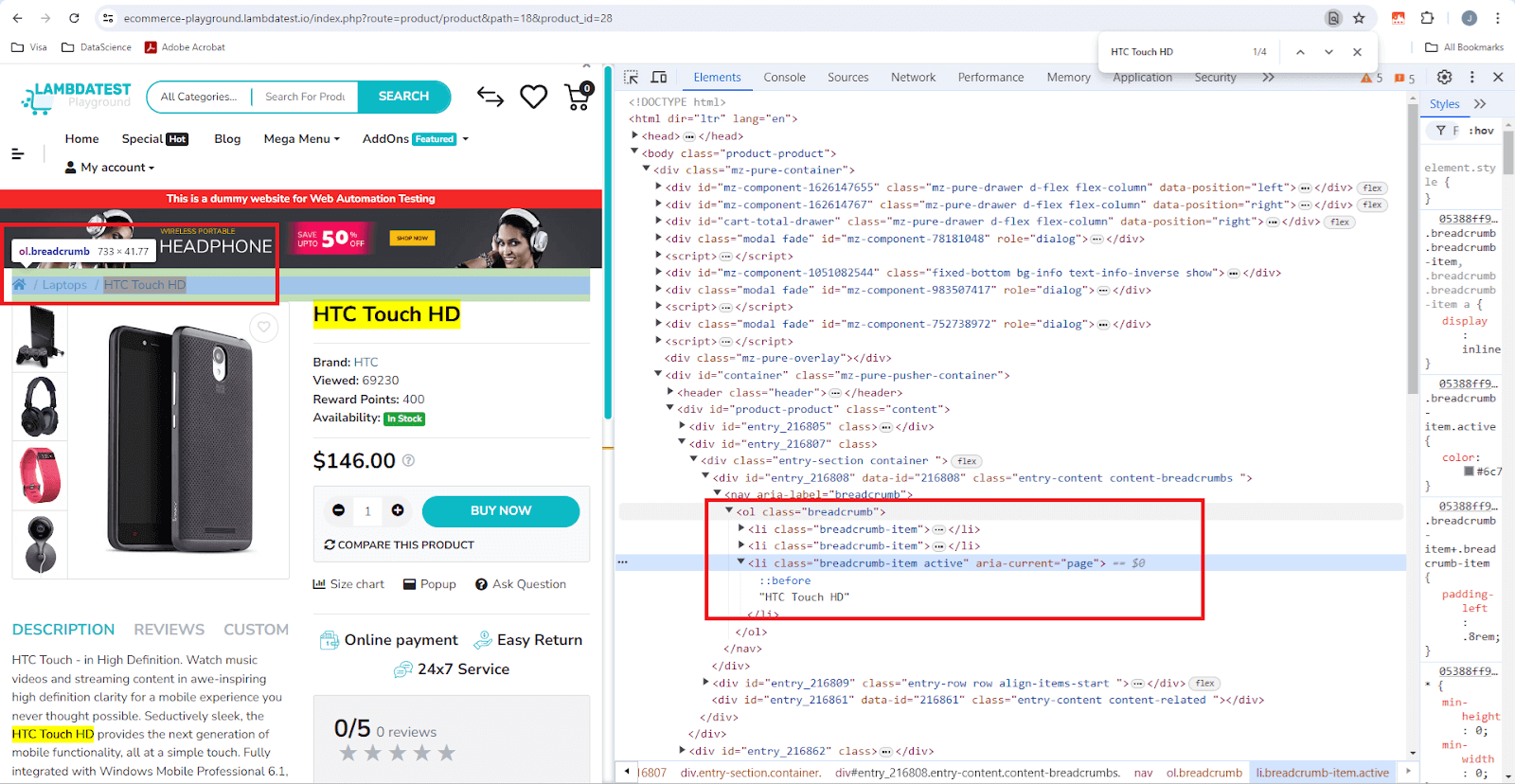
Test Scenario:
- Locate the HTC Touch HD active breadcrumb on the TestMu AI eCommerce website.
- Expect it to be visible.
Implementation:
# replace cloud_grid_page with local_grid_page while running on local
def test_locator_chaining(cloud_grid_page):
    cloud_grid_page.goto("https://ecommerce-playground.lambdatest.io/index.php?route=product/product&path=18&product_id=28")
    breadcrumb_locator = cloud_grid_page.get_by_label("breadcrumb").get_by_text("HTC Touch HD")
    expect(breadcrumb_locator).to_be_visible()
Code Walkthrough:
- The first locator get_by_label(“breadcrumb”) will locate the breadcrumbs section as shown on the top left.
- The get_by_text(“HTC Touch HD”) will filter out the exact one from the three that are visible.
- Lastly, the except() assertion checks if the located breadcrumb is visible.
Test Execution:
Let’s execute the test using the following command:
pytest -v -k “test_locator_chaining”.
Having explored the power of filtering and chaining locators in Playwright, it’s essential to understand how selectors play a crucial role in this process. Playwright selectors are the foundational tools that enable precise interactions with web elements. By utilizing various selector types—such as CSS, XPath, and text selectors—you can effectively target elements in a way that complements the filtering and chaining methods we just discussed.
Selectors are vital for optimizing test accuracy and efficiency, ensuring that your tests remain robust even as the complexity of the application grows.
To understand Playwright Selectors better, follow the video given below
Conclusion
Playwright locators allow you to locate and interact with elements on a web page with the ability to locate elements by their attributes, role, text, label, alt-text, etc. Understanding the locators, filtering, and chaining and how to use them effectively is essential for writing efficient and reliable Playwright tests.
Moreover, the Playwright Test Generator can help you quickly and easily create boilerplate code for locating elements. The time and effort saved can be used to focus on more important tasks like writing resilient tests and improving coverage.


Frequently asked questions
Did you find this page helpful?
More Related Hubs
TestMu AI forEnterprise
Get access to solutions built on Enterprise
grade security, privacy, & compliance
- Advanced access controls
- Advanced data retention rules
- Advanced Local Testing
- Premium Support options
- Early access to beta features
- Private Slack Channel
- Unlimited Manual Accessibility DevTools Tests