

Next-Gen App & Browser Testing Cloud
Trusted by 2 Mn+ QAs & Devs to accelerate their release cycles


How to Integrate Playwright With Cucumber
Learn how to integrate Playwright with Cucumber for efficient, readable, and maintainable end-to-end testing. Set up, write tests, and run on a cloud grid.

Dastan
December 30, 2025
Playwright with Cucumber combines the power of Playwright’s browser automation with Cucumber’s BDD approach for writing tests in plain language. This combination of Playwright with Cucumber enhances test readability and maintainability, making it easier to create robust, automated tests for web applications.
What Is Playwright?
Playwright is a Node.js library developed by Microsoft to automate browsers. It enables writing end-to-end tests for web applications, offering fast, reliable, and easy-to-use features. Playwright has gained significant popularity in the testing community due to its powerful capabilities and strong community support. It has over 67.4k stars on GitHub and is used by companies like Microsoft, Google, and Mozilla.
What Is Cucumber?
Cucumber is a testing library for Behavior Driven Development (BDD), allowing developers to write tests in plain English. It reads human-readable descriptions of software behavior and tests to ensure the software behaves as expected. This helps bridge the communication gap between developers, testers, and business stakeholders.
Behavior Driven Development(BDD) is a software development process that encourages collaboration between developers, QA, and non-technical stakeholders. It allows stakeholders to suggest features and ensure the software meets expectations and industry standards, even if they don’t understand technical jargon or know how to write code.
This is achieved by using a common, easy-to-understand language called Gherkin.
What Is Gherkin?
Gherkin is a domain-specific language written in plain English that allows you to describe software behavior without specifying how it’s implemented. It uses a simple structure:
Feature, Scenario, Given, When, Then, And, But.
Example of a Gherkin Feature File:
Feature: Perform Google Search
 As a user,
 I want to use Google to search for terms
 So that I can find relevant information quickly.
 Scenario: Execute a Search Using a Specific Keyword
   Given the user is on the Google homepage
   When the user enters "Playwright" into the search field
   Then the search results related to "Playwright" should be displayed
Breakdown of the Gherkin feature file:
- Feature: Describes the feature being tested. In this case, performing a Google search.
- Scenario: A specific use case or situation under the feature. Here, it describes performing a search with a keyword.
- Given: Sets up the initial context. The user is on the Google homepage.
- When: Describes the action taken by the user. The user enters a search term.
- Then: Describes the expected result. The search results related to the keyword should be displayed.
The other Gherkin keywords, And and But, are used for applying conditions used in rare cases depending on the need, for example:
And is used to add additional positive conditions or outcomes, while But is used to introduce negative conditions or outcomes.
Gherkin is a great tool for writing tests in a way that both technical and non-technical stakeholders can understand. However, integrating it with Playwright can be complex, and that’s where Cucumber comes in to simplify the process.

Note: Streamline your end-to-end Playwright tests in a language everyone can understand and make your tests more efficient, readable, and maintainable. Try TestMu AI Today!
Why Integrate Playwright With Cucumber?
Integrating Playwright with Cucumber enhances both efficiency and readability in your test automation framework. Playwright offers robust browser automation support, compatible with modern frameworks like React, Angular, and VueJS, enabling complex and reliable test execution.
Cucumber simplifies test writing by allowing tests to be described in plain English (Gherkin), making them easily understandable by both technical and non-technical stakeholders. This abstraction hides the complexity of code, making it easier for manual testers to contribute to test automation.
This combination accelerates automation adoption, allowing testers with minimal coding experience to quickly write and execute automated tests while also promoting collaboration across teams.
Now that you understand what Playwright, Cucumber, and Gherkin are, let’s gather the necessary tools and libraries to get hands-on practice with how Playwright and Cucumber work together.
How to Set Up Playwright With Cucumber?
To get started with Playwright with Cucumber, follow these steps:
- Install Playwright if it’s not already installed on your system.
- Use any IDE, but for this example, we’ll use VSCode.
- After installing Playwright and VSCode, add the following extensions:
- Cucumber VSCode Extension: This extension provides a language server for Cucumber, offering features like auto-completion, “go to definition,” warnings for undefined steps, and more.
- Cucumber (Gherkin) Full Support: This extension provides syntax highlighting, auto-completion, snippets for Gherkin, and additional features to enhance your development experience.
Now that you have the pre-requisite in place, let’s further set up a new Playwright project with Cucumber.
Setting Up Playwright
- Playwright provides a CLI tool to create a new project with a single command. You can use npm, yarn, or pnpm. For this demonstration, we will use pnpm.
Run the following command to create a new project:
pnpm create playwright <project-name>Replace <project-name> with your preferred project name.
For example:
pnpm create playwright playwright-cucumber - Answer Playwright’s Setup Questions:
- Do you want to use TypeScript or JavaScript?: Choose TypeScript or JavaScript if you prefer. For this demonstration, we will be using TypeScript.
- Where to put your end-to-end tests?: The default folder is tests. You can leave it as is.
- Add a GitHub Actions workflow file?: Choose yes if you want to integrate GitHub Actions with your project. I will show you how to set it up later.
- Install Playwright browsers?: Choose yes to install the browsers that Playwright supports. Alternatively, you can run the
pnpm exec playwright installto install the browsers later. - Playwright will automatically download all the necessary dependencies that you need to start writing tests with Playwright.
- Here is the project structure that the Playwright creates for you:
Once the setup is complete, you can see a message with the commands you can use to run Playwright tests.
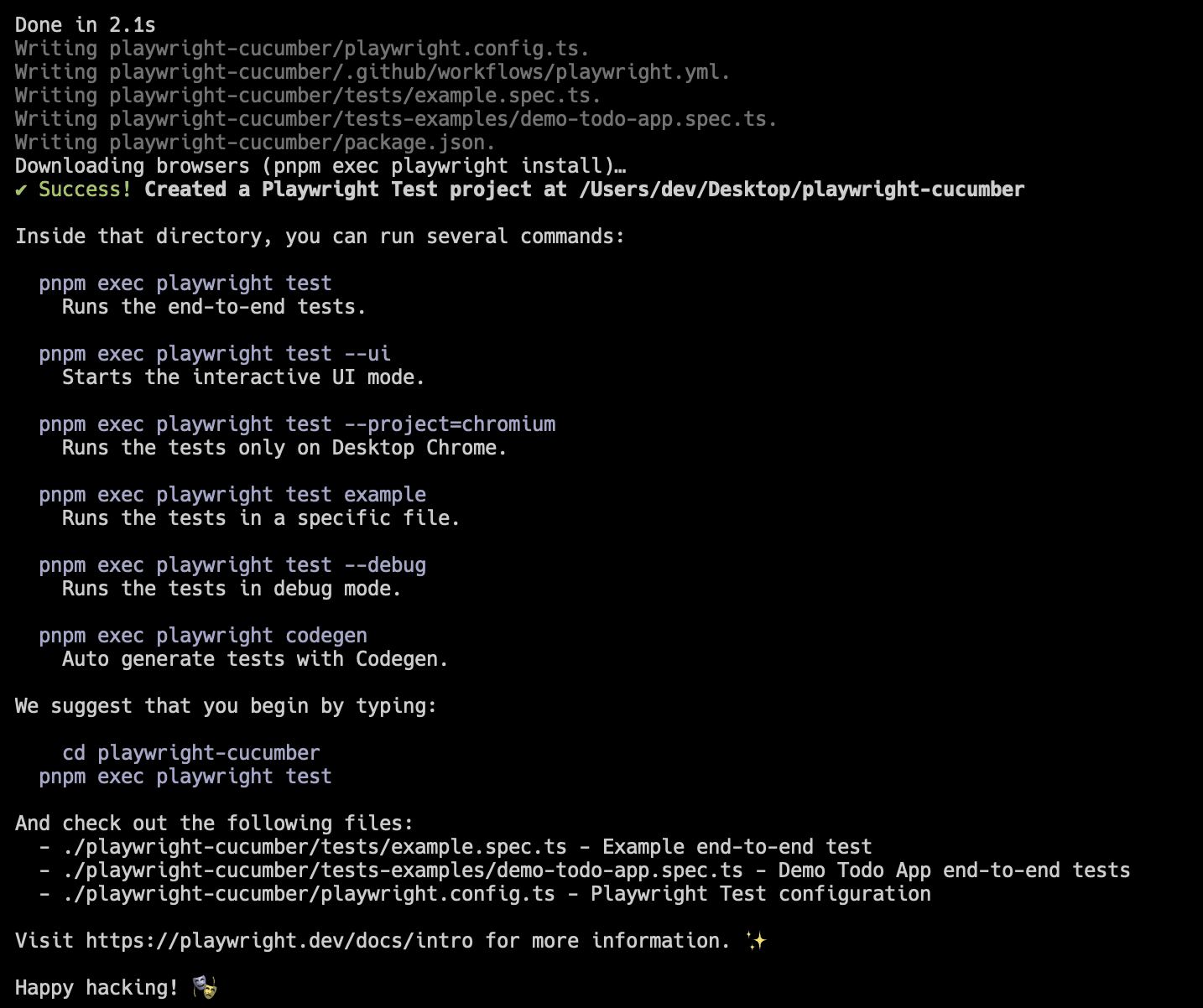
.
└── playwright-cucumber
   ├── .github
   │   └── workflows
   │       └── playwright.yml
   ├── node_modules
   ├── tests
   │   └── example.spec.ts
   ├── tests-examples
   │   └── demo-todo-app.spec.ts
   ├── .gitignore
   ├── package.json
   ├── playwright.config.ts
   └── pnpm-lock.yaml
Setting Up Cucumber
- Now that we have the basic Playwright project set up, you need to install Cucumber to start writing tests in Gherkin.
Run the following command to install Cucumber:
pnpm add -D @cucumber/cucumber
The @cucumber/cucumber package will be installed in your project and specified in your package.json file.
ts-node. Since TypeScript is already installed when you create the Playwright project, there’s no need to install it again.Run the following command to install ts-node:
pnpm add -D ts-node
Steps:
- Create a new file called cucumber.js in the root of the project.
- Add the following configuration in the cucumber.js file:
const options = [
 '--require-module ts-node/register',
 '--require tests/steps/**/*.ts',
 '--format progress',
].join(' ');
const features = ['tests/features/', options].join(' ');
module.exports = {
 default: features,
};
In this configuration:
- You must use require-module to load ts-node/register to make Cucumber work with TypeScript.
- You require the step definitions from the tests/steps directory (which we’ll create later).
- The features variable specifies the location of the feature files, which will be in the tests/features/ directory (we’ll create this folder later).
- The features variable is exported as the default configuration, which will be picked up whenever the
pnpm exec cucumber-jsornpx cucumber-jsis run.
Now that you have set up Playwright and Cucumber, it’s time to start writing tests. Further section, you will learn how to write tests using Playwright with Cucumber, leveraging Gherkin for easy collaboration and readability.
How to Write Tests Using Playwright With Cucumber?
Writing tests using Playwright with Cucumber allows you to seamlessly integrate Behavior-Driven Development (BDD) with robust test automation. By using Playwright with Cucumber, you can create readable and maintainable tests while leveraging Playwright’s powerful browser automation capabilities.
Feature Files
Before writing the actual tests, we need to define the feature files. Feature files are written in Gherkin and describe the behavior of the application.
Let’s create a new directory in the tests folder called features and create a new file named submit-form.feature.
└── playwright-cucumber
   ├── ...
   ├── tests/
   │   ├── features/  # Add this directory
   │   │   └── submit-form.feature  # Add this file
   │   └── ...
   └── ...
Let’s write a simple feature file that describes the ability to submit a form with a message:
Feature: Display a message when a form is submitted
  As a user,
  I want to submit a form with a message
  So that I can see the message displayed on the page.
Scenario: Submit a form with a message
  Given the user is on the form page
  When the user enters "Hello, World!" into the message field
  And the user clicks the submit button
  Then the message "Hello, World!" should be displayed on the page
In this feature file, we’re describing the ability to submit a form with a message, and we define a scenario that outlines the steps to submit a form with a message.
- Given: The user is on the form page.
- When: The user enters “Hello, World!” into the message field.
- And: The user clicks the submit button.
- Then: The message “Hello, World!” should be displayed on the page.
The World Object in Cucumber
Cucumber provides a way to share state between step definitions using the world object. The world object is a global object that is shared between all step definitions, and it’s a good place to store shared states and functions. You can also define hooks in the same file to run code before or after the tests.
Create a new file in the tests/steps directory called world.ts:
└── playwright-cucumber
   ├── ...
   ├── tests/
   │   ├── steps/  # Add this directory
   │   │   └── world.ts  # Add this file
   │   └── ...
   └── ...
In the world.ts file, we’ll write a Before and After hook that runs before and after the tests:
import { After, Before, setDefaultTimeout } from '@cucumber/cucumber';
import { Browser, Page, chromium } from '@playwright/test';
let page: Page;
let browser: Browser;
setDefaultTimeout(60000);
Before(async () => {
  browser = await chromium.launch();
  page = await browser.newPage();
});
After(async () => {
  await browser.close();
});
export { page, browser };
In the Before hook, we’re launching a new browser and creating a new page before the tests are run. You are using the Chromium browser, but you can use Firefox or WebKit if preferred.
In the After hook, we’re closing the browser after the tests are done. We also use setDefaultTimeout to set the default timeout for tests to 60 seconds.
Finally, you can export the page and browser objects so they can be used in step definitions.
Setting a Custom World Object
You can set up your own custom World object using the setWorldConstructor function. This allows you to define a custom World object with properties and methods.
Here’s how to set up a custom World object:
import { setWorldConstructor, World } from '@cucumber/cucumber';
class CustomWorld extends World {
  customProp = "I'm a custom prop";
  constructor(options) {
    super(options);
  }
}
setWorldConstructor(CustomWorld);
You can use the custom properties in step definitions as follows:
import { When } from '@cucumber/cucumber';
When('I do something', async function () {
  console.log(this.customProp);
});
If you want to use this keyword in step definitions, remember to use the function keyword instead of an arrow function. Although this setup is useful, it’s not needed for this tutorial.
Writing Step Definitions
Now that we’ve written our feature file and set up the world.ts file, you can start writing the step definitions. Step definitions are the code that interacts with the browser and performs the actions described in the feature file. To generate the step definitions, you can run the following command:
pnpm exec cucumber-js
Running the command will instruct Cucumber to read the feature files in the tests/features directory and generate the step definitions. These definitions will be printed in the console.
You can then copy the generated step definitions and paste them into their corresponding files in the tests/steps directory.
In this case, the feature file is located in tests/features/submit-form.feature, so you need to create a new file called submit-form.ts in the tests/steps directory:
└── playwright-cucumber
   ├── ...
   ├── tests/
   │   ├── steps/  # Add this directory
   │   │   └── submit-form.ts  # Add this file
   │   └── ...
   └── ...
Now, let’s copy the generated step definitions into the submit-form.ts file. The generated step definitions will look like this:
import { page } from './world';
import { Given, When, Then } from '@cucumber/cucumber';
import { expect } from '@playwright/test';
Given('the user is on the form page', async function () {
  await page.goto('https://www.lambdatest.com/selenium-playground/simple-form-demo');
});
When('the user enters {string} into the message field', async function (message: string) {
  await page.fill('#user-message', message);
});
When('the user clicks the submit button', async function () {
  await page.click('#showInput');
});
Then('the message {string} should be displayed on the page', async function (message: string) {
  const text = await page.innerText('#message');
  expect(text).toBe(message);
});
Code Walkthrough:
- At the top, you must import the Given, When, and Then functions from @cucumber/cucumber and the expect function from @playwright/test.
- You must also import the page object from the world.ts file, which you defined earlier. This object will be used to interact with the browser.
- Since the Before and After hooks are already defined in world.ts, you don’t need to launch a new browser or create a new page in the step definitions. These will be handled automatically.
- In the Given step, we navigate to the form page using page.goto.
- In the When step, we fill in the message field with the message defined in the feature file using page.fill.
- In the second When step, we click the Submit button using page.click.
- In the Then step, you get the text of the displayed message using page.innerText and assert that it matches the expected message using expect.
Running the Tests
Run the following command to execute the tests:
Running the Tests in Headed Mode
If you want to run the tests in headed mode (to see the browser running), update your world.ts file to launch the browser in headed mode:
Before(async () => {
  browser = await chromium.launch({
    headless: false, // <-- Change this to false
  });
  page = await browser.newPage();
});
Note: Running tests in headed mode is useful for debugging, but it’s not recommended for CI/CD pipelines, as most pipelines don’t have a display to show the browser, and tests are typically slower in headed mode.
How to Generate Reports Using Playwright With Cucumber?
It would also be great to generate reports for the tests that you run so that you can see which tests passed and which tests failed. For this, you need a library called cucumber-html-reporter, which generates HTML reports for the tests.
You need to install dayjs to format the date in the report.
Run the following command to install the necessary packages:
pnpm add -D cucumber-html-reporter && pnpm add dayjs
After the packages are installed, create a JavaScript file to customize generating the report. Create a new file called report.js in the root of the project:
.
└── playwright-cucumber
   ├── ...
   ├── report.js  # Add this file
   └── ...
In the report.js file, write the code to generate the report:
const reporter = require("cucumber-html-reporter");
const dayjs = require("dayjs");
const fs = require("fs");
const currentDate = dayjs().format("YYYY_MM_DD_HH_mm_ss_SSS");
const options = {
  brandTitle: "Feature Test Report",
  theme: "bootstrap",
  jsonFile: "Reports/cucumber_report.json",
  output: "Reports/cucumber_report_" + currentDate + ".html",
  screenshotsDirectory: "./Screenshots/",
  storeScreenshots: true,
  reportSuiteAsScenarios: true,
  launchReport: true,
};
// Making the directory if it doesn't exist
if (!fs.existsSync("Reports")) {
  fs.mkdirSync("Reports");
}
if (!fs.existsSync("Screenshots")) {
  fs.mkdirSync("Screenshots");
}
reporter.generate(options);
In the code above, you require the cucumber-html-reporter and dayjs packages and defining the options for the report:
- brandTitle: The title of the report.
- theme: The theme of the report.
- jsonFile: The location of the JSON file that contains the test results.
- output: The location of the HTML report that will be generated.
- screenshotsDirectory: The location of the screenshots that will be taken on failure.
- storeScreenshots: Whether to store the screenshots or not.
- reportSuiteAsScenarios: Whether to report the suite as scenarios or not.
- launchReport: Whether to launch the report after it’s generated or not.
After defining the options, the reporter.generate function is called to generate the report based on these options.
Next, update the cucumber.js file to generate the JSON report file:
const options = [
 "--require-module ts-node/register",
 "--require tests/steps/**/*.ts",
 "--format progress",
 "--format json:Reports/cucumber_report.json",
].join(" ")
...
Essentially, after Cucumber runs the testsenerates a JSON report file containing the test results. The location of the JSON file is specified in the –format json:Reports/cucumber_report.json option.
Once the JSON file is generated, you can use the report.js file to generate the HTML report.
To run the tests, use the following command:
pnpm exec cucumber-js && node report.js
You can also put this inside the package.json file as a script:
{
  "scripts": {
    "test": "pnpm exec cucumber-js && node report.js"
  }
}
Now, you can run the tests using:
pnpm test
This will generate an HTML report in the Reports directory with the name cucumber_report_<date>.html.
.
└── playwright-cucumber
   ├── ...
   ├── Reports/
   │   └── cucumber_report_<date>.html
   └── ...
The report will automatically open in your default browser.
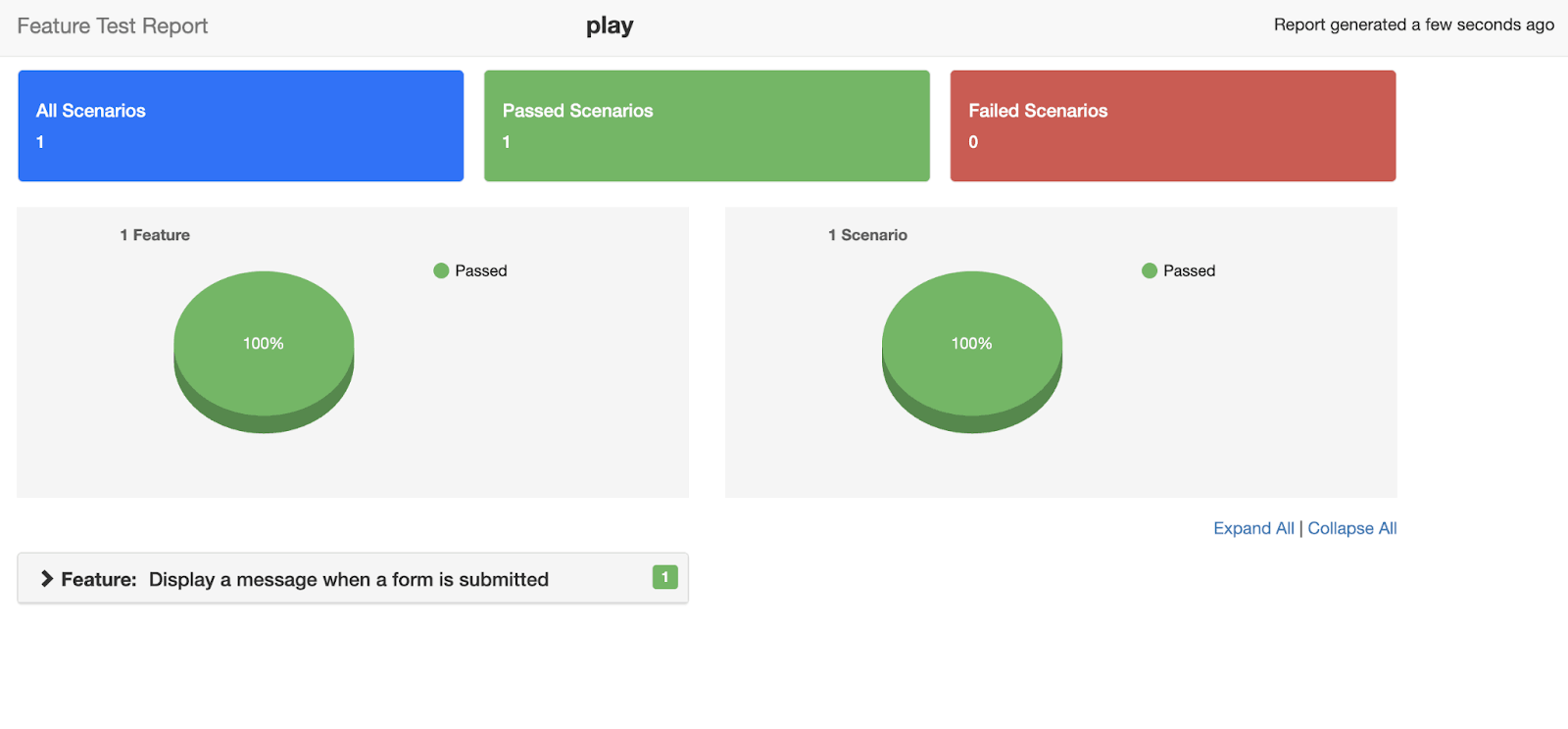
Taking Screenshots on Failure
Sometimes, when a test fails, it’s hard to debug the issue because you don’t know what happened in the browser when the test failed. To address this, it’s a good idea to take a screenshot of the browser when a test fails and save it in a directory called Screenshots.
Update the world.ts file to take a screenshot of the browser when a test fails:
After(async function (scenario) {
  if (scenario.result?.status === 'FAILED') {
    const screenshot = await page.screenshot({
      path: `./Screenshots/${scenario.pickle.name}.png`,
    });
    this.attach(screenshot, 'image/png');
  }
  await browser.close();
});
In the code above, we check if the test failed by inspecting the status property of scenario.result. If the test fails, you take a screenshot using page.screenshot and save it in the Screenshots directory with the name of the test. You then attach the screenshot to the test report using this.attach, so that we can see the screenshot in the report.
To simulate an error, modify the expected message in the submit-form.ts file:
Then('the message {string} should be displayed on the page', async function (message: string) {
  const text = await page.innerText('#message');
  expect(text).toBe('Hello, World'); // <-- Changed this to "Hello, World"
});
This should trigger an error when running the tests. To run the tests, use the following command:
If the test fails, a new screenshot will be generated in the Screenshots directory with the name of the test:
└── playwright-cucumber
   ├── ...
   ├── Screenshots/
   │   └── Submit a form with a message.png
   └── ...
Here is the screenshot generated when the test failed: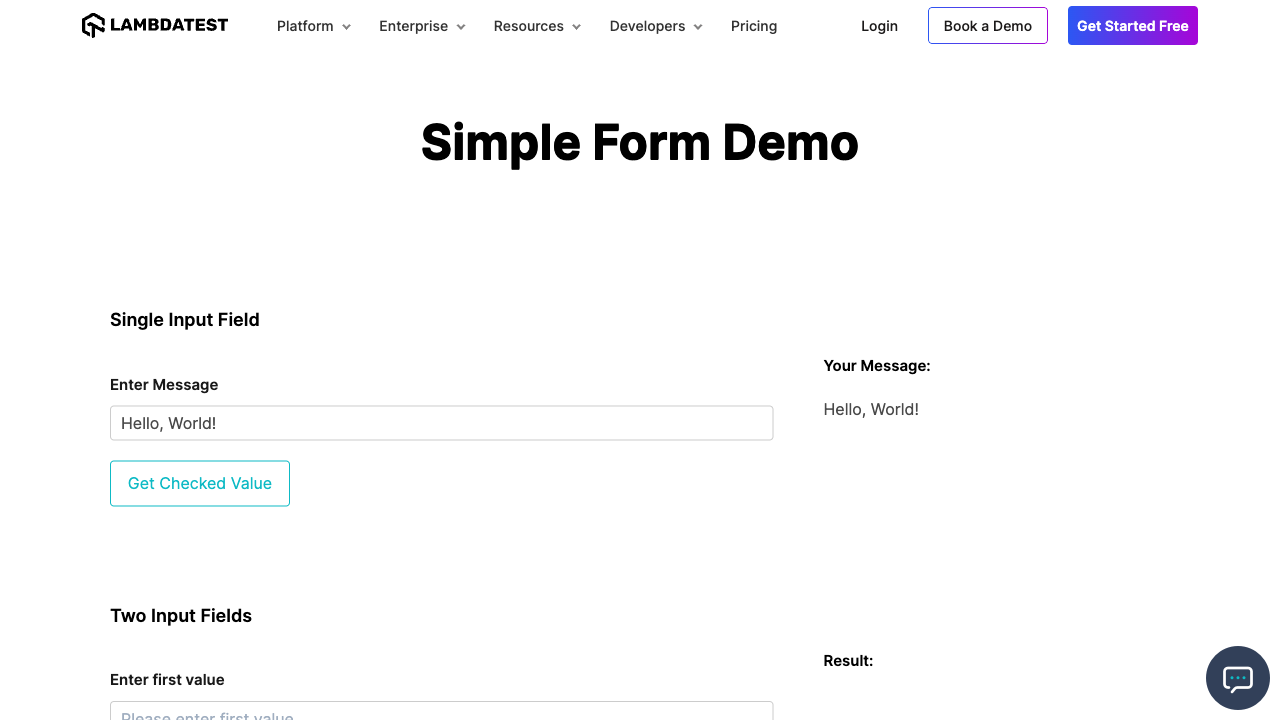
How to Run Tests Using Playwright With Cucumber on Cloud?
To scale your Playwright Cucumber tests across different environments, you can run them on a cloud grid, such as the TestMu AI platform. TestMu AI is an AI-powered test execution platform that allows you to run both manual and automated Playwright tests at scale across 3000+ real web browsers online. It also supports various testing frameworks and enables parallel testing, helping you execute tests faster and streamline your CI/CD pipelines.
By leveraging the cloud, you can execute tests on a wide variety of browsers and operating systems without the need for maintaining local infrastructure. This enhances test reliability and speed, especially when you want to test across multiple browser configurations.
For more details on running Playwright tests on a cloud grid, check out TestMu AI’s Playwright Cucumber JS example repository. This repository provides sample code to set up Playwright with Cucumber for testing on TestMu AI’s cloud grid.

To run your local Playwright Cucumber tests on the cloud, a few code modifications are required.
Follow the steps below to successfully execute your test scripts on TestMu AI.
- Go to your TestMu AI Account Settings > Password & Security to obtain your username and access key.
- Once you get the username and access key, create a .env file in the root of the project and add the following environment variables:
LT_USERNAME=<your-lambdatest-username>
LT_ACCESS_KEY=<your-lambdatest-access-key>dotenv package can handle this.Install it using the following command:
pnpm add dotenvBefore(async ({ pickle }) => {
const capabilities = {
browserName: "Chrome", // Browsers allowed: `Chrome`, `MicrosoftEdge`, `pw-chromium`, `pw-firefox` and `pw-webkit`
browserVersion: "latest",
"LT:Options": {
platform: "Windows 10",
build: "Playwright Cucumber Tutorial",
name: pickle.name,
user: process.env.LT_USERNAME,
accessKey: process.env.LT_ACCESS_KEY,
network: true,
video: true,
console: true,
},
}
browser = await chromium.connect({
wsEndpoint: `wss://cdp.lambdatest.com/playwright?capabilities=${encodeURIComponent(
JSON.stringify(capabilities)
)}`,
})
page = await browser.newPage()
})
Here’s a breakdown from the code above:
- Importing config() from the dotenv package: This reads environment variables from the .env file. It must be placed at the top of the world.ts file to ensure the variables are loaded before the tests run.
- Creating a capabilities object in the Before hook: This object defines browser settings, such as the browser version, platform, build name, test name, TestMu AI username, access key, and logging options like network, video, and console logs. These values can be customized as needed.
- Connecting to TestMu AI instead of launching a local browser: Instead of using the browser.launch(), you can use browser.connect() to connect to the TestMu AI Playwright runner via the wsEndpoint option, passing the capabilities object as a query parameter. A new page is then created.
With this setup, tests will no longer run on the local browser. Instead, they will be executed on the TestMu AI Playwright cloud.
Once the configuration is set up, you need to make a few modifications to your world.ts file.
Below is the updated code:
import { config } from "dotenv"
config()
import { After, Before, setDefaultTimeout } from "@cucumber/cucumber"
import { Browser, Page, chromium } from "@playwright/test"
let page: Page
let browser: Browser
setDefaultTimeout(60000)
Before(async ({ pickle }) => {
 const capabilities = {
   browserName: "Chrome", // Browsers allowed: `Chrome`, `MicrosoftEdge`, `pw-chromium`, `pw-firefox` and `pw-webkit`
   browserVersion: "latest",
   "LT:Options": {
     platform: "Windows 10",
     build: "Playwright Cucumber Tutorial",
     name: pickle.name,
     user: process.env.LT_USERNAME,
     accessKey: process.env.LT_ACCESS_KEY,
     network: true,
     video: true,
     console: true,
   },
 }
 browser = await chromium.connect({
   wsEndpoint: `wss://cdp.lambdatest.com/playwright?capabilities=${encodeURIComponent(
     JSON.stringify(capabilities)
   )}`,
 })
 page = await browser.newPage()
})
After(async function (scenario) {
if (scenario.result?.status === "FAILED") {
const screenshot = await page.screenshot({
path: `./Screenshots/${scenario.pickle.name}.png`,
})
this.attach(screenshot, "image/png")
}
await browser.close()
})
export { page, browser }

Execution:
Now that everything is set up, run your tests on TestMu AI using the following command:
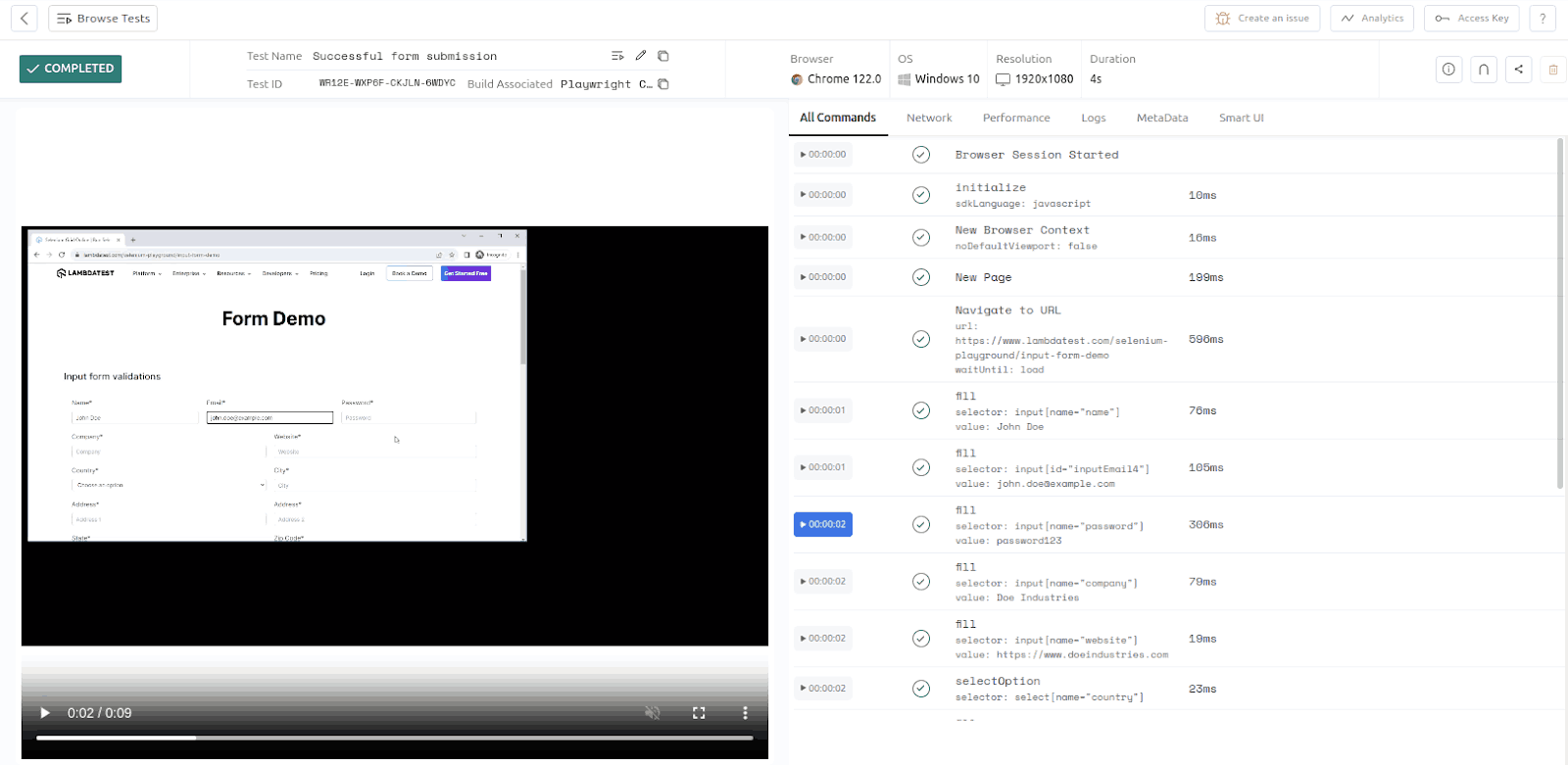
This command will execute your tests on TestMu AI, and you can monitor their progress in the TestMu AI Web Automation tab.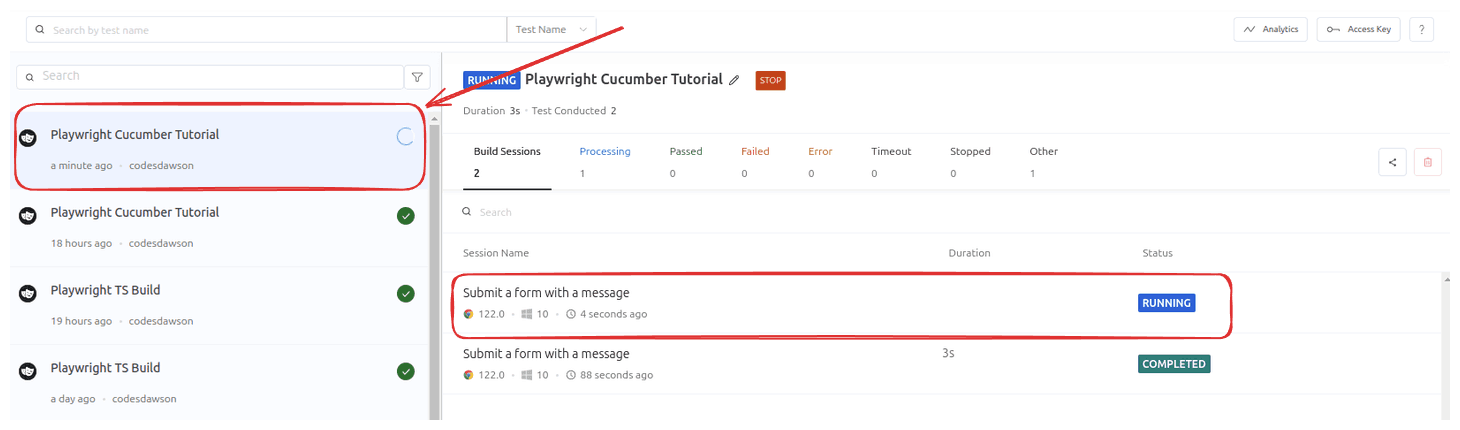
You can also click on the test to see the logs and the video of the test running.
Subscribe to the TestMu AI YouTube Channel to get more tutorial videos on various Playwright testing with TypeScript and JavaScript.
Conclusion
In this blog post, we explored the integration of Playwright with Cucumber, highlighting how Playwright’s powerful browser automation features combined with Cucumber’s BDD approach can enhance test readability and collaboration. We covered setting up a Playwright project, writing feature files and step definitions, and running tests using Cucumber. Additionally, we discussed generating detailed test reports and capturing screenshots of test failures.
By leveraging Playwright with Cucumber, you can create robust end-to-end tests for web applications, ensuring better collaboration between technical and non-technical stakeholders while achieving comprehensive test coverage and maintainability.
Here is the updated code with the old FAQs replaced by the new ones:
Citations
- Gherkin Reference: https://cucumber.io/docs/gherkin/reference/
- Playwright Installation: https://playwright.dev/docs/intro


Frequently asked questions
Did you find this page helpful?
More Related Hubs
TestMu AI forEnterprise
Get access to solutions built on Enterprise
grade security, privacy, & compliance
- Advanced access controls
- Advanced data retention rules
- Advanced Local Testing
- Premium Support options
- Early access to beta features
- Private Slack Channel
- Unlimited Manual Accessibility DevTools Tests