

Next-Gen App & Browser Testing Cloud
Trusted by 2 Mn+ QAs & Devs to accelerate their release cycles


On This Page
- What You Would Learn From This Mocha Testing Tutorial?
- What Makes Mocha So Prevalent?
- What makes Mocha a better choice as compared to other JavaScript testing frameworks
- Setting Up for Mocha and Initial Requirements
- Writing Our First Mocha JavaScript Testing Script
- The Drawbacks of Local Automated Testing Setup
- Executing Mocha Script Using Remote Selenium WebDriver On TestMu AI Selenium Grid
- Wrap Up !

Mocha JavaScript Tutorial With Examples For Selenium Testing
This Mocha JavaScript testing tutorial will help you become proficient for automated browser testing using Selenium & JavaScript

Aditya Dwivedi
December 29, 2025
When we talk about JavaScript automation testing, we can’t afford to not loop in Selenium into the discussion as well. So I thought of coming up with a step by step Mocha testing tutorial on the framework will be beneficial for you to kickstart your JavaScript automation testing with Mocha and Selenium.
We will also be looking into how you can run it on TestMu AI automation testing platform to get a better browser coverage and faster execution times. By the end of this Mocha testing tutorial, you will have a clear understanding of the setup, installation, and execution of your first automation script with Mocha for JavaScript testing.
Overview
Mocha is a JavaScript testing framework that works with Selenium for automating browser tests, supporting asynchronous testing, and improving reliability in front-end test execution.
Why Use Mocha Framework?
Mocha is a flexible JavaScript testing framework known for its simplicity, broad compatibility, and powerful features. It helps developers write reliable, maintainable, and well-structured test cases efficiently.
- Various Browser Support: It runs smoothly on all major browsers and includes browser-specific options. Each release updates JavaScript and CSS builds for better compatibility.
- Multiple Reporting Options: Mocha offers various reporting formats like list, progress, and JSON. The default reporter displays results in a clear hierarchical structure of test cases.
- Support for Assertion Libraries: It integrates seamlessly with popular JavaScript assertion libraries such as Chai, Should.js, and Express.js, helping testers write and reuse complex test cases efficiently.
- Works in Both TDD and BDD Environments: Mocha supports both Test Driven Development and Behavior Driven Development, allowing the creation of high-quality test cases and improved test coverage.
- Support for Synchronous and Asynchronous Testing: Mocha enhances asynchronous testing with async/await support while also handling synchronous tests, invoking callbacks once the test completes.
How to Write First Mocha Script?
Mocha makes it simple to write and execute JavaScript tests using a clean, readable syntax. You can quickly validate application functionality and ensure each component performs as expected.
- Install Mocha: Open your terminal and install Mocha using npm install –save-dev mocha. This adds it as a development dependency to your project.
- Set Up Project Structure: Create a folder named test in your project directory. All your Mocha test files will be stored here for easy organization.
- Write Your First Test File: Inside the test folder, create a file named test.js. This will contain your Mocha test cases.
- Import Required Libraries: Use require() to include assert or an assertion library like Chai to perform validations in your tests.
- Define a Test Suite: Use the describe() block to group related test cases. It represents a logical unit of functionality you’re testing.
- Add Test Cases: Inside describe(), use it() to define individual test cases. Each test case should check a specific function or behavior.
- Run Your Test: In your terminal, execute npx mocha. Mocha will automatically detect and run all test files in the test folder.
- Analyze Results: Mocha displays the test results in a clear and structured format, showing passed and failed cases with detailed output.
- Debug and Refactor: Review any failed test cases, correct your code, and rerun the tests until all cases pass successfully.
- Integrate With CI/CD: Add Mocha tests to your continuous integration pipeline for automated testing during every build or deployment cycle.
What You Would Learn From This Mocha Testing Tutorial?
In this blog post, we are going to deep dive into Mocha JavaScript testing to perform with Selenium & JavaScript. We will:
Start with the installation and prerequisites for the Mocha framework and explore its advantages.
- Execute our first Selenium JavaScript test through Mocha with examples.
- Execute group tests.
- Use the assertion library.
- Encounter possible issues along with their resolutions.
- We would execute some Mocha test script on the Selenium Cloud grid platform as well with minimal configuration changes and tests on various browsers and operating systems.

What Makes Mocha So Prevalent?
Mochajs, or simply Mocha, is a feature-affluent JavaScript test framework that runs test cases on Node JS and in the browser, making testing simple and fun. By running serially, Mocha JavaScript testing warrants flexibility and precise reporting, while mapping uncaught exceptions to the correct test cases.
Mocha provides a categorical way to write a structured code for testing the applications thoroughly classifying them into test suites and test cases modules for execution and to produce a test report after the run by mapping errors to corresponding test cases.
What makes Mocha a better choice as compared to other JavaScript testing frameworks
- Range of installation methods :
It can be installed globally or as a development dependency for the project. Also, it can be set up to run test cases directly on the web browser.
- Various Browser support :
Can be used to run test cases seamlessly on all major web browsers and provides many browser-specific methods and options. Each revision of Mocha provides upgraded JavaScript and CSS build for different web browsers.
- Number of ways to offer test reports :
It provides users with a variety of reporting options like list, progress and JSON, to choose from with default reporter displaying the output based on the hierarchy of test cases.
- Support for several JavaScript assertion libraries :
It helps users to cut testing cost and speed-up the process by having compatibility for a set of JavaScript assertion libraries – Express.js, Should.js, Chai. This multiple library support makes it easier for the testers to write lengthy complex test cases and to use them if everything works fine.
- Works in both TDD and BDD environments :
Mocha supports both behaviour driven development (BDD) and test driven development (TDD) allowing to write high quality test cases and to enhance test coverage.
- Support for both synchronous and asynchronous testing :
Unlike other JavaScript testing frameworks, Mocha is designed with features to fortify asynchronous testing utilizing async/await by invoking the callback once the test is finished. It enables synchronous testing by omitting the callback.

Austin Siewert
CEO, Vercel
Discovered @TestMu AI yesterday. Best browser testing tool I've found for my use case. Great pricing model for the limited testing I do 👏
2M+ Devs and QAs rely on TestMu AI
Deliver immersive digital experiences with Next-Generation Mobile Apps and Cross Browser Testing Cloud

You can take this certification as proof of expertise in the field of test automation with JavaScript to empower yourself and boost your career.
Here’s a short glimpse of the Selenium JavaScript 101 certification from TestMu AI:
Setting Up for Mocha and Initial Requirements
Before we start our endeavour and explore more of Mocha testing there are some important prerequisites that we need to set up to get started with this Mocha testing tutorial for automation testing with Selenium and JavaScript.
- Node JS and Node Package Manager (npm) : Mocha module requires Node JS to be installed on the system. If it is not already present on the system , it can be installed using the npm manager : nodejs.org/en/download/package-manager or by merely downloading the Windows Installer directly from the nodejs.org web site here.
- Mocha Package Module : Once we have successfully installed the Node JS on the system , we can make use of the node package manager i.e. npm to install the required package which is Mocha. So, to install the latest version using the npm command line tool, we will first initialize the npm using the below command :
$ npm init
$ npm install -g mocha
$ npm install --save-dev mocha
- Java – SDK: Since Mocha is a Selenium test framework and Selenium is built upon Java , we would also be installing the Java Development Kit ( preferably JDK 7.0 or above ) on the system and configure the JAVA environment.
- Selenium Web Driver: We would require a selenium web driver and that should be already present in our npm node modules. If it is not found in the module, we can install the latest version of the selenium web driver using the below command:
$ npm install selenium-webdriver
- Browser Driver: Lastly, we would also be installing the driver of the specific browser that we are going to use. This executable also needs to be placed inside the same bin folder.
$ npm install -g chromedriver
Writing Our First Mocha JavaScript Testing Script
We will create a project directory named mocha_test and then we will create a subfolder name scripts with a test script name single_test.js inside it.
Finally, we will initialize our project by hitting the command npm init. This will create a package.json file in an interactive way, which will contain all our required project configurations. It will be required to execute our test script single_test.js .
Finally, we will have a file structure that looks like below :
mocha_test
        | -- scripts
                    | -- single_test.js
        | -- package.json
{
  "name": "mocha selenium test sample",
  "version": "1.0.0",
  "description": " Getting Started with Our First New Mocha Selenium Test Script and Executing it on a Local Selenium Setup ",
  "scripts": {
    "test": "npm run single",
    "single": "./node_modules/.bin/mocha scripts/single_test.js",
  },
  "author": "rohit",
  "license": "" ,
  "homepage": "https://mochajs.org",
  "keywords": [
    "mocha",
    "bdd",
    "selenium",
    "examples",
    "test",
    "bdd",
    "tdd",
    "tap"
    "framework"
  ],
  "dependencies": {
    "bluebird": "^3.7.2",
    "mocha": "^6.2.2",
    "selenium-webdriver": "^3.6.0"
  }
}
You have successfully configured your project and are ready to execute your first Mocha JavaScript testing script.You can now write your first test script in the file single_test.js that was created earlier.
var assert = require('assert');
describe('IndexArray', function() {
  describe('#checkIndex negative()', function() {
    it('the function should return -1 when the value is not present', function(){
      assert.equal(-1, [4,5,6].indexOf(7));
    });
  });
});
Code Walkthrough Of Our Mocha JavaScript Testing Script
We will now walk through the test script and understand what exactly is happening in the script that we just wrote. When writing any mocha test case in JavaScript, there are two basic function calls that we should remember and that does the job for us under the hood. These functions are describe() and it() and we have used both of them in the test script that we just wrote above.
describe(): It is mainly used to define the creation of test groups in Mocha in a simple way. The describe() function takes in two arguments as input, the first argument is the name of the test group, and the second argument is a callback function. We can also have a nested test group in our test as per the requirement of the test case.
If we look at our test case now, we see that we have a test group named IndexArray which has a callback function that has inside it a nested test group named #checkIndex negative() and finally inside of that, is another callback function that contains our actual test.

it(): This function is used for writing individual Mocha JavaScript test cases. It should be written in a layman way conveying what the test does. It () function also takes in two arguments as input, the first argument is a string explaining what the test should do, and the second argument is a callback function which contains our actual test.
In the above Mocha JavaScript testing script, we see that we have the first argument of the it() function that is written as ‘the function should return -1 when the value is not present‘ and the second argument is a callback function that contains our test condition with the assertion.

Assertion: The assertion libraries are used to verify whether the condition given to it is true or false. It verifies the test results with the assert.equal(actual, expected); method and makes the equality tests between our actual and expected parameters . It makes our testing easier by using the Node.js built-in assert module. In our Mocha JavaScript testing script we are not using the entire assert library as we only require the assert module with one line of code for this Mocha testing tutorial.

If the expected parameter equals our actual parameter, the test is passed, and the assert returns true. If it doesn’t equal, then the test fails, and the assert returns false.
It is important to check whether the below section is present in our package.json file as this contains the configurations of our Mocha JavaScript testing script.
"scripts": {
    "test": "npm run single",
    "single": "./node_modules/.bin/mocha scripts/single_test.js"
  },
Now, finally, we can run our test in the command line and execute from the base directory of the project using the below command:
$  npm test
or
$  npm run single
The output of the above test is :
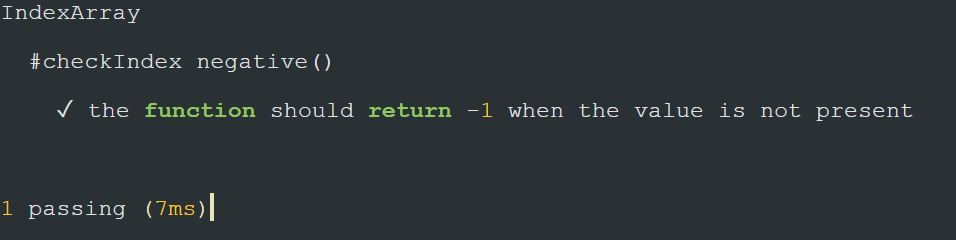
This indicates that we have successfully passed our test and the assert condition is giving us the proper return value of the function based on our test input passed.
Let us extend it further and now add one more test case to our test suite and execute the test. So now our Mocha JavaScript testing script: single_test.js will have one more test that will check the positive scenario of the test and give the corresponding output.
var assert = require('assert');
describe('IndexArray', function() {
  describe('#checkIndex negative()', function() {
    it('the function should return -1 when the value is not present', function(){
      assert.equal(-1, [4,5,6].indexOf(7));
    });
  });
    describe('#checkIndex positive()', function() {
    it('the function should return 0 when the value is present', function(){
      assert.equal(0, [8,9,10].indexOf(8));
    });
  });

});
The output of the above Mocha JavaScript testing script is :
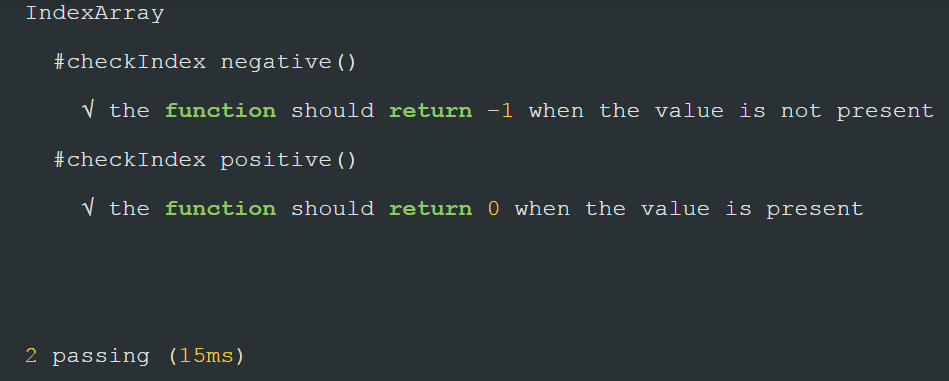
Kudos, you have successfully executed your first Mocha JavaScript testing script in your local machine for Selenium and JavaScript execution. It is important to note that if you have a larger test suite for cross browser testing with Selenium JavaScript then the execution on local infrastructure is not your best call.
This JavaScript Selenium testing tutorial for beginners and professionals will help you learn how to write and run your first test cases in mocha.
The Drawbacks of Local Automated Testing Setup
As you expand your web application, bring in new code changes, overnight hotfixes, and more. With these new changes, comes new testing requirements, so your Selenium automation testing scripts are bound to go bigger, you may need to test across more browsers, more browser versions, and more operating systems. This becomes a challenge when you perform JavaScript Selenium testing through the local setup. Some of the major pain points of performing Selenium JavaScript testing on the local setup are:
- There is a limitation that the testing can only be performed locally i.e. on the browsers that are installed locally in the system.
- This is not beneficial when there is a requirement to execute cross browser testing and perform the test on all the major browsers available for successful results.
- The test team might not be aware of all the new browsers versions and hence the compatibility with them are be tested properly
- There is a need to devise a proper cross browser testing strategy to ensure satisfactory test coverage.
- There arise certain scenarios when it is required to execute tests on some of the legacy browser or browser versions for a specific set of users and operating systems.
- It might also be needed to test the application on various combinations of browsers and operating systems, and that is not easily available with the local inhouse system setup.
Now, you may be wondering about a way to overcome these challenges. Well, don’t stress it out too much because an online Selenium Grid is there for your rescue.
Note: Experience reliable automated testing with Selenium Testing Tool on a cloud grid of 3000+ browsers and operating systems.

How Cloud-Based Selenium Grid Can Be Beneficial In This Scenario ?
An online or cloud-based Selenium Grid can not only help you run your JavaScript Selenium testing round the clock but it would also help be free from the hassle of maintaining your local infrastructure. We at TestMu AI offer an extensive online Selenium Grid of 3000+ real browsers for both mobile and desktop. Our Selenium Grid is compatible across every test automation framework or programming language that goes with Selenium.

With 150,000 happy customers throughout the globe in a single year, we’ve been the fastest-growing cross browser testing cloud. Here is why:
- Our 3000+ real browsers along with various browser versions help you to ensure maximum Selenium automation testing coverage for automated browser testing.
- It provides us with the capability to perform automated browser testing with a cloud-based Selenium Grid that comprises of 3000+ actual browsers, available for both mobile and desktop. This gives us the advantage to the maximum our test coverage during the automated cross browser testing.
- The cloud based setup also has a good combination of browser and operating system which offers a great selection of choices and ensures good compatibility.
- The benefit of using a testing cloud platform like TestMu AI is to ensure an adaptive environment that is made available to us with all the prerequisites like the set up of the frameworks so that the users just need to focus on executing the tests using any framework of their choice as per the requirement.
- Another plus point of cloud based testing is that it provides a dedicated test infrastructure environment, which supports multiple frameworks. Hence, it further provides us the flexibility to switch between different frameworks easily and use any of them as per the demand of the testing strategy.
- It also offers us the feature to spin up a virtual machine if needed. Since these virtual machines are hosted on the cloud server, it ensures good performance and helps us perform automated cross browser testing effectively.
- The testing cloud platform provides us with a highly scalable infrastructure component. The main advantage that it gives us is the privilege to use the infrastructure as per the requirement and the ability to run any number of tests at the same time i.e parallel test execution. Hence, when adopting a cloud testing strategy we are just required to modify our test scripts to connect to the platform, but the infrastructure setup used to execute the tests remains the same.
- The Cloud Based Selenium Grid also offers us to execute automation test scripts in Selenium and supports various programming platforms such as Java, Python, JavaScript, PHP, Ruby, C# and many other languages that provide binding with Selenium.
- It provides us the feature to perform continuous testing in DevOps. Additionally, it easily integrates with many popular CI/CD tools such as Jenkins, Travis CI etc.
- We can also leverage the power of parallel testing with Selenium and extract test reports of our Selenium test script execution with the help of the TestMu AI platform in an effortless and seamless manner.
Executing Mocha Script Using Remote Selenium WebDriver On TestMu AI Selenium Grid
Now since we know that executing our test script on the cloud grid has great benefits to offer. Let us get our hands dirty on the same. The process of executing a script on the TestMu AI Selenium Grid is fairly straightforward and exciting. We can execute our local test script by just adding a few lines of code that is required to connect to the TestMu AI platform
- It gives us the privilege to execute our test on different browsers seamlessly
- It has all the popular operating system and also provides us the flexibility us to make various combinations of the operating system and browsers.
- We can pass on our environment and config details from within the script itself.
- The test scripts can be executed parallelly and save on executing time.
- It provides us with an interactive user interface and dashboard to view and analyze test logs.
- It also provides us the Desired Capabilities Generator with an interactive user interface, which is used to select the environment specification details with various combinations to choose from.
Here is the link to visit Lambdatest selenium desired capabilities generator.
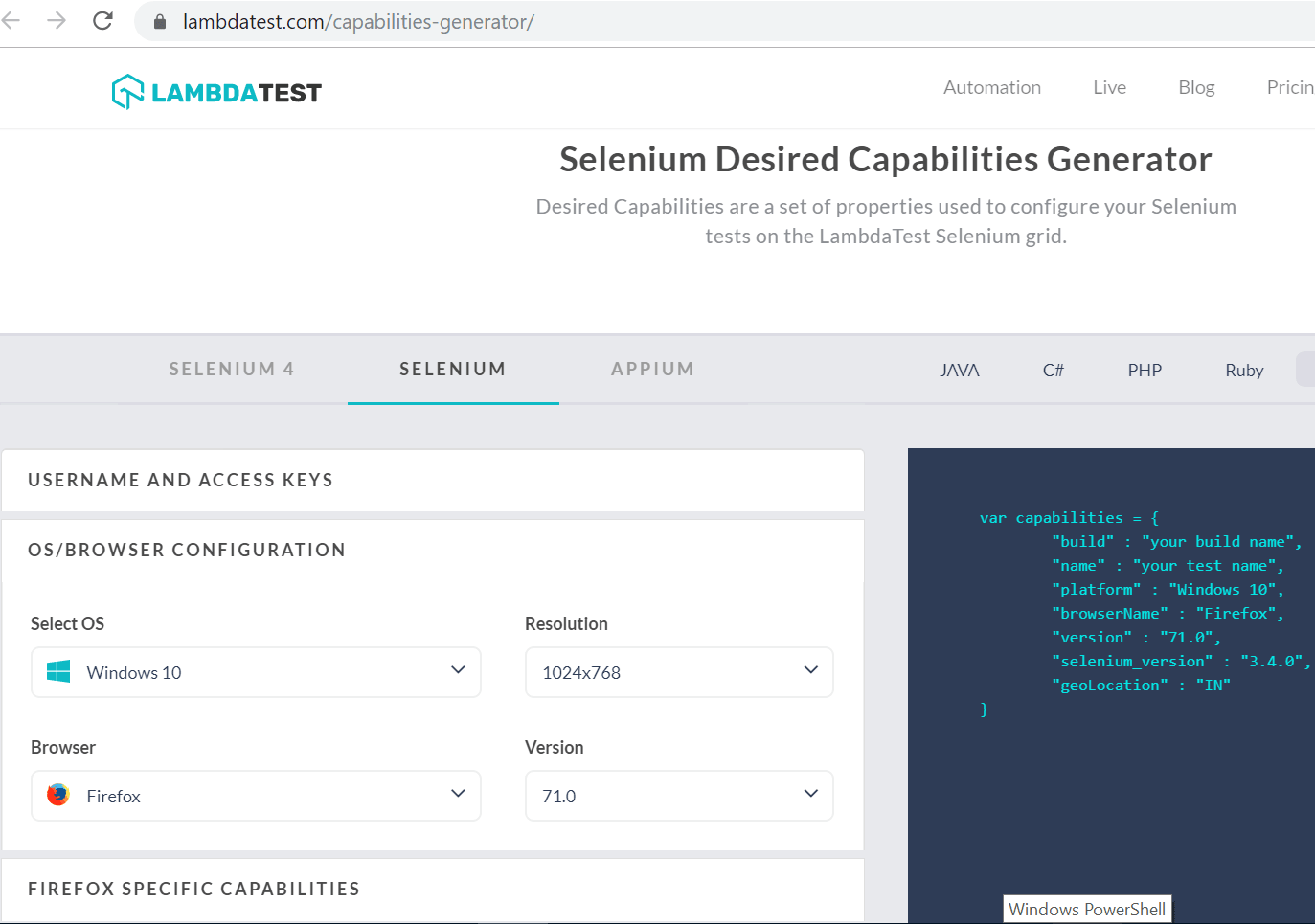
So, in our case the multiCapabilities class in single.conf.js and parallel.conf.js configuration file will look similar as below:
multiCapabilities: [
    { // Desired Capabilities
      build: "Mocha Selenium Automation Parallel Test",
name: "Mocha Selenium Test Firefox",
      platform: "Windows 10",
      browserName: "firefox",
      version: "71.0",
      visual: false,
tunnel: false,
      network: false,
      console: false
    }
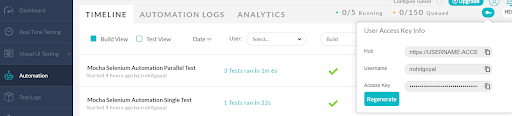
Next and the most important thing is to generate our access key token which is basically a secret key to connect to the platform and execute automated tests on TestMu AI. This access key is unique to every user and can be copied and regenerated from the profile section of the user account as shown below.
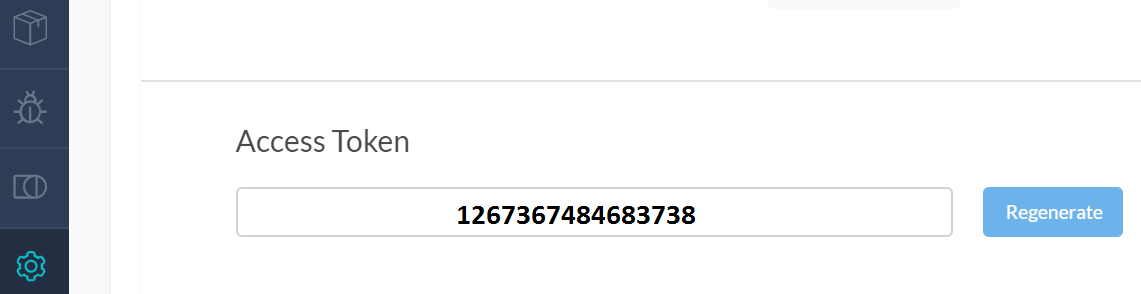
The information regarding the access key, username and hub can be alternatively fetched from the TestMu AI user profile page Automation dashboard which looks like the one as mentioned in the screenshot below.
Accelerating with Parallel testing Using TestMu AI Selenium Grid
In our demonstration, we will be creating a script that uses the selenium web driver to make a search and open a website and assert whether the correct website is open. If assert returns true, it indicates that the test case passed successfully and will show up in the automation logs dashboard else if assert returns false, the test case fails, and the errors will be displayed in the automation logs. Now, since we are using TestMu AI, we would like to leverage it and execute our tests on different browsers and operating systems. We will execute our test script as below:
- Single Test- On a single environment (Windows 10) and single browser (Chrome)
- Parallel Test- On a parallel environment i.e. different operating system (Windows 10 and Mac OS Catalina) and different browsers (Chrome, Mozilla Firefox, and Safari)
Here we would create a new subfolder in our project directory i.e. conf. This folder will contain the configurations that are required to connect to the TestMu AI platform.
We will create single.conf.js and parallel.conf.js where we need to declare the user configuration i.e username and access key along with the desired capabilities for both our single test and parallel test cases.
Now, we will have a file structure that looks like below :
LT_USERNAME = process.env.LT_USERNAME || "irohitgoyal"; // Lambda Test User name
LT_ACCESS_KEY = process.env.LT_ACCESS_KEY || "1267367484683738"; // Lambda Test Access key

//Configurations
var config = {
  commanCapabilities: {
    build: "Mocha Selenium Automation Parallel Test", // Build Name to be displayed in the test logs
    tunnel: false // It is required if we need to run the localhost through the tunnel
  },
  multiCapabilities: [
    {
      // Desired Capabilities , this is very important to configure
      name: "Mocha Selenium Test Firefox", // Test name that to distinguish amongst test cases
      platform: "Windows 10", //  Name of the Operating System
      browserName: "firefox", // Name of the browser
      version: "71.0", // browser version to be used
      visual: false, // whether to take step by step screenshot, we made it false for now
      network: false, // whether to capture network logs, we made it false for now
      console: false // whether to capture console logs, we made it false for now
    },
    {
      name: "Mocha Selenium Test Chrome", // Test name that to distinguish amongst test cases
      platform: "Windows 10", //  Name of the Operating System
      browserName: "chrome",// Name of the browser
      version: "79.0", // browser version to be used
      visual: false, // // whether to take step by step screenshot, we made it false for now
      network: false, // // whether to capture network logs, we made it false for now
      console: false // // whether to capture console logs, we made it false for now
    },
    {
   name: "Mocha Selenium Test Safari", // Test name that to distinguish amongst test cases
      platform: "MacOS Catalina", //  Name of the Operating System
      browserName: "safari",// Name of the browser
      version: "13.0", // browser version to be used
      visual: false, // // whether to take step by step screenshot, we made it false for now
      network: false, // // whether to capture network logs, we made it false for now
      console: false // // whether tocapture console logs., we made it false for now
    }
  ]
};

exports.capabilities = [];
// Code to integrate and support common capabilities
config.multiCapabilities.forEach(function(caps) {
  var temp_caps = JSON.parse(JSON.stringify(config.commanCapabilities));
  for (var i in caps) temp_caps[i] = caps[i];
  exports.capabilities.push(temp_caps);
});
var assert = require("assert"),// declaring assert
  webdriver = require("selenium-webdriver"), // declaring selenium web driver
  conf_file = process.argv[3] || "conf/single.conf.js"; // passing the configuration file

var caps = require("../" + conf_file).capabilities;

// Build the web driver that we will be using in Lambda Test
var buildDriver = function(caps) {
  return new webdriver.Builder()
    .usingServer(
      "http://" +
      LT_USERNAME +
      ":" +
      LT_ACCESS_KEY +
      "@hub.lambdatest.com/wd/hub"
    )
    .withCapabilities(caps)
    .build();
};

// declaring the test group Search Engine Functionality for Single Test Using Mocha in Browser
describe("Search Engine Functionality for Single Test Using Mocha in Browser " + caps.browserName, function() {
  var driver;
  this.timeout(0);
// adding the before an event that triggers before the rest execution
  beforeEach(function(done) {
    caps.name = this.currentTest.title;
    driver = buildDriver(caps);
    done();
  });

// defining the test case to be executed
  it("should find the required search result in the browser ", function(done) {
    driver.get("https://www.mochajs.org").then(function() {
      driver.getTitle().then(function(title) {
        setTimeout(function() {
          console.log(title);
          assert(
            title.match(
              "Mocha | The fun simple flexible JavaScript test framework | JavaScript | Automated Browser Test"
            ) != null
          );
          done();
        }, 10000);
      });
    });
  });

// adding the after event that triggers to check if the test passed or failed
  afterEach(function(done) {
    if (this.currentTest.isPassed) {
      driver.executeScript("lambda-status=passed");
    } else {
      driver.executeScript("lambda-status=failed");
    }
    driver.quit().then(function() {
      done();
    });
  });
});
var assert = require("assert"), // declaring assert
  webdriver = require("selenium-webdriver"), // declaring selenium web driver
  conf_file = process.argv[3] || "conf/parallel.conf.js"; // passing the configuration file

var capabilities = require("../" + conf_file).capabilities;

// Build the web driver that we will be using in Lambda Test
var buildDriver = function(caps) {
  return new webdriver.Builder()
.usingServer(
      "http://" +
        LT_USERNAME +
        ":" +
        LT_ACCESS_KEY +
        "@hub.lambdatest.com/wd/hub"
    )
    .withCapabilities(caps)
    .build();
};

capabilities.forEach(function(caps) {
 // declaring the test group Search Engine Functionality for Parallel Test Using Mocha in Browser
  describe("Search Engine Functionality for Parallel Test Using Mocha in Browser " + caps.browserName, function() {
    var driver;
    this.timeout(0);

// adding the before event that triggers before the rest execution
    beforeEach(function(done) {
      caps.name = this.currentTest.title;
      driver = buildDriver(caps);
      done();
    });

// defining the test case to be executed
    it("should find the required search result in the browser " + caps.browserName, function(done) {
      driver.get("https://www.mochajs.org").then(function() {
        driver.getTitle().then(function(title) {
          setTimeout(function() {
            console.log(title);
            assert(
              title.match(
                "Mocha | The fun simple flexible JavaScript test framework | JavaScript | Automated Browser Test"
              ) != null
            );
            done();
          }, 10000);
        });
      });
    });

// adding the after event that triggers to check if the test passed or failed
    afterEach(function(done) {
      if (this.currentTest.isPassed) {
        driver.executeScript("lambda-status=passed");
      } else {
        driver.executeScript("lambda-status=failed");
      }
      driver.quit().then(function() {
        done();
  });
    });
  });
});
Finally, we have our package.json that has an additional added configuration for parallel testing and required files.
"scripts": {
    "test": "npm run single && npm run parallel",
    "single": "./node_modules/.bin/mocha specs/single_test.js conf/single.conf.js",
    "parallel": "./node_modules/.bin/mocha specs/parallel_test.js conf/parallel.conf.js --timeout=50000"
  },
{
  "name": "mocha selenium automation test sample",
  "version": "1.0.0",
  "description": " Getting Started with Our First New Mocha Selenium Test Script and Executing it on a Local Selenium Setup",
  "scripts": {
    "test": "npm run single && npm run parallel",
    "single": "./node_modules/.bin/mocha scripts/single_test.js conf/single.conf.js",
    "parallel": "./node_modules/.bin/mocha scripts/parallel_test.js conf/parallel.conf.js --timeout=50000"
  },
  "author": "rohit",
  "license": "" ,
  "homepage": "https://mochajs.org",
  "keywords": [
    "mocha",
    "bdd",
    "selenium",
    "examples",
    "test",
    "bdd",
    "tdd",
    "tap"
  ],
  "dependencies": {
    "bluebird": "^3.7.2",
    "mocha": "^6.2.2",
"selenium-webdriver": "^3.6.0"
  }
}
And now the final thing that we should do is to execute our tests from the base project directory by using the below command:
$ npm test
This command will validate the test cases and execute our test suite i.e. both the single test and parallel test cases.
Below is the output from the command line:
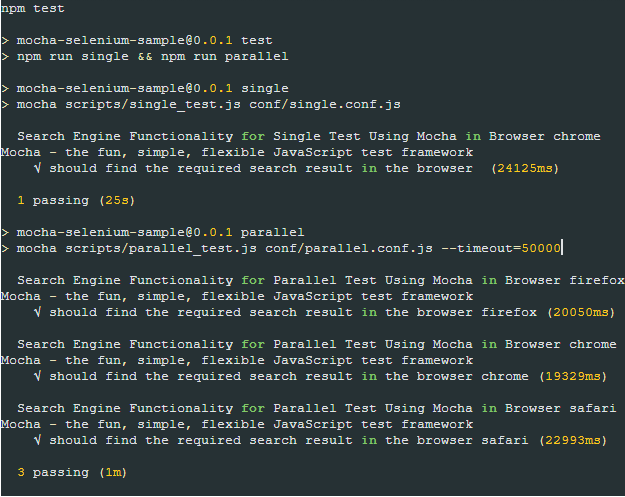
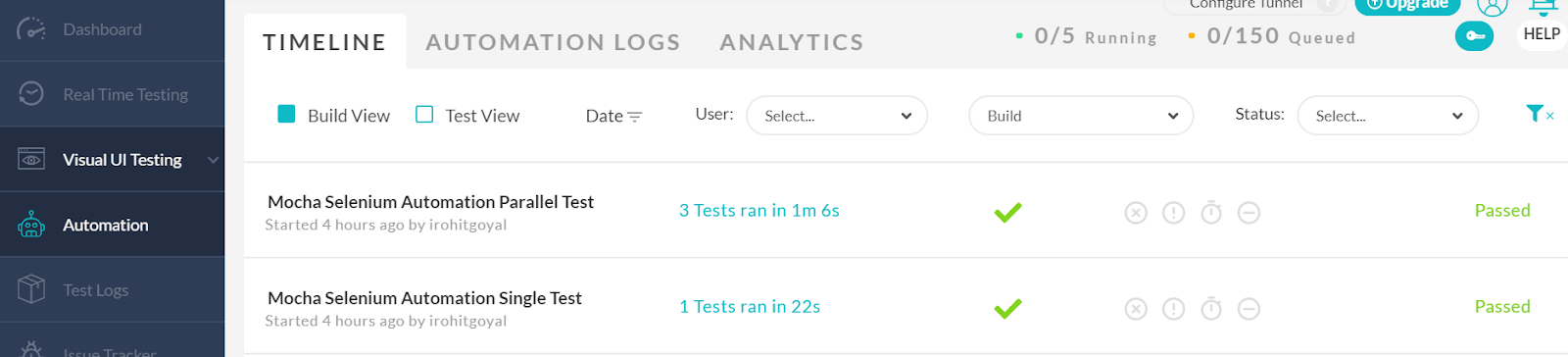
Now, if we open the TestMu AI platform and check the user interface, we will see that the test runs on Chrome, Firefox and Safari browsers on the environment specified i.e. Windows 10 and Mac OS and the test is passed successfully with positive results .
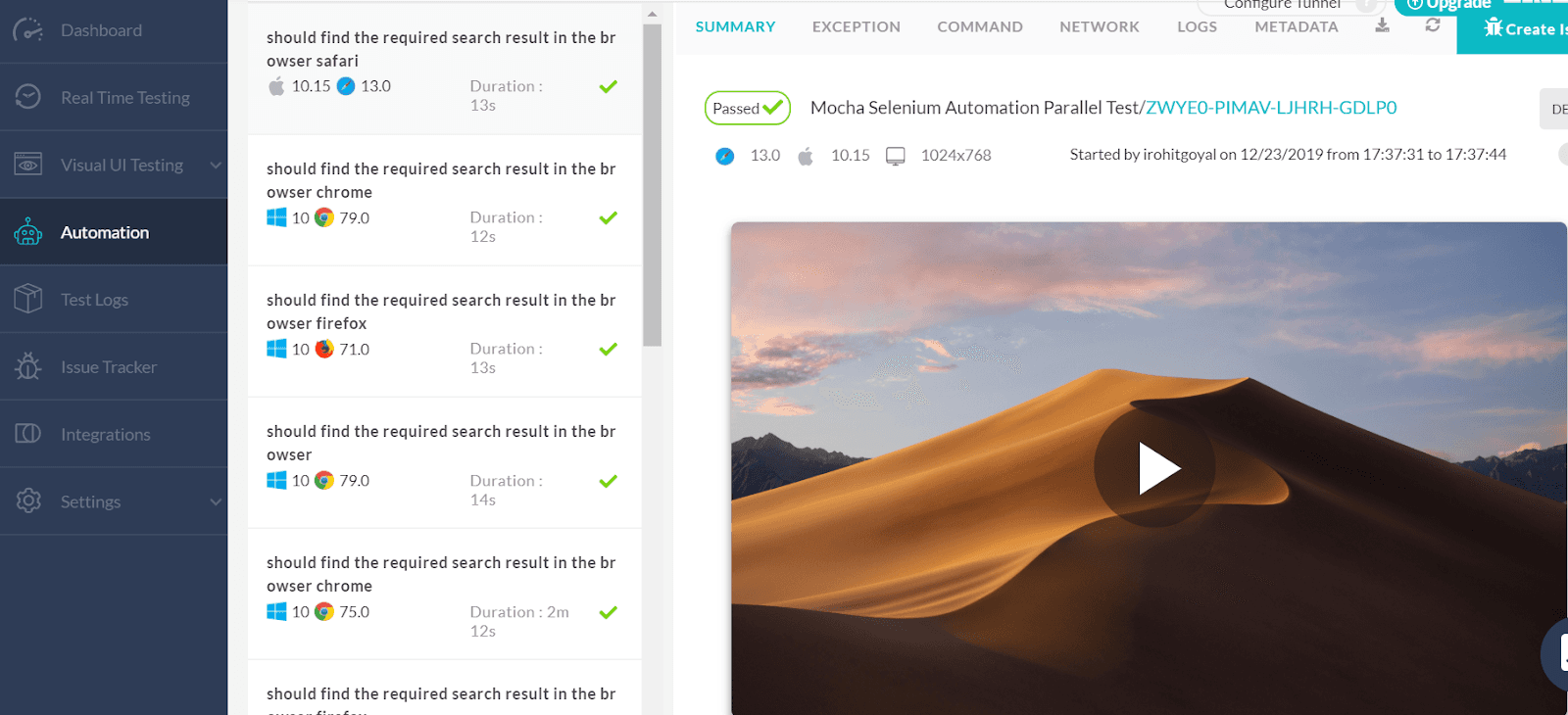
Below we see a screenshot that depicts our Mocha code is running over different browsers i.e Chrome, Firefox and Safari on the TestMu AI Selenium Grid Platform. The results of the test script execution along with the logs can be accessed from the TestMu AI Automation dashboard.
Alternatively, if we just want to execute the single test, we can execute the command
$ npm run single
And to execute the test cases in different environments in a parallel way
$ npm run parallel
Wrap Up !
Kudos on a Great job! This concludes our Mocha testing tutorial and we have now got a clear idea about what Mocha is and how to set it up. It allows us to automate the entire test suite and get started quickly with the minimal configuration and is well readable and also easy to update. We are now able to perform an end to end test using group tests and use the assertion library. The test cases results can be fetched directly from the command line terminal. At last, we noticed that our testing became much easier by adopting the automated browser testing approach using the TestMu AI cloud platform. One of the best features provided by it is the parallel testing environment and the desired capabilities which prove to be efficient in complex use cases. Also, the user interface offered by this platform is very interactive and we can leverage the various benefits of Selenium automation testing both as a beginner and an expert. That is all we need to know to run our Mocha test scripts. Cheers! If you are preparing for an interview related to mocha you can take help from our hub on mocha interview questions to brush up your knowledge.


Did you find this page helpful?
More Related Hubs
TestMu AI forEnterprise
Get access to solutions built on Enterprise
grade security, privacy, & compliance
- Advanced access controls
- Advanced data retention rules
- Advanced Local Testing
- Premium Support options
- Early access to beta features
- Private Slack Channel
- Unlimited Manual Accessibility DevTools Tests