

Next-Gen App & Browser Testing Cloud
Trusted by 2 Mn+ QAs & Devs to accelerate their release cycles


How to Install Java on Windows
Learn how to easily install Java on Windows. This blog covers steps for both developers and casual users, troubleshooting tips, and more.

Yatish Jhamb
December 28, 2025
Java is a widely used programming language for developing software applications across various platforms. Installing Java is a fundamental step for developers to set up their development environment.
This blog will guide you through the process to install Java on Windows.
How to Download and Install Java?
Let’s walk through the steps to install and set up Java on your system. For demonstration, we’ll install Java on Windows:
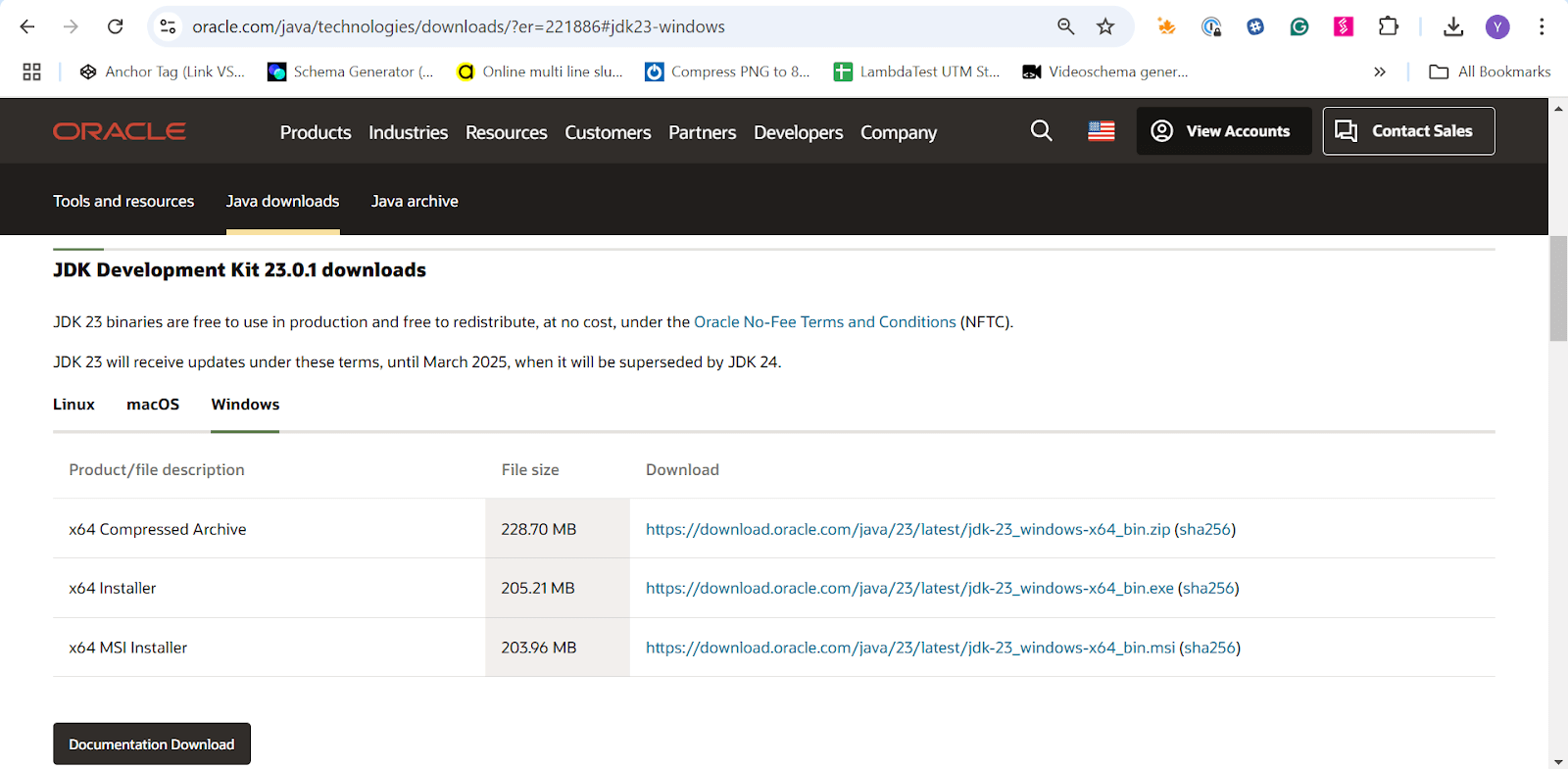
- Visit the official Oracle Java Downloads page and download the Java SE Development Kit (JDK) for Windows.
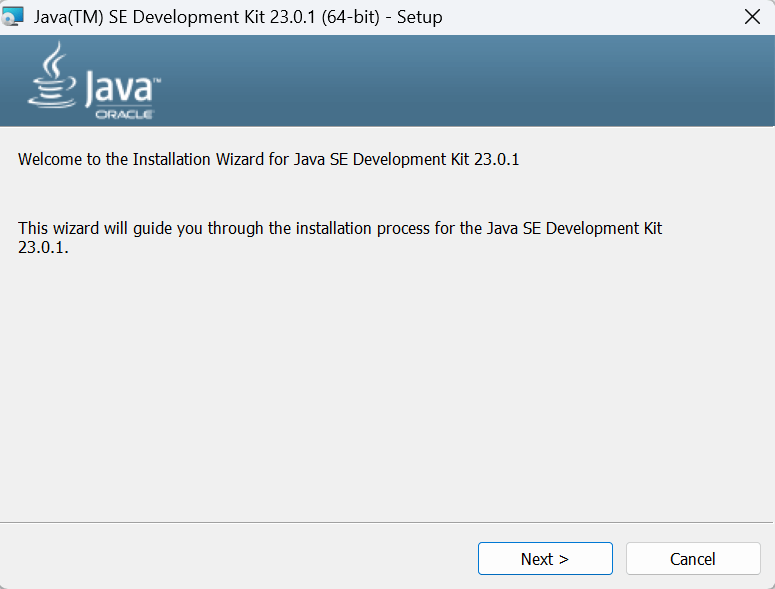
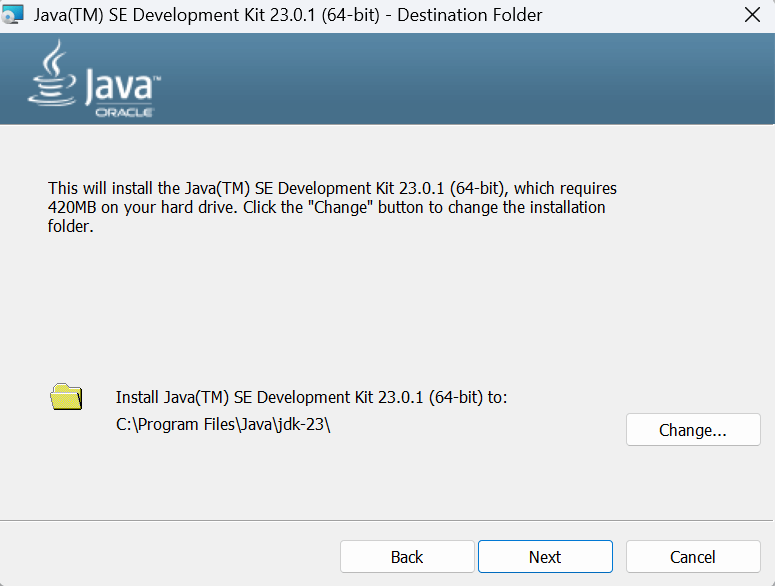
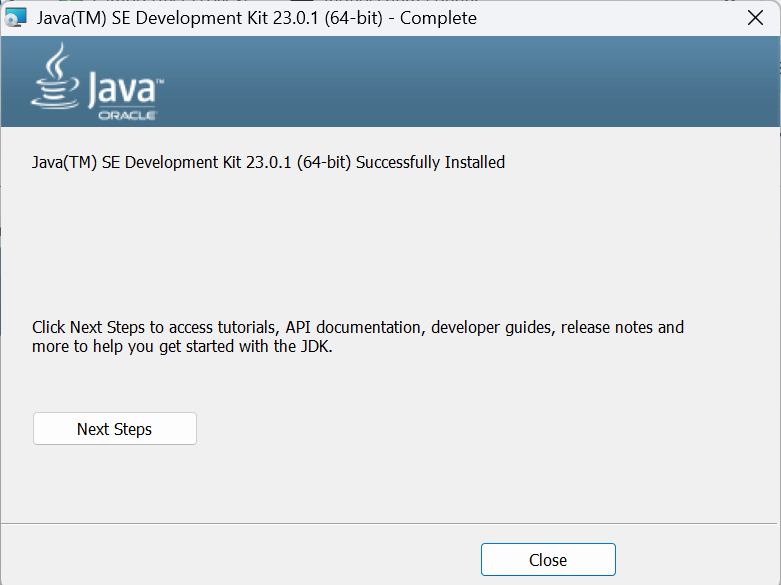
- Run the downloaded installer. Then, follow the on-screen instructions and keep clicking on Next.
Setting Up Environment Variables for Java
Let’s look at the steps to setup environment variables for Java installation on Windows:
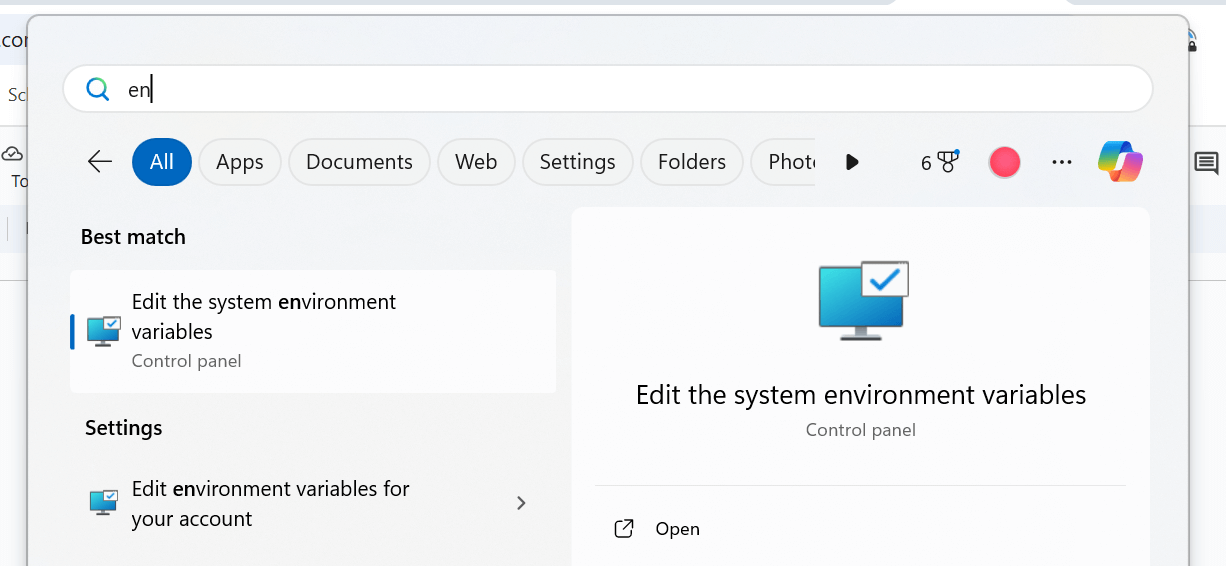
- Search for “Environment Variables” in the search box adjacent to the Start icon. Then, click Edit the system environment variables.
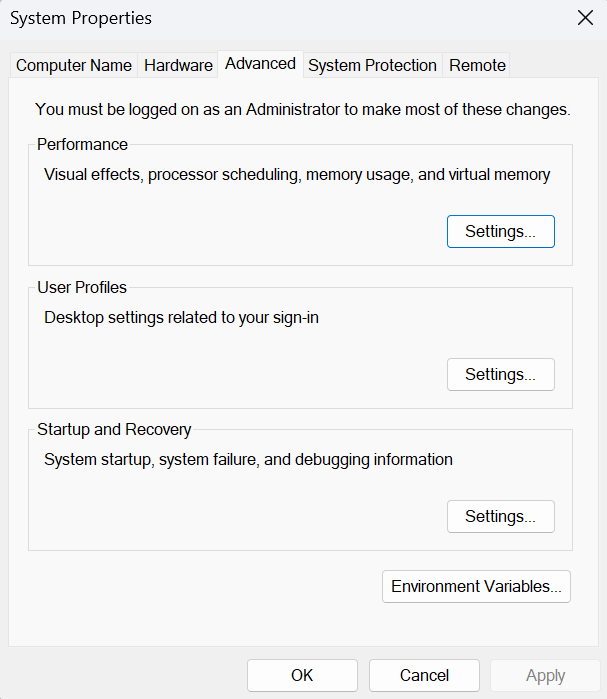
- In the System Properties window, click Environment Variables.
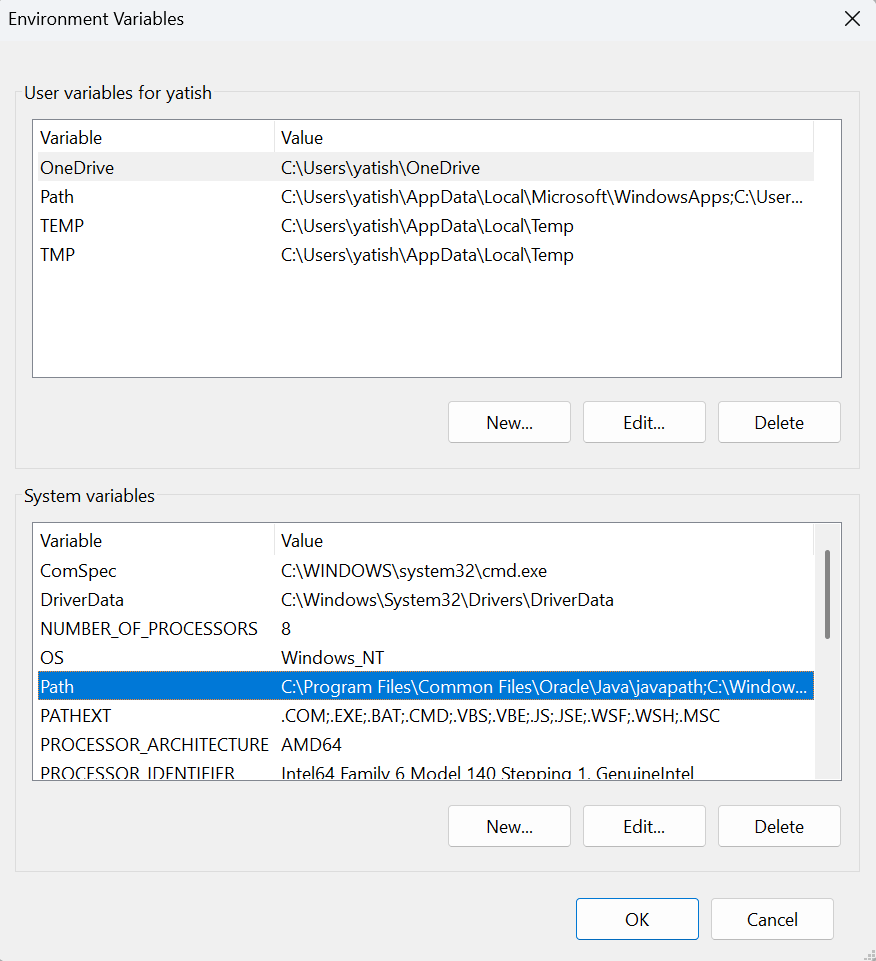
- Add the JDK bin directory (e.g., C:\Program Files\Java\jdk-XX\bin) to the System variables. Now, click OK to save.
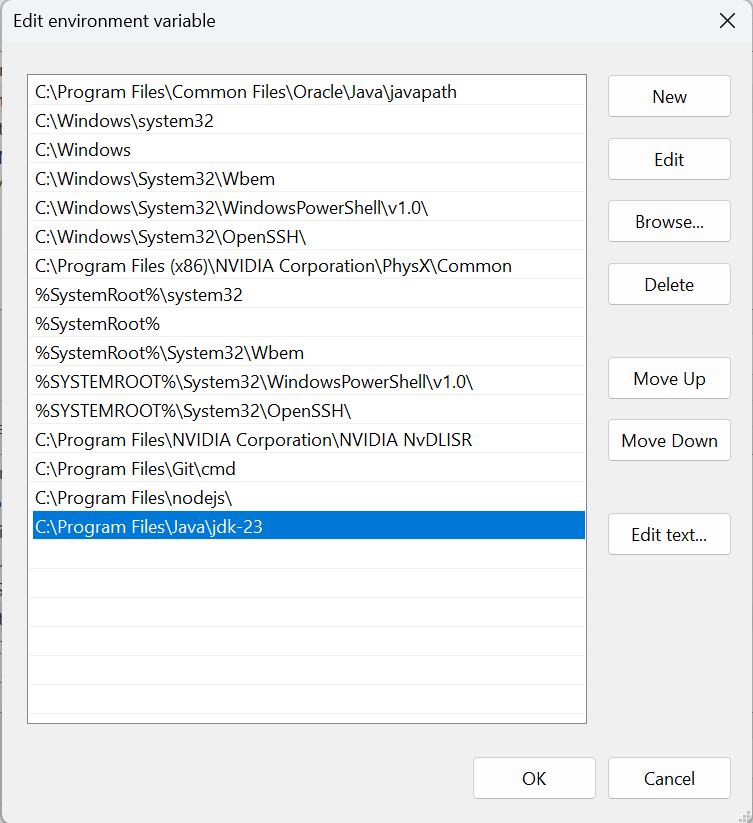
- In the System variables, select the Path variable and click Edit. Then, add a new entry and click OK to save the changes.
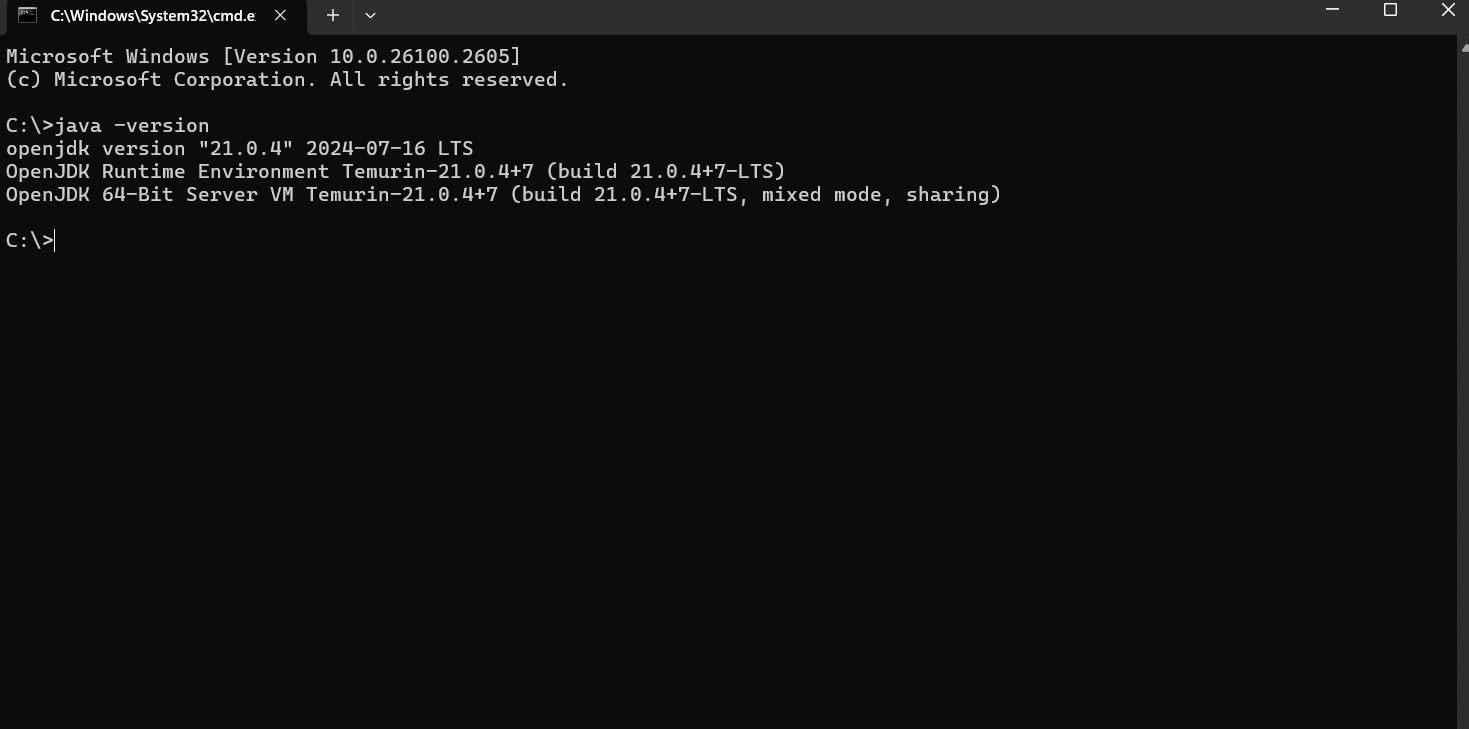
- Open Command Prompt and type java -version to verify the installation.
Troubleshooting Java Installation Issues
- Administrator Privileges: Ensure you have administrative access, as installation and environment variable setup require elevated permissions.
- Incorrect Path Configuration: Double-check that the JAVA_HOME and Path values are accurate.
- Firewall or Antivirus Interference: Temporarily disable firewalls or antivirus software if they block the installation process.

Conclusion
Installing Java on Windows is important for developers who depend on Java-based software applications. Once configured, you can easily execute Java-powered products or create Java-based software applications.


Frequently asked questions
Did you find this page helpful?
More Related Hubs
TestMu AI forEnterprise
Get access to solutions built on Enterprise
grade security, privacy, & compliance
- Advanced access controls
- Advanced data retention rules
- Advanced Local Testing
- Premium Support options
- Early access to beta features
- Private Slack Channel
- Unlimited Manual Accessibility DevTools Tests