 Decode AI-Powered Quality Engineering from AI & QA Leaders,Register for Free!

Next-Gen App & Browser Testing Cloud
Trusted by 2 Mn+ QAs & Devs to accelerate their release cycles

How to Install an IPA on iPhone
Learn how to install IPA on iPhone using safe, reliable tools like AltStore and Sideloadly—no jailbreak needed. Quick, clear, and beginner-friendly.

Anupam Pal Singh
January 11, 2026
Installing an IPA file on your iPhone is a common need for developers, testers, and teams working on iOS apps. Whether you’re trying out an internal build, testing before release, or distributing an app outside the App Store, there are several safe and effective ways to get it done.
If you’re looking for How to Install an IPA on iPhone, this guide walks you through the most reliable methods like using AltStore, Xcode, Apple Configurator 2, and even cloud-based solutions like TestMu AI helps you to install and test IPA files with ease.
Overview
Installing an IPA file on your iPhone isn’t as straightforward as downloading apps from the App Store, but knowing the right methods can make the process much easier and more secure.
Things You Need Before Installing an IPA File
Ensure the following are in place before you begin:
- iOS version must be compatible with the IPA’s minimum deployment target
- IPA must be signed with a provisioning profile that includes your device’s UDID
- Valid Apple ID (free or paid) for app signing and installation
- Developer certificate must be trusted manually in device settings after installation
How to Install an IPA File on iPhone
Here are the most common and effective ways to install an IPA file:
- Using AltStore to sign and install IPAs without jailbreaking
- Using iTunes or Finder to drag and drop the IPA file (limited support on modern systems)
- Using Xcode via the Devices and Simulators window
- Using Apple Configurator 2 for enterprise or internal app deployment
- Using TestMu AI to upload and test IPAs on real iOS devices in the cloud
What is an IPA File?
An IPA file (iOS App Store Package) format is used to distribute iOS applications. Much like an APK in the Android ecosystem, an IPA contains all the necessary elements for an app to run on an Apple device. Internally, it’s a ZIP archive that includes a compiled app binary, resource files, and metadata such as the Info.plist.
Unlike APKs, IPAs are tightly integrated into Apple’s security ecosystem and must be signed using a valid provisioning profile before installation.
Prerequisites Before Installing
To successfully install an IPA on an iPhone, several requirements must be in place:
- iOS Compatibility: Ensure the device’s OS version aligns with the minimum deployment target specified in the IPA.
- Provisioning Profile: The IPA must be signed with a provisioning profile that includes the device’s UDID.
- Apple ID: A valid Apple ID (free or paid) is necessary for code signing or certificate trust.
- Device Trust: After installation, the device must be configured to trust the developer or certificate authority in system settings.
Methods to Install IPA on iPhone
Using AltStore
AltStore provides a user-friendly method to install IPA files without jailbreaking. It works by creating a developer-signed app with your Apple ID and manages certificate expiration with regular renewals.
Steps:
- Install AltServer on a Mac or Windows PC.
- Connect your iPhone and install AltStore via AltServer.
- On the iPhone, open AltStore and sign in with your Apple ID.
- Use Safari or the Files app to open the IPA and select “Copy to AltStore.”
- The app will be signed and installed automatically.
Using iTunes or Finder
Legacy versions of iTunes (prior to 12.7) allowed direct IPA installation. On newer systems, macOS Finder provides limited support.
Steps with iTunes:
- Open iTunes and connect your iPhone.
- Drag the IPA file into the device window under the “Apps” section.
- Sync to complete installation.
Steps with Finder (macOS Catalina and later):
- Open Finder and select your iPhone.
- Under the “Files” section, drag and drop the IPA.
- Click “Apply” or “Sync.”
Limitations:Modern versions of iTunes and Finder offer minimal support for third-party IPA installs, making this approach increasingly obsolete.
Using Xcode or Apple Configurator
Developers with access to Xcode can manually install IPA files via the “Devices and Simulators” interface.
Using Xcode:
- Connect the iPhone to your Mac.
- Open Xcode → Window → Devices and Simulators.
- Select your device and drag the IPA file into the installed apps list.
Using Apple Configurator:
- Open Apple Configurator 2.
- Connect your device and drag the IPA file onto its icon for installation.
This method is suitable for enterprise app deployment or development scenarios.

How to Install .IPA Test Files on iPhone Using TestMu AI
TestMu AI offers a seamless way to install and test .ipa files on real iOS devices directly from the cloud. This eliminates the need for physical hardware, complex provisioning, or local environment configuration.
Follow the steps below to get started:
Step 1: Log in to Your TestMu AI Account
- Visit
- Sign in to your existing account, or create a new one if you’re a first – time user.
Step 2: Upload Your IPA File
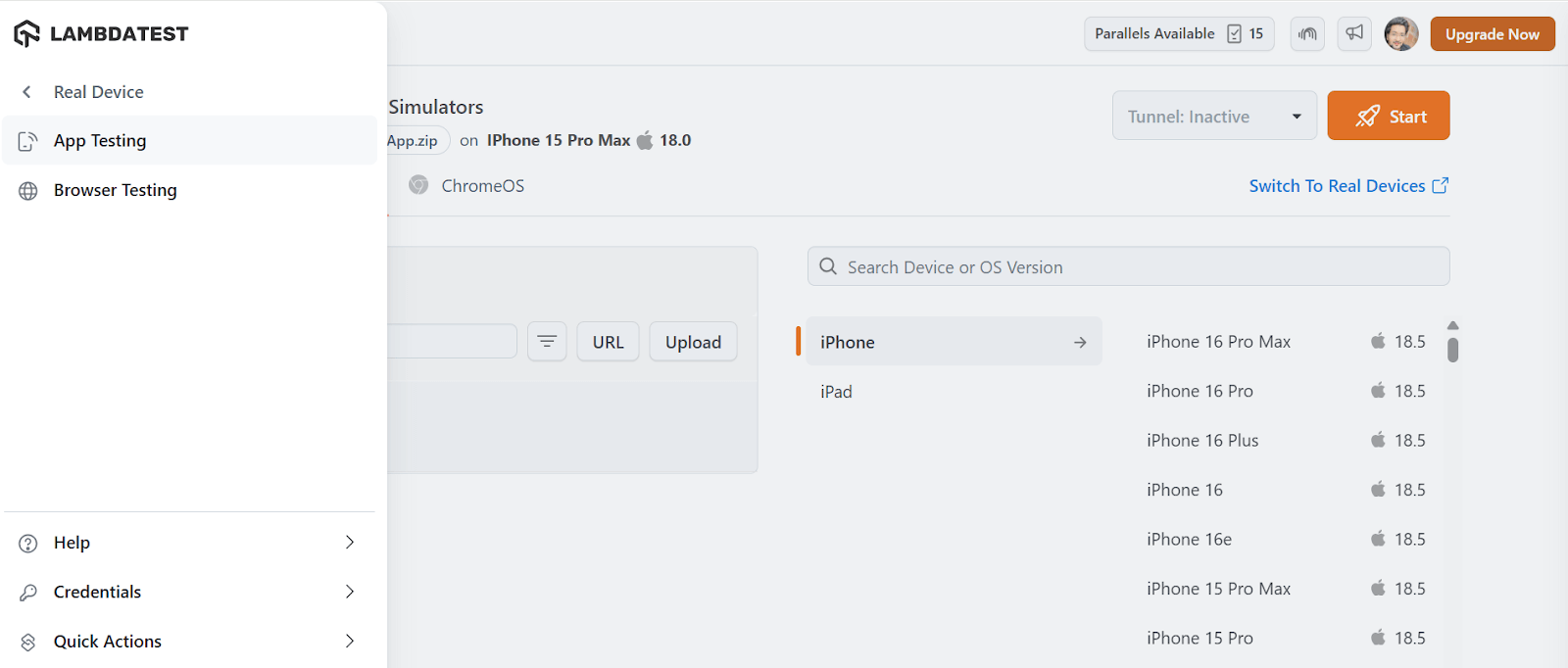
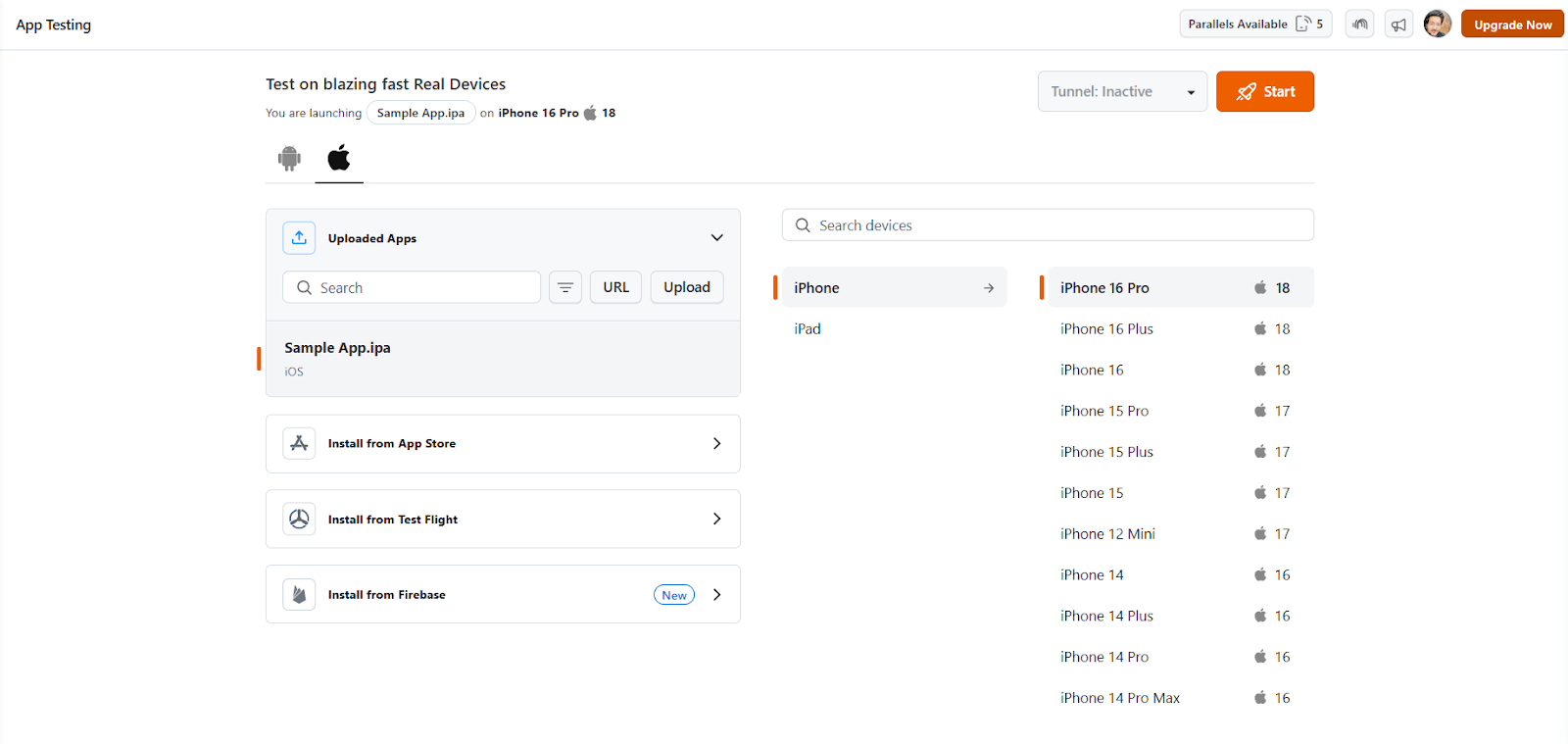
- Navigate to Real Device > App Testing in the dashboard.
- Click Upload App and select the .ipa file from your local system.
- The uploaded app will appear in your application list for easy access.
Note: Ensure the .ipa file is correctly signed with a valid Apple Developer or Enterprise certificate before upload.
Step 3: Select a Real iOS Device
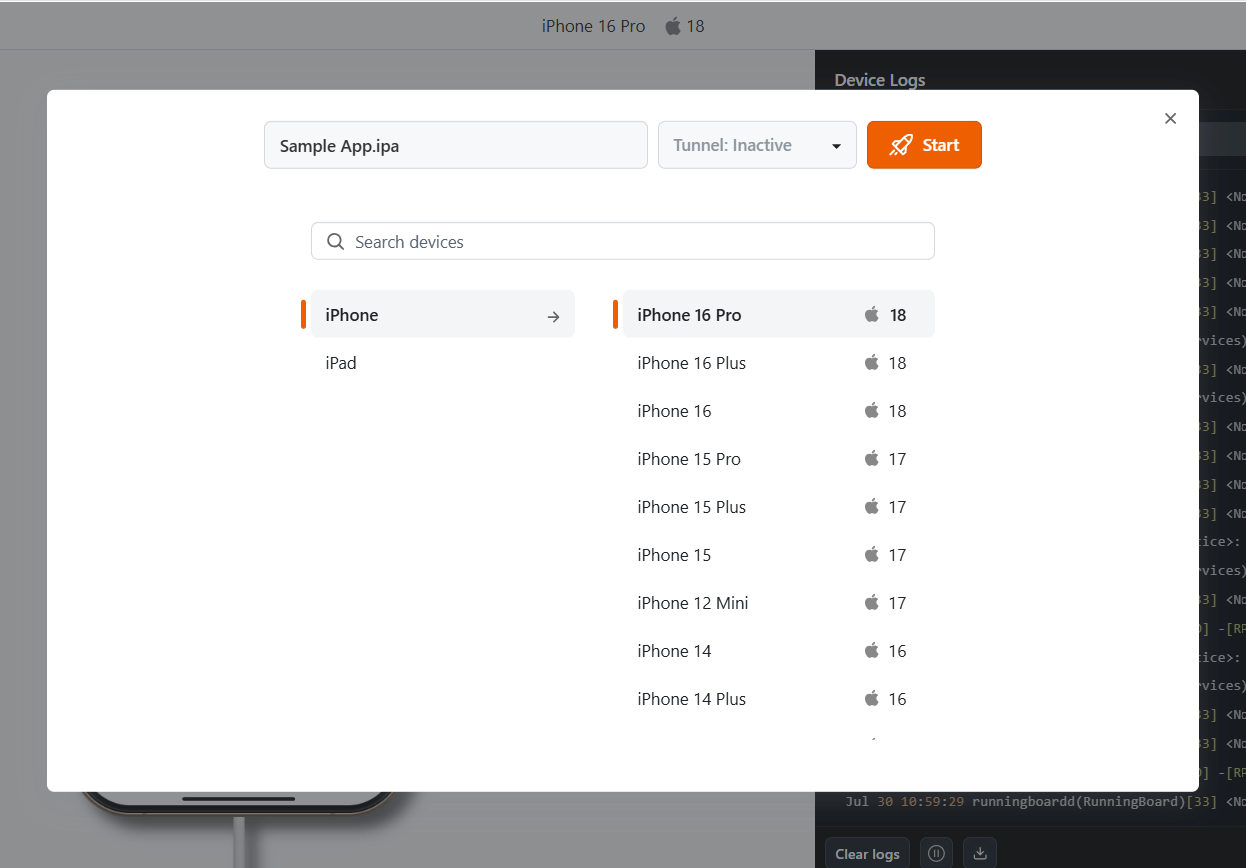
- Choose from a wide range of iPhones and iPads available in TestMu AI’s real device cloud.
- You can filter by device model and iOS version to test under specific configurations
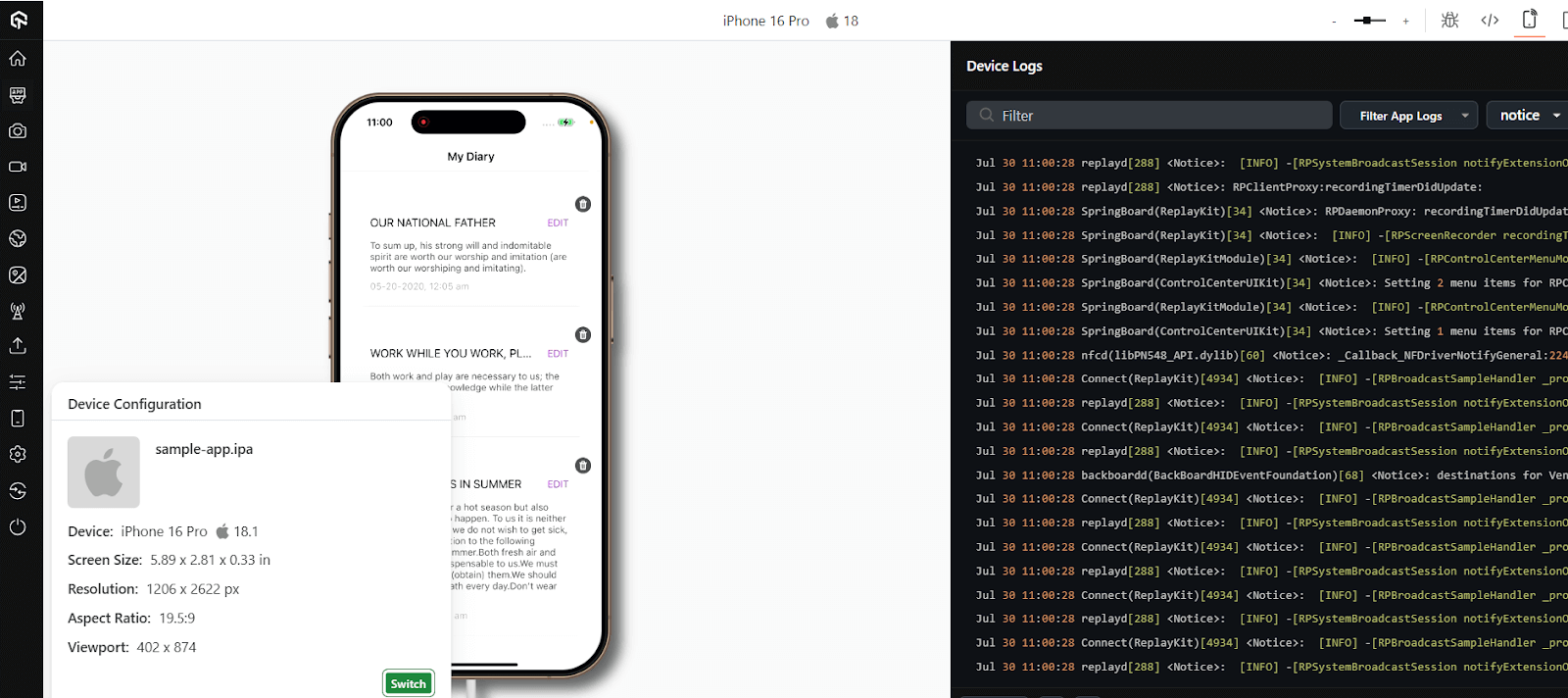
Step 4: Start the Testing Session
- Once the device boots up in the session, the .ipa file will automatically install
- Begin interacting with the app in real time through your browser
- Use built – in tools to:
- Simulate touch gestures and device rotation
- Throttle network conditions (3G/4G/Offline)
- Change geolocation
- Capture logs, screenshots, and video recordings
This streamlined workflow enables teams to test iOS applications in real – world scenarios – without managing physical hardware or dealing with provisioning complexities.

Who Should Use TestMu AI for IPA Testing?
- iOS Developers: Easily tested IPA builds on a wide range of real iOS devices to ensure compatibility, performance, and functionality across multiple versions and models.
- QA Engineers: Conduct comprehensive manual, UI, and regression testing on real devices to identify issues early and maintain app quality throughout the development cycle.
- Startups & Product Teams: Quickly validate app behavior in real-world environments, gather actionable insights, and accelerate time-to-market without investing in physical device labs.
- Enterprises: Optimize release cycles, reduce testing infrastructure overhead, and ensure scalable, secure IPA testing across global teams and multiple environments.
Conclusion
Thorough testing of .ipa files on real iOS devices is vital for ensuring app quality and compatibility. Traditional methods like Xcode or iTunes often lack scalability and efficiency. TestMu AI offers a cloud-based solution that simplifies .ipa installation and testing across real iPhones and iPads. It eliminates complex setups, enhances test coverage, and accelerates release cycles. Ideal for developers, QA teams, and enterprises aiming for reliable iOS app delivery.


Summarize with AI


Frequently asked questions
Did you find this page helpful?
More Related Hubs
TestMu AI forEnterprise
Get access to solutions built on Enterprise
grade security, privacy, & compliance
- Advanced access controls
- Advanced data retention rules
- Advanced Local Testing
- Premium Support options
- Early access to beta features
- Private Slack Channel
- Unlimited Manual Accessibility DevTools Tests