

Next-Gen App & Browser Testing Cloud
Trusted by 2 Mn+ QAs & Devs to accelerate their release cycles


On This Page

How to Download Apps on iPhone: Step-by-Step Guide
Learn how to download apps on iPhone using simple methods, fix common issues, and manage your apps with ease.
December 19, 2025
Downloading apps on an iPhone is easy and simple, but knowing the different ways to do it can make the process even smoother. If you’re new to iPhone or an old user, this guide will help you navigate the various methods for downloading apps on your iPhone, troubleshoot common issues, and provide helpful tips for managing your apps effectively.
Overview
Downloading apps on an iPhone is simple, but knowing the different ways to do it can make the process smoother.
Things You Need Before Downloading Apps
Ensure the following are set up before downloading apps:
- Apple ID: Required to access the App Store and sync apps.
- iCloud Account: Helps sync apps and data across devices.
- Stable Internet Connection: Wi-Fi is preferred for quicker and more stable downloads.
- Available Storage: Make sure there’s enough space on your iPhone.
How to Download Apps on iPhone
Use the following methods to download apps on your iPhone:
- Using the App Store: Search for the app, tap “Get” or the price, and authenticate to download.
- Using Safari: Open app links in Safari to be redirected to the App Store.
- Third-Party Sources: Use TestFlight or enterprise certificates for beta/internal apps.
- Using Siri: Ask Siri to find and download the app hands-free.
Things You Need Before Downloading Apps
Before knowing the steps to download apps on iPhone, let’s cover the basics to ensure you have everything in place.
Apple ID and iCloud Account Setup
An Apple ID is required for downloading apps, as it allows access to the App Store and syncs your purchases across all Apple devices.
- Importance of Apple ID: Without an Apple ID, you won’t be able to download or purchase apps. If you don’t have one yet, you can create it from Settings > Sign in to your iPhone.
- Setting Up iCloud: iCloud is essential for syncing your apps and data across devices. Ensure iCloud is enabled by going to Settings > [Your Name] > iCloud.
Internet Connection Requirements
You’ll need a stable internet connection for app downloads, and while cellular data works, Wi-Fi is generally faster and more reliable.
- Wi-Fi vs. Cellular Data: If you’re using cellular data, be mindful of your data usage. Wi-Fi is recommended to avoid extra charges and ensure faster downloads.
Available Storage Space
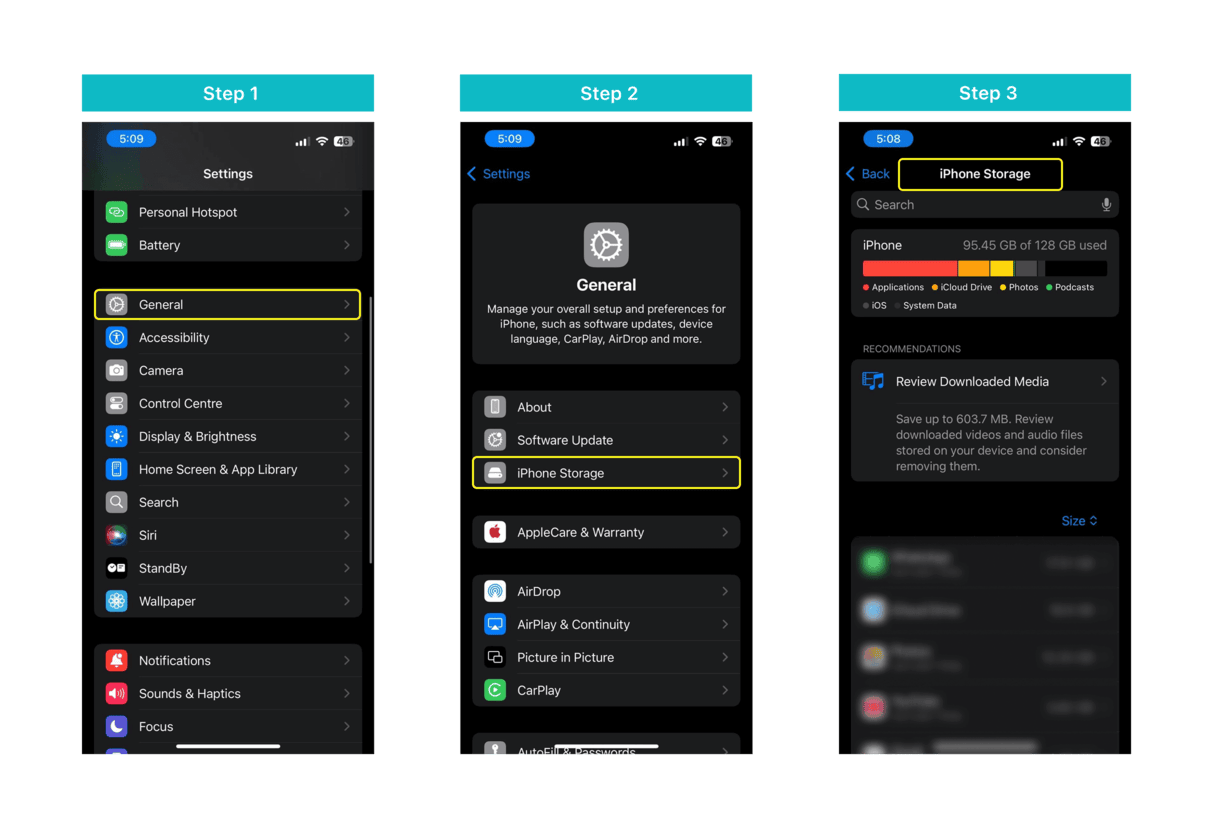
Before downloading, check if you have enough storage space.
- How to Check Storage: Go to Settings > General > iPhone Storage. You may need to free up some space by deleting unnecessary apps or files if storage is low.
How to Download Apps on iPhone Using Different Methods
There are a few different methods to download apps on your iPhone. Let’s explore them in detail.
1. Using the App Store
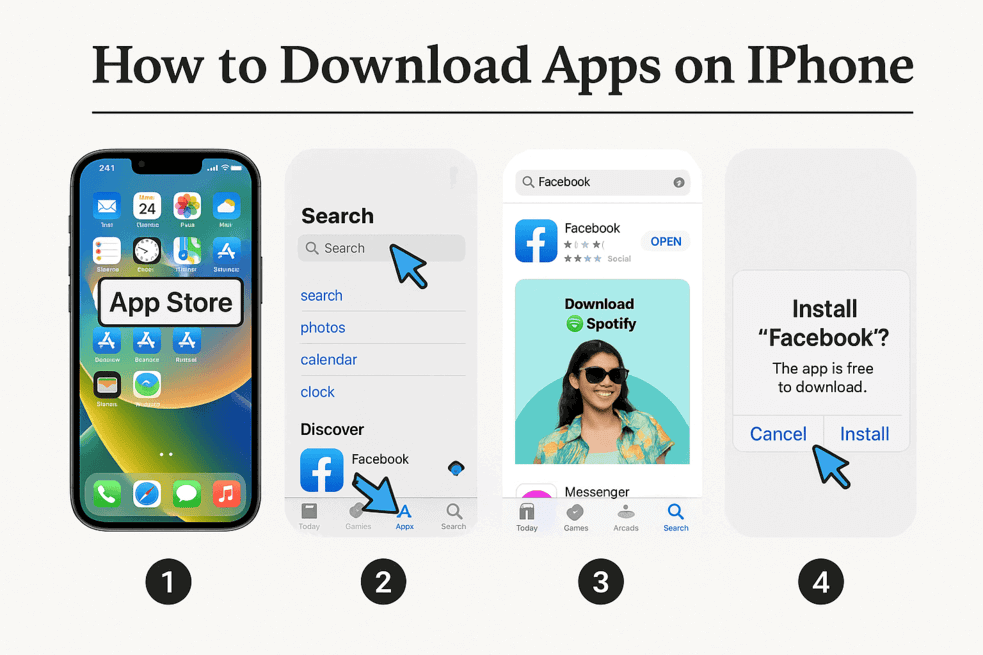
The App Store is your primary source for downloading apps.
- Accessing the App Store: Open the App Store from your home screen or App Library.
- Searching for Apps: Use the search bar at the top of the App Store to find apps by name, category, or keyword.
- Installing and Updating Apps: Tap the Get or Download button to install an app. You may need to authenticate with your Apple ID, Face ID, or Touch ID.
- Using the “Purchased” Tab: If you’ve previously purchased or downloaded an app, you can find it under the Purchased tab in your account settings for redownloading.
2. Using Safari to Download Apps
Sometimes, you may encounter links to apps outside the App Store, often on websites or in emails.
- How to Open an App’s Web Page: Click the app link in Safari, and it will redirect you to the App Store to download the app.
- What to Do If Links Don’t Open: If an app link does not open the App Store, check if the link is correct, and ensure the app is available in your region.
3. Using Third-Party App Sources
Apart from the App Store, there are methods for getting apps from beta or enterprise sources.
- Using TestFlight: Apple’s TestFlight is used to distribute beta apps. If you have an invitation to beta test, download TestFlight from the App Store, then use the invitation link to install the app.
- Enterprise or Ad-Hoc Distribution: Developers can distribute apps via enterprise certificates or ad-hoc distribution for internal use. These apps are typically not available on the App Store but can be installed manually through profiles.
4. Downloading Apps with Siri
If you prefer hands-free control, Siri can help.
- Voice Command Download: Simply say, “Hey Siri, download [App Name] from the App Store,” and Siri will open the App Store for you.
While downloading apps on your iPhone is an easy and straightforward process, managing and testing apps across different devices and browsers is crucial for quality assurance, especially for developers. This is where TestMu AI can help.
TestMu AI is a cloud-based platform that allows you to test your iOS apps across a wide range of real devices and browsers. With its powerful cross-browser testing and real-device cloud, TestMu AI helps developers and testers ensure that their apps function seamlessly across 3000+ browsers and 10,000+ real devices. Whether it’s testing apps on the App Store or beta distributions, TestMu AI ensures compatibility and smooth performance across different environments, just like the methods discussed in this guide.

Troubleshooting Common Issues When Downloading Apps
While downloading apps is typically straightforward, you may encounter some issues. Here’s how to fix them.
App Store Not Responding or Crashing
- How to Fix: Close the App Store and reopen it. If it’s still not working, check for iOS updates at Settings > General > Software Update.
Unable to Download or Install Apps
If the app isn’t downloading:
- Reboot your device and try again.
- Check Your Apple ID: Ensure your Apple ID is signed in correctly and linked to a valid payment method, even if the app is free.
- Check Network Settings: Ensure that your Wi-Fi or cellular connection is stable.
Payment Issues with Apple ID
If you’re having trouble with payment:
- Verify Your Apple ID Information: Ensure your payment information is up to date in Settings > [Your Name] > Payment & Shipping.
Best Practices for Managing Apps on iPhone
Once apps are downloaded, you’ll want to manage them efficiently.
Organizing and Categorizing Apps
- Folders: Organize apps into folders for better accessibility.
- Widgets: Use widgets for quicker access to frequently used apps.
Updating Apps Automatically and Manually
- Auto-Updates: Go to Settings > [Your Name] > iTunes & App Store, and toggle App Updates to On for automatic updates.
- Manual Updates: Open the App Store, go to Profile, and tap Update All to update apps manually.
Deleting Unwanted Apps
To delete apps:
- How to Delete: Long-press the app icon and select Remove App, then Delete App.
Conclusion
Downloading apps on your iPhone is a quick and easy process, whether you’re using the App Store, Safari, or other methods. By following these steps, troubleshooting tips, and best practices, you can easily manage and download apps, ensuring your device is always up to date with the latest apps.
For users looking to go beyond standard app downloads, this guide on how to install IPA files on an iPhone shows how to load apps directly onto your device.
Author


Frequently asked questions
Did you find this page helpful?
More Related Hubs
TestMu AI forEnterprise
Get access to solutions built on Enterprise
grade security, privacy, & compliance
- Advanced access controls
- Advanced data retention rules
- Advanced Local Testing
- Premium Support options
- Early access to beta features
- Private Slack Channel
- Unlimited Manual Accessibility DevTools Tests