

Next-Gen App & Browser Testing Cloud
Trusted by 2 Mn+ QAs & Devs to accelerate their release cycles


Handle Multiple Browser Tabs With Selenium Automation Testing
We will handle multiple browser tabs using Selenium automation testing with both Action Class & Windows Handler method, on a cloud-based Selenium Grid.

Sadhvi Singh
January 31, 2026
Automation testing with Selenium has been a lifeline in grooming budding automation testers into professionals. Selenium being open-source is largely adopted on a global scale. As a result of which you get huge support from the community. There are multiple frameworks for different languages that offer bindings with Selenium. So you have got everything on board for getting started with Selenium. Now, comes the phases where you run your first test script to perform Selenium. The scripts would involve basic test scenarios if you are learning Selenium automation. You may validate:
- A simple login form with Selenium automation testing.
- Capture screenshots of a web page with Selenium WebDriver.
- Web elements using CSS locators in Selenium WebDriver.
- Set up a Selenium Grid for parallel execution of test cases.
- Generating Selenium test reports.
There could be many more things, one may look to validate as one aims to perform automation testing with Selenium. Today, I am going to help you perform one of the basic and fundamental validations for test automation with Selenium. I will demonstrate how you can handle multiple browser tabs using Selenium automation testing.
If you’re new to Selenium and wondering what it is then we recommend checking out our guide – What is Selenium? If you are preparing for an interview you can learn more through Selenium interview questions.

Getting Started With A Practical Scenario
Sometimes you may come across a complex scenario where you may have to open a new tab or window and perform desired actions on the opened tab/window. Handling multiple tabs or windows may seem complex at the start but once you know how to handle them, it becomes really easy. Let’s take into account a scenario.
Assuming, you open the homepage of Airbnb and wish to open the details of a homestay in another tab, perform some actions on the opened tab and then switch back to the previous tab. Then how do you do so?
You may find multiple solutions on the web regarding this. Few people use sendkeys method ‘Control + t’ to open a tab, post locating the body of the homepage. This approach most of the time does not work owing to sendKeys issue with the browser behavior. Hence, the best approach to open tab is using a Robot class or using JavascriptExecutor. Robot class ensure your tab is opened using the ‘Control + t’ command, while through javascript executor you can simply open the tab using windows.open. Post opening the tab you can switch to the tab using either Action Class approach or using Selenium WebDriver interface methods getWindowHandle & getWindowHandles. I will be showcasing both the approaches in this article.
The below test steps need to be addressed in order to open a tab in Airbnb.
- Open Airbnb URL.
- Search for ‘Goa’ location.
- Store URL of any stay.
- Open a new tab
- Switch to the new tab and launch the desired stored URL.
In order to open a new tab, the following Robot class code can be used:
Robot r = new Robot();
        r.keyPress(KeyEvent.VK_CONTROL);
        r.keyPress(KeyEvent.VK_T);
        r.keyRelease(KeyEvent.VK_CONTROL);
        r.keyRelease(KeyEvent.VK_T);
The above code helps to open a tab using ‘control + t’ command of the keyboard. This can be performed using sendKeys but its credibility towards working or not seems sporadic owing to the behavior of the browser with which it is used. You can use sendKeys command as below to replicate the above behavior.
driver.findElement(By.cssSelector(“body”)).sendKeys(Keys.CONTROL+ “t”);
Handling Tabs In Selenium Using The Window Handler Method
Now, all we need to do is switch to this opened tab using Window Handler methods. Code snippet below for your reference:
import java.awt.AWTException;
import java.awt.Robot;
import java.awt.event.KeyEvent;
import java.util.Set;
import java.util.concurrent.TimeUnit;

import org.openqa.selenium.By;
import org.openqa.selenium.Keys;
import org.openqa.selenium.WebDriver;
import org.openqa.selenium.chrome.ChromeDriver;
import org.openqa.selenium.firefox.FirefoxDriver;
import org.openqa.selenium.interactions.Actions;

public class HandlingMultipleTabs {

    public static void main(String[] args) throws InterruptedException, AWTException {
        // TODO Auto-generated method stub

        System.setProperty("webdriver.chrome.driver", ".\ChromeDriver\chromedriver.exe");
        WebDriver driver=new ChromeDriver();
        driver.manage().timeouts().implicitlyWait(30, TimeUnit.SECONDS);

        //Navigating to airbnb
        driver.get("https://www.airbnb.co.in/");

        driver.manage().window().maximize();

        String currentHandle= driver.getWindowHandle();

        //locating the location, looking for homestays
        driver.findElement(By.id("Koan-magic-carpet-koan-search-bar__input")).sendKeys("Goa", Keys.ENTER);

        //Clicking on search button
        driver.findElement(By.xpath("//button[@type='submit']")).click();
        String urlToClick=driver.findElement(By.xpath("//div[text()='Luxury Three Bedroom Apartment with Pool & Jacuzzi']/ancestor::a")).getAttribute("href");

        //opening the new tab
        Robot r = new Robot();
        r.keyPress(KeyEvent.VK_CONTROL);
        r.keyPress(KeyEvent.VK_T);
        r.keyRelease(KeyEvent.VK_CONTROL);
        r.keyRelease(KeyEvent.VK_T);

        //getting all the handles currently available
        Set<String> handles=driver.getWindowHandles();
        for(String actual: handles)
        {

         if(!actual.equalsIgnoreCase(currentHandle))
         {
             //switching to the opened tab
             driver.switchTo().window(actual);

             //opening the URL saved.
             driver.get(urlToClick);
         }
        }


    }
}
Use the below command if you wish to switch back to the original tab.
driver.switchTo().defaultContent();
Now, let’s try to open the tab using JavascriptExecutor and switch to that tab for the same scenario above. Below is the referenced code snippet:
import java.util.Set;
import java.util.concurrent.TimeUnit;

import org.openqa.selenium.By;
import org.openqa.selenium.JavascriptExecutor;
import org.openqa.selenium.Keys;
import org.openqa.selenium.WebDriver;
import org.openqa.selenium.chrome.ChromeDriver;

public class multipltabsonce123 {

    public static void main(String[] args) {
        // TODO Auto-generated method stub

        System.setProperty("webdriver.chrome.driver", ".\ChromeDriver\chromedriver.exe");
        WebDriver driver=new ChromeDriver();
        driver.manage().timeouts().implicitlyWait(30, TimeUnit.SECONDS);

        //Navigating to airbnb
        driver.get("https://www.airbnb.co.in/");

        driver.manage().window().maximize();

        String currentHandle= driver.getWindowHandle();

        //locating the location, looking for homestays
        driver.findElement(By.id("Koan-magic-carpet-koan-search-bar__input")).sendKeys("Goa", Keys.ENTER);

        //Clicking on search button
        driver.findElement(By.xpath("//button[@type='submit']")).click();
        String urlToClick=driver.findElement(By.xpath("//div[text()='Luxury Three Bedroom Apartment with Pool & Jacuzzi']/ancestor::a")).getAttribute("href");

        //opening the new tab
        ((JavascriptExecutor)driver).executeScript("window.open()");

        //getting all the handles currently avaialbe
        Set<String> handles=driver.getWindowHandles();
        for(String actual: handles)
        {

         if(!actual.equalsIgnoreCase(currentHandle))
         {
             //switching to the opened tab
             driver.switchTo().window(actual);

             //opening the URL saved.
             driver.get(urlToClick);
         }
        }

    }

}
Kudos! You have successfully performed automation testing with Selenium for switching different browser tabs with the help of Windows Handler method. Now, let us go about it in a different manner.
You can also refer to the below video tutorial on how to handle Windows and Frames in selenium.
Handling Tabs In Selenium Using The Action Class
As mentioned above, we can switch to tabs using both Window Handler and Action Class. The below code snippet showcases how to switch to tabs using Action class. Since action class also use inference of sendkeys, it may or may not work subjected to the browser under use.
import java.awt.AWTException;
import java.awt.Robot;
import java.awt.event.KeyEvent;
import java.util.Set;
import java.util.concurrent.TimeUnit;

import org.openqa.selenium.By;
import org.openqa.selenium.Keys;
import org.openqa.selenium.WebDriver;
import org.openqa.selenium.chrome.ChromeDriver;
import org.openqa.selenium.firefox.FirefoxDriver;
import org.openqa.selenium.interactions.Actions;

public class HandlingMultipleTabs {

    public static void main(String[] args) throws InterruptedException, AWTException {
        // TODO Auto-generated method stub

        System.setProperty("webdriver.chrome.driver", ".\ChromeDriver\chromedriver.exe");
        WebDriver driver=new ChromeDriver();
        driver.manage().timeouts().implicitlyWait(30, TimeUnit.SECONDS);

        //Navigating to airbnb
        driver.get("https://www.airbnb.co.in/");

        driver.manage().window().maximize();

        String currentHandle= driver.getWindowHandle();

        //locating the location, looking for homestays
        driver.findElement(By.id("Koan-magic-carpet-koan-search-bar__input")).sendKeys("Goa", Keys.ENTER);

        //Clicking on search button
        driver.findElement(By.xpath("//button[@type='submit']")).click();
        String urlToClick=driver.findElement(By.xpath("//div[text()='Luxury Three Bedroom Apartment with Pool & Jacuzzi']/ancestor::a")).getAttribute("href");

        //opening the new tab
        Robot r = new Robot();
        r.keyPress(KeyEvent.VK_CONTROL);
        r.keyPress(KeyEvent.VK_T);
        r.keyRelease(KeyEvent.VK_CONTROL);
        r.keyRelease(KeyEvent.VK_T);


       //switch using actions class
        Actions action= new Actions(driver);
        action.keyDown(Keys.CONTROL).sendKeys(Keys.TAB).build().perform();

        //opening the URL saved.
        driver.get(urlToClick);


    }

}
And that is it! You have handled multiple browser tabs with Selenium automation testing using both Windows Handler method & using the Action Class as well. Now, I will be talking about one of the most common drawbacks of using Selenium. So we know that Selenium WebDriver is a great open-source tool for automating web applications. However, the primary pain point with WebDriver is the sequential execution of test scripts.
As a resolution, ThoughtWorks(Founder of Selenium) came up with Selenium Grid to help users run multiple test cases, simultaneously, in parallel. This drastically brought down the test builds execution.
So we have a way to run multiple test cases in parallel as we perform automation testing with Selenium. But how scalable is it?
Setting up a Selenium Grid of your own would demand a lot of CPU consumption & maintaining it comes as a hassle. The number of tests you wish to perform parallel execution with Selenium, the higher is the demand for computation. So what can you do? How can you perform automation testing with Selenium, at scale?
Executing Automation Testing With Selenium On Cloud
A cloud-based Selenium Grid will allow you to run your test cases without the hassle of infrastructure set up. All you would require is an internet connection. We have multiple platforms that help us provide a rich bed of browsers, versions, mobile devices, android versions etc.
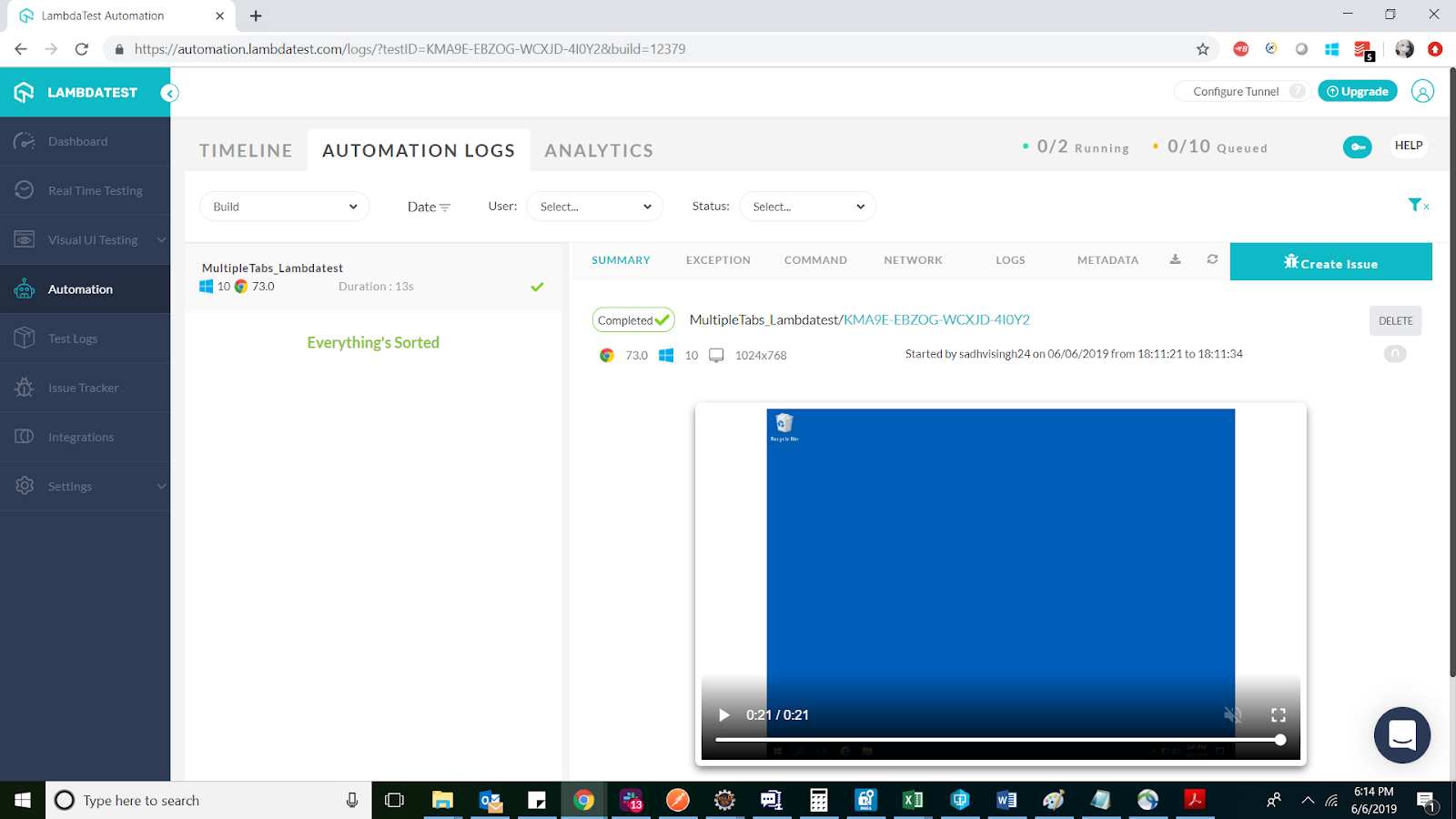
Let us execute the above-demonstrated test cases on TestMu AI Selenium Grid. I will be showcasing how we can open multiple tabs, on a cloud-based platform and access the required details like video, screenshots, console logs, etc. for TestMu AI.
All you need to do is set up the TestMu AI URL while instantiating the remoteWebDriver. This URL is a combination of username, access key and TestMu AI hub URL. Now, all you need to do is define the platform, browser, version and the add-ons you require. Once this setup process is complete, use the same multiple tab script and run it on the TestMu AI platform. The referenced code snippet below:
import java.awt.AWTException;
import java.awt.Robot;
import java.awt.event.KeyEvent;
import java.net.URL;
import java.util.Arrays;
import java.util.Set;
import java.util.concurrent.TimeUnit;

import org.openqa.selenium.By;
import org.openqa.selenium.JavascriptExecutor;
import org.openqa.selenium.Keys;
import org.openqa.selenium.WebDriver;
import org.openqa.selenium.chrome.ChromeDriver;
import org.openqa.selenium.firefox.FirefoxDriver;
import org.openqa.selenium.interactions.Actions;
import org.openqa.selenium.remote.DesiredCapabilities;
import org.openqa.selenium.remote.RemoteWebDriver;
import org.testng.annotations.AfterClass;
import org.testng.annotations.BeforeClass;
import org.testng.annotations.Test;

public class HandlingMultipleTabs {


    public RemoteWebDriver driver=null;
    public String url="https://www.lambdatest.com/";
    public static final String  username= "sadhvisingh24"; // Your LambdaTest Username
    public static final String auth_key = "abcdefghi123456789"; // Your LambdaTest Access Key
    public static final String URL= "@hub.lambdatest.com/wd/hub"; //This is the hub URL for LambdaTest


    @BeforeClass
    public void setUp()
    {
        DesiredCapabilities capabilities= new DesiredCapabilities();
        capabilities.setCapability("browserName", "chrome");
        capabilities.setCapability("version", "73.0");
        capabilities.setCapability("platform", "win10"); // If this cap isn't specified, it will just get the any available one
        capabilities.setCapability("build", "MultipleTabs_Lambdatest");
        capabilities.setCapability("name", "MultipleTabs_Lambdatest");
        capabilities.setCapability("network", true); // To enable network logs
        capabilities.setCapability("visual", true); // To enable step by step screenshot
        capabilities.setCapability("video", true); // To enable video recording
        capabilities.setCapability("console", true); // To capture console logs
        try {

         driver = new RemoteWebDriver(new URL("https://" + username + ":" + auth_key + URL), capabilities);

                }

       catch (Exception e) {

           System.out.println("Invalid grid URL" + e.getMessage());
                }

        System.out.println("The setup process is completed");

    }


    @Test
    public void handleMultipleTabs() throws InterruptedException, AWTException {
        // TODO Auto-generated method stub

        driver.manage().timeouts().implicitlyWait(30, TimeUnit.SECONDS);

        //Navigating to airbnb
        driver.get("https://www.lambdatest.com");

        driver.manage().window().maximize();

        String currentHandle= driver.getWindowHandle();

        //locating the blog url
        String urlToClick=driver.findElement(By.xpath("//a[text()='Blog']")).getAttribute("href");


        //opening the new tab
        ((JavascriptExecutor)driver).executeScript("window.open()");

        //getting all the handles currently availabe
        Set<String> handles=driver.getWindowHandles();
        for(String actual: handles)
        {

         if(!actual.equalsIgnoreCase(currentHandle))
         {
             //switching to the opened tab
             driver.switchTo().window(actual);

             //opening the URL saved.
             driver.get(urlToClick);
         }
        }


    }

    @AfterClass
    public void closeDown()
    {
        driver.quit();
    }
}
The above script will help you handle browser tabs in Selenium through an on-cloud Selenium Grid with zero-downtime. You can view the status of these test on the TestMu AI automation dashboard. You can view the video, screenshots, console output, and more as you perform automation testing with Selenium on TestMu AI. The referenced screenshot below:
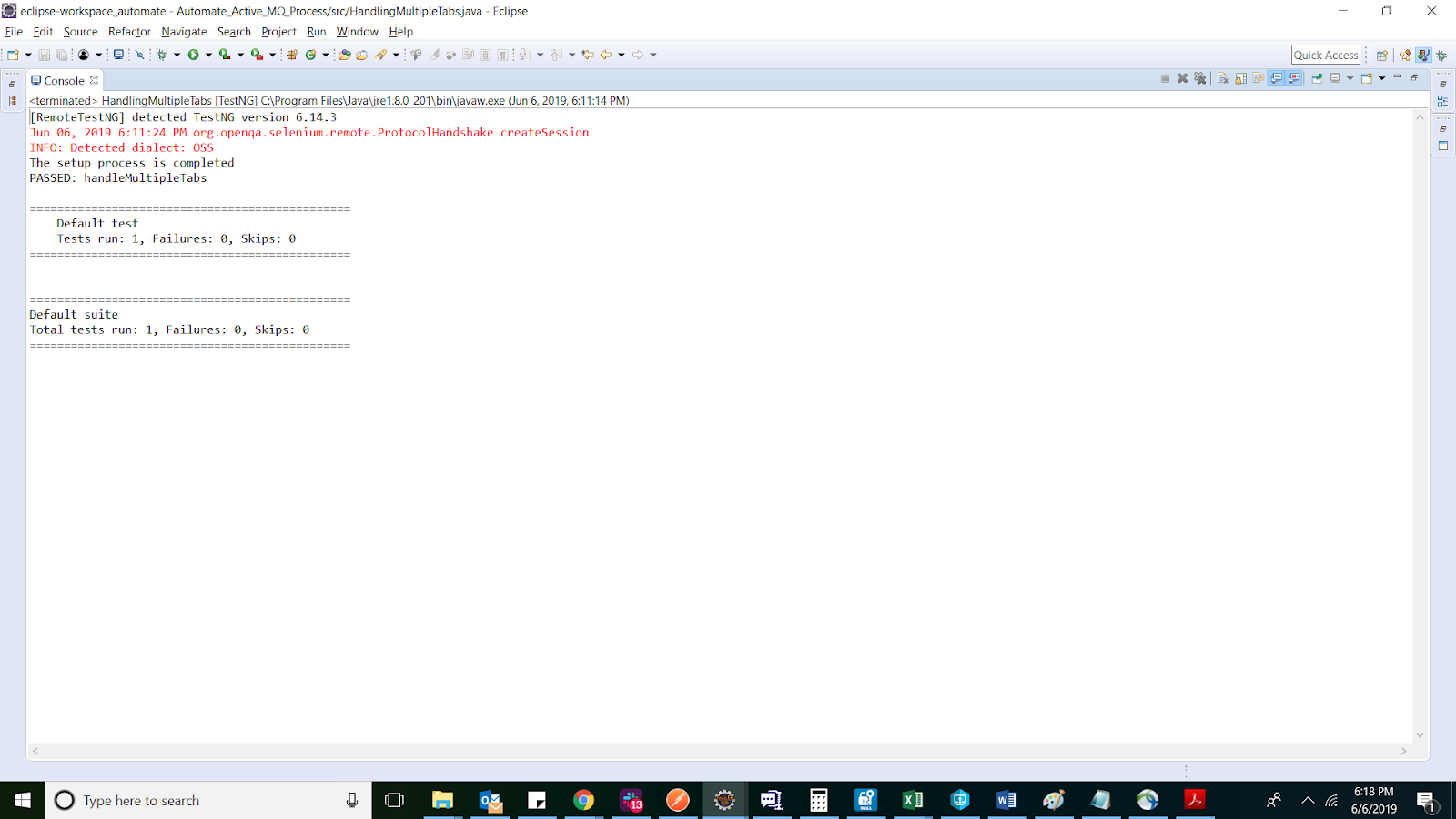
Console Output of the test:
Conclusion
We demonstrated automation testing with Selenium to handle multiple tabs using both Action Class & Windows Handler method. We came to realize the pain point of running Selenium WebDriver, & Grid, locally. Moving to cloud-based Selenium Grid such as TestMu AI will help you scale effortlessly, so you could reduce your build times significantly & ship products faster.
Let me know in case you have any queries regarding this topic. I will be coming up with more articles around fundamental topics of Selenium automation testing, to help you grow better as a professional automation tester. You can also have a look at our blog on automation testing tools to learn more! Stay tuned for more & happy testing!



Did you find this page helpful?
More Related Hubs
TestMu AI forEnterprise
Get access to solutions built on Enterprise
grade security, privacy, & compliance
- Advanced access controls
- Advanced data retention rules
- Advanced Local Testing
- Premium Support options
- Early access to beta features
- Private Slack Channel
- Unlimited Manual Accessibility DevTools Tests