

Next-Gen App & Browser Testing Cloud
Trusted by 2 Mn+ QAs & Devs to accelerate their release cycles


Getting Started with Automated Browser Testing: A Complete Guide
This blog will help you get started with automated browser testing guiding you through a range of languages and frameworks.

Himanshu Sheth
December 28, 2025
This article is a part of our Content Hub. For more in-depth resources, check out our content hub on Automation Testing Tutorial.
If you have a website for consumer products, you must know that some challenges exist only with these websites; one such challenge is ensuring that the functionalities work expectedly across browsers and devices. Browsers interpret things differently; hence you have to ensure consistency in the appearance (UI/UX) and functionalities of the website/web application across different browsers. This makes cross browser testing extremely important as it lets you compare the functionalities and design of a website on multiple browsers, devices, and platforms (operating systems). To fast-track the process of browser compatibility testing, developers should use automated browser testing.
In this article, we deep dive into the critical aspects related to automated browser testing, especially Selenium. We also look at parallel test execution using different test frameworks as parallel testing is one of the major advantages of automated browser testing.
Now run your scripts at the fastest speed possible with TestMu AI’s automated web testing platform.
Below is the list of the sub-topics that are covered as a part of this blog that focuses on browser compatibility testing and Selenium test automation:
Why is Automated Browser Testing Important?
Cross browser testing is vital for ensuring that the best experience is provided to the users. However, there are various challenges associated with cross browser testing, especially if you plan to set up a local infrastructure to execute the tests. There is an economic hurdle as the spend will be huge to factor different permutations of browsers, devices, and platforms. Having a local infrastructure is economically viable, but it is not scalable as you would have to practically invest in setting up a ‘cross browser testing’ farm! Start your testing on different browser farms.
Automated browser testing is a potential solution to the problem mentioned above. Automated browser testing uses automation tools to perform cross browser testing, ensuring efficiency, scalability, re-usability provided by the framework & test platform for accelerated product testing. However, for building an effective test plan, there should be a mix of manual tests and automated tests depending on the type & complexity of the test scenarios. Manual testing of all the features & functionalities of a web apps/website is not a viable solution as it is a time-consuming process. The task of browser compatibility testing can look humongous if a manual execution is performed.
Automated browser testing is a much better option as it uses efficient automation testing tools (or frameworks) to devise test scripts that can be used to validate the application. Selenium automation testing is widely popular as the Selenium test framework supports popular browsers & multiple operating systems. It can be used with popular programming languages like Python, Java, JavaScript, C#, Ruby, etc., to develop automated tests.
Now run your scripts at the fastest speed possible with TestMu AI’s automated web testing platform.
Below are some of the core advantages of using automated browser testing:
- Ability to test across.
- Economical and scalable to execute repetitive tests.
- Faster test processing due to support for parallel test execution.
- Scalable to adapt to changing test requirements.
- Provides better test coverage.
- Faster go-to-market.
- Ease of implementation.
How to Move From Manual to Automated Browser Testing?
Manual testing helps you to execute a test case step by step. But, if the test case is complex, it will be a very time-consuming process to execute test cases manually on each browser. This is the reason why many companies try to automate manual test cases. However, you cannot automate all test cases. If you are moving from manual to automated browser testing, you need to consider the below-mentioned points for a smooth transition.
- Write smaller and fewer test cases to be moved to automation. They are easy to manage and reuse. It will give an idea of whether automation is ideal for your requirements or not.
- If it benefits you, you can consider moving more test cases to automation. You can also increase the automation frequency both in volume and types. The test cases that are not benefiting you can be moved back for manual testing.
- Map the test cases based on the modules and also label them for better identification. This will help you to get better coverage and reporting.
- Always focus on the new areas manually and prioritize automating the test case based on your business requirements.
- Use analytics to understand user behavior in terms of browsers and devices that are mostly used. This will help you to target the right areas and get better results.
What tests should be automated?
Test cases that are rarely performed can be better left for manual testing, whereas test cases that run frequently involving large amounts of data are suitable for automation. Some of the tests that can be automated include smoke testing, regression tests, etc. Automated tests speed up the test cycle that helps in getting frequent releases without manual intervention.
You can also automate a test based on your business priority. For example, you can check whether automating can help you simplify technical complexity or help your business. If yes, you can surely go for automation.
Some of the scenarios where you can consider running automation tests:
- Tests that are repetitive for multiple builds.
- Tests that can bring human error.
- Tests that involve a huge data set.
- Frequently used functions with high risk.
- Tests that are time-consuming.
- Tests that involve different hardware and software configurations.
- Tests that are impossible to automate.
Automated Browser Testing Tools
Automated browser testing tools like Selenium have multi-browser support; hence, you can perform browser compatibility testing on popular web browsers like Chrome, Firefox, Internet Explorer, Microsoft Edge, Safari, etc. Another significant advantage of this automated browser testing tool is that it is open-source and facilitates testing using multiple languages and test frameworks.
Programming languages for automated browser testing
As per Stack Overflow’s 2020 annual Developer Survey, the top 3 popular programming languages are JavaScript (67.7%), Python (44.1%), and Java (40.2%).

The Selenium framework supports these programming languages. Each of these languages has its test frameworks, which can be used with Selenium for automated browser testing. Choosing the right framework that suits the requirements is extremely important as it can impact the delivery timelines.
Popular test frameworks for automated browser testing
Test frameworks are a set of rules used for the creation and execution of test cases. Choosing an appropriate programming language is important for development; selecting the most suitable test framework is equally crucial for automation testing.
The test framework should be chosen based on the skills that are available within the team. It should be evaluated based on script quality, ease of use, scalability, and effectiveness to execute complex test cases. Below are some of the top test frameworks for the top three programming languages, i.e., JavaScript, Python, Java.
a. Test automation frameworks for JavaScript
JavaScript is not only preferred for programming, but it has also slowly emerged as one of the preferred programming languages in automated browser testing tools like Selenium. It is used for end-to-end testing as well as unit testing.
Following are the popular test automation frameworks with JavaScript for browser compatibility testing:
- Jest – Jest is a test automation framework that is developed by Facebook. It was ranked #2 as per the stateofjs survey of 2020. The primary advantage of Jest is the minimal setup and configuration required to get started with Jest. Jest is the most preferred framework for testing applications developed using ReactJS. It has been forked close to 4900 times on GitHub.
- Cypress – Cypress is a holistic JavaScript-based end-to-end testing framework that supports today’s modern web interfaces. It does not use Selenium or WebDriver, supporting complex testing scenarios like flaky mobile networks, background syncing, and complex distributed systems. It is ranked #3 according to the stateofjs survey of 2020 and has been forked 1700 times on GitHub.
- Mocha – Mocha is a popular test automation framework for JavaScript. It is open-source and is used with the Selenium framework for testing applications that run Node.js. It makes automated browser testing simple and fun. It was ranked #7 JavaScript test automation framework as per 2020’s stateofjs survey. Mocha is hosted on GitHub, and the project has been forked 2800 times.
- Jasmine – Jasmine is a feature-rich automation testing framework for JavaScript. The test framework runs on Node.js. It does not require a DOM and is mainly used for asynchronous testing. It is a widely preferred framework for automated browser testing and Selenium automation testing. The most significant advantage of using Jasmine is its compatibility across libraries and frameworks of your choice. It also supports snapshot testing, which is useful for browser compatibility testing. The project is hosted on GitHub and has been forked more than 2,200 times.
- WebdriverIO – WebdriverIO is the next-gen Webdriver test automation framework for Nods.js. It can be used for Selenium automation testing to perform testing on mobile and non-mobile devices. The framework is feature-rich, highly extendable, and has support for Appium & Selenium framework. There is integrated support for Applitools Eyes, which is instrumental in writing visual regression tests. WebdriverIO is hosted on GitHub, and the project has been forked close to 1900 times.
- Protractor – Protractor is used for testing applications written in React.js, the Protractor framework is used for testing applications that are written using Angular and Angular.js. It is used for Selenium automation testing as the framework uses Selenium WebDriver for browser compatibility testing. Apart from the functionalities supported by Selenium WebDriver, Protractor also has additional locators like repeater, binding, model, etc. It also has support for other frameworks like Mocha, Jasmine, Cucumber, etc. The project is hosted on GitHub and has been forked more than 2400 times.
- Nightwatch – Nightwatch.js is a JavaScript-based test framework that is used for automated browser testing and end-to-end testing of websites & web applications, especially if the apps are developed using Node.js. It has a built-in test runner, supports parallel testing, ideal for continuous integration, supports POM (Page Object Model), and uses the W3C WebDriver API to interact with the elements on a web page. It has been forked close to 1000 times on GitHub.
You can also do selenium automation testing with selenide frameworkIf you are still confused about which JavaScript framework you should use for Selenium automation testing, do check out an in-depth comparison of the JavaScript frameworks for automated browser testing.
b. Test automation frameworks for Python
There are a number of Python automation frameworks that can be used for Selenium Automation Testing. While making a choice, you should select a suitable framework for your project; else, test automation’s real intent will be lost.
Following are the popular Python frameworks for browser compatibility testing:
- PyUnit (or UnitTest) – PyUnit, which is inspired by JUnit, is the standard/default test automation framework available in Python. The latest version is 3.9.2.
- Pytest – Pytest is an open-source test automation framework. It is widely used by developers for unit testing and by testers for automation testing. You can come up with effective test suites with Pytest that are written in a much compact manner. Pytest has been forked 1600 times.
- Robot – Robot is another popular test framework in Python. It is used for ATDD (Acceptance Test Driven Development) as well as acceptance testing. It can also run on IronPython, which is.Net based, and on Jython, based on Java. Robot has been forked 1600 times on GitHub.
- Behave – Behave is an ideal Python test automation framework for BDD (Behavior Driven Development). The framework’s overall architecture is very similar to SpecFlow and Cucumber, which are also used for automation testing. Behave has been forked 525 times.
- Lettuce – Lettuce is another popular test automation framework in Python that is used for BDD. It is a preferred test automation framework for executing behavior-driven tests, an integral part of black-box testing. Lettuce is hosted on GitHub and has been forked 693 times.
For more in-depth information, you can also look at a detailed article on our blog that lists the top Python frameworks in 2020 for Selenium test automation.
c. Test automation frameworks for Java
Though the JUnit test framework is a preferred framework as far as unit testing with Java is concerned, there are many test frameworks used for cross browser testing.
Below are some of the famous test frameworks for browser compatibility testing that can be used with Java:
- JUnit – JUnit is an instance of xUnit and is used for executing repeatable test cases/test suites. Selenium automation testing is possible with the JUnit test framework as it can be integrated with Selenium WebDriver for automated cross browser testing. JUnit lacks support when it comes to the execution of dependency tests. The latest version of JUnit, i.e., JUnit5, has been forked close to 1000 times on GitHub.
- TestNG – TestNG is a next-generation (NG) open-source test automation framework for Java inspired by JUnit. When compared to JUnit, TestNG is better when it comes to parameterization, group, and sequencing of test cases/test scenarios. Test reporting is also powerful with TestNG, identifying the potential problems with the source code. TestNG is hosted on GitHub, and the project is forked close to 866 times.
- Selenium – Selenium is one of the most widely used test frameworks for automated cross browser testing. It can be used to automate functional tests and be used to achieve continuous testing. Since major programming languages (C#, Java, etc.) support the Selenium framework, Selenium automation testing is popular for cross browser testing. Many powerful test frameworks, e.g., Selenide, are powered by the Selenium WebDriver. Detailed information about the Selenium framework is available on SeleniumHQ.
- Spock – Spock test framework is derived from JUnit, written in Groovy, and is one of the most preferred Java-based test automation frameworks for browser compatibility testing. Spock’s primary advantage over test frameworks is that it is compatible with JVM’s languages (Java Virtual Machine). Spock is also compatible with most build tools, IDEs, and continuous integration servers. The project is forked more than 397 times on GitHub.
- Selenide – Selenide is a test automation framework that is powered by the Selenium WebDriver. It is not a wrapper on top of the Selenium WebDriver; instead, it uses Selenium WebDriver by providing support for smart waiting, AJAX support, automated screenshots, and increased focus testing, and greater concentration on business logic. The Selenide project is forked more than 419 times.
We have earlier covered the top ten test automation frameworks for Java in more detail, which can help you choose the ideal test automation framework for your project.

Automated Browser Testing in action
In this section, we have a look at how test automation frameworks can be used in automated browser testing tools. When it comes to Selenium automation testing, you have the option to perform testing using a local Selenium WebDriver that makes use of the local Selenium infrastructure/grid for cross browser testing. The other option, which is more scalable, uses the remote Selenium WebDriver, where browser compatibility testing can be performed on different combinations of web browsers, devices, and operating systems.
Local automated browser testing
Selenium automation testing using the local test infrastructure is ideal for getting started with browser compatibility testing. Depending on the project’s scope and complexity, automated browser testing using the local Selenium grid may or may not be sufficient to attain sufficient test coverage.
To get started with Selenium automation testing on your local machine, you need to install the Selenium WebDriver for the browser on which you plan to perform the test. Selenium WebDrivers for popular web browsers like Firefox, Chrome, Safari, etc., can be downloaded from the following locations.
Browser | Download location |
|---|---|
Opera | https://github.com/operasoftware/operachromiumdriver/releases |
Firefox | |
Chrome | |
IE | https://github.com/SeleniumHQ/selenium/wiki/InternetExplorerDriver |
Microsoft Edge | https://developer.microsoft.com/en-us/microsoft-edge/tools/webdriver/ |
For more information about Selenium WebDriver, you can refer to our earlier articles that have more detailed insights into the architecture and other important aspects related to Selenium automation.
For demonstrating the usage of the test frameworks using JavaScript, Python, and Java, we take the example of a simple To-Do app. Below are more details of the overall test that demonstrates Selenium automation testing using the local Selenium WebDriver:
- Navigate to the to-do app https://lambdatest.github.io/sample-todo-app/ using the Chrome WebDriver.
- Check the first two items in the list.
- Add the text ‘Yey, Let’s add it to list’ in the text-box.
- Click the ‘Add’ button so that the new item is added to the list.
a. Local automated browser testing using JavaScript
For demonstrating browser compatibility testing using Selenium and JavaScript, we make use of the WebdriverIO framework. The WebdriverIO framework supports BDD and TDD. The latest version of WebdriverIO v7. Node.js has to be installed before installing WebdriverIO.
Execute the following commands on the terminal for installing WebdriverIO (on Windows 10):
cd project

npm init –y

npm install WebDriverIO --save-dev

cd node_modules/.bin

wdio --help
We recommend checking our detailed article on WebdriverIO for more information on the installation. We now move to the actual implementation of ToDoApp with Selenium and WebdriverIO.
const assert = require("assert");

describe("Lambdatest ToDoApp Test", function() {
    it("Lambdatest ToDoApp TestCase", function() {
        browser.url("https://lambdatest.github.io/sample-todo-app/");
        $("*[name='li1']").click();
        $("*[name='li2']").click();
       $("#sampletodotext").setValue("Yey, Let's add it to list
");

        assert.strictEqual(browser.getTitle(), "Sample page - lambdatest.com");
    });
});
Each describe() function can have multiple it() functions which contain the test case(s), where describe() block lets you keep all the tests under a single function.
describe("Lambdatest ToDoApp Test", function() {
    it("Lambdatest ToDoApp TestCase", function() {
The Selenium WebDriver commands are used to perform the necessary operations that are a part of the test case. Details of the web locators are obtained using the Inspect tool of the web browser.
b. Local automated browser testing using Python
Parameterization in the Pytest framework is used to realize the test case. The test execution is performed on Firefox and Chrome web browsers serially.
# Import the 'modules' that are required for execution

import pytest
import pytest_html
from selenium import webdriver
from selenium.webdriver.chrome.options import Options
from selenium.webdriver.common.keys import Keys
from time import sleep

global url_under_test

# We make use of the parameterized decorator to supply input arguments
# to the test function

@pytest.mark.parametrize("input_browser", ['chrome', 'firefox'])
@pytest.mark.parametrize("input_url", ['https://lambdatest.github.io/sample-todo-app/'])

def test_url_on_browsers(input_browser, input_url):
    if input_browser == "chrome":
        driver = webdriver.Chrome()
    if input_browser == "firefox":
        driver = webdriver.Firefox()
    driver.maximize_window()
    driver.get(input_url)
    print(driver.title)
    sleep(5)

    # Click on check box
    check_box_one = driver.find_element_by_name("li1")
    check_box_one.click()

    # Click on check box
    check_box_two = driver.find_element_by_name("li2")
    check_box_two.click()

    # Enter item in textfield
    textfield = driver.find_element_by_id("sampletodotext")
    textfield.send_keys("Yey, Let's add it to list")

    # Click on add button
    add_button = driver.find_element_by_id("addbutton")
    add_button.click()

    # Verified added item

    added_item = driver.find_element_by_xpath("//span[@class='done-false']").text

    print (added_item)

    sleep(5)

    driver.close()
As seen in the implementation, the test URL and web browsers are passed using parameterization in Pytest. It gives rise to two sample test cases making it easy to extend the test to more browsers/test URLs.
@pytest.mark.parametrize("input_browser", ['chrome', 'firefox'])
@pytest.mark.parametrize("input_url", ['https://lambdatest.github.io/sample-todo-app/'])
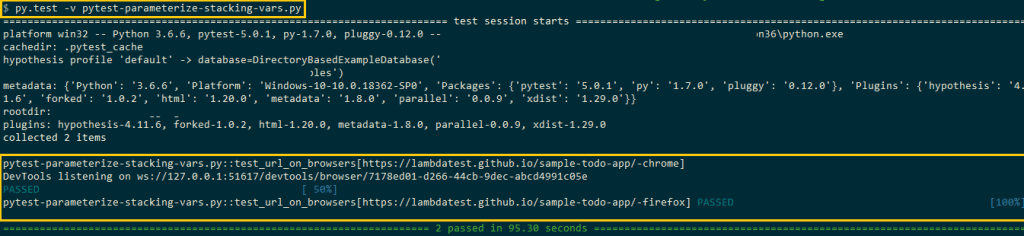
The test is performed by executing the following command on the terminal.
py.test -v parameterize-stacking-vars.py
The output snapshot is shown below.
c. Local automated browser testing using Java
For demonstrating Selenium automation testing using Java, we make use of the TestNG framework.
package RelativeLocators;

import io.github.bonigarcia.wdm.WebDriverManager;
import org.openqa.selenium.By;
import org.openqa.selenium.WebDriver;
import org.openqa.selenium.WebElement;
import org.openqa.selenium.chrome.ChromeDriver;
import org.openqa.selenium.firefox.FirefoxDriver;
import org.testng.annotations.AfterClass;
import org.testng.annotations.BeforeClass;
import org.testng.annotations.Test;
import static org.openqa.selenium.support.locators.RelativeLocator.withTagName;
import static org.testng.Assert.assertEquals;
import org.testng.annotations.Test;
import java.net.MalformedURLException;
import java.net.URL;
import java.util.concurrent.TimeUnit;

public class TestNGToDo_local {
    private WebDriver driver;
    boolean status = false;

    @BeforeClass
    public void setUp(){
        //System.setProperty("webdriver.chrome.driver","C:\Setup-Folder\chromedriver.exe");

        driver = new FirefoxDriver();
        driver.get("https://lambdatest.github.io/sample-todo-app/");
        driver.manage().window().maximize();

        driver.manage().timeouts().implicitlyWait(10, TimeUnit.SECONDS);
    }

    @AfterClass
    public void tearDown() throws Exception {
       if (driver != null) {
           driver.quit();
        }
    }

    @Test
    public void test_login_using_relative_locators_1(){
        //Change it to production page
        driver.get("https://lambdatest.github.io/sample-todo-app/");

        //Let's mark done first two items in the list.
        driver.findElement(By.name("li1")).click();
        driver.findElement(By.name("li2")).click();

        // Let's add an item in the list.
        driver.findElement(By.id("sampletodotext")).sendKeys("Yey, Let's add it to list");
        driver.findElement(By.id("addbutton")).click();

        // Let's check that the item we added is added in the list.
        String enteredText = driver.findElement(By.xpath("/html/body/div/div/div/ul/li[6]/span")).getText();
        if (enteredText.equals("Yey, Let's add it to list")) {
            status = true;
        }

        driver.manage().timeouts().implicitlyWait(10, TimeUnit.SECONDS);
    }
}
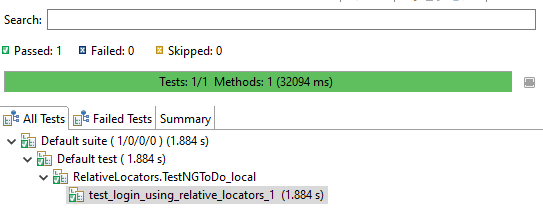
As seen in the implementation above, setup() is implemented under the @BeforeClass annotation. On similar lines, teardown() is implemented under the @AfterClass annotation. The implementation of the core test logic is a part of the @Test annotation.
Shown below is the output from Eclipse, which indicates that the test executed successfully.
Automated browser testing using remote Selenium Grid
Local automated browser testing works as long as you are not concerned about the test coverage or are not so worried about testing the code against different browsers/different versions of browsers, e.g., Chrome, Firefox, or Chrome 71.0, Chrome 68.0, Firefox 60.0, Firefox 48.0, etc. Though you would have performed browser compatibility testing against few browser combinations, local testing would not suffice if you have to test across a huge number of browser combinations.
In such cases, Selenium automation testing should be performed on a remote Selenium Grid as tests can leverage the grid’s capabilities. Since it helps in testing against different combinations, the overall test coverage percentage will also improve. Rather than investing in an in-house Selenium Grid, which is not a scalable (and economical) approach, it would be better to opt for a cloud-based cross browser testing platform like TestMu AI.
TestMu AI is a cross browser testing/automated browser testing platform on the cloud where you can verify the test code on 3000+ combinations of browsers, devices, and operating systems. To port the code from the local Selenium Grid to TestMu AI’s remote Selenium Grid, you only need to perform infrastructure-related code changes.
Now run your scripts at the fastest speed possible with TestMu AI’s automated web testing platform.
To get started, you need to create an account on TestMu AI. Once the account is created, make a note of the username & access-key from the Profile Section. The Dashboard consists of vital information about the tests, logs, status, video recordings of the tests, etc. TestMu AI capabilities generator is used to generate the browser and platform capabilities for the browser & platform on which automated cross browser testing has to be performed.
To demonstrate the usage of Selenium automation testing on the TestMu AI Grid, we implement the same test case that was shown as a part of local Selenium WebDriver:
- Navigate to the to-do app https://lambdatest.github.io/sample-todo-app/ using selected browsers.
- Check the first two items.
- Add the text ‘Yey, Let’s add it to list’ in the text-box
- Click the Add button to add that new item to the list.
a. Remote automated browser testing using JavaScript
Before we start implementing automated browser testing using remote Selenium WebDriver and WebdriverIO, we have first to install the dev dependency. This is done by executing the following command on the terminal.
npm install @wdio/selenium-standalone-service --save-dev
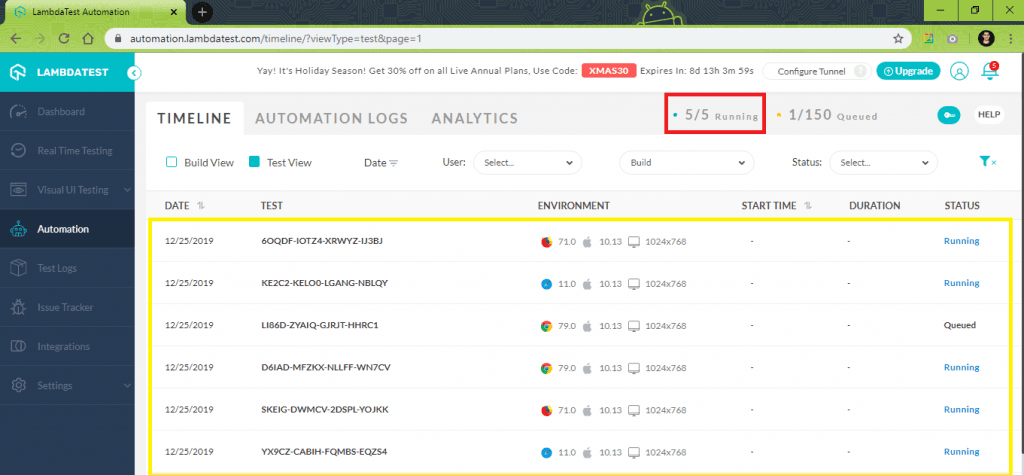
Parallel test execution is performed since it speeds up the execution and improves the browser & operating system coverage. As per my current plan on TestMu AI, five parallel threads can be executed in parallel. maxInstances is a property in WebdriverIO that helps you execute parallel browsers.
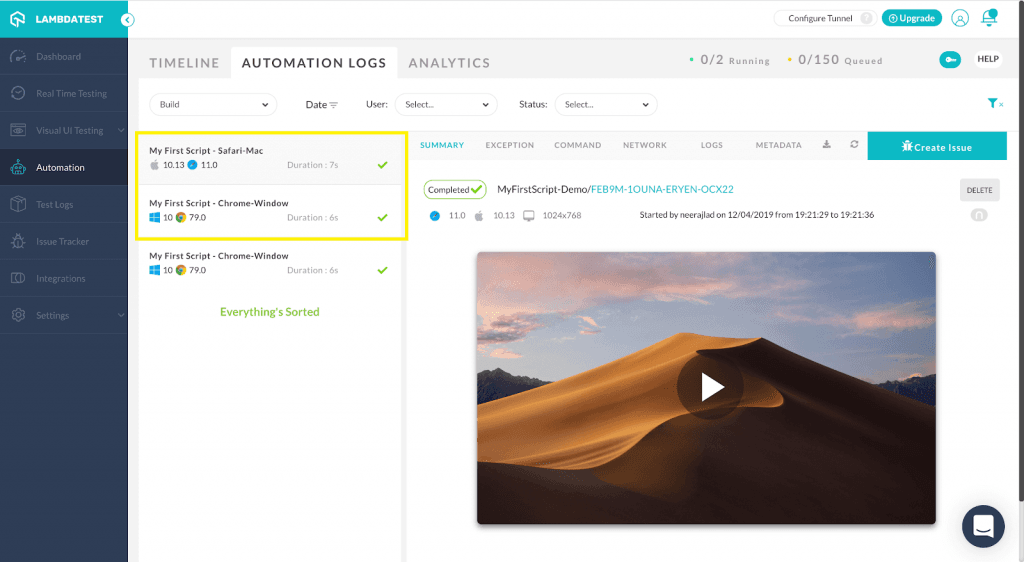
For demonstrating parallel execution for browser compatibility testing, capabilities that comprise Safari on Mac OS and Chrome on Windows 10 OS are used. The capabilities are generated using the TestMu AI capabilities generator.
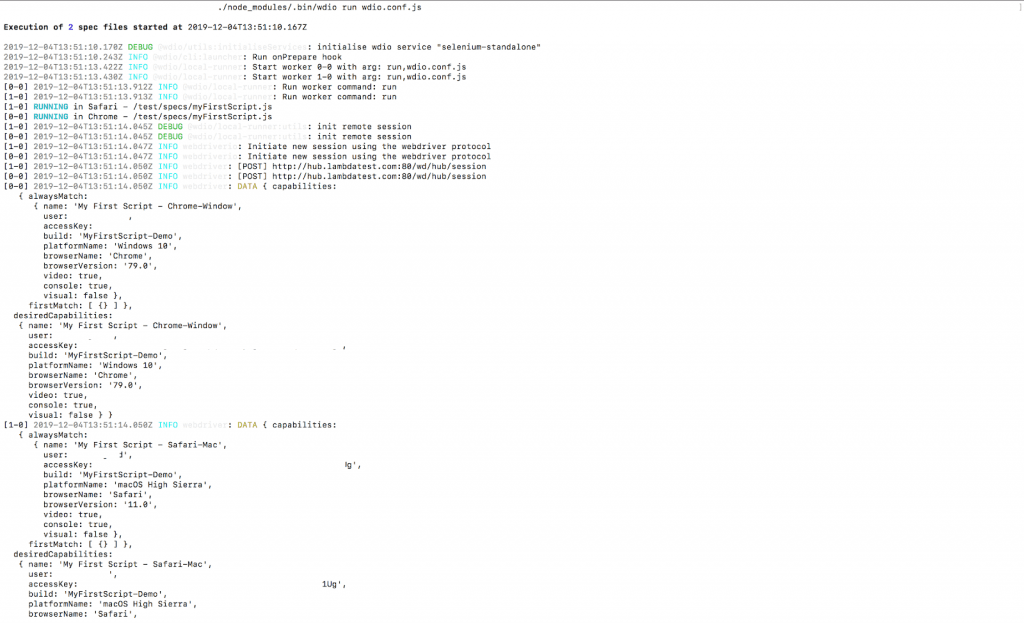
WDIO configuration file contents, i.e., wdio.conf.js are changed to accommodate parallel test execution with the required browser & platform capabilities.
FileName – wdio.conf.js
capabilities: [
        {
            maxInstances: 5,
            name: "My First Script - Chrome-Window", // name of the test,
            user: "user-name",
            accessKey: "access-key",
            build: "MyFirstScript-Demo",
            platformName: "Windows 10", // macOS High Sierra & Windows 10
            browserName: "Chrome",
            browserVersion: "79.0",
            video: true,
            console: true,
            visual: false
        },
        {
            name: "My First Script - Safari-Mac", // name of the test,
            user: "user-name",
            accessKey: "access-key",
            build: "MyFirstScript-Demo",
            platformName: "macOS High Sierra", // macOS High Sierra & Windows 10
            browserName: "Safari",
            browserVersion: "11.0",
            video: true,
            console: true,
            visual: false
        }
    ],
Since we can execute five threads in parallel, maxInstances is set to 5. Remaining content in capabilities contains the browser capabilities that are used for automated browser testing.
Shown below is the snapshot from automation tab in TestMu AI that shows the status of the tests that have been performed so far:
Below are the local console logs
b. Remote automated browser testing using Python
To demonstrate Selenium automation testing with Pytest and remote Selenium WebDriver, we use Parameterization in Python. For modularity, we use command-line arguments where the browser, browser version, and operating system are supplied as input arguments.
FileName – conf_test.py
import cross_browser_configuration
import pytest
import os

# Capabilities can be generated using LambdaTest online capabilities generator
# https://www.lambdatest.com/capabilities-generator/

@pytest.fixture
def platform(request):
    "fixture for platform - can be Windows 10.0, OSX Sierra, etc."
    "Equivalent entry for 'platform' : platform-name"
    return request.config.getoption("-P")

@pytest.fixture
def browser(request):
    "fixture for browsername - can be Chrome, Firefox, Safari, etc."
    "Equivalent entry for 'browsername' : browser-name"
    return request.config.getoption("-B")

@pytest.fixture
def browser_version(request):
    "fixture for browser version - can be version number for the corresponding selected browser"
    "Equivalent entry for 'version' : version-number"
    return request.config.getoption("-V")

def pytest_generate_tests(metafunc):
    "test generator function to run tests across different parameters"
    if 'browser' in metafunc.fixturenames:
        if metafunc.config.getoption("-B") == "all":
            # Parameters are passed according to the one generated by
            # https://www.lambdatest.com/capabilities-generator/
            metafunc.parametrize("platform,browser,browser_version",
                                cross_browser_configuration.LT_cross_browser_config)

def pytest_addoption(parser):
    parser.addoption("-P","--platform",
                      dest="platform",
                      action="store",
                      help="OS on which testing is performed: Windows 10.0, macOS Sierra, etc.",
                      default="")
    parser.addoption("-B","--browser",
                      dest="browser",
                      action="store",
                      help="Browser on which testing is performed: Firefox, Chrome, Edge, etc.",
                      default= "")
    parser.addoption("-V","--ver",
                      dest="browser_version",
                      action="store",
                      help="Corresponding Browser version: 71.0, 72.0, etc.",
                      default= "")
This file contains the implementation of fixture functions that need to be shared between different files. parser.addoption is used to register command-line options. Each command-line option has a fixture function associated with it.
FileName – cross_browser_configuration.py
platform_list = ["macOS High Sierra"]
browsers = ["Chrome", "Firefox", "Safari"]
chrome_test_versions = ["79.0"]
firefox_test_versions = ["71.0"]
safari_test_versions = ["11.0"]

def generate_LT_configuration(platform_list=platform_list,browsers=browsers):
    if 'firefox_versions' in locals():
        ff_ver = firefox_test_versions

    if 'chrome_versions' in locals():
        ch_ver = chrome_test_versions

    if 'safari_versions' in locals():
        edge_ver = safari_test_versions

    LT_config = []

    for browser in browsers:
        if browser == "Chrome":
            for ch_ver in chrome_test_versions:
                for platform_name in platform_list:
                    # if platform_name == "Windows 10":
                    config = [platform_name,browser,ch_ver]
                    LT_config.append(tuple(config))

        if browser == "MicrosoftEdge":
            for edge_ver in edge_test_versions:
                for platform_name in platform_list:
                    # if platform_name == "Windows 10":
                    config = [platform_name,browser,edge_ver]
                    LT_config.append(tuple(config))

        if browser == "Firefox":
            for ff_ver in firefox_test_versions:
                for platform_name in platform_list:
                    # if platform_name == "Windows 10":
                    config = [platform_name,browser,ff_ver]
                    LT_config.append(tuple(config))

        if browser == "Safari":
            for ff_ver in safari_test_versions:
                for platform_name in platform_list:
                    # if platform_name == "Windows 10":
                    config = [platform_name,browser,ff_ver]
                    LT_config.append(tuple(config))

    return LT_config

LT_cross_browser_config = generate_LT_configuration()
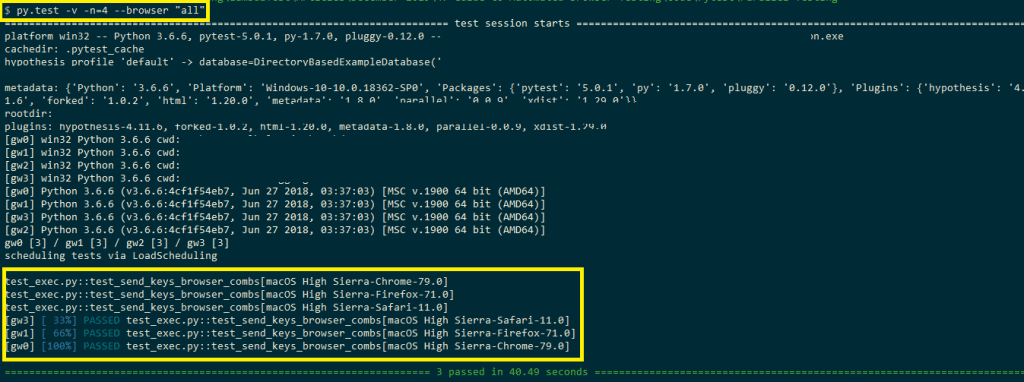
This file contains the command-line arguments that can be passed during testing. The options are –B “all” or –browser “all” or some predefined configuration. The arguments are in accordance with the capabilities generated using TestMu AI capabilities generator.
platform_list = ["macOS High Sierra"]
browsers = ["Chrome", "Firefox", "Safari"]
chrome_test_versions = ["79.0"]
firefox_test_versions = ["71.0"]
safari_test_versions = ["11.0"]
FileName – test_exec.py
from selenium import webdriver
from selenium.webdriver.common.desired_capabilities import DesiredCapabilities
from selenium.webdriver.common.action_chains import ActionChains
import sys,time
import urllib3
from time import sleep
from selenium.webdriver.common.keys import Keys
from selenium.webdriver.support.ui import WebDriverWait

def test_send_keys_browser_combs(platform,browser,browser_version):
    driver = webdriver_interface_conf(platform,browser,browser_version)
    driver.get('https://lambdatest.github.io/sample-todo-app/')

    # Click on check box
    check_box_one = driver.find_element_by_name("li1")
    check_box_one.click()

    # Click on check box
    check_box_two = driver.find_element_by_name("li2")
    check_box_two.click()

    # Enter item in textfield
    textfield = driver.find_element_by_id("sampletodotext")
    textfield.send_keys("Yey, Let's add it to list")

    # Click on add button
    add_button = driver.find_element_by_id("addbutton")
    add_button.click()

    # Verified added item

    added_item = driver.find_element_by_xpath("//span[@class='done-false']").text

    print (added_item)
    driver.quit()

# Configuration of Selenium WebDriver
def webdriver_interface_conf(platform,browser,browser_version):

    urllib3.disable_warnings(urllib3.exceptions.InsecureRequestWarning)
    user_name = "user-name"
    app_key = "access-key"

    if browser == 'firefox' or browser == 'Firefox':
        desired_capabilities = DesiredCapabilities.FIREFOX

    if browser == 'chrome' or browser == 'Chrome':
        desired_capabilities = DesiredCapabilities.CHROME

    if browser == 'safari' or browser == 'Safari':
        desired_capabilities = DesiredCapabilities.SAFARI

    if browser == 'microsoftedge' or browser == 'MicrosoftEdge':
        desired_capabilities = DesiredCapabilities.EDGE

    desired_capabilities['browserName'] = browser
    desired_capabilities['platform'] = platform
    desired_capabilities['version'] = browser_version

    remote_url = "http://" + user_name + ":" + app_key + "@hub.lambdatest.com/wd/hub"

    return webdriver.Remote(command_executor=remote_url, desired_capabilities=desired_capabilities)
The remote Selenium WebDriver interface is configured via configure_webdriver_interface() API. Browser name, browser version, and platform (operating system) are assigned to the respective fields to form desired_capabilities [in webdriver.Remote()]. As we are using the Pytest framework, naming nomenclature is followed, i.e., test name has to start with test. In our case, the test name is test_send_keys_browser_combs().
Shown below is the terminal output where the Pytest commands are executed, i.e., py.test -v -n=4 –browser “all” is triggered on two terminal windows.
Shown below is the snapshot from TestMu AI, which indicates that five tests are running in parallel.
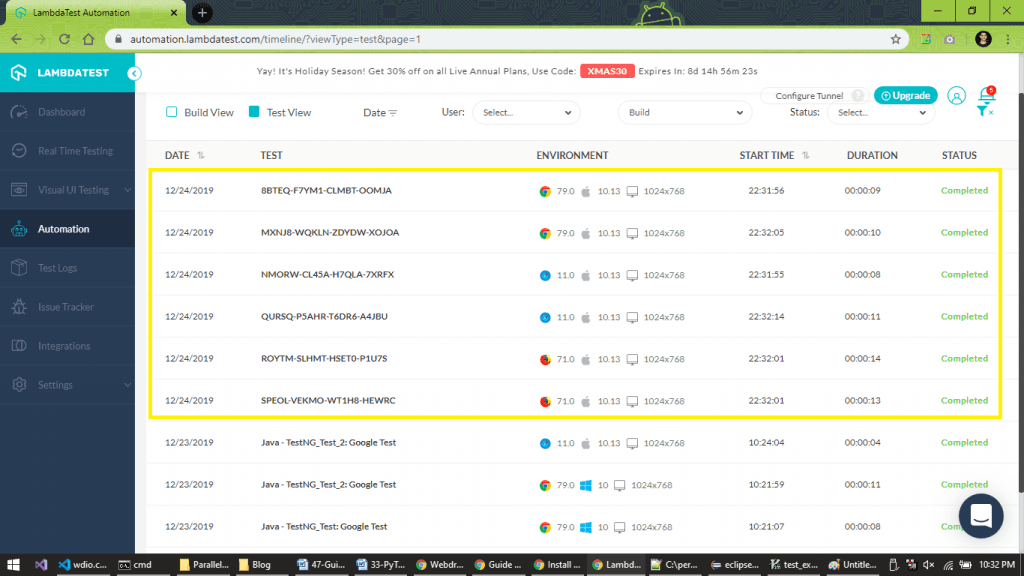
Shown below is the test completion snapshot indicating that the test execution is successful.
c. Remote automated browser testing using Java
For demonstration of browser compatibility testing with Java and TestNG framework, we use the remote Selenium WebDriver to access the Selenium Grid on TestMu AI. Tests implemented under the @Test annotation take the parameters returned by the DataProvider method. A method named getData is defined with the data provider annotation where the combination of browsers, browser versions, and operating systems is mentioned.
FileName – TestNGToDo.java
import org.openqa.selenium.By;
import org.openqa.selenium.JavascriptExecutor;
import org.openqa.selenium.Keys;
import org.openqa.selenium.Platform;
import org.openqa.selenium.WebDriver;
import org.openqa.selenium.WebElement;
import org.openqa.selenium.remote.DesiredCapabilities;
import org.openqa.selenium.remote.RemoteWebDriver;
import org.testng.annotations.AfterTest;
import org.testng.Assert;
import org.testng.annotations.DataProvider;
import org.testng.annotations.Test;
import org.testng.annotations.AfterClass;
import org.testng.annotations.AfterMethod;
import org.testng.annotations.BeforeMethod;
import org.testng.annotations.Parameters;

import java.net.MalformedURLException;
import java.net.URL;
import java.util.concurrent.TimeUnit;

public class TestNGToDo {
    public static final String username= "user-name";
    public static final String auth_key = "access-key";
    public RemoteWebDriver driver;
    public static final String URL= "@hub.lambdatest.com/wd/hub";
    boolean status = false;

    @Test(dataProvider= "Set_Environment")
    public void login(/* Platform platform_used */ String platform_used, String browser_Name, String browser_Version)
    {
        DesiredCapabilities capability= new DesiredCapabilities();
        /*
         * capability.setPlatform(platform_used);
         * capability.setPlatform(platform_used);
         * capability.setBrowserName(browser_Name);
         * capability.setVersion(browser_Version);
         */

        capability.setCapability("platform", platform_used);
        capability.setCapability("browserName", browser_Name);
        capability.setCapability("version",browser_Version);

        capability.setCapability("build", "Java - TestNG_Test: ToDoApp Test");
        capability.setCapability("name", "Java - TestNG_Test: ToDoApp Test");
        capability.setCapability("network", true);//to enable network logs
        capability.setCapability("visual", true);//to enable screenshots
        capability.setCapability("video", true);//to enable video
        capability.setCapability("console", true);//to enable console logs

        try
        {
            driver = new RemoteWebDriver(new URL("https://" + username + ":" + auth_key + URL), capability);
            /* driver.set(new RemoteWebDriver(new URL("https://" + username + ":" + auth_key + URL), capability)); */
        }
        catch (Exception e)
        {
            System.out.println("Invalid grid URL" + e.getMessage());
        }

        try
        {
            driver.manage().timeouts().implicitlyWait(10,TimeUnit.SECONDS);
            driver.get("https://lambdatest.github.io/sample-todo-app/");
            driver.findElement(By.name("li1")).click();
            driver.findElement(By.name("li2")).click();
            WebElement element = driver.findElement(By.id("sampletodotext"));

            element.sendKeys("Yey, Let's add it to list
");

            Assert.assertEquals(driver.getTitle(), "Sample page - lambdatest.com");

            status = true;
         }
         catch (Exception e)
         {
            System.out.println(e.getMessage());
         }
     }

    @DataProvider(name="Set_Environment", parallel=true)
    public static Object[][] getData()
    {
        Object[][] Browser_Property = new Object[][]
        {
            /* {Platform.WIN10, "chrome", "78.0"}, */
            /* {Platform.WIN10, "chrome", "75.0"} */
            {"macOS High Sierra", "Safari", "11.0"},
            {"Windows 10", "Chrome", "79.0"},
            {"Windows 10", "Firefox", "67.0"}
        };
        return Browser_Property;
    }

    @AfterTest
    public void tearDown()
    {
        if (driver != null) {
            ((JavascriptExecutor) driver).executeScript("lambda-status=" + status);
            driver.quit();
        }
    }
}
Parallelism is enabled by setting parallel=true in the DataProvider which is used for defining the getData method.
@DataProvider(name="Set_Environment", parallel=true)
    public static Object[][] getData()
    {
        Object[][] Browser_Property = new Object[][]
        {
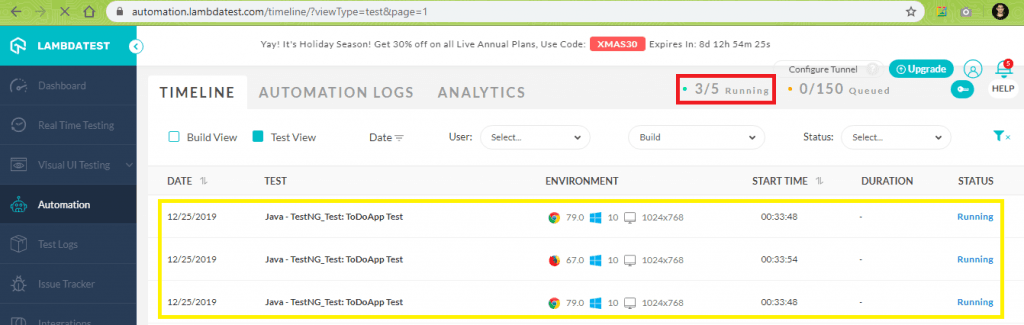
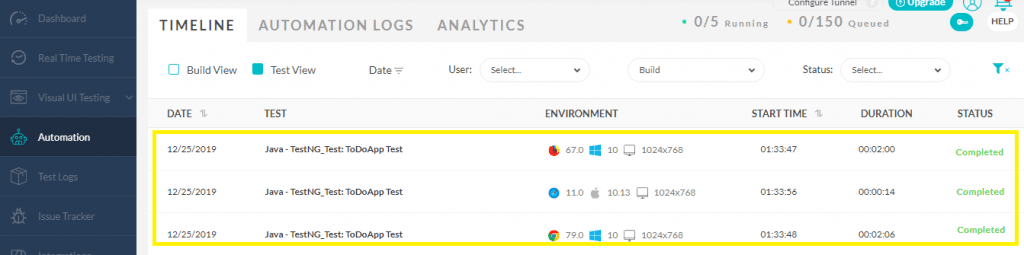
Shown below is the output snapshot from the TestMu AI website, which indicates that the three tests were executed in parallel.
Below is the execution snapshot from TestMu AI, where the test status is Completed.
Conclusion

Selenium automation testing is considered one of the essential tests for verifying the website/web app for browser compatibility. Though browser compatibility testing can be performed using local Selenium WebDriver, the approach is not scalable, and test duration can also be significantly huge.
Using cloud-based cross browser testing platforms like TestMu AI accelerates the automated cross browser testing process and improves the test coverage. This ensures that the website/web application’s functionalities and the overall design have been thoroughly tested against different combinations of browsers and operating systems, thereby improving the overall quality of the product. On a side note you can understand what is browser in detail through our article and get an idea about its components in detail.



Frequently asked questions
Did you find this page helpful?
More Related Hubs
TestMu AI forEnterprise
Get access to solutions built on Enterprise
grade security, privacy, & compliance
- Advanced access controls
- Advanced data retention rules
- Advanced Local Testing
- Premium Support options
- Early access to beta features
- Private Slack Channel
- Unlimited Manual Accessibility DevTools Tests