

Next-Gen App & Browser Testing Cloud
Trusted by 2 Mn+ QAs & Devs to accelerate their release cycles


ExpectedConditions in Selenium: Python & Java Examples [2026]
Wait for elements to load, alerts to appear, or frames to be ready. This guide covers all ExpectedConditions methods with practical Selenium examples.

Faisal Khatri
March 16, 2026
ExpectedConditions in Selenium allow you to wait for specific conditions to be met before proceeding with interactions with the WebElements. This is common when the WebElement is not yet present or is visible but not clickable or text attributes are not being updated in time.
Instead of relying on fixed wait times (Implicit Wait), ExpectedConditions in Selenium enables you to wait till the time WebElements become visible or clickable, thus ensuring your tests run smoothly even in dynamic environments.
Overview
ExpectedConditions are predefined conditions used with WebDriverWait that tell Selenium to wait until a specific state of a WebElement, alert, frame, title, or URL is satisfied before continuing execution.
What are the key ExpectedConditions in Selenium?
Below are the key ExpectedConditions commonly used in Selenium:
elementToBeClickable(locator): Waits until an element is visible and enabled so it can be clicked.presenceOfElementLocated(locator): Waits until an element is present in the DOM, even if not visible.visibilityOfElementLocated(locator): Waits until an element is both present in the DOM and visible on the page.invisibilityOfElementLocated(locator): Waits until an element becomes invisible or is removed from the DOM.textToBePresentInElementLocated(locator, text): Waits until specific text appears inside an element.alertIsPresent(): Waits until a browser alert appears and switches focus to it.frameToBeAvailableAndSwitchToIt(locator): Waits until a frame is available and switches WebDriver context to it.stalenessOf(element): Waits until a previously located element is no longer attached to the DOM.titleIs(title): Waits until the page title exactly matches the expected value.titleContains(text): Waits until the page title contains specific text.urlToBe(url): Waits until the current page URL matches the expected URL.
What are examples of ExpectedConditions in Selenium?
- Waiting for a checkbox to be selected: Use
elementToBeSelected()to verify all checkboxes are selected after clicking “Check All”. - Waiting for a button to become clickable: Use
elementToBeClickable()before clicking “Get Checked Value”. - Waiting for dynamic text to load: Use
textToBePresentInElementLocated()to verify data like “First Name” appears. - Handling frames safely: Use
frameToBeAvailableAndSwitchToIt()before interacting inside an iFrame. - Handling JavaScript alerts: Use
alertIsPresent()to wait for an alert popup before accepting it.
What Are ExpectedConditions in Selenium?
ExpectedConditions are used to perform Explicit Waits on specific conditions, ensuring that Selenium WebDriver waits for those conditions to be met before proceeding with further actions. This clarification helps in understanding how ExpectedConditions provide the necessary wait time between actions, such as locating a WebElement or performing other operations.
There are multiple benefits of using ExpectedConditions in Selenium test automation, some of which are listed below.
- Reduces Test Flakiness: It ensures that the specific conditions are met before proceeding, making test scripts more reliable and reducing the chances of false failures.
- Reduces Test Execution Time: By waiting only for specific conditions on certain WebElements, ExpectedConditions optimize the wait time, improving overall test execution efficiency.
- Allows Better Implementation of Waits: Selenium WebDriverWait and the methods provided by the ExpectedConditions class enable more precise and effective waits tailored to the specific needs of your test, enhancing overall test reliability.
- Enhances Readability: It clearly specifies the conditions that need to be met for the code to proceed to the next step. This enhances the code’s readability and maintainability.

Types of ExpectedConditions In Selenium
ExpectedConditions in Selenium offer commonly used conditions for automating test scenarios. It allows you to implement Explicit Waits directly in your test code. Follow this blog on Selenium Waits to learn more about Implicit, Explicit, and Fluent Waits in detail.
The examples below use Java syntax. For Python syntax, see the next section.
ExpectedCondition<WebElement>
The ExpectedCondition <WebElement> uses the locator of a WebElement as a parameter. The Explicit Wait continues until the specified condition is met or the wait duration expires. If the condition is satisfied, it returns the WebElement, a list of WebElements, or other relevant information based on the specific ExpectedCondition.
For example, the numberOfElementsToBeLessThan method returns true or false depending on whether the number of WebElements located by the given locator is less than the expected number. The elementToBeClickable method returns a WebElement if it is determined to be clickable.

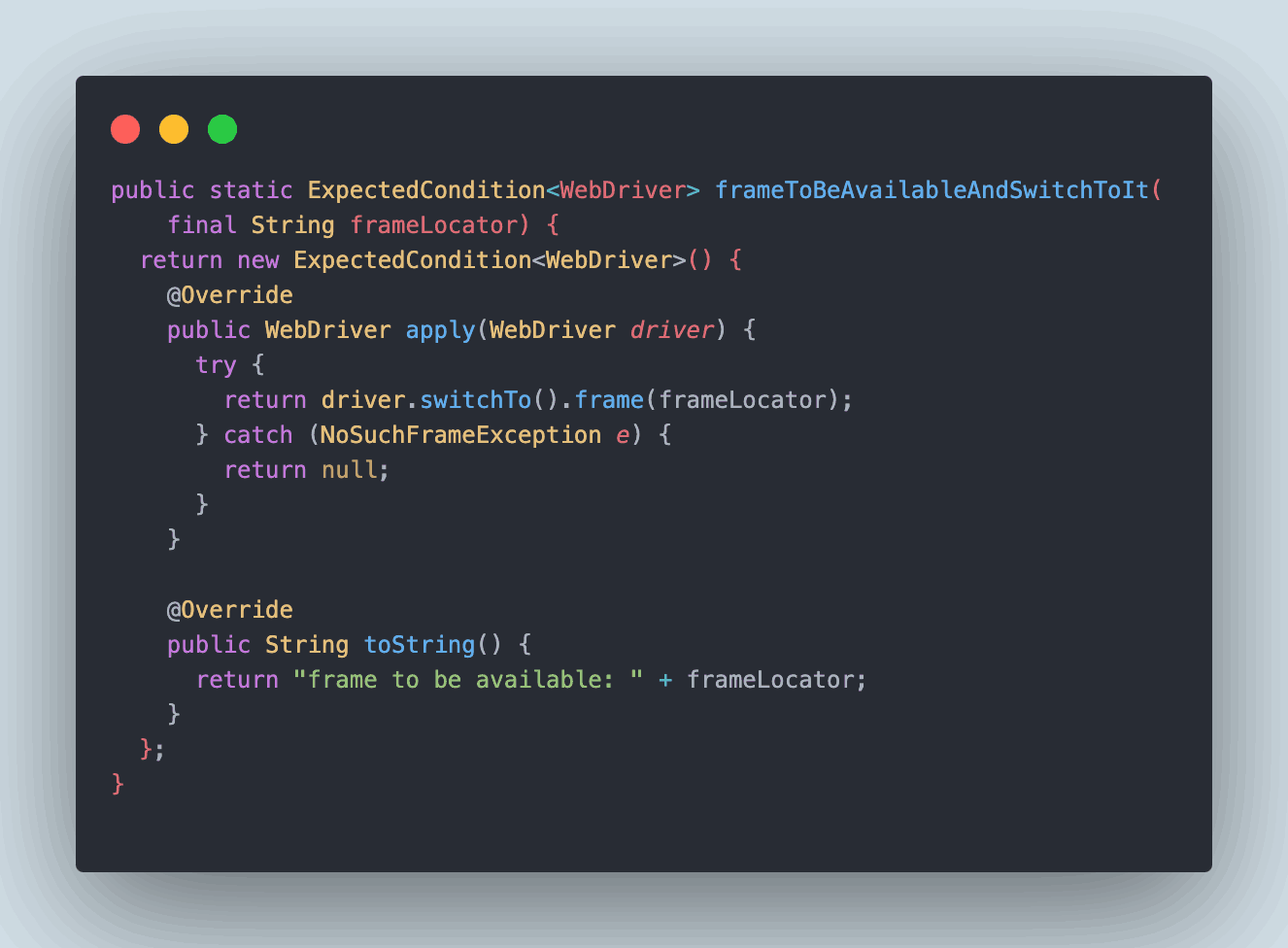
ExpectedCondition<WebDriver>
This category of ExpectedCondition returns a WebDriver instance after the required operation is successfully performed.
For example, the frameToBeAvailableAndSwitchToIt method switches the WebDriver to a specified frame located by the given frame locator (ID or Name). If the frame is not available, an exception is raised.
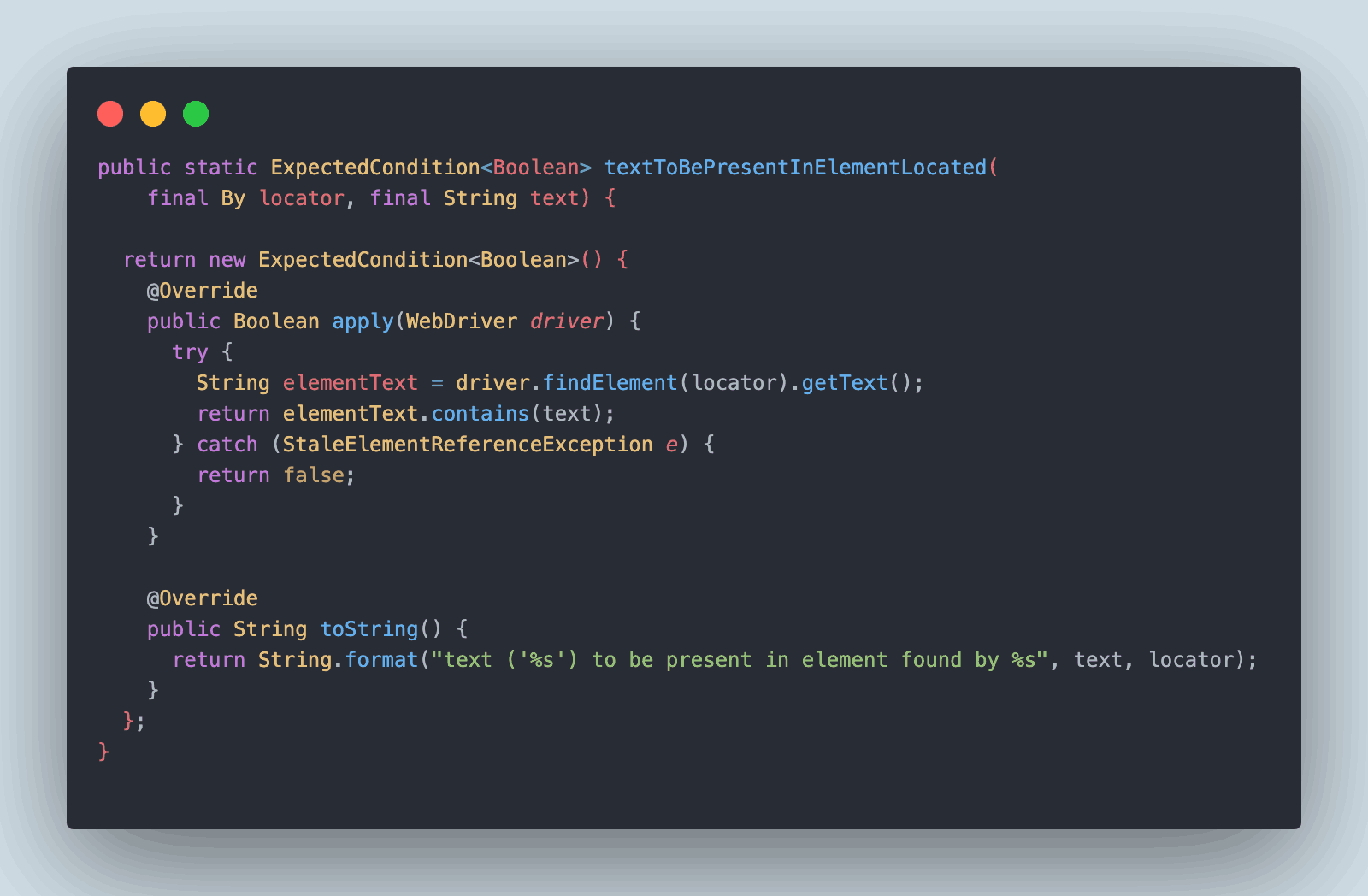
ExpectedCondition<Boolean>
The ExpectedCondition of type <Boolean> takes a String parameter, applying the wait to the condition specified by the parameter. It returns true if the condition is met and false if it is not.
For example, the textToBePresentInElementLocated method returns true when the WebElement located by the given locator contains the specified text.
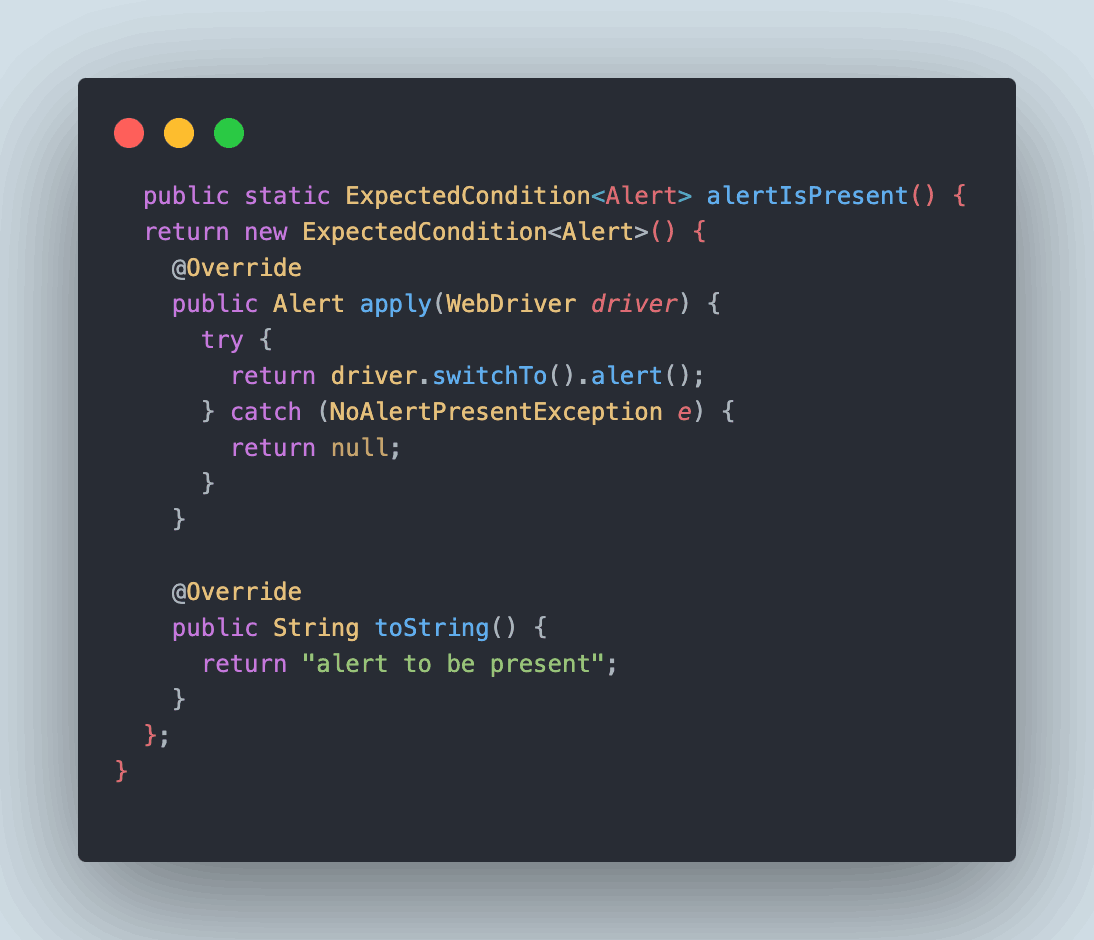
ExpectedCondition<Alert>
This category of ExpectedCondition returns an alert if an Alert window is present on the page. Once the alert is detected, the WebDriver switches to it, allowing operations like accept(), dismiss(), sendKeys(), and getText(). If the Alert window is not available within the specified wait duration, the method returns null.

Note: Run your tests across 3000+ browsers and OS combinations. Try TestMu AI Today!
Below are some of the commonly used methods provided by ExpectedConditions in Selenium for automation testing.
ExpectedConditions in Selenium Python
Python uses expected_conditions from the selenium.webdriver.support module. The module is commonly imported with the alias EC for brevity. Python method names use snake_case instead of camelCase.
Basic Setup
from selenium import webdriver
from selenium.webdriver.common.by import By
from selenium.webdriver.support.ui import WebDriverWait
from selenium.webdriver.support import expected_conditions as EC

driver = webdriver.Chrome()
wait = WebDriverWait(driver, 10)
visibility_of_element_located
Waits until an element is present in the DOM and visible on the page.
# Wait for login form to be visible
login_form = wait.until(EC.visibility_of_element_located((By.ID, "login-form")))

# Wait for username field and enter text
username_field = wait.until(EC.visibility_of_element_located((By.NAME, "username")))
username_field.send_keys("testuser")
element_to_be_clickable
Waits until an element is visible and enabled so it can be clicked.
# Wait for submit button to be clickable
submit_button = wait.until(EC.element_to_be_clickable((By.CSS_SELECTOR, ".submit-btn")))
submit_button.click()

# Wait for a link to be clickable
forgot_password = wait.until(EC.element_to_be_clickable((By.LINK_TEXT, "Forgot Password?")))
forgot_password.click()
text_to_be_present_in_element
Waits until specific text appears inside an element. Returns true when the text is found.
# Wait for success message
wait.until(EC.text_to_be_present_in_element((By.ID, "status"), "Login successful"))

# Wait for dynamic content to load
wait.until(EC.text_to_be_present_in_element((By.CLASS_NAME, "results"), "Found 10 items"))
presence_of_element_located
Waits until an element exists in the DOM. The element does not need to be visible.
# Wait for hidden input field
hidden_token = wait.until(EC.presence_of_element_located((By.NAME, "csrf_token")))
token_value = hidden_token.get_attribute("value")
invisibility_of_element_located
Waits until an element is no longer visible or is removed from the DOM.
# Wait for loading spinner to disappear
wait.until(EC.invisibility_of_element_located((By.CLASS_NAME, "loading-spinner")))

# Wait for modal overlay to close
wait.until(EC.invisibility_of_element_located((By.ID, "modal-backdrop")))
alert_is_present
Waits until a JavaScript alert dialog appears.
# Trigger an action that shows an alert
driver.find_element(By.ID, "delete-btn").click()

# Wait for and handle the alert
alert = wait.until(EC.alert_is_present())
alert_text = alert.text
alert.accept()  # or alert.dismiss() to cancel
frame_to_be_available_and_switch_to_it
Waits until a frame is available and automatically switches the driver context to it.
# Switch to iframe containing embedded content
wait.until(EC.frame_to_be_available_and_switch_to_it((By.ID, "content-iframe")))

# Now interact with elements inside the frame
frame_button = driver.find_element(By.ID, "frame-button")
frame_button.click()

# Switch back to main content
driver.switch_to.default_content()
title_is and title_contains
Wait for the page title to match expected values.
# Wait for exact title match
wait.until(EC.title_is("Dashboard - MyApp"))

# Wait for partial title match
wait.until(EC.title_contains("Dashboard"))
url_to_be and url_contains
Wait for the URL to match expected values.
# Wait for exact URL
wait.until(EC.url_to_be("https://example.com/dashboard"))

# Wait for partial URL match
wait.until(EC.url_contains("/dashboard"))
Python vs Java Syntax Comparison
| Condition | Java | Python |
|---|---|---|
| Element clickable | ExpectedConditions.elementToBeClickable() | EC.element_to_be_clickable() |
| Element visible | ExpectedConditions.visibilityOfElementLocated() | EC.visibility_of_element_located() |
| Element present | ExpectedConditions.presenceOfElementLocated() | EC.presence_of_element_located() |
| Element invisible | ExpectedConditions.invisibilityOfElementLocated() | EC.invisibility_of_element_located() |
| Text present (by locator) | ExpectedConditions.textToBePresentInElementLocated() | EC.text_to_be_present_in_element() |
| Alert present | ExpectedConditions.alertIsPresent() | EC.alert_is_present() |
| Frame available | ExpectedConditions.frameToBeAvailableAndSwitchToIt() | EC.frame_to_be_available_and_switch_to_it() |
| Title is | ExpectedConditions.titleIs() | EC.title_is() |
| URL contains | ExpectedConditions.urlContains() | EC.url_contains() |
| Element selected | ExpectedConditions.elementToBeSelected() | EC.element_to_be_selected() |
| Staleness of | ExpectedConditions.stalenessOf() | EC.staleness_of() |
Note: In Java, textToBePresentInElementLocated takes a By locator while textToBePresentInElement takes a WebElement. Python's text_to_be_present_in_element takes a locator tuple, making it equivalent to Java's locator version.
Commonly Used Methods With ExpectedConditions
Now that we have covered the various types of ExpectedConditions in Selenium, in this section, you can have a look at some of the widely used methods of ExpectedConditions for realizing Explicit Waits. We will be executing the tests on the TestMu AI platform.
TestMu AI is an AI-powered test execution platform that lets you conduct manual and automated tests at scale with over 3000+ browsers and OS combinations.
This platform provides ready-to-use test infrastructure with a wide range of automation testing frameworks to select and use simultaneously. You can get started with this platform using the simple steps below.
- Create an account on TestMu AI.
- Get your username and access key from the Profile > Account Settings > Password & Security tab.
- Use the TestMu AI Capabilities Generator to configure your test setup. You can specify where you want to run the test and select the platform, automation frameworks, browser, browser version, and other capabilities. These capabilities must then be added to your local test script.
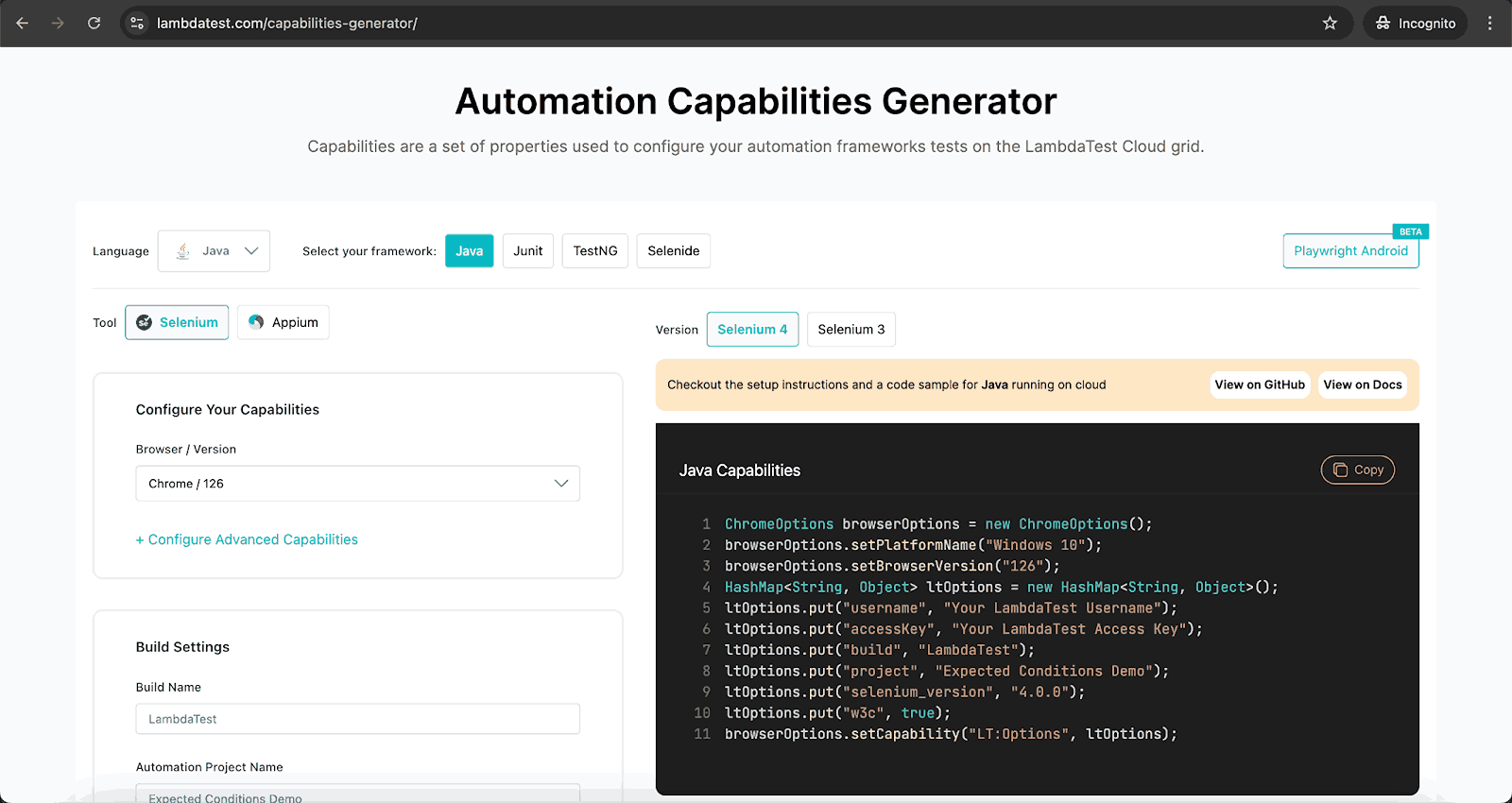
To implement the capabilities in your test script, create a file called BaseTest.java. This file will contain the basic TestMu AI configuration, including setup and teardown methods for opening and closing the browser.
Before creating and adding methods to BaseTest.java, it’s important to put the necessary libraries in one place. To do so, you can add the dependencies to pom.xml.
The pom.xml configuration file helps maintain the project dependencies. Shown below is the complete implementation of pom.xml
<project xmlns="http://maven.apache.org/POM/4.0.0" xmlns:xsi="http://www.w3.org/2001/XMLSchema-instance"
        xsi:schemaLocation="http://maven.apache.org/POM/4.0.0 http://maven.apache.org/xsd/maven-4.0.0.xsd">
   <modelVersion>4.0.0</modelVersion>

   <groupId>io.github.mfaisalkhatri</groupId>
   <artifactId>selenium-lambdatest-demo</artifactId>
   <version>1.0-SNAPSHOT</version>
   <packaging>jar</packaging>

   <name>selenium-lambdatest-demo</name>
   <url>http://maven.apache.org</url>

   <properties>
       <selenium-java.version>4.23.0</selenium-java.version>
       <testng.version>7.10.2</testng.version>
       <maven.compiler.version>3.13.0</maven.compiler.version>
       <surefire-version>3.3.1</surefire-version>
       <java.release.version>17</java.release.version>
       <maven.source.encoding>UTF-8</maven.source.encoding>
       <suite-xml>test-suites/testng.xml</suite-xml>
       <argLine>-Dfile.encoding=UTF-8 -Xdebug -Xnoagent</argLine>
   </properties>

   <dependencies>
       <dependency>
           <groupId>org.seleniumhq.selenium</groupId>
           <artifactId>selenium-java</artifactId>
           <version>${selenium-java.version}</version>
       </dependency>
       <dependency>
           <groupId>org.testng</groupId>
           <artifactId>testng</artifactId>
           <version>${testng.version}</version>
           <scope>test</scope>
       </dependency>

   </dependencies>
   <build>
       <plugins>
           <plugin>
               <groupId>org.apache.maven.plugins</groupId>
               <artifactId>maven-compiler-plugin</artifactId>
               <version>${maven.compiler.version}</version>
               <configuration>
                   <release>${java.release.version}</release>
                   <encoding>${maven.source.encoding}</encoding>
                   <forceJavacCompilerUse>true</forceJavacCompilerUse>
               </configuration>
           </plugin>
           <plugin>
               <groupId>org.apache.maven.plugins</groupId>
               <artifactId>maven-surefire-plugin</artifactId>
               <version>${surefire-version}</version>
               <executions>
                   <execution>
                       <goals>
                           <goal>test</goal>
                       </goals>
                   </execution>
               </executions>
               <configuration>
                   <useSystemClassLoader>false</useSystemClassLoader>
                   <properties>
                       <property>
                           <name>usedefaultlisteners</name>
                           <value>false</value>
                       </property>
                   </properties>
                   <suiteXmlFiles>
                       <suiteXmlFile>${suite-xml}</suiteXmlFile>
                   </suiteXmlFiles>
                   <argLine>${argLine}</argLine>
               </configuration>
           </plugin>
       </plugins>
   </build>
</project>
In the BaseTest class, located in the package expectedconditionsdemo, you will configure the settings required for running tests on the TestMu AI cloud grid.
public class BaseTest {
   protected RemoteWebDriver driver;

   @BeforeClass
   public void setup() {

       String USERNAME = System.getenv("LT_USERNAME") == null ? "LT_USERNAME" : System.getenv("LT_USERNAME");
       String ACCESS_KEY = System.getenv("LT_ACCESS_KEY") == null ? "LT_ACCESS_KEY" : System.getenv("LT_ACCESS_KEY");
       String GRID_URL = "@hub.lambdatest.com/wd/hub";

       try {
           this.driver = new RemoteWebDriver(new URL("http://" + USERNAME + ":" + ACCESS_KEY + GRID_URL), getChromeOptions());
       } catch (final MalformedURLException e) {
           System.out.println("Could not start the remote session on LambdaTest cloud grid");
       }
       this.driver.manage().timeouts().implicitlyWait(Duration.ofSeconds(20));
   }

   public ChromeOptions getChromeOptions() {
       final var browserOptions = new ChromeOptions();
       browserOptions.setPlatformName("Windows 10");
       browserOptions.setBrowserVersion("126.0");
       final HashMap<String, Object> ltOptions = new HashMap<String, Object>();
       ltOptions.put("project", "Expected Conditions Blog");
       ltOptions.put("build", "LambdaTest");
       ltOptions.put("name", "Expected Conditions Demo");
       ltOptions.put("visual", true);
       ltOptions.put("network", true);
       ltOptions.put("console", true);
       ltOptions.put("w3c", true);
       ltOptions.put("plugin", "java-testNG");

       browserOptions.setCapability("LT:Options", ltOptions);

       return browserOptions;

   }

   @AfterClass
   public void tearDown() {
       this.driver.quit();
   }
}
In the above code, the setup() method in the BaseTest class sets up the Selenium RemoteWebDriver instance, using the getChromeOptions() method to pass the required capabilities such as platform name, browser version, build, and test name.
The tearDown() method, called after tests are executed, will gracefully close the RemoteWebDriver session. The setup() and tearDown() methods should be implemented under the @BeforeClass and @AfterClass annotations, respectively, in the BaseTest class.
Below are examples that demonstrate a few of the widely used methods with ExpectedConditions in Selenium.
elementToBeSelected
It is an overloaded method that belongs to the ExpectedCondition <Boolean> category.
ExpectedCondition <Boolean>elementToBeSelected(finalBy locator)
This ExpectedCondition waits until the WebElement specified by the locator is selected. It returns true if the element is selected and false otherwise.
Syntax:
static ExpectedCondition<Boolean> elementToBeSelected(final By locator)
ExpectedCondition <Boolean>elementToBeSelected(final WebElement element)
This ExpectedCondition takes a WebElement as a parameter and waits until the element is selected. It internally calls elementSelectionStateToBe() with the WebElement and the Boolean value true.
Syntax:
ExpectedCondition<Boolean> elementToBeSelected(final WebElement element)
To better understand how the elementToBeSelected() method works with ExpectedConditions in Selenium, let’s consider a test scenario.
Test Scenario:
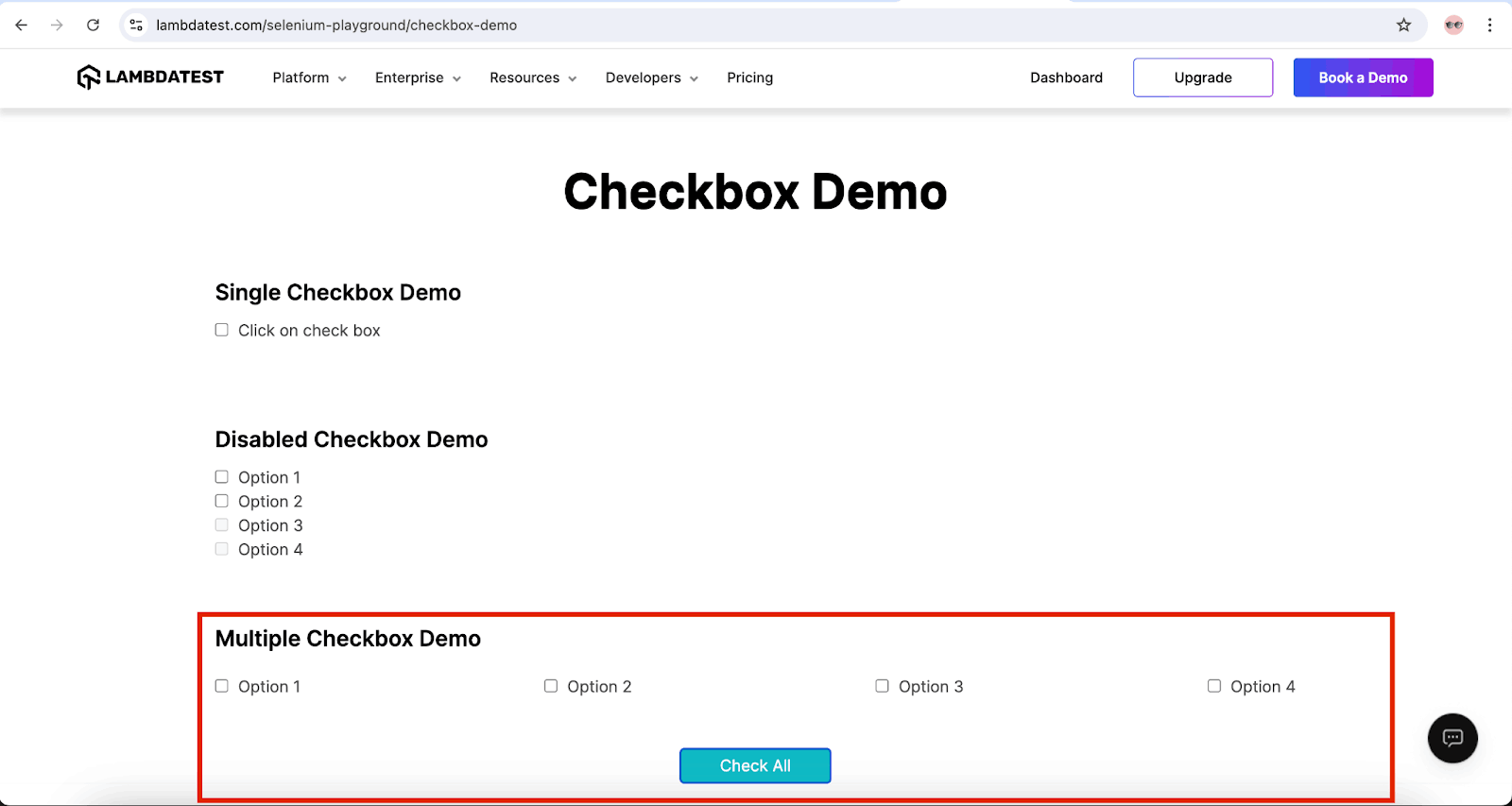
- Navigate to the Checkbox demo page on the TestMu AI Selenium Playground.
- In the Multiple Checkbox Demo section, click on the “Check All” button.
- Wait for all the checkboxes to be selected using the elementToBeSelected() method of the ExpectedConditions class.
- Verify that all the checkboxes are selected.
Code Implementation:
A new test method testElementToBeSelected() is created in the existing ExpectedConditionsDemoTest class for implementing the test scenario.
@Test
public void testElementToBeSelected() {
   driver.get("https://www.lambdatest.com/selenium-playground/checkbox-demo");
   WebElement checkAllBtn = driver.findElement(By.id("box"));
   checkAllBtn.click();
   WebDriverWait wait = new WebDriverWait(driver, Duration.ofSeconds(20));

   WebElement checkboxOne = driver.findElement(By.id("ex1-check1"));
   assertTrue(wait.until(ExpectedConditions.elementToBeSelected(checkboxOne)));

   WebElement checkboxTwo = driver.findElement(By.id("ex1-check2"));
   assertTrue(wait.until(ExpectedConditions.elementToBeSelected(checkboxTwo)));
}
Code Walkthrough:
Below is the code walkthrough for using the testElementToBeSelected() method with ExpectedConditions in Selenium:
- Locate the “Check All” button: Use the ID locator to find the “Check All” button and perform a click event on it.
- Wait for Checkboxes to be Selected: Use the testElementToBeSelected() method from the ExpectedConditions class to wait until “Checkbox 1” and “Checkbox 2” are selected.
- Verify Selection: The testElementToBeSelected() method returns a boolean value (true or false) based on the element’s selection. Wrap this statement in the assertTrue() method for inline verification to ensure that the checkboxes are selected.
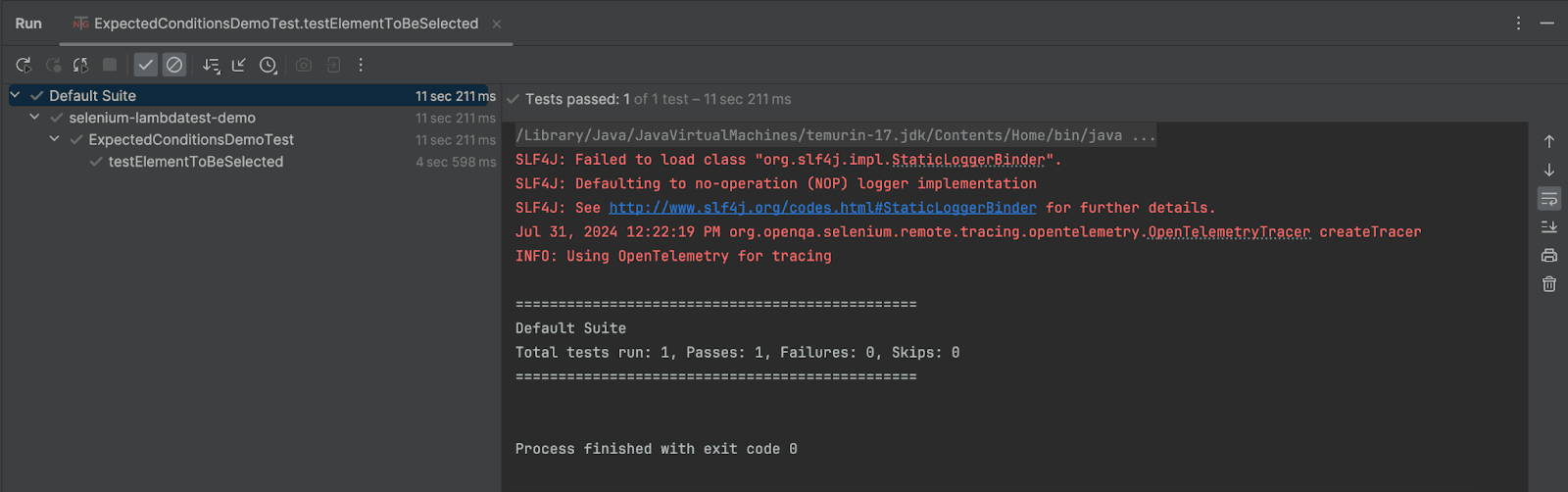
Test Execution:
The following screenshots show the successful execution of the tests running on IntelliJ IDE.
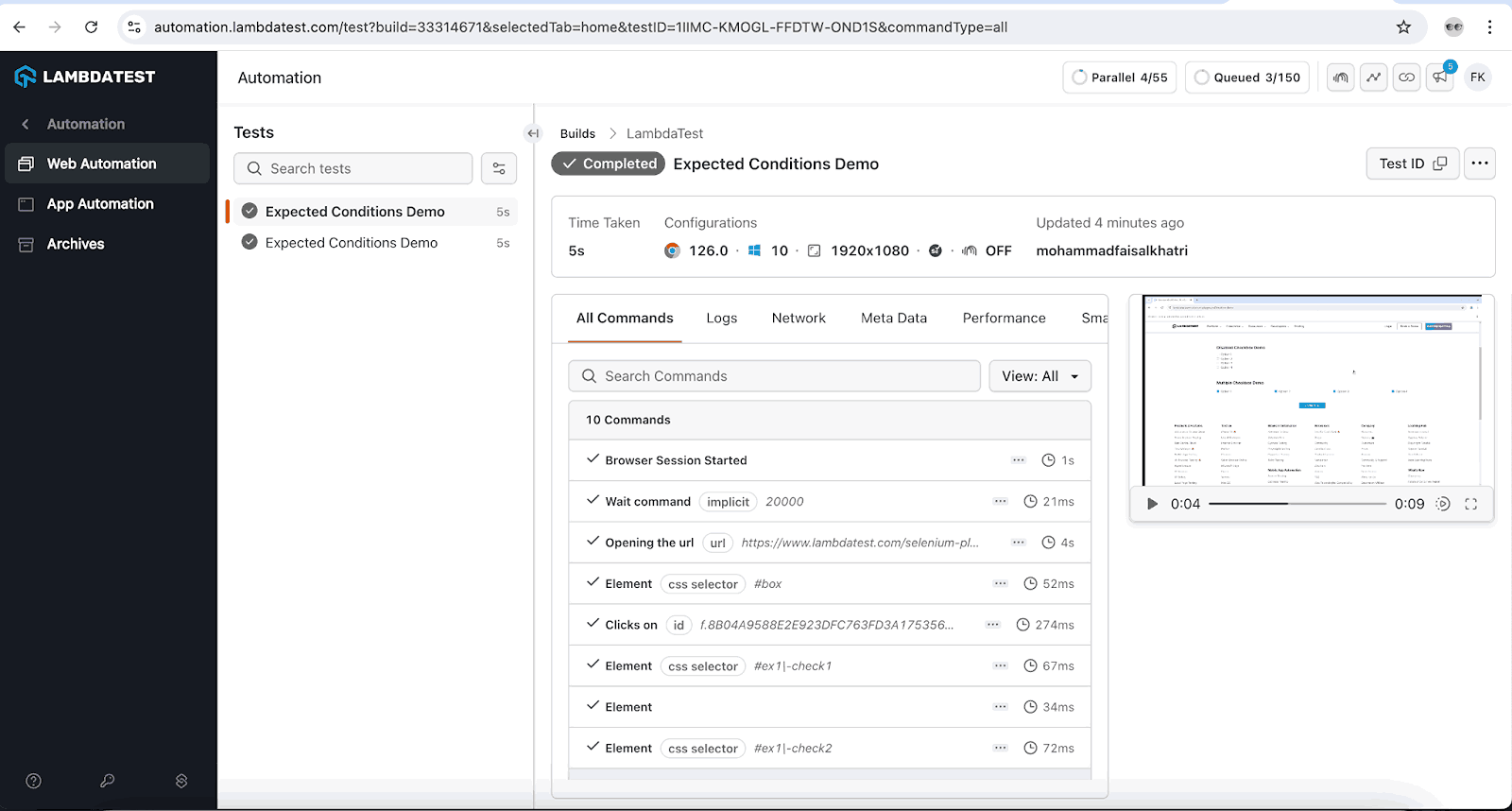
The test details are displayed on the TestMu AI dashboard as well.
elementToBeClickable
The elementToBeClickable() method of ExpectedConditions in Selenium is an overloaded method that belongs to the ExpectedCondition <WebElement> category. This method waits till the WebElement is visible and enabled so that the click operation can be performed on it.
ExpectedCondition <WebElement>elementToBeClickable(By locator)
Selenium WebDriver waits until the element, identified by the specified locator, is visible and enabled before allowing a click action.
Syntax:
ExpectedCondition<WebElement>elementToBeClickable(final By locator)
ExpectedCondition<WebElement<elementToBeClickable(WebElement element)
Selenium WebDriver waits until the WebElement is passed as a visible parameter and enabled before clicking it.
Syntax:
ExpectedCondition<WebElement> elementToBeClickable(final WebElement element)
To better understand how the elementToBeClickable() method works with ExpectedConditions in Selenium, let’s consider a test scenario.
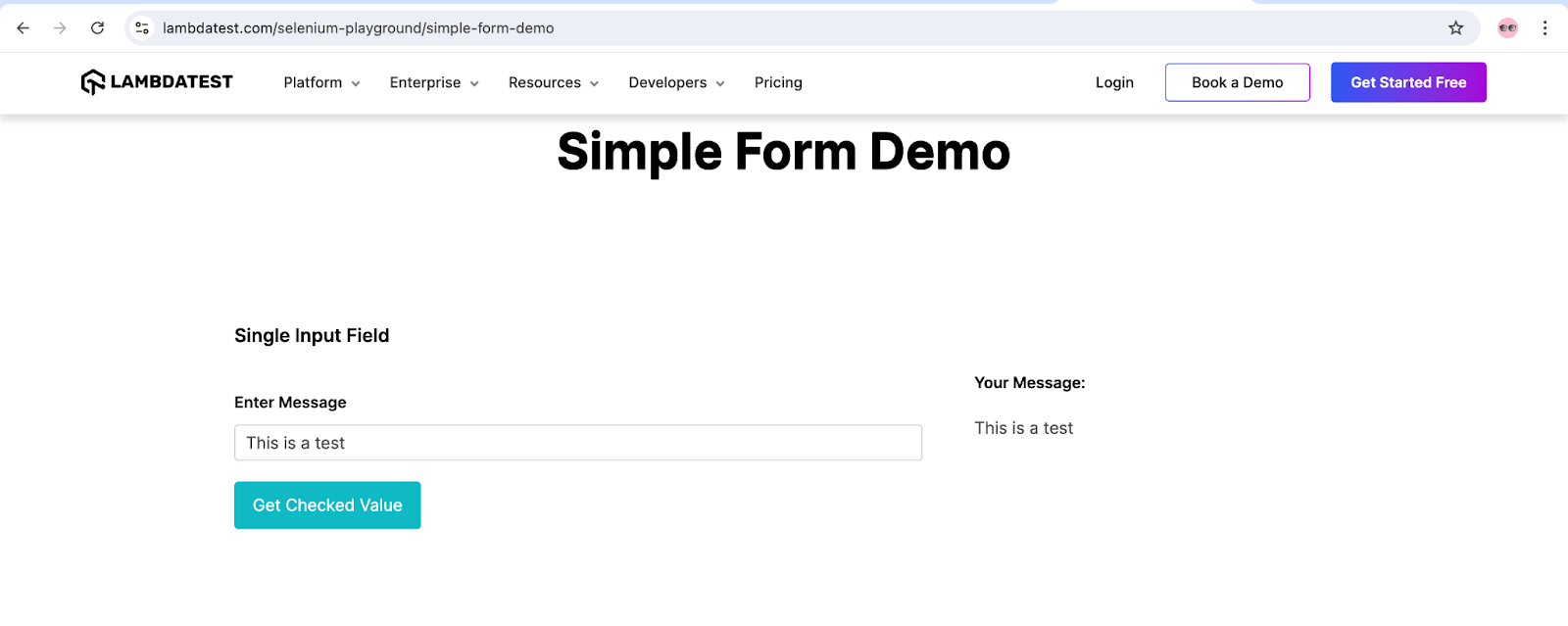
Test Scenario :
- Navigate to the TestMu AI Selenium Playground.
- Enter text in the “Enter Message” field.
- Wait for the “Get Checked Value” button to be clickable.
- Click on the “Get Checked Value” button.
- Assert the message printed below. Your message text should be the same as what was input by the user.
Code Implementation:
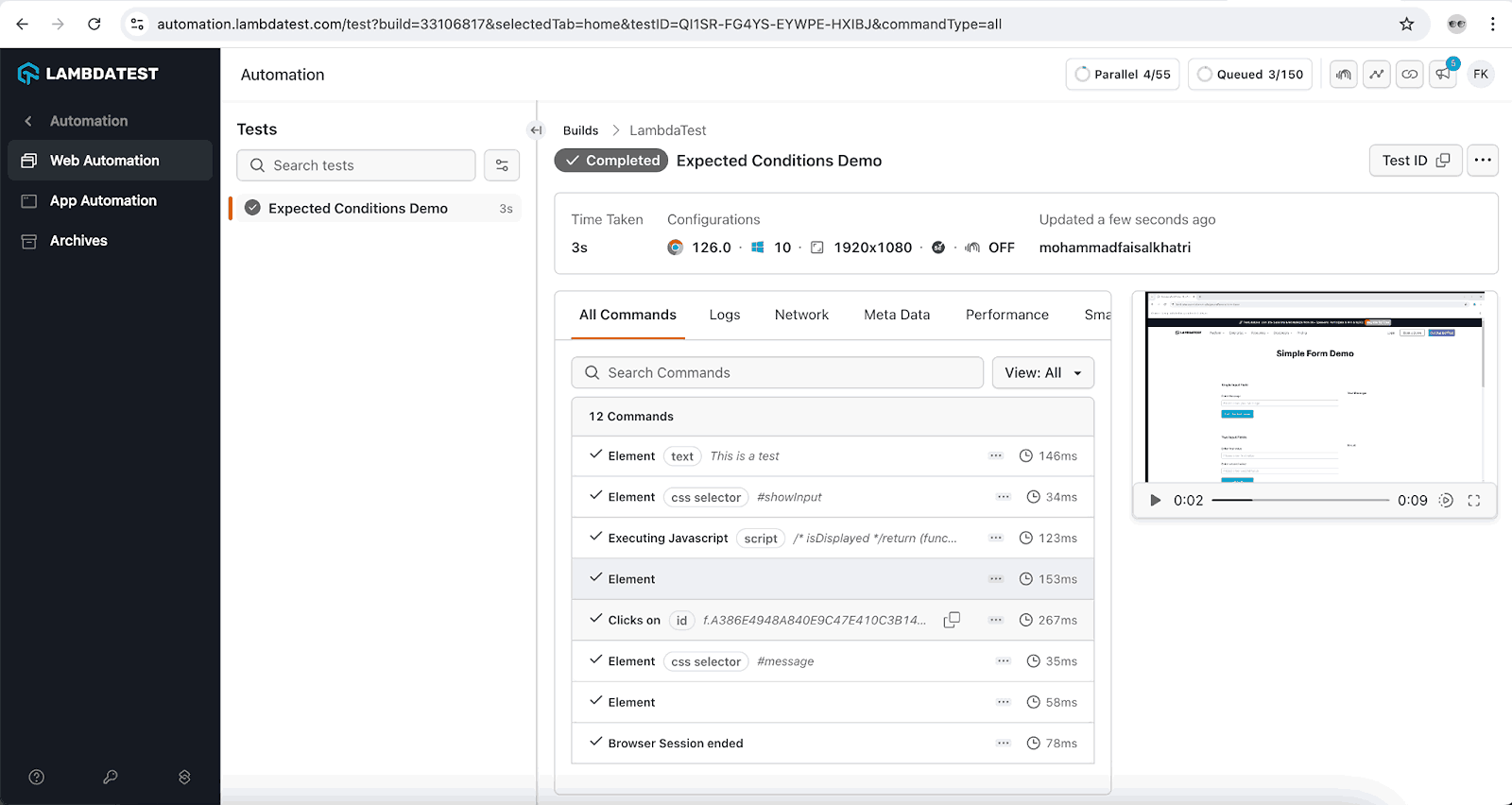
A new test method, testElementToBeClickableCondition(), is created in the existing ExpectedConditionsDemo class to implement the test scenario.
@Test
public void testElementToBeClickableCondition() {
   driver.get("https://www.lambdatest.com/selenium-playground/simple-form-demo");
   WebElement enterMessageField = driver.findElement(By.id("user-message"));
   String inputMessage = "This is a test";
   enterMessageField.sendKeys(inputMessage);

   WebDriverWait wait = new WebDriverWait(driver, Duration.ofSeconds(30));
   wait.until(ExpectedConditions.elementToBeClickable(By.id("showInput"))).click();

   String messageText = driver.findElement(By.id("message")).getText();
   assertEquals(messageText, inputMessage);
}
Code Walkthrough:
Below is the code walkthrough for the testElementToBeClickableCondition() method:
- Navigate to the Simple Form Demo Page: The test method will first navigate to the Simple Form Demo page.
- Locate the “Enter Message” Field: Use the ID locator strategy to find the “Enter Message” field.
- Enter Text: Use the sendKeys() method to input the text “This is a test” into the “Enter Message” field.
- Instantiate WebDriverWait: To use the ExpectedConditions class, instantiate the WebDriverWait class by passing the WebDriver instance and the desired wait duration as constructor parameters.
- Locate the “Get Checked Value” Button: Use the elementToBeClickable() method from the ExpectedConditions class to locate the “Get Checked Value” button. The WebDriver will wait up to 30 seconds for the button to become clickable.
- Click the Button: Once the button becomes clickable, perform the click action.
- Verify the Input Message: Finally, retrieve and verify the text displayed below “Your Message” to confirm that it matches the input message.
Test Execution:
The following screenshots show the successful execution of the tests running on IntelliJ IDE.
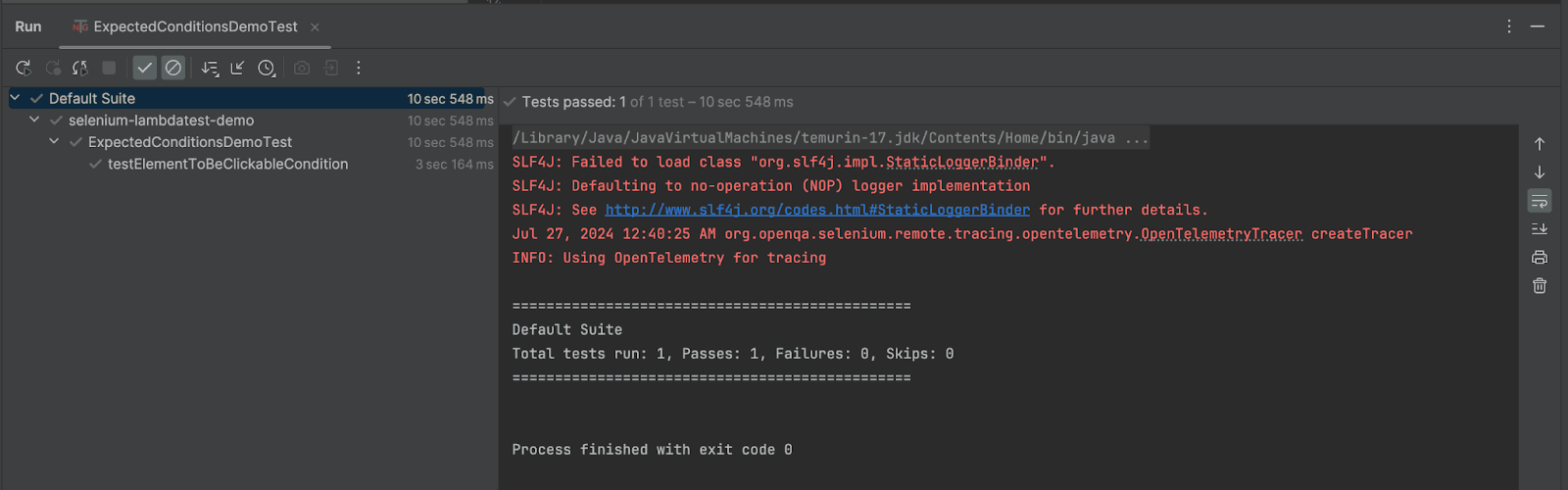
The test details are displayed on the TestMu AI dashboard as well.
visibilityOfElementLocated
The visibilityOfElementLocated() method checks if the specified element is not only present in the DOM but also visible on the page. This method takes a locator as a parameter to find the element and returns the WebElement once it is both located and visible.
Syntax:
ExpectedCondition<WebElement> visibilityOfElementLocated(final By locator)
To better understand how the visibilityOfElementLocated() method works with ExpectedConditions in Selenium, let’s consider a test scenario.
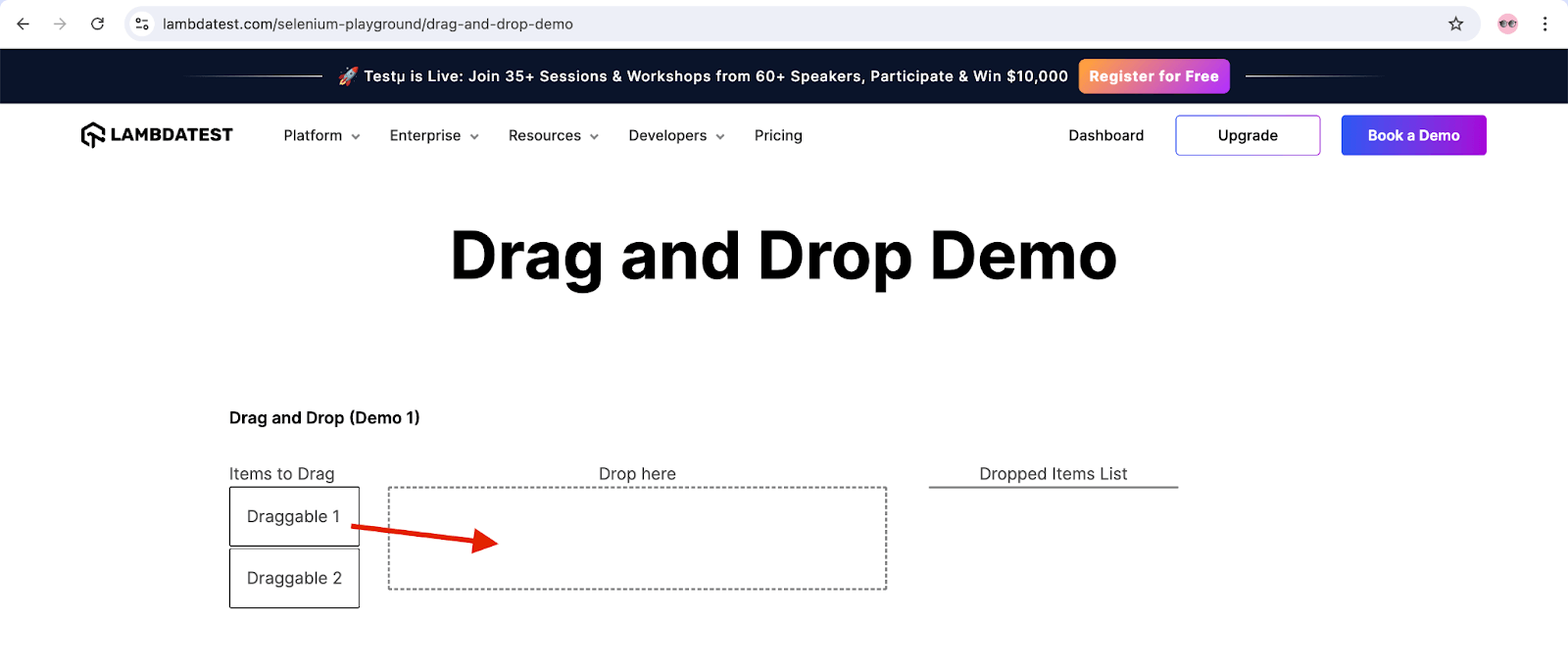
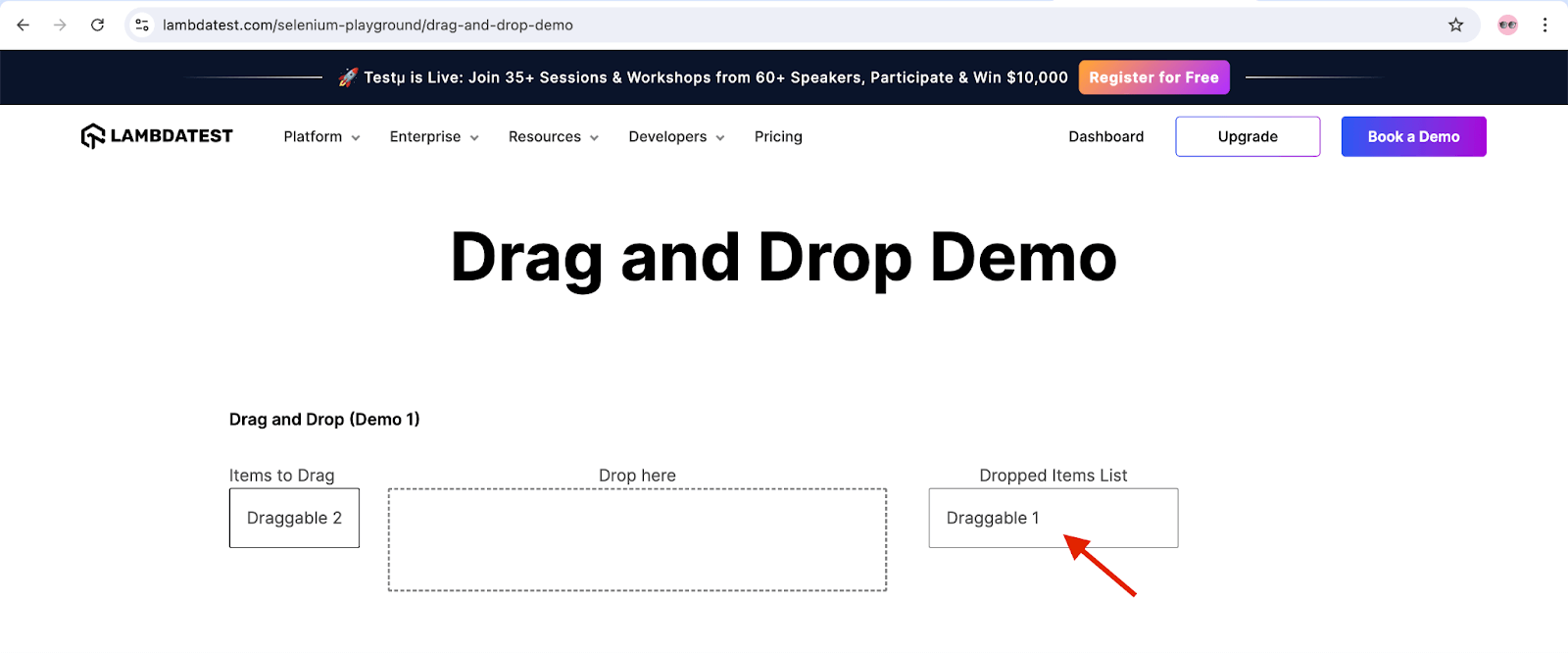
Test Scenario:
- Navigate to the TestMu AI Selenium Playground.
- Drag the “Draggable 1” item and drop it into the “Drop here” box.
- Wait for the “Draggable 1” item to appear in the “Dropped Items List.”
- Verify the “Draggable 1” item name displayed in the “Dropped Items List.”
Code Implementation:
In the existing ExpectedConditionsDemoTest class, add a new test method, testVisibilityOfElementLocated(), to implement the test scenario.
@Test
public void testVisibilityOfElementLocated() {
   driver.get("https://www.lambdatest.com/selenium-playground/drag-and-drop-demo");
   WebElement draggableOne = driver.findElement(By.cssSelector("#todrag > span:nth-child(2)"));
   WebElement dropBox = driver.findElement(By.id("mydropzone"));

   Actions actions = new Actions(driver);
   actions.dragAndDrop(draggableOne, dropBox).build().perform();

   WebDriverWait wait = new WebDriverWait(driver, Duration.ofSeconds(30));
   WebElement dropListItemOne = wait.until(ExpectedConditions.visibilityOfElementLocated(By.cssSelector("#droppedlist > span")));
   String dropListItemName = dropListItemOne.getText();
   assertEquals(dropListItemName, "Draggable 1");
}
Code Walkthrough:
Below is the code walkthrough for the testVisibilityOfElementLocated() method:
- Navigation: The script navigates to the “Drag and Drop Demo” on TestMu AI Selenium Playground.
- Element Identification: “Draggable 1” is located using the CSS Selector strategy.
- Drag-and-Drop Action: The dragAndDrop() method from the Actions class is used, with parameters for the draggable item and the drop target.
- Visibility Check: The script waits for the “Dropped Item List” to appear using the testVisibilityOfElementLocated() method from ExpectedConditions.
- Assertion: An assertion confirms that the item in the “Dropped List” matches the one dragged.
Test Execution:
The following screenshots show the successful execution of the tests running on IntelliJ IDE.
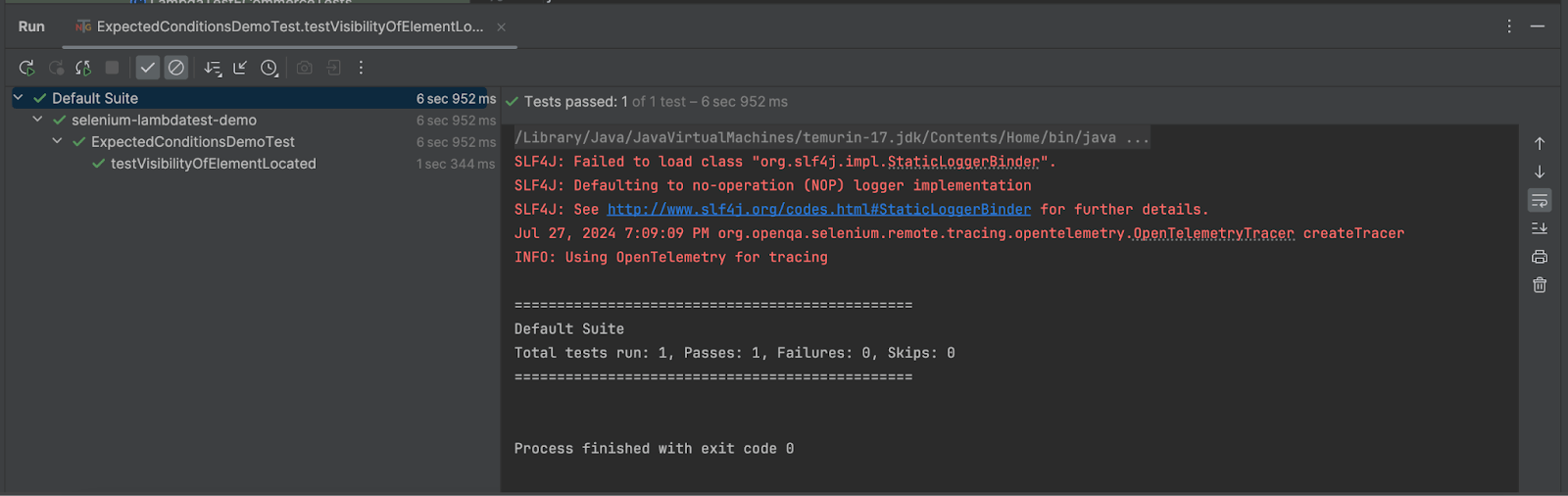
The test details are displayed on the TestMu AI dashboard as well.
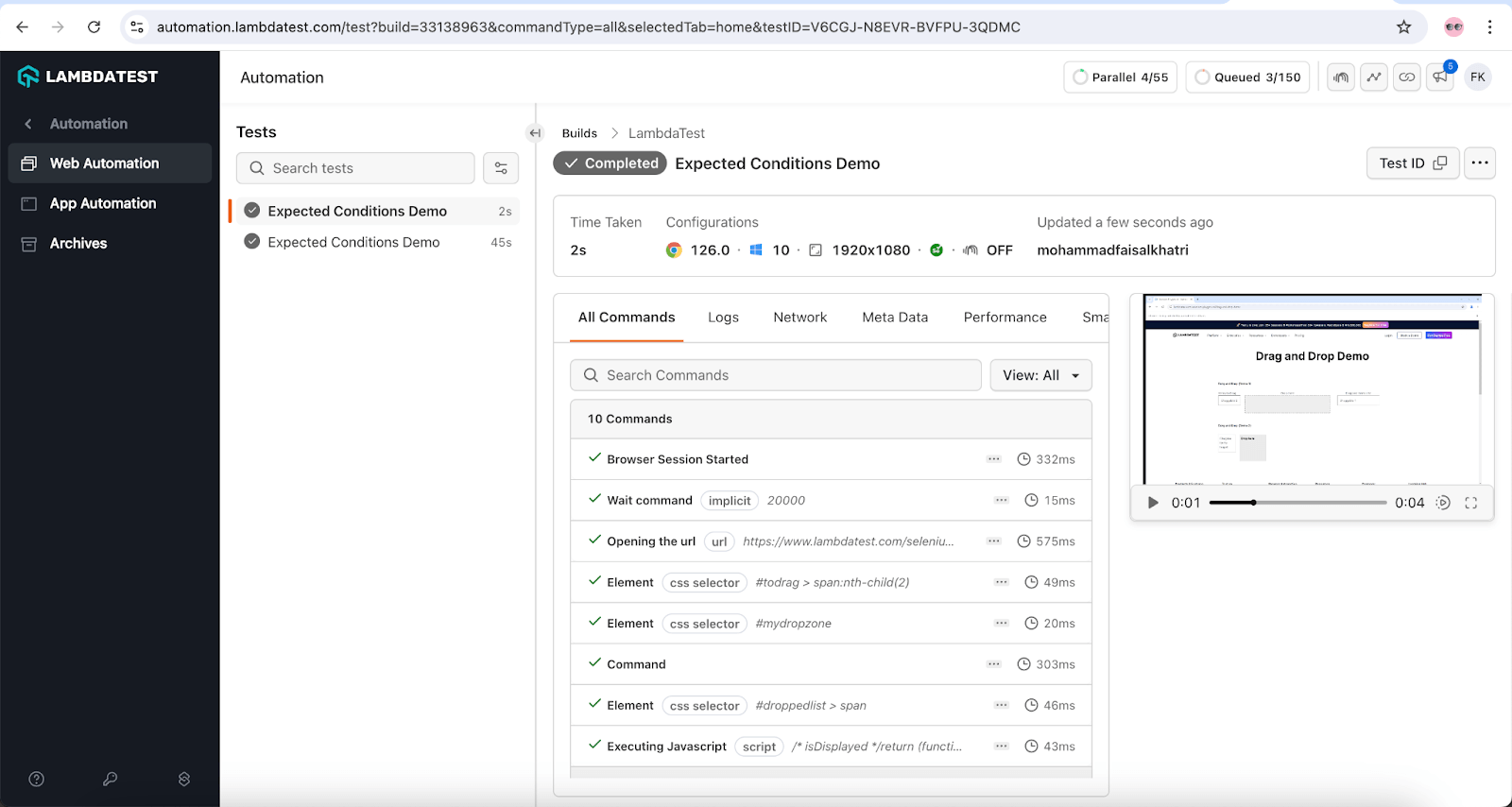
textToBePresentInElementLocated
This method checks whether the specified text passed as a parameter is present in the WebElement that matches the given locator. It returns true if the text is present; otherwise, it returns false.
Syntax:
ExpectedCondition <Boolean> textToBePresentInElementLocated(final By locator, final String text)
To better understand how the textToBePresentInElementLocated() method works with ExpectedConditions in Selenium, let’s consider a test scenario.
Test Scenario:
- Navigate to the TestMu AI Selenium Playground.
- Click on the “Get Random User” button.
- Wait for the data to load.
- Verify that the text “First Name” is present in the data loaded.
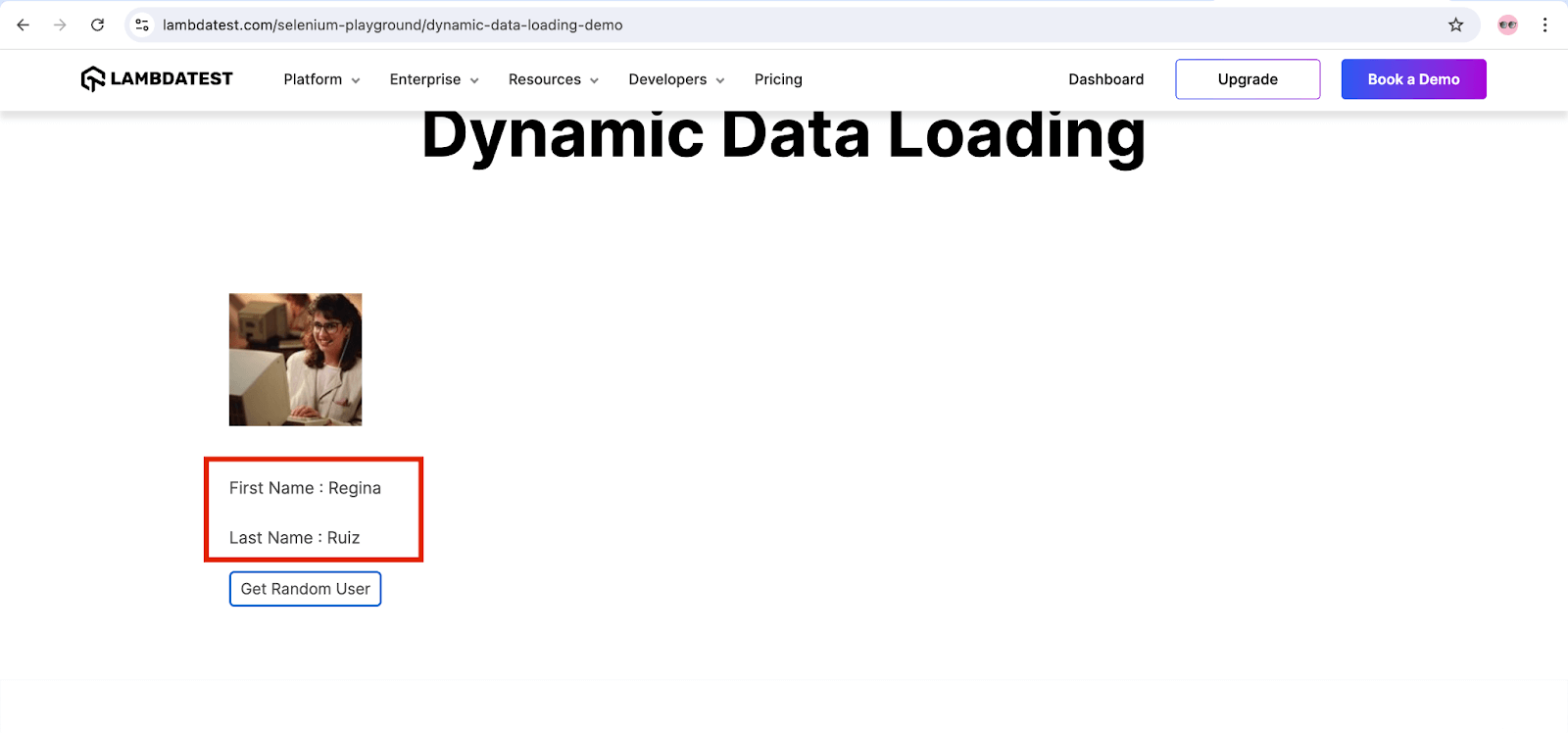
Code Implementation:
The testTextToBePresent() test method is added to the existing ExpectedConditionsDemoTest class to implement the test scenario.
@Test
public void testTextToBePresent() {
   driver.get("https://www.lambdatest.com/selenium-playground/dynamic-data-loading-demo");
   WebElement getRandomUserBtn = driver.findElement(By.id("save"));
   getRandomUserBtn.click();

   WebDriverWait wait = new WebDriverWait(driver, Duration.ofSeconds(30));
   assertTrue(wait.until(ExpectedConditions.textToBePresentInElementLocated(By.id("loading"), "First Name")));

}
Code Walkthrough:
Below is the code walkthrough for the textToBePresentInElementLocated() method:
- Navigate using the driver.get() method: This method will navigate to the “Dynamic Data Loading” page on the TestMu AI Selenium Playground website. It will locate the “Get Random User” button using the ID locator strategy. Click on it.
- Use textToBePresentInElementLocated(): In this method of the ExpectedConditions class, the test will wait for the dynamic data to be loaded and check if the text “First Name” is present in the data loaded.
- Verify with assertTrue(): This condition is wrapped inside the assertTrue() method. The assertTrue() method checks that the condition is true, meaning that the text is present. If the text is not present, it will return false, and the test will fail.
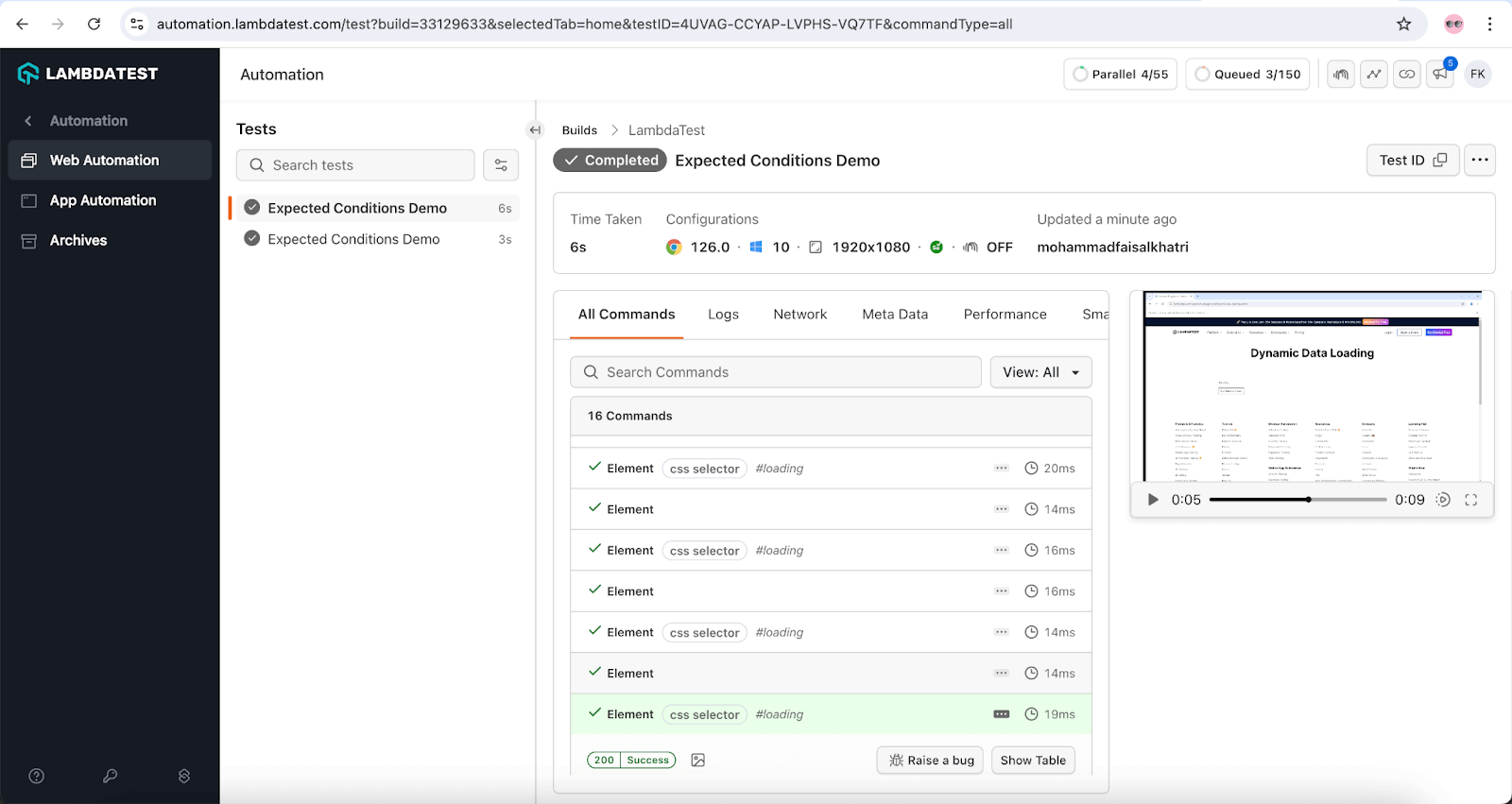
Test Execution:
The following screenshots show the successful execution of the tests running on IntelliJ IDE.
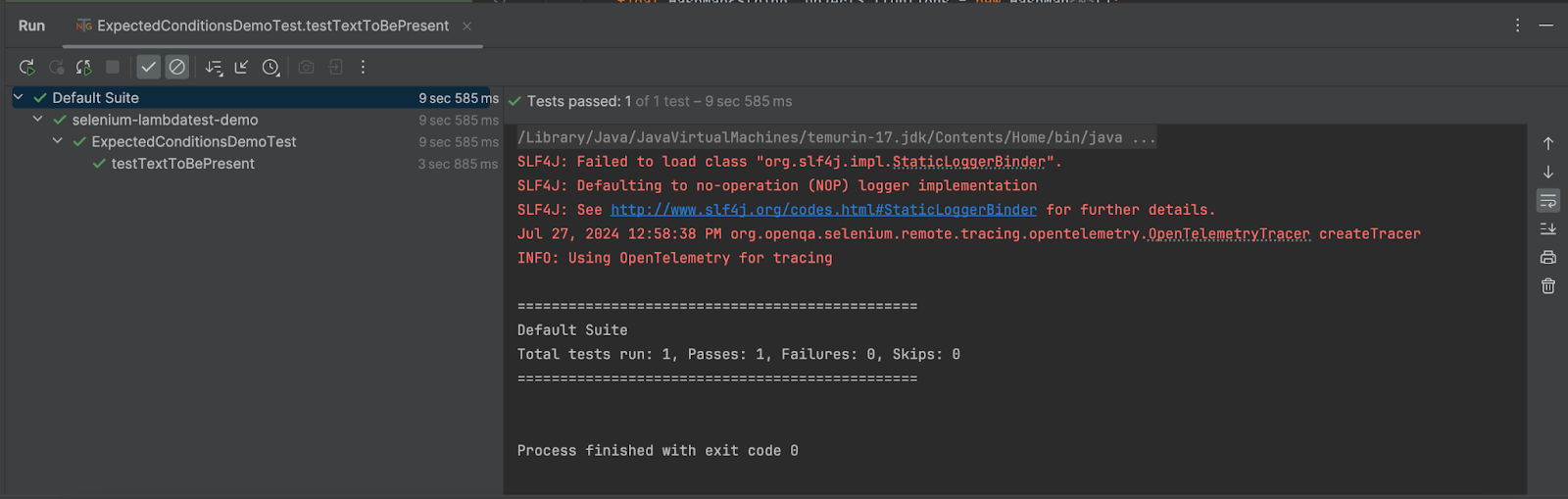
The test details are displayed on the TestMu AI dashboard as well.
frameToBeAvailableAndSwitchToIt
This method checks if a given frame is available to switch to in Selenium. Frames can be identified using a locator, frame index (integer), frame name (string), or WebElement. The frameToBeAvailableAndSwitchToIt() method is overloaded, allowing you to locate and check a frame using any of these options. If the frame or iFrame is present on the page, the method triggers driver.switchTo().frame, shifting the focus to that frame.
ExpectedCondition<WebDriver>frameToBeAvailableAndSwitchToIt (By locator)
This method checks if the given frame is available to switch to. The required frame is located using the web locator passed to the method. If successful, it switches to the specified frame; otherwise, it returns null.
Syntax:
ExpectedCondition<WebDriver> frameToBeAvailableAndSwitchToIt(final By locator)
ExpectedCondition<WebDriver>frameToBeAvailableAndSwitchToIt(int frameLocator)
This method checks if the given frame can be switched to using the specified frameIndex (an integer) or frameLocator. If successful, it switches to the frame.
Syntax:
ExpectedCondition<WebDriver> frameToBeAvailableAndSwitchToIt(final int frameLocator)
ExpectedCondition<WebDriver>frameToBeAvailableAndSwitchToIt (WebElement locator)
This method locates the frame using the provided WebElement. If successful, it switches to the frame.
Syntax:
ExpectedCondition<WebDriver> frameToBeAvailableAndSwitchToIt(final WebElement frameLocator)
ExpectedCondition
This method locates the frame using the frame name provided as a parameter. If the frame with the specified name is found on the page, it switches to that frame; otherwise, it returns null.
Syntax:
ExpectedCondition<WebDriver> frameToBeAvailableAndSwitchToIt(final String frameLocator)
Handling frames and windows in Selenium can be challenging. To better understand how ExpectedConditions in Selenium helps with handling frames, let’s consider a test scenario.
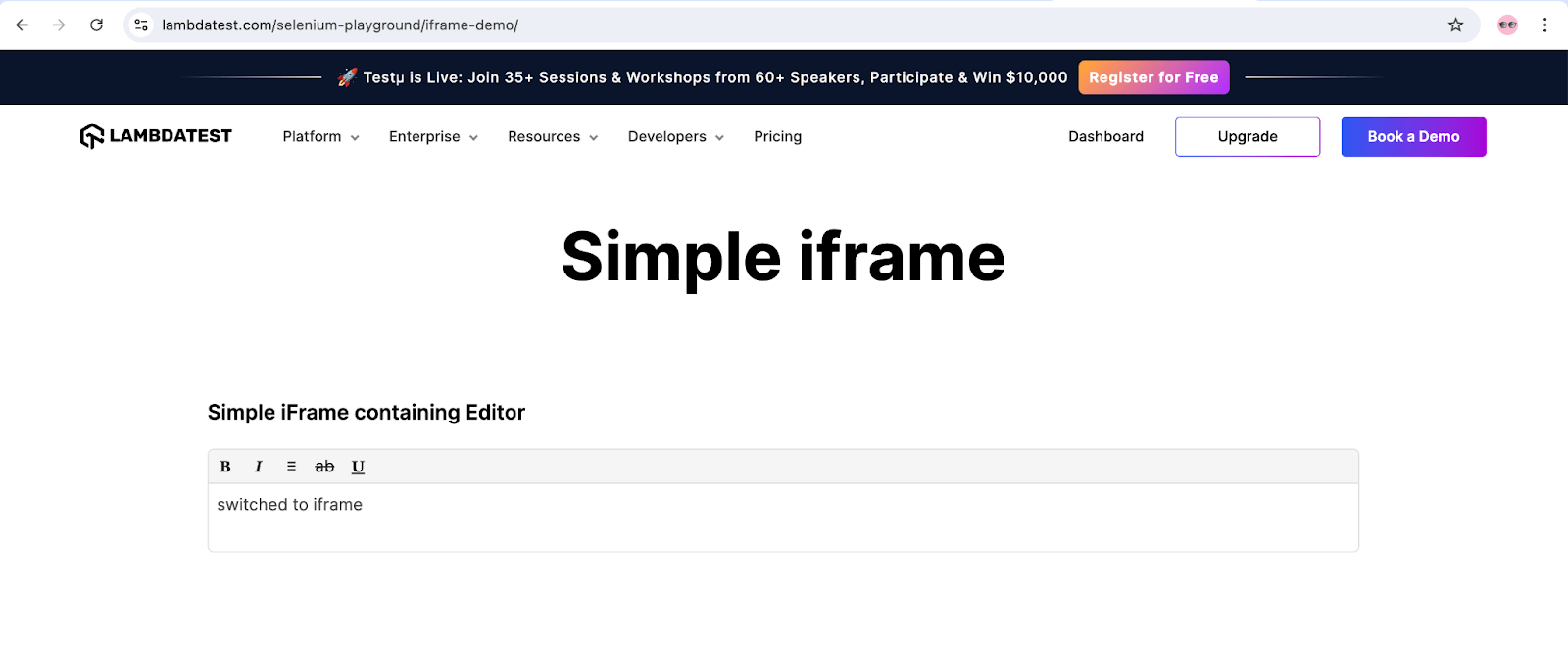
Test Scenario:
- Navigate to the TestMu AI Selenium Playground.
- Switch to the Simple iFrame containing Editor using theExpectedConditions.frameToBeAvailableAndSwitchToIt(frame_locator) method.
- Write the text switched to iframe inside the editor.
Code Implementation:
A new test method, testFrameToBeAvailableAndSwitch(), is created in the existing ExpectedConditionsDemoTest class to implement the test scenario.
@Test
public void testFrameToBeAvailableAndSwitch() {
   driver.get("https://www.lambdatest.com/selenium-playground/iframe-demo/");

   WebDriverWait wait = new WebDriverWait(driver, Duration.ofSeconds(30));
   WebElement iFrame = driver.findElement(By.id("iFrame1"));
   wait.until(ExpectedConditions.frameToBeAvailableAndSwitchToIt(iFrame));

   WebElement iFrameEditor = driver.findElement(By.cssSelector("#__next > div > div.rsw-ce"));
   String text = "switched to iframe";
   iFrameEditor.clear();
   iFrameEditor.sendKeys(text);
   System.out.println("Text entered in iFrame");
}
Code Walkthrough:
Below is the code walkthrough for the testFrameToBeAvailableAndSwitch() method:
- Navigate: The testFrameToBeAvailableAndSwitch() method navigates to the Simple iFrame Demo page on the TestMu AI Selenium Playground website.
- Locate and switch to the iFrame: The iFrame is located and switched to using the testFrameToBeAvailableAndSwitchToIt() method from the ExpectedConditions class.
- Locate Editor: After switching, the editor inside the iFrame is located.
- Clear any existing text: The existing text in the editor is cleared using the clear() method, and the new text “switched to iframe” is entered.
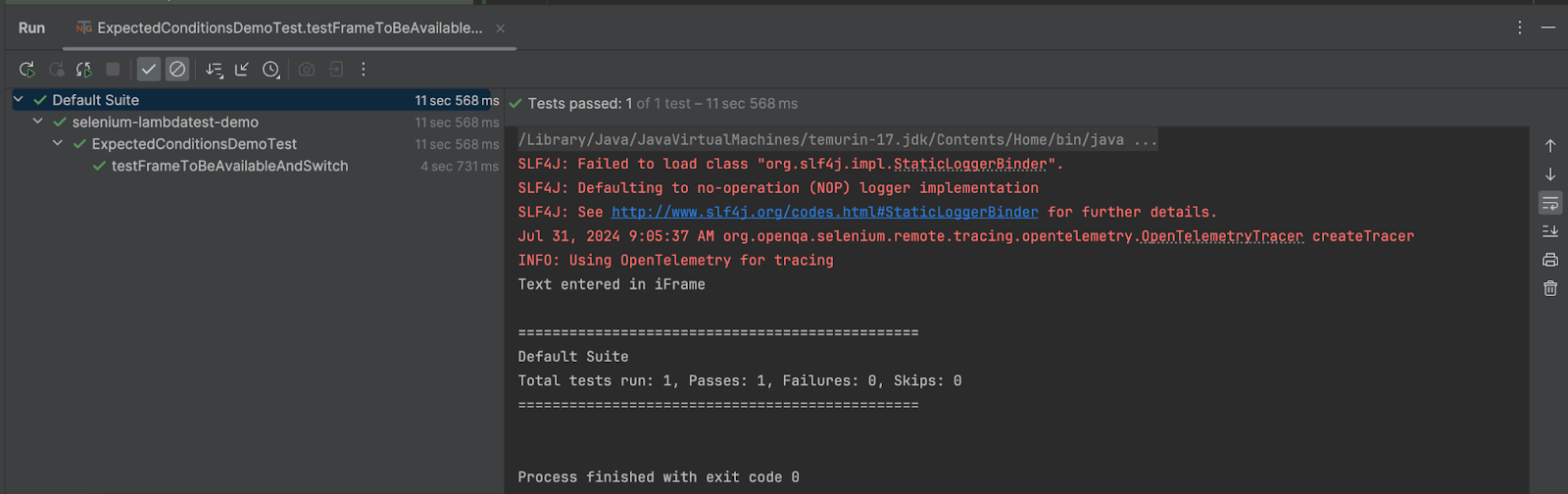
- Print the message: The message “Text entered in iFrame” is printed to the console to confirm successful execution.
Test Execution:
The following screenshots show the successful execution of the tests running on IntelliJ IDE.
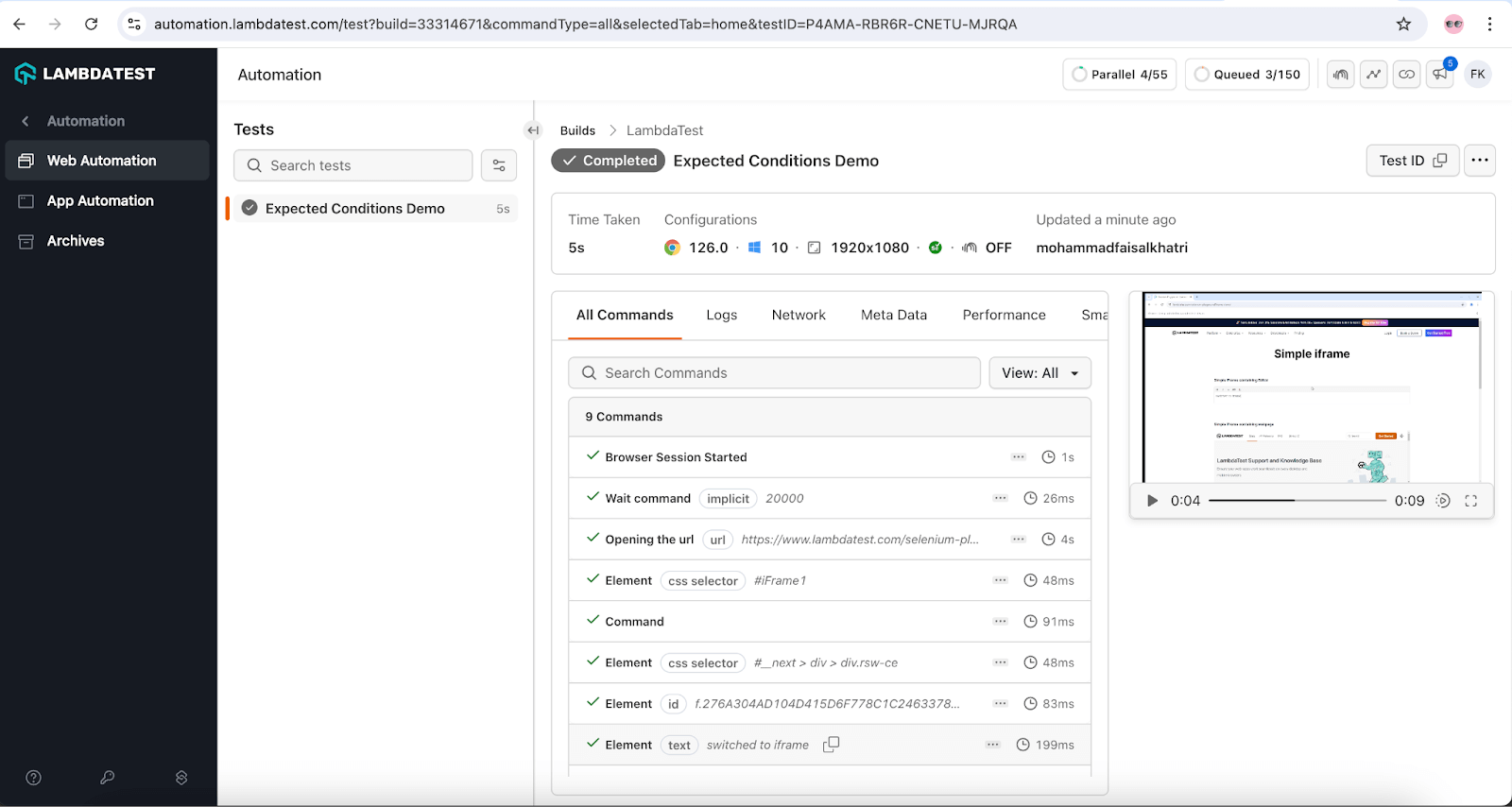
The test details are displayed on the TestMu AI dashboard as well.
alertIsPresent
The alertIsPresent() method, as the name suggests, checks if an Alert window is available on the page. Depending on the type of Alert (Simple Alert, Prompt Alert, or Confirmation Alert), appropriate actions should be performed. If the Alert window is present, this method internally triggers the driver.switchTo().alert() command, shifting the focus to the Alert window.
Syntax:
ExpectedCondition<Alert> alertIsPresent()
To better understand how the alertIsPresent() method works with ExpectedConditions in Selenium, let’s consider a test scenario.
Test Scenario:
- Navigate to the TestMu AI Selenium Playground.
- Click on the “Click Me” button next to the “JavaScript Alerts” text.
- Wait till the alert popup is present.
- Accept the alert.
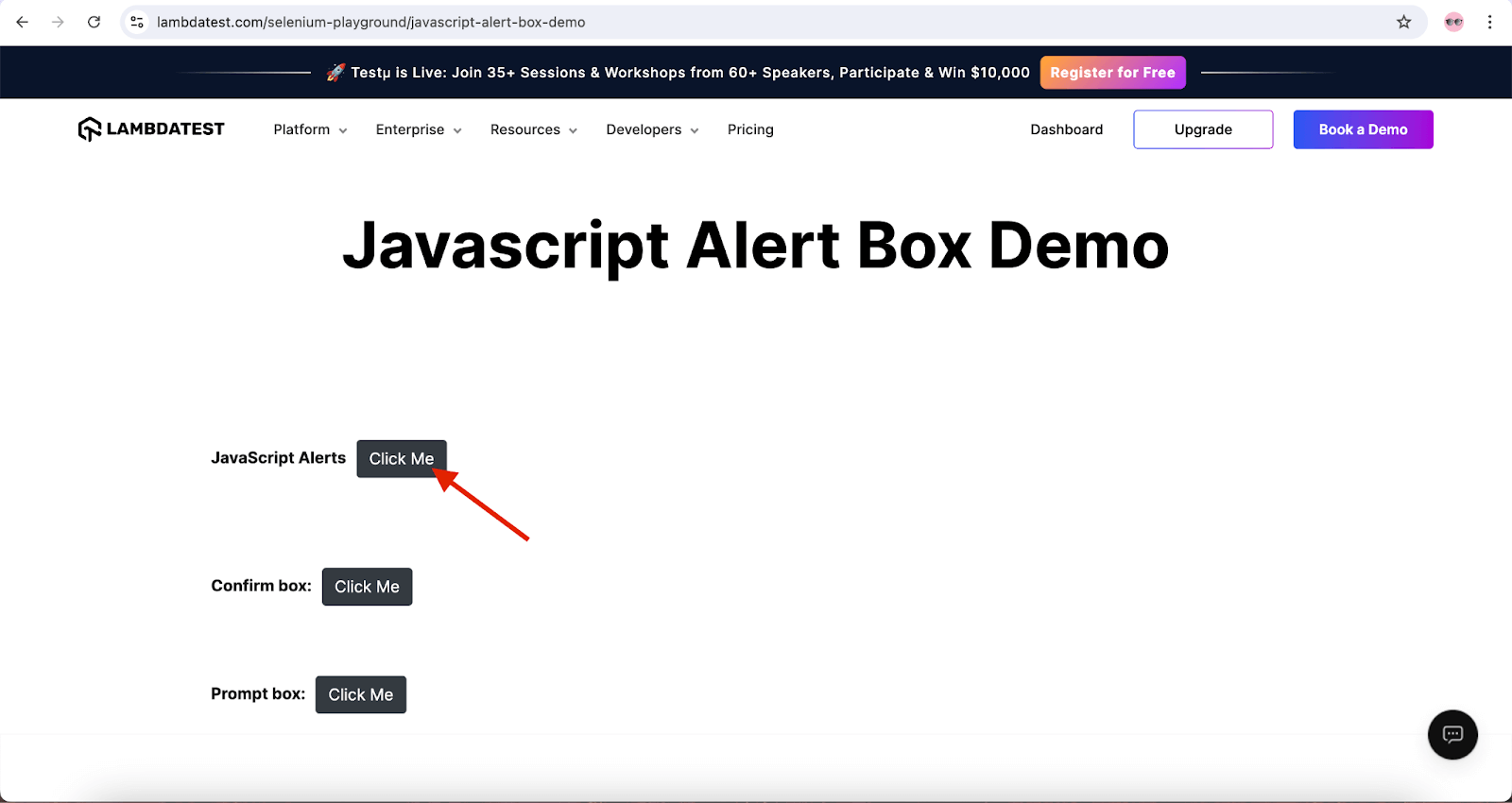
Code Implementation:
A new test method, testJavaScriptAlert() is created in the existing ExpectedConditionsDemoTest class to implement the test scenario.
@Test
public void testJavaScriptAlert() {
   driver.get("https://www.lambdatest.com/selenium-playground/javascript-alert-box-demo");
   WebElement clickMeBtn = driver.findElement(By.cssSelector("button.btn.my-30"));
   clickMeBtn.click();
   WebDriverWait wait = new WebDriverWait(driver, Duration.ofSeconds(30));
   Alert alert = wait.until(ExpectedConditions.alertIsPresent());
   String alertText = alert.getText();
   assertEquals(alertText, "I am an alert box!");
   alert.accept();
}
Code Walkthrough:
Below is the code walkthrough for the testJavaScriptAlert() method:
- Navigation: The code navigates to the JavaScript alert window on the TestMu AI Selenium Playground website.
- Element Location: The “Click Me” button is located using the CSS Selector locator strategy, and a click action is performed.
- Alert Handling:
- Wait for Alert: The alertIsPresent() method from the ExpectedConditions class is used to wait for the alert to appear. This method will wait until the alert is present and then switch to it.
- Capture and Verify Alert Text: The text of the alert is captured in the alertText variable and verified to ensure the alert appears as expected.
- Accept Alert: The accept() method is called to accept the alert, effectively clicking the OK button to close it.
Test Execution:
The following screenshots show the successful execution of the tests running on IntelliJ IDE.
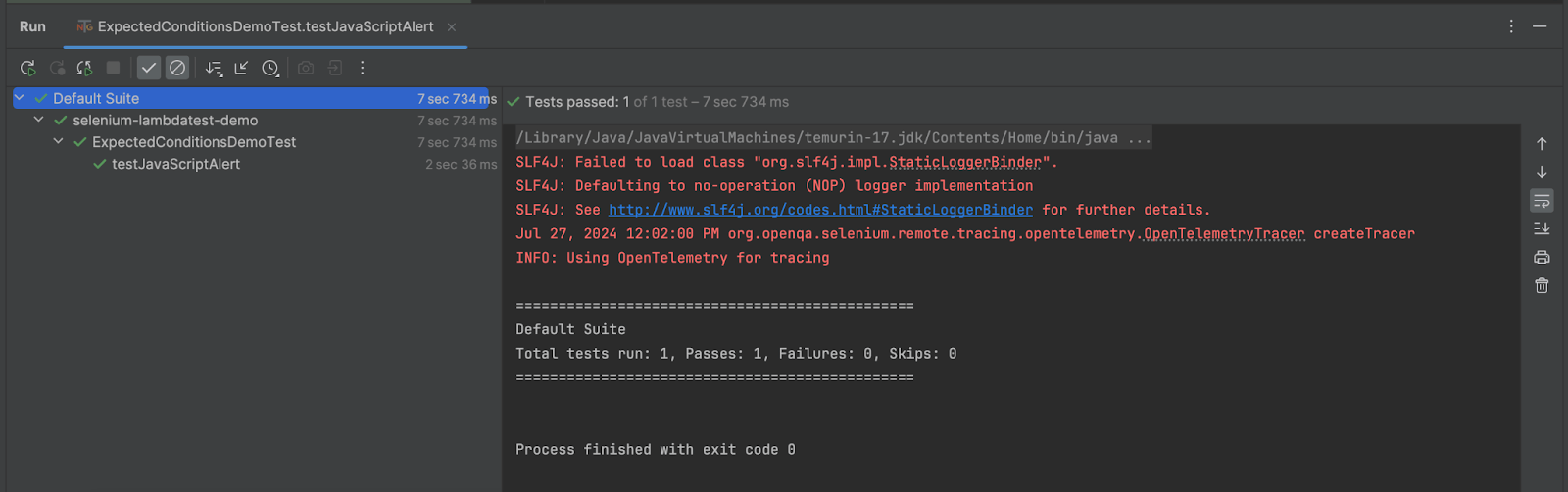
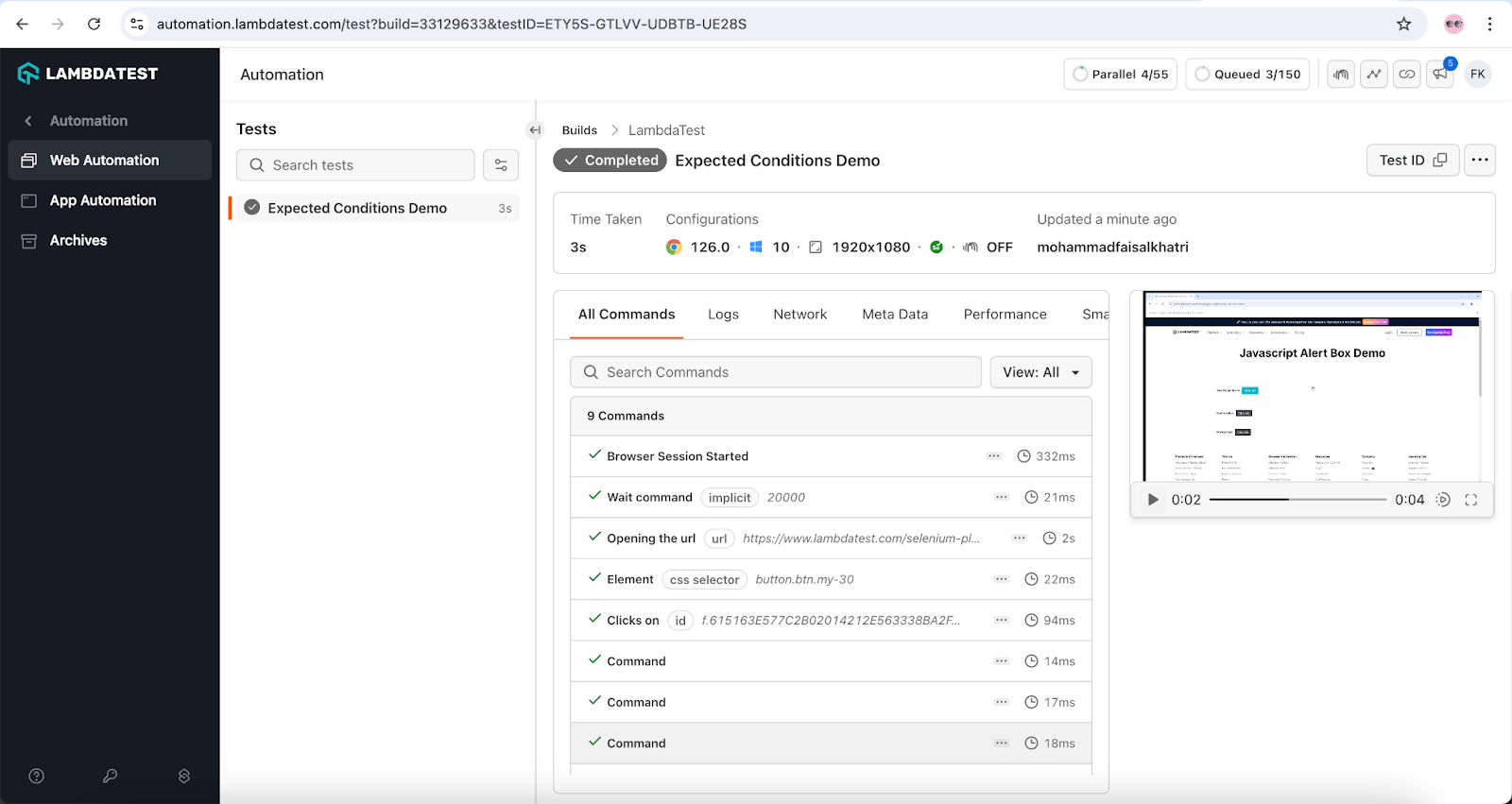
The test details are displayed on the TestMu AI dashboard as well.

presenceOfElementLocated
The presenceOfElementLocated() method waits for a specified WebElement to be present in the DOM of the page. However, the presence of an element in the DOM does not necessarily mean that the element is visible. This method takes a locator as a parameter to find the element on the page and returns the WebElement once it is located.
Syntax:
ExpectedCondition<WebElement> presenceOfElementLocated(final By locator)
titleIs
This method checks whether the title of the current page matches the expected title. It returns true if the title matches with the expected title. It returns false if the titles do not match.
Syntax:
ExpectedCondition<Boolean> titleIs(final String title)
titleContains
This method checks whether the current page title or the title of a WebElement contains a specific case-sensitive substring. It returns true if the substring is present in the title.
Syntax:
ExpectedCondition<Boolean> titleContains(final String title)
textToBePresentInElementLocated
This method checks if the given text (passed as a parameter to the method) is present in the WebElement that matches the given web locator. It returns the Boolean value true if the specified text is present in the element; otherwise, it returns false.
Syntax:
ExpectedCondition <Boolean> textToBePresentInElementLocated(final By locator, final String text)
urlToBe
This method checks whether the current page URL matches (or is the same as) the URL passed as a parameter to the urlToBe() method. It returns true if the current page URL is the same as the expected URL (in the parameter); otherwise, it returns false.
Syntax:
ExpectedCondition<Boolean> urlToBe(final String url)
The methods discussed above are some of the most commonly used in ExpectedConditions in Selenium. They play a vital role in ensuring that the test script waits until elements are ready and visible for interaction. ExpectedConditions in Selenium are particularly helpful when dealing with challenging elements like frames, iframes, windows, and alerts, making automation of these components easier.
Every testing scenario is unique, depending on the application being automated, so there may be instances where creating custom ExpectedConditions in Selenium is necessary.
Custom ExpectedConditions In Selenium
There are scenarios where you might want to combine multiple conditions into one. For example, a test might need to check both the visibility of an element and its clickability. This can be achieved by creating a custom ExpectedCondition in Selenium.
A custom ExpectedCondition is a class that:
- Implements the ExpectedCondition interface (e.g., ExpectedCondition
, ExpectedCondition , etc.). - Optionally, it has a constructor with parameters for the ExpectedCondition.
- Overrides the apply method using the @Override annotation in Java.
Here is a sample implementation of a custom ExpectedCondition in Selenium Java:
class CustomElemLocated implements ExpectedCondition<WebElement>
{
    By some_locator = By.cssSelector("some_css_locator");
    WebElement elem_some_webelement;
    @Override
    public WebElement apply(WebDriver driver)
    {
        elem_some_webelement = driver.findElement(some_locator);
        return elem_some_webelement;
    }
}
Let’s look at how to create custom ExpectedConditions in Selenium by automating the following test scenario:
Test Scenario:
- Navigate to the TestMu AI Selenium Playground.
- Search for a record with the name “Bennet”.
- Assert the retrieved record and check that it contains the name “Bennet”.
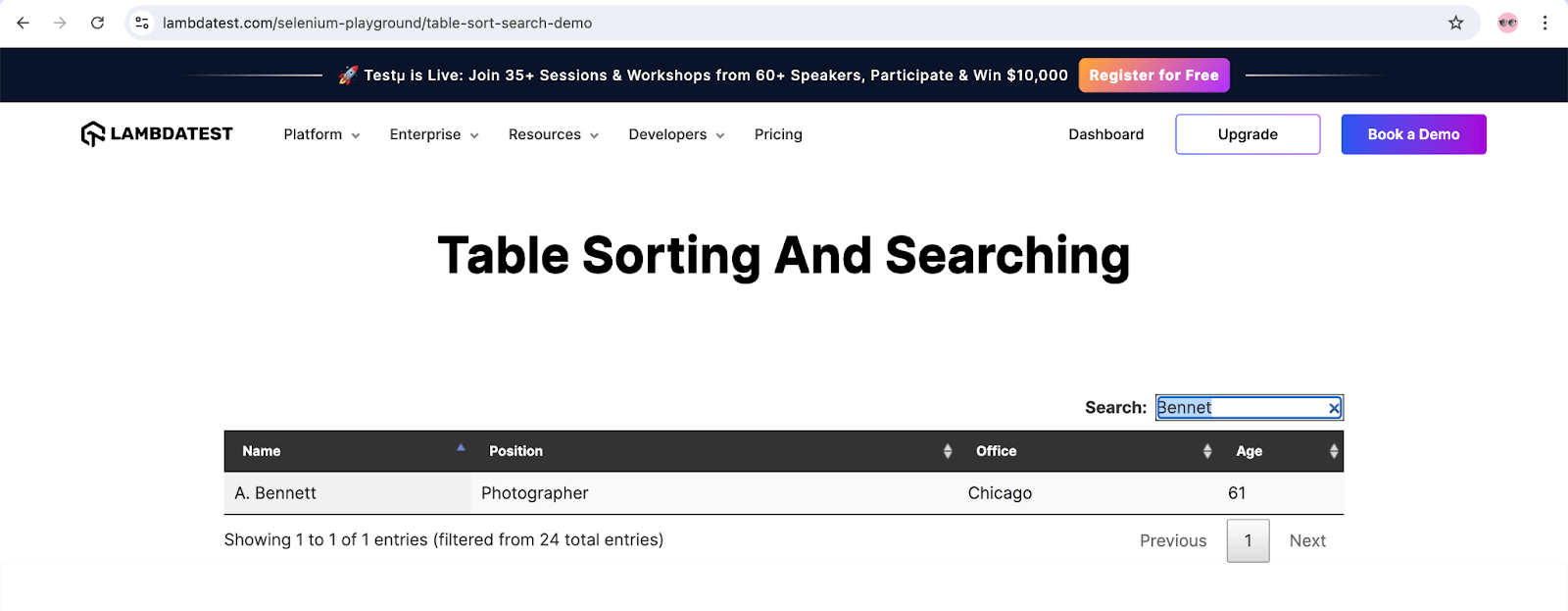
Code Implementation:
A new test method testCustomExpectedCondition() is created in the existing ExpectedConditionsDemoTest class. This method will implement the test scenario for table data search using custom expected conditions.
@Test
public void testCustomExpectedCondition() {
   driver.get("https://www.lambdatest.com/selenium-playground/table-sort-search-demo");
   WebElement searchBox = driver.findElement(By.cssSelector("#example_filter input"));
   searchBox.sendKeys("Bennet");

   WebDriverWait wait = new WebDriverWait(driver, Duration.ofSeconds(10));
   wait.until(new ExpectedCondition<Boolean>() {
       @Override
       public Boolean apply(WebDriver driver) {
           WebElement table = driver.findElement(By.id("example"));
           if (table.isDisplayed()) {
               WebElement tableRow = driver.findElement(By.cssSelector("#example tbody tr:nth-child(1)"));
               WebElement nameValue = tableRow.findElement(By.cssSelector("td:nth-child(1)"));
               if (nameValue.isDisplayed() && nameValue.getText().contains("Bennet1")) {
                   return true;
               } else {
                   return false;
               }
           }
           return false;
       }
   });
}
Code Walkthrough:
Below is the code walkthrough for the testCustomExpectedCondition() method:
- Navigation: The test navigates to the Table Sorting and Searching page on the TestMu AI Selenium Playground website.
- Element Location: The search box is located using the CSS Selector locator strategy.
- Custom Expected Condition: A custom expected condition is applied to locate the table and verify a record within it. The ExpectedCondition will return true if the condition is met and false otherwise.
- First Condition: Checks if the table is displayed. If it is, the test locates the table row and then the Name column.
- If the table is not displayed, the test fails, returning false, and the condition will time out after 10 seconds.
- Second Condition: If the table is displayed, it verifies that the Name column is visible and the value in the first row of the Name column is Bennet (the searched value).
- If both conditions are met, the test passes. If the second condition fails, it returns false, marking the test as failed.
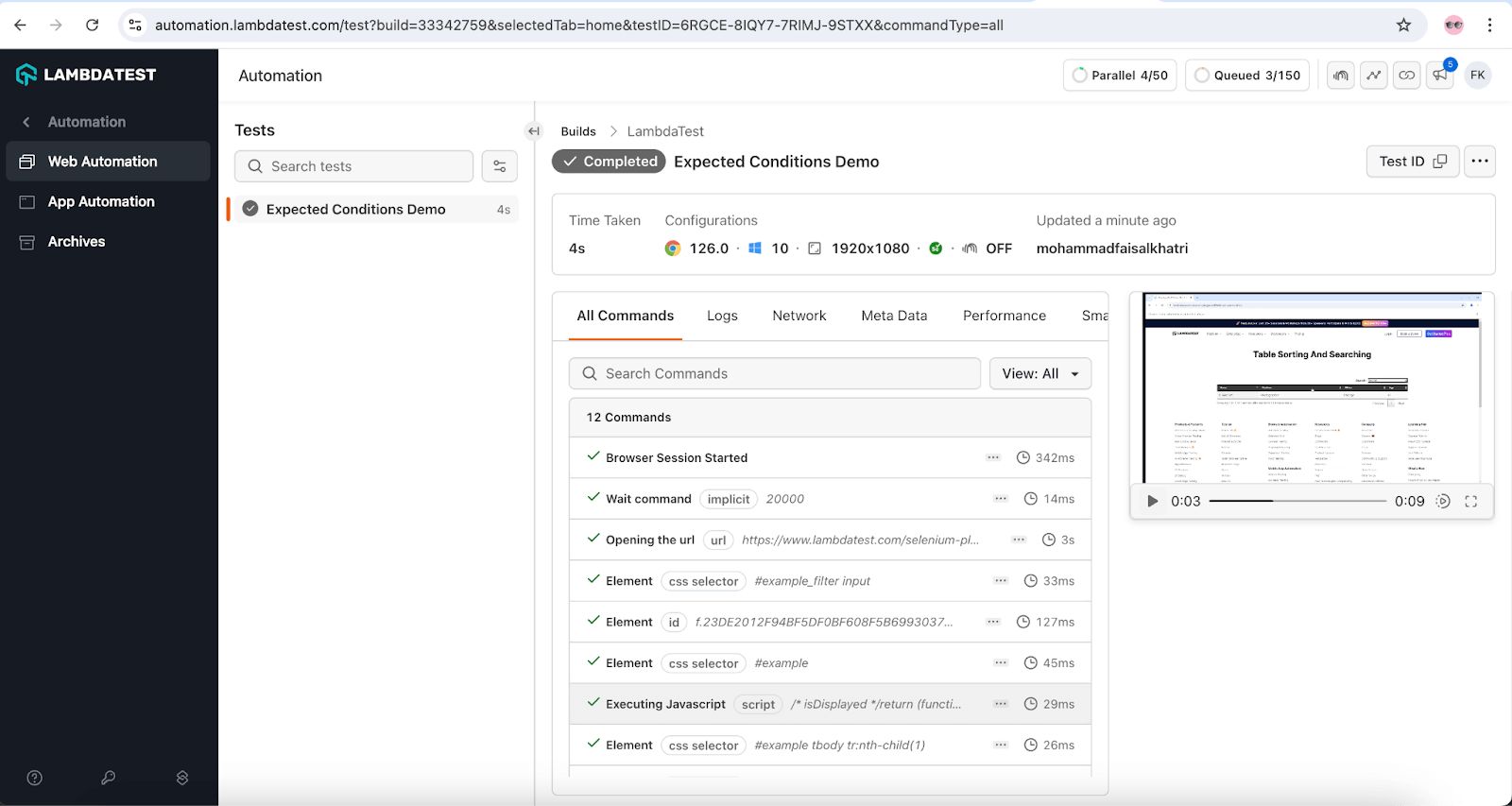
Test Execution:
The following screenshots show the successful execution of the tests running on IntelliJ IDE.
The test details are displayed on the TestMu AI dashboard as well.
Troubleshooting Common ExpectedConditions Errors
Use this table to diagnose and fix common issues when working with ExpectedConditions.
| Error | Cause | Solution |
|---|---|---|
TimeoutException | Element not found or condition not met within wait time | Increase timeout, verify locator is correct, check if element is inside iframe |
StaleElementReferenceException | Element was found but is no longer attached to DOM | Re-locate the element after page changes, use stalenessOf() before re-locating |
ElementNotInteractableException | Element is present but cannot be interacted with | Use elementToBeClickable instead of presenceOfElementLocated |
NoSuchElementException | Locator does not match any element in DOM | Verify locator using browser DevTools, check for typos in ID/class names |
ElementClickInterceptedException | Another element (overlay, modal) is covering the target | Wait for overlay to disappear using invisibilityOfElementLocated |
InvalidSelectorException | XPath or CSS selector syntax is incorrect | Validate selector in browser console before using in code |
NoSuchFrameException | Frame locator is incorrect or frame has not loaded | Use frameToBeAvailableAndSwitchToIt with correct frame identifier |
NoAlertPresentException | Alert has not appeared yet or was already dismissed | Use alertIsPresent() before interacting with alerts |
WebDriverException: unknown error | Browser/driver version mismatch | Update WebDriver to match browser version |
Key Takeaways
- ExpectedConditions are used to implement Explicit Waits in Selenium, making tests more reliable and efficient than relying on Implicit Waits alone.
- The major ExpectedCondition return types in Selenium Java include
Boolean,WebDriver,WebElement, andAlert. - Common methods like
elementToBeClickable,visibilityOfElementLocated,alertIsPresent, andframeToBeAvailableAndSwitchToIthelp synchronize tests with dynamic UI behavior. - Custom ExpectedConditions are useful when you need to combine multiple checks into a single reusable wait condition.
- Using the right ExpectedCondition for the scenario reduces flakiness, improves readability, and makes Selenium test automation easier to maintain.


Frequently asked questions
Did you find this page helpful?
More Related Hubs
TestMu AI forEnterprise
Get access to solutions built on Enterprise
grade security, privacy, & compliance
- Advanced access controls
- Advanced data retention rules
- Advanced Local Testing
- Premium Support options
- Early access to beta features
- Private Slack Channel
- Unlimited Manual Accessibility DevTools Tests