

Next-Gen App & Browser Testing Cloud
Trusted by 2 Mn+ QAs & Devs to accelerate their release cycles


How To Integrate Cucumber With Jenkins?
Cucumber remains the best one for functional and acceptance testing, and Cucumber with Jenkins integration makes it even better! Learn how to integrate Cucumber with Jenkins in this detailed guide.
January 27, 2026
Cucumber is an open-source BDD (Behavior-Driven Development) tool used for automating web application tests. It’s popular for functional and acceptance testing thanks to its simple, natural language syntax and wide community support. Many teams integrate Cucumber with Selenium for better readability and use Cucumber with Jenkins to run tests remotely and streamline automation.
Overview
Integrating Cucumber with Jenkins enables seamless automation and continuous integration for Behavior-Driven Development (BDD) testing.
Why Integrate Cucumber With Jenkins?
Cucumber makes test cases easy to understand, while Jenkins automates their execution and reporting bridging teams and enabling faster, more reliable CI/CD workflows.
- Automation Efficiency: Run Cucumber tests automatically after code commits or build triggers.
- Enhanced Visibility: Generate detailed Cucumber JSON and HTML reports directly in Jenkins.
- Collaboration: Teams can monitor, review, and share test outcomes effortlessly.
How To Integrate Cucumber With Jenkins
Integrating Cucumber with Jenkins connects your BDD test framework to an automated CI/CD pipeline. It ensures every code change is validated instantly with reliable, continuous feedback for teams.
- Install Required Plugins: Add Cucumber Test Results, Cucumber Reports, and Cucumber Perf plugins.
- Configure Jenkins Job: Link your project’s pom.xml and enable post-build actions for report generation.
- Run Tests: Execute Cucumber scripts through Jenkins and visualize the results using trend charts and performance insights.
Cucumber–Jenkins integration streamlines automated testing within CI/CD pipelines, ensuring consistency, collaboration, and faster releases.
Getting Started with Cucumber Jenkins Setup
Cucumber is well-known for agile development of web applications and reporting the results. With an easy-to-understand language, powerful plugins, and a straightforward integration with Selenium, starting Cucumber with Jenkins integration has never been easier.
Before we begin, let’s understand why you need Cucumber with Jenkins integration in the first place. Here’s why- Cucumber acts as a bridge between:
- Manual Tester and Developers.
- Software Engineer and Business Analyst.
- Manual Tester and Automation Tester.
And as you already know, Jenkins is an open-source, accessible, easy to use CI/CD tool. With Jenkins, you can schedule a run on scheduled time or trigger builds after an event, and it also comes with a plethora of plugins. You can refer to our comprehensive Jenkins tutorial to learn more about this tool.
Now, let us see how to integrate Cucumber with Jenkins.
Prerequisites for Cucumber with Jenkins Integration
We need the installation of the below plugins to start Cucumber with Jenkins integration. Let us see an overview and utilities of the below plugins. This section will see how to make use of some Jenkins plugins that work together with Cucumber formatting outputs.
- Cucumber Test Results plugin
- Cucumber Reports
- Cucumber perf plugin
A. Cucumber Test Results plugin
This plugin takes Cucumber JSON output as input and publishes the results in polychrome. The results will appear in GREEN when they have passed and RED when they fail.
Here’s how to install the Cucumber Test Results plugin. You can also refer to our blog on generating TestNG reports in Jenkins for more information.
- Login to your Jenkins server as an administrator.
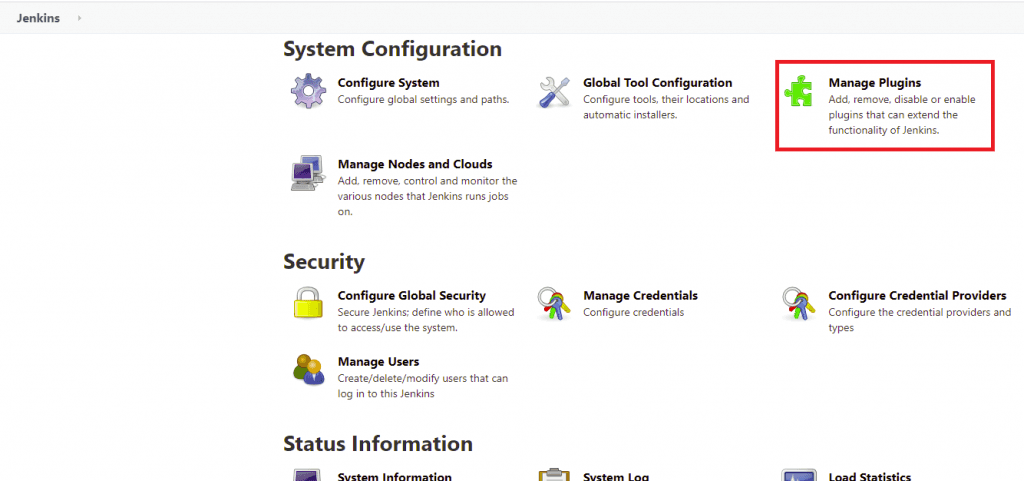
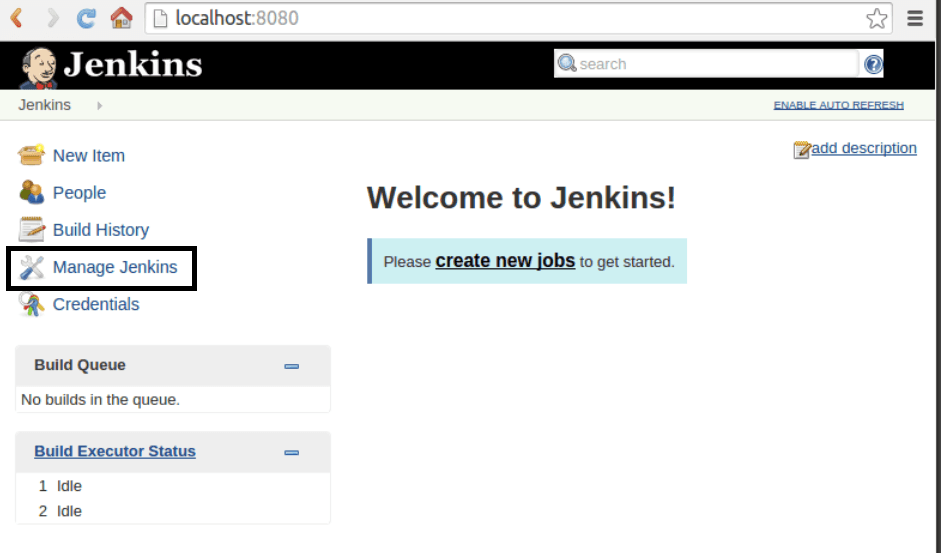
- Navigate to “Manage Jenkins.”
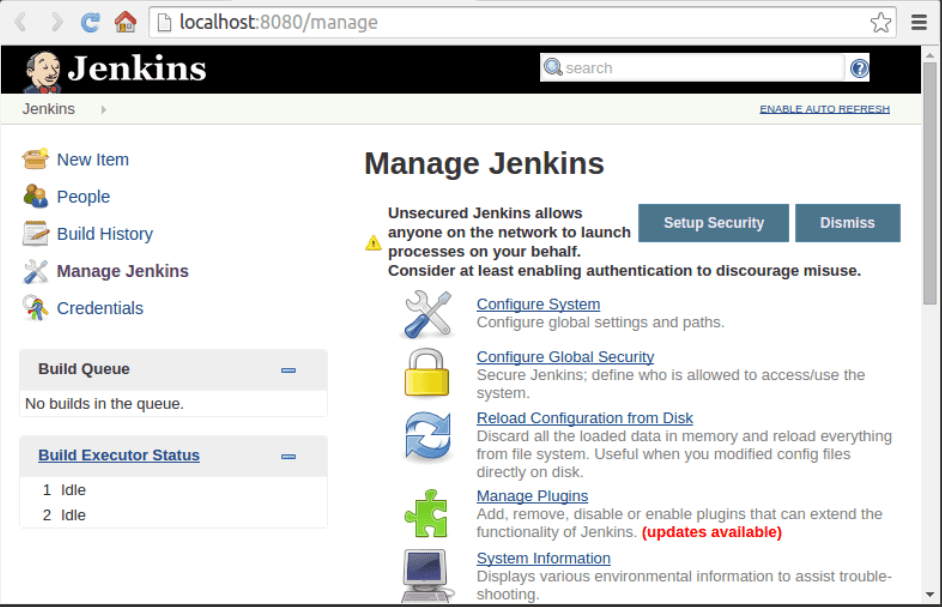
- Go ahead and click “Manage Plugins.”
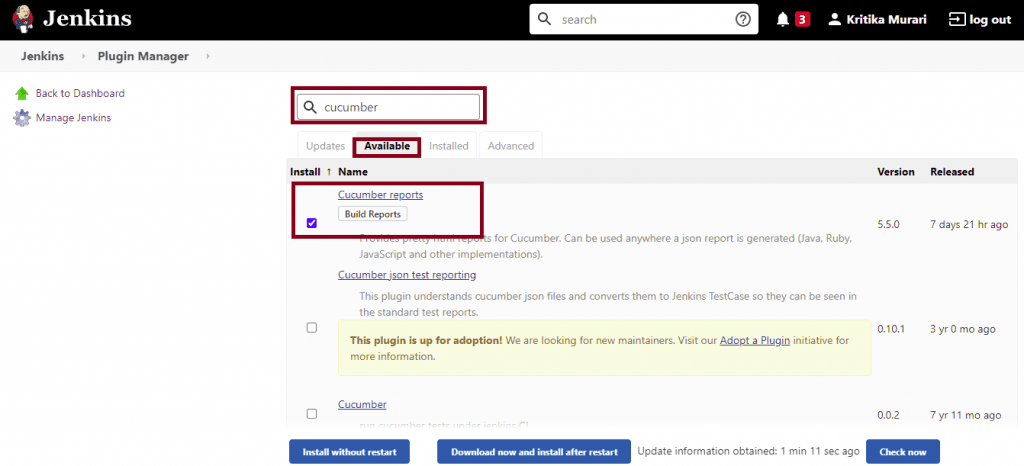
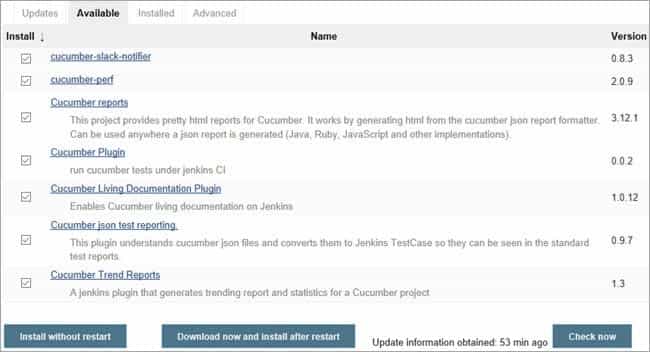
- Go to the “Available” tab under the manage plugins page.
- Search for “cucumber” in the filter at the right top corner.
- Go ahead and check the box against the Cucumber reports.
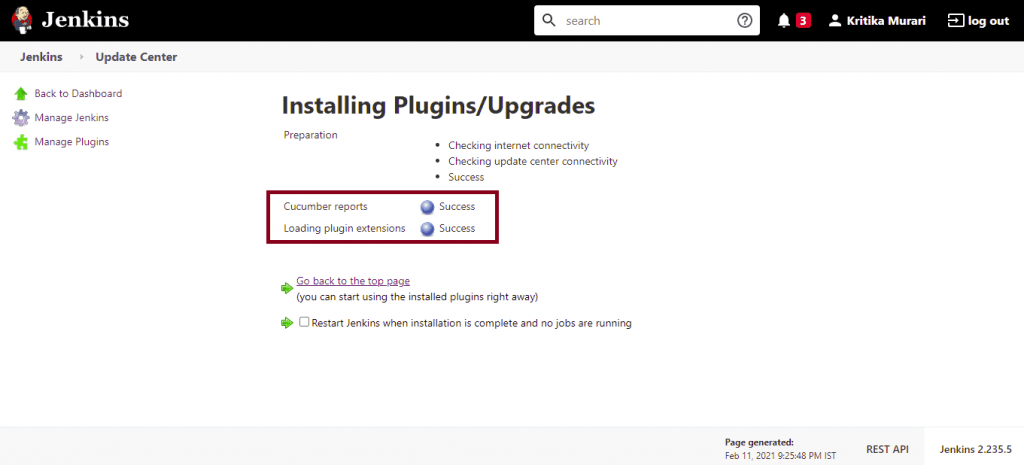
- Choose “Install without restart” to start the installation.
- Click “Back to dashboard” in the left menu
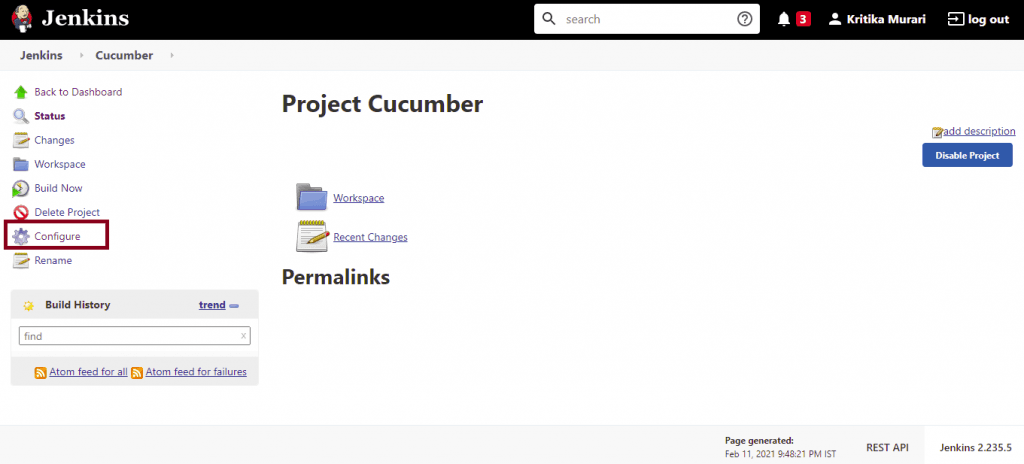
- Navigate to the job already created. ‘Cucumber’ in our case.
- Click “Configure” against the job.
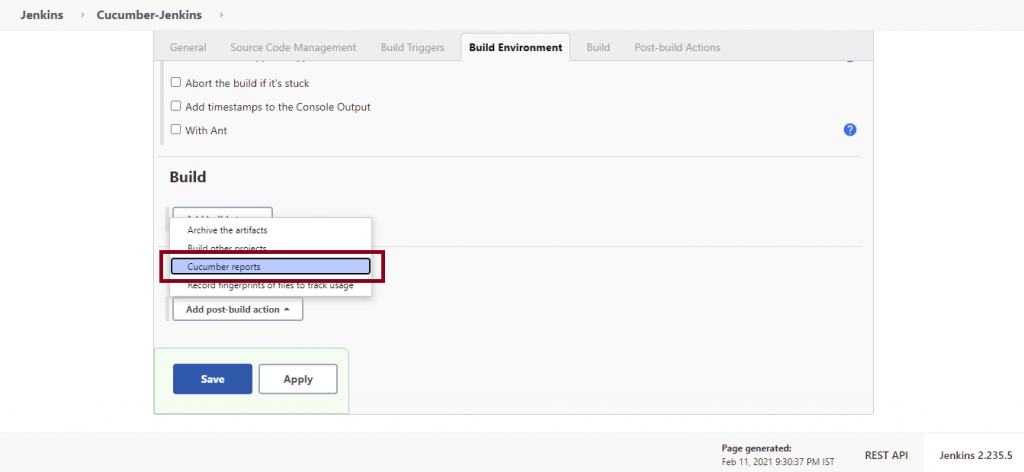
- Scroll down to Post-Build Actions. Under “Add post-build action,” select “ Cucumber reports.”
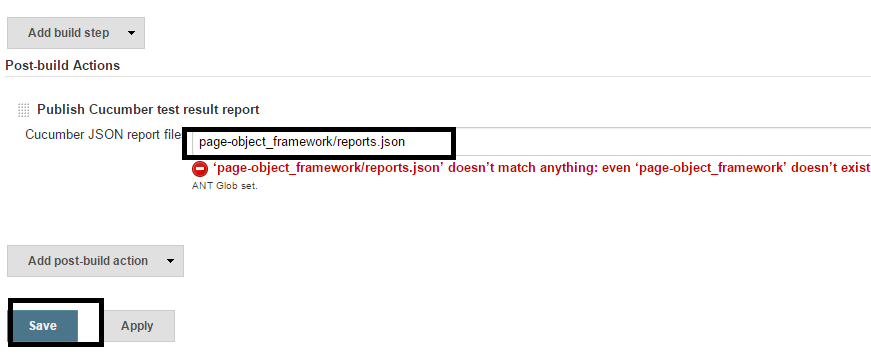
- Click on Advanced. Go to Post-build Actions. Add below report file in the text box as shown. You can Ignore the message at the bottom. It appears since we don’t have any files yet, once we run the build, they will be created.
- The next step is to generate Cucumber JSON reports.
- Open the cucumber.yml file in your page-object_framework and add the below-highlighted string.
- This is to make sure we have reports.json output in addition to the HTML reports. The cucumber plugin will parse these on Jenkins.

Execution
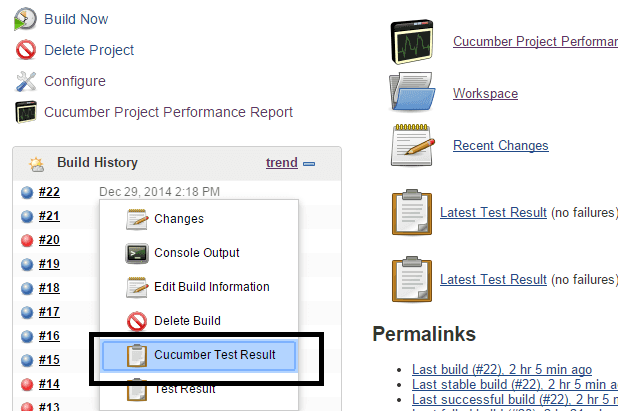
To execute, click the “Build Now” button from the left menu for the job. The build should be successful. Instead of watching console output, select “Cucumber Test Result” at the end of the build.
Results
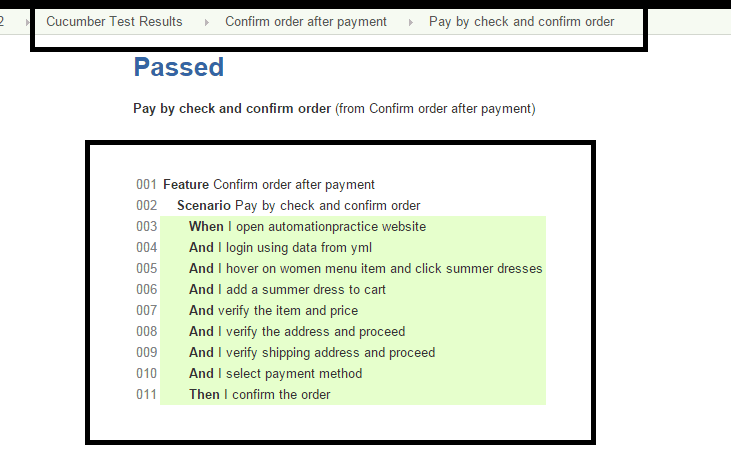
Next, go to Feature –> Scenario, where you can see all the steps’ status. As shown below, they are all GREEN.
B. Cucumber Reports
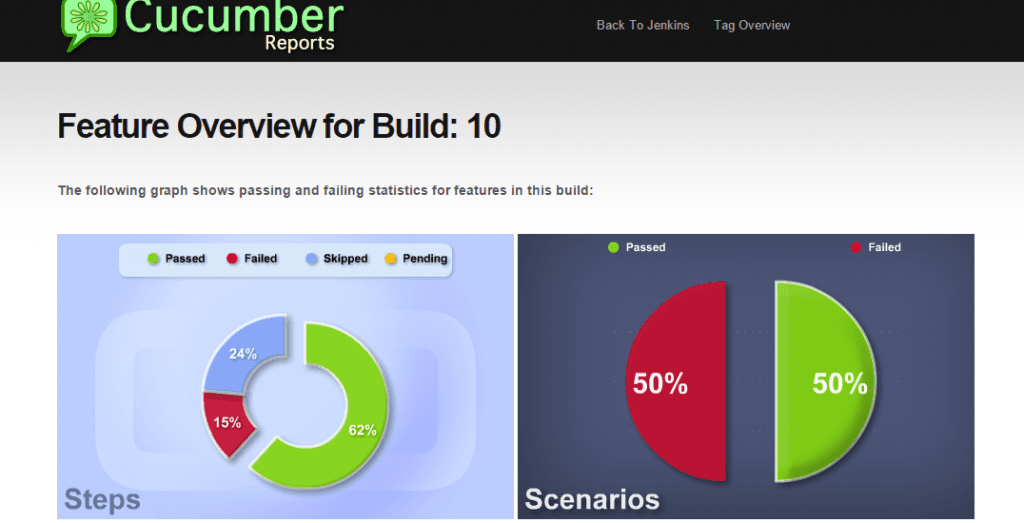
Cucumber Reports plugin can read the JSON output and produce pie charts for feature or scenario results & bar graphs for tags. This is possible if we had options “-f json -out cucumber.json,” where you output the results to JSON format, i.e., in cucumber.yml. This plugin has advanced options to help us make vital decisions on the test results.
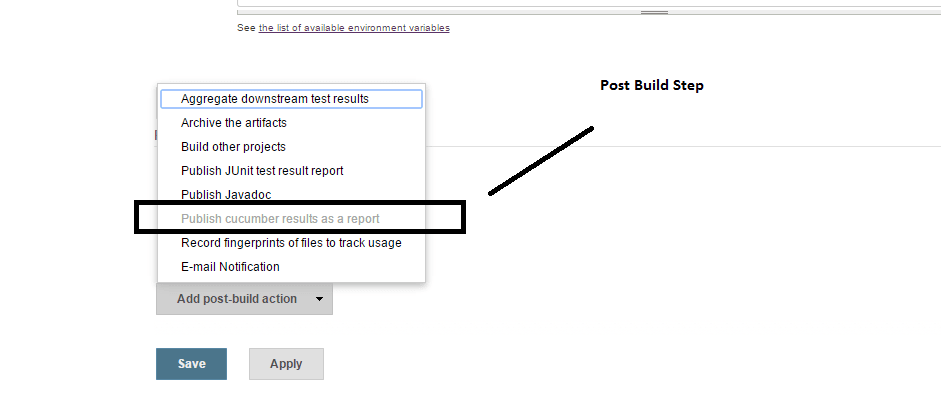
- Add a post-build step and select the “Publish cucumber results as a report” option, as shown below.
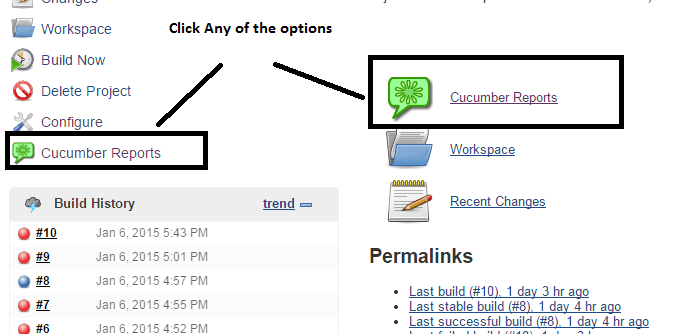
- Referring to the job, the below menu option will be visible to us as below.
- Next, run the job and click the reports. The reports will be in the form of SWF charts, as shown below.
Results
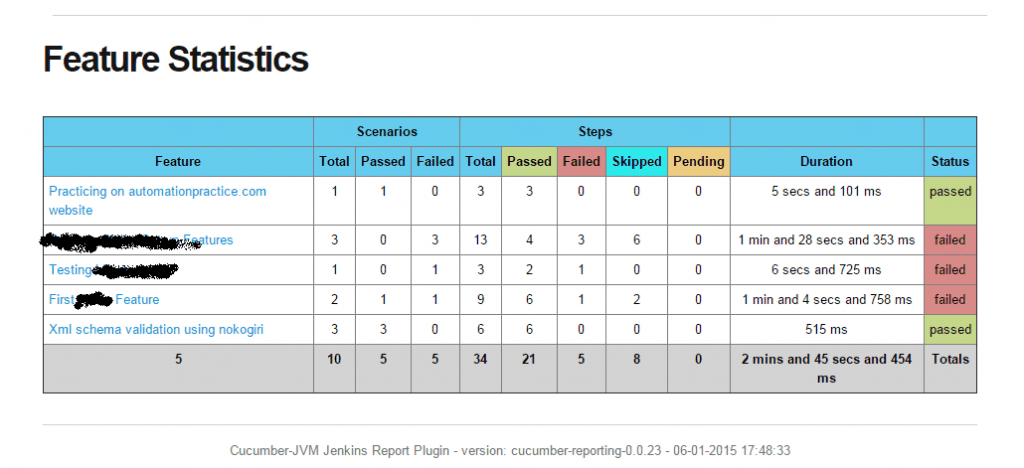
We get results as below.
C. Cucumber perf plugin
This plugin helps us demonstrate the history of how Cucumber results were performing as a trend. This is helpful when you keep running the suite multiple times.
There are additional features to it, like “worst-performing features” over time. This mainly helps us focus on those bottlenecks and allows us to debug them further.

Integrating Cucumber with Jenkins
Now, you are all set with the prerequisites for Cucumber with Jenkins integration. In this section, we will see how to integrate Cucumber with Jenkins using these plugins. In case you haven’t installed them yet, let us start from the very beginning-
- Access Jenkins URL. The default is port 8080.
- Go to “Manage Jenkins” –> “Manage Plugins.”
- Install the following plugins
- Cucumber Test Results plugin
- Cucumber Reports
- Cucumber perf plugin
Make sure while installing these plugins, all the dependent plugins are also successfully installed. This is to ensure the plugins work as expected without glitches.
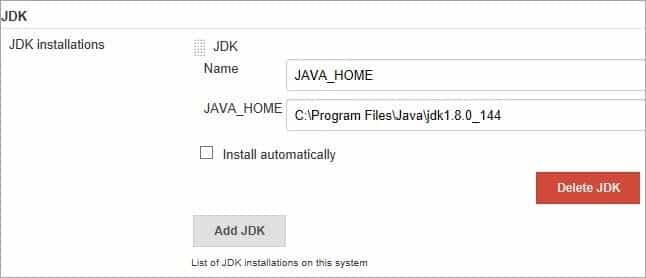
- The next step is to navigate to “Manage” –> “Global Tool Configuration.” Under “JDK,” set the path for JDK.
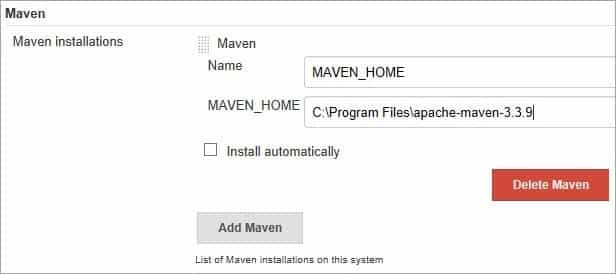
- Under “Maven,” set the path for Maven.
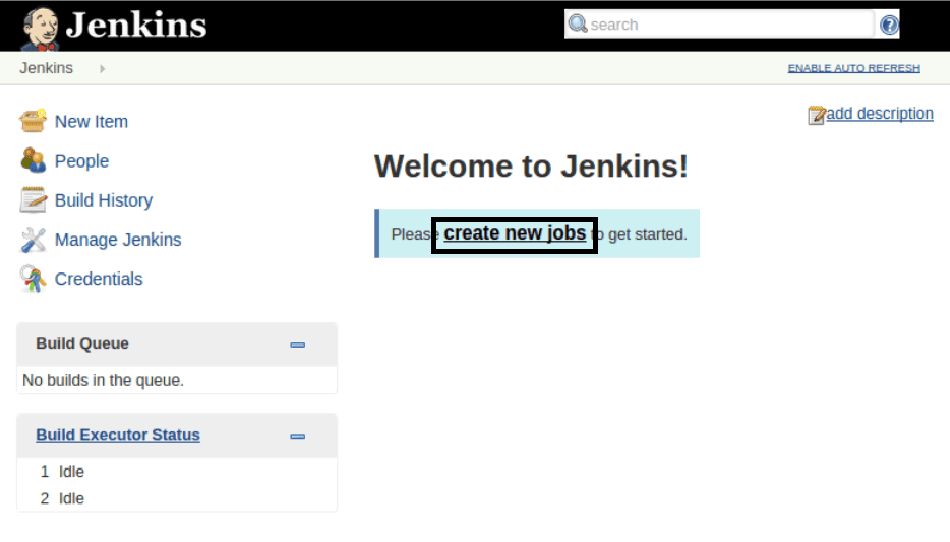
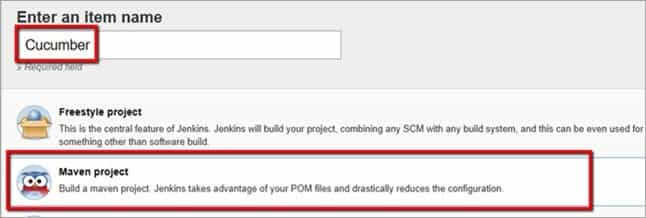
- Create a “New Item” as a Maven Project as shown below. Enter any arbitrary name.
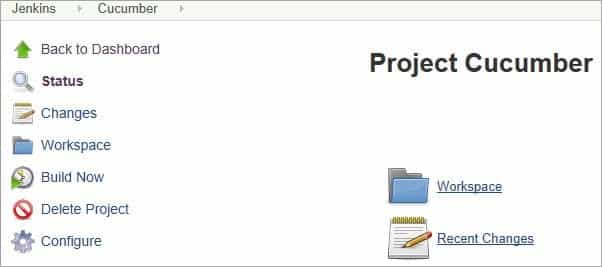
- Once the job is created, click on the “Configure” link on the left-hand side panel.
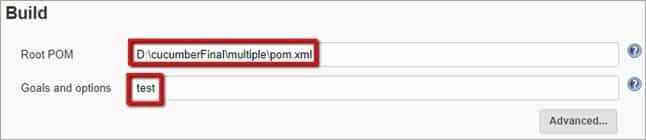
- Scroll down the page. Set the full path of pom.xml under “Root POM” and “Goal and options” as ‘test’ and proceed to save the configuration.
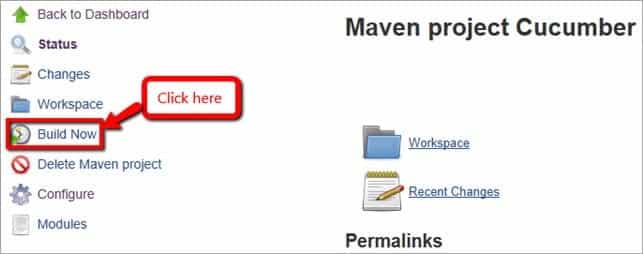
- Once all the above steps are completed, click on the “Build Now” button.
- The build will be executed, and the corresponding testing.xml file, which is the pom.xml, will get executed.
[INFO] T E S T S
[INFO] ——————————————————-
[INFO] Running TestSuite
New scenario begins
Starting ChromeDriver 2.33.506120 (e3e53437346286c0bc2d2dc9aa4915ba81d9023f) on port 27348
Only local connections are allowed.
(org.apache.http.client.protocol.RequestAddCookies).
Feb 02, 2021 09:49:41 PM org.openqa.selenium.remote.ProtocolHandshake createSession
INFO: Detected dialect: OSS
https://avatars3.githubusercontent.com/u/31874017?s=400&u=c41bfae0fa6b9325fb4f209885b51bd02c7d897d&v=4
https://avatars3.githubusercontent.com/u/31874017?s=400&u=c41bfae0fa6b9325fb4f209885b51bd02c7d897d&v=4
Scenario ends
New scenario begins
Starting ChromeDriver 2.33.506120 (e3e53437346286c0bc2d2dc9aa4915ba81d9023f) on port 24866
Only local connections are allowed.
Feb 02, 2021 09:50:47 PM org.openqa.selenium.remote.ProtocolHandshake createSession
INFO: Detected dialect: OSS
Scenario ends
2 Scenarios (2 passed)
14 Steps (14 passed)
2m2.677s

[INFO] Tests run: 1, Failures: 0, Errors: 0, Skipped: 0, Time elapsed: 128.513 s – in TestSuite
[INFO]
[INFO] Results:
[INFO]
[INFO] Tests run: 1, Failures: 0, Errors: 0, Skipped: 0
[INFO]
[JENKINS] Recording test results
[INFO] ————————————————————————
[INFO] BUILD SUCCESS
[INFO] ————————————————————————
[INFO] Total time: 02:04 min
[INFO] Finished at: 2021-02-02T09:51:45+05:30
[INFO] Final Memory: 12M/28M
[INFO] ————————————————————————
Waiting for Jenkins to finish collecting data
[JENKINS] Archiving D:cucumberFinalmultiplepom.xml to com/cucumber.example/0.0.1-SNAPSHOT/cucumber.example-0.0.1-SNAPSHOT.pom
channel stopped
Finished: SUCCESS
Hurray, you have successfully completed Cucumber with Jenkins integration! Before we proceed further, this might be the right time to acquaint yourself with the best Cucumber practices.
You can take this certification as proof of expertise in the field of test automation with JavaScript to empower yourself and boost your career.
Here’s a short glimpse of the Selenium JavaScript 101 certification from TestMu AI:
Running Cucumber Script with Jenkins
Automation scripts built with the Cucumber framework benefit from being easy to understand, easy to communicate, and good maintenance, so it is popular among test automation teams. An essential aspect of integrating DevOps is incorporating automated testing into a continuous integration (CI) process.
Now that you have completed the Cucumber Jenkins setup, in this section, we will see how to configure Jenkins to run an automated Cucumber test script and show the Jenkins UI report. This can be done using the following methods-
- Cucumber’s Command Line Mode
- CukeTest’s Command Line Mode
- Jenkins Continuous Integration Configuration
- Jenkins Test Report Plugin Configuration
Cucumber’s Command Line Mode
To illustrate the Cucumber Command Line, we use Cucumber.js. Many who already know this tool know that it means running the “Cucumber-js” command directly in the directory of the automation script. Or if you don’t have Cucumber installed globally, run “node modules/.bin/cucumber-js” (or, if you’re on Windows, the .cmd extension), and the Cucumber installed locally will be used. After execution, the output of the text on the command line is written. You can refer to our Cucumber.js tutorial for more information.
The command line is identical if you are running it as a job under Jenkins. Just add the “format” parameter, indicating the output file in the “JSON” format, to make Jenkins render a visual report. The following is the command line:
node_modules.bincucumber-js --format json:report.json
A report is output to report.json, and then this file is used by the Jenkins job to view the report.
CukeTest’s Command Line Mode
CukeTest is Cucumber.js’s development tool. These editions support command line mode and are available on Windows Desktop, Windows Store, MacOS, etc. It is available for free at CukeTest’s official website. CukeTest is used to build scripts for Cucumber.js and can also be used to execute scripts for Cucumber.js from the command line.
The benefit of using CukeTest is that with each project, you don’t have to install Cucumber.js. CukeTest already has Cucumber.js built-in, which saves your storage space and time. Another advantage is that it can run Windows automation with the library built-in, capture video, etc.
The Windows Store version of CukeTest has a different command line process, so the command line varies slightly from the desktop version. Luckily, you don’t need to recall all the specifics of the command line.
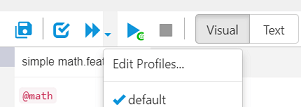
- In CukeTest, you can open a run profile when your project is opened to get the command line by clicking the drop-down arrow next to the “Run Project” button and then clicking “Edit Profiles.”
- In the “Run Profiles” dialogue, the corresponding command line is automatically created for this profile in the command line:
- Click the “Copy to clipboard” option to copy the commands to the clipboard.
- Then click the “Open console window” option, and paste the command line to this newly opened window.

Below are the command lines for various platforms-
- Command line for Windows Store version
chcp 65001 && start cuketest://?profile=Profile1
CukeTest’s command line output is encoded in UFT8. So using the command “chcp 65001” helps change the command line encoding from UFT8 to UTF8.
chcp 65001 && cuke --run --format html
CukeTest’s command line output is encoded in UFT8. So using the command “chcp 65001” helps change the command line encoding from UFT8 to UTF8.
Jenkins Continuous Integration Configuration
Once we are aware of the steps to run the project in the command line, we can configure Jenkins to run it. Below are the steps to configure the Jenkins job.
For the demo, the source code is kept in https://github.com/CnodejsTest. This project is used to automate test cnodejs.org community site. Alternatively, we can use our Cucumber project to configure and run the job.
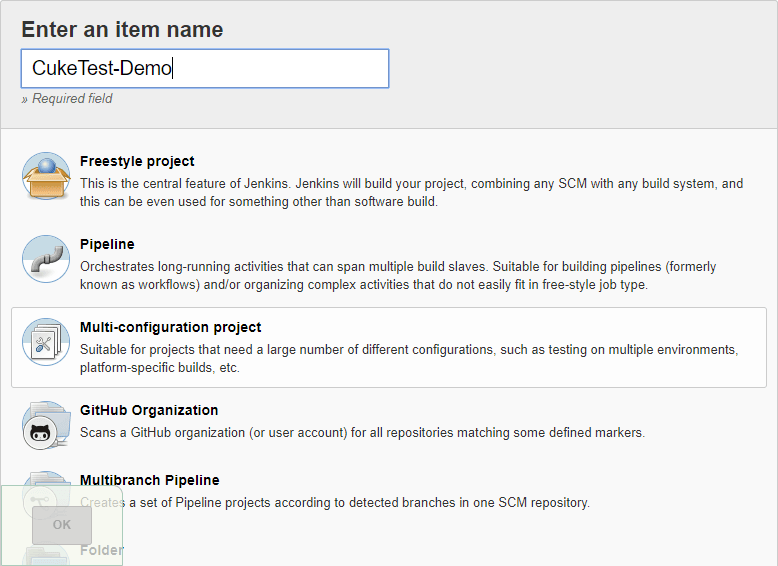
- Create a new job in Jenkins. Enter any arbitrary name.
- In the item bar, select “Windows Batch Command.” Here we have to copy & paste the corresponding command line from CukeTest to the Jenkins batch command box. In case you have a CukeTest desktop version installed natively, below is your command line.
npm install
chcp 65001 && cuke --run --format html
The ‘npm install’ command installs npm dependency packages that are consumed by the automation script.
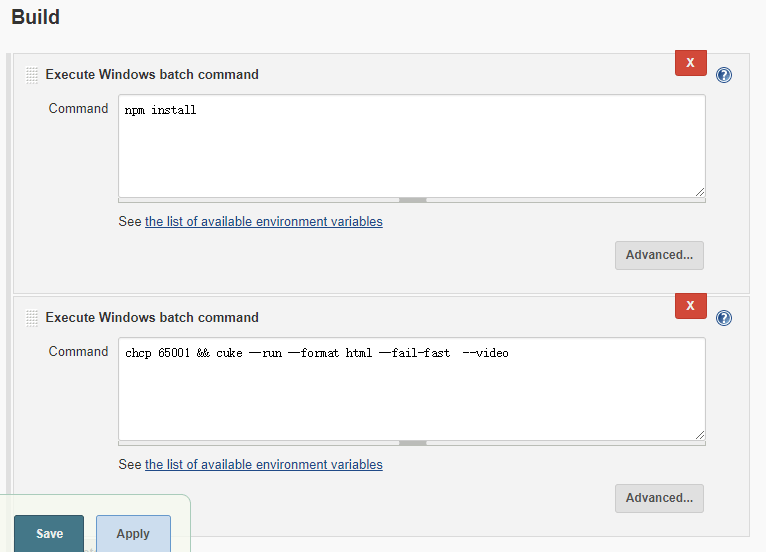
You can observe the execution progress upon build now of the job in the build history.
We can also find the running job log under the Build History. At the exact moment, the report file is also generated in the Jenkins Workspace directory.
Jenkins Test Report Plugin Configuration
In Jenkins, we can use the Cucumber reports plugin to show the report. We have already seen the introduction to this plugin in the Cucumber Jenkins setup above. Additionally, you can also read the information about this Plugin available at the official Jenkins website:
The following are the steps to configure Jenkins to generate reports.
- Install the Jenkins reports pluginOpen Jenkins –> Manage Plugin –> Filter “Cucumber reports” in Optional Plugin.
- Reconfigure the Jenkins task
We need JSON log data files to generate reports because the Cucumber reports Plugin generates reports by parsing the JSON report file created by Cucumber or CukeTest. Therefore, it is necessary that we first configure a running project which will create JSON log data files.
In the run configuration file, we have to select “JSON” in the report format.
- Display the Cucumber reportsIn the ‘Add post-build operation’ action, select the ‘Cucumber reports’ option.
- Generating test report
To generate the test report, we have to click the “Build Now” button. After the job is completed, a test report will be generated automatically. Besides, the test report provides us with a link to each scenario, where each link, when clicked, shows the details of the scenarios. The report also indicates the screenshot captured in each scenario step or hooks along with each step’s execution result.
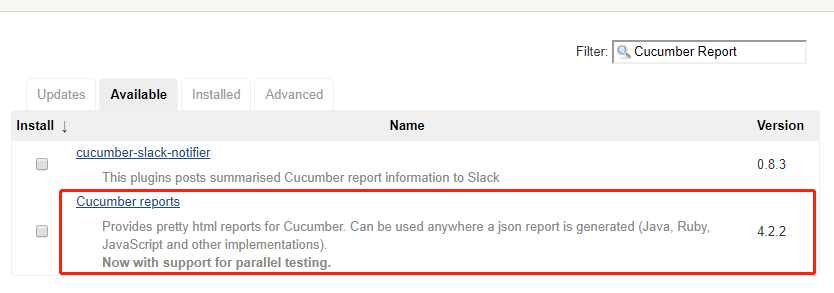
We need to restart Jenkins after the installation of this plugin.
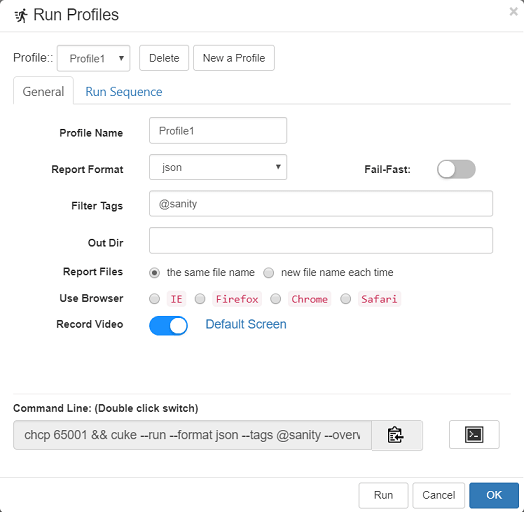
When we would run this command, the command line execution output is changed to json.
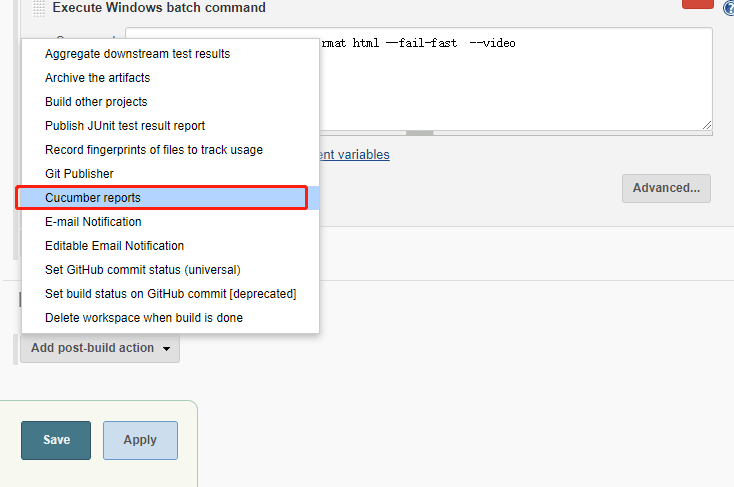
Go to the ‘Advanced’ option under the ‘Cucumber reports.’ In the ‘JSON Reports Path,’ enter “reports.”
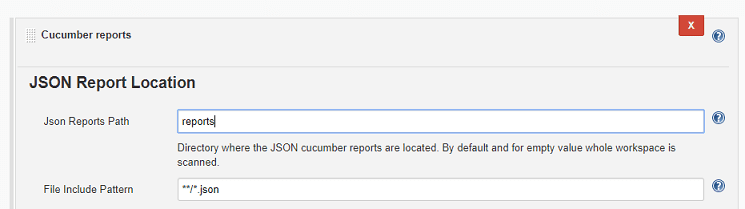
Click Save to finish the project configuration.
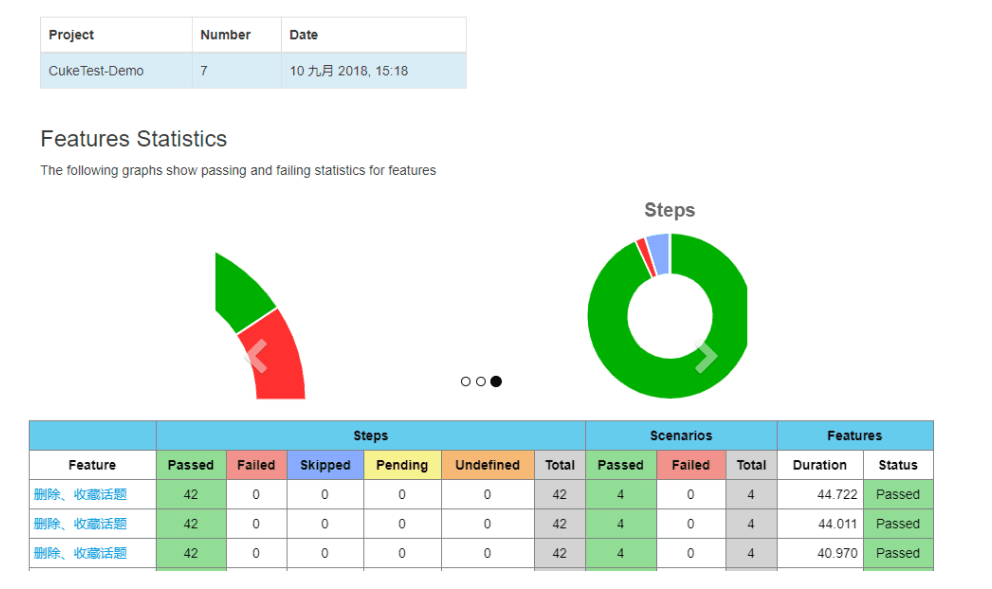
So till now, what we have seen is how to integrate Cucumber with Jenkins and how to run a Cucumber script on Jenkins along with the generation of graphical reports.
It is also possible to leverage cloud-based platforms’ automation capability to make remote testing more seamless than ever. You can configure your Cucumber scripts to run on TestMu AI’s Selenium Grid cloud and perform testing on 3000+ browsers, devices & operating systems. In the next section, we will learn how you can make the most of Cucumber with Jenkins integration & TestMu AI.
Leveraging Cucumber Jenkins Setup with TestMu AI Cloud Selenium Grid
Below we would see how we can get our Cucumber scripts running on the TestMu AI platform, and further, we can use the same steps as defined above to integrate Jenkins to generate the reports.
Few prerequisites before we start running the scripts:
- It is assumed that Java is installed on the machine. Preferably JDK 8 and above.
- Also, it is assumed we have node.js installed. If not, you can easily install it from https://nodejs.org/en/.
- Your TestMu AI credentials should be set as environment variables.
- If you are a Windows user, set them as set LT_USERNAME=”YOUR_USERNAME” set LT_ACCESS_KEY=”YOUR ACCESS KEY”
- If you are a Mac user, set them as export LT_USERNAME=”YOUR_USERNAME” export LT_ACCESS_KEY=”YOUR ACCESS KEY”
- In case you are unaware of the access key, you can easily retrieve them from your TestMu AI dashboard.
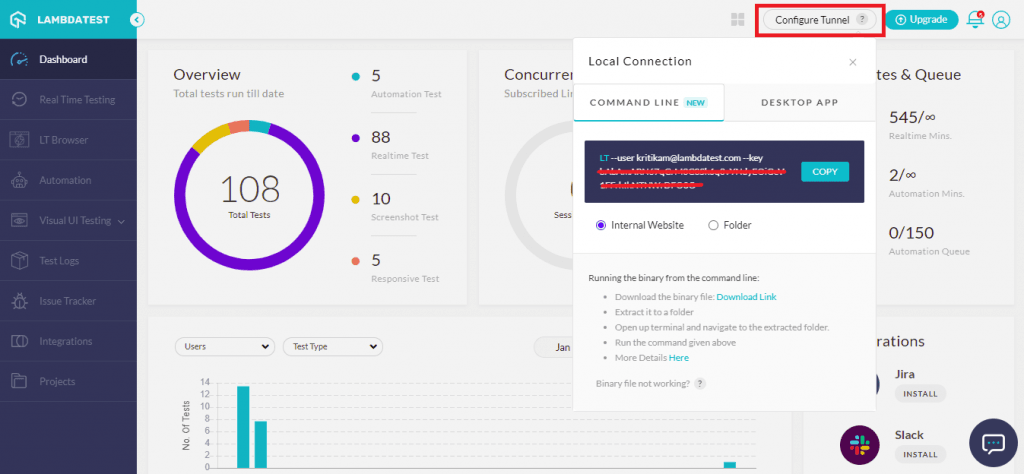
- We also have to update .conf.js files inside the conf/ directory with these credentials.
- If you are a Windows user, set them as set LT_USERNAME=”YOUR_USERNAME” set LT_ACCESS_KEY=”YOUR ACCESS KEY”
- If you are a Mac user, set them as export LT_USERNAME=”YOUR_USERNAME” export LT_ACCESS_KEY=”YOUR ACCESS KEY”
- In case you are unaware of the access key, you can easily retrieve them from your TestMu AI dashboard.
- We also have to update .conf.js files inside the conf/ directory with these credentials.
After we have the environment setup aligned, perform the below steps to run the Cucumber scripts. Make sure we have our repository cloned from Git.
- In case it is the first time you are running a script for a repository hosted on Git, you can clone a sample repository provided by TestMu AI, which is NodeJs-Cucumber-Selenium from GitHub.
- Navigate to the cloned directory and install the project dependencies using the below command.
$ npm install - Navigate to karma-jasmine-sample and run
$ npm run singleto run the test in single or$ npm run parallelto run the test in parallel.
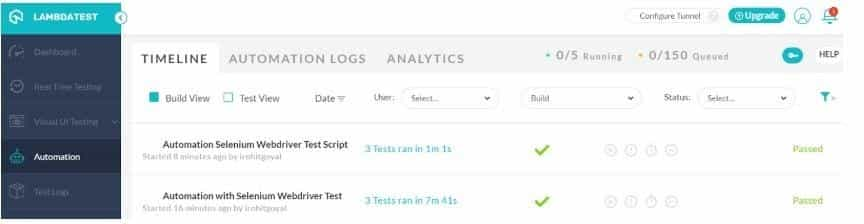
Both the commands validate the test cases and execute the test suite across all the defined test groups. We can check the test results by opening the TestMu AI platform and navigating to the Automation dashboard.
The below sample snippet depicts the same.
Conclusion
This blog presents how a Cucumber with Jenkins integration can help run automation scripts successfully. Additionally, this Cucumber with Jenkins integration can also be leveraged to run scripts over the TestMu AI cloud platform. The best part is that project stakeholders can all read the test reports after the Cucumber Jenkins setup and understand the quality status. Jenkins also has many other features, such as setting up timed service, sending mail, and other functions. You can configure to further customize report notification according to project needs, such as sending HTML reports to key stakeholders as an email.
Enhance your Cucumber interview proficiency with our meticulously curated compilation of questions and answers. Explore the comprehensive list of Cucumber Interview Questions and Answers for valuable insights.
Do leave your comments if you found this blog helpful. If you have any questions or doubts, you can always shoot up your query on TestMu AI Community and get it resolved!
Happy testing!

Author


Frequently asked questions
Did you find this page helpful?
More Related Hubs
TestMu AI forEnterprise
Get access to solutions built on Enterprise
grade security, privacy, & compliance
- Advanced access controls
- Advanced data retention rules
- Advanced Local Testing
- Premium Support options
- Early access to beta features
- Private Slack Channel
- Unlimited Manual Accessibility DevTools Tests