

Next-Gen App & Browser Testing Cloud
Trusted by 2 Mn+ QAs & Devs to accelerate their release cycles


On This Page
- What Is XPath in Selenium?
- Why XPath Is Important
- Types of XPath
- Write XPath in Selenium
- Common XPath Patterns
- Logical Operators in Selenium XPath
- XPath Axes in Selenium
- Chained XPath in Selenium
- Create Dynamic XPath in Selenium
- XPath vs CSS Selectors
- Use TestMu AI Online Selenium Grid for Scalable Automation
- Best Practices for Using XPath
- Common XPath Issues and Troubleshooting

How to Use XPath in Selenium [XPath Tutorial]
Learn what is XPath in Selenium, its types, syntax, and operators. Explore chained and dynamic XPath along with best practices and troubleshooting tips.

Vipul Gupta
December 25, 2025
The reliability of your test scripts depends on how consistently you can identify and interact with the right web elements, even as the application changes. XPath in Selenium plays a major role in this. It provides a flexible way to navigate through HTML and XML structures, helping you locate elements when other locators like ID, Name, or Class fall short.
Overview
XPath in Selenium is a query language used to locate elements in an XML or HTML document. It helps testers find web elements precisely when automating browser actions.
What Are the Types of XPath in Selenium?
XPath in Selenium is divided into Absolute and Relative types. Each serves a unique role depending on how stable or dynamic your application’s structure is.
- Absolute XPath: Defines the full path from the root element to the target node using a single slash (/). It’s simple but breaks easily when the page structure changes. Best for static pages or quick debugging.
- Relative XPath: Begins from any node using double slashes (//), making it flexible and resilient to DOM updates. It supports conditions, attributes, and functions, making it ideal for dynamic web applications.
How to Write XPath in Selenium?
XPath in Selenium is used to locate web elements when basic locators like ID or Class aren’t enough. It lets you define precise conditions using attributes, text, or structural relationships.
Syntax:
//tag[@attribute=’value’]
Example:
driver.findElement(By.xpath(“//input[@id=’username’]”));
What Are Best Practices to Use XPath in Selenium?
Writing dependable Selenium tests starts with using XPath the right way. Here are some simple, effective practices to make your locators stable and easy to maintain.
- Prefer Relative XPath Over Absolute XPath: Use relative XPath (//) instead of absolute (/html/body/…) so your locators stay reliable even if the page structure changes.
- Use Unique Attributes: Focus on attributes like ID, Name, or custom data-* to create strong, specific locators that hold up through UI updates.
- Use contains() for Partial Matching: When dealing with changing attribute values, use the contains() function to match only the consistent part of the attribute.
- Use text() to Match Visible Text: If an element’s visible label is unique, use the text() function to locate it based on what users actually see.
- Combine Multiple Conditions: Use logical operators like and or or to combine multiple conditions, making your XPath more accurate and less likely to match the wrong element.
What Is XPath in Selenium?
XPath (XML Path Language) is a query language used to navigate and locate nodes in XML and HTML documents. In Selenium automation, XPath help you locate elements inside the Document Object Model (DOM) based on their attributes, relationships, or text content.
When an element doesn’t have a unique ID or predictable structure, XPath gives you the flexibility to locate it using combinations of conditions. For example, you can target an element based on partial attribute matches, relative positioning, or even its displayed text. This flexibility makes XPath one of the most commonly used and reliable Selenium locators in real-world test automation.
Syntax:
//tagname[@attribute='value']
Here is an example of using XPath to locate a button element on a webpage.
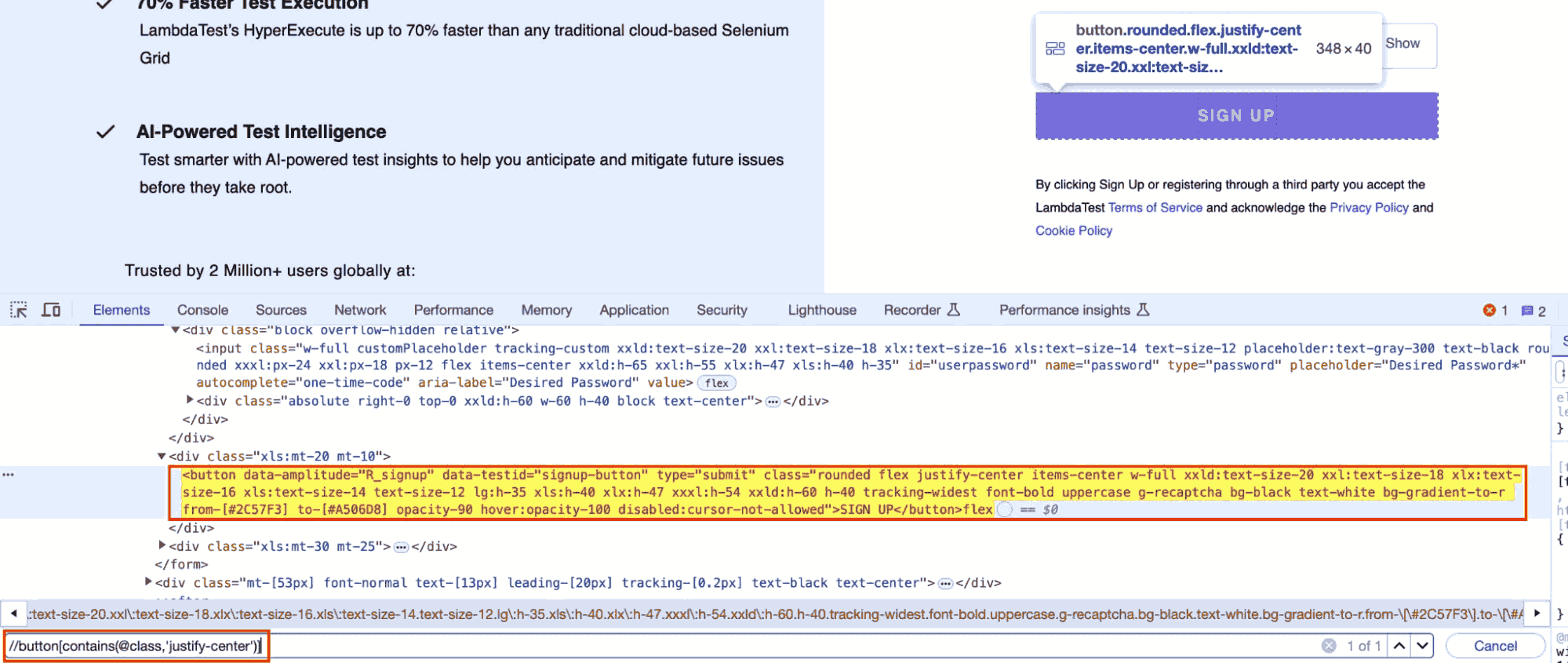
The highlighted SIGN UP button in the screenshot has a class attribute that includes justify-center.
//button[contains(@class, 'justify-center')]
This XPath selects the button element whose class attribute includes the text justify-center.
For instance, it would match the SIGN UP button in the HTML code since that button’s class list contains justify-center.
Why XPath Is Important in Selenium?
XPath in Selenium is important for handling unstable identifiers, layout changes, and context-based element location.They also help with dynamic or nested structures, and advanced logic like conditional or partial attribute matching in complex web applications.
- Unstable Identifiers: You need to identify elements without consistent IDs, names, or classes, and XPath provides flexible expressions for targeting them reliably.
- Frequent Layout Changes: When page structures change often, XPath’s relative paths ensure your locators remain stable instead of breaking like absolute element references.
- Context-Based Location: You can locate elements relative to nearby components, such as labels, siblings, or containers, enabling more natural and maintainable test logic.
- Dynamic or Nested Elements: XPath efficiently handles dynamic, deeply nested, or component-based elements that standard locators struggle to access or identify correctly.
- Advanced Logic Support: XPath enables conditional matching, partial attribute searches, and parent-child traversal, making it ideal for complex and data-driven web applications.
What Are Types of XPath in Selenium?
In Selenium, XPath expressions are mainly categorized into two types: Absolute XPath and Relative XPath. Both serve different purposes, and choosing the right one depends on your application’s stability and structure.
- Absolute XPath
- Relative XPath
Absolute XPath
Absolute XPath provides the complete path from the root element (<>) to the target element. It follows every node in the hierarchy, which makes it straightforward but fragile. Any structural change in the DOM, even adding a new div, can break it.
Syntax:
/html/body/div[1]/form/input[2]
Characteristics:
- Starts with a single forward slash (/), which indicates the path begins at the root.
- Easy to understand but not suitable for dynamic or frequently updated pages.
- Typically used for small static pages where the DOM doesn’t change.
It is recommended not to rely heavily on Absolute XPath in test suites that run against modern web apps. Even minor UI tweaks can invalidate multiple locators.
Relative XPath
Relative XPath starts from any node within the DOM rather than from the root. It uses double slashes (//) to search anywhere in the document, making it far more flexible and maintainable.
Syntax:
//input[@type='email']
Characteristics:
- Starts with //, which means the search can begin anywhere in the DOM.
- Works with dynamic or frequently updated elements.
- Allows use of functions, text content, and attribute combinations.
Relative XPath is preferred in almost all Selenium frameworks. It adapts to changes better, can be combined with conditions, and is easier to maintain in large test suites.
Always use Relative XPath in production test code. If you need to debug or verify an element’s structure, start with Absolute XPath to understand the hierarchy, then refine it into a Relative one.

Note: Run automation tests using various browsers and platforms. Try TestMu AI Today!
How to Write XPath in Selenium?
You use XPath in Selenium to locate elements on a webpage. Write it as //tag[@attribute=’value’]. For example: driver.findElement(By.xpath(“//input[@id=’username’]”));. It supports absolute and relative paths.
When you work on complex web applications, you often encounter elements that cannot be uniquely identified using standard locators like ID or Class. XPath lets you define conditions that describe exactly what you’re looking for. These conditions can be based on attributes, text, partial matches, or relationships with other elements.
A good XPath expression is both specific enough to locate a single element and resilient to minor DOM changes. The best way to write XPath is to start simple and refine it as needed.
Basic Structure:
XPath = //tagname[@attribute='value']
Example:
Consider a login page with two buttons:
<button type="submit">Login</button>
<button type="button">Cancel</button>
If you use the XPath //button[@type=’submit’], Selenium will identify the Login button, since it’s the only one with type=”submit”.
You can then use it in your Selenium script like this:
WebElement loginButton = driver.findElement(By.xpath("//button[@type='submit']"));
loginButton.click();
What Are Common XPath Patterns in Selenium?
You use common XPath patterns in Selenium to find elements easily. These include single and multiple attribute matches, text-based selection, partial attribute matching for dynamic values, and parent-child navigation within the page.
Let’s break down some key XPath expressions you’ll use frequently in Selenium automation.
- XPath Using Single Attribute: It finds an element based on a single, unique attribute. This approach is stable and simple, especially when the attribute remains consistent across different DOM structures and updates.
Example:
//input[@id='password']Example:
//input[@type='text' and @name='username']Example:
//button[text()='Login']Example:
//input[contains(@name, 'user')]Example:
//div[@class='form-container']//input[@type='email']What Are XPath Functions in Selenium?
You use XPath functions in Selenium to handle dynamic or structured elements. contains() matches partial attribute values, useful for changing IDs. starts-with() finds attributes with fixed prefixes, and text() selects elements by visible content.
- contains(): It is used when attribute values change partially or dynamically. It helps locate elements by matching partial strings. Ideal for frameworks like React or Angular-driven DOM structures.
Example:
//input[contains(@id,'email')]Example:
//input[starts-with(@name,'user')]Example:
//a[text()='Forgot Password?']What Are Logical Operators in Selenium XPath?
XPath supports logical operators like and, or, and not() to refine or exclude conditions, ensuring flexible, precise, and adaptable locators across different automation scenarios.
- and: It combines multiple conditions to match elements only when all are true. Ensures targeted selection for elements requiring strict matching of multiple attributes simultaneously.
Example:
- or: It matches elements that satisfy either of the listed conditions. Useful for identifying components across UI variations or fallback attributes that differ between environments.
Example:
//input[@type='submit' or @name='login']Example:
//input[not(@type='hidden')]What Are XPath Axes in Selenium?
XPath axes help navigate related elements in the DOM when attributes aren’t sufficient. They’re vital for dynamic UIs where element identifiers change frequently across builds.
- following: It selects all nodes appearing after the current element in the document. Ideal for locating input fields following labels or sequential items in structured forms and tables.
Example:
//label[text()='Password']//following::input[1]Example:
//div[@class='field-label']//following-sibling::divExample:
//button[@id='submit']//preceding::input[@type='password']Example:
//div[@class='error-message']//preceding-sibling::labelExample:
//ul[@class='menu']//child::liExample:
//input[@id='email']//parent::divExample:
//div[@class='user-section']//descendant::input[@type='text']Example:
//input[@id='username']//ancestor::formWhat Is Chained XPath in Selenium?
Chained XPath in Selenium lets you locate nested elements. It links multiple XPath queries through parent-child paths, helping you narrow the search instead of selecting elements directly from the root.
This approach is especially helpful when:
- Multiple elements share similar attributes or classes.
- The element you want is deeply nested inside a specific section of the web page.
- You want your XPath to remain stable even if unrelated parts of the DOM change.
In a chained XPath, you start by locating a parent or container element, and then you move down to the child element inside it using the double slash //.
Syntax:
//parentTag[@attribute='value']//childTag[@attribute='value']Example:
Suppose you have the following HTML:
<div class="signup-section">
    <form>
        <input id="email" type="text" placeholder="Enter your email">
    </form>
</div>
To locate the email input field inside the div with class signup-section, you can write:
//div[@class='signup-section']//input[@id='email']How to Create Dynamic XPath in Selenium?
You create Dynamic XPath in Selenium to handle changing attributes or DOM shifts. Use functions like contains() or starts-with(), combine logical operators, apply axes for structure-based navigation, and use wildcards for flexibility.
Here are the ways using which you can create dynamic XPath:
Use XPath Functions
Functions like contains(), starts-with(), and text() handle variable attributes effectively. They keep locators reliable when identifiers change slightly across builds or runtime sessions.
Example:
//button[contains(@class, 'submit')]
Combine Logical Operators
Merge multiple conditions with and or or for adaptability. Ensures element identification remains stable when one attribute changes or becomes optional.
Example:
//input[@type='email' or @name='userEmail']Use Axes for Structural Flexibility
Axes allow element discovery through structural relationships instead of static paths. This keeps locators valid even when sibling or surrounding nodes are added dynamically.
Example:
Leverage Indexes Carefully
Indexing helps select specific elements among multiple matches but should be used sparingly. Changing DOM order may break indexed locators in future builds.
Example:
//div[@class='row']//input[2]Wildcards for Tag Flexibility
When tag names vary or are uncertain, use wildcards (*). They ensure locators focus on reliable attributes instead of unstable or framework-generated tag names.
Example:
//*[@data-testid='login']Pro-Tip: To learn more about XPath, follow this XPath locator cheat sheet to learn and use all the various ways of locating WebElement efficiently, making your automation testing process faster.
XPath vs CSS Selectors: When to Choose Which?
When automating tasks like web scraping or testing, identifying the right elements on a webpage is essential. Two of the most common methods for locating elements are XPath and CSS Selectors. Each has its benefits, depending on the scenario.
| Criteria | XPath | CSS Selectors |
|---|---|---|
| Best for | Complex or irregular HTML structures. | Simple, consistent HTML layouts. |
| Navigation | Can move both up and down the DOM tree (parent, sibling, child). | Can only move down the DOM (child elements). |
| Text Matching | Can select elements based on text content. | Cannot match text directly. |
| Performance | Slightly slower in most browsers. | Generally faster and optimized in browsers. |
| Readability | More verbose and harder to read. | Cleaner and easier to understand. |
| Use in XML | Fully compatible with XML and namespaces. | Limited to HTML/CSS environments. |
| Common Use Cases | Web scraping, complex data extraction. | UI testing, front-end automation, quick selectors. |
| Support | Widely supported in automation tools like Selenium. | Natively supported and optimized by browsers. |
For an in-depth comparison, check out this guide on XPath vs CSS Selectors.
Why Use TestMu AI Online Selenium Grid for Scalable Automation?
Cloud based testing platforms such as TestMu AI offers scalable online Selenium Grid to execute Selenium automation tests across thousands of real browser and operating system combinations on demand.
You can run Selenium tests without maintaining any local infrastructure. This approach significantly streamlines setup, accelerates cross‑browser coverage, and reduces overall test execution time.
To get started, check out this guide on Selenium testing with TestMu AI.
Features:
- Parallel Test Execution at Scale: Execute hundreds of Selenium tests concurrently across multiple browsers and operating systems to drastically reduce testing time. Ideal for large test suites.
- Comprehensive Debugging with Logs & Video Playback: Capture full execution details – Selenium logs, network logs, step-by-step screenshots, and video recordings to debug faster and build reliable bug reports.
- Test Insights: Leverage GenAI-native test insights to gain visibility into test trends with an interactive dashboard that shows execution timelines, pass/fail rates, environment breakdowns, and more.
- CI/CD Integration: Integrate effortlessly with tools like Jenkins, GitHub Actions, Azure DevOps for seamless test automation.

Best Practices for Using XPath in Selenium
To write stable and efficient Selenium scripts, using XPath the right way is crucial.
Below are key best practices that you can follow to handle XPath efficiently.
- Prefer Relative XPath Over Absolute XPath: Use relative XPath (//) instead of absolute paths (/html/body/…) to make your locators more resilient to UI changes.
- Use Unique Attributes: Target attributes like id, name, or custom data-* when available to create stable and specific locators.
- Use contains() for Partial Matching: When dealing with dynamic attribute values, use the contains() function to match partial values.
- Use text() to Match Visible Text: If the element’s visible text is consistent and unique, use the text() function to locate it.
- Combine Multiple Conditions: Make your XPath more specific by combining conditions using and or or.
- Use starts-with() for Matching Dynamic Prefixes: For attributes that begin with a consistent prefix, use the starts-with() function.
- Avoid Index-Based XPath When Possible: Using indexes like (//div[@class=’item’])[3] is fragile. DOM changes can break your test.
- Use XPath Axes When Necessary: Axes like following-sibling::, parent::, or ancestor:: help target elements in complex DOMs.
- Keep XPath Short and Readable: Write concise expressions that are easy to read and maintain. Avoid deeply nested or overly complex paths.
- Validate XPath Using Browser DevTools: Use tools like XPath tester or Chrome DevTools with $x(“your_xpath”) to test and validate XPath expressions before using them in scripts.
- Leverage Custom Data Attributes: Prefer data-testid, data-role, or other data-* attributes as they are designed for automation.
- Write Contextual Locators: Use nearby stable elements, like labels, to anchor your XPath reliably.

Common XPath Issues and How to Troubleshoot?
Here are some common XPath issues in Selenium and how to troubleshoot them.
- Invalid or Malformed XPath: Syntax errors like missing brackets, unclosed quotes, wrong axes, or stray characters.
Fix: Use browser DevTools or tools like SelectorsHub to validate and correct your XPath.
- XPath Matches Nothing: The element may not be present in the live DOM (e.g., inside iFrame, Shadow DOM, or is loaded dynamically).
Fix: Check for iframes using browser DevTools. Use JavaScript like document.querySelector or $x() in console. Add proper waits using WebDriverWait.
- XPath Returns Multiple Elements: The XPath is too broad or lacks specific filters.
Fix: Use indexes like (//div[@class=’item’])[1] or add more conditions such as //div[@class=’item’ and @data-id=’123′].
- Dynamic Attributes (IDs, Classes): Attributes change between sessions or page loads.
Fix: Use partial match functions like contains() or starts-with(). Example: //div[contains(@class, ‘btn’)].
- Element Inside Shadow DOM or Custom Elements: Standard XPath can’t access elements inside shadow DOM.
Fix: Use JavaScript like element.shadowRoot.querySelector(). Consider tools like Playwright which handle shadow DOM better.
- XPath Works in Browser but Not in Code: Possible timing issue or unhandled frame context.
Fix: Wait for elements using explicit waits. Make sure to switch to the correct iframe using driver.switchTo().frame(…).
- Case Sensitivity and Typos: XPath is case-sensitive; even small mismatches can break it.
Fix: Double-check tag names and attributes. Test XPath directly using $x(‘your_xpath’) in browser console.
Conclusion
You’ve now seen how XPath works in Selenium, from the basics to advanced techniques like axes and dynamic locators. We also looked at how to handle specific elements like loaders and how to follow best practices for writing reliable XPath expressions.
To scale your automation, you can use TestMu AI online Selenium Grid. It helps you run tests in parallel, debug faster, and cover multiple browser-OS combinations without managing infrastructure.

Austin Siewert
CEO, Vercel
Discovered @TestMu AI yesterday. Best browser testing tool I've found for my use case. Great pricing model for the limited testing I do 👏
2M+ Devs and QAs rely on TestMu AI
Deliver immersive digital experiences with Next-Generation Mobile Apps and Cross Browser Testing Cloud

Citations
- XPath Wikipedia: https://en.wikipedia.org/wiki/XPath


Frequently asked questions
Did you find this page helpful?
More Related Hubs
TestMu AI forEnterprise
Get access to solutions built on Enterprise
grade security, privacy, & compliance
- Advanced access controls
- Advanced data retention rules
- Advanced Local Testing
- Premium Support options
- Early access to beta features
- Private Slack Channel
- Unlimited Manual Accessibility DevTools Tests