

Next-Gen App & Browser Testing Cloud
Trusted by 2 Mn+ QAs & Devs to accelerate their release cycles


- Home
- /
- Learning Hub
- /
- How to Use Playwright Projects: A Detailed Guide
How to Use Playwright Projects: A Detailed Guide
Learn what Playwright projects are, how to configure and run tests across browsers, environments, and use project dependencies for organized testing.

Paulo Oliveira
January 11, 2026
When running Playwright tests across different browsers, devices, and operating systems, the usual approach is to create separate configuration files for each scenario. That quickly turns into a repetitive setup and boilerplate code. However, Playwright projects solve this by letting you define everything in one place.
You can specify which browsers to use, which devices to emulate, and even pre-set authentication states, all in a single configuration file. Once that’s set up, your tests automatically run in the right environment without needing to duplicate code.
Overview
In Playwright, a project is a logical group of tests that share the same configuration, such as browser, device, or environment, allowing tests to run across various environments.
How to Configure Playwright Projects?
Playwright projects are defined in the playwright.config.ts file to run the same tests under different conditions. You can configure projects for:
- Multiple Browsers: Each project sets browserName (e.g., Chromium, Firefox, WebKit) while inheriting defaults like headless mode or viewport. This allows isolating browser-specific behavior.
- Multiple Environments: Each project sets environment-specific details, such as baseURL or authentication state. Tests automatically use the correct configuration without changing the test script.
How to Use Dependencies in Playwright Projects?
Playwright project dependencies allow one project to run only after another completes, enabling shared sessions, setup routines, or cleanup tasks. You can use dependencies for:
- Running Projects in Sequence: Define dependencies in the project configuration so one project runs after another. For example, a setup-auth project logs in and saves a session, and authenticated-tests uses that session. This avoids repeating login steps and ensures a consistent test state.
- Teardown and Cleanup: Create a project that runs after dependent projects to reset states or clean up test data. For example, a cleanup-db project can reset a database after main tests complete, centralizing teardown logic.
- Filtering Tests by Project: Use testMatch in each project to run only relevant tests. For example, api-smoke tests run in the api-smoke project, and ui-regression tests run in the ui-regression project. This keeps test files clean and configurations organized.
What Are Playwright Projects?
Playwright projects allow you to define separate testing contexts within a single configuration file. Each one acts like an isolated environment that can extend or override shared settings, making it easier to manage variations in how your tests are run.
This becomes especially useful when your suite needs to support different browsers, environments, or user scenarios like language preferences, screen sizes, or authentication states.
In practical terms, the projects field inside your playwright.config.js (or .ts) file is simply an array, where each item represents a specific configuration. You can customize options such as the browser engine, viewport size, test filters, and more.
Example:
export default defineConfig({
 projects: [
   {
     name: 'chromium',
     use: { browserName: 'chromium' },
   },
   {
     name: 'firefox',
     use: { browserName: 'firefox' },
   },
   {
     name: 'webkit',
     use: { browserName: 'webkit' },
   },
 ],
});
With this environment in place, Playwright will automatically execute your tests once per project, in this case, once per browser. There’s no need to duplicate your test files or write custom scripts for each platform. The framework takes care of sequencing and also integrates with Playwright reporting capabilities.
But browser variation is just one use case. You can also define projects to represent:
- Different application environments (like staging and production).
- Logged-in vs. guest user flows.
- Desktop and mobile configurations.
- Projects using different environment variables or headers.
New to Playwright? Refer to this complete Playwright tutorial.
How to Configure Projects in Playwright?
You can configure Playwright projects in the playwright.config.ts file, let tests run across browsers by setting browserName and defaults, and across environments by setting baseURL or auth, auto-applying configs without changing tests.
Below, we’ll look at how to configure Playwright projects for handling different browsers and another to switch between environments.
For Multiple Browsers
Cross browser testing is critical to ensure your application behaves as expected for all users, no matter what browser they choose. Playwright projects let you declare a separate configuration for each browser in a clean and maintainable way by using the browserName setting.
Here’s an example that illustrates how to set it up:
export default defineConfig({
 use: {
   headless: true,
   viewport: { width: 1280, height: 720 },
 },
 projects: [
   {
     name: 'Chrome',
     use: { browserName: 'chromium' },
   },
   {
     name: 'Firefox',
     use: { browserName: 'firefox' },
   },
   {
     name: 'WebKit',
     use: { browserName: 'webkit' },
   },
 ],
});

The default settings, like running tests in Playwright headless mode and setting a common viewport, apply to all projects. Each project then overrides only what it needs: in this case, the browser engine.
This approach makes it easy to isolate and troubleshoot browser-specific behavior, which is especially helpful when working in CI environments or reproducing bugs locally.
For Multiple Environments
Another use case for Playwright projects is managing test execution across different environments, such as development, staging, and production. Instead of adding if conditions inside your test files to switch behaviors, you can assign environment-specific details directly in each project’s config.
Here’s how you might structure your configuration:
export default defineConfig({
   projects: [
     {
       name: 'dev',
       use: {
         baseURL: 'https://dev.myapp.com',
         storageState: 'auth/dev.json',
       },
     },
     {
       name: 'staging',
       use: {
         baseURL: 'https://staging.myapp.com',
         storageState: 'auth/staging.json',
       },
     },
   ],
 });
With this structure, you can keep your test code environment-agnostic. Instead of hardcoding URLs, you write await page.goto('/dashboard'). And Playwright will automatically prefix the correct baseURL according to the active project.
If you need dynamic control, use environment variables:
import { defineConfig } from '@playwright/test';
export default defineConfig({
 use: {
   baseURL: process.env.ENV_URL,
 },
});
However, defining your environments via projects is often a better long-term approach; it improves reproducibility, avoids external dependencies, and keeps your test environment more consistent across runs.

Note: Run Playwright tests across 50+ browser environments. Try TestMu AI Now!
How to Run Tests Using Playwright Projects?
Playwright runs tests per project with specific browsers or environments. You can run all projects or a single one, skip tests conditionally, organize by folders, and execute in parallel or on the cloud.
For Multiple Browsers
When you're running the same test suite on multiple browsers, Playwright will execute each test once per browser-specific project. This helps catch inconsistencies early, for example, rendering differences or unsupported features, without needing to duplicate test logic.
Take this example configuration:
export default defineConfig({
 use: {
   headless: true,
   viewport: { width: 1280, height: 720 },
 },
 projects: [
   {
     name: 'Chromium',
     use: {
       browserName: 'chromium',
     },
   },
   {
     name: 'Firefox',
     use: {
       browserName: 'firefox',
     },
   },
 ],
});
Now consider a simple test file:
import { test, expect } from '@playwright/test';
test('should load homepage', async ({ page }) => {
 await page.goto('https://ecommerce-playground.lambdatest.io/index.php?route=account/register');
 await expect(page).toHaveTitle("Register Account");
});
To run the test in each browser, execute the following command:
npx playwright testYou’ll see results grouped by project name in the terminal, which makes it easier to identify browser-specific issues.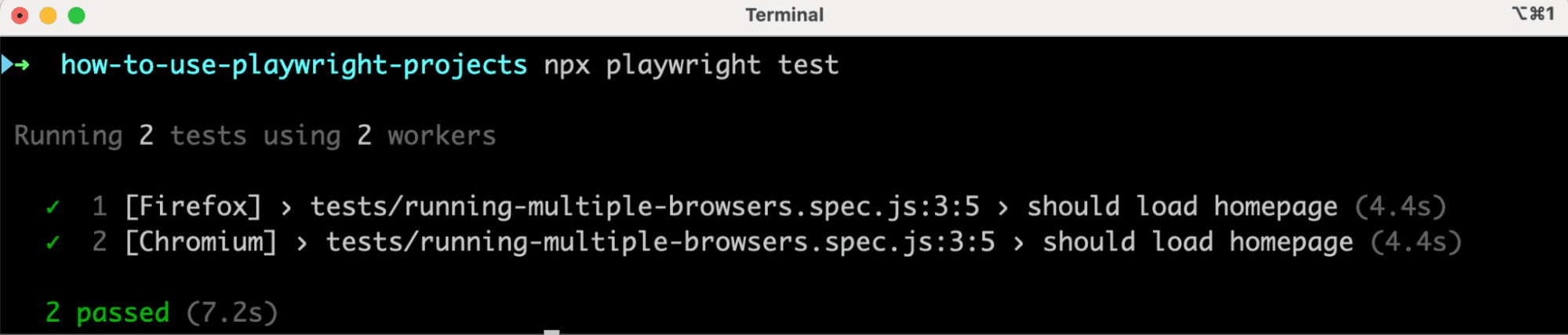
To narrow your test run to a single browser, execute the command below:
npx playwright test --project=ChromiumIf a test should only apply to one browser, such as a feature exclusive to Chromium, you can add a condition directly in the test definition. This gives you the flexibility to adapt to browser-specific behaviors without duplicating your test files.
test('feature only on Chromium', async ({ page, browserName }) => {
   test.skip(browserName !== 'chromium', 'Only runs on Chromium');
   await page.goto('https://ecommerce-playground.lambdatest.io/index.php?route=account/register');
   await expect(page).toHaveTitle("Register Account");
});
Run the command below to execute the test only on Chromium and skip Firefox:
npx playwright test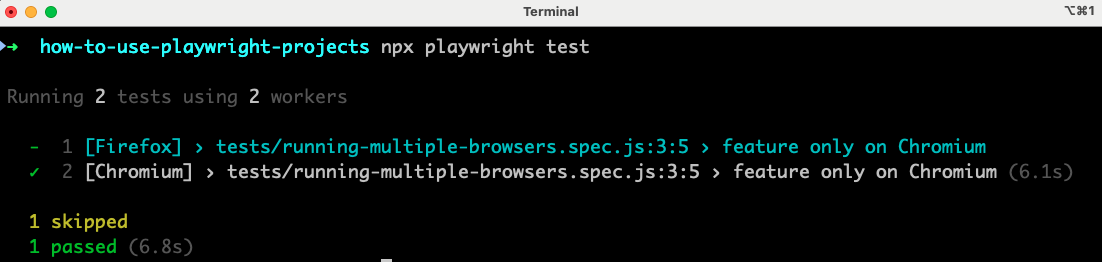
For Multiple Environments
The same principles apply when running tests in different environments, like staging, test, or production. Rather than manually switching URLs or modifying test files, you can define those contexts as distinct projects.
Here is an example configuration:
export default defineConfig({
 use: {
   headless: true,
   viewport: { width: 1280, height: 720 },
 },
 projects: [
   {
     name: 'staging',
     use: {
       baseURL: 'https://www.lambdatest.com/?env=staging',
     },
   },
   {
     name: 'production',
     use: {
       baseURL: 'https://www.lambdatest.com/?env=production',
     },
   },
 ],
});
And here’s a generic test that works for both:
test('homepage loads', async ({ page }) => {
 await page.goto('/selenium-playground');
 await expect(page).toHaveTitle('Selenium Grid Online | Run Selenium Test On Cloud');
});
Run the command below to execute the test once in each browser:
npx playwright testYou’ll see these test results.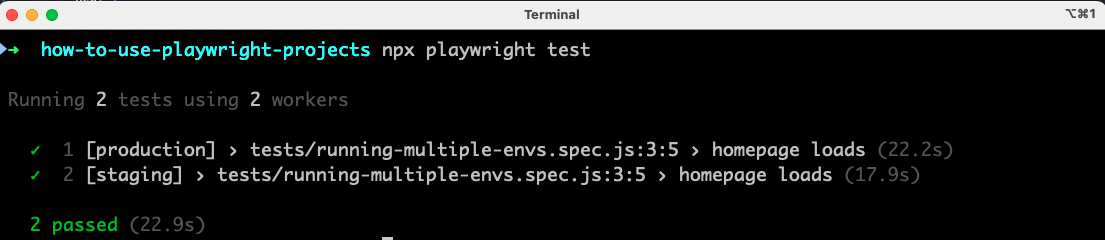
Playwright uses the active project's baseURL to resolve relative paths automatically. The same code executes in both environments, no extra conditionals needed.
To run tests in production only, execute the following command:
npx playwright test --project=productionNow, you’ll see these test results.
If a specific test should only run in one environment, you can add logic like this:
test('beta feature visible', async ({ page }, testInfo) => {
 test.skip(testInfo.project.name !== 'staging', 'Feature not yet live in production');
 await page.goto('/selenium-playground');
 await expect(page).toHaveTitle('Selenium Grid Online | Run Selenium Test On Cloud');
});
Again, this keeps your suite clean and maintainable while still adapting to the realities of multi-environment testing.
Run the command below to execute the test only on staging and skip production:
npx playwright test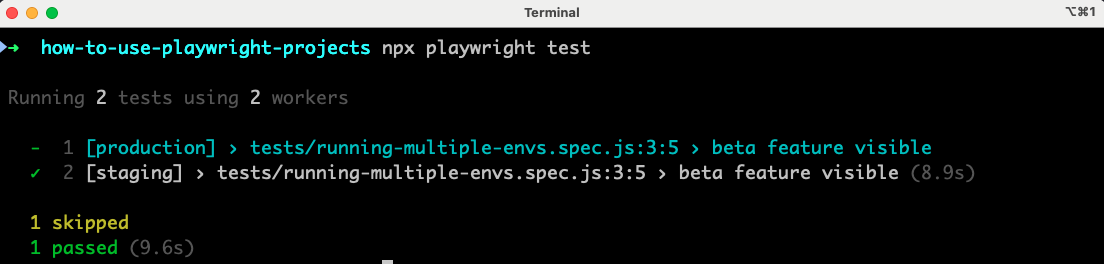
As your test suite grows, running everything locally may become impractical. That’s where cloud platforms come into play. Among others, platforms like TestMu AI provide infrastructure for scalable, parallel execution across a wide range of browsers and devices, all compatible with Playwright.
With TestMu AI, you can run automated tests on its Playwright automation cloud across various browser and operating system combinations.
To get started, check out this guide on Playwright testing with TestMu AI.

Splitting Tests Into Projects
When your test suite grows in size and complexity, organizing your tests into groups becomes essential. Instead of letting everything run together, you can structure tests by their purpose.
For instance, smoke checks, regression coverage, or admin-specific flows. Playwright Projects allow you to do this cleanly by defining targeted scopes based on file patterns.
Let’s consider that you have the following structure in your project:
tests/
├── smoke/
│   └── homepage.spec.js
├── regression/
│   └── checkout.spec.js
└── admin/
    └── user-management.spec.js
You can map each of these folders to a specific project in your configuration:
export default defineConfig({
 projects: [
   {
     name: 'Smoke Tests',
     testMatch: /.*/smoke/.*.spec.js/,
   },
   {
     name: 'Regression Tests',
     testMatch: /.*/regression/.*.spec.js/,
   },
   {
     name: 'Admin Panel',
     testMatch: /.*/admin/.*.spec.js/,
   },
 ],
});
Here’s how each project works:
- Smoke Tests will run only the quick checks inside the smoke folder.
- Regression Tests focus on the regression directory, which might include broader feature validation.
- Admin Panel tests are scoped to administrative workflows and use a predefined login state for authenticated access.
Considering that the code in the three files is the same as shown below:
import { test, expect } from '@playwright/test';
test('should load homepage', async ({ page }) => {
 await page.goto('https://ecommerce-playground.lambdatest.io/index.php?route=account/register');
 await expect(page).toHaveTitle("Register Account");
});
You can execute all of them together using the command below:
npx playwright test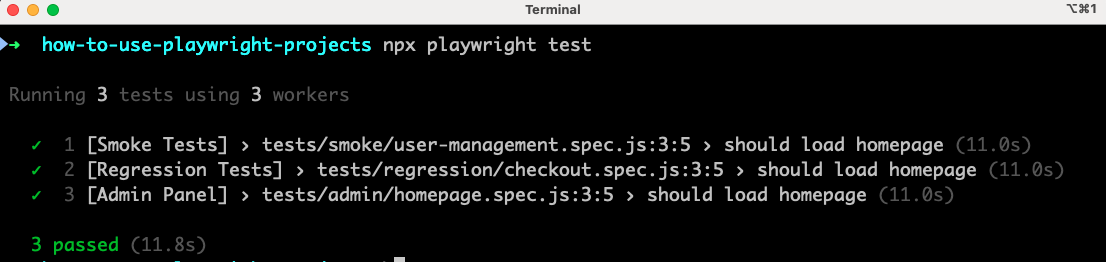
Run the below command if you wish to target a specific group when needed:
npx playwright test --project="Admin Panel"
This approach becomes even more valuable in CI/CD pipelines. You could, for example, set up separate jobs for smoke, regression, and admin flows, enabling parallel execution and faster feedback. It’s also easier to isolate failures and rerun only the failed or flaky tests.
How to Use Playwright Project Dependencies?
In Playwright, you can define project dependencies in the playwright.config.ts file so one project runs after another. This enables shared sessions, sequential setup, cleanup tasks, and running only relevant tests per project.
Let’s dive into three practical ways to use project dependencies effectively.
Running Sequence of Projects
You can instruct Playwright to run one project only after another completes. This is useful when one project’s outcome is required for the next.
Let’s consider the following setup:
import { defineConfig } from '@playwright/test';
export default defineConfig({
 projects: [
   {
     name: 'setup-auth',
     testMatch: /.*setup.spec.js/,
   },
   {
     name: 'authenticated-tests',
     testMatch: /.*authenticated.spec.js/,
     use: {
       storageState: 'tmp/auth.json',
     },
     dependencies: ['setup-auth'],
   },
 ],
});
In this case:
- setup-auth runs first and stores a session in tmp/auth.json.
- authenticated-tests uses that session to run further tests.
In the setup.spec.ts file, you might have:
test('login and save storage', async ({ page }) => {
   await page.goto('https://ecommerce-playground.lambdatest.io/index.php?route=account/login');
   await page.fill('#input-email', '[email protected]');
   await page.fill('#input-password', 'test123');
   await page.click('//input[@type="submit"]');
   await page.context().storageState({ path: 'tmp/auth.json' });
 });
This ensures you only log in once, rather than in every test, saving time and avoiding unnecessary load on your system.
In the authenticated.spec.ts file, you might have:
test('access page already authenticated', async ({ page }) => {
   await page.goto('https://ecommerce-playground.lambdatest.io/index.php?route=account/account');
   await expect(page).toHaveTitle("My Account")
 });
You can run this project just by using the command below:
npx playwright test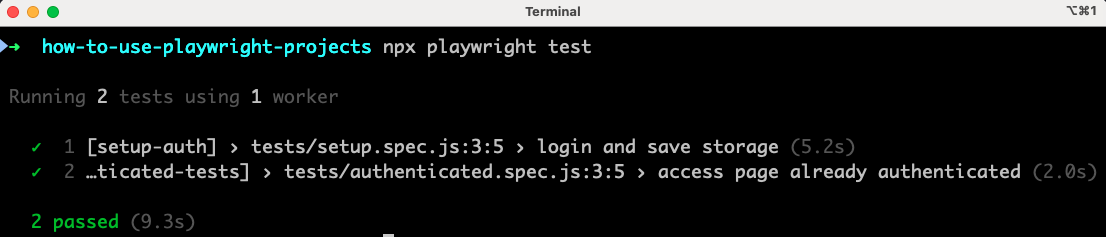
Using Teardown and Cleanup After Tests
Sometimes, you need to reset the state, clear test data, or trigger a teardown routine once all relevant tests are complete. You can handle this by adding a dedicated "cleanup" project that runs after others.
Here’s an example of how to set it up:
export default defineConfig({
 projects: [
   {
     name: 'main-tests',
     testMatch: /.*.spec.js/,
   },
   {
     name: 'cleanup-db',
     testMatch: /.*cleanup.spec.js/,
     dependencies: ['main-tests'],
   },
 ],
});
In the cleanup.spec.js file, you could have:
test('reset database', async () => {
   await fetch('http://localhost:3000/api/reset', { method: 'POST' });
});
Because it depends on main-tests, the cleanup will run after all test files in that project have been executed. This model prevents you from having to write teardown logic in afterAll() hooks spread across multiple test files.
Filtering Tests for Specific Projects
Sometimes a test should only run in a specific context. While you can always use test.skip() method or environment checks, a cleaner solution is to use the testMatch setting directly in the project definition.
For example:
export default defineConfig({
 projects: [
   {
     name: 'api-smoke',
     testMatch: /.*api-smoke.spec.js/,
   },
   {
     name: 'ui-regression',
     testMatch: /.*ui-regression.spec.js/,
   },
 ],
});
Relying on testMatch inside projects ensures you keep logic out of test files and make your project configuration do the filtering. This makes your test suite easier to maintain, especially as the number of tests and scenarios grows.
Conclusion
Although often overlooked, Playwright projects offer a high level of control and structure that can elevate any test automation strategy. They make it possible to manage different testing contexts, from browser coverage to environment-specific configurations, in a clear and maintainable way.
When you define your projects thoughtfully, you benefit from:
- Test files that stay clean and free from repeated setup logic.
- Smarter execution flows, including parallel runs and ordered sequences.
- Configurations tailored to different scenarios, such as login states, screen sizes, or deployment stages.
One of the most compelling aspects of this feature is its adaptability. You don’t need to start with a complex setup; even a simple multi-browser configuration adds value. As your test suite expands, the same foundation can support more advanced workflows without requiring major changes.
For teams using CI/CD, Playwright projects help break test execution into logical, manageable pieces, whether it’s prioritizing smoke checks, isolating environment-specific flows, or automating test cleanup.
Citations
- Playwright Official Documentation: https://playwright.dev/docs/intro
- Playwright Test Configuration: https://playwright.dev/docs/test-configuration
- Playwright Test Locators: https://playwright.dev/docs/locators


Frequently asked questions
Did you find this page helpful?
More Related Hubs
TestMu AI forEnterprise
Get access to solutions built on Enterprise
grade security, privacy, & compliance
- Advanced access controls
- Advanced data retention rules
- Advanced Local Testing
- Premium Support options
- Early access to beta features
- Private Slack Channel
- Unlimited Manual Accessibility DevTools Tests