

Next-Gen App & Browser Testing Cloud
Trusted by 2 Mn+ QAs & Devs to accelerate their release cycles


- Home
- /
- Learning Hub
- /
- How to Handle JavaScript Alerts in Selenium Effectively
How to Handle JavaScript Alerts in Selenium Effectively
Learn how to handle JavaScript alerts in Selenium effectively, including simple, confirmation, and prompt alerts for robust test automation.

Faisal Khatri
January 12, 2026
Web applications frequently trigger JavaScript alerts to display messages, request confirmations, or capture input from users.
Handling these alerts in Selenium is essential for ensuring test automation can continue without interruptions, validating user interactions, and verifying application behavior under different scenarios.
Overview
What Are Alerts in Selenium?
Alerts are generated by the browser using JavaScript to capture user attention or input. They temporarily halt interaction with the main web page until the user responds. Alerts are commonly used for notifications, confirmations, or prompting users for data, making them a key element to handle in automated testing.
What are the Types of Alerts in Selenium
Selenium supports different types of alerts, each serving specific purposes like notifications, confirmations, or prompting user input during tests.
- Simple Alert: Displays a basic message with an “OK” button, notifying users about important information before they proceed with the workflow.
- Confirmation Alert: Shows “OK” and “Cancel” buttons, requiring users to either approve or reject an action, ensuring intentional decision-making.
- Prompt Alert: Contains a text input field along with “OK” and “Cancel” buttons, allowing users to submit data directly to the application.
How to Handle an Alert in Selenium?
Handling alerts in Selenium involves switching the driver context to the active alert using <driver.switchTo().alert()>. Once switched, testers can accept, dismiss, retrieve alert text, or send input for prompt dialogs. Verifying the alert message ensures correct application behavior. Proper synchronization (e.g., WebDriver waits) is crucial to avoid timing issues.
How to Troubleshooting Alerts in Selenium
Alert issues in Selenium often arise due to timing conflicts, unexpected pop-ups, or mismatches in expected behavior. Identifying the root cause quickly helps stabilize your automation suite and avoid flaky or blocked tests.
- UnhandledAlertException: Occurs when an unexpected alert appears and interrupts Selenium commands, requiring controlled alert handling or retries.
- NoAlertPresentException: Triggered when Selenium attempts to switch to an alert that hasn’t appeared yet, often fixed with explicit waits.
- Alert Text Not Matching Expected Value: Happens when the application displays a different or dynamic message; validating text with partial matches or regex can help.
- Prompt Alerts Not Accepting Input: Usually caused by incorrect focus or timing; ensuring proper waits before sending text resolves this issue.
- Timing Issues / Flaky Tests: Alerts appearing too early or too late can cause inconsistent results; using robust wait strategies and event synchronization improves stability.
What Are Alerts in Selenium?
Alerts in web apps are browser-generated dialogs triggered by JavaScript functions like alert(), confirm(), or prompt(). They block interaction until the user responds, pausing workflow.
They are commonly used to display messages, request confirmations, or capture simple input, making it essential to handle them properly in Selenium automation.
What Are the Different Types of Alerts and How to Handle Them?
Selenium WebDriver uses the Alert interface to manage alerts. You must switch focus to the alert before accepting, dismissing, or entering text to handle it effectively.
To understand how Selenium WebDriver helps with handling alerts, it’s important to first learn what is Selenium WebDriver.
- Switching to an Alert: The driver.switchTo().alert() method focuses on the alert, allowing Selenium to interact with it directly. Once the alert is in focus, you can perform actions such as getting its text, clicking OK or Cancel, or even sending input in the case of a prompt.
Alert alert = driver.switchTo().alert();Selenium will throw an UnhandledAlertException if you attempt to accept or dismiss an alert without switching to it first.
For example, some websites display a confirmation alert such as “Are you sure you want to leave this page?”. If the test doesn’t handle this alert, it may fail intermittently with an UnhandledAlertException, making the test flaky. Handling such alerts ensures smooth and consistent execution.
Handling Simple Alert in Selenium: The accept() method in the Alert interface is used for accepting a simple alert. It performs the same action as clicking the OK button.
driver.switchTo().alert().accept();Handling Confirmation Alert in Selenium: Use the accept() method to confirm the action or the dismiss() method to cancel it.
driver.switchTo().alert().accept();   // Clicks OK
driver.switchTo().alert().dismiss();  // Clicks Cancel
Handling Prompt Alert in Selenium: Use sendKeys() to enter text into the prompt alert, then accept() to submit or dismiss() to cancel.
driver.switchTo().alert().sendKeys("New Text");
driver.switchTo().alert().accept();
Handling getText() in Selenium: The getText() method in Selenium retrieves the visible text of a web element for verification or validation.
driver.switchTo().alert().getText();
Note: Run Selenium tests at scale across 3000+ browsers and OS combinations. Try TestMu AI Now!
How to Handle an Alert in Selenium?
In Selenium, switch focus to the alert to validate interactions. Then perform actions like accept, dismiss, or enter input to ensure smooth test flow.
Let’s use the following test scenario to demonstrate handling alerts in Selenium WebDriver.
Test Scenario:
- Navigate to the JavaScript Alert Box Demo on the LambdaTest Selenium Playground website.
- Click on the “Click Me” button next to the “Prompt Box” text.
- Enter a name in the textbox of the alert message.
- Accept the alert.
- Assert that the name entered in the JS Prompt is displayed on the screen correctly.
Prerequisites:
- Java Development Kit (JDK): Install and configure JDK on your system.
- Maven Setup: Ensure Maven is installed and configured if using a Maven project.
- Selenium Dependency: Add Selenium WebDriver dependency in your pom.xml.
<dependency>
    <groupId>org.seleniumhq.selenium</groupId>
    <artifactId>selenium-java</artifactId>
    <version>4.35.0</version>
</dependency>
Code Implementation:
Let’s create a new Java class and name it “AlertTest”. This test class will be used to implement the test scenario we discussed.
public class AlertTest {
   private WebDriver driver;

   @BeforeClass
   public void setup () {
       this.driver = new ChromeDriver ();
   }

   @Test
   public void testAlert () {
       this.driver.navigate ()
           .to ("https://www.lambdatest.com/selenium-playground/javascript-alert-box-demo");
       final WebElement clickMeButton = this.driver.findElement (
           By.cssSelector ("div > div:nth-child(3) > p > button"));
       clickMeButton.click ();

       final Alert alert = this.driver.switchTo ()
           .alert ();
       final String name = "Faisal K";
       alert.sendKeys (name);
       alert.accept ();

       final String promptText = this.driver.findElement (By.id ("prompt-demo"))
           .getText ();
       assertEquals (promptText, "You have entered " + "'"+ name +"' !");
   }

   @AfterClass
   public void tearDown () {
       this.driver.quit ();
   }
}
Code Walkthrough:
- setup() Method: Instantiates the WebDriver and launches a new Chrome browser session on the local machine.
- Generate Capabilities: Use the LambdaTest Capabilities Generator to create the capabilities object required to connect to the LambdaTest cloud grid.
- testAlert() Method:
- Trigger and Handle Prompt Alert: Locate the “Click Me” button, click it, switch to the alert, enter a name, and accept it.
- Verify Prompt Input: Use TestNG’s assertEquals() to ensure the displayed text matches the entered name, confirming successful interaction.
- tearDown() Method: This method quits the WebDriver session after the test is run
TestNG assertions provide a mechanism to compare actual and expected results, determining whether a test case passes or fails. They are widely used to validate results and ensure reliable automated testing in Selenium scripts.
Test Execution:
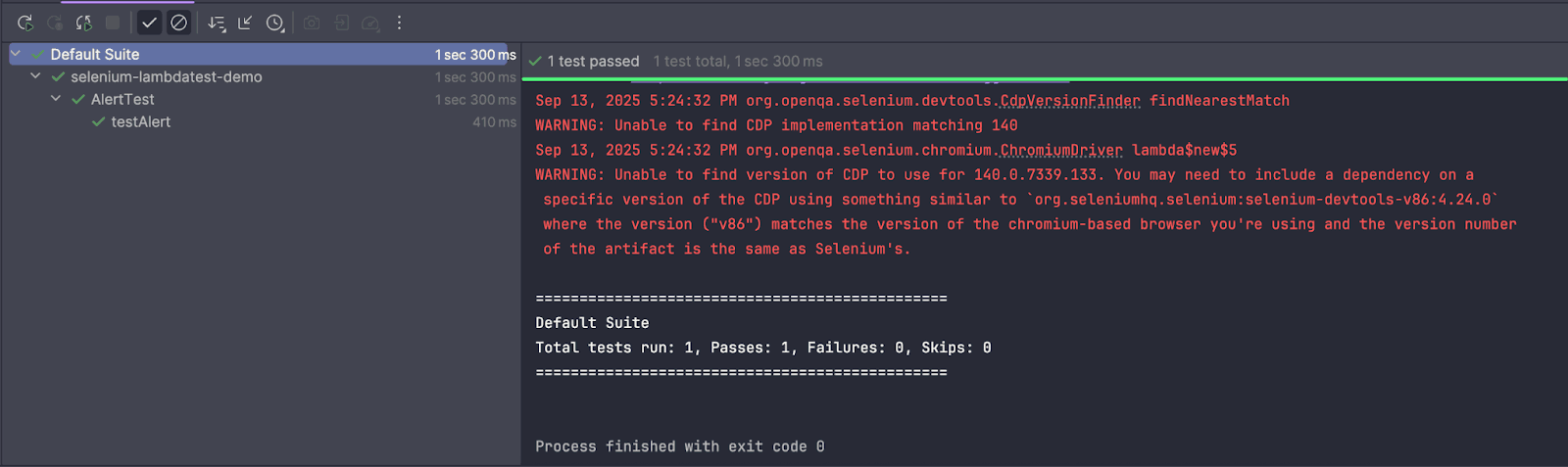
The following screenshot from the IntelliJ IDE shows that the test was executed successfully:
How to Handle Alerts in Selenium at Scale?
When testing at scale, managing multiple browsers, operating systems, and environments locally can be time-consuming, resource-intensive, and prone to inconsistencies. Running tests on a single machine limits coverage and slows down the feedback loop, especially for large test suites with complex workflows.
Using cloud testing platforms allows teams to execute Selenium tests in parallel across hundreds or thousands of browser/OS combinations, significantly reducing test execution time, improving reliability, and ensuring consistent results across environments.
This approach is particularly useful for handling JavaScript alerts and other dynamic elements that need validation across multiple configurations.
One such platform is TestMu AI, a GenAI-native test execution platform that allows you to perform manual and automated Selenium testing at scale across 3,000+ browsers and OS combinations.
To get started with TestMu AI, follow these steps:
- Get Credentials: Set your LambdaTest Username and Access Key as environment variables from Account Settings > Password Security tab.
- Get Capabilities: Use the LambdaTest Automation Capabilities Generator to quickly generate desired test capabilities for seamless cloud execution.
private ChromeOptions getChromeOptions () {
   final var browserOptions = new ChromeOptions ();
   browserOptions.setPlatformName ("Windows 11");
   browserOptions.setBrowserVersion ("latest");
   final HashMap<String, Object> ltOptions = new HashMap<String, Object> ();
   ltOptions.put ("project", "LambdaTest Selenium Playground");
   ltOptions.put ("build", "JavaScript Alert Demo");
   ltOptions.put ("name", "Handling JS Alert in Selenium");
   ltOptions.put ("w3c", true);
   ltOptions.put ("plugin", "java-testNG");
   browserOptions.setCapability ("LT:Options", ltOptions);
return browserOptions;
}
"@hub.lambdatest.com/wd/hub";Code Implementation:
public class AlertTest {
   private static final String GRID_URL      = "@hub.lambdatest.com/wd/hub";
   private static final String LT_ACCESS_KEY = System.getenv ("LT_ACCESS_KEY");
   private static final String LT_USERNAME   = System.getenv ("LT_USERNAME");

   private RemoteWebDriver driver;
   private String          status = "failed";

   @BeforeClass
   public void setup () {
       try {
           this.driver = new RemoteWebDriver (new URL ("https://" + LT_USERNAME + ":" + LT_ACCESS_KEY + GRID_URL),
               getChromeOptions ());
       } catch (final MalformedURLException e) {
           System.out.println ("Could not start the remote session on LambdaTest cloud grid");
       }
       this.driver.manage ()
           .timeouts ()
           .pageLoadTimeout (Duration.ofSeconds (10));
   }
//..

}
Code Walkthrough:
- Class Constants: GRID_URL is the LambdaTest cloud hub endpoint. LT_ACCESS_KEY and LT_USERNAME come from environment variables for secure authentication.
- Driver and Status Variables: driver is a RemoteWebDriver instance for LambdaTest cloud tests .status tracks test outcome, initialized as "failed".
- setup() Method: Initializes RemoteWebDriver with hub URL, credentials, and ChromeOptions. Handles MalformedURLException and sets a 10-second page load timeout.
- getChromeOptions() Method: Configures Chrome capabilities: platform, browser version, build/test names, and enables Java-TestNG plugin for LambdaTest execution.
Test Execution:
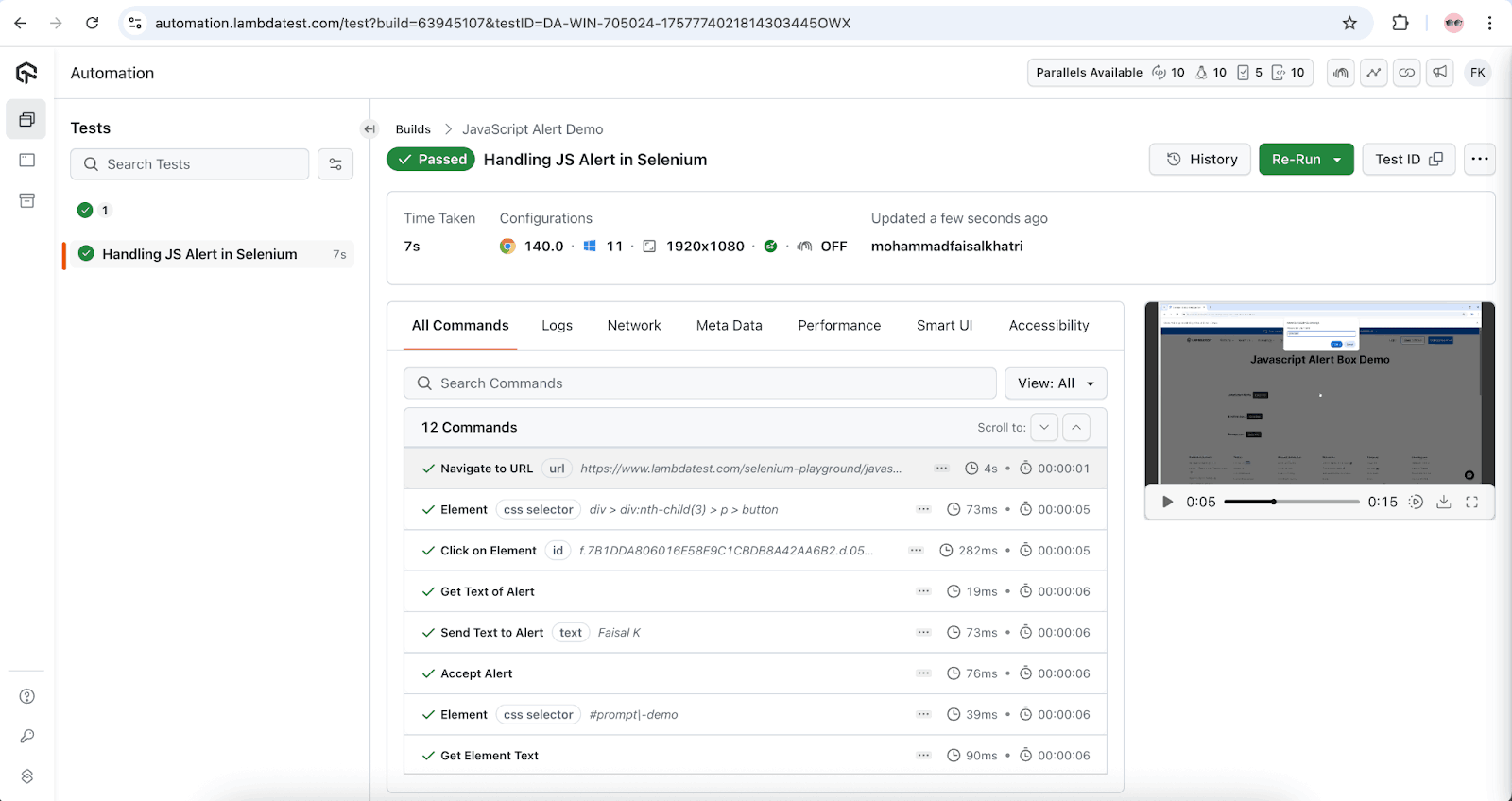
The following is the screenshot test execution for handling alerts in Selenium on the TestMu AI cloud grid:
To get started, refer to the documentation onSelenium With TestNG Tutorial.
Troubleshooting Alerts in Selenium
Handling alerts in Selenium can sometimes be tricky, as unexpected pop-ups or timing issues may cause tests to fail. Proper troubleshooting ensures your tests interact with alerts reliably, reducing flakiness and improving test stability across different browsers and environments.
- UnhandledAlertException: Occurs when an alert appears, but Selenium tries to interact with the main page without switching to the alert.
- Fix: Always use driver.switchTo().alert() before accepting, dismissing, or sending text to the alert.
- Benefit: Prevents test failures caused by unexpected alerts, ensuring smooth execution.
- NoAlertPresentException: Happens when Selenium expects an alert but none is present.
- Fix: Ensure the alert is triggered before interacting, or use explicit waits like WebDriverWait to wait for the alert.
- Benefit: Reduces false failures by ensuring alerts are present before interaction.
- Alert Text Not Matching Expected Value: The getText() method returns unexpected text.
- Fix: Verify that the alert appears on the correct page and account for dynamic content in assertions.
- Benefit: Ensures your validations accurately reflect the UI behavior.
- Prompt Alerts Not Accepting Input: Using sendKeys() may fail if the alert is not a prompt type.
- Fix: Confirm the alert type is a prompt alert before sending text.
- Benefit: Guarantees that input is correctly entered, preventing input-related test failures.
- Timing Issues / Flaky Tests: Alerts may appear after some delay, causing intermittent test failures.
- Fix: Implement WebDriverWait with ExpectedConditions.alertIsPresent() to wait for alerts reliably.
WebDriverWait wait = new WebDriverWait(driver, Duration.ofSeconds(30));
wait.until(ExpectedConditions.alertIsPresent());
Conclusion
Handling alerts in Selenium is a crucial aspect of test automation, ensuring that unexpected pop-ups do not disrupt your test execution. Using methods like accept(), dismiss(), getText(), and sendKeys(), you can interact seamlessly with simple, confirmation, and prompt alerts.
Applying these practices leads to more robust and reliable tests, whether running locally or on cloud platforms such as TestMu AI. Mastering alert handling ensures smoother automation and enhances overall test accuracy.
Citations
- JavaScript alerts, prompts and confirmations https://www.selenium.dev/documentation/webdriver/interactions/alerts/


Frequently asked questions
Did you find this page helpful?
More Related Hubs
TestMu AI forEnterprise
Get access to solutions built on Enterprise
grade security, privacy, & compliance
- Advanced access controls
- Advanced data retention rules
- Advanced Local Testing
- Premium Support options
- Early access to beta features
- Private Slack Channel
- Unlimited Manual Accessibility DevTools Tests