

Next-Gen App & Browser Testing Cloud
Trusted by 2 Mn+ QAs & Devs to accelerate their release cycles


How To Use Xcode for Windows To Build iOS Apps
Learn how to use Xcode for Windows to build iOS apps. Discover alternative solutions for developers without Mac hardware.

Harish Rajora
March 6, 2026
Xcode is an Integrated Development Environment (IDE) that runs exclusively on macOS. This means that Xcode cannot be used on Windows machines, posing a significant challenge for developers. The restriction that Apple’s software cannot be used on non-Apple machines becomes a barrier for many developers and organizations who cannot afford a Mac machine.
However, there are alternative solutions for developers who want to build iOS apps but lack access to Mac hardware. Developers can use Apple’s powerful development tools without expensive equipment by finding alternative ways to run Xcode for Windows.
Yet, several questions arise when attempting to overcome this restriction: Is it impossible to avoid solely relying on Apple for development? Or can we find solutions to set up a stable environment on our systems and run Xcode for Windows?
What Is Xcode?
Xcode is an IDE for developing software for Apple’s operating system, i.e., macOS, iOS, visionOS, etc. It is free to use and is recommended by Apple for its best experience in app development, debugging, and testing. This includes features facilitating Apple app development, such as code completion and integrating version control systems like Git to commit from within a single screen without leaving the code.

Not only the development but Xcode tries to provide a single solution for testing as well. Features like capturing the test results and diagnosing them with video and screenshots prove helpful for testers and save much of their time.
The benefits of Xcode surpass its popularity, and it is often the most recommended tool for app development for Apple operating systems. That doesn’t mean each developer and tester must buy an Apple machine when they have already worked on Windows OS systems for all other projects.

Note: Conduct iOS app testing across real devices and OS combinations. Try TestMu AI Today!
How To Build iOS Apps With Xcode for Windows?
Xcode is officially available only for macOS, meaning developers typically need access to a Mac for iOS or macOS app development. While official support for Windows in Xcode is unlikely, developers and testers can explore alternative methods to develop applications without relying on an Apple machine.
With Xcode installed on macOS, developers can build, test, and run iOS apps on macOS environments before deploying them to real devices.
This is possible with a few additional steps and some extra effort.
- Selecting a Virtual Machine Software for macOS Installation.
- Installing the virtual machine.
- Installing macOS on the virtual machine.
- Downloading Xcode.
Let’s start by selecting the virtual machine software essential for using Xcode for Windows.
Selecting a Virtual Machine Software for macOS Installation
Virtual machines are a concept that divides the resources of the primary operating system to install another operating system alongside them. This gives us a perception that the system has two operating systems, but in reality, one is primary while the other is virtual (also called a guest operating system), which means it just exists within a sandbox environment.
Without software assistance, developers cannot run two operating systems simultaneously on a single physical machine. They need virtualization software to create and manage virtual machines, enabling the simultaneous operation of multiple operating systems.
Learning about how various operating systems handle resources is important. For those wanting to learn more, looking at Operating System Interview Questions can give useful information on system virtualization and its uses.
Two popular virtualization software options are listed below:
- VMWare
- Virtual Box
VMWare
It is a well-known name in virtualization technology, having been around since 1998. It has evolved to meet changing requirements and is known for its efficient resource utilization in guest operating systems. VMware is scalable and highly secure.
A user can boot an operating system by two methods with VMWare:
- With PXE (Preboot Execution Environment), which is server-based booting.
- With a media device (such as a pen drive)
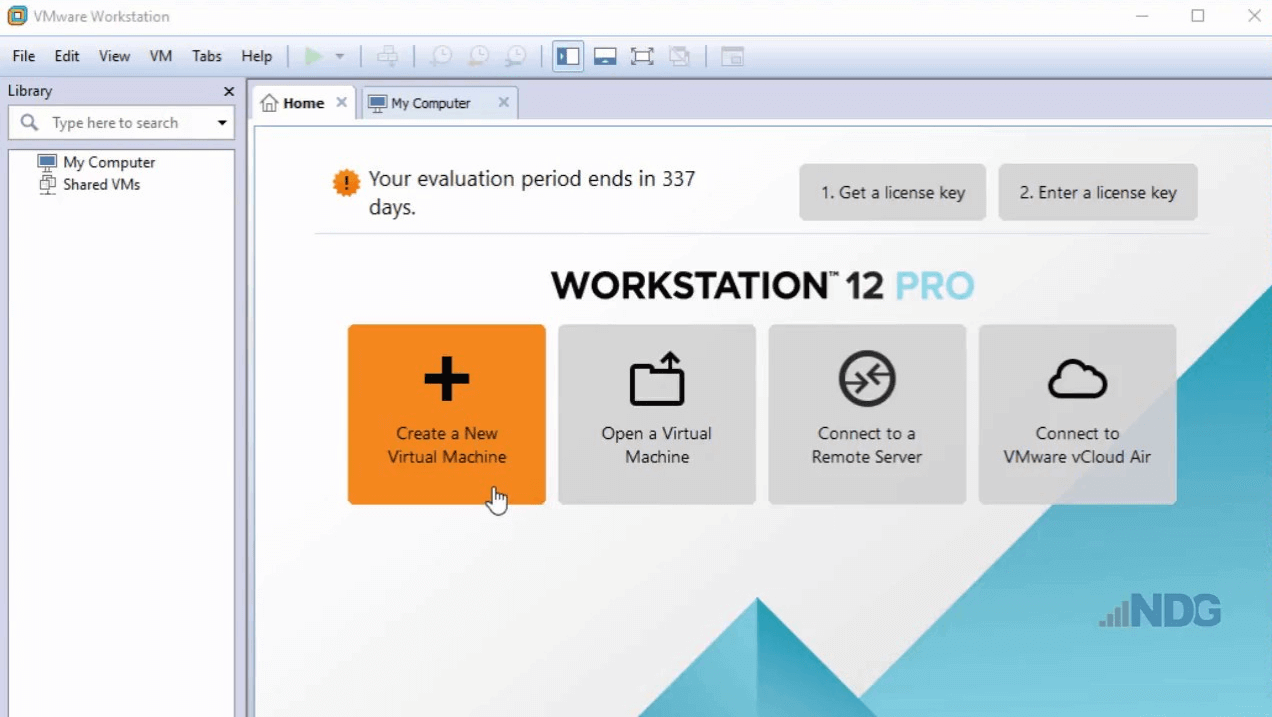
Both methods are effective, but using a media device is more popular. It is faster and easier to install the operating system. Users only need to assign the memory usage and specify the OS and platform ISO image locations, and the OS will be ready to install Xcode.
VirtualBox
VirtualBox is another popular virtualization software offered by Oracle Corporation. It is open-source and provides high performance for users wanting to install multiple operating systems on their PC or Linux machine. VirtualBox is known for its user-friendly interface and fast execution, from installation to booting up the OS. Like VMware, VirtualBox offers two installation methods: PXE and using a media device. Both methods follow similar installation steps.
While other virtualization software options are available, VMWare and VirtualBox have stood the test of time and continue to evolve, providing the best user experience. It is recommended to use one of these two options. For further steps on installing virtualization software, we will be using a virtual box.
Installing the Virtual Machine
Let’s start by installing VirtualBox on the local machine for demonstration purposes. The installation steps are similar in VMWare as well.
Follow the steps below to install VirtualBox.
- Download the VirtualBox by visiting the official website and download the binary for Windows hosts since we use a Windows machine.
- After downloading the Windows binary, follow the installation steps. During the installation, allocate memory for macOS to run smoothly later and click on Next.
- Once the installation is complete, you will be prompted to finish the installation by clicking on the Finish button.
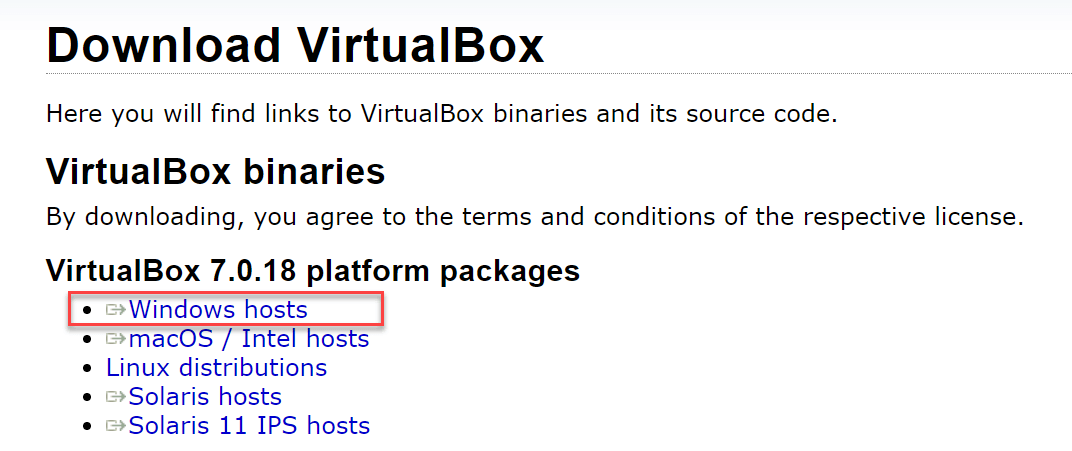
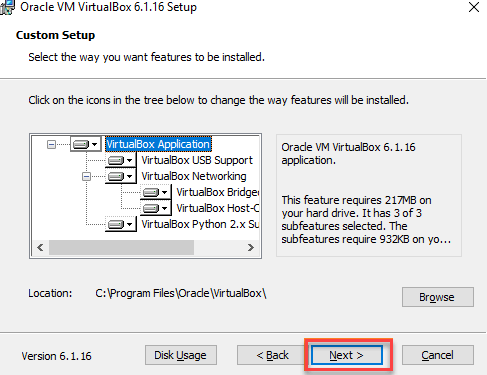
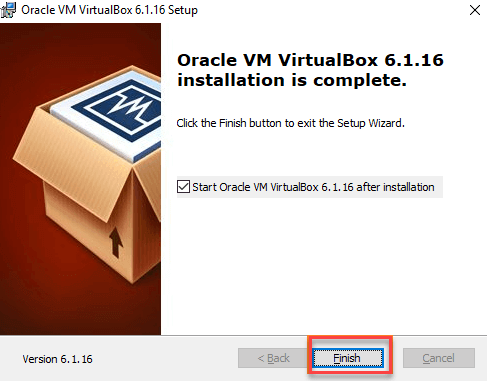
Great! Now that you have successfully installed the virtualization software on your local machine, it’s time to install macOS in VirtualBox.
Installing macOS in VirtualBox
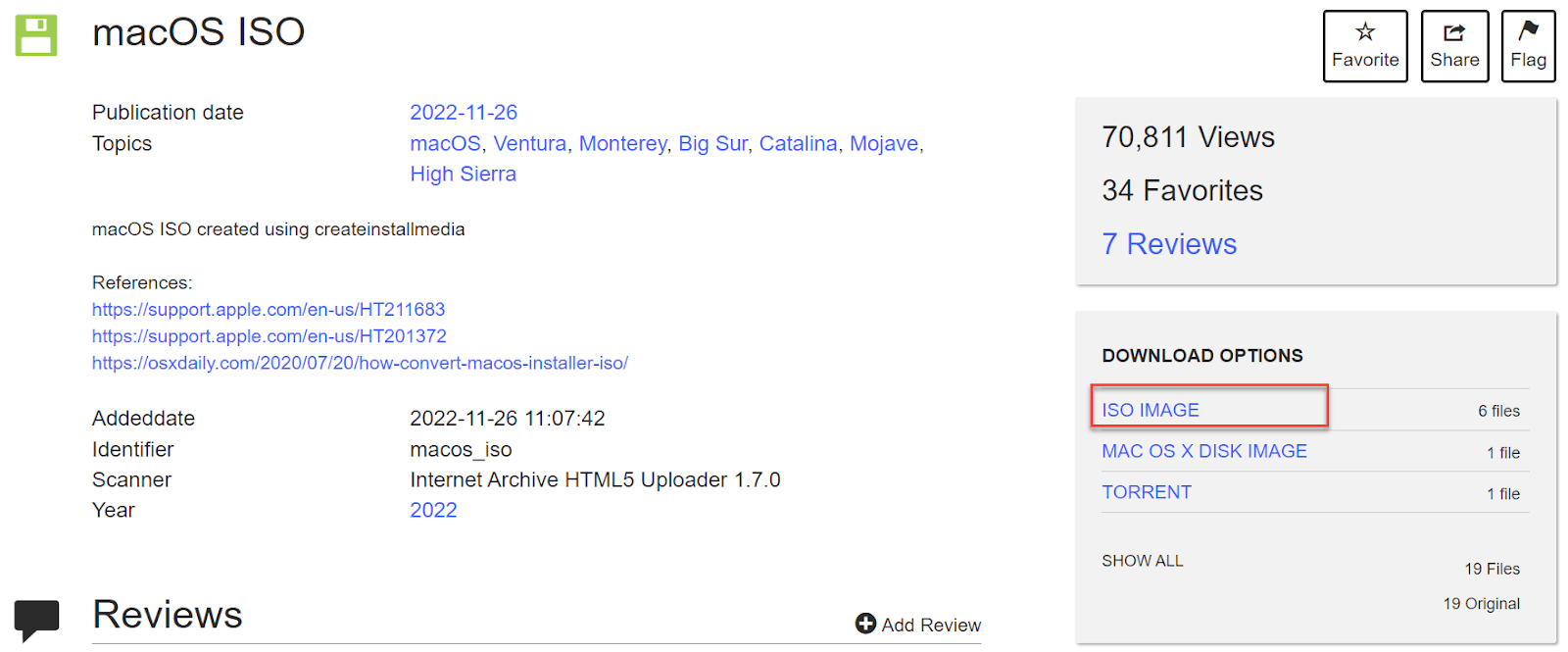
After successfully installing VirtualBox on your local system, the next step is to install macOS. To do this, you’ll need to download an ISO image of macOS from the Internet. However, Apple doesn’t provide ISO images of its operating system, so you must search for a download link.
For this demonstration, we’ll use the Internet Archive, which provides authentic images. Below are the steps to install Internet Archive to achieve ISO images.
- Navigate to the website and select ISO IMAGE on the macOS ISO download page:
- Select current available ISO images of different macOS versions from the dropdown option.
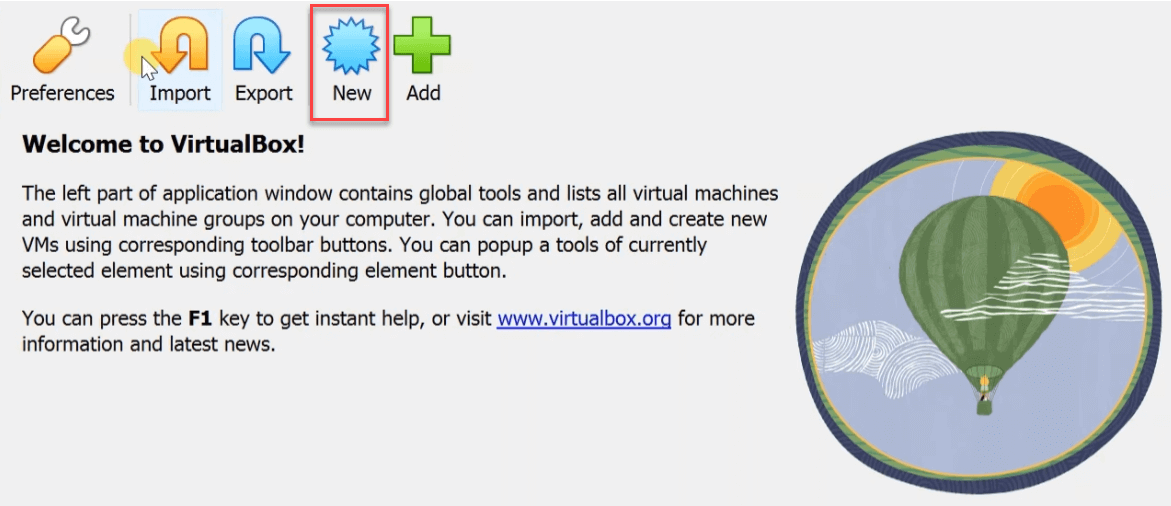
- Open the VirtualBox and click New to initiate a new guest operating system installation process:
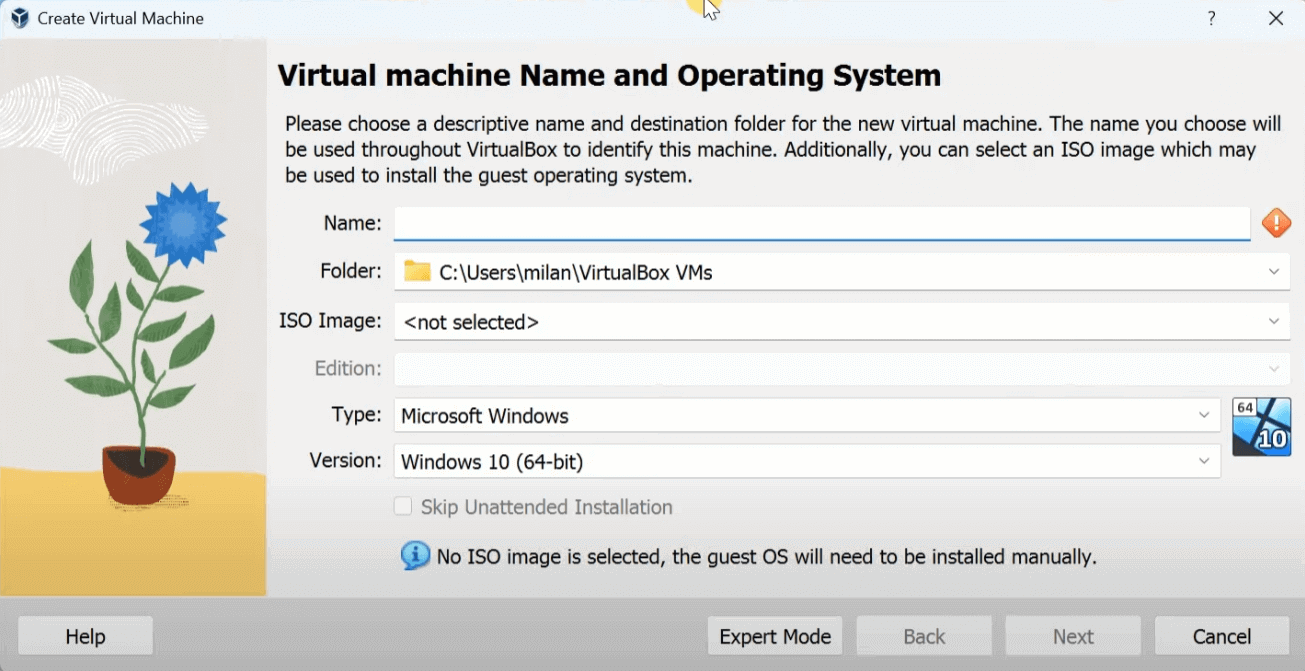
- Configure the options by providing the path where VirtualBox is stored. In the ISO Image section, select the BigSur ISO image downloaded in the previous steps and “Type” as Microsoft Windows.
- Select the hardware usage and click the Next button.
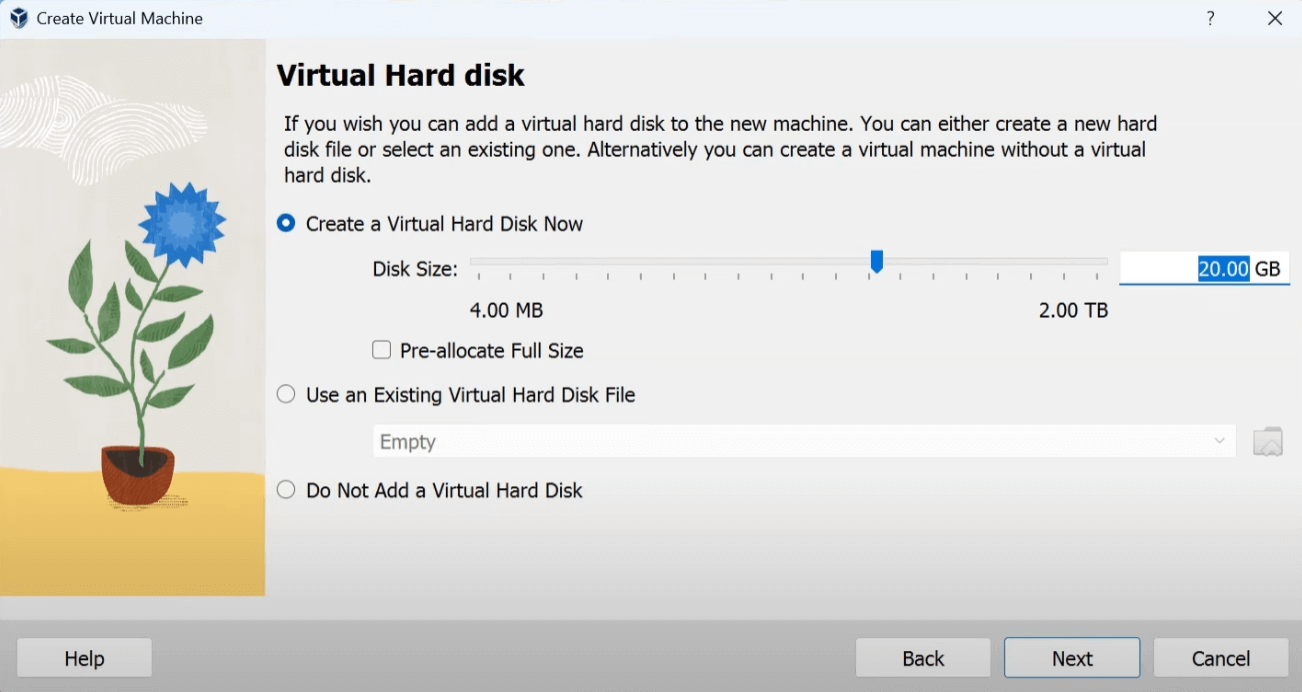
- Lastly, allocate the desired amount of hard drive space for running macOS and click the Next to proceed.
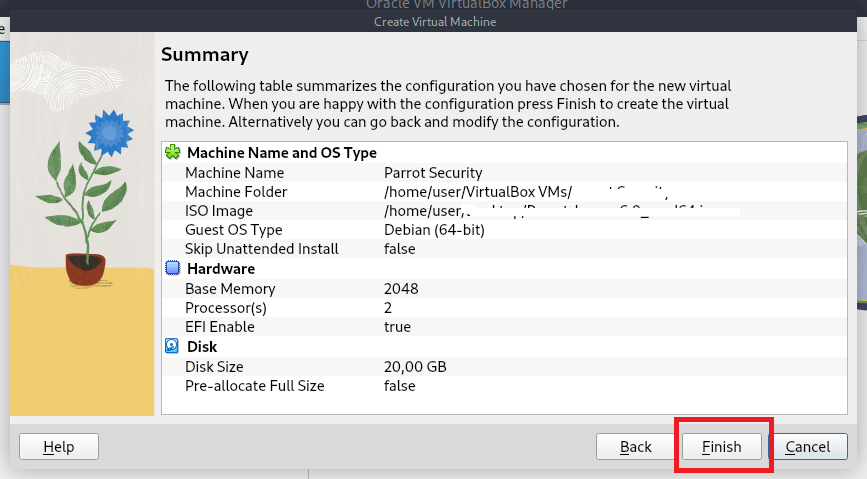
- Finally, click Finish to install Big Sur on Windows using VirtualBox.
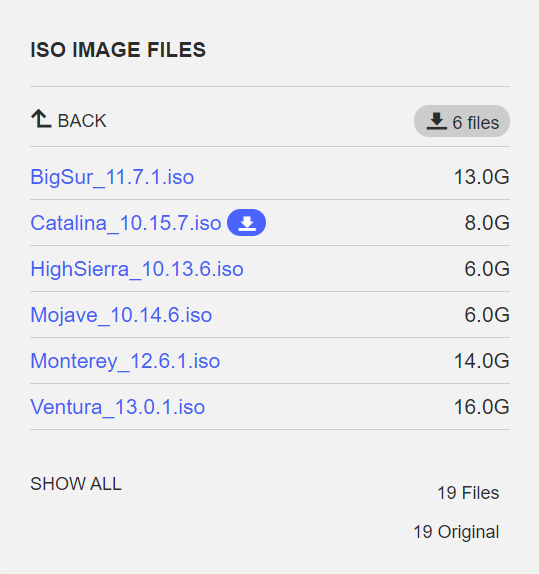
If you don’t require the latest macOS version and any version will suffice, it’s better to choose an older one. The latest versions may encounter frequent errors and latency issues, as the Virtualbox software is not immediately configured for compatibility after a new release.
For this demonstration, we will choose Big Sur for these reasons.

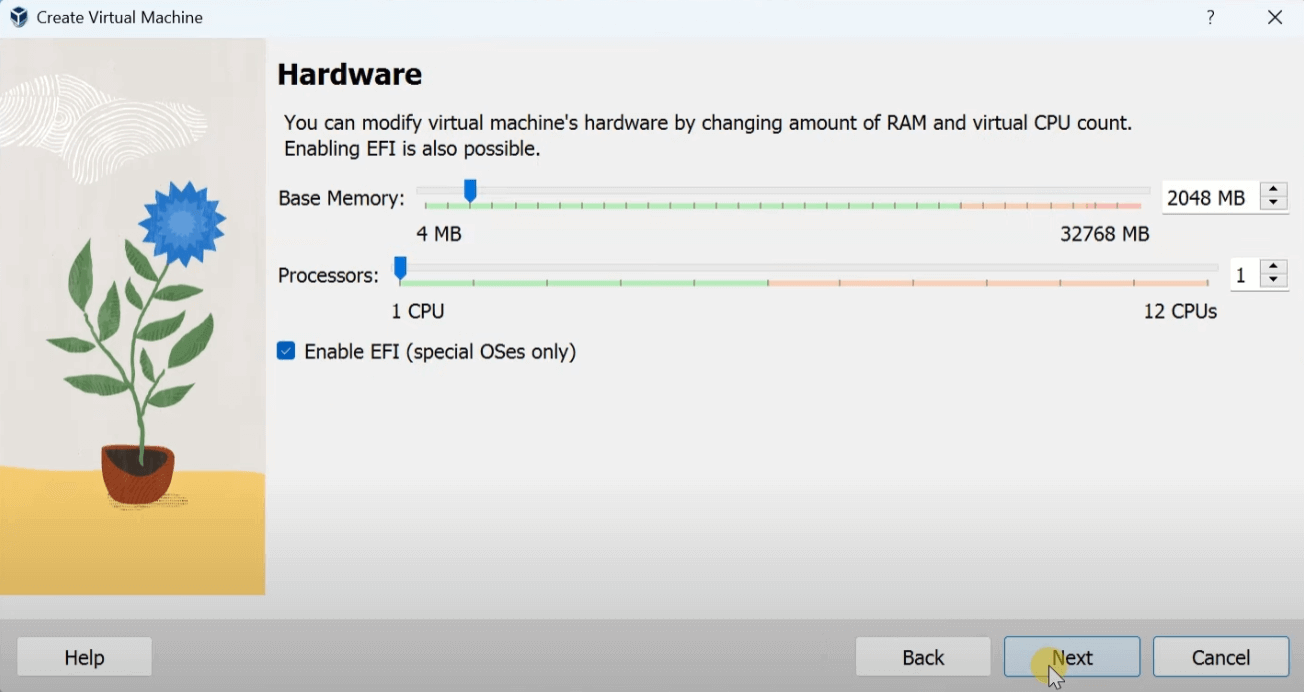
A minimum of 4GB RAM and 2 CPU cores are required for macOS. The user should allocate more memory for better performance from the guest OS.
Great! Now that we’ve completed both the steps of installing virtualization software and macOS and an iOS image, let’s install Xcode on VirtualBox on macOS.
Downloading Xcode in Virtual macOS
Xcode is an IDE available on Apple’s official software marketplace, the App Store. You cannot download any software from this store without an official Apple ID. Hence, the first step is to create an Apple ID to access the store.
Below are the steps to be followed once you have created the Apple ID to access the store.
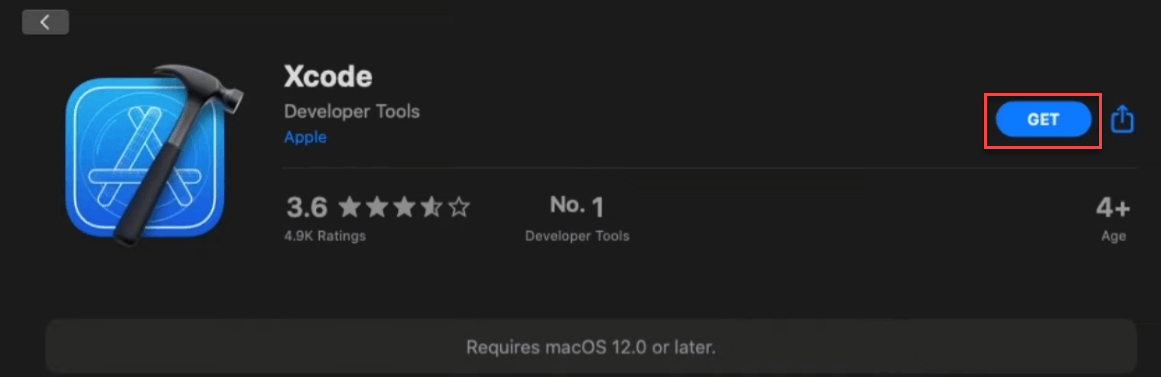
- Access the App Store and search for Xcode in the search box. Click on GET beside Xcode to download the software:
- Next, you need command-line tools to facilitate the development process and help create an environment for iOS app development. These tools will be used during development.
Run the following command on the Terminal to install command line tools:xcode-select --install
This method allows for the development and testing of iOS applications using Xcode. To deploy applications, users need a developer account with Apple. Testers can access Apple’s simulators through this guest operating system, although latency can be expected.
This approach, one of the oldest for building and testing iOS apps on Windows using Xcode, highlights how virtualization has expanded beyond development to include activities like gaming. This expansion is supported by the increased primary and secondary memory capacity in modern systems.
However, the method for developing apps through virtualization has remained unchanged and hasn’t become more convenient or efficient over the past decade.
Even with these advancements, the effectiveness of iOS app development on a physical Mac cannot be matched. Therefore, a more effective solution may be transitioning from local systems to cloud platforms, reducing resource consumption and eliminating memory-sharing overheads.
Rent a Mac To Build an iOS Application
Renting a Mac to develop macOS or iOS apps has become more cost-effective with modern cloud computing. Services like MacStadium, MacinCloud, and XcodeClub offer Mac OS X virtual machines that can be rented by the hour. These virtual machines can be quickly set up and destroyed, ensuring no sensitive data is left behind. It’s important to sign up for an Apple account and ensure software like Xcode is installed on the virtual machine before starting development. Once rented, the Mac can be accessed using RDP or a VNC client, and users can log in to the Mac OS X desktop to begin development.
Hackintosh
A method that Windows users can use to build iOS applications using Xcode is called Hackintoshing. The term “Hackintosh” has been used by macOS enthusiasts aiming to run macOS on non-Apple hardware since the 1980s. However, earlier attempts involved complex technical tweaks and were often unsuccessful.
In 2005, Apple made a significant change by transitioning its OS system to Intel’s x86-64 architecture from PowerPC. This change made running macOS on a PC much easier, as the OS was now compatible with the same architecture used by other operating systems like Windows. This transition led to an increase in the number of ready-to-install macOS binaries available in the market, resulting in a surge in downloads. This process of running macOS on non-Apple hardware is commonly referred to as “Hackintosh,” essentially meaning “hacking the Macintosh.”
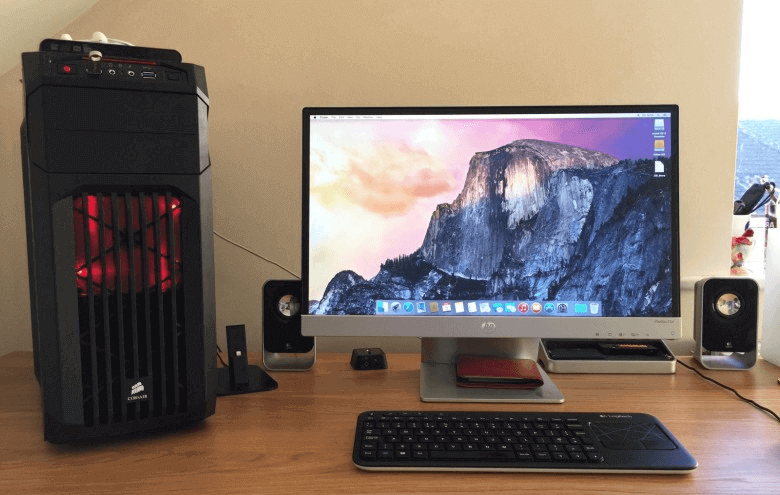
macOS on an HP system
It is true that Xcode for Windows is not available and is exclusively for macOS. However, it is possible to install macOS on a laptop, effectively creating an unlicensed version of a Macintosh, which allows for continuing the development journey. The downside of this method is that the user loses their Windows operating system entirely, as macOS becomes the primary operating system. This approach is similar to virtualization, but instead of running a guest operating system, macOS becomes the primary OS.
Despite losing Windows, this method offers the advantage of being able to build iOS apps and Android apps using the same system by switching between operating systems. It is a cost-efficient solution, and the process is relatively straightforward.
Cross-Platform Development
Cross-platform development allows developers to write code once and build applications for both Android and iOS from the same codebase. Flutter is a framework designed for efficient cross-platform development with low memory usage. However, it’s important to note that while cross-platform frameworks like Flutter can be used to build iOS applications, certain tasks still require Xcode. Currently, Xcode for Windows is unavailable.
React Native is another popular choice among developers for mobile app development. Choosing the right framework for building mobile apps is crucial, and developers often compare Flutter vs React Native to determine the best fit for their project.
To learn more about Flutter and how to perform testing using Flutter for both Android and iOS applications, follow a detailed guide on Flutter testing to validate the working of your apps.
While Xcode provides testing capabilities, using it on a Windows PC can be challenging, especially when sharing resources or using virtual machines. Some testing features, such as parallel testing, running automation code, and recording testing sessions, may not be available. This limitation can frustrate projects with large, complex applications requiring thorough testing.
To address these challenges, developers can leverage cloud services to speed up testing without changing their operating system. By using cloud-based testing services, developers can access a wide range of testing capabilities and resources, improving efficiency and streamlining the testing process.
How To Test iOS Apps Built Using Xcode for Windows?
Xcode has a few tools to test iOS applications within the macOS environment. However, these tools are designed to work best on a Mac machine. A reliable solution to use Xcode for Windows is to use a cloud-based testing platform, which offers speed, efficiency, and cost-effectiveness.
One such platform is TestMu AI; it is a great solution for cross-platform and cross-browser testing. It is an AI-native test execution platform that lets you conduct manual and automated mobile testing on a virtual macOS online environment across a wide range of real devices, 3000+ browsers, and OS combinations, ensuring device and browser compatibility across different platforms.

With TestMu AI, you can perform Android automation and iOS app testing on a real device in the cloud. It also allows you to use emulators or simulators for mobile app testing.
Since TestMu AI is a cloud-based platform, users do not need to install anything on their local system. iOS apps developed using Xcode or other tools can be directly uploaded to the TestMu AI platform using the Real Device Testing feature.
Users can upload their .apk or .ipa files, and once uploaded, these apps will be installed and can be operated on the selected iOS or Android devices. This process eliminates the need to visit the App Store for testing purposes.
Apart from these, there are other benefits that TestMu AI offers that will help you perform iOS or Android testing thoroughly.
- Device Support: It lets you conduct Android and iOS app testing using the more popular mobile automation testing tools such as Appium, Espresso, and XCUIT.
- Network Throttling: It lets you simulate different network conditions, such as 3G, 4G, and WiFi, to test your app’s performance under varying network speeds.
- Geo-location Testing: It lets you conduct geolocation testing to help you simulate different geographic locations to test your mobile app under various locations.
- Multiple Installation Support: The users can install multiple applications in a single session on TestMu AI, providing convenience and saving the time to uninstall and reinstall the apps.
- Intelligent UI Inspector: It offers an intelligent UI inspector that helps identify elements and provides device logs to aid in debugging the application, all with a single click. This feature is a frequent action in testing and saves a significant amount of time.
To learn how to perform app automation on a real device, watch the video tutorial below and get familiar with the features of LamdbaTest that will help you perform automation testing.
To get started with TestMu AI, you need to follow the steps.
- Sign up for a TestMu AI.
- Go to the Real Time > App Testing > Virtual Mobile from the menu on the left-hand side.
- Select any operating system of your choice. For demonstration purposes, we will use iOS as the operating system and upload the .ipa file to the cloud.
- Select your mobile device and model after uploading your .ipa file. We will select the iPhone as the device and the iPhone 15 Pro Max as the mobile device with this configuration for demonstration purposes and click the Start button.
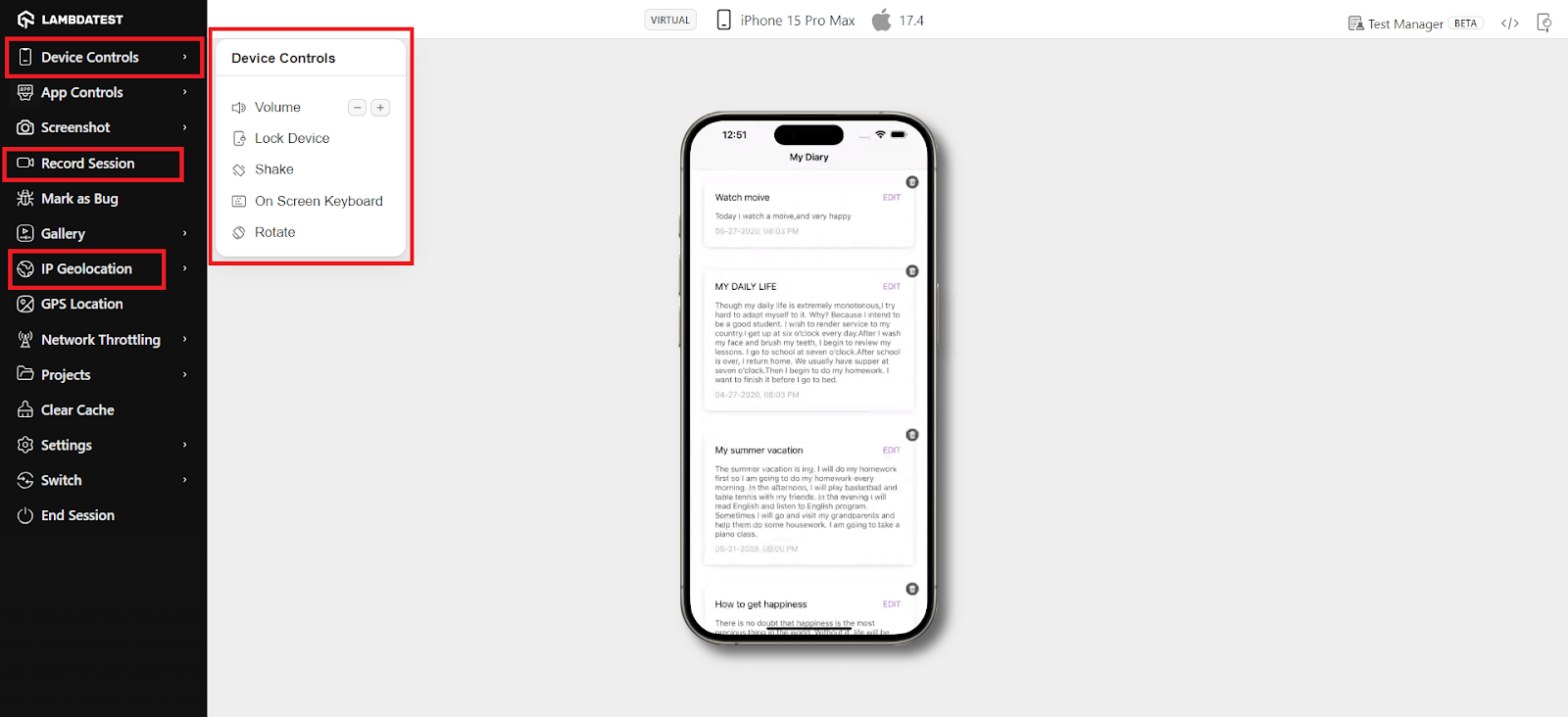
- Using the left menu options, you can perform manual testing on the mobile app, including changing keyboard language, adjusting device orientation, activating sleep mode, and adjusting volume levels via the Device Controls menu. You can record your testing sessions and share them by selecting Record Session. Additionally, you can test native mobile apps from different geographical locations using the IP Geolocation option.
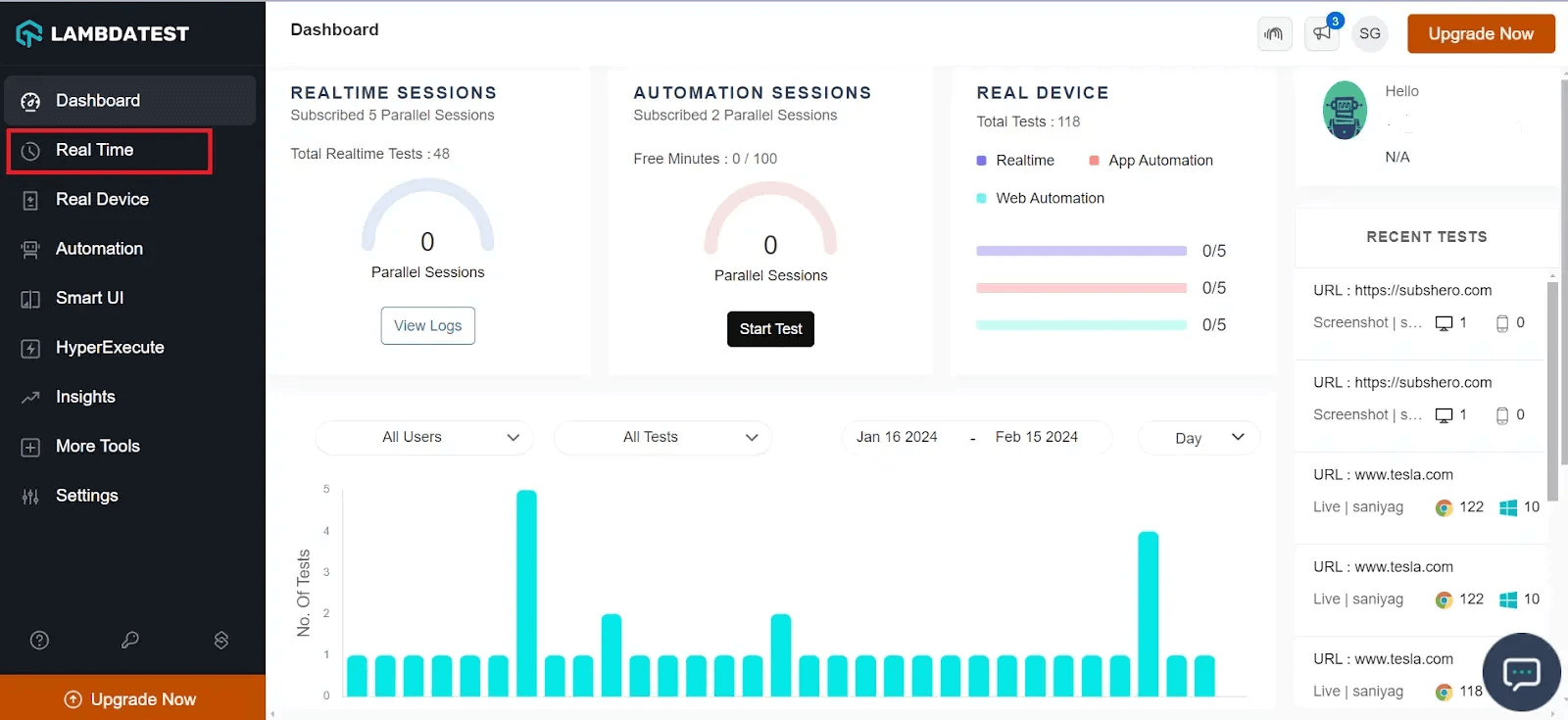
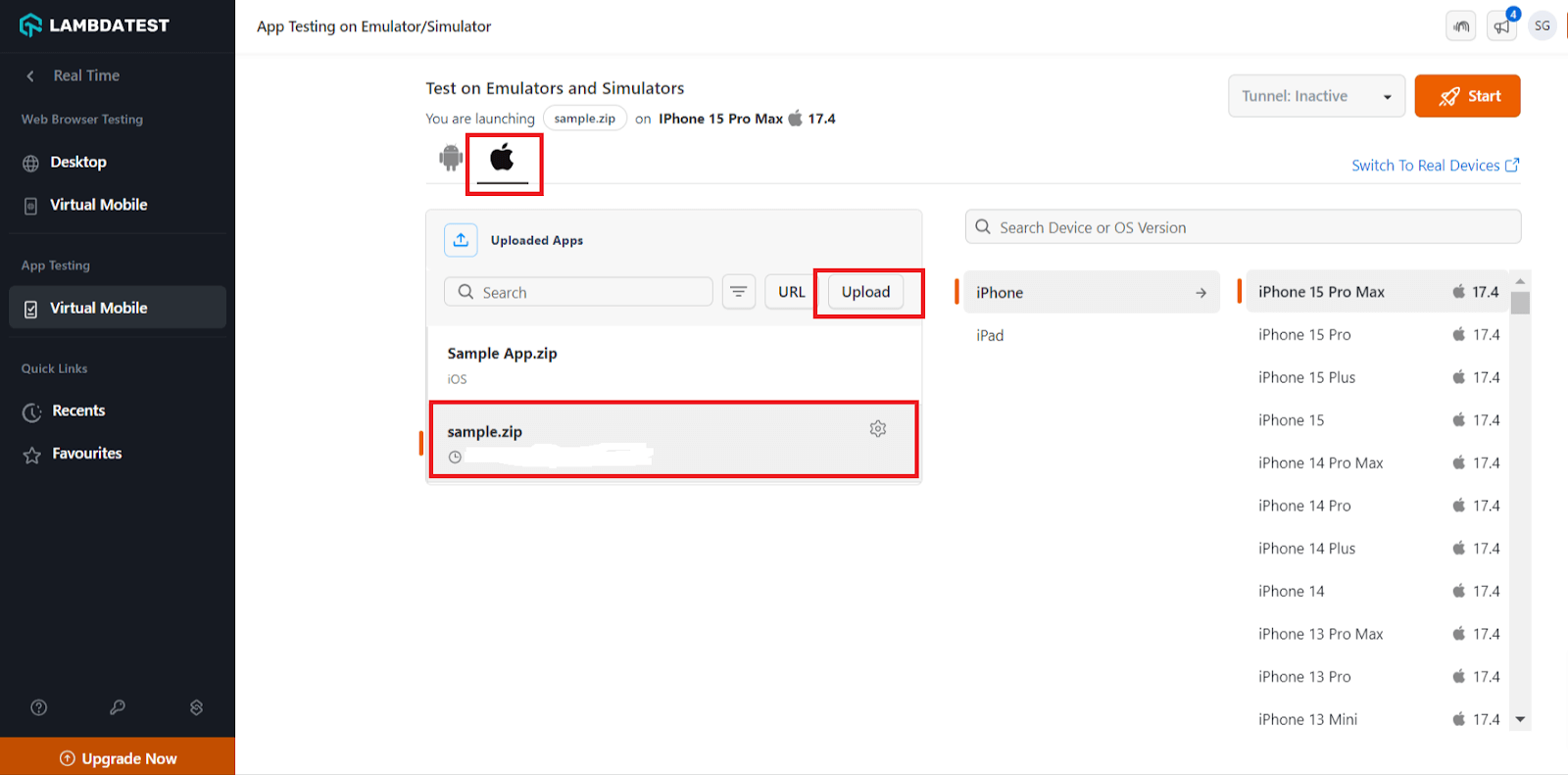
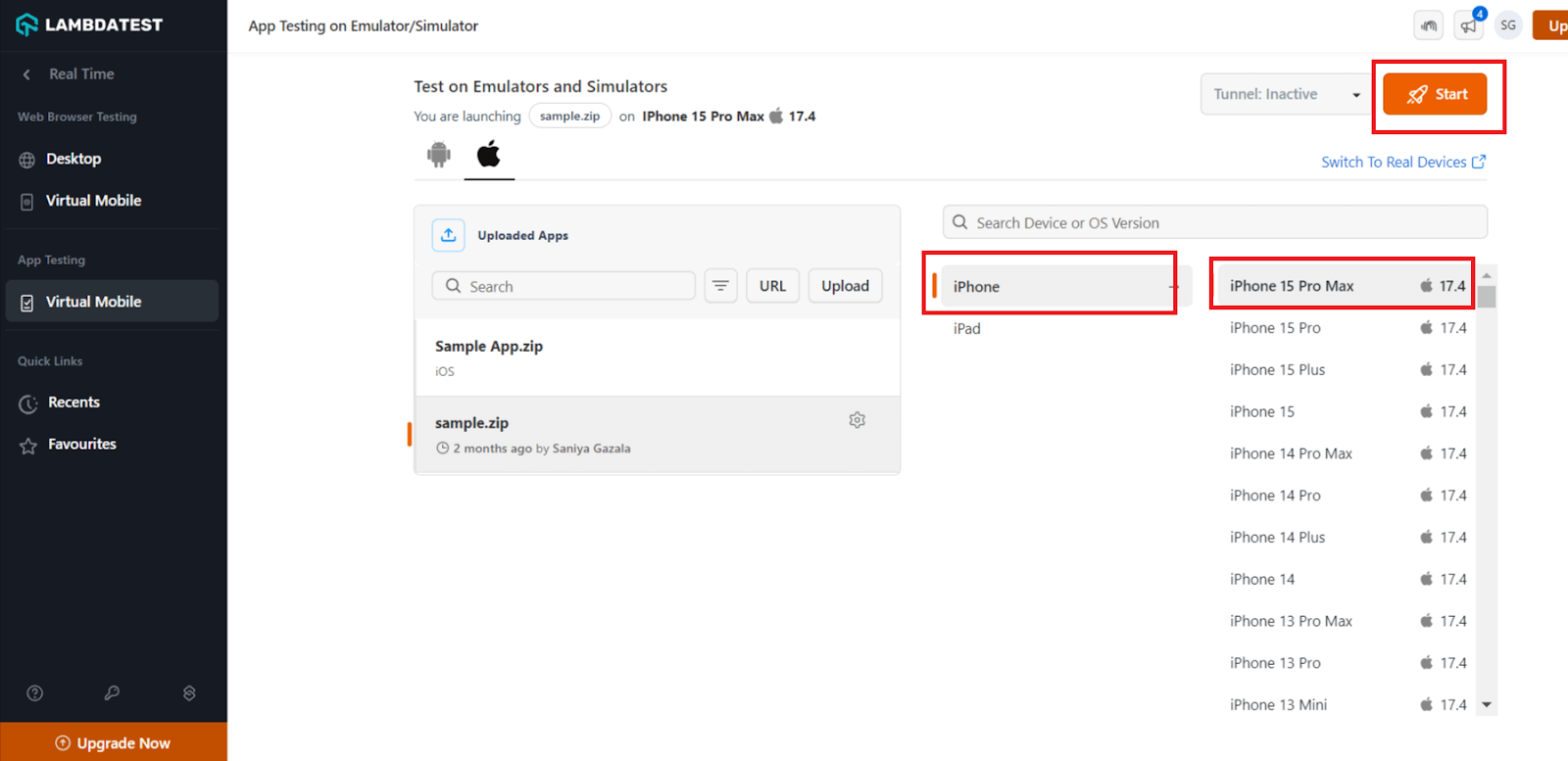
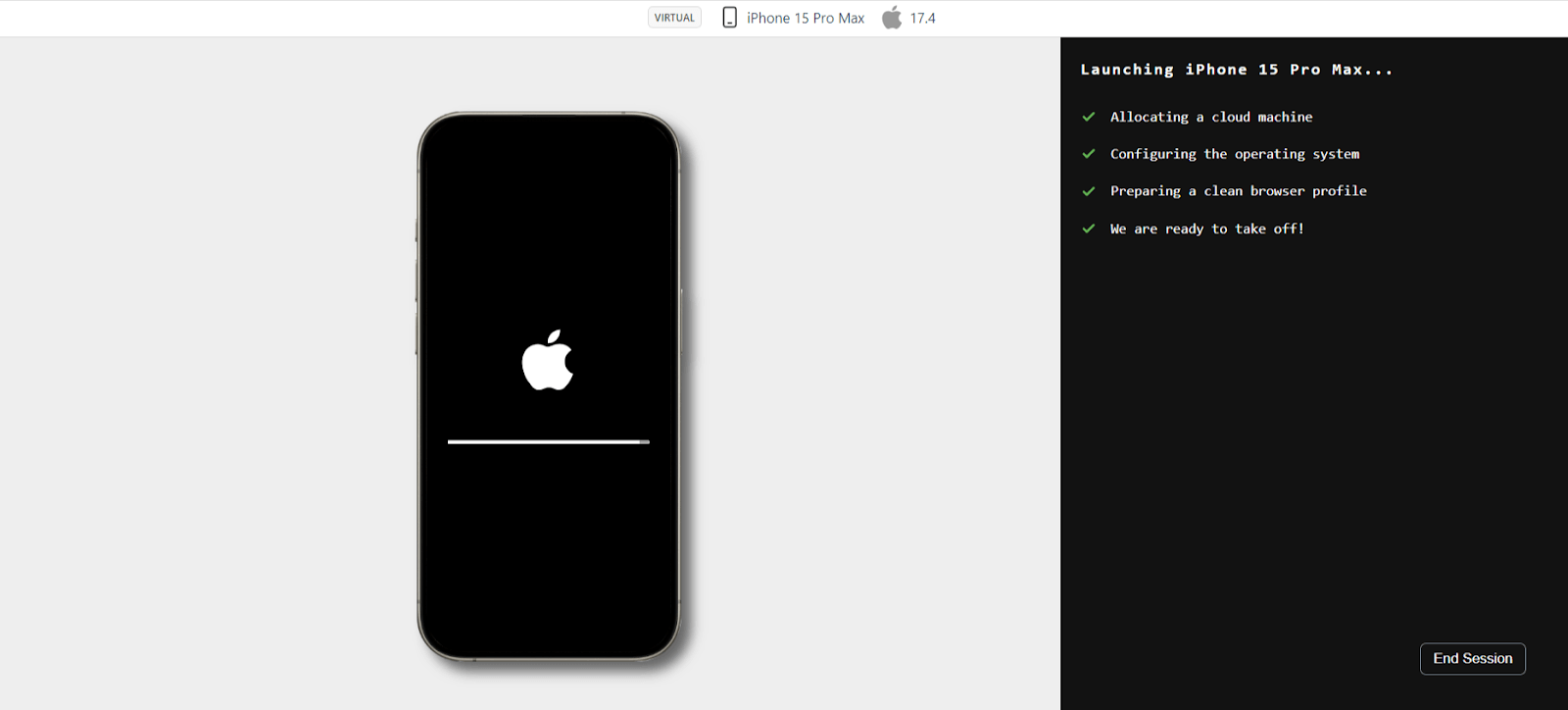
A virtual device will be launched in a cloud environment based on your chosen configuration and the uploaded app.
To learn more about real-time and real-device testing, watch this video demonstrating how to perform real-time testing on a real-device cloud.
To get more video tutorials on mobile and web automation, subscribe to the TestMu AI YouTube channel and get started with your automation testing journey.
Conclusion
Xcode is one of the best tools available for iOS app development today. Apple has ensured that it works according to the developer, consumes fewer resources, and makes the work easier to execute. Unfortunately, Apple doesn’t want it shared with users working on a different operating system for several reasons discussed in this post. Due to this, a user with a Windows system is left only with the option to buy an Apple device or install macOS to use Xcode. This post on Xcode for Windows tries to explore these methods in simple steps with a demonstration.
From installing a virtual machine to deleting their Windows OS files, users can choose the method that suits them best and works for the team. All the methods are free to use and don’t require any purchase of physical or digital assets. Also, once you are done with development, the testing becomes much easier with cloud tools like TestMu AI, which are made specifically for this purpose. They provide additional testing tools, support for automation frameworks, third-party integrations, and real Apple devices to test on. Combining these methods with these testing tools results in a high-quality application that demands lower maintenance. Ultimately, this is the combination that all the organizations aspire for.
Conclusion


Frequently asked questions
Did you find this page helpful?
More Related Hubs
TestMu AI forEnterprise
Get access to solutions built on Enterprise
grade security, privacy, & compliance
- Advanced access controls
- Advanced data retention rules
- Advanced Local Testing
- Premium Support options
- Early access to beta features
- Private Slack Channel
- Unlimited Manual Accessibility DevTools Tests