

Next-Gen App & Browser Testing Cloud
Trusted by 2 Mn+ QAs & Devs to accelerate their release cycles


28 Top Selenium WebDriver Commands in NUnit [2026]
Selenium WebDriver commands are the methods used to run your Selenium test automation scripts. Here are the different commands you'd need to automate browser actions.

Himanshu Sheth
February 11, 2026
Mastering Selenium WebDriver commands in NUnit is essential for building efficient and reliable test automation in C#. These commands form the foundation of how your tests interact with browsers, controlling navigation, managing windows, and handling web elements. This blog explores the key Selenium WebDriver commands in NUnit, helping you understand how each contributes to smoother, more effective automated testing.
If you are preparing for an interview you can learn more through NUnit interview questions.
Overview
What Are Selenium WebDriver Commands?
Selenium WebDriver commands are the core methods used to automate browser actions during test execution. They enable you to interact with web browsers and elements, opening URLs, clicking buttons, filling forms, and verifying page content, forming the foundation of browser-based test automation.
What Are Web Browser Selenium WebDriver Commands With NUnit?
Web browser commands in Selenium with NUnit allow you to control the browser’s overall behavior, like launching, navigating, or closing windows. These commands help manage the browser lifecycle during automation.
Key Web Browser Commands:
- Url: Opens a specific webpage or retrieves the current page’s URL.
- Title: Returns the title of the currently active browser window.
- PageSource: Retrieves the complete HTML source of the current webpage.
- Quit(): Closes all browser instances and completely ends the WebDriver session.
- Close(): Shuts down only the currently active browser window.
- Navigate(): Provides navigation controls like Back(), Forward(), Refresh(), and GoToUrl().
What Are Web Element Selenium WebDriver Commands With NUnit?
Web element commands in NUnit are used to interact directly with page elements, like buttons, input fields, and links. They simulate user actions for functional and UI testing.
Key Web Element Commands:
- Click(): Clicks on an element such as a button or link.
- Enabled: Checks whether an element is enabled and ready for interaction.
- Displayed: Verifies if an element is visible on the webpage.
- Clear(): Removes existing text from input fields before sending new input.
- SendKeys(): Enters text or keystrokes into editable fields.
- GetAttribute(): Fetches the value of a given element attribute.
- GetCssValue(): Returns the value of a specified CSS property.
- Submit(): Submits a form element to trigger form submission.
- Text: Retrieves the visible inner text content of an element.
- TagName: Returns the HTML tag name for the selected element.
- Selected: Checks if a checkbox or radio button is currently selected.
- Size: Gets the element’s height and width dimensions.
What Are the Drop Down Selenium WebDriver Commands With NUnit?
Drop down commands in NUnit are designed to select or deselect options from HTML <select> elements. These commands make it easy to handle single or multi-select menus in automation scripts.
Key Drop Down Commands:
- SelectByIndex(): Chooses an option based on its index position.
- DeselectByIndex(): Removes selection based on index.
- SelectByText(): Selects an option using visible text.
- DeselectByText(): Deselects an option by visible text.
- SelectByValue(): Selects an option by its value attribute.
- DeselectByValue(): Removes selection by value.
- DeselectAll(): Clears all selected options in multi-select menus.
- IsMultiple: Checks if a dropdown allows multiple selections.
- Options: Retrieves all available dropdown options.
- AllSelectedOptions: Gets all currently selected options.
Why Is Using NUnit With Selenium Better Than Standalone Selenium scripts?
Running Selenium tests under NUnit brings test structure, modularity, and reporting capabilities. It allows you to group test cases, apply assertions, and integrate with CI tools like Jenkins or Azure DevOps for continuous testing and monitoring.
What are Selenium Webdriver Commands?
Selenium Webdriver commands are the methods used to run your Selenium test automation scripts. You can use these browser commands to automate different browser actions to perform testing.
Selenium WebDriver commands in NUnit are divided in three different categories on the basis of different kinds of browser interactions. The commands are categorized based on the type of interaction and the element/application on which action is being performed. Automated browser testing involves the following Selenium commands:
- Web Browser Commands – Performs actions on the web browser (e.g. open, close, maximize, etc.)
- Web Element Commands – Performs actions on the WebElements in the current window (e.g. checking a button, entering text in a textbox, clicking a button, etc.)
- Drop Down Commands – Performs actions on the drop-down elements in the current window (e.g. selecting or deselecting a value from drop-down window).
Web Browser Commands
When C# is used along with the Selenium testing framework , the IWebDriver interface is used to perform actions on the web browser. To access the methods of the IWebDriver interface, an instance/driver object from IWebDriver should be created. The complete list of methods for IWebDriver comes up as soon as you press the dot key.
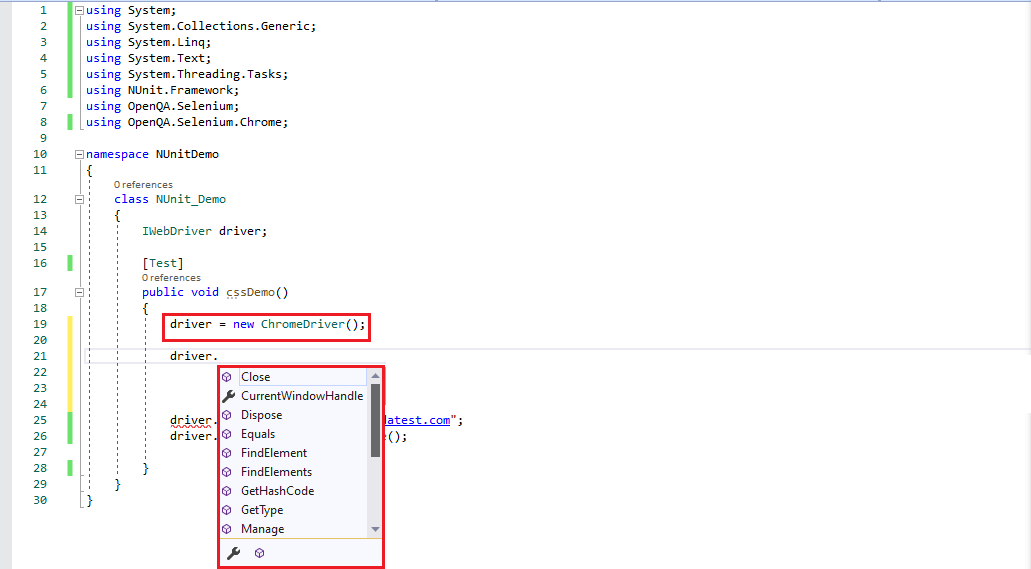
Below are the Selenium WebDriver Commands in Nunit for handling browsers:
1. Url
Using this Selenium WebDriver command you can Get or Set the URL/web page that needs to be displayed.
Syntax:
string IWebDriver.Url { get; set;}
Example
/* Selenium Webdriver command for URL*/
String URL;


driver = new ChromeDriver();
/* Set Operation */
driver.Url = "https://www.lambdatest.com";
/* Get Operation */
URL = driver.Url;
2. Title
This Selenium WebDriver command gets the title of the current browser window.
Syntax:
string IWebDriver.Title{get;}
Example
/* Selenium Webdriver command for getting title */
String page_title;
driver = new ChromeDriver();
driver.Url = "https://www.lambdatest.com";
page_title = driver.Title;
3. PageSource
You can get the source of the page that is loaded by the web browser with this Selenium WebDriver command.
Syntax:
string IWebDriver.PageSource{get;}
Example
/* Selenium Webdriver command for getting page source*/
String page_source;
driver = new ChromeDriver();
driver.Url = "https://www.lambdatest.com";
page_source = driver.PageSource;
4. Quit()
You can quit the driver and close every browser window associated with this Selenium WebDriver command in NUnit.
Syntax:
void IWebDriver.Quit()
Example
/* Selenium Webdriver command for URL*/
driver = new ChromeDriver();
driver.Url = "https://www.lambdatest.com";
/* Sleep for 4 seconds after page is displayed */
System.Threading.Thread.Sleep(4000);
/* Quit the window for this NUnit tutorial*/
driver.Quit();
5. Close()
With close() Selenium WebDriver command, you can close the current window, quit the browser in case if it is the last window open. In case you want more detailed information on how to handle multiple browsers windows in Selenium WebDriver you can refer to our blog.
Syntax:
void IWebDriver.Close()
Example
/* Selenium Webdriver command for Closing window*/
driver = new ChromeDriver();
driver.Url = "https://www.lambdatest.com";
driver.Close();
6. Navigate()
With this Selenium WebDriver command in NUnit you can navigate the browser to another location i.e. Refresh the current window/Go Back to the previous window/Go to the next page as per browsing history/Go to a particular URL.
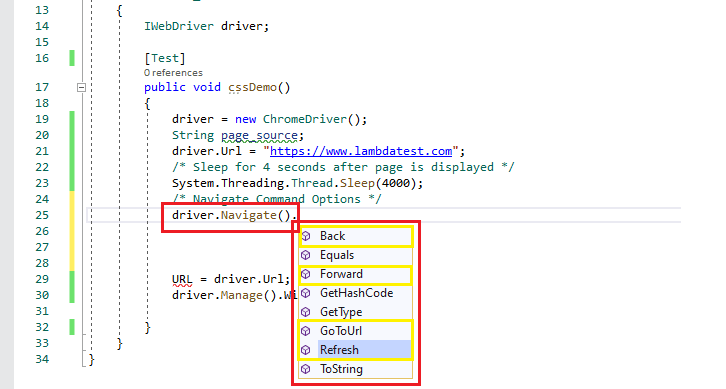
Syntax:
INavigation IWebDriver.Navigate()
Shown below are the different options available with the Navigate() command:
Back()
Move back a single entry as per the browser’s history.
Syntax:
void INavigation.Back()
Example:
driver.Navigate().Back();
Forward()
Move a single item forward as per the browser’s history
Syntax:
void INavigation.Forward()
Example:
driver.Navigate().Forward();
GoToUrl()
Navigate to a particular URL which is passed as a parameter to the Navigate() Selenium test automation command
Syntax:
void INavigation.GoToUrl(string url)
Example:
driver.Navigate().GoToUrl("https://www.lambdatest.com")
Refresh()
Refresh the current browser window
Syntax:
void INavigation.Refresh()
Example:
driver.Navigate().Refresh();
Web Element Commands
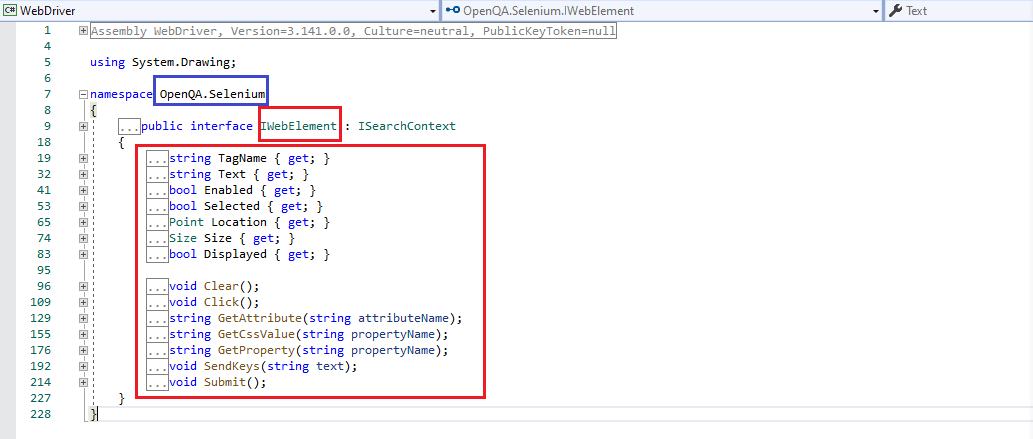
While performing Selenium test automation with NUnit you’ll often have to rely on Selenium WebDriver command to perform operations on WebElements (e.g. textboxes, radio buttons, hyperlinks, etc.) on a page, that are triggered via the IWebElement interface.
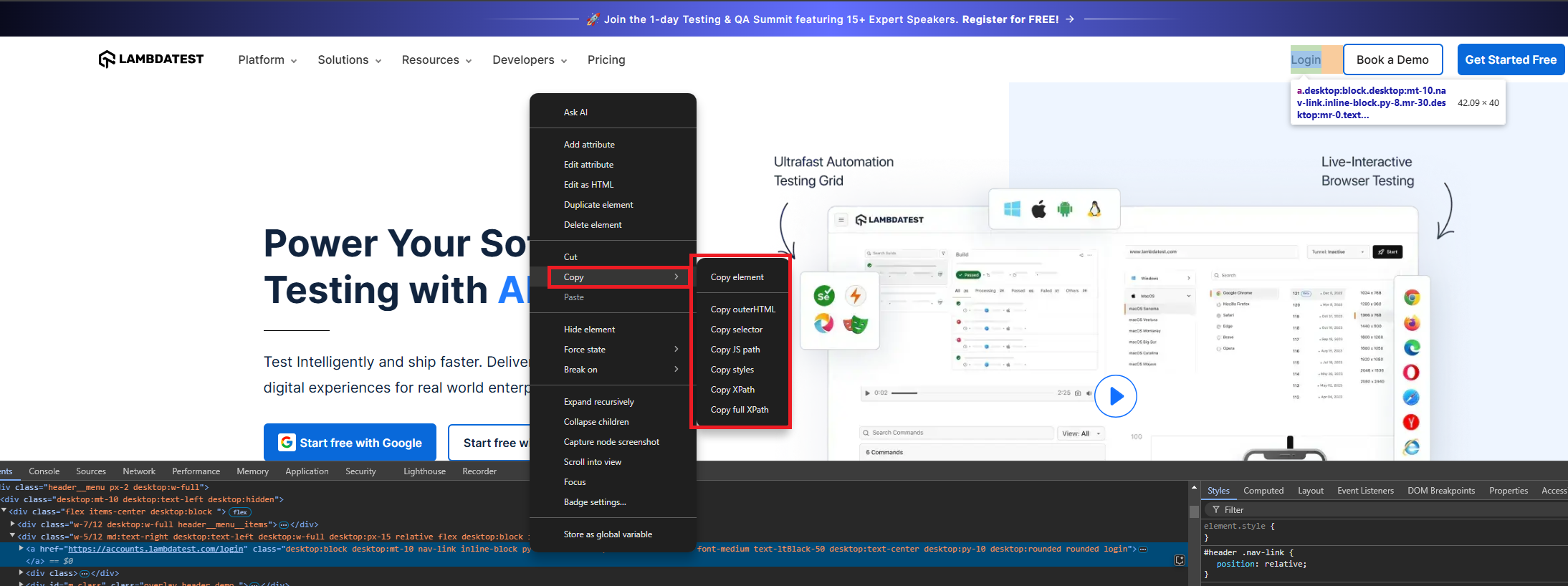
To find the details of a WebElement e.g. XPath, outerHTML, etc.; you can make use of the Inspect Tool available in web browsers like Chrome, Firefox, etc. Once the WebElement is located, you can perform the corresponding operation on that element. To know more about how to access WebElements, you can refer to our detailed article on Selenium locators.
Shown below in this Nunit tutorial are the Selenium WebDriver command for WebElements.
To learn more about WebElements and how to interact with the elements, watch the complete video tutorials and get valuable.
To get started with your web automation journey you can Subscribe to the TestMu AI YouTube channel for details guidance on various automation testing tools, Selenium testing, Cypress testing, Playwright testing, and more.
For demonstrating the usage of the WebElement commands, we have used the the demo sites given below as for Menu system and HTML form example

Note: Identify locators and perform seamless automation testing on the cloud platform Try TestMu AI Now!
1. Click
Using the Click() Selenium WebDriver command, you can click on a particular WebElement present on the web page. The Click operation can be performed on hyperlinks, buttons, checkboxes, or any other element that is clickable on the page. The element is first located on the page, after which the Click operation is performed.
Syntax:
void IWebElement.Click()
Example
/*Selenium Webdriver command for click*/
driver = new ChromeDriver();
driver.Url = "https://www.lambdatest.com";
/* The Xpath of the Login Button on LambdaTest homepage */
IWebElement web_element = driver.FindElement(By.XPath("//*[@id="navbarSupportedContent"]/ul/li[6]/a"));
web_element.Click();
2. Enabled
You can check whether a particular WebElement is enabled or not with the Enabled Selenium WebDriver command. It returns true if the WebElement on the page is enabled else it returns false.
Syntax:
Bool IWebElement.Enabled{get;}
Example
/*Selenium Webdriver command to check whether a particular web element is enabled */
driver = new ChromeDriver();
driver.Url = "https://www.lambdatest.com";
/* The Xpath of the Login Button on LambdaTest homepage */
IWebElement web_element = driver.FindElement(By.XPath("//*[@id="navbarSupportedContent"]/ul/li[6]/a"));
Boolean element_enabled = web_element.Enabled;
3. Displayed
This Selenium WebDriver command checks whether a particular WebElement is displayed or not. It returns true if the WebElement on the page is displayed else it returns false.
Syntax:
Bool IWebElement.Displayed{get;}
Example
/*Selenium Webdriver command to check whether a particular web element is displayed */
driver = new ChromeDriver();
driver.Url = "https://www.lambdatest.com";
/* The Xpath of the Login Button on LambdaTest homepage */
IWebElement web_element = driver.FindElement(By.XPath("//*[@id="navbarSupportedContent"]/ul/li[6]/a"));
Boolean element_enabled = web_element.Displayed;
4. Clear
The Clear() Selenium WebDriver command clears the content in the WebElement present on the page. It is used for clearing the pre-loaded contents in a text box.
Syntax:
void IWebElement.Clear()
Example
driver = new ChromeDriver();
driver.Url = "https://www.lambdatest.com";
/* The Xpath of the Email address text box on LambdaTest homepage */
IWebElement web_element = driver.FindElement(By.XPath("//*[@id='useremail']");
web_element.Clear();
5. SendKeys
This Selenium Webdriver command Inputs the values in an element like a textbox on the web page.
Syntax:
void IWebElement.SendKeys(string text)
Example
driver = new ChromeDriver();
driver.Url = "https://www.lambdatest.com";
/* The Xpath of the Email address text box on LambdaTest homepage */
IWebElement web_element = driver.FindElement(By.XPath("//*[@id='useremail']");
web_element.SendKeys("[email protected]");
6. GetAttribute
There may be attributes and properties associated to WebElements present on a web page. These are added by the website developer. With GetAttribute() you get the value of a certain attribute as a string of the WebElement.
Syntax:
string IWebElement.GetAttribute(string attributename)
Example
driver = new ChromeDriver();
driver.Url = "https://www.lambdatest.com";
/* The Xpath of the Email address text box on LambdaTest homepage */
IWebElement web_element = driver.FindElement(By.XPath("//*[@id='navbarSupportedContent']/ul/li[6]/a"));
String titleValue = web_element.GetAttribute("class");

7. GetCssValue
Gets the value of a CSS property of a WebElement present on the web page. Color values are returned in the form of rgba string. For example, a “background-color” property set as “green” in the HTML source, will return “#008000” for its value.
Syntax:
string IWebElement.GetCssValue(string propertyname)
Example:
driver = new ChromeDriver();
driver.Url = "https://www.lambdatest.com";
/* The Xpath of the Login Button on LambdaTest homepage */
IWebElement web_element = driver.FindElement(By.XPath("//*[@id='navbarSupportedContent']/ul/li[6]/a"));
/* returns #000000 */
String cssvalue = web_element.GetCssValue("background-color");
To get demonstrate the functionality of GetCssValue() we will be performing inspection on platform called TestMu AI. In this example we will get the background color of the ‘Login’ button on TestMu AI homepage, we check the properties associated with the element using Inspect tool.
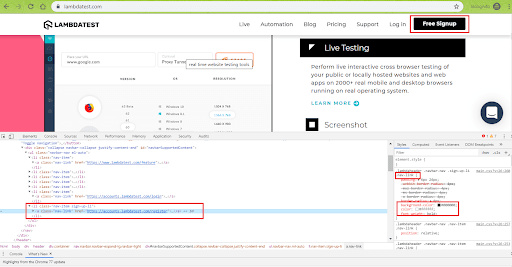
As seen in the snapshot, background-color is the property associated with Login button. The same is used with GetCssValue().
TestMu AI is an AI-powered test orchestration and execution platform that lets you run manual and automated tests at scale with over 3000+ real devices, browsers and OS combinations. This platform allows you to perform web and mobile automation without having to worry about maintain infrastructure, security of your test data and more.
8. Submit
Performs a click on a button which is of the type submit.
Syntax:
void IWebElement.Submit()
Example
driver = new ChromeDriver();
driver.Url = "https://accounts.lambdatest.com/login";
/* The Xpath of the Login Button on which is of the type submit */
IWebElement web_element = driver.FindElement(By.XPath("//*[@id='app']/section/form/div/div/button"));
web_element.Submit();
9. Text
Gets the innerText of a WebElement, without any leading or trailing whitespace & other whitespaces collapsed.
Syntax:
string IWebElement.Text{get;}
Example
driver = new ChromeDriver();
driver.Url = "https://www.lambdatest.com";
/* The Xpath of the Login Button on LambdaTest homepage */
IWebElement web_element = driver.FindElement(By.XPath("//*[@id='navbarSupportedContent']/ul/li[6]/a"));
String text_value = web_element.Text;
10. TagName
Gets the tag name of a WebElement on the web page.
Syntax:
string IWebElement.TagName{get;}
Example
driver = new ChromeDriver();
driver.Url = "https://www.lambdatest.com";
/* The Xpath of the Login Button on LambdaTest homepage */
IWebElement web_element = driver.FindElement(By.XPath("//*[@id='navbarSupportedContent']/ul/li[6]/a"));
String tag_name = web_element.TagName;
11. Selected
Checks whether a WebElement is selected or not. The WebElement can be radio button, checkbox, etc.
Syntax:
bool IWebElement.Selected{get;}
Example
driver = new ChromeDriver();
driver.Url = "https://lambdatest.github.io/sample-todo-app/";
IWebElement web_element = driver.FindElement(By.XPath("/html/body/div/div/div/ul/li[1]/input"));
bool selected_status = web_element.Selected;
12. Size
Gets the height & width associated with a WebElement or the current browser window. The return type is of type struct size.
Syntax:
Size IWebElement.Size{get;}
Example
driver = new ChromeDriver();
driver.Url = "https://www.lambdatest.com";
/* Get the window size */
Console.WriteLine(driver.Manage().Window.Size);
Drop Down Commands
Drop down elements are common in web pages, especially when a user is registering on a website and has to enter the country/city related information. In C#, drop down operations are performed using the SelectElement class. SelectElement is declared in using OpenQA.Selenium.Support.UI package which is imported before performing any operation on the drop down box.
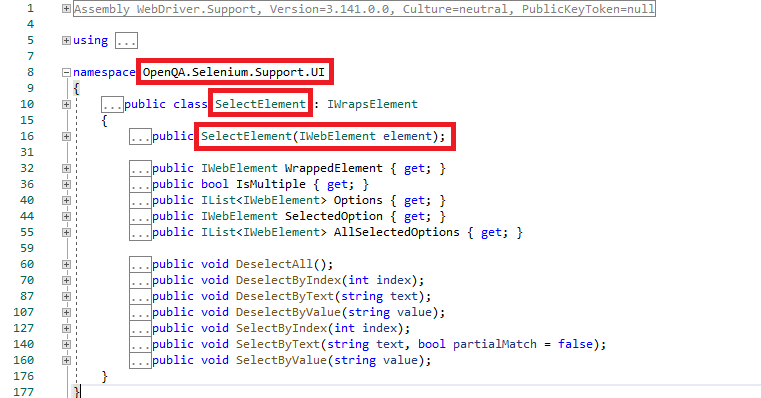
For demonstrating the usage of the WebElement commands, we have used the test URLs Menu/a> and formex.
Below are drop down operations in C#:
1. SelectByIndex
Select a value based on the index value. The starting index in drop down is 0.
Syntax:
void SelectElement.SelectByIndex(int index)
Example
driver = new ChromeDriver();

driver.Url = "http://demos.dojotoolkit.org/dijit/tests/test_Menu.html";
IWebElement element = driver.FindElement(By.XPath("//select[@aria-label='select']"));
SelectElement select_elem = new SelectElement(element);

/* Sleep for 4 seconds after page is displayed */
System.Threading.Thread.Sleep(4000);

select_elem.SelectByIndex(1);
2. DeselectByIndex
Deselect a selected value based on the index.
Syntax:
void SelectElement.DeselectByIndex(int index)
Example
driver = new ChromeDriver();

driver.Url = "http://demos.dojotoolkit.org/dijit/tests/test_Menu.html";
IWebElement element = driver.FindElement(By.XPath("//select[@aria-label='select']"));
SelectElement select_elem = new SelectElement(element);

/* Sleep for 4 seconds after page is displayed */
System.Threading.Thread.Sleep(4000);

select_elem.DeselectByIndex(1);
3. SelectByText
Select an option based on the text of the options available in the drop down. There is an option to do partial matching of the text and by default partial matching is False.
Syntax:
void SelectElement.SelectByText(string text, [bool partialMatch = false])
Example
driver = new ChromeDriver();

driver.Url = "http://demos.dojotoolkit.org/dijit/tests/test_Menu.html";
IWebElement element = driver.FindElement(By.XPath("//select[@aria-label='select']"));
SelectElement select_elem = new SelectElement(element);

/* Sleep for 4 seconds after page is displayed */
System.Threading.Thread.Sleep(4000);

select_elem.SelectByText("on IE6");
4. DeselectByText
Deselect an already selected option based on the text of the options available in the drop down.
Syntax:
void SelectElement.DeselectByText(string text)
Example
driver = new ChromeDriver();

driver.Url = "http://demos.dojotoolkit.org/dijit/tests/test_Menu.html";
IWebElement element = driver.FindElement(By.XPath("//select[@aria-label='select']"));
SelectElement select_elem = new SelectElement(element);

/* Sleep for 4 seconds after page is displayed */
System.Threading.Thread.Sleep(4000);

select_elem.DeselectByText("on IE6");
5. SelectByValue
Select an option based on the value supplied as input.
Syntax:
void SelectElement.SelectByValue(string value)
Example
driver = new ChromeDriver();

driver.Url = "http://www.tizag.com/phpT/examples/formex.php";

IWebElement element = driver.FindElement(By.XPath("//*[@id='examp']/form/select[1]"));
SelectElement select_elem = new SelectElement(element);

/* Sleep for 4 seconds after page is displayed */
System.Threading.Thread.Sleep(4000);

select_elem.SelectByValue("HighSchool");
6. DeselectByValue
Deselect an already selected option based on the value supplied as input.
Syntax:
void SelectElement.DeselectByValue(string value)
Example
driver = new ChromeDriver();

driver.Url = "http://www.tizag.com/phpT/examples/formex.php";

IWebElement element = driver.FindElement(By.XPath("//*[@id='examp']/form/select[1]"));
SelectElement select_elem = new SelectElement(element);

/* Sleep for 4 seconds after page is displayed */
System.Threading.Thread.Sleep(4000);

select_elem.DeselectByValue("HighSchool");
7. DeselectAll
Used to clear the selected options in multi select drop down menus.
Syntax:
void SelectElement.DeselectAll()
Example
driver = new ChromeDriver();
driver.Url = "http://www.example-site.com";
IWebElement element = driver.FindElement(By.XPath("x-path"));
SelectElement select_elem = new SelectElement(element);
select_elem.DeselectAll();
8. IsMultiple
This Selenium Webdriver command gets a value showing if the parent element supports multiple selections. If the drop down is multi select capable it returns true else otherwise it returns false.
Syntax:
bool SelectElement.IsMultiple{get;}
Example
driver = new ChromeDriver();

driver.Url = "http://demos.dojotoolkit.org/dijit/tests/test_Menu.html";
IWebElement element = driver.FindElement(By.XPath("//select[@aria-label='select']"));

SelectElement select_elem = new SelectElement(element);
bool is_multi_select = select_elem.IsMultiple;
Console.WriteLine("Multi Select {0}", is_multi_select);
9. Options
You can get the list of options for the select element with this Selenium WebDriver command.
Syntax:
IList<IWebElement> SelectElement.Options{ get; }
Example
using System;
using System.Collections.Generic;
using System.Linq;
using System.Text;
using System.Threading;
using System.Threading.Tasks;
using System.Drawing;
using NUnit.Framework;
using OpenQA.Selenium;
using OpenQA.Selenium.Chrome;
using OpenQA.Selenium.Support.UI;

namespace NUnitDemo
{
    class NUnit_Demo
    {
        IWebDriver driver;

        [Test]
        public void cssDemo()
        {
            driver = new ChromeDriver();
            driver.Url = "http://demos.dojotoolkit.org/dijit/tests/test_Menu.html";

            IWebElement element = driver.FindElement(By.XPath("//select[@aria-label='select']"));

            SelectElement select_elem = new SelectElement(element);
            /* Sleep for 4 seconds after page is displayed */
            System.Threading.Thread.Sleep(4000);

            select_elem.SelectByText("on IE6");

            /* List will contain details of all the options */
            IList<IWebElement> avail_options = select_elem.Options;

            int ListSize = avail_options.Count;

            for (int loop_var = 0; loop_var < ListSize; loop_var++)
            {
                String text_value = select_elem.Options.ElementAt(loop_var).Text;
                System.Diagnostics.Debug.WriteLine("Selected item is " + text_value);
            }

        }

        driver.Close();
    }
}
10. AllSelectedOptions
Gets all of the selected options within the select element. It is similar to Options except that it should be used on a multi select drop down menu.
Syntax:
IList<IWebElement> AllSelectedOptions { get; }
Example
£
using System;
using System.Collections.Generic;
using System.Linq;
using System.Text;
using System.Threading;
using System.Threading.Tasks;
using System.Drawing;
using NUnit.Framework;
using OpenQA.Selenium;
using OpenQA.Selenium.Chrome;
using OpenQA.Selenium.Support.UI;

namespace NUnitDemo
{
    class NUnit_Demo
    {
        IWebDriver driver;

        [Test]
        public void cssDemo()
        {
            driver = new ChromeDriver();
            driver.Url = "http://demos.dojotoolkit.org/dijit/tests/test_Menu.html";

            IWebElement element = driver.FindElement(By.XPath("//select[@aria-label='select']"));

            SelectElement select_elem = new SelectElement(element);
            /* Sleep for 4 seconds after page is displayed */
            System.Threading.Thread.Sleep(4000);

            select_elem.SelectByText("on IE6");

            /* List will contain details of all the options */
            IList<IWebElement> avail_options = select_elem.AllSelectedOptions;

            int ListSize = avail_options.Count;
            System.Diagnostics.Debug.WriteLine("List size is " + ListSize);

            for (int loop_var = 0; loop_var < ListSize; loop_var++)
            {
                String text_value = avail_options.ElementAt(loop_var).Text;
                System.Diagnostics.Debug.WriteLine("Selected item is " + text_value);
            }

        }
        driver.Close();
    }
}
It’s A Wrap!
The IWebDriver interface is the base on which the browser interactions for Selenium test automation happens. In this NUnit tutorial, I had a look at the most widely used Selenium WebDriver commands in Nunit for automated browser testing.
Using these Selenium WebDriver Tutorial commands in Nunit, you can interact with different types (and categories) of WebElements such as text boxes, drop-downs, radio buttons, and more. This forms the basis of automated browser testing with Selenium, C#, and NUnit framework.
I hope you found this NUnit tutorial informative, In case of any questions feel free to t reach out to us in the comment section down below. That’s all for now. Happy Testing!!!


Frequently asked questions
Did you find this page helpful?
More Related Hubs
TestMu AI forEnterprise
Get access to solutions built on Enterprise
grade security, privacy, & compliance
- Advanced access controls
- Advanced data retention rules
- Advanced Local Testing
- Premium Support options
- Early access to beta features
- Private Slack Channel
- Unlimited Manual Accessibility DevTools Tests