

Next-Gen App & Browser Testing Cloud
Trusted by 2 Mn+ QAs & Devs to accelerate their release cycles


How to Refresh in Chrome
Learn how to refresh in Chrome using normal and hard refresh, shortcuts, clearing cache, resetting browser settings, and fixing common issues.

Bhavya Hada
March 11, 2026
Refreshing a page in Google Chrome is more than just hitting a button it’s an essential tool for fixing common browser issues, ensuring you see updated content, and clearing out outdated data. Whether you’re facing glitches on a website, testing updates as a developer, or simply trying to load fresh content, knowing the right way to refresh in Chrome can save you time and frustration.
Overview
Refreshing web pages in Chrome is essential for maintaining optimal performance and ensuring users see the most up-to-date content. By automating and optimizing refresh and cache clearing processes, TestMu AI enhances browser functionality, ensuring smoother user experiences across multiple devices and environments.
Importance of Refreshing in Chrome
- Ensuring Updated Content: Refreshing in Chrome ensures you see the latest version of a webpage, helping to load updated content, images, and scripts.
- Fixing Browser Issues: Regular refreshing helps fix minor glitches, display errors, and problems loading websites.
- Clearing Outdated Cache: Refreshing or clearing cache is crucial when outdated files cause issues or slow down page performance.
Key Benefits of Using TestMu AI for Refresh Testing
- Cross-Browser Compatibility: Ensures refresh operations work seamlessly across Chrome, Firefox, Safari, and other browsers.
- Responsiveness Testing: Verifies that refresh operations perform correctly across different devices, screen sizes, and resolutions.
- Mobile Testing: Validates refresh and cache clearing for mobile users, ensuring smooth touch and swipe navigation for mobile browsers.
- AI-Driven Insights: Uses AI to optimize page refresh performance, ensuring faster load times and better user experience.
Troubleshooting Common Refreshing Issues with TestMu AI
- Fixing Page Errors: Automatically detects and fixes issues with page loading or new content not appearing after refresh.
- Clearing Outdated Cache: Ensures proper cache management by performing cache clearing tests to eliminate outdated files.
- Testing for Consistency: AI-powered testing ensures that refreshing functions consistently across devices and browsers, providing a uniform user experience.
Steps to Refresh in Chrome Using Keyboard Shortcuts
Here are the steps to refresh a web page in Chrome latest version based on your operating system:
Windows/Linux:
- Open the Chrome browser.
- Navigate to the web page you want to refresh.
- Press Ctrl + R, or simply press the F5 key on your keyboard.
Mac:
- Open Chrome and go to the desired web page.
- Press Cmd + R on your keyboard.

Note: Test your website on the latest to legacy Chrome Browser versions. Try TestMu AI Today!
Steps to Hard Refresh in Chrome
A hard refresh compels Chrome to ignore its cache and fully reload the page, including all images, styles, and scripts. This is ideal when you want to see the most recent updates or fix page loading issues.
Here are the steps to hard refresh in Chrome based on your operating system:
Windows/Linux:
- Using the Keyboard Shortcut:
- Hold Ctrl and press F5.
- Alternatively, you can use Ctrl + Shift + R for a hard refresh.
- Using the Mouse:
- Hold Ctrl and click the Reload button next to the address bar.
Mac:
- Using the Keyboard Shortcut:
- Press Command + Shift + R.
- Using the Mouse:
- Press and hold Shift, then click the Reload button in Chrome’s navigation bar.
When to Use a Hard Refresh:
- Fixing Website Errors: If a website isn’t displaying correctly or new updates aren’t showing up, a hard refresh can help.
- Clearing Outdated Content: Websites often store files on your computer (cache) to load faster, but these can become outdated and cause problems.
Steps to Refresh in Chrome by Clearing the Cache
If outdated files are causing issues, you’ll need to clear the cache and perform a hard refresh. Below are the steps that you need to follow to clear the cache in Chrome:
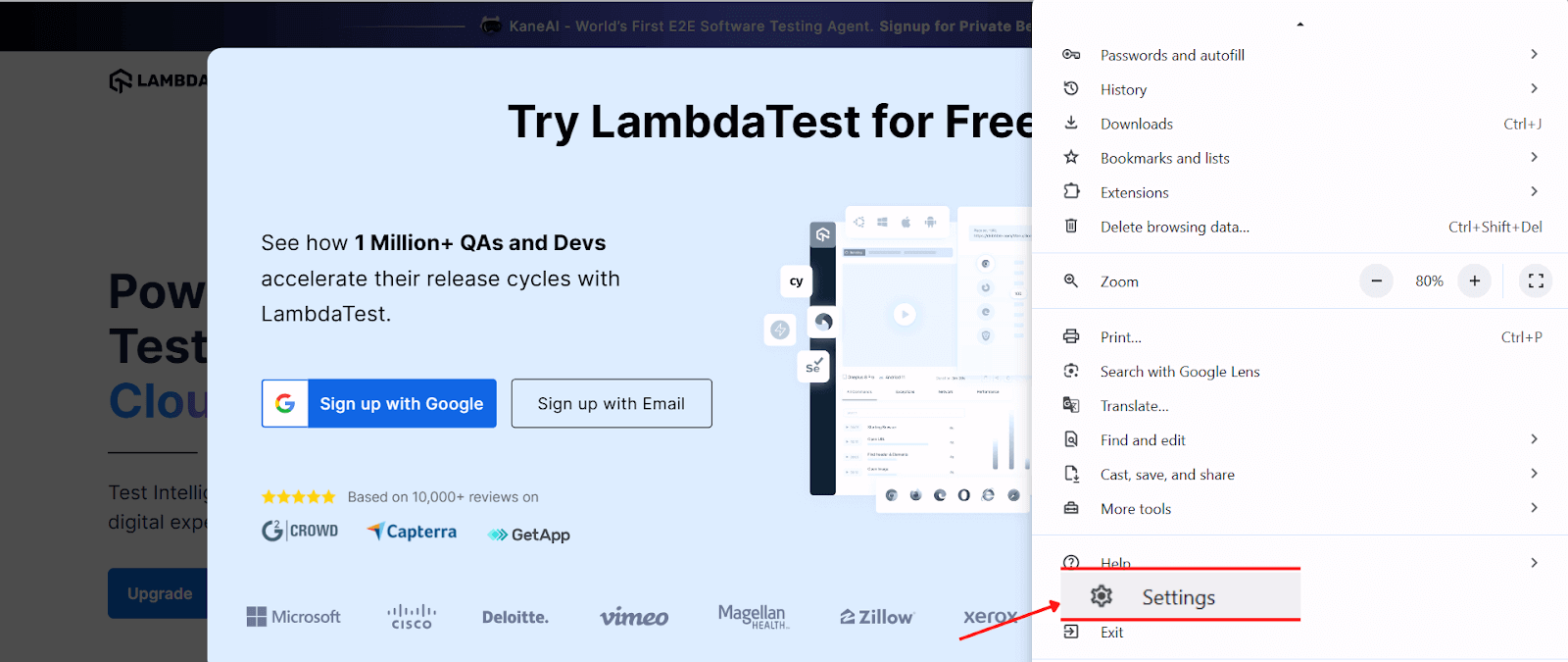
- Click the three dots (menu icon) in the top-right corner of Chrome and select Settings.
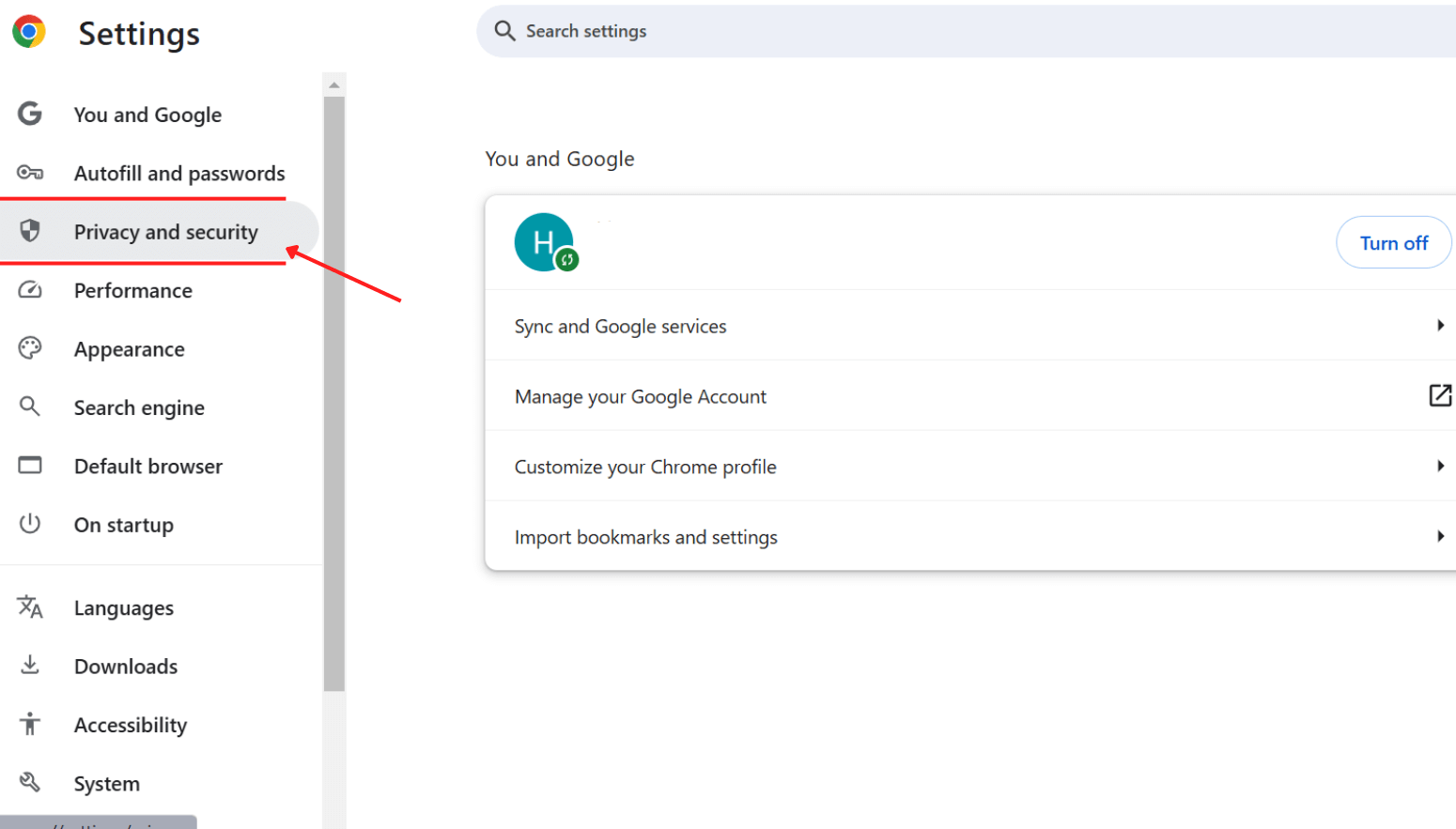
- In the left-hand menu, select Privacy and security.
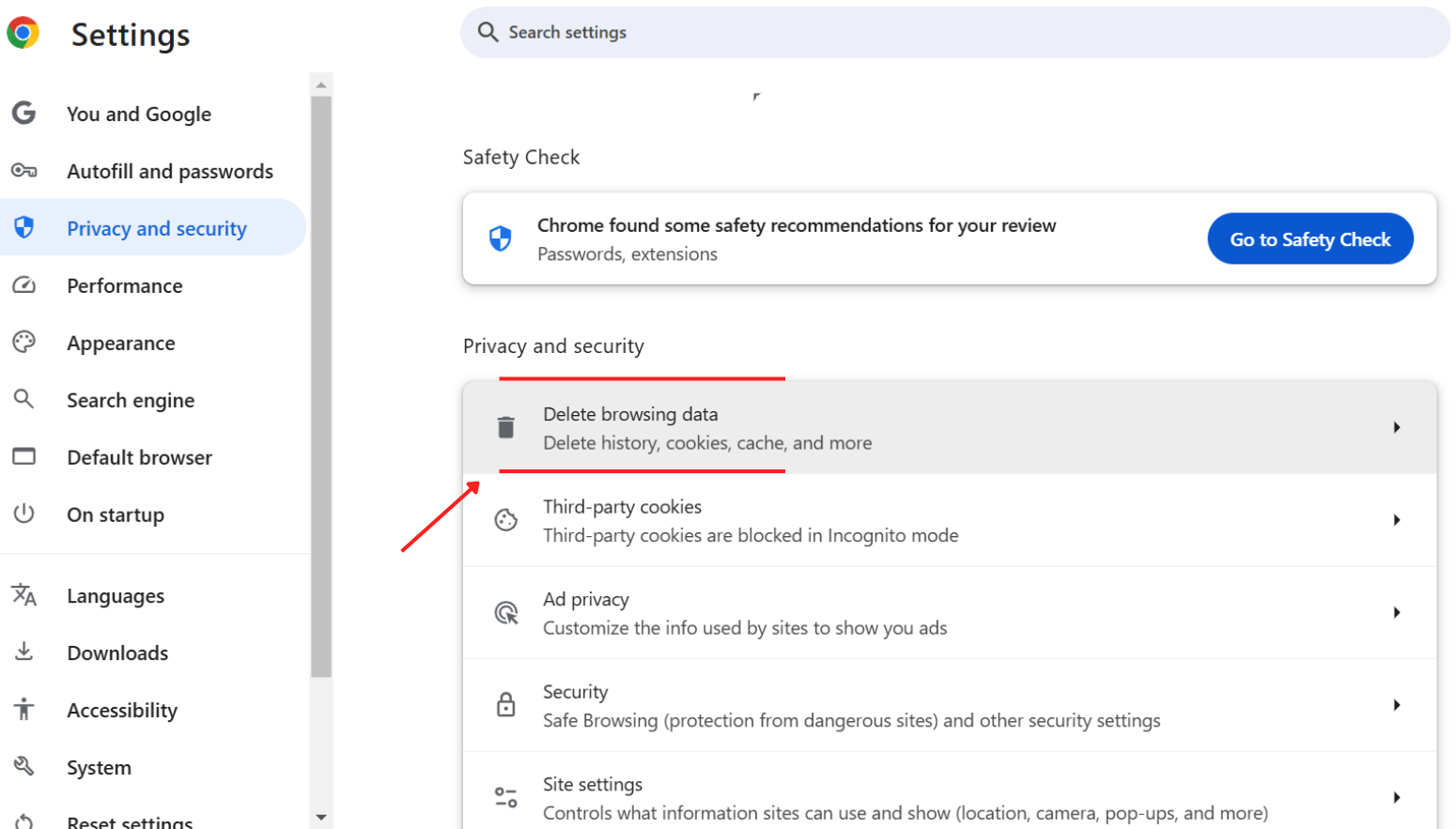
- Click on Delete browsing data.
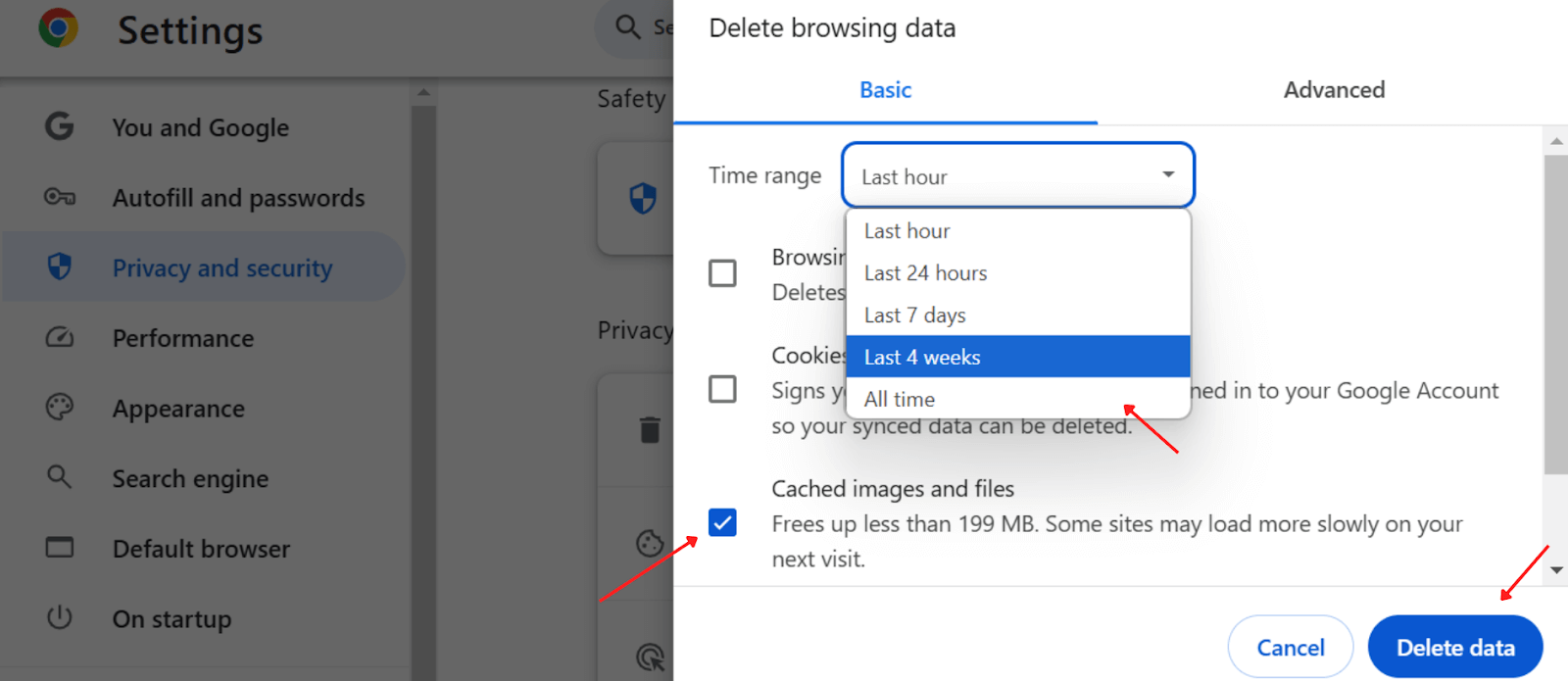
- In the pop-up window, ensure that Cached images and files are selected. You can choose the time range, but for thoroughness, selecting All time is recommended.
- Click Delete data to delete the cached files.
Steps to Refresh in Chrome by Resetting the Browser
Sometimes, refreshing or clearing the cache isn’t enough to resolve persistent issues. In such cases, you may want to reset Chrome to its default settings:
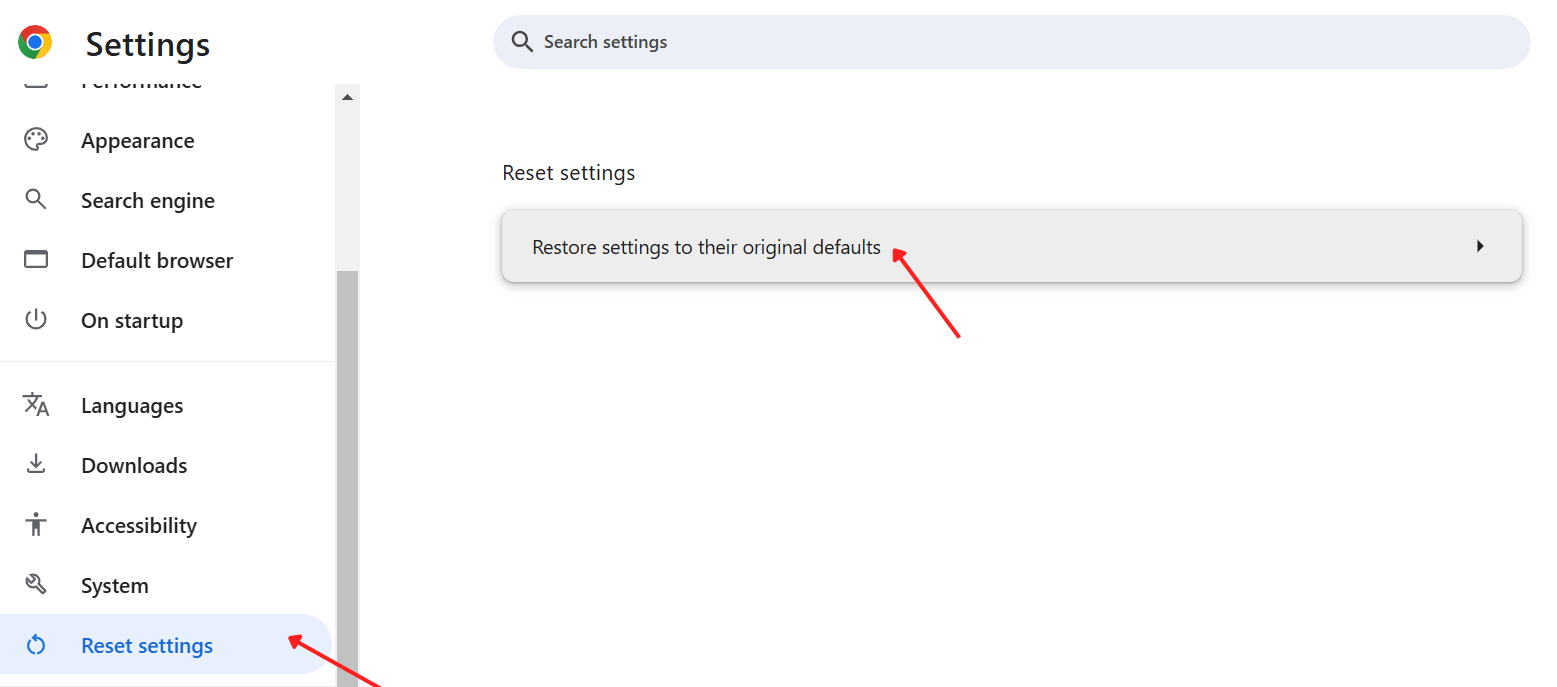
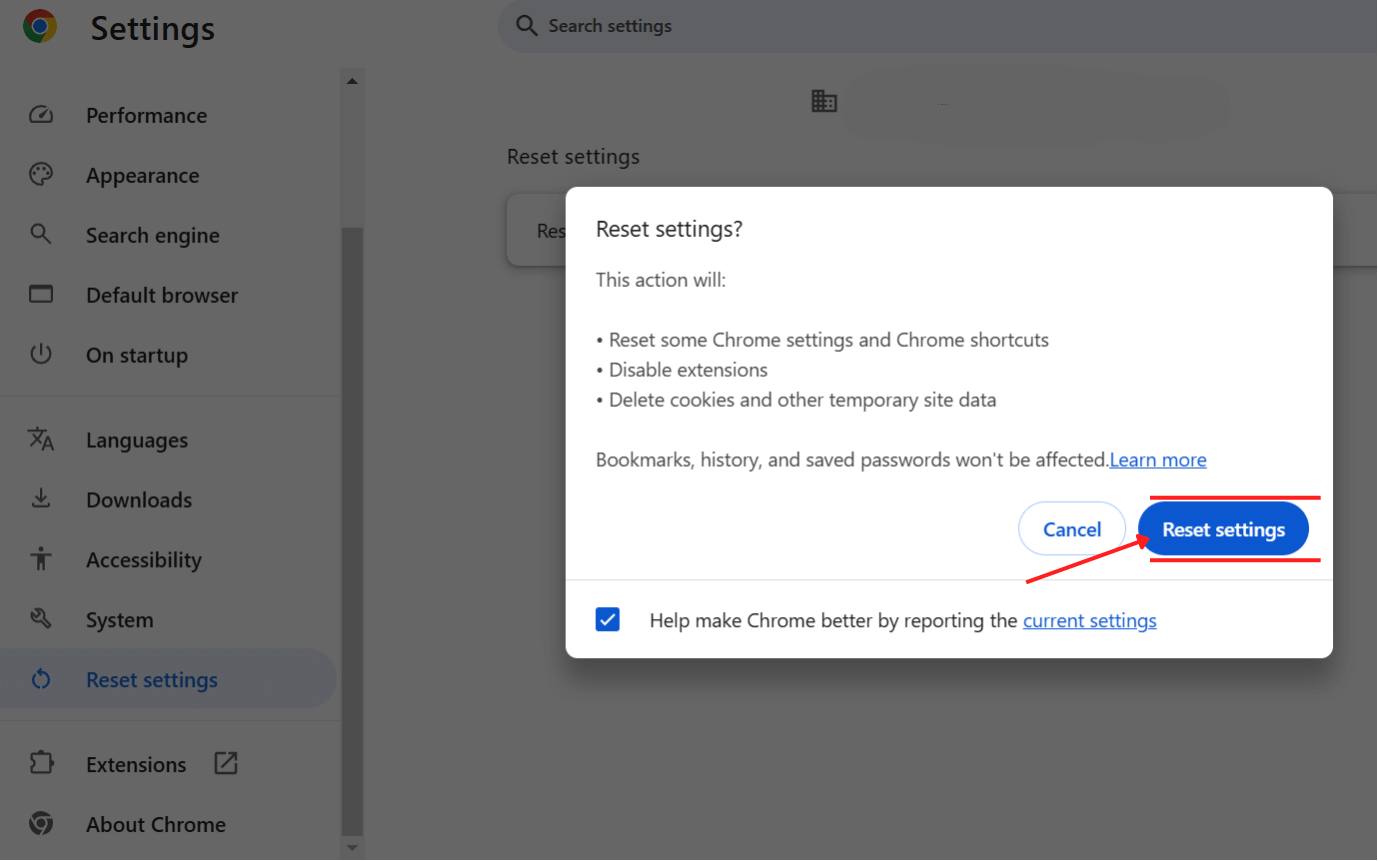
Below are the steps that you need to follow to rest Chrome browser:
- Click the three dots (menu icon) in the top-right corner of Chrome and select Settings from the dropdown menu.
- Scroll down and find the Reset settings section in the settings menu. Click on Restore settings to their original defaults.
- A confirmation pop-up will appear. Click on Reset settings to continue.
Alternatively, to quickly resolve any minor issues, you can also opt to restart Google Chrome. Remember to save any unsaved work, as all tabs will close. Here’s how to restart Chrome:
- On all devices except iPhone/iPad, enter chrome://restart in the address bar and press Enter to restart Chrome.

Troubleshooting Common Issues with Refreshing in Chrome
- Page Not Displaying Correctly: Try performing a hard refresh to force Chrome to load all new files.
- Persistent Website Errors: Clear the cache and cookies, then refresh the page.
- Changes Not Reflecting: After clearing the cache, perform a hard refresh to see the latest updates.
- Website Not Loading at All: Check your internet connection and try refreshing again, or launch the site in incognito to bypass the cache.
Conclusion
Refreshing a page in Chrome isn’t just about reloading content; it’s a key troubleshooting step. Refreshing in Chrome is a simple yet powerful way to fix common website issues, see the latest updates, and clear out old data. From ensuring you’re seeing the latest updates to clearing cached files that might cause website errors, understanding how and when to refresh or reset Chrome can significantly enhance your browsing experience.
By using these methods and shortcuts, you can effectively manage web pages, clear cache, and refresh websites on Google Chrome. Remember to use the right method based on your needs to keep your browsing smooth and hassle-free.


Frequently asked questions
Did you find this page helpful?
More Related Hubs
TestMu AI forEnterprise
Get access to solutions built on Enterprise
grade security, privacy, & compliance
- Advanced access controls
- Advanced data retention rules
- Advanced Local Testing
- Premium Support options
- Early access to beta features
- Private Slack Channel
- Unlimited Manual Accessibility DevTools Tests