

Next-Gen App & Browser Testing Cloud
Trusted by 2 Mn+ QAs & Devs to accelerate their release cycles


How to Use Playwright Wait For Navigation Methods
Learn how to use Playwright wait for navigation methods to ensure smooth, error-free interactions in your web automation scripts.

Ini Arthur
March 2, 2026
Playwright wait for navigation methods are crucial for handling actions like form submissions and ensuring the page is fully loaded before continuing. They help prevent errors when dealing with dynamic elements or content that hasn’t yet been updated in the DOM. By waiting for events like page loads or button clicks to finish, these methods ensure smooth and reliable interactions.
Overview
Playwright wait for navigation methods allows you to pause the test execution until navigation events like page loads, redirects, or page updates complete.
Types of Playwright Wait For Navigation Methods
- page.wait_for_event(): Waits until a particular page event, like navigation or a pop-up occurs.
- page.wait_for_function(): Waits until a specified JavaScript condition becomes true on the page.
- page.wait_for_load_state(): Delays actions until the page reaches the desired loading milestone.
- page.wait_for_url(): Pauses the test until the page URL matches a specific string or pattern.
Use Cases for Playwright Wait for Navigation
- Use page.wait_for_event() to pause until a specific browser event, like domcontentloaded, is triggered.
- Use page.wait_for_function() to pause execution until a JavaScript condition like a title match becomes true.
- Use page.wait_for_load_state() to pause test execution until the page finishes loading completely.
- Use page.wait_for_url() to pause until the URL matches a given pattern, such as ending with .*/blog/home$
page.wait_for_event()
As part of the Playwright wait for navigation approach, page.wait_for_event() is useful when you need to wait for an element to become visible or interactable before taking action. An example would be a form submission button becoming active only after all required form input fields have been filled out, or lazy-loading images.
Syntax:
page.wait_for_event(event)
page.wait_for_event(event, **kwargs)
page.wait_for_function()
This method is commonly used to pause execution until a JavaScript expression evaluates to a truthy value. It’s useful when you need to wait for specific JavaScript logic to complete, such as executing a function that triggers dynamic content loading.
Syntax:
page.wait_for_function(expression)
page.wait_for_function(expression, **kwargs)
page.wait_for_load_state()
This method is part of the Playwright wait for navigation approach and helps ensure execution is in sync with the expected behavior of the web page. You can use it to wait until the required load state has been reached before proceeding. It signals that page resources like images and files may have finished loading before you interact with UI elements.
Syntax:
page.wait_for_load_state(state)
page.wait_for_load_state(state, **kwargs)
page.wait_for_url()
This method is a core part of the Playwright wait for navigation strategy, allowing you to wait for the main frame to navigate to a given URL. A common use case is waiting for a load event after clicking a link, ensuring that you’ve successfully navigated to a new page.
Syntax:
page.wait_for_url("url")
page.wait_for_url("url", **kwargs)

Note: Run Playwright tests over 3000+ browsers and OS combinations. Try TestMu AI Today!
Prerequisites
To test how Playwright wait for navigation methods work, start by setting up Playwright locally on your system.
Follow the steps below to complete the setup:
1. Create a virtual environment
Create a folder for this project. In this case, we can name it waits_in_playwright.
mkdir waits_in_python
Navigate into the new folder and create a virtual environment (env). Use Python’s built-in venv module for this.
cd waits_in_python
python3 -m venv waits_in_playwright
Activate the virtual environment for the project.
source waits_in_playwright/bin/activate
2. Install Playwright pytest plugin:
Install the Playwright pytest plugin using the following command. Use pip for Python versions 2.x and pip3 for Python versions 3.x.
pip3 install pytest-playwright
Install the required browsers for running tests locally.
playwright install
You’re done setting up a virtual environment and installing Playwright.
Confirm everything is in order by checking the versions of your dependencies by following the commands below.
- For Python :
python3 – –version - For Playwright:
playwright – –version - For pytest:
pytest – –version
Now that all dependencies are in place, you can add a few capabilities to run your script on the TestMu AI platform. It is an AI-native test execution platform that lets you run manual and Playwright automated tests at scale across different environments.
To run your Playwright test on TestMu AI, first get your Username and Access Key by navigating to your profile avatar > Account Settings > and copying them from the Password & Security tab.
Use the TestMu AI Capabilities Generator to create capabilities that specify your preferred browser and its supported operating systems based on your needs.
Now that you have captured all the details from TestMu AI, all you need to do is paste them into your test script.
You must create a file called wait_fixture.py, where you’ll add all the necessary configurations for TestMu AI as shown in the code below.
oad_dotenv("../.env", override=True)
capabilities = {
   "browserName": "Chrome",  # Browsers allowed: `Chrome`, `MicrosoftEdge`, `pw-chromium`, `pw-firefox` and `pw-webkit`
   "browserVersion": "latest",
   "LT:Options": {
       "platform": "Windows 10",
       "build": "Waits in Playwright Python Build",
       "name": "Playwright Wait Navigation Python",
       "user": os.getenv("LT_USERNAME"),
       "accessKey": os.getenv("LT_ACCESS_KEY"),
       "network": True,
       "video": True,
       "console": True,
       "tunnel": False,  # Add tunnel configuration if testing locally hosted webpage
       "tunnelName": "",  # Optional
       "geoLocation": "",  # country code can be fetched from https://www.lambdatest.com/capabilities-generator/
   },
}
# Pytest fixture for browser setup
@pytest.fixture(name="browser", autouse=True, scope="module")
def browser():
   with sync_playwright() as playwright:
       playwrightVersion = (
           str(subprocess.getoutput("playwright --version")).strip().split(" ")[1]
       )
       capabilities["LT:Options"]["playwrightClientVersion"] = playwrightVersion
       lt_cdp_url = (
           "wss://cdp.lambdatest.com/playwright?capabilities="
           + urllib.parse.quote(json.dumps(capabilities))
       )
       browser = playwright.chromium.connect(lt_cdp_url, timeout=30000)
       yield browser
       browser.close()


# Pytest fixture for page setup
@pytest.fixture
def page(browser):
   page = browser.new_page()
   yield page
   page.close()


@pytest.fixture
def set_test_status(page):
   def _set_test_status(status, remark):
       page.evaluate(
           "_ => {}",
           'lambdatest_action: {"action": "setTestStatus", "arguments": {"status":"'
           + status
           + '", "remark": "'
           + remark
           + '"}}',
       )
   yield _set_test_status

Below is the code walkthrough that explains the code given in the file wait_fixtures.py in a step-by-step process.
Code Walkthrough:
- Import all necessary packages, including Playwright’s sync_playwright() function.
- Use the load_dotenv(“../.env”, override=True) method to read your TestMu AI username (LT_USERNAME) and access key (LT_ACCESS_KEY) stored in your .env file.
- The playwrightVersion variable holds the Playwright version retrieved via subprocess.
- lt_cdp_url connects to TestMu AI’s cloud Chrome instance
- playwright.chromium.connect() uses this URL to create a browser instance on TestMu AI.
- The @pytest.fixture decorator creates browser and page fixtures. The page fixture uses the browser.new_page(), yields the page for tests, then closes it after execution.
- The set_test_status() fixture allows you to mark test results as passed or failed by evaluating status and remarks in the page context.
To learn more about Playwright fixtures, follow this video from the TestMu AI YouTube Channel.
To understand the working of page, context, and browser in detail, follow this blog on Playwright fixtures.
Using the Playwright wait_for_event() Method
The method page.wait_for_event() waits for a specific event, such as a page load, to occur before proceeding, making it one of the key Playwright wait for navigation strategies.
Below is a test scenario demonstrating how this method works.
Test Scenario:
- Navigate to the homepage of the TestMu AI eCommerce Playground.
- Click on Shop by Category to reveal product categories.
- Click on the Cameras category.
- Use the page.wait_for_event() method to wait until the domcontentloaded is fired.
Code Implementation:
Here is the code implementation for the above test scenario.
def test_wait_event_navigation(page, set_test_status):
   page.goto("https://ecommerce-playground.lambdatest.io/")
   page.get_by_role("button", name="Shop by Category").click()
   page.get_by_role("link", name="Cameras", exact=True).click()
   # waits for event load to be completed
   page.wait_for_event("domcontentloaded")
   title = page.title()
   if "Cameras" in title:
       set_test_status(status="passed", remark="Title matched")
   else:
       set_test_status(status="failed", remark="Title did not match")
   expect(page).to_have_title("Cameras")
Below, you’ll find the code walkthrough for the Playwright wait for navigation method, page.wait_for_event().
Code Walkthrough:
- Import the page, browser, set_test_status fixtures, and the expect() function.
- Create a test_wait_event_navigation(page) function that takes a page fixture parameter. Go to the TestMu AI eCommerce website using the page.goto() method.
- Select and click the Shop by Category button using the page.get_by_role() locator.
- Select and click the Cameras link using the page.get_by_role() locator. As stated in step 3 above, use the Pick Locator tool to locate the Cameras link.
- Use the page.wait_for_event() method to wait for the DOM tree content to be fully loaded.
- Get the page title using the page.title() method and validate if it matches the expected value. Use set_test_status to set the status to ‘pass’ or ‘fail’ depending on the outcome, along with an appropriate remark.
- Use the expect() function to assert that the Cameras category page is fully loaded and has the title Cameras.
Use the codegen command and the Pick Locator tool to easily locate and generate the line of code for the Shop by Category link element.
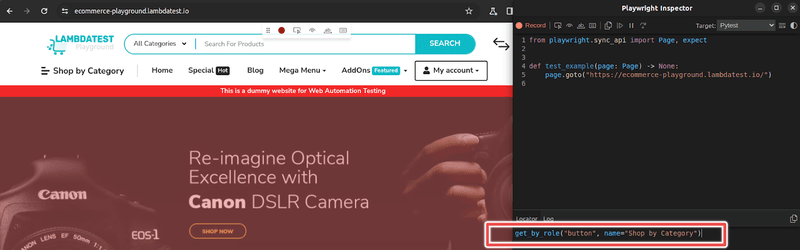
To learn more about locating elements using Playwright, follow this guide on Playwright locators.
Code Execution:
To execute the test code above, run the following command:
pytest test_wait_event_navigation.py
Using the Playwright wait_for_function() Method
The method page.wait_for_function() waits for a JavaScript function or expression to return a truthy value.
Below is the test scenario demonstrating how this method works.
Test Scenario:
- Navigate to the homepage of the TestMu AI eCommerce Playground.
- Click on Jolio Balia to reveal the author’s blog posts.
- Use the page.wait_for_function() method to wait for the JavaScript expression to resolve to true.
Code Implementation:
Here is the code implementation for the above test scenario.
def test_wait_function_navigation(page, set_test_status):
   page.goto("https://ecommerce-playground.lambdatest.io/")
   page.get_by_role("link", name="Jolio Balia", exact=True).nth(1).click()
   page.evaluate("() => document.title")
   # waits for function to return truthy value
   page.wait_for_function("title = 'Jolio Balia'; () => document.title === title")
   title = page.title()
   if "Jolio Balia" in title:
       set_test_status(status="passed", remark="Title matched")
   else:
       set_test_status(status="failed", remark="Title did not match")
   expect(page).to_have_title("Jolio Balia")
Below, you’ll find the code walkthrough for the Playwright wait for navigation method, page.wait_for_function().
Code Walkthrough:
- Use page.get_by_role() to select and click the Jolio Balia link.
- Use page.wait_for_function() to wait until the document title matches Jolio Balia.
- Retrieve the page title and set the test status using set_test_status() based on the result.
- Assert the title using the expect() function.
Code Execution:
To execute the above test code, run the following command:
pytest test_wait_function_navigation.py
Using the Playwright wait_for_load_state() Method
The method page.wait_for_load_state() waits for the web page to reach a specified load state.
Below is a test scenario demonstrating how this method works.
Test Scenario:
- Navigate to the homepage of TestMu AI eCommerce Playground.
- Wait for the website to load completely.
- Use the page.wait_for_load_state() to wait for the default load state to be reached.
Code Implementation:
Here is the code implementation for the above test scenario.
# page = fixtures.wait_fixture.page
def test_wait_state_navigation(page, set_test_status):
   page.goto("https://ecommerce-playground.lambdatest.io/")
   # wait for load state wait until naviagtion is complete
   page.wait_for_load_state() # load by default
   title = page.title()
   if "Your Store" in title:
       set_test_status(status="passed", remark="Title matched")
   else:
       set_test_status(status="failed", remark="Title did not match")
   expect(page).to_have_title("Your Store")
Below, you’ll find the code walkthrough for the Playwright wait for navigation method, page.wait_for_load_state().
Code Walkthrough:
- Use page.wait_for_load_state() to wait for the page to fully load.
- Retrieve and validate the homepage title.
- Set test status using set_test_status() and validate using the expect() function.
Code Execution:
To execute the above test code, run the following command:
pytest test_wait_state_navigation.py
Using the Playwright wait_for_url() Method
The method page.wait_for_url() waits for the web page’s main frame to navigate to a new URL or match a specified URL pattern.
Below is a test scenario demonstrating how this method works.
Test Scenario:
- Navigate to the homepage of TestMu AI eCommerce Playground.
- Select and click the Blog link using the page.get_by_role() method.
- Wait for the page to navigate to the matching URL pattern.
- Check that the URL pattern matches the URL of the loaded web page.
Code Implementation:
Here is the code implementation for the above test scenario.
def test_wait_url_navigation(page, set_test_status):
   page.goto("https://ecommerce-playground.lambdatest.io/")
   page.get_by_role("link", name="Blog", exact=True).click()
   # waits for navigated url to match url argument
   page.wait_for_url("**/blog/home")
   title = page.title()
   if "Blog - Poco theme" in title:
       set_test_status(status="passed", remark="Title matched")
   else:
       set_test_status(status="failed", remark="Title did not match")
   expect(page).to_have_url(re.compile(".*/blog/home$"))
Below, you’ll find the code walkthrough for the Playwright wait for navigation method, page.wait_for_url().
Code Walkthrough:
- Use page.get_by_role() to click the Blog link.
- Use page.wait_for_url() to wait for a matching URL pattern.
- Retrieve and validate the page title.
- Use set_test_status() to update the test status and assert the final URL using a regex with expect().
Code Execution:
To execute the above test code, run the following command:
pytest test_wait_url_navigation.py
To execute all test cases together, you can use the pytest-xdist plugin. First, install the pytest-xdist plugin using the following command in the console:
pip install pytest-xdist
Let’s execute all tests together by running the following command given below.
pytest -n 4
Let’s head back to the TestMu AI Dashboard to view the test results.
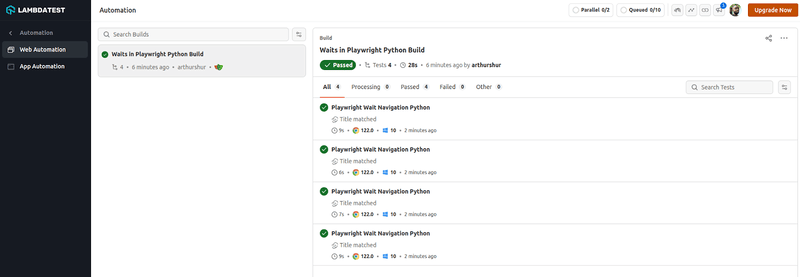
The above image shows a quick summary of all four tests you executed for each of the Playwright wait for navigation methods.
Conclusion
When you simulate user actions, such as navigation, clicking, and form filling, using an automation script, we need to wait at intervals to allow these actions to be completed before proceeding with other steps.
Implementing waiting in browser automation scripts ensures that web pages are fully loaded, elements are interactable, and tests become more stable and less prone to flakiness. Playwright provides methods that can be used to initiate waiting in automation scripts. These methods can be used to wait for an event, function, load state, or a matching URL.
We encourage using these Playwright wait for navigation methods when writing efficient automation scripts.
Citations
- Playwright Navigation: https://playwright.dev/docs/navigations


Frequently asked questions
Did you find this page helpful?
More Related Hubs
TestMu AI forEnterprise
Get access to solutions built on Enterprise
grade security, privacy, & compliance
- Advanced access controls
- Advanced data retention rules
- Advanced Local Testing
- Premium Support options
- Early access to beta features
- Private Slack Channel
- Unlimited Manual Accessibility DevTools Tests