

Next-Gen App & Browser Testing Cloud
Trusted by 2 Mn+ QAs & Devs to accelerate their release cycles


How to Use Playwright Tags to Organize Your Tests Effectively
Learn how to use Playwright tags to organize, filter, and run tests efficiently, with cloud-based execution on TestMu AI for faster CI/CD workflows.
December 28, 2025
As your test suite grows, managing and understanding individual tests becomes more challenging. Playwright tags provide a way to categorize and organize tests, adding metadata that gives context to each test.
They are used to filter, group, and maintain tests efficiently, enabling teams to distribute workloads, improve execution speed during CI runs, and target specific test groups or cases. Using Playwright tags ensures clarity and better control over the automation testing process.
Overview
What Are Playwright Tags?
Playwright tags are metadata labels assigned to test cases to categorize, organize, and manage them effectively. They help identify test purpose, feature, priority, or environment, enabling better control over large test suites and faster debugging.
What Are the Benefits of Using Playwright Tags?
The benefit of using Playwright tags is that you can select and run the most important tests efficiently.
- Selective Execution: Execute only relevant tests, skipping unnecessary ones to save time while focusing on critical functionalities efficiently.
- Improved Debugging: Quickly identify failing areas or specific features in your tests to speed up issue resolution effectively.
- Better Organization: Group related test cases logically without modifying existing code structures, making maintenance and readability much easier.
- Enhanced CI/CD Integration: Manage and control test execution within CI/CD pipelines, focusing on critical or environment-specific automated test runs.
- Team Collaboration: Tags clearly communicate test purposes, ensuring developers, QA engineers, and other stakeholders remain aligned on test intentions.
Why Are Tags Important During Testing?
Tags are essential for organizing, filtering, and prioritizing tests, especially during team triage, CI execution, and targeted debugging. They help teams focus on specific test groups, such as critical paths, regressions, or flaky tests, improving test management and decision-making.
How to Apply Playwright Tags?
Tags can be applied directly to individual tests using the tag property or to groups of tests via test.describe. Multiple tags can be combined for granular filtering and selective execution. Example:
test('user can login', { tag: ['@smoke', '@login'] }, async ({ page }) => {
  // Test steps
});
Advanced Use: Annotations & Cloud Testing
Annotations complement tags by adding rich metadata, such as expected failures, resolved bugs, or test ownership. Tags and annotations together enable better reporting, tracking, and automation. Running tagged tests in cloud environments like TestMu AI scales execution across multiple browsers and OS combinations, reduces local resource dependency, and integrates seamlessly with CI/CD pipelines.
What Are Playwright Tags?
In Playwright automation testing, tags are specific keywords used to identify, organize, and manage test cases effectively. By tagging tests, you can group related cases and execute them selectively, making test management more efficient.
For example, if you want to run only a subset of your test suite, Playwright tags let you execute exactly what you need, reducing overall execution time.
Playwright tags are helpful for the following reasons:
- Selective Execution: Tags let you run only required tests while skipping others. For example, execute performance-heavy tests with @slow.
- Faster Debugging: Tagged test failures instantly show which feature or area is affected. This makes debugging quicker and more focused.
- Better Organization: Tags act as metadata to group tests without code restructuring. A tag like @payment_flow can link purchase-related tests across files.
- Risk-Based Testing: Tags help prioritize critical or high-risk tests. Examples include @critical or @high_risk for time-sensitive runs.
- CI/CD Automation: Tags help split workloads and control execution in pipelines. For instance, @staging_only can run in dev and @production_safe after deployment.
- Easy Collaboration: Playwright tags clarify the purpose of each test, helping different teams stay aligned. QA might use @manual_test, while developers use @unit_test.
How to Use Playwright Tags?
Playwright tags let you label and organize tests with metadata, making it easier to filter, group, and run them efficiently. They improve test management and execution within large test suites.
Prerequisites:
To get started with Playwright tags, make sure you have the following prerequisites:
- Node.js & npm: Ensure both are installed on your system, as they are required to run Playwright, manage dependencies, and execute test scripts efficiently.
- Playwright Installation: Install using to npm init playwright@latest set up the necessary Playwright environment and sample tests.
- Test Project Setup: Have a basic Playwright test project ready with test files and configurations so you can run and validate tests immediately.
Setting Up Playwright Tags:
You can add tags in Playwright by setting them directly as metadata using the tags parameter.
No external libraries are required; tags are a built-in feature of Playwright and are available once you install the @playwright/test package.
Here’s a simple example using the @smoke tag:
const { test, expect } = require("@playwright/test");
const url = "https://ecommerce-playground.lambdatest.io/";
test("user can access the home page", { tag: "@smoke" }, async ({ page }) => {
  await page.goto(url);
  // confirm that the page was opened
  await expect(page).toHaveTitle("Your Store");
});
Running Playwright Tags at Scale
Let’s take a login test scenario to understand how Playwright tags work. For demonstration, we’ll use the TestMu AI E-Commerce Login Playground.
Test Scenario
- Open the TestMu AI eCommerce Login Playground.
- Enter the login credentials.
- Click the login button.
- Confirm whether the login is successful.
We’ll implement this test scenario on a cloud-based platform. Running Playwright tags in the cloud allows you to efficiently run Playwright tests, offering key benefits such as faster execution through parallel testing, the ability to target specific test groups across multiple browsers and operating systems, and reduced dependency on local machine resources.
This approach also makes it easier to integrate with CI/CD pipelines, ensuring only the most relevant tagged tests are executed when needed. One such platform is TestMu AI, which provides a scalable cloud grid for Playwright testing, allowing you to run manual and automated tests efficiently across 3000+ browsers and OS combinations.
To get started with TestMu AI, follow the steps below:
- Set TestMu AI Credentials: Configure your Username and Access Key as environment variables. You can find them under Account Settings > Password and Security in your TestMu AI dashboard.
- Generate Capabilities: Use the Automation Capabilities Generator to define your test setup, including OS, browser type, and browser version.
- Connect via WebSocket Endpoint: Use the TestMu AI Playwright wsEndpoint:
wss://cdp.lambdatest.com/playwright?capabilities
Code Implementation:
Let’s start by defining the test settings in the setup.js file, as shown below:
require("dotenv").config();
const { chromium } = require("playwright");
const cp = require("child_process");
const playwrightClientVersion = cp
  .execSync("npx playwright --version")
  .toString()
  .trim()
  .split(" ")[1];

const capabilities = {
  browserName: "Chrome",
  browserVersion: "latest",
  "LT:Options": {
    platform: "Windows 11",
    build: "Playwright Tags Build",
    user: process.env.LT_USERNAME,
    accessKey: process.env.LT_ACCESS_KEY,
    network: true,
    video: true,
    console: true,
    tunnel: false,
    geoLocation: "",
    playwrightClientVersion: playwrightClientVersion,
  },
};

exports.test = require("@playwright/test").test.extend({
  page: async ({ page }, use, testInfo) => {
    // Check if LambdaTest config is set
    if (process.env.executeOn !== "local") {
      // Set the test name to inherit the test title and tags
      capabilities["LT:Options"].name = `${testInfo.title} ${testInfo.tags.join(
        " "
      )}`;

      const browser = await chromium.connect({
        wsEndpoint: `wss://cdp.lambdatest.com/playwright?capabilities=${encodeURIComponent(
          JSON.stringify(capabilities)
        )}`,
      });

      const ltPage = await browser.newPage();
      await use(ltPage);

      const testStatus = {
        action: "setTestStatus",
        arguments: {
          status: testInfo.status,
          remark: testInfo.error?.stack || testInfo.error?.message,
        },
      };

      // Send test status back to LambdaTest
      await ltPage.evaluate((status) => {
        window.lambdatest_action = status;
      }, testStatus);

      await ltPage.close();
      await browser.close();
    } else {
      // If executing locally, use the Playwright page
      await use(page);
    }
  },
  beforeEach: [
    async ({ page }, use) => {
      await page
        .context()
        .tracing.start({ screenshots: true, snapshots: true, sources: true });
      await use();
    },
    { auto: true },
  ],
  afterEach: [
    async ({ page }, use, testInfo) => {
      await use();
      if (testInfo.status === "failed") {
        await page
          .context()
          .tracing.stop({ path: `${testInfo.outputDir}/trace.zip` });
        await page.screenshot({ path: `${testInfo.outputDir}/screenshot.png` });
        await testInfo.attach("screenshot", {
          path: `${testInfo.outputDir}/screenshot.png`,
          contentType: "image/png",
        });
        await testInfo.attach("trace", {
          path: `${testInfo.outputDir}/trace.zip`,
          contentType: "application/zip",
        });
      }
    },
    { auto: true },
  ],
});
Code Walkthrough:
- Import Required Modules: Set up browser capabilities including name, version, and TestMu AI options, using environment variables for your Username and Access Key.
- Override Page Fixture: Use the testInfo attribute to get execution details from the running test for better context and reporting.
- Run on Cloud Grid: Execute tests on TestMu AI when executeOn is not set to “local,” allowing seamless switching between local and remote execution.
- Combine Test Title & Tags: Extract test title and tags from testInfo and assign as the test name in TestMu AI for clear identification on the cloud grid.
- Connect to Cloud Grid: Initialize ltPage from the TestMu AI browser instance based on the defined capabilities.
- Track Test Status: Use testInfo to monitor test results and report them on the cloud grid for accurate tracking.
- Use Hooks for Failures: beforeEach and afterEach automatically capture screenshots of failed tests and store them in test-results, aiding debugging and analysis.
Prepare the Selectors: Let’s define the website’s selectors and expected page responses inside the selector/selector.js file.
const selectors = {
  loginForm: {
    emailField: "#input-email",
    passwordField: "#input-password",
    submitButton: '.btn[value="Login"]',
    errorElement: ".alert.alert-danger.alert-dismissible",
    errorMessage: " Warning",
  },
  dashboard: {
    title: "My Account",
  },
};

module.exports = selectors;
Code Walkthrough:
- Login Form: Defines the loginForm field selectors, including the error element. The errorMessage represents the message displayed when incorrect credentials are entered.
- Dashboard: Refers to the expected page title of the user’s dashboard after a successful login.
Preparing the Test File:
require("dotenv").config();
const { test } = require("../setup");
const { expect } = require("@playwright/test");
const selectors = require("../selectors/selectors");

const login_url =
  "https://ecommerce-playground.lambdatest.io/index.php?route=account/login";

const userEmail = process.env.USER_EMAIL;
const userPassword = process.env.USER_PASSWORD;
const wrongEmail = process.env.WRONG_EMAIL;
const wrongPassword = process.env.WRONG_PASSWORD;

test.describe("Login Suite", { tag: "@auth" }, () => {
  test(
    "user can log in with valid credentials",
    { tag: "@login" },
    async ({ page }) => {
      await page.goto(login_url);
      await page.fill(selectors.loginForm.emailField, userEmail);
      await page.fill(selectors.loginForm.passwordField, userPassword);
      await page.click(selectors.loginForm.submitButton);
      await expect(page).toHaveTitle(selectors.dashboard.title);
    }
  );

  test(
    "user cannot log in with invalid credentials",
    { tag: "@invalidLogin" },
    async ({ page }) => {
      await page.goto(login_url);
      await page.fill(selectors.loginForm.emailField, wrongEmail);
      await page.fill(selectors.loginForm.passwordField, wrongPassword);
      await page.click(selectors.loginForm.submitButton);
      await expect(page).toHaveTitle(selectors.loginPage.title);
    }
  );
});
Code Walkthrough:
- Import Dependencies: Import the required dependencies, including the test setup and selectors. Define the website’s URL and load both valid and invalid authentication credentials from the environment variable.
- Group Tests: test.describe puts both test scenarios in the same test group with the @auth tag, making it clear that this group mainly tests authentication activities.
- Successful Login Test: The first test case validates that the user can log in with the correct credentials. This test case uses the @login tag to indicate it’s testing a successful login scenario.
- Fill Login Form: Load the relevant selectors from the selectors array, fill each field with the required credentials, and click the submit button. All test cases extend the page instance from the setup.
- Assert Dashboard Access: Use the expect method to assert whether the user successfully lands on their dashboard by confirming the page title.
- Failed Login Test: The second test accounts for the expected behavior when a login attempt fails. It uses the @invalidLogin tag to signify that it focuses on testing failed logins.
- Assert Error Message: The test asserts a failed login attempt by checking if the error element contains a “Warning” text.
Test Execution:
Let’s execute the @auth test group on the TestMu AI cloud grid. First, ensure the value of executeOn is set to “cloud” in the environment variable file to activate the TestMu AI execution context.
executeOn=cloud
Next, filter the test execution by the tag name (@auth, in this case) using the –grep keyword.
Run the following command to execute the test:
npx playwright test --grep "@auth"
Check the execution on the cloud grid by going TestMu AI platform > Automation > Web Automation
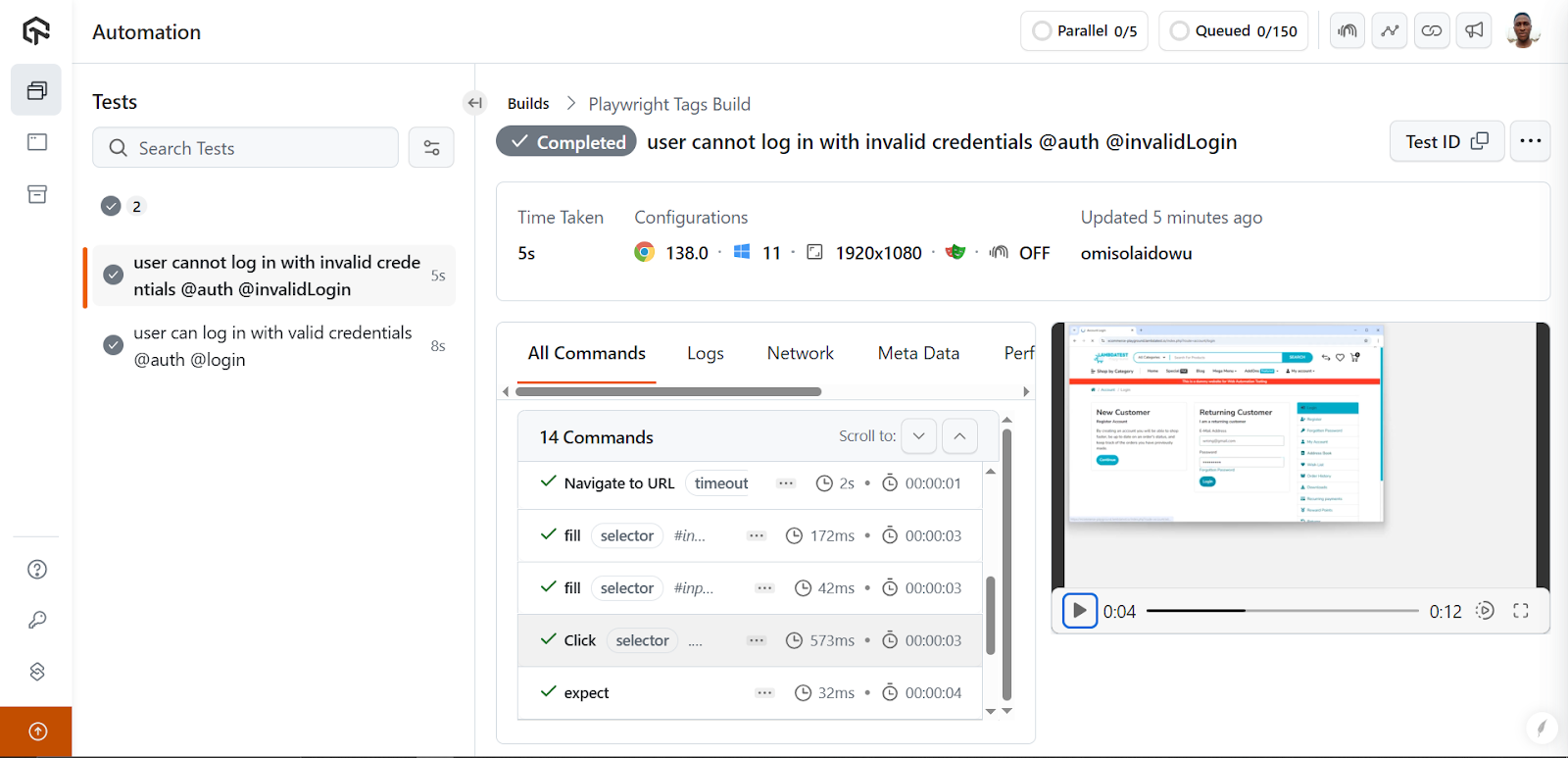
To get started, refer to the documentation on Playwright testing with TestMu AI.
Different Ways to Use Playwright Tags
You can apply tags in Playwright to control test execution and organization within larger test suites. Tags help you quickly target subsets of tests, making them useful for CI/CD pipelines, selective runs, and risk-based testing.
Filtering Tests Using Playwright Tags
Tags act as filters that let you run specific tests or groups of tests. Instead of running the entire test suite, you can target individual scenarios or related sets of tests by referencing their tags. This saves development time and resources.
The example test cases below share the same tag (@smoke) and validate whether the home page is accessible and if the user can click on a product category:
const { test, expect } = require("@playwright/test");
const url = "https://ecommerce-playground.lambdatest.io/";
test("user can access the home page", { tags: ["@smoke"] }, async ({ page }) => {
  await page.goto(url);
  // confirm that the page was opened
  await expect(page).toHaveTitle("Your Store");
});
test("user can click a category", { tags: ["@smoke"] }, async ({ page }) => {
  await page.goto(url);
  // click a product category
  await page.click(".figure-caption");
  // confirm that the page was opened
  await expect(page).toHaveTitle("Desktops");
});
You can then run only the tagged tests using the CLI:
npx playwright test --grep @smoke
Running Specific Tagged Tests
To run a specific test case and gain more control over execution, you can introduce an extra descriptive tag. For example, the second test case is testing the clickability of an element, so we add a @click tag to it while keeping the first test the same:
const { test, expect } = require("@playwright/test");
const url = "https://ecommerce-playground.lambdatest.io/";

test("user can access the home page", { tags: ["@smoke"] }, async ({ page }) => {
  await page.goto(url);
  await expect(page).toHaveTitle("Your Store");
});

test("user can click a category", { tags: ["@smoke", "@click"] }, async ({ page }) => {
  await page.goto(url);
  await page.click(".figure-caption");
  await expect(page).toHaveTitle("Desktops");
});
You can now run just the @click test:
npx playwright test --grep @click
Grouping Tests with Tags
Instead of tagging tests individually, you can group them by wrapping them inside the test.describe() method. This way, all tests inside the group inherit the group’s tag:
const { test, expect } = require("@playwright/test");

const url = "https://ecommerce-playground.lambdatest.io/";

test.describe("Purchase story", { tags: ["@purchase"] }, () => {
  test("user can access the home page", { tags: ["@smoke"] }, async ({ page }) => {
    await page.goto(url);
    await expect(page).toHaveTitle("Your Store");
  });

  test("user can click a category", { tags: ["@smoke", "@click"] }, async ({ page }) => {
    await page.goto(url);
    await page.click(".figure-caption");
    await expect(page).toHaveTitle("Desktops");
  });
});
Now both test cases are grouped under the @purchase tag, while still keeping their individual tags (@smoke, @click) for more granular control.
Using grep Functionality to Filter Tests
The –grep option lets you run specific tests by their tags. For example, the following runs all tests that have a @smoke tag:
npx playwright test --grep "@smoke"
You can also exclude tests by their tag using –grep-invert. The following command ignores tests with the @slow tag:
npx playwright test --grep-invert "@slow"
You can combine multiple tags using the pipe symbol (|). This runs any test matching any of the specified tags:
npx playwright test --grep "@smoke | @click | @login | @single"
Since both test cases were grouped under the @purchase tag in the previous example, you can run them together with:
npx playwright test --grep "@purchase"
Running the –grep command with @click selectively executes only the second test case:
npx playwright test --grep "@click"
Using Annotations With Custom Tags
Annotations provide a more fine-grained way to describe your tests by attaching metadata to test cases. While tags are useful for filtering, annotations add programmatic control over test execution, reporting, and documentation.
Playwright supports the following built-in annotations:
- test.skip(): Skips a particular test during execution.
- test.fail(): Marks a test as expected to fail (if it passes, it’s reported as an issue).
- test.slow(): Identifies a test as slow, automatically tripling its timeout.
- test.fixme(): Marks a test as failing and prevents it from running.
These annotations help you control test behavior without adding custom logic.
In addition, you can add custom annotations to attach specific metadata to your tests.
For example, you can link a test to an issue or mark it as related to a resolved bug:
import { test, expect } from "@playwright/test";

const url = "https://ecommerce-playground.lambdatest.io/";

test.describe("Purchase story", { tag: "@purchase" }, () => {
  test(
    "user can access the home page",
    {
      tag: "@smoke",
      annotations: [
        { type: "resolved", description: "bug #12 resolution" },
      ],
    },
    async ({ page }) => {
      await page.goto(url);
      await expect(page).toHaveTitle("Your Store");
    }
  );

  test.skip(
    "user can click a category",
    {
      tag: ["@smoke", "@click"],
      annotations: [
        { type: "issue", description: "Linked to bug #123" },
      ],
    },
    async ({ page }) => {
      await page.goto(url);
      await page.click(".figure-caption");
      await expect(page).toHaveTitle("Desktops");
    }
  );
});
In the above code:
- The first test runs with a @smoke tag and a resolved bug annotation.
- The second test uses Playwright skip test functionality with test.skip() and is linked to an open bug annotation
Run annotations with the CLI (all tests including skipped and annotated):
npx playwright test --reporter=list

Best Practices for Using Playwright Tags
Using tags effectively ensures your test suite is organized, maintainable, and aligned with business priorities. Thoughtful tagging improves filtering, reporting, and overall CI/CD efficiency.
- Define a Tagging Strategy: Design a consistent approach for how and when to use tags across your test suite. For instance, decide whether tags will represent test types (e.g., @smoke, @regression), features (e.g., @checkout, @login), priority levels (e.g., @high, @low), or environments (e.g., @staging, @production).
- Use Descriptive Tags: The purpose of each tag must be clear upfront to allow team members to evaluate and understand the intent behind each test case. Avoid using generic tag names that convey little or no meaning.
- Avoid Over-tagging your Tests: While tags are helpful filters, using too many can lead to conflicts of interest between test cases. Too many tags for a single test also reduce the effectiveness of filtering.
- Only Use Tags Where Relevant: Tags should only be used where relevant. Not all tests require a tag. For instance, tagging a single one-off test that verifies static UI elements, such as the homepage title, isn’t necessary. Use tags only when you need to group, filter, or report on specific test subsets.
- Consider the Business Goals: When tagging your tests, prioritize the business goal and value of the tags over their general functionality. Map your tags to real-world goals, such as release readiness, critical paths like @payment, or regulatory compliance.
- Organize and Filter Tests with Tags: Use tags to focus on specific test cases or groups. For instance, you can prioritize quick feature updates over new features. Additionally, separating test groups, such as @ui from @api, improves the efficiency of your Continuous Integration (CI) pipeline.
- Leverage Tags for Test Monitoring: Use tags to track different test intents, such as flaky tests, deprecated scenarios, or tech debt, to improve maintainability.
- Document your Tags: Clearly explain the meaning and intent of each tag to keep your team aligned with business goals and prevent misuse of tags. For instance, keeping a list of approved and unallowed tags with good and bad examples improves team member onboarding and tag consistency.
- Integrate Tags into your CI Pipeline: Using tags with your CI pipeline enables you to split tests across multiple machines. It also helps categorize test failures within the CI pipeline, making it easier for teams to triage issues, prioritize fixes, and maintain a more modular and efficient test suite.
Conclusion
You’ve learned about what Playwright test tags are, including how they work, use them, and the best practices for using tags with your tests. Tags are essential for organizing, managing, debugging, and filtering tests. They also foster team collaboration by making tests more understandable and trackable across the CI pipeline.
In addition, tags work hand-in-hand with Playwright timeouts. While tags help you select and run specific tests, timeouts control how long each test or action can run before being marked as failed. So when you execute a tagged subset of tests, their associated timeouts still apply, ensuring that long-running or problematic tests are properly monitored without affecting the rest of your suite.
Citations
- Playwright Annotations: https://playwright.dev/docs/test-annotations
Author


Frequently asked questions
Did you find this page helpful?
More Related Hubs
TestMu AI forEnterprise
Get access to solutions built on Enterprise
grade security, privacy, & compliance
- Advanced access controls
- Advanced data retention rules
- Advanced Local Testing
- Premium Support options
- Early access to beta features
- Private Slack Channel
- Unlimited Manual Accessibility DevTools Tests