

Next-Gen App & Browser Testing Cloud
Trusted by 2 Mn+ QAs & Devs to accelerate their release cycles


Performing Cross Browser Testing with TestMu AI
TestMu AI, is a free cross browser testing platform where you can test your website/ webapps across 2000+ OS, browser, browser versions, and resolutions on mobile and desktop devices can be your all time best friend for fulfilling your cross browser testing needs.

Deeksha Agarwal
January 11, 2026
This article is a part of our Content Hub. For more in-depth resources, check out our content hub on Cross Browser Testing Tutorial.
With so many options available in the market, the user always remains in a dilemma which tool to use. We are here to ease your problem and to help you how can you use the perfect tool to perform cross browser testing.
TestMu AI, a free cross browser testing platform where you can test your website/ webapps across 3000+ OS, browser, browser versions, and resolutions on mobile and desktop devices, can be your all time best friend for fulfilling your cross browser testing needs.
So, the various types of that you can perform using TestMu AI includes:
- Live testing on mobile and desktop devices.
- Visual UI testing to find out regression bugs using Screenshot testing, responsive testing, and Smart Testing.
Apart from real time testing where you get access to a real machine running choice of virtual environment, you can also log bugs directly to your favourite project management tool through easy integrations.
Single click bug logging as you can guess from the name, can help you move your bugs to bug tracker tools with just one click. So, this saves you from the pain of creating a bug, adding details, and even attaching screenshots as TestMu AI does that for you. TestMu AI comes with one click integration with tools like JIRA, Asana, Trello, Github, and Slack, and you can send issues directly to these tools with TestMu AI’s one click bug logging feature.
Coming back to performing cross browser testing, let’s start with Real time testing.
Performing Real Time Cross Browser Testing with TestMu AI
In real time live interactive cross browser testing, you can test your website/ web application across various browser and OS combinations on desktop and mobile devices. You can test as if you are using a real machine and not a virtual machine.
To get started, you need to login to TestMu AI first, if already have an account else sign up to TestMu AI.
Once you log in, you need to start your real time cross browser testing.
So, you need to go to real time menu, enter your URL which you want to test, select the configuration for which you want to perform cross browser testing and then click on start.
Boom!
A new virtual machine will be fired up in your local machine on which you can test your website/ web application for cross browser compatibility.
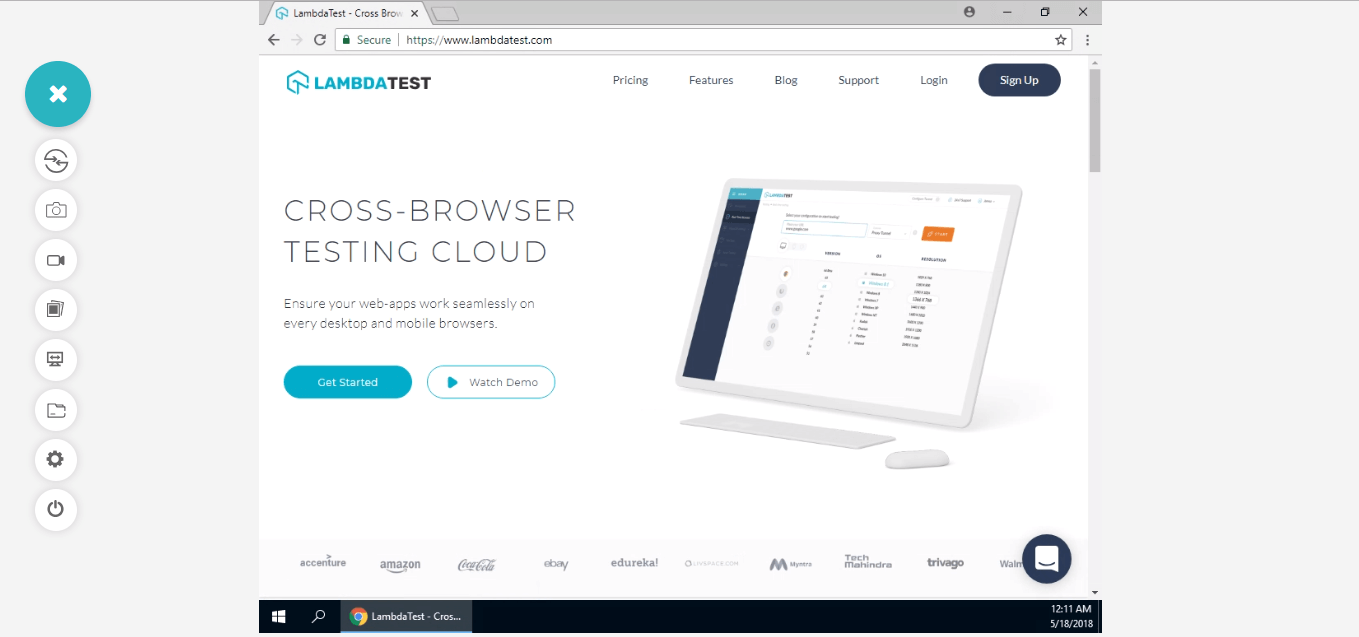
You’re all set with the configuration you selected. Now you can perform testing, take screenshots in between if you find a bug, mark as a bug, record video of the test session for further consideration, save image to your TestMu AI’s gallery, change the resolution of the machine on the go, move your test to a project, change basic settings, and once you’re done with the test you can end session.
You’ll find an additional ‘Switch’ feature on the top of the left menu bar which helps you in switching to a new configuration without the need of ending the session and re-launching it again. You can just select switch and the new configuration and the new VM will be up on your screen.
With so much features available, you will find everything handy while testing.
You can also perform real time testing on mobile devices. For this, you need to go to the mobile icon under real time testing.

Select the mobile device and then go ahead with your testing just like you did in desktop devices. In iOS simulators you’ll find an additional ‘Clear Cache’ functionality that lets you clear your cache while performing your testing so if you make some changes and you want to test them in the same session, you don’t need to go through the hassle of clearing cache following the long and hectic method, all you need to do is to just click on clear cache and you’re all set to test again.
Read more on how you can perform real time testing step by step with TestMu AI.

Austin Siewert
CEO, Vercel
Discovered @TestMu AI yesterday. Best browser testing tool I've found for my use case. Great pricing model for the limited testing I do 👏
2M+ Devs and QAs rely on TestMu AI
Deliver immersive digital experiences with Next-Generation Mobile Apps and Cross Browser Testing Cloud

This certification is for anyone who wants to stay ahead among professionals who are growing their career in Selenium automation testing.
Here’s a short glimpse of the Selenium 101 certification from TestMu AI:
Performing Visual UI Testing With TestMu AI
People just take 10th part of a second to make judgement about a website, so you need to make sure that your website doesn’t have any visual bugs. To make sure of this, TestMu AI’s visual UI testing can help.
You can perform Screenshot Testing, Responsive Testing, and Smart Testing under TestMu AI’s Visual UI Testing.
Performing Screenshot Testing With TestMu AI
With TestMu AI’s screenshot testing feature you can take as many as 25 screenshots at a time on different mobile and desktop configurations.
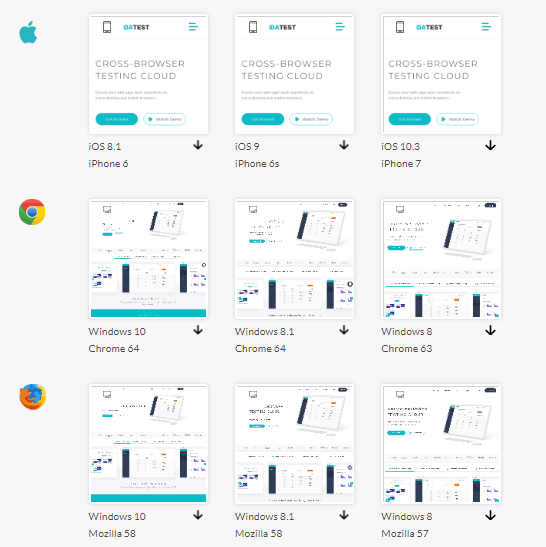
You can now download the screenshots,if you find any bug then you can mark it , move to some issue tracker tool, or save them.
As simple as that!
However, if you are worried about testing the responsiveness of your website, you need to perform responsive testing under Visual UI Testing section.
Responsive Testing With TestMu AI
In responsive testing, you can test how your website/ web app responds to various screen sizes with TestMu AI. You have to test your website for certain breakpoints. Based on market research, TestMu AI has selected a combination of various devices having different breakpoints and usability over the world.
So, you need to enter your URL and click on generate, all the screenshots on the selected devices will be available and you can test if your website is responsive or not.
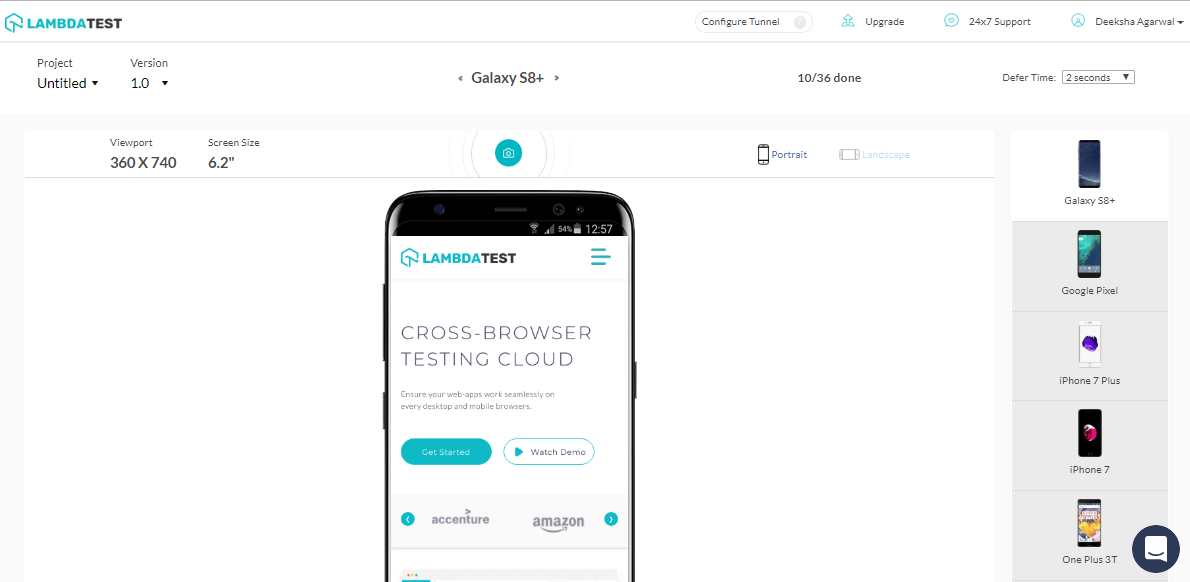
There are various other features like defer time, local host testing which adds grace to your testing requirements.
Smart Visual UI Testing with TestMu AI
Many times some of the bugs creep in with every new build and our poor eyes can not find them by merely looking at it. This is where TestMu AI’s technology for smart visual UI Testing comes into picture.
You can find some visual bugs like icon size, text size, font style, images, padding, etc which are difficult to figure out by just uploading screenshots for the same.
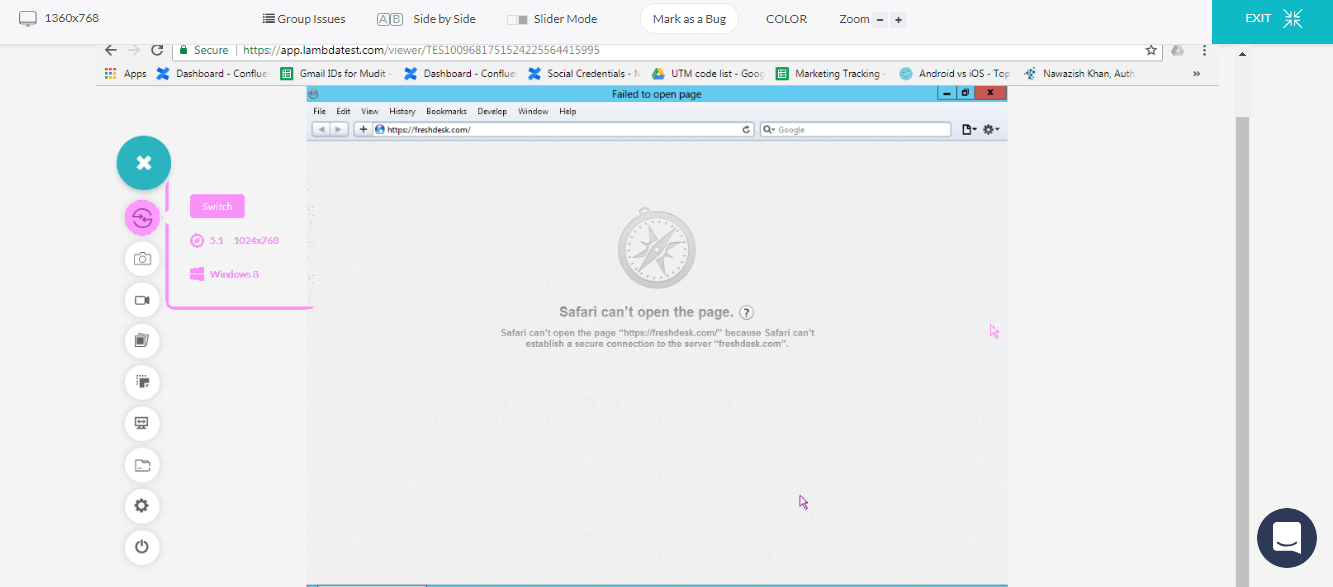
With the color change, you can figure out the visual differences between two or more images or screenshots at a time. You can then mark it as a bug, move to bug management tool, edit it and leverage it in many other ways.
If you want to know how to perform step by step smart visual visual UI testing, you can read more on it.
You can also use TestMu AI’s inbuilt issue tracker if you don’t use a third party bug management tool.
There are various other features of TestMu AI that are still to unveil 😉 All you have to do is to stay tuned.



Did you find this page helpful?
More Related Hubs
TestMu AI forEnterprise
Get access to solutions built on Enterprise
grade security, privacy, & compliance
- Advanced access controls
- Advanced data retention rules
- Advanced Local Testing
- Premium Support options
- Early access to beta features
- Private Slack Channel
- Unlimited Manual Accessibility DevTools Tests