

Next-Gen App & Browser Testing Cloud
Trusted by 2 Mn+ QAs & Devs to accelerate their release cycles


How to Use iPhone Simulator for Windows in 2026 (7 Best iPhone Simulators)
Run an iPhone simulator for Windows using TestMu AI, Appetize.io, Smartface, & more. Compare the top 7, free and paid, with step-by-step setup guides.

Harish Rajora
March 26, 2026
iPhone simulators for Windows let developers and testers run iOS apps on virtual devices, eliminating the need for physical iPhones or a Mac. These simulators replicate real device behavior, allowing testing across various iOS versions, screen sizes, and configurations in a faster, controlled environment.
In this blog, we’ll explore what simulators are and how to use an iPhone simulator on Windows.
Overview
An iPhone simulator for Windows allows users to mimic iOS environments without needing Apple hardware. It’s a practical solution for developers, testers, and enthusiasts who want to run iOS apps or explore the iOS interface on a Windows machine.
Different Ways to Use an iPhone Simulator on Windows
- Through browser-based simulators.
- By installing dedicated software tools like iPadian.
- Using TestMu AI's (formerly LambdaTest) cloud platforms that offer virtual iOS environments.
Benefits of Running iOS on Simulators VS Real Devices
- Accurate Performance Insights: Test real CPU, GPU, memory usage, thermal behavior, and battery drain under real-world conditions.
- Touch & Gesture Precision: Validate actual user interactions like swipes, taps, scrolls, multi-touch, and animations with native responsiveness.
- Real Network Simulation: Test under real mobile conditions such as 2G, 3G, 4G, LTE, or offline mode to assess app behavior with unstable or limited connectivity.
- Hardware Feature Validation: Access and test hardware-dependent features like the camera, microphone, GPS, Bluetooth, Face ID, and Touch ID.
What Are Simulators?
An iPhone simulator for Windows replicates the iOS software environment, the interface, app behavior, and screen sizes, without recreating Apple's ARM chipset.
This means simulators are accurate for UI testing and early-stage functional testing, but cannot replicate hardware-dependent features like Face ID, the camera, Bluetooth, or GPS. Those require a physical device.
For instance, flight simulators offer a virtual experience of flying because of the way they depict how simulation can effectively mirror real environments.

If we focus solely on flight simulation, it’s more than just playing a video. It involves simulating parameters like wind speed, airplane speed, and routing. In essence, it recreates the flight experience accurately.
Simulator vs Emulator: the Key Difference
| Simulator | Emulator | |
|---|---|---|
| What it replicates | iOS software behavior and UI | Both hardware and software |
| Hardware accuracy | Low | High |
| Performance | Fast, lightweight | Slower, resource-intensive |
| Hardware features (camera, GPS, Face ID) | Not supported | Partially supported |
| Best for | UI testing, layout checks, early-stage dev | Deeper functional testing |
Need For an iPhone Simulator For Windows
Windows developers and QA teams cannot access Xcode or a physical Apple device lab on demand. An iPhone simulator for Windows fills that gap. The three main use cases are:
- App testing on Windows: Acquiring enough real iPhone hardware to cover every iOS version and device model is expensive and slow to set up. Simulators let QA teams test immediately across configurations without procurement delays.
- iOS app development on Windows: Frequent code changes make testing on physical devices impractical. Simulators let developers iterate quickly, writing code in Android Studio for Flutter, for example, and verifying changes on a virtual iPhone in the same session.
- Running iOS-exclusive apps: Some apps are only available on the App Store. A simulator lets Windows users access and interact with them without owning an iPhone.

Note: Test your iOS apps on online simulators. Try TestMu AI now! Try TestMu AI Today!
7 Best iPhone Simulators for Windows in 2026
Here is a quick comparison before the full reviews:
| Tool | Type | Best For | Pricing | Free Tier |
|---|---|---|---|---|
| TestMu AI | Cloud | QA testing, developers | Paid (free tier available) | 100 minutes free |
| Appetize.io | Cloud | Demo, quick UI checks | $59/month Starter | 30 min/month |
| iPadian | Native app | Casual users, UI preview | $9.99 one-time | No |
| Smartface | Native + Cloud | iOS app development on Windows | Enterprise licensing | No |
| Remoted iOS Simulator (Xamarin) | Paired Mac required | .NET / Xamarin developers | Free with Visual Studio | Yes |
| Electric Mobile Studio | Native | Professional development | Contact sales | Free trial |
| macOS via Virtual Machine | VM | Xcode access, full iOS Simulator | Cost of macOS + VM software | No |
1. TestMu AI
TestMu AI runs a cloud-based iOS environment directly in your Windows browser, no installation, no Mac, no Xcode. It supports iPhone 6 through iPhone 16 Pro Max across iOS 9 to iOS 18, with instant access from day one.
Sessions include geolocation testing across 170+ countries, network throttling (2G–5G), screenshots, bug logging, and mid-session device switching between iPhone and iPad models.
Best for: QA engineers and developers who need reliable iOS testing on Windows without Apple hardware.
Limitation: Hardware features like Face ID and Bluetooth require real device cloud.
Pricing: 100 free minutes on signup. No credit card required.
2. Appetize.io
Appetize.io is a browser-based iOS simulator, upload your .ipa file, get a shareable URL, and test on a virtual iPhone from any Windows machine. No installation required. It covers iPhone 6S to iPhone 15 Pro Max and iOS 10–17, with session recording, CI/CD API, and shareable review links.
Best for: App demos, QA teams sharing bug-reproduction sessions, and light testing needs.
Pricing: Free (30 min/month), $59/month Starter, $319/month Premium.
3. iPadian
iPadian replicates the iOS home screen, icons, and navigation on Windows but cannot run real App Store apps, all apps are iPadian-specific. Requires Adobe AIR to install.
Best for: Non-developers exploring the iOS interface. Not suitable for testing or development.
Pricing: $9.99 one-time purchase.
4. Smartface
Smartface is a cross-platform development environment for building and testing iOS apps on Windows without a Mac. It supports JavaScript and TypeScript with a WYSIWYG editor, integrated debugger, and React Native, Ionic, Cordova, Swift, and Objective-C.
Connect a real iPhone over USB for on-device testing or use the cloud simulator for remote runs.
Best for: Developers building iOS apps on Windows who cannot justify Mac hardware.
Pricing: Enterprise licensing plans.
5. Remoted iOS Simulator for Windows
Part of Microsoft's Xamarin and .NET MAUI toolset. It pairs your Windows PC with a networked Mac and mirrors the Xcode iOS Simulator into Visual Studio on Windows, free, and highly accurate since it uses Apple's official simulator.
Best for: .NET and Xamarin developers with a Mac available who prefer working in Visual Studio on Windows.
Limitation: Requires a physical Mac on your local network.
6. Electric Mobile Studio
Windows-native iOS emulator with Visual Studio integration, Chrome DevTools, Safari Web Inspector, and screenshot and recording support.
Best for: Enterprise Windows developers who need deep Visual Studio integration for iOS development.
Pricing: Free trial available. Contact sales for full pricing.
7. macOS via Virtual Machine
Running macOS in VMware Workstation or VirtualBox gives you full Xcode access and Apple's official iOS Simulator on Windows hardware, the only method here that delivers the complete Xcode toolchain.
Best for: Developers who need full Xcode access on Windows and have the hardware to support it.
System requirements: 16GB RAM, 100GB+ storage, VT-x or AMD-V enabled in BIOS.
How to Use iPhone Simulator For Windows
With a clear understanding of the iPhone simulator for Windows and why teams use it, here is how to get started.
- Run macOS on Windows through a Virtual Machine
- Third-Party Simulators and Emulators
- Cloud-based simulator platform
Run macOS on Windows through a Virtual Machine
Running macOS in a VM lets developers install Xcode and use Apple's native iOS Simulator on Windows, without owning a Mac. Note that this approach is not officially supported by Apple and technically falls outside their licensing terms.
Here is how you can do that:
- Use any virtual machine software like VMware or VirtualBox.
- Get a macOS ISO/VMDK file (from Mac App Store or trusted source).
- If using VMware, install a macOS unlocker to enable macOS as a guest OS.
- Create a new virtual machine and install macOS.
- Set up macOS, install Xcode from the App Store, and launch the iPhone simulator via Xcode.
Third-Party Simulators and Emulators
You can run an iPhone simulator for Windows by installing native apps like iPadian directly on your PC, a tool used by over 1 million users to simulate the iOS experience on Windows.
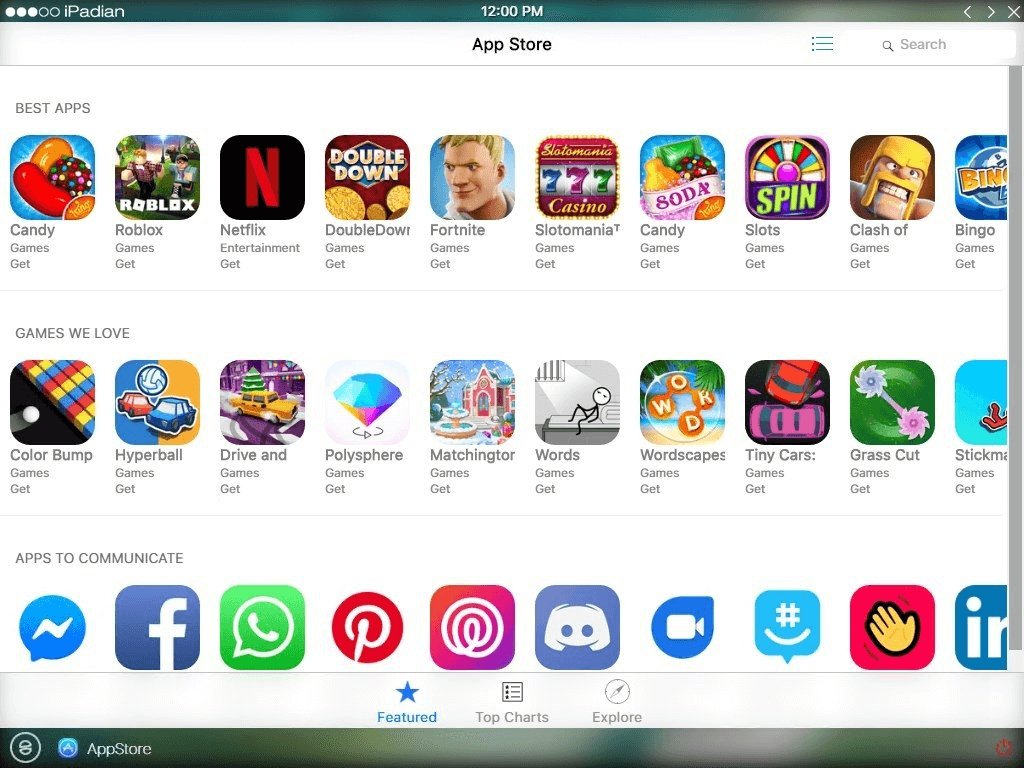
Native app simulators allow users to download and install them on Windows PCs, expanding the target audience. However, they lack an authentic iPhone experience and can consume significant system memory with multiple apps.
In the real world, their inaccurate iOS representation means testers cannot reliably validate UI layouts, visual design, or app behavior, making them unsuitable for testing and development.
Target audience – All users and testers, except developers (if they want to code and use).
To get started, learn how to perform mobile app testing with emulators and simulators.

Cloud-Based Simulator Platform
The most optimal solution is to utilize a cloud-based simulator platform, no installation needed, just a browser and an internet connection. The provider manages all device setup, storage, and maintenance, with new devices added continuously as they release.
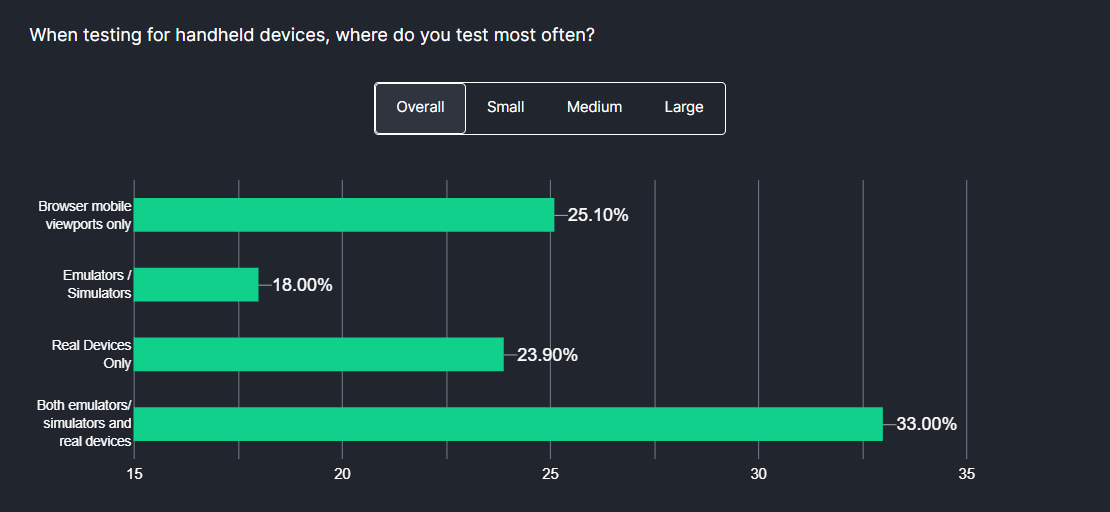
According to the Future of Quality Assurance survey, 33% of organizations use a mix of emulators/simulators and real devices for Mobile device testing, a hybrid approach that ensures broader coverage across device configurations and test scenarios.
The platform provides access to real iOS devices, emulators, and simulators through an online device farm, purpose-built for iOS app development and testing.
TestMu AI suits general users installing apps, developers testing code changes, and QA teams validating iOS apps manually or through automation, all from one platform.
Let’s learn how to use TestMu AI to conduct mobile iPhone simulators for Windows by following the steps below.
- Create an account on TestMu AI.
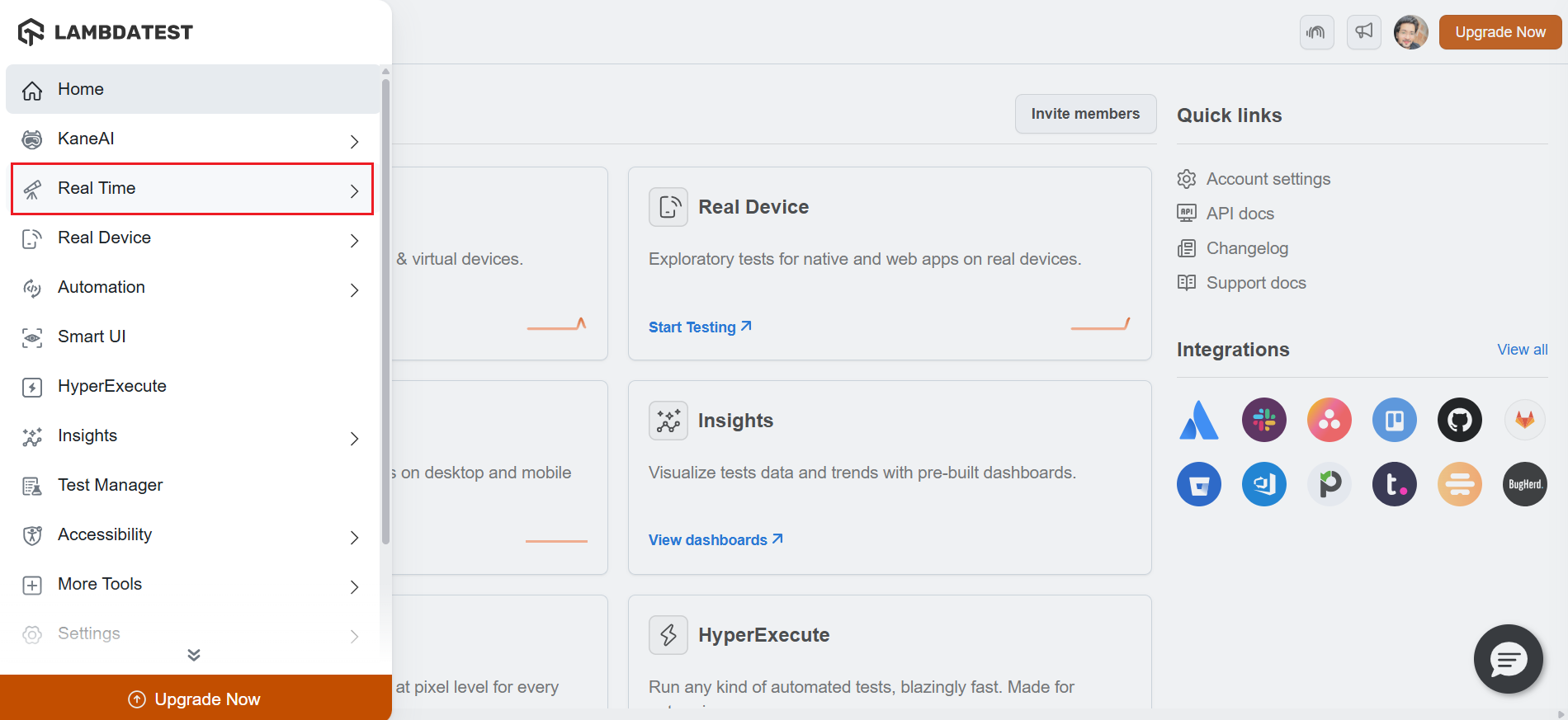
- Navigate to the Real Time option from the left menu.
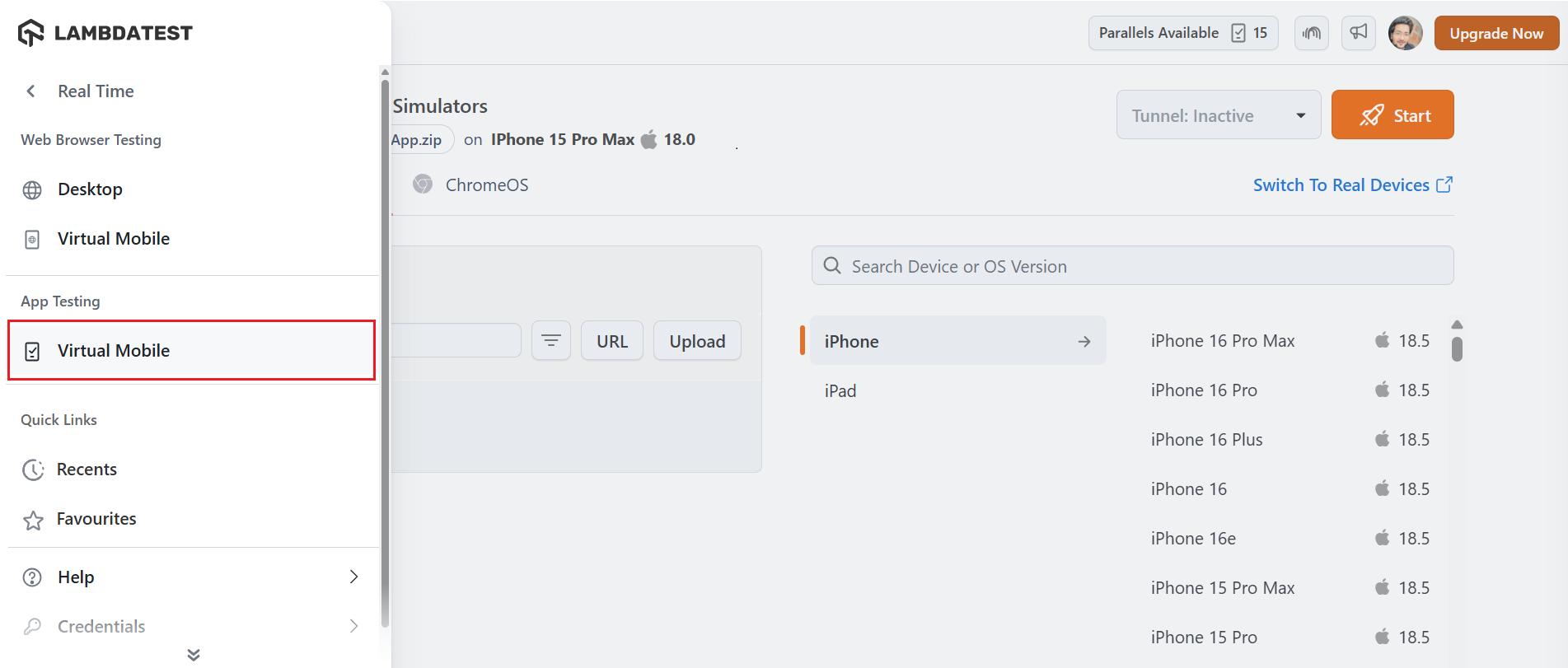
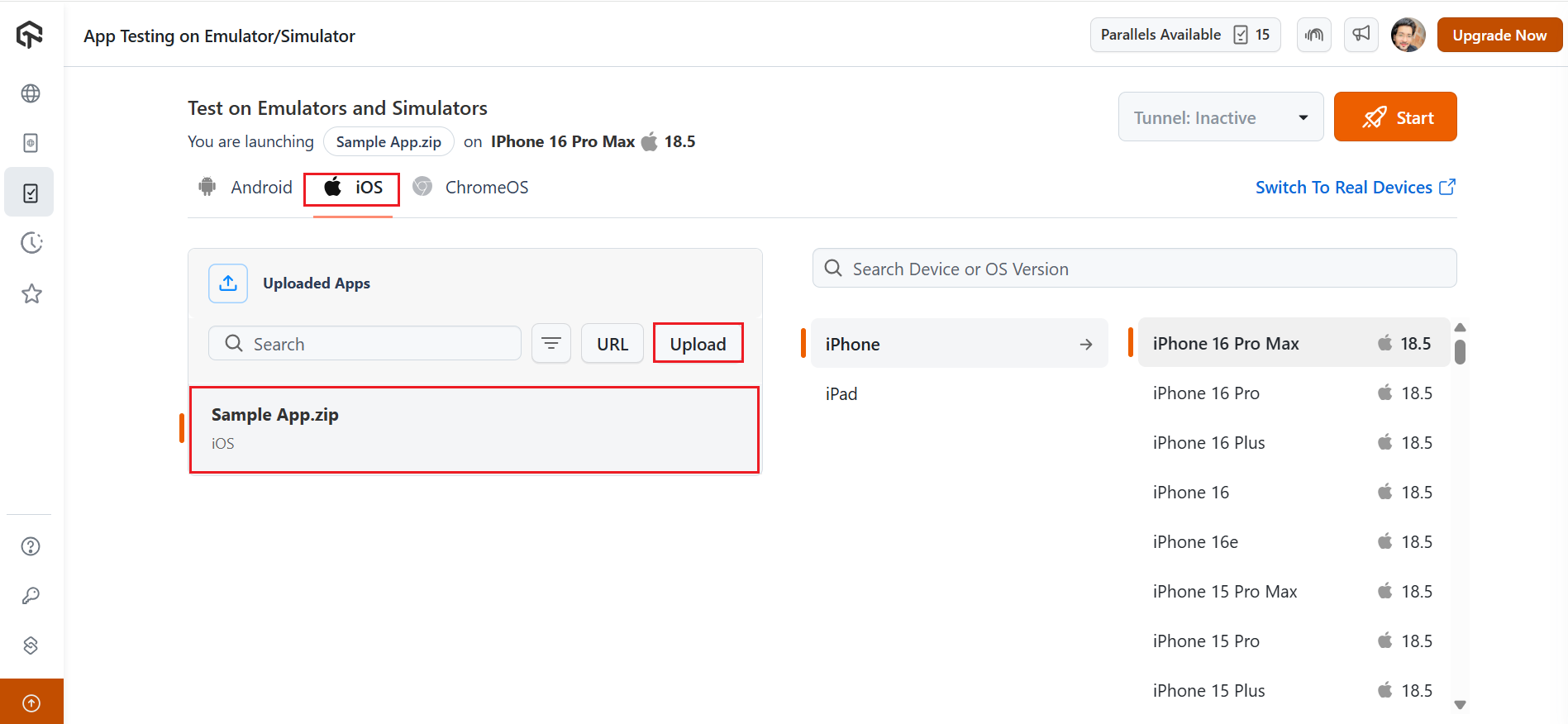
- Select the Virtual Mobile option under the App Testing section.
- Select the iOS operating system and upload your mobile app.
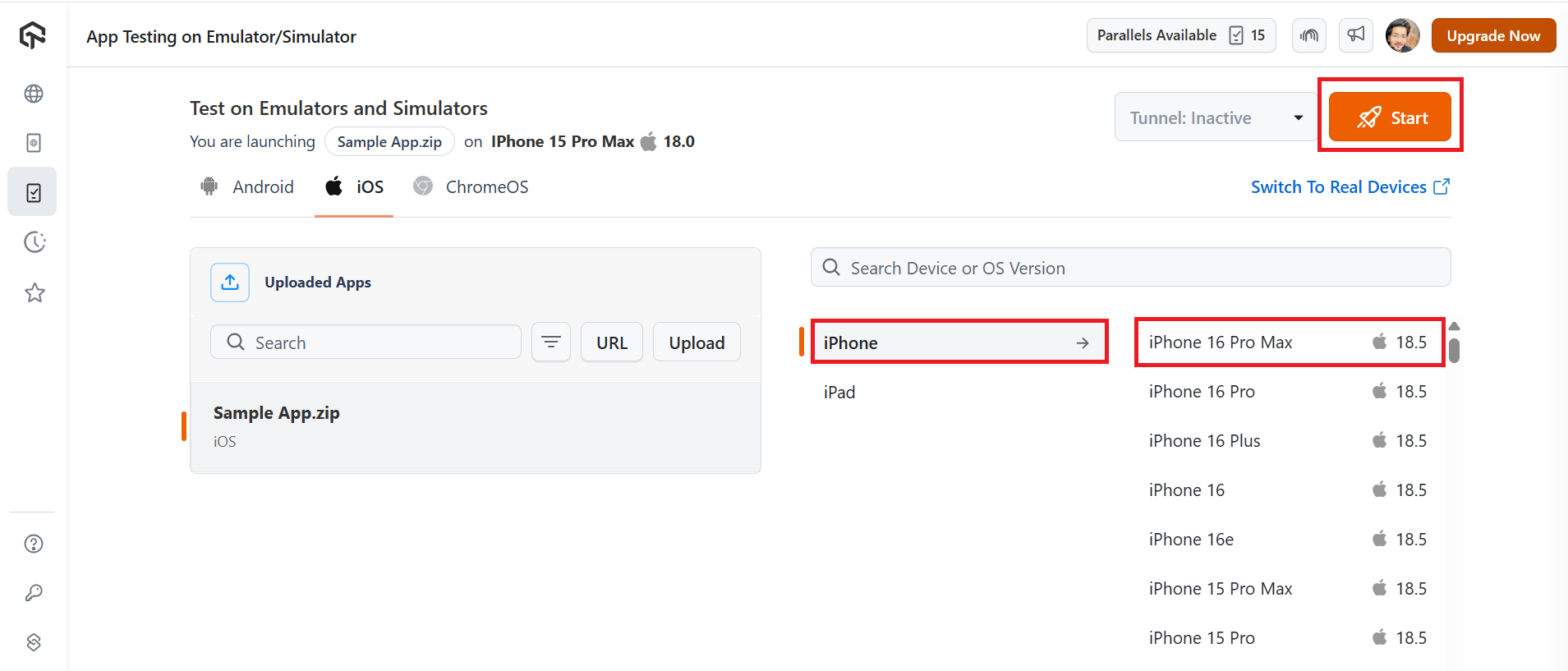
- Select from the iPhone, iPad, and iOS device models on which you wish to run the tests. For demonstration purposes, we will select the iPhone and the iPhone 16 Pro Max as the device model. Now click the Start button.
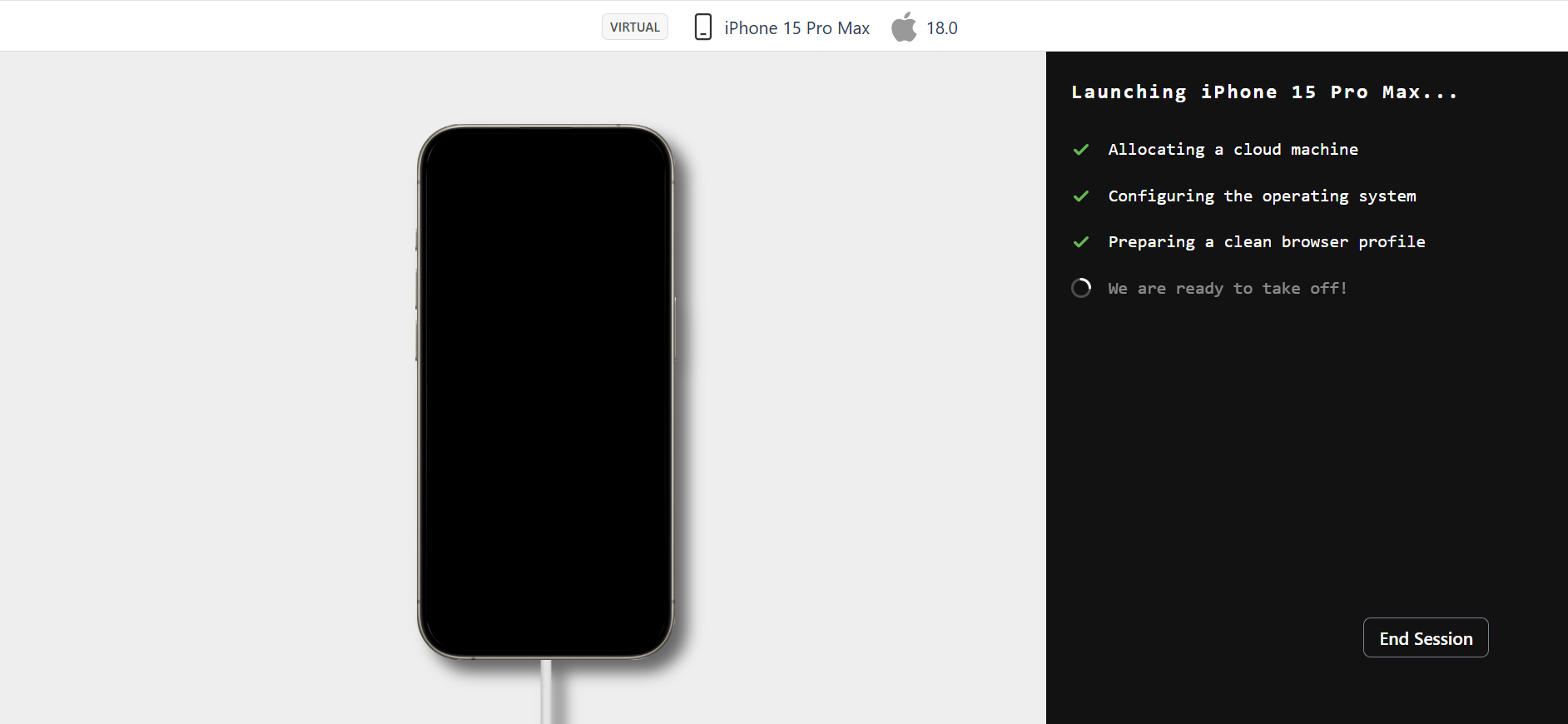
- Your iOS simulator will be launched in a cloud environment based on the selected configuration.
- You can perform various actions on the iOS simulator using the options in the left menu. Some of these options are particularly useful for real-time testing:
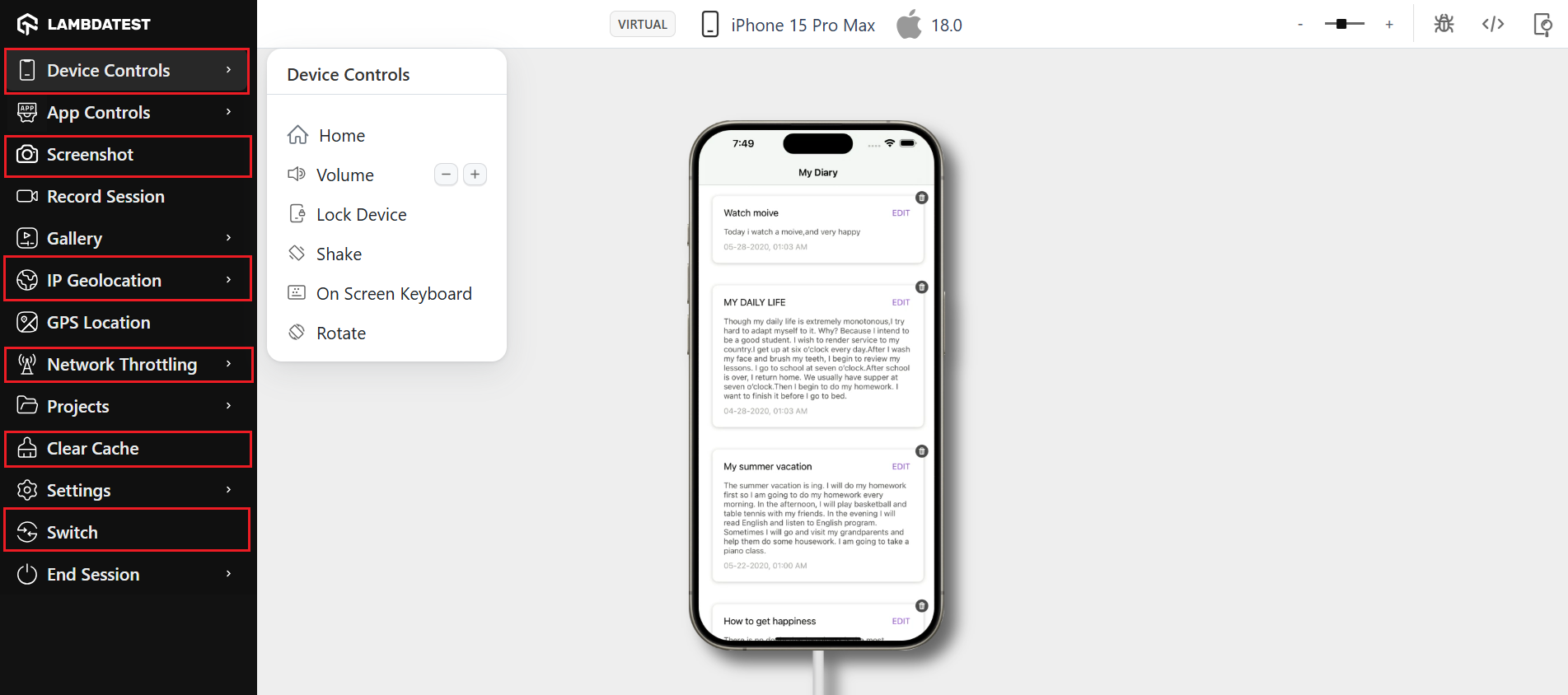
- Device Control: This option allows you to control the basic activities of an iOS device, such as locking the device, adjusting the volume, and rotating the screen.
- Screenshot: You can use this option to capture the activity on the screen while performing real-time testing on the iPhone simulator.
- Mark as Bug: If you encounter any bugs during testing, you can use this option to capture them and report them to your team members.
- Geolocation Testing: It allows you to change the geolocation to test how your application behaves and appears across different geographical locations.
- Switch Device: To check your application’s appearance on an iPad, simply go to the Switch option and change the device.
To learn more, check out the below tutorial on real-time testing using emulators and simulators.
Subscribe to the TestMu AI YouTube Channel for more video tutorials on automation testing for mobile and web applications. Explore tutorials on mobile app testing, appium, and more.

Benefits of running iOS on Simulators VS Real Devices
Simulators work well for early-stage testing but fall short on real device behavior. TestMu AI provides instant access to real iPhones and iPads for accurate validation, without maintaining physical hardware.
| Aspect | Real iOS Devices | Simulators |
|---|---|---|
| Performance Accuracy | Real hardware metrics for CPU, memory, and battery | Approximate performance; doesn’t reflect real-world usage |
| UI/UX Testing | Precise gestures, touch, and animations | Limited support for touch and visual responsiveness |
| Hardware Feature Support | Full access (camera, GPS, Face ID, sensors, etc.) | Most hardware features are not supported |
| Debugging & Crash Analysis | Detects real-world issues, especially device/OS-specific bugs | May miss bugs that only appear on actual devices |
| Network Condition Testing | Supports real network behavior (4G/5G, signal drops, latency) | Simulated network conditions are not fully realistic |
| App Store Readiness | Ensures app behaves correctly on real devices before release | Doesn’t fully reflect production behavior |
Conclusion
iPhone simulators for Windows are practical for UI checks and early-stage testing, but they replicate visuals, not hardware behavior.
Simulators cannot accurately reflect how an app performs on a real device. Results on a high-spec Windows PC may not match behavior on a lower-spec iPhone in the real world
For production-level validation, real device testing is essential. TestMu AI provides both cloud iOS simulators and Real Device Cloud in one platform, no hardware to maintain.
If you also need to install and test IPA files on a real device, this guide on how to install IPA on an iPhone offers a helpful next step.


Frequently asked questions
Did you find this page helpful?
More Related Hubs
TestMu AI forEnterprise
Get access to solutions built on Enterprise
grade security, privacy, & compliance
- Advanced access controls
- Advanced data retention rules
- Advanced Local Testing
- Premium Support options
- Early access to beta features
- Private Slack Channel
- Unlimited Manual Accessibility DevTools Tests