

Next-Gen App & Browser Testing Cloud
Trusted by 2 Mn+ QAs & Devs to accelerate their release cycles


How to Use JavaScriptExecutor in Selenium
Learn how to use JavaScriptExecutor in Selenium to execute JavaScript commands, enhance test scripts, and handle complex WebElements efficiently.

Faisal Khatri
January 12, 2026
Selenium is an open-source suite of tools and libraries that allows you to interact with browsers to perform various operations like sending text, clicking on a button, selecting drop-downs, etc. However, there are scenarios where the actual Selenium WebDriver commands do not work as expected. This is where JavaScriptExecutor comes into the picture.
In this blog, we discuss JavaScriptExecutor in Selenium and how to get started with practical use cases and examples.

What Is JavaScriptExecutor in Selenium?
JavaScriptExecutor is an interface provided by Selenium that helps in executing JavaScript commands. This interface provides methods to run JavaScript on the selected window or the current web page. It is available for all the language bindings supported by Selenium.
The JavaScriptExecutor in Selenium can be used directly by importing the following package in the automation test scripts:
org.openqa.selenium.JavascriptExecutor.
JavaScriptExecutor in Selenium provides two methods to interact with the WebElements:
- executeScript(): This method executes JavaScript in the context of the currently selected window or frame in Selenium. The script will be executed as the body of an anonymous function.
- executeAsyncScript(): This method executes an asynchronous snippet of JavaScript in the context of the currently selected window or frame in Selenium. The script will be executed as the body of an anonymous function.
Note: The major difference between executeScript() and executeAsyncScript() methods is that the script invoked using the executeAsyncScript() has to signal about the completion of execution using the callback() function.
Invoking methods using executeAsyncScript() are majorly used when sleep has to be performed in the browser under test or when tests have to be synchronized within an AJAX application.
Why Use JavaScriptExecutor in Selenium?
There are scenarios where some WebDriver commands do not work as expected due to multiple reasons. In these cases, we take the help of JavaScriptExecutor.
For example, traditionally, to locate a WebElement, we use different Selenium locators such as ID, Name, CSS Selector, XPath, etc. If these locators do not work, or you are handling a tricky XPath, in such cases, JavaScriptExecutor helps to perform the desired operation on the WebElement.
On similar lines, to click on a WebElement, we generally use the click() method:
driver.findElement(By.id(“button”)).click();
At times, the click() method may not work on all the web browsers, or the web controls might behave differently on different browsers. To overcome such situations, the JavaScriptExecutor should be used.
As we know, browsers have JavaScript implementation inside them and can understand JavaScript commands. Hence, understanding JavaScriptExecutor in Selenium will enable us to perform a range of operations more efficiently.

Basics of JavaScriptExecutor in Selenium
The purpose of this section is to provide a high-level idea about the implementation steps of JavaScriptExecutor in Selenium. For the demonstration, we will be using Java as the preferred programming language.
Let’s take a look at the key steps.
- Import the package associated with JavaScriptExecutor:
import org.openqa.selenium.JavascriptExecutor;
JavascriptExecutor js = (JavascriptExecutor) driver;
js.executeScript(java.lang.String script, java.lang.Object... args)
Demo: Using JavaScriptExecutor in Selenium
Before we look at how to use JavaScriptExecuter in Selenium, follow these prerequisites:
- Install Java Development Kit (JDK).
- Download Eclipse IDE for Java Developers.
- Download Selenium Java Client Driver.
After that, create a new project in Eclipse and configure the IDE with WebDriver by adding all the required JAR files to the project. In the test scenario, we will use the TestMu AI eCommerce Playground.
Instead of the local Selenium Grid, we will run the tests on an online Selenium Grid offered by cloud testing platforms like TestMu AI. It is an AI-powered test execution platform that provides improved scalability, reliability, and better browser coverage since parallel tests can be run on a range of browser and OS combinations.

Note: Automate Selenium tests across 3000+ environments. Try TestMu AI Today!
You can effortlessly migrate the Selenium tests running on a local Selenium Grid to the TestMu AI Selenium Grid through a few additional configurations. After creating a TestMu AI account, make a note of the Username and Access Key available in your Account Settings > Password & Security.
The browser capabilities are generated using the TestMu AI Automation Capabilities Generator.
Test Scenario 1:
Our objective is to write a simple code to illustrate an example using the executeScript() method using the following test scenario.
- Navigate to the Account Login page of the TestMu AI eCommerce Playground website.
- Enter valid login credentials and click on the Login button by highlighting the field with a red border.
- Print the page title and domain name.
- Assert that the page header “My Account” is displayed on successful login.
Implementation:
Create a new TestJavaScriptExecutor class for implementing the test scenario. However, we first need to write the methods for setup and configuration to run the tests on the TestMu AI cloud grid.
public class TestJavaScriptExecutor {

   private RemoteWebDriver driver;
   private String status = "failed";
//..
}
Two global variables are created in the test class. The first one is the declaration of the RemoteWebDriver class and another variable status is the String variable that is provided to accordingly change the variable value in the test to mark it as Pass or Fail.
A new setup() method is created that will instantiate an instance of the RemoteWebDriver class and accordingly set the configuration for running the tests on the TestMu AI cloud grid.
@BeforeTest
public void setup() {
   final String userName = System.getenv("LT_USERNAME") == null ? "LT_USERNAME" : System.getenv("LT_USERNAME");
   final String accessKey = System.getenv("LT_ACCESS_KEY") == null ? "LT_ACCESS_KEY" : System.getenv("LT_ACCESS_KEY");
   final String gridUrl = "@hub.lambdatest.com/wd/hub";
   try {
       this.driver = new RemoteWebDriver(new URL("http://" + userName + ":" + accessKey + gridUrl), getChromeOptions());
   } catch (final MalformedURLException e) {
       System.out.println("Could not start the remote session on LambdaTest cloud grid");
   }
   this.driver.manage().timeouts().pageLoadTimeout(Duration.ofSeconds(20));
}

The capabilities required for running the tests on the TestMu AI cloud grid are provided in the getChromeOptions() method.
public ChromeOptions getChromeOptions() {
   final var browserOptions = new ChromeOptions();
   browserOptions.setPlatformName("Windows 10");
   browserOptions.setBrowserVersion("127.0");
   final HashMap<String, Object> ltOptions = new HashMap<String, Object>();
   ltOptions.put("project", "LambdaTest E-Commerce Playground");
   ltOptions.put("build", "LambdaTest E-Commerce Login page");
   ltOptions.put("name", "JavaScriptExecutor Selenium Tests");
   ltOptions.put("w3c", true);
   ltOptions.put("plugin", "java-testNG");

   browserOptions.setCapability("LT:Options", ltOptions);

   return browserOptions;
}
This method will set the configuration to run the test on the Chrome latest version, i.e., 127 on the Windows 10 platform. It will also set the other capabilities such as project name, build name, test name, etc.
@AfterTest
public void tearDown() {
   this.driver.executeScript("lambda-status=" + this.status);
   this.driver.quit();
}
Finally, when the test is executed, the tearDown() method will be called, which will close the RemoteWebDriver session gracefully and update the test status, marking it as pass/fail.
Let’s create a new testJavaScriptExecutorCommand() method in the test class we created in the earlier section.
@Test
public void testJavaScriptExecutorCommand() {
   driver.get("https://ecommerce-playground.lambdatest.io/index.php?route=account/login");
Code Walkthrough:
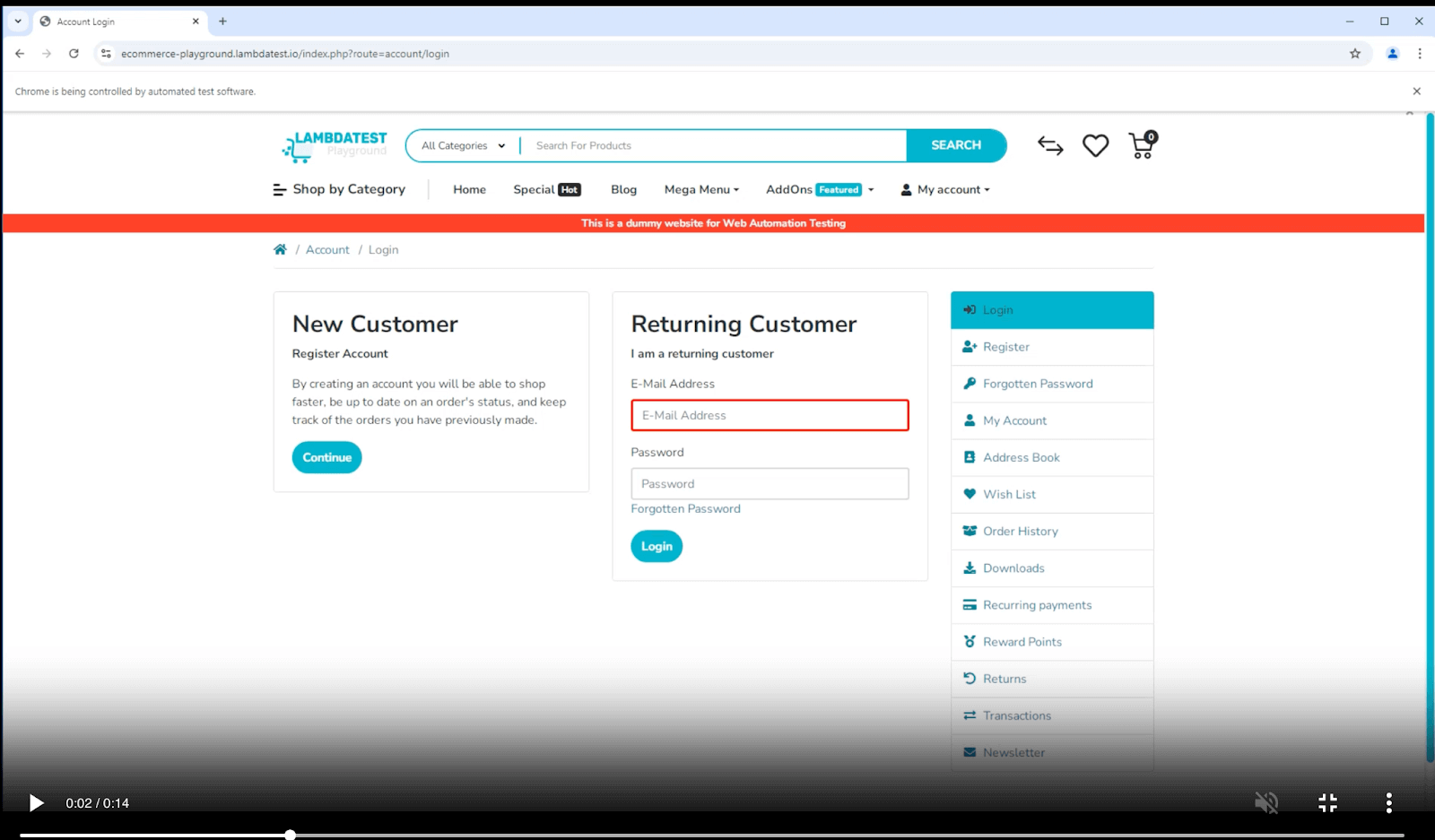
The code navigates to the Login page of the TestMu AI eCommerce Playground website. It locates the E-Mail Address field using the id locator strategy. Then, it uses the JavaScriptExecutor command to highlight the border of the E-Mail Address field in red color.
Next, the password field is located, and it is highlighted with a red border. This highlight helps in knowing what steps are getting executed. Likewise, the Login button is located using the CSS Selector strategy, and it is highlighted as well.

The page title and domain name are located next using the JavaScriptExecutor and printed on the console.

Finally, the page header of the My Account page, which is displayed after successful login, is located, and an assertion is performed to check that it displays the text My Account.
Test Execution:
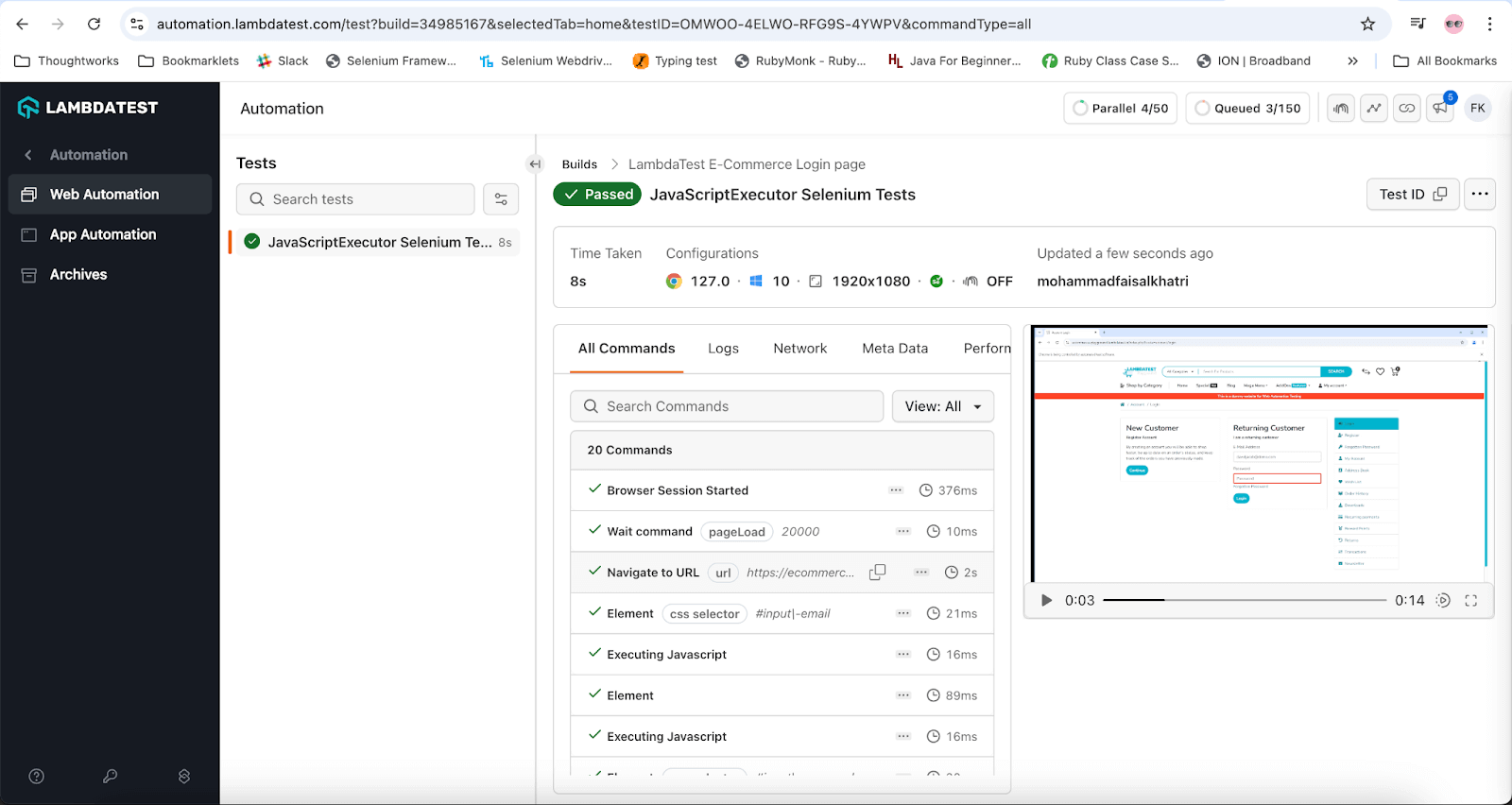
The following screenshot of the test executed on TestMu AI cloud grid. It also shows the details of test execution with granular details like logs, screenshots, video, etc.
The following screen grab from the test execution video generated by TestMu AI cloud grid shows the E-Mail Address field getting highlighted using JavaScriptExecutor.
Test Scenario 2:
Our objective is to write a simple code to illustrate an example using the executeAsyncScript() method using the following test scenario.
- Navigate to the TestMu AI eCommerce Playground website.
- Scroll down to the bottom of the home page.
- Assert that the text “FROM THE BLOG” is displayed in the lower section of the page.
Implementation:
Create a new testExecuteAsyncScript() method in the existing text class TestJavaScriptExecutor.
@Test
public void testExecuteAsyncScript() {
   driver.get("https://ecommerce-playground.lambdatest.io");
   JavascriptExecutor js = (JavascriptExecutor) driver;
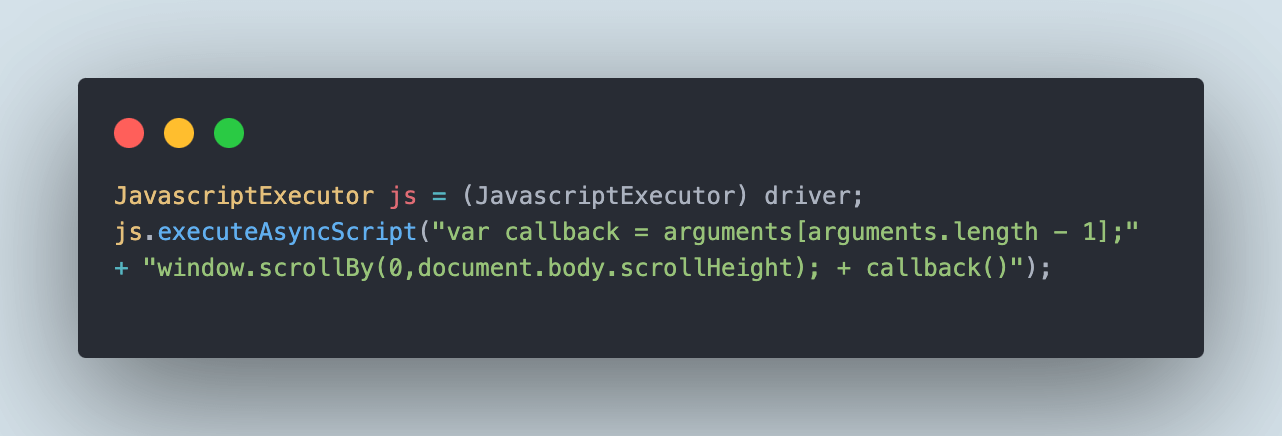
   js.executeAsyncScript("var callback = arguments[arguments.length - 1];" + "window.scrollBy(0,document.body.scrollHeight); + callback()");

   String fromTheBlogText = driver.findElement(By.cssSelector("#entry_217991 > h3")).getText();
   assertEquals(fromTheBlogText, "FROM THE BLOG");
}
Code Walkthrough:
The code will navigate to the homepage of the TestMu AI eCommerce Playground website. The executeAsyncScript() method of the JavaScriptExecutor will be called next, where it will perform the action to scroll the window. In the executeAsyncScript() method, the scripts executed need to explicitly signal that they are finished by invoking the provided callback() method.
After scrolling to the bottom of the window, the text FROM THE BLOG will be located, and an assertion will be performed on it.
Test Execution:
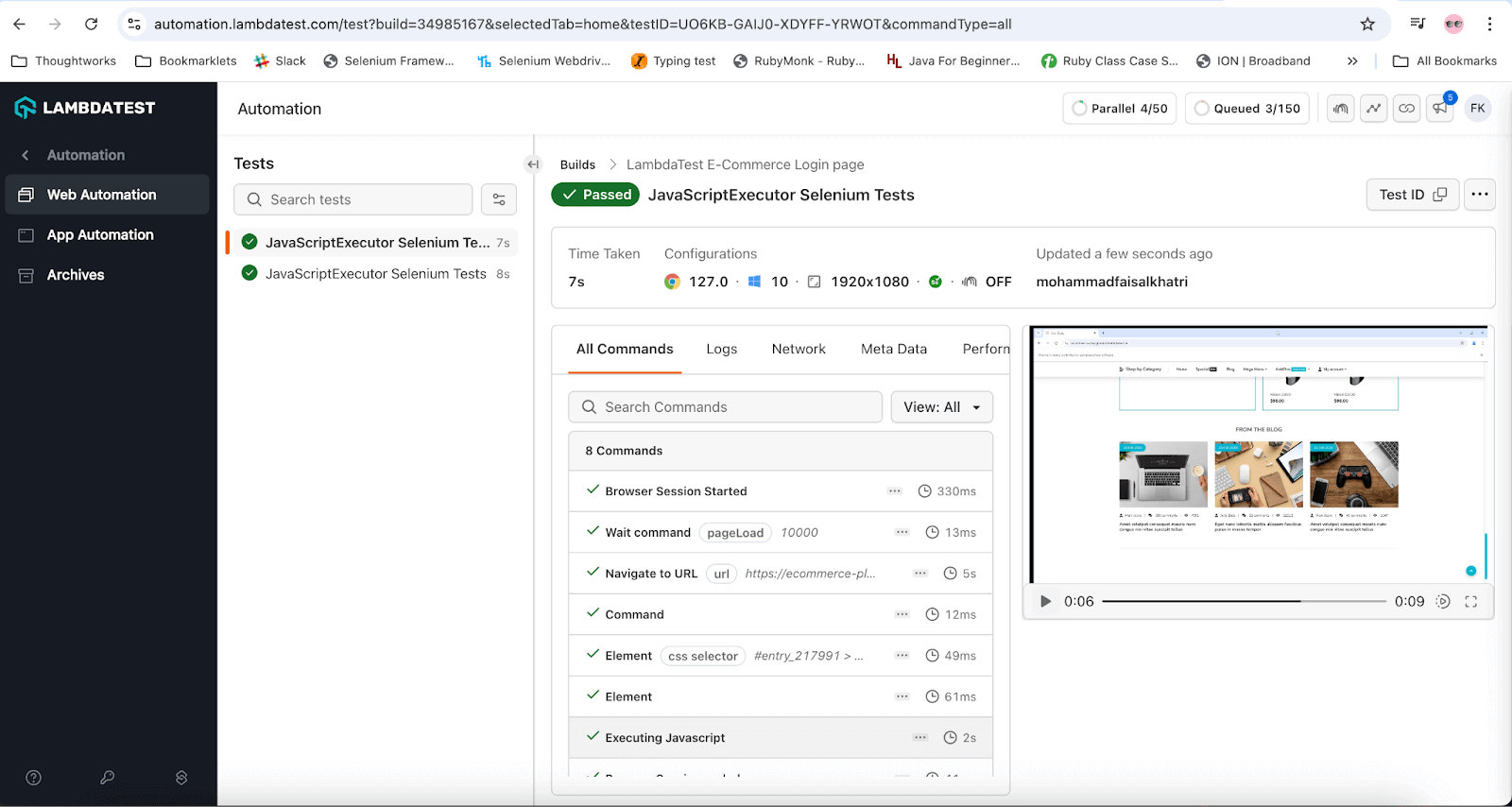
The following screenshot from the TestMu AI Web Automation shows that the test was executed successfully.
Commands for Using JavaScriptExecutor in Selenium
Let’s examine some scenarios we could handle using JavaScriptExecutor Interface for Selenium test automation.
- To click on a button
js.executeScript("document.getElementById('enter element id').click();");
//or
js.executeScript("arguments[0].click();", okButton);
js.executeScript("document.getElementById(id').value='someValue';");
js.executeScript("document.getElementById('Email').value='SeleniumTesting.com';");
js.executeScript("document.getElementById('enter element id').checked=false;");
js.executeScript("alert('Welcome To Selenium Testing');");
js.executeScript("history.go(0)");
String innerText = js.executeScript(" return document.documentElement.innerText;").toString();
System.out.println(innerText);
String titleText =  js.executeScript("return document.title;").toString();
System.out.println(titleText);
String domainName=  js.executeScript("return document.domain;").toString();
System.out.println(domainName);
String url=  js.executeScript("return document.URL;").toString();
System.out.println(url);
js.executeScript(“return window.innerHeight;”).toString();
js.executeScript(“return window.innerWidth;”).toString();
js.executeScript("arguments[0].click();", element);
js.executeScript("window.location = 'https://www.lambdatest.com");
js.executeScript(“window.scrollBy(0,500)”);
js.executeScript(“window.scrollBy(0,document.body.scrollHeight)”);
js.executeScript("var btn=document.createElement('newButton');"
+ "document.body.appendChild(btn);");
WebElement element = driver.findElement(By.id("shadowroot"));
js.executeScript("return arguments[0].shadowRoot", element);
That brings us to the end of this blog on JavaScriptExecuter in Selenium. You can also subscribe to the TestMu AI YouTube Channel to stay updated with the latest tutorials on Selenium test automation and real-life automation use cases.
Conclusion
Selenium has an interface called JavaScriptExecutor that is utilized when WebDriver commands don’t behave as intended. With the help of JavaScriptExecutor, we can use WebDriver to execute JavaScript code on the website, allowing us to handle a variety of tasks in an elegant and effective manner that would otherwise be impossible using only Java.
In this blog, we explored how to use JavaScriptExecutor in Selenium and its different methods. Further, we covered various scenarios to attain an effective solution using different methods along with practical examples.


Frequently asked questions
Did you find this page helpful?
More Related Hubs
TestMu AI forEnterprise
Get access to solutions built on Enterprise
grade security, privacy, & compliance
- Advanced access controls
- Advanced data retention rules
- Advanced Local Testing
- Premium Support options
- Early access to beta features
- Private Slack Channel
- Unlimited Manual Accessibility DevTools Tests