

Next-Gen App & Browser Testing Cloud
Trusted by 2 Mn+ QAs & Devs to accelerate their release cycles


On This Page
- Why Full-Page Screenshots Matter?
- How to Screenshot a Whole Page in Google Chrome?
- How to Take a Full-Page Screenshot in Mozilla Firefox?
- How to Take a Full-Page Screenshot in Microsoft Edge?
- How to Take a Full-Page Screenshot in Safari on Mac?
- How to Take a Full-Page Screenshot on Mobile Devices?
- How to Take a Full-Page Screenshot Using TestMu AI?
- Compare Screenshots with SmartUI for Visual Regression Testing
- Using Browser Extensions Across Platforms
- Advanced Techniques and Tools for Developers and QA
- Comparison of Methods and Tools
- Best Practices for Screenshot Testing High-Quality

How to Screenshot a Whole Page for Chrome/Firefox
Learn how to capture full-page screenshots in Chrome and Firefox quickly and easily. Step-by-step guide for complete web page snapshots.

Kavita Joshi
December 29, 2025
Capturing a full-page screenshot has become a fundamental skill for developers and testers. Whether you need to document a bug, create tutorials, archive web pages, or present complete web layouts, a standard screenshot often falls short because it only captures what’s visible on your screen.
Learning how to screenshot a whole page allows you to capture entire web pages, including areas that require scrolling, ensuring that no detail is missed.
Overview
If you’re wondering how to screenshot a whole page, different browsers and tools make the process simple:
Why taking a screenshot of a whole page work?
- In Google Chrome: Use Developer Tools (Ctrl+Shift+P → “Capture full-size screenshot”) or extensions like GoFullPage.
- In Firefox: Take advantage of the built-in screenshot option to capture the entire page without third-party tools.
- Using Browser Extensions: Tools like Fireshot and Nimbus work across browsers for quick scrolling captures.
- For Automation: Frameworks such as Selenium or Puppeteer can automate full-page screenshots during testing.
This ensures you can capture entire webpages, whether for QA, design reviews, or documentation, without missing critical details below the fold.
Why Full-Page Screenshots Matter?
A traditional screenshot captures only what’s visible on the screen, but most webpages today are scrollable and content-rich. Knowing how to screenshot a whole page ensures that no important detail below the fold is missed. Full-page screenshots are essential for several reasons:
- Bug Reporting
Developers can see the complete context of an issue, including hidden or scrollable elements. Full-page screenshots help identify layout bugs, broken components, and UI inconsistencies efficiently during debugging or QA review.
- Design Review
QA teams and designers can verify layout consistency, color schemes, and responsiveness across devices. Full-page screenshots allow for accurate visual comparisons and ensure that the design matches intended specifications without missing elements.
- Documentation & Tutorials
Creating step-by-step guides or tutorials becomes easier with full-page screenshots. Capturing the entire content ensures that readers follow the instructions accurately without skipping any important sections of the webpage.
- Archiving Web Content
Webpages can be saved for compliance, research, or future reference. Full-page screenshots preserve the complete layout and content, making it easier to review historical versions or maintain records for legal or archival purposes.
Without a full-page screenshot, you risk miscommunication, incomplete documentation, or misrepresentation of your web content.
How to Screenshot a Whole Page in Google Chrome?
Google Chrome provides multiple methods to capture full-page screenshots, whether on desktop or mobile.
Using Developer Tools
- Open the webpage in Chrome.
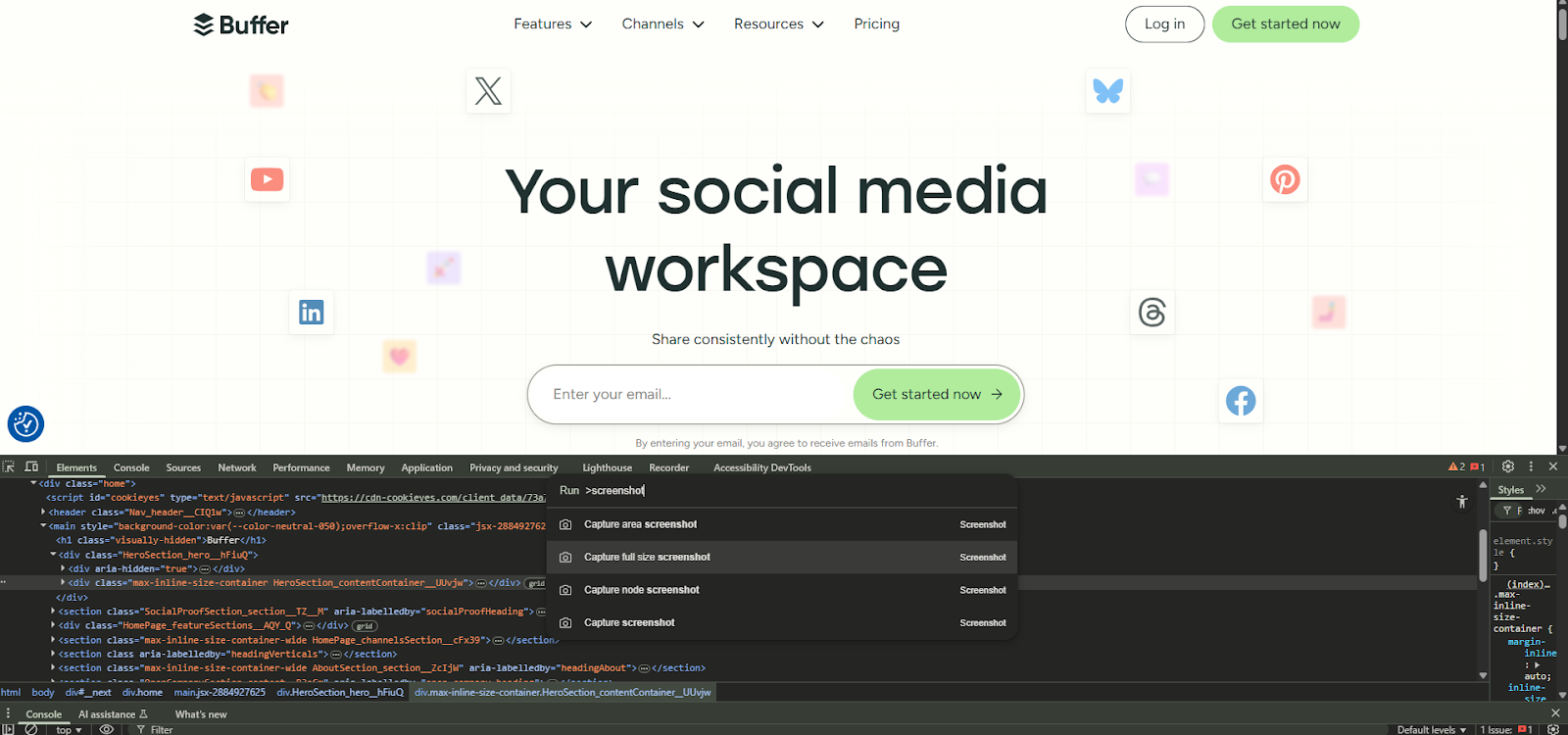
- Press Ctrl + Shift + I (Windows/Linux) or Cmd + Option + I (Mac) to open Developer Tools.
- Press Ctrl + Shift + P (Windows/Linux) or Cmd + Shift + P (Mac) to open the Command Menu.
- Type screenshot and select Capture full size screenshot.
- The screenshot is saved as a PNG file in your downloads folder.
Using Chrome Built-in Options (Mobile/Desktop)
- On Chrome for Android, press Power + Volume Down to take a screenshot, then select Capture more to extend to the full page.
- On Chrome for Chromebook, you can use the Developer Tools method above.
How to Take a Full-Page Screenshot in Mozilla Firefox?
Firefox has a robust built-in screenshot tool that lets you capture full page Firefox screenshots.
Built-in Screenshot Tool
- Open Firefox and navigate to your page.
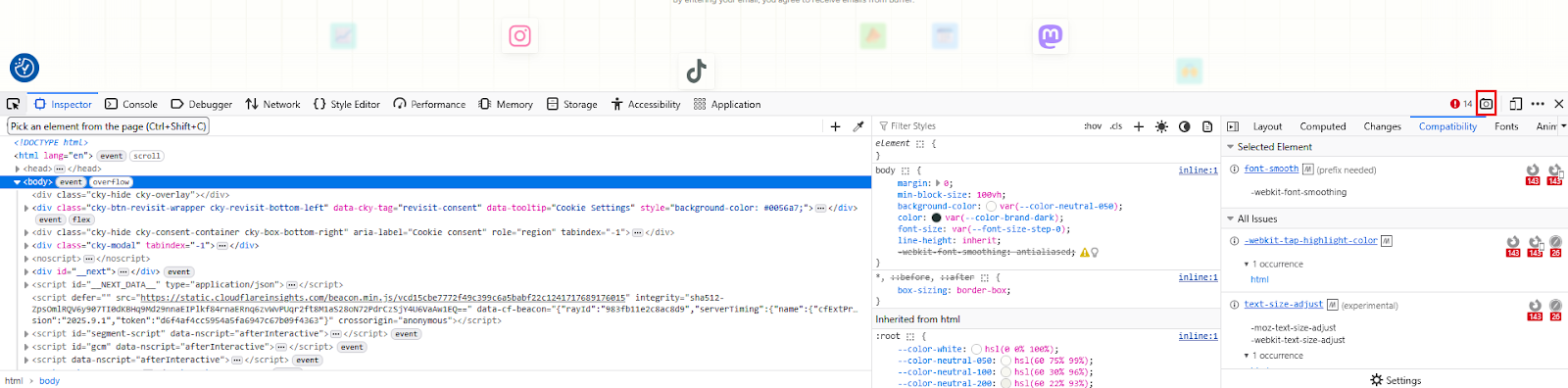
- Click the three-line menu → More tools → Web Developer Tools.
- Click on the camera icon to save the full page screenshot.
Using Firefox Extensions
- Awesome Screenshot: Capture, annotate, and share full-page screenshots.
- Fireshot: Capture full page, selected region, or visible screen; export to PDF.
How to Take a Full-Page Screenshot in Microsoft Edge?
Microsoft Edge provides an integrated Web Capture tool:
- Open Edge and navigate to the webpage.
- Press Ctrl + Shift + S to open Web Capture.
- Select Capture full page.
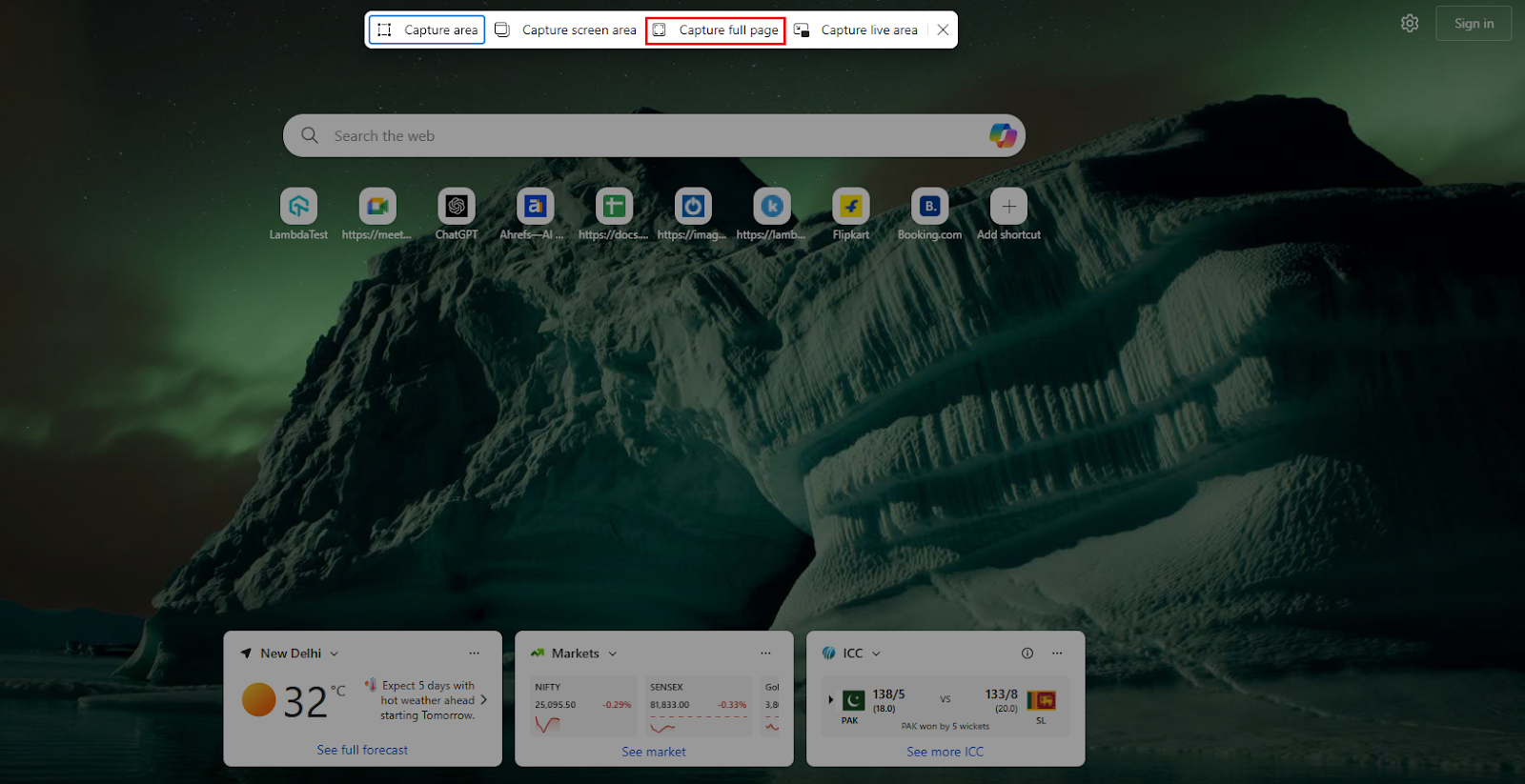
The screenshot opens in a new tab and can be saved or annotated.
How to Take a Full-Page Screenshot in Safari on Mac?
Using Developer Tools
- Open Safari and load the desired page.
- Press Cmd + Option + I to open Developer Tools.
- Click Elements → right-click → Capture Screenshot.
- Screenshot saves as PNG.
Using Safari on iPhone (iOS)
- Open Safari and navigate to your page.
- Press Side Button + Volume Up.
- Tap Full Page in the screenshot preview.
- Save as PDF via Done > Save PDF to Files.
How to Take a Full-Page Screenshot on Mobile Devices?
iPhone (iOS)
- Use Safari as mentioned above.
- Third-party apps like Paparazzi or Stitch can create combined screenshots from multiple captures.
Android
- Press Power + Volume Down → tap Capture more → save screenshot.
- For older devices, third-party apps like LongShot for Long Screenshot or Stitch & Share help capture full pages.
How to Take a Full-Page Screenshot Using TestMu AI?
TestMu AI provides a seamless way for developers and testers to capture full-page automated screenshots across 3000+ real browsers, operating systems, and device combinations. This ensures accurate validation of user interfaces under diverse test environments without local setup overhead.
Here are the steps to capture a full-page screenshot on TestMu AI:
- Sign in to your TestMu AI dashboard. If you do not have an account, register for free access to cross-browser testing features.
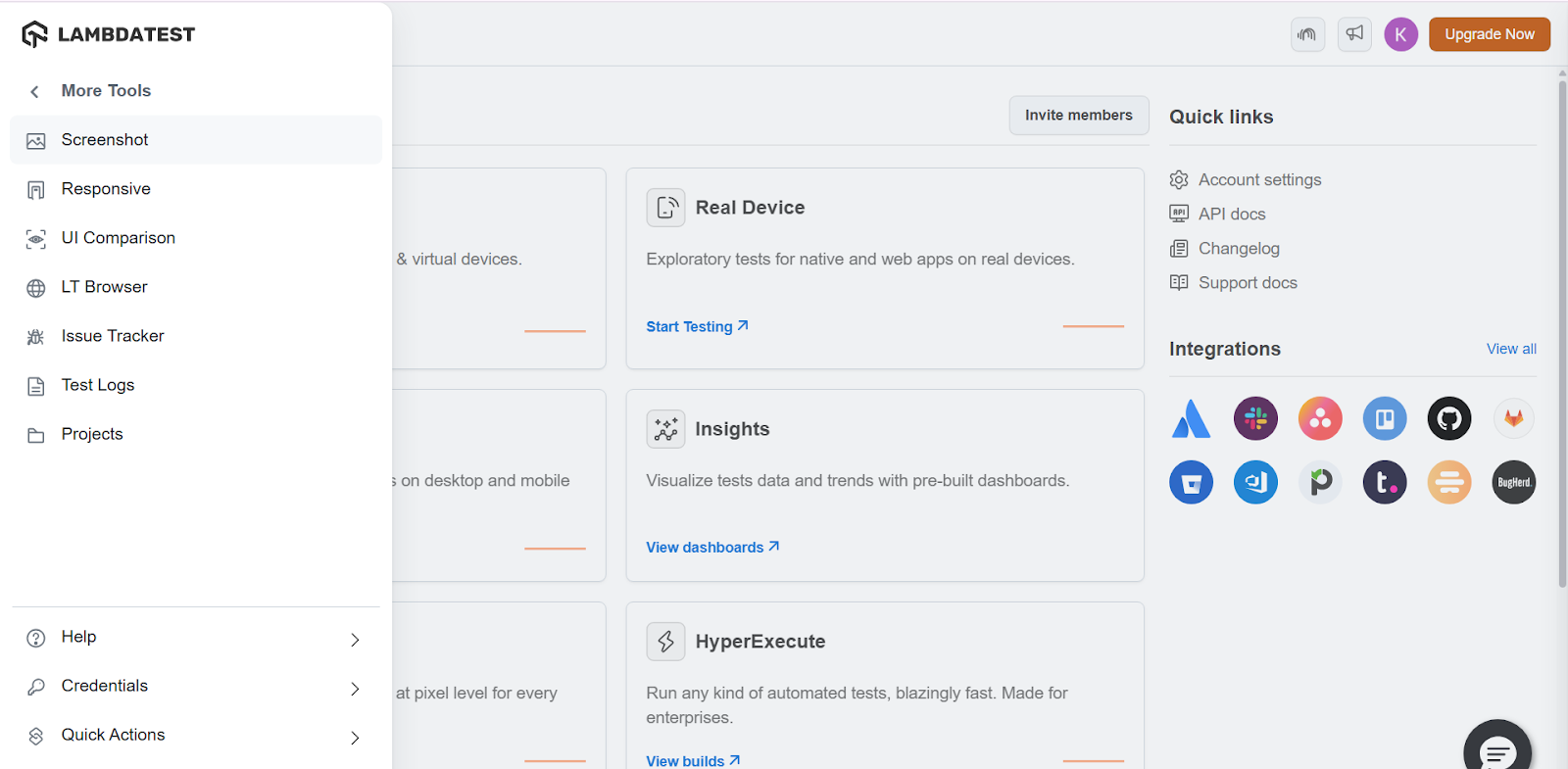
- From the TestMu AI dashboard, navigate to the More Tools > Screenshot.
- Provide the webpage URL you want to test. Choose from a wide range of browsers, versions, devices and operating systems.
- Click on CAPTURE. TestMu AI will launch your webpage on selected environments and automatically capture full-page screenshots.
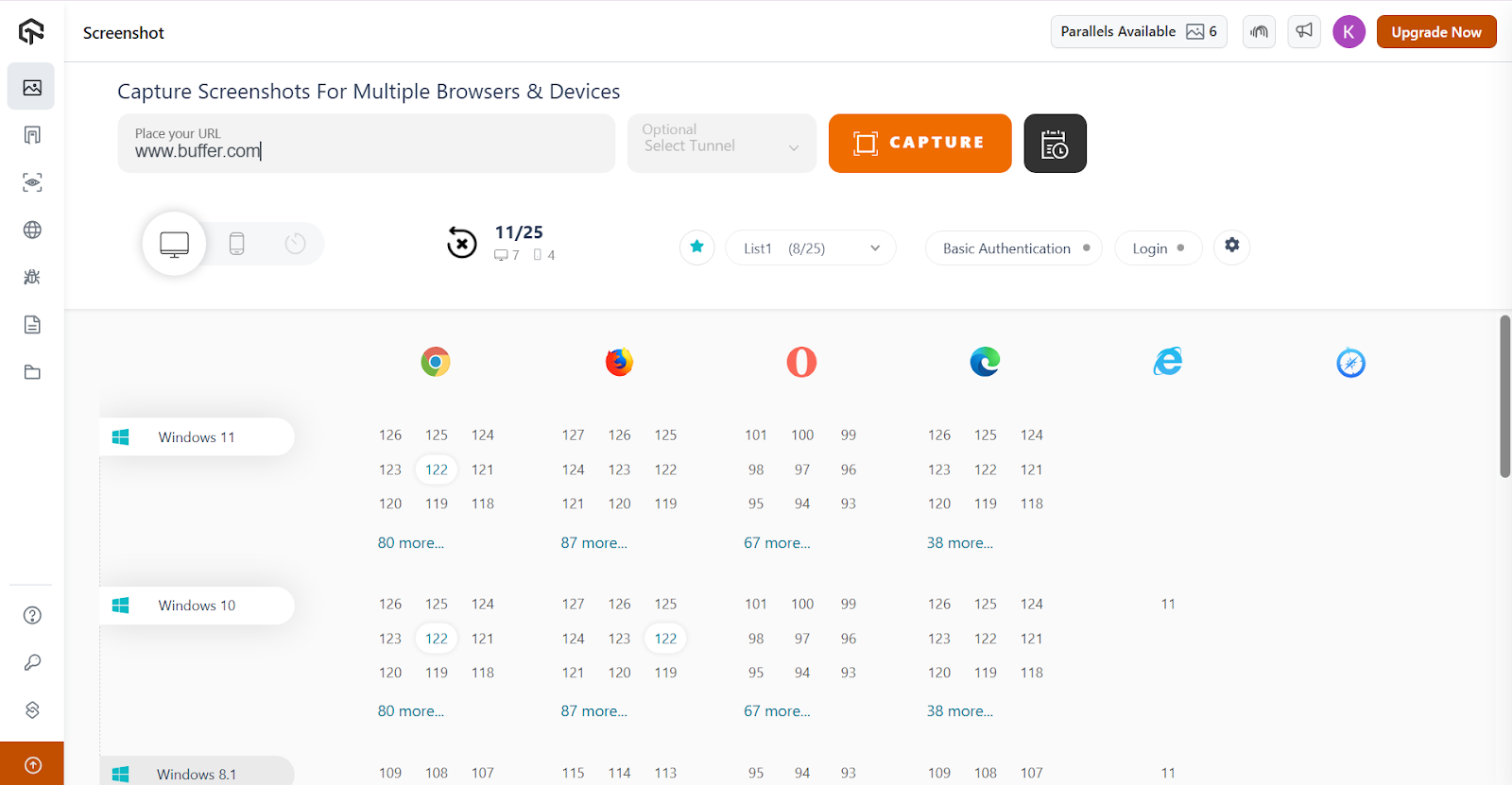
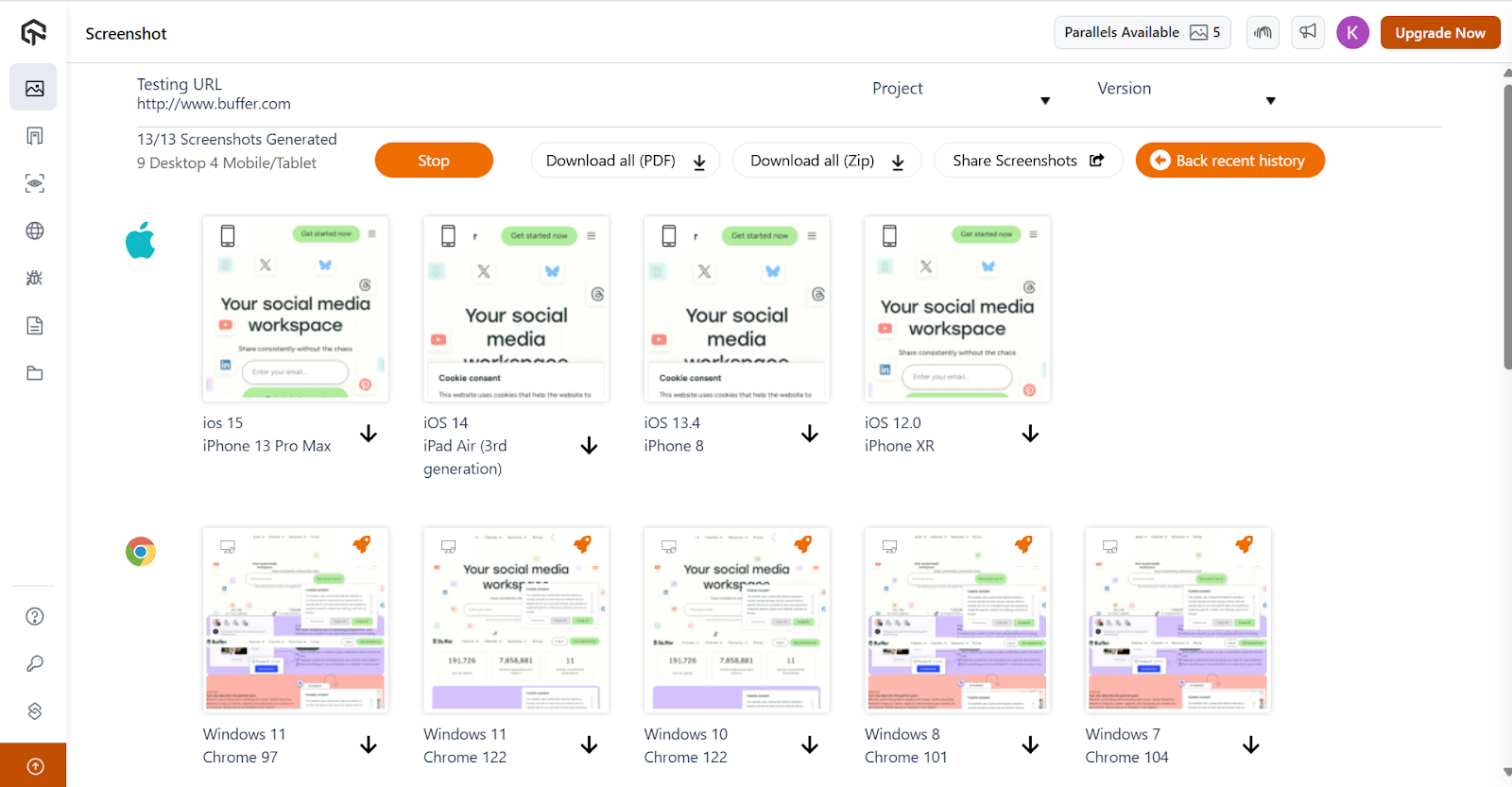
Screenshots are displayed within the dashboard. You can view them online, share links with your team, or download them in bulk for documentation or defect reporting.
In screenshot testing, simply capturing a screenshot is not enough. Comparing two screenshots, one from the baseline and one from the latest build, helps testers quickly detect visual regressions, cross-browser inconsistencies, and unintended UI changes, ensuring the application’s interface remains consistent and reliable. This is where TestMu AI SmartUI comes into the picture.
Compare Screenshots with SmartUI for Visual Regression Testing
Capturing full-page screenshots is only the first step in ensuring application quality. To identify subtle UI inconsistencies, testers often require screenshot comparison capabilities.
TestMu AI’s SmartUI feature enables automated visual testing by comparing new screenshots against established baselines, ensuring that unintended changes in the user interface are quickly detected.
- SmartUI SDK: Using the SmartUI SDK config options, you can seamlessly capture full-page screenshots for both web applications and mobile pages across different environments.
- Baseline Image Creation: Testers can set an initial screenshot as the baseline. Future test runs automatically compare against this baseline to highlight even pixel-level deviations.
- Automated Visual Comparisons: SmartUI compares current screenshots with stored baselines, eliminating the need for manual image reviews. Differences are flagged with visual highlights for faster debugging.
- Cross-Browser Consistency Checks: Teams can validate whether the UI looks consistent across multiple browsers, versions, and devices, identifying rendering issues early in the cycle.
- Seamless Integration with Workflows: SmartUI integrates with CI/CD pipelines, making visual regression checks part of automated builds. This reduces release risks and supports continuous testing practices.
- Actionable Reporting: Differences are presented with clear, side-by-side comparison views. This allows testers and developers to make informed decisions on whether UI changes are expected or regressions.
Features:
To get started, check out this guide on visual regression tests with SmartUI
Using Browser Extensions Across Platforms
Extensions simplify full-page capture across browsers:
| Extension | Browser | Features | |
|---|---|---|---|
| GoFullPage | Chrome | Full-page capture | |
| Awesome Screenshot | Chrome, Firefox, Edge | Capture, annotate | |
| Nimbus Screenshot | Chrome, Firefox, Edge | Capture, edit, export PDF | |
| Fireshot | Chrome, Firefox, Edge | Full-page, edit, PDF export |
Tip: Extensions often add extra features like annotations, PDF export, or batch capture, which are helpful for QA and documentation.
Advanced Techniques and Tools for Developers and QA
For technical users, advanced tools can improve productivity. These methods go beyond basic screenshots, offering automation, cross-browser validation, and integration with CI/CD pipelines to streamline testing and reporting.
- ShareX (Windows): Open-source tool, supports scrolling capture, GIFs, and annotations.
- Snagit: Paid tool for editing, annotations, and batch capture.
- Automation Tools: Use Selenium or Puppeteer scripts to automate full-page screenshot capture for testing workflows.
Tip: For QA, using automation tools saves time when capturing multiple pages across environments or browser versions.
Comparison of Methods and Tools
| Platform/Method | Ease of Use | Advanced Features | Output Format | Best For |
|---|---|---|---|---|
| Chrome DevTools | Medium | Developer-focused | PNG | Pixel-perfect screenshots |
| Firefox Built-in | Easy | Basic editing | PNG | Quick capture with full page |
| Edge Web Capture | Easy | Basic editing | PNG | Enterprise documentation |
| Safari Mac | Medium | Limited | PNG | Designers, developers |
| Safari iOS | Easy | Save as PDF | Archiving and sharing | |
| GoFullPage | Easy | Annotation, PDF | PNG, PDF | Non-technical users |
| Awesome Screenshot | Easy | Annotation, sharing | PNG, PDF | QA, content creators |
| ShareX | Medium | Advanced, automation | PNG, GIF | Developers & testers |
| Snagit | Easy | Editing, batch capture | PNG, PDF | Professional documentation |
Best Practices for Screenshot Testing High-Quality
Taking a full-page screenshot isn’t just about pressing the right keys or using the correct tool. To make your captures useful, professional, and impactful, you need to follow certain best practices. These ensure your screenshots maintain clarity, relevance, and consistency across projects.
- Use High ResolutionAlways capture screenshots in the original resolution of your screen or browser window. High-resolution images ensure that text remains sharp and design details are preserved, making your screenshot usable for bug reporting, design reviews, or documentation purposes without losing critical clarity.
- Remove ClutterBefore capturing a full-page screenshot, remove any distractions such as unnecessary browser tabs, app notifications, or background apps. Cleaner screenshots provide focus and avoid confusion, ensuring that reviewers or stakeholders only see relevant information. This also minimizes data leakage risks when sharing images externally.
- Annotate Carefully
Annotations are powerful for highlighting specific areas in your screenshot, but moderation is key. Use boxes, arrows, or callouts sparingly to emphasize important details while avoiding visual overload. A clutter-free annotated screenshot communicates your intent clearly, making it easier for teams to understand the issue at a glance.
- Choose the Correct Format
Different use cases demand different file formats. Opt for PNG when you need pixel-perfect quality for UI elements or design reviews. Use PDF when you’re archiving, creating tutorials, or handling multi-page documentation. The right format ensures compatibility, readability, and ease of sharing across devices and platforms.
- Automate Where PossibleWhen you need to take repetitive full-page screenshots, leverage automation tools like ShareX, Puppeteer, or Selenium. Automation not only saves time but also ensures consistency in output. This is especially useful in QA workflows, regression testing, or capturing bulk screenshots across multiple pages or environments.
- Cross-Browser TestingFull-page screenshots can look different depending on the browser used. Always test and capture screenshots in multiple browsers—Chrome, Firefox, Safari, and Edge—to ensure visual consistency. This practice helps developers and testers identify rendering issues early and guarantees that the user experience remains seamless across platforms and devices.
Conclusion
Full-page screenshots are essential for developers, testers, QA engineers, and content creators. With built-in browser tools, mobile features, browser extensions, and advanced tools, you can capture complete web pages efficiently. Following best practices ensures high-quality, professional results that are ready for documentation, tutorials, or testing.
For technical users, combining automation scripts with extensions streamlines full-page capture across multiple pages and browsers. By mastering these techniques, you ensure your web documentation is complete, professional, and consistent, improving both workflow efficiency and presentation quality.


Frequently asked questions
Did you find this page helpful?
More Related Hubs
TestMu AI forEnterprise
Get access to solutions built on Enterprise
grade security, privacy, & compliance
- Advanced access controls
- Advanced data retention rules
- Advanced Local Testing
- Premium Support options
- Early access to beta features
- Private Slack Channel
- Unlimited Manual Accessibility DevTools Tests