

Next-Gen App & Browser Testing Cloud
Trusted by 2 Mn+ QAs & Devs to accelerate their release cycles


On This Page

How To Get Text Of An Element In Selenium?
Learn how to get text of an element in Selenium and also master the technique for effective web testing with Selenium.

Sonu Kumar Deo
March 10, 2026
Selenium is the most widely used automation testing tool, which reduces human effort and efficiently handles testing the scenarios we encounter every day. One such scenario is how to get the text of an element in Selenium. Selenium offers a getText() method used to get the text of an element, i.e.; it can be used to read text values of an element from a web page.
In this article, we will understand how to get the text of an element using the getText() method offered by Selenium WebDriver in Java and Python. We will understand how we can fetch text from a webpage that might be present in any of the web-element. We will learn various applications of the getText() method. By the end of this article, you will be fully capable of validating the text or even reading and performing actions on text using Selenium WebDriver.
Overview
What is the getText() Method in Selenium?
The getText() method in Selenium WebDriver retrieves the visible text of a web element exactly as it appears in the browser. It is widely used to validate labels, headings, messages, and any UI content — returning an empty string if no text is associated with the element.
What are the Benefits of Using getText() in Selenium?
- Simple Text Validation: Quickly verify that UI content matches expected values without complex assertions or extra dependencies.
- Flexible Element Targeting: Works seamlessly with locators like ID, XPath, and CSS selectors to extract text from any visible element.
- Supports Multiple Languages: Compatible across Java, Python, C#, and other Selenium-supported languages for consistent use across teams.
How getText() Fits Into Your Test Automation Flow?
getText() is typically used after locating an element using findElement() — paired with explicit waits to ensure the content has fully loaded before retrieval. For input fields or hidden elements, getAttribute("value") is a more appropriate alternative.
getText() Method in Selenium
In Selenium, the getText() method extracts the visible text from a WebElement, returning it as a string while trimming any leading or trailing whitespace.
This method allows easy access to innerText unaffected by CSS styles. Unlike alternative techniques, getText() exclusively captures user-visible content on web pages, serving as a critical function for tasks like web scraping and data extraction.
Syntax of the Selenium getText() method is different in different programming languages. Let’s see how to use this method in Java and Python.
Selenium get text method in Java:
In Java, Selenium provides us with getText() method to get innerText of the selected WebElement.
// Locating the web element
WebElement element = driver.findElement(By.id("element_id"));


// Using getText() method  in Java to retrieve the text of selected element
System.out.println(element.getText());
Selenium get text method in Python:
In Python, we can use web_element.text to get inner text of the selected WebElement as shown in the bellow code snippet.
// Locating the web element
element = driver.find_element_by_id("element_id");


// Using text method  in Python to retrieve the text of selected element
print(element.text);
Let us learn about these terms elaborately one by one:
innerText in HTML
Inner Text refers to the text that appears between opening and closing of any tag. For example, consider the below HTML code snippet:
<!DOCTYPE html>
<html lang="en">
<head>
  <meta charset="UTF-8">
  <meta name="viewport" content="width=device-width, initial-scale=1.0">
  <title>Sample Test</title>
</head>
<body>
  <p>Let us begin!</p>
  <p>Hello World.. <button> Click Me! </button></p>
</body>
</html>

Saving the above code as HTML (.html file) would open a window with contents like below:
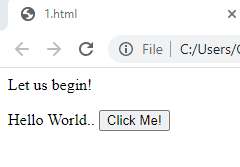
So here the texts, “Let us begin!”, “Hello World..”, and “Click Me!” are the texts that come between the HTML tags. Hence these are the innerText of the respective WebElements in which they are wrapped.
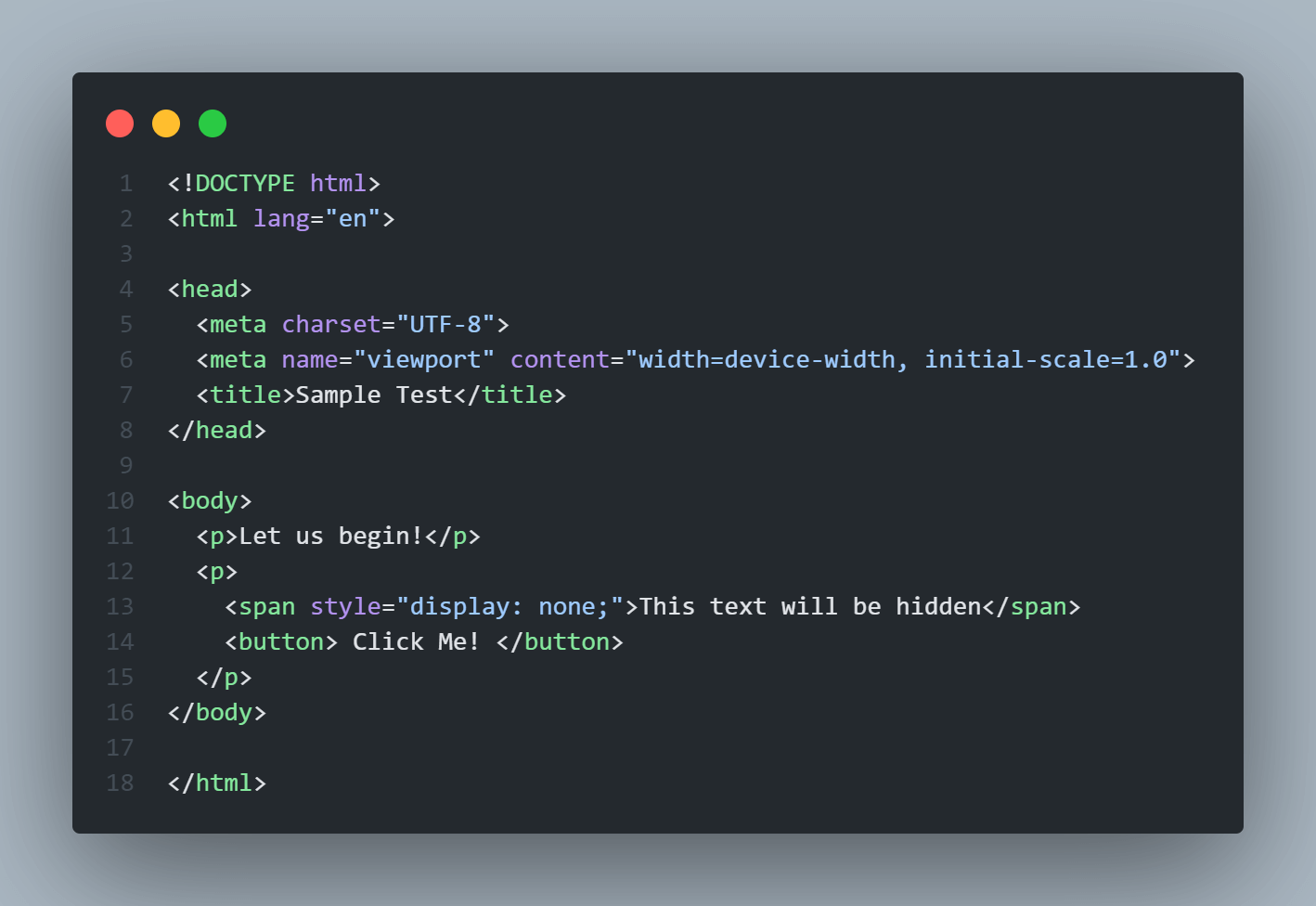
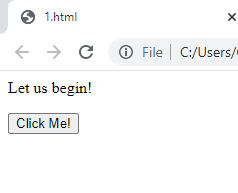

Selenium Get Text Method To Get Heading Or Paragraph
Till now, we have seen how to get text of a WebElement from a web page. Let us now begin with the practical application of the getText() method. Before reading the text, it is essential to use one of the widely used Selenium Locators for locating the WebElement.
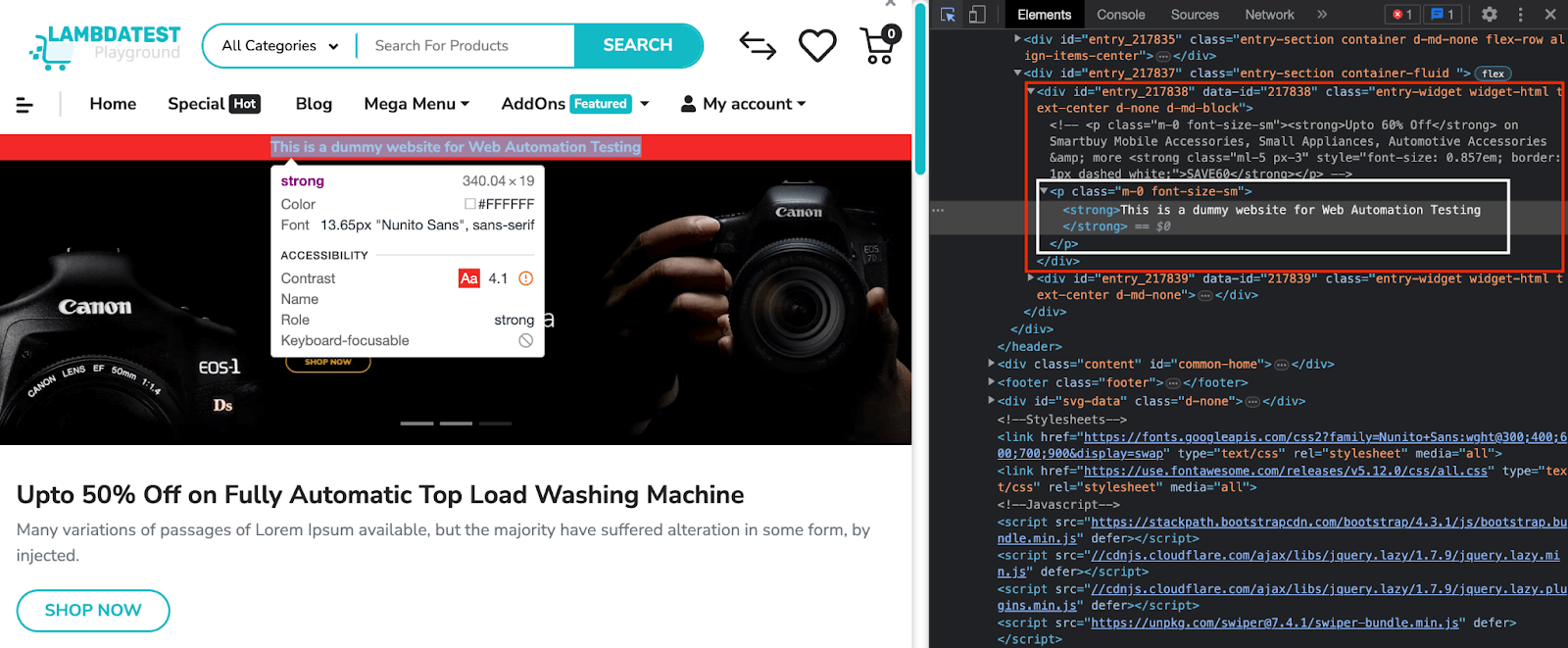
We all know that no website is complete without headings or paragraph content. At times it becomes necessary to verify the text on the web page we are landing on. The getText() method in Selenium helps us retrieve a text and do necessary action on it. In the code below, we are reading the heading text from the web page, comparing it with the expected value, and then printing the results. We will be using TestMu AI’s ECommerce demo website to practice this automation example.
In our example, we will try to get the text from a paragraph in the website as highlighted in the below image.
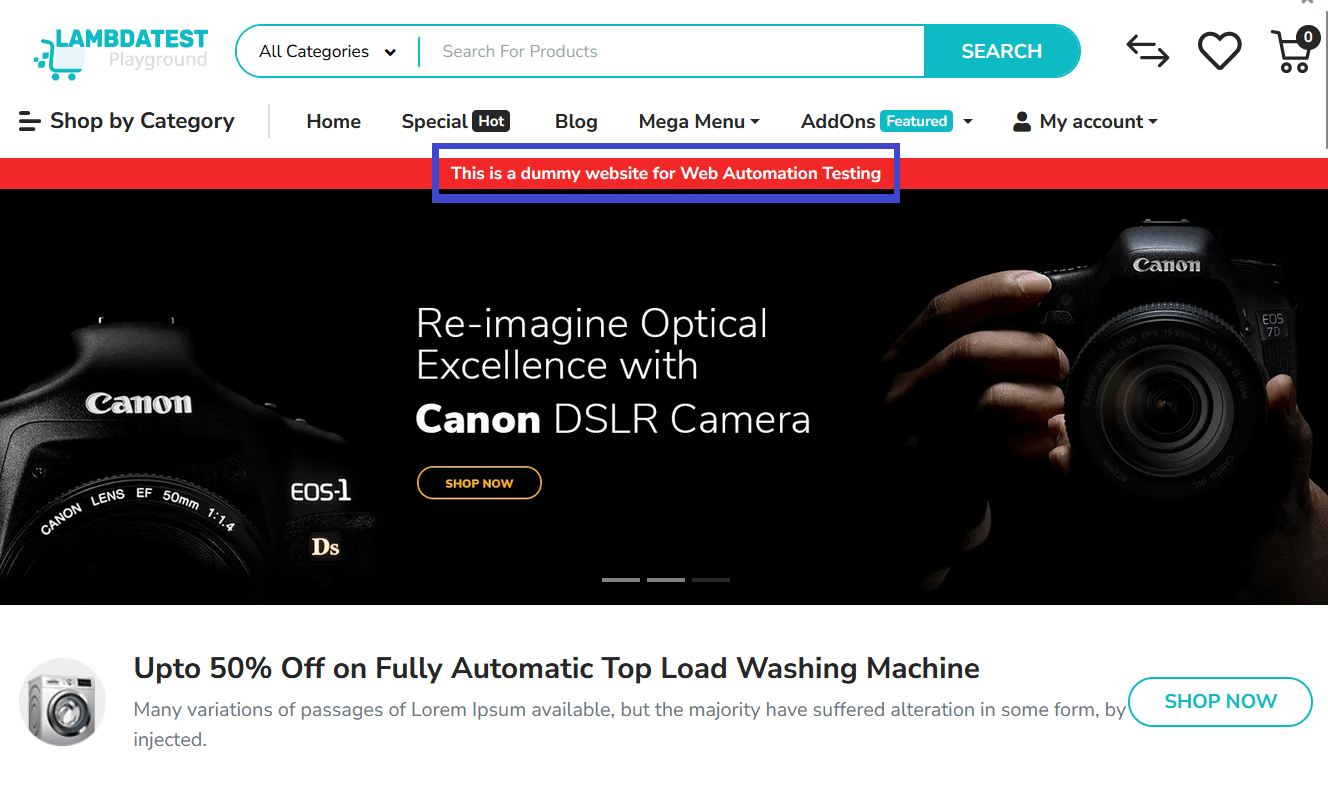
HTML source code of the highlighted text
Java Code
import org.openqa.selenium.By;
import org.openqa.selenium.WebDriver;
import org.openqa.selenium.WebElement;
import org.openqa.selenium.chrome.ChromeDriver;


public class GetTextExample {
    public static void main(String[] args) {


        // Create a new instance of the ChromeDriver using selenium manager
        WebDriver driver = new ChromeDriver();


        try {
            // Open the URL
            driver.get("https://ecommerce-playground.lambdatest.io/");


            // Find the WebElement using its ID
            WebElement divElement = driver.findElement(By.id("entry_217838"));

            // Find the <p> tag within the div
            WebElement pElement = divElement.findElement(By.tagName("p"));


            // Find the <strong> tag within the <p> tag
            WebElement strongElement = pElement.findElement(By.tagName("strong"));


            // Get the text from the <strong> tag
            String text = strongElement.getText();


            // Print the extracted text
            System.out.println("Extracted Text: " + text);
        } finally {
            // Close the WebDriver
            driver.quit();
        }
    }
}
In the above code, we open the URL(https://ecommerce-playground.lambdatest.io/), find the div with ID “entry_217838“, locate the nested < p > tag, and further identify the < strong > tag within it. Using Selenium’s getText() method in Java, we extract and print the text content from the selected strongElement. The code ensures accurate text retrieval from the specified HTML hierarchy in a concise and readable manner.
Python Code
from selenium import webdriver


# Create a new instance of the ChromeDriver ussing selenium amanager
driver = webdriver.Chrome()


try:
    # Open the URL
    driver.get("https://ecommerce-playground.lambdatest.io/")


    # Find the WebElement using its ID
    div_element = driver.find_element_by_id("entry_217838")

    # Find the <p> tag within the div
    p_element = div_element.find_element_by_tag_name("p")


    # Find the <strong> tag within the <p> tag
    strong_element = p_element.find_element_by_tag_name("strong")


    # Get the text from the <strong> tag
    text = strong_element.text


    # Print the extracted text
    print("Extracted Text:", text)
finally:
    # Close the WebDriver
    driver.quit()
In the above code, we navigate to the URL(https://ecommerce-playground.lambdatest.io/), locate the div with ID “entry_217838,” then drill down to the nested < p > and < strong > tags using Selenium. Finally, by extracting text content with text attribute, we print the information, ensuring accurate retrieval from the specified HTML structure in a concise Python script.
Using getText() Method To Get A Dropdown Text
There are multiple cases when we need to select a specific dropdown value, or maybe get the text values in a dropdown. We can use the getText() method to handle such scenarios as well. We will now see how we can get the values in a dropdown and print the same in the console. To run the script for dropdown, we have used the same demo website.
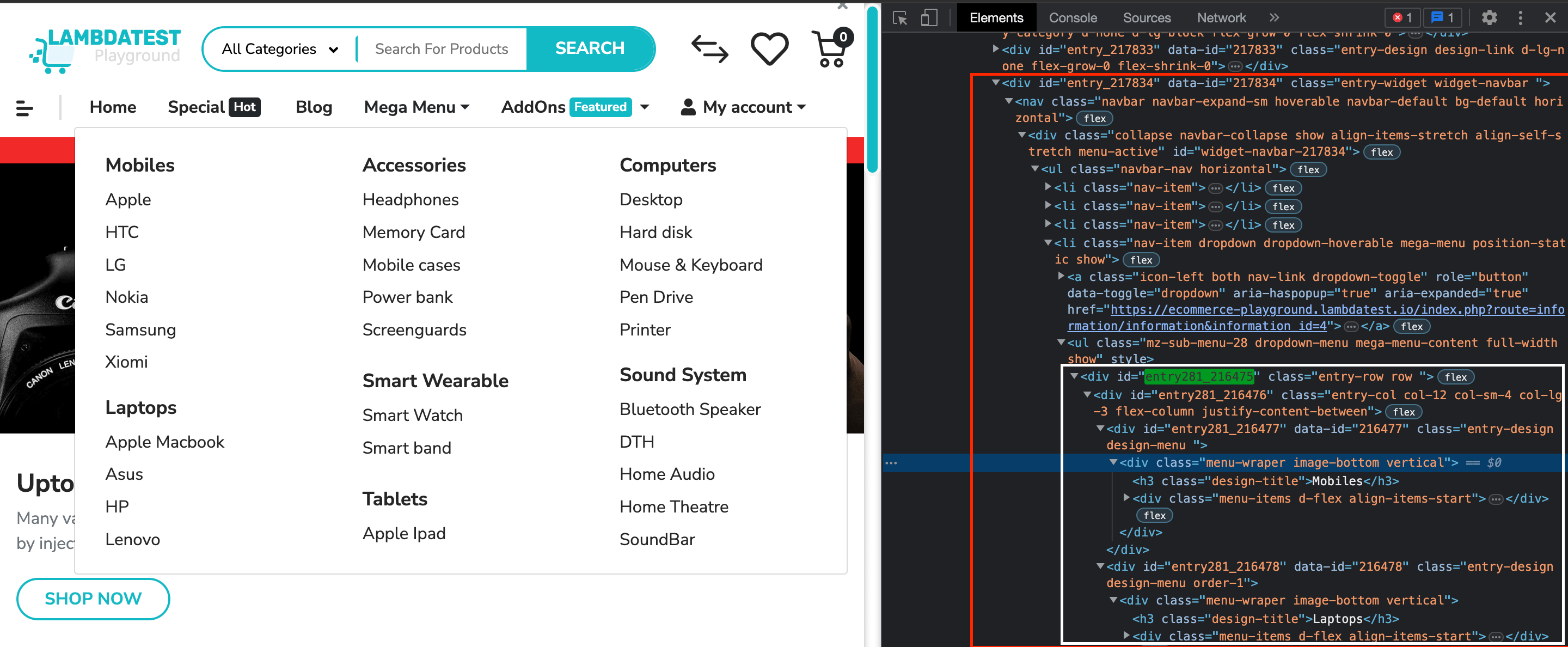
In this example we wil open the dropdown menu and print all the category titles in each row.
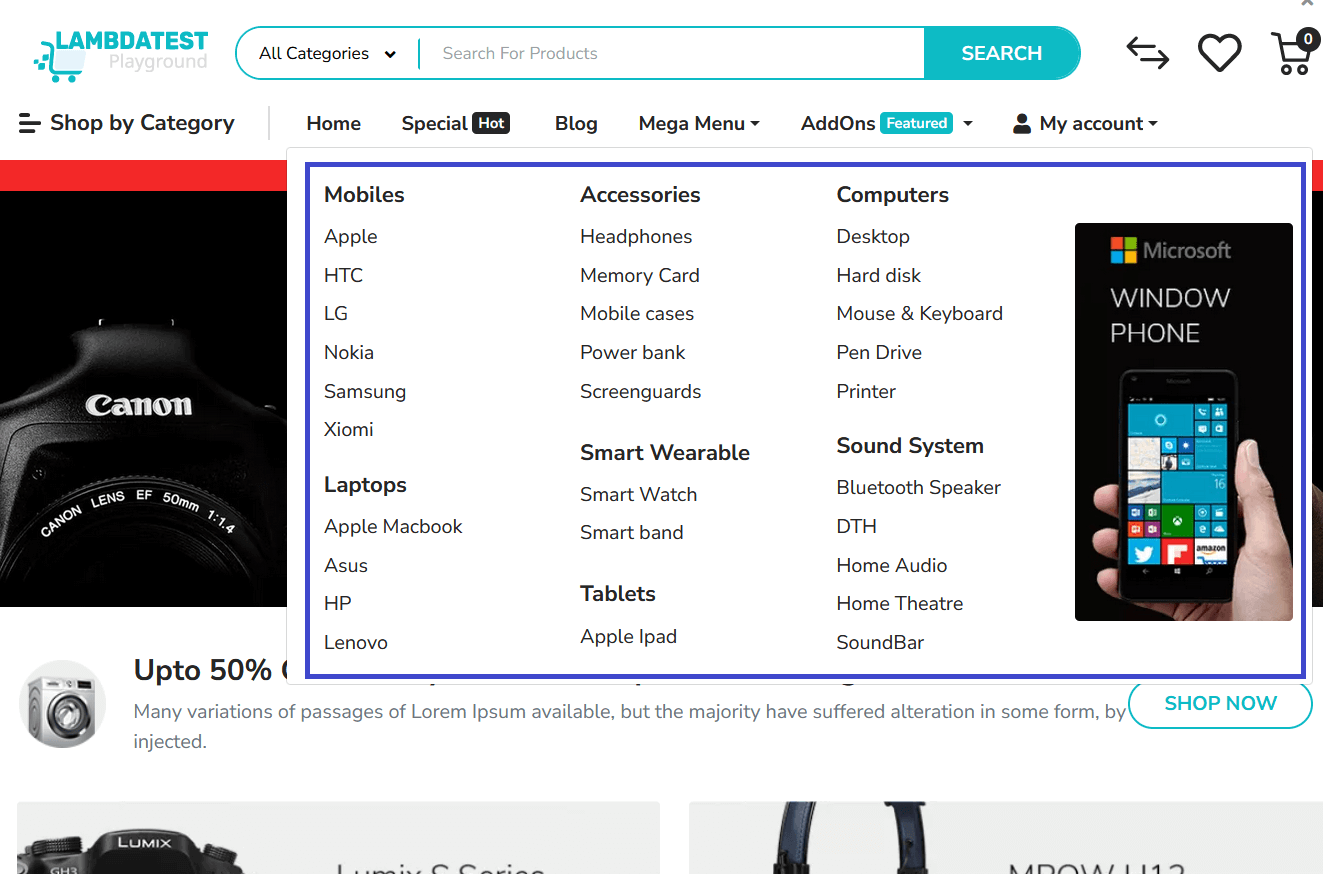
HTML source code of the dropdown
Java Code
import org.openqa.selenium.By;
import org.openqa.selenium.WebDriver;
import org.openqa.selenium.WebElement;
import org.openqa.selenium.chrome.ChromeDriver;


public class PrintH3TagsExample {
    public static void main(String[] args) {

        // Create a new instance of the ChromeDriver
        WebDriver driver = new ChromeDriver();


        try {
            // Open the URL
            driver.get("https://ecommerce-playground.lambdatest.io/");


            // Find the parent div with ID "entry281_216475"
            WebElement parentDiv = driver.findElement(By.id("entry281_216475"));


            // Find all H3 tags inside the parent div
            java.util.List<WebElement> h3Tags = parentDiv.findElements(By.tagName("h3"));


            // Print the text of each H3 tag
            for (WebElement h3Tag : h3Tags) {
                System.out.println("H3 Tag Text: " + h3Tag.getText());
            }
        } finally {
            // Close the WebDriver
            driver.quit();
        }
    }
}
In the above code, we open the demo website, locate the mega menu’s parent div with ID “entry281_216475” using Selenium findElements() method. Now, by finding all H3 tags within this div, we iterate through each H3 element, extracting and printing their text using getText() method in Selenium Java. This process retrieves and displays the text of each category in the mega menu.
Python Code
from selenium import webdriver


# Set the path to the ChromeDriver executable
chrome_driver_path = "path/to/chromedriver"


# Create a new instance of the ChromeDriver
driver = webdriver.Chrome(executable_path=chrome_driver_path)


try:
    # Open the URL
    driver.get("https://ecommerce-playground.lambdatest.io/")


    # Find the parent div with ID "entry281_216475"
    parent_div = driver.find_element_by_id("entry281_216475")


    # Find all H3 tags inside the parent div
    h3_tags = parent_div.find_elements_by_tag_name("h3")


    # Print the text of each H3 tag
    for h3_tag in h3_tags:
        print("H3 Tag Text:", h3_tag.text)
finally:
    # Close the WebDriver
    driver.quit()
In the above Python code, we open the demo website, locate the mega menu’s parent div with ID “entry281_216475” using Selenium find_element_by_id() method. By finding all H3 tags within this div, we iterate through each H3 element, extracting and printing their text using h3_tag.text. This process retrieves and displays the text of each category in the mega menu usign Python.
Using getText() Method To Get Alert Text
Just like the paragraph and dropdown, one can retrieve the text of an alert as well. Alerts are common with many applications, and hence there can be a need to check text present on it. The below code would fetch text from an alert and print it for this demo website.
Java code:
import org.openqa.selenium.Alert;
import org.openqa.selenium.By;
import org.openqa.selenium.WebDriver;
import org.openqa.selenium.WebElement;
import org.openqa.selenium.chrome.ChromeDriver;
import org.testng.annotations.AfterTest;
import org.testng.annotations.BeforeTest;
import org.testng.annotations.Test;
public class AlertText {
   //WebDriver object to control the browser
   WebDriver driver;

   /**
    * This function is run before every test
    */
   @BeforeTest
   public void setUp(){
       //Create a new instance of ChromeDriver
       driver = new ChromeDriver();
   }

   /**
    * This function is used to test the alert text
    */
   @Test
   public void alertText(){
       //Navigate to the alerts page in the demoqa website
       driver.get("https://demoqa.com/alerts");
       //Maximize the window of the browser
       driver.manage().window().maximize();
       //Click on the Confirm Button
       driver.findElement(By.id("confirmButton")).click();
       //Switch to the alert and get the text of the alert
       String txt = driver.switchTo().alert().getText();
       //Print the text of the alert
       System.out.println("The text is - " +txt);
   }
   /**
    * This function is run after every test
    */
   @AfterTest
   public void tearDown(){
       //Close the browser
       driver.quit();
   }
}
The AlertText class in Java is a test class that uses the Selenium WebDriver library to automate interactions with a web browser. The setUp() method initializes a new instance of ChromeDriver before each test, the alertText() method tests the alert functionality by navigating to a webpage, clicking a button to trigger an alert, retrieving and printing the alert text, and the tearDown() method closes the browser after each test. This class serves as a test suite for verifying the behavior of alerts on a webpage through automated testing, ensuring that the alert functionality functions correctly in a web application.
Python Code:
from selenium import webdriver
from selenium.webdriver.common.by import By


# Function to set up the Selenium webdriver
def setUp():
   driver = webdriver.Chrome()
   return driver


# Function to tear down the Selenium webdriver
def tearDown(driver):
   driver.quit()


# Function to test the alert text
def test_alert_text():
   # Set up the webdriver
   driver = setUp()


   # Navigate to the demoqa.com alerts page
   driver.get("https://demoqa.com/alerts")


   # Maximize the browser window
   driver.maximize_window()


   # Click the confirm button to trigger the alert
   driver.find_element(By.ID, "confirmButton").click()


   # Switch to the alert and get the text
   alert_text = driver.switch_to.alert.text


   # Print the alert text
   print(f"The text is - {alert_text}")


   # Teardown the webdriver
   tearDown(driver)


# Call the test function
test_alert_text()
The provided code sets up a Selenium webdriver using Chrome, navigates to a webpage, triggers an alert by clicking a button, retrieves the text from the alert, prints it, and then tears down the webdriver. The test_alert_text function specifically finds and clicks a button to trigger an alert, switches to the alert, retrieves the text, and prints it. The setUp function initializes the Chrome webdriver, while the tearDown function closes the driver. This code snippet focuses on interacting with alerts using Selenium in a controlled browser environment.
Difference Between getText() And getAttribute() In Selenium WebDriver
In Selenium WebDriver, both the getText() and getAttribute() methods are used to retrieve data from an HTML element. Hence, developers genrally get confused over thefunctinality of these two methods. Note that both these methods are entirely different and return different values.
getText()
It returns the inner text of a given element. Inner text is the text between the opening and closing tags of the element. The getText() function only works when the specific element is visible on the webpage. It ignores all the leading and trailing spaces.
getAttribute()
The getAttribute() method returns the value of a given HTML attribute. It returns the value of the HTML element’s attribute as a string. If the attribute does not exist, it returns null.

Note: Simplify Testing: Opt for TestMu AI’s Selenium cloud grid with 3000+ real browsers and OS options. Try TestMu AI Today!
Execute Your Tests In Parallel Using Cloud Based Selenium Grid
Using a cloud-based platform is the best way to leverage Selenium automation and get the desired results seamlessly without worrying about installation and setup. TestMu AI is an AI-Powered Test Orchestration platform, set up as a cloud infrastructure. We can perform web automation on LamdaTest’s Selenium based cloud grid.
To do so, you can get the value for the access token, username, and gridUrl upon registering with TestMu AI. To register on TestMu AI, follow the register page url for free. After registration, you can find these credentials from the TestMu AI dashboard, as shown in the image below.
Once you have the credentials, you can declare your testing environment’s preferred capabilities. TestMu AI has Desired Capabilities Generator that will provide you with the capabilities based on your selection of OS, browser version, and resolution. Below is an automation test script to get text of an element in Selenium with Python using TestMu AI.
# Import required modules
from selenium import webdriver
from selenium.webdriver.chrome.options import Options as ChromeOptions
import time


# your_username and your_access_key is important
# to run your test on LambdaTest
your_username = "YOUR_LAMBDATEST_USERNAME"
your_access_key = "YOUR_LAMBDATEST_ACCESS_TOKEN"


# Capabilities define the Browser, name, version,
# platform and other necessary details
# Capabilities define the Browser, name, version,
# platform and other necessary details
options  = {
"platformName": "Windows 10",
"user": your_username,
"accessKey": your_access_key,
"browserName": "Chrome",
"browserVersion": "114.0",
"selenium_version": "4.8.0",
"name": "LambdaTest selenium close tab automation using python",
"build": "LambdaTest selenium close tab",
"video": True,
"network": True,
"console": True,
"visual": True,
"w3c": True,  # inform to use latest Selenium 4
}


def selenium_get_text():
  # Setup to run the test on the platform
  remote_url = "http://"+ your_username + ":" + your_access_key+ "@hub.lambdatest.com/wd/hub"
  browser_options = ChromeOptions()
  # adding the capability to the chrome
  browser_options.set_capability('LT:Options', options)
  print("Initializing remote driver on platform: " +
         options["platformName"] + " & browser: " +
         options["browserName"] + "on version: " +
         options["browserVersion"])


  # initializing remote server
  driver = webdriver.Remote(command_executor=remote_url, options=browser_options)
  driver.get("https://ecommerce-playground.lambdatest.io/")
  time.sleep(5)


  # Find the WebElement using its ID
  div_element = driver.find_element_by_id("entry_217838")

  # Find the <p> tag within the div
  p_element = div_element.find_element_by_tag_name("p")


  # Find the <strong> tag within the <p> tag
  strong_element = p_element.find_element_by_tag_name("strong")


  # Get the text from the <strong> tag
  text = strong_element.text


  # Print the extracted text
  print("Extracted Text:", text)


  time.sleep(5)

  driver.close()


selenium_get_text()
This is the only method that needs to be added or changed when executing your automation test script in LamdaTest’s cloud Selenium Grid. Mainly this function defines the desired capabilities of the system for testing. It also takes your_username and your_accesstoken obtained from TestMu AI. Lastly, this function uses these details to create the browser driver using webdriver.Remote() method.
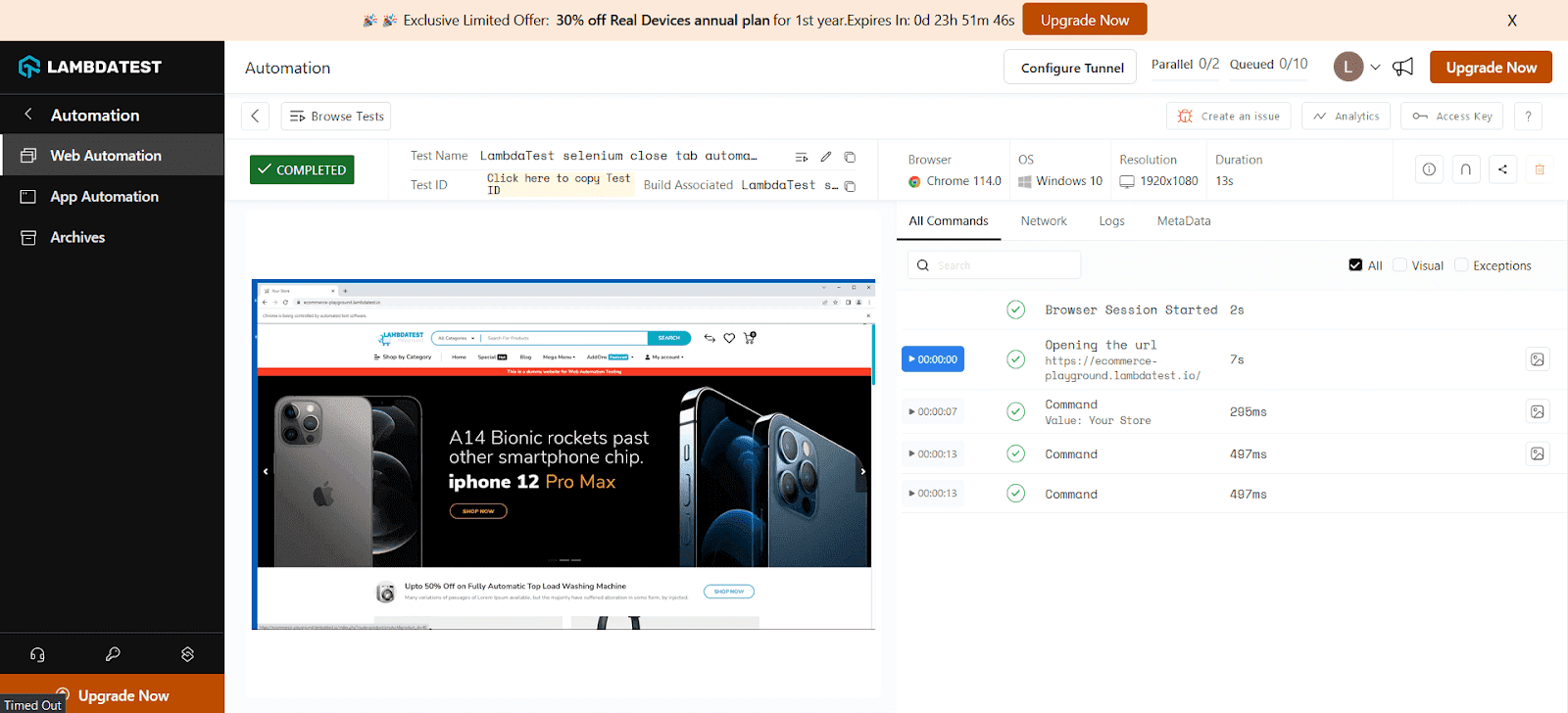
Once this test is executed successfully. We can track our test case on the LambaTest dashboard as shown in the image below.
Conclusion
In conclusion, this blog empowers you to leverage Selenium WebDriver’s getText() method to effortlessly extract text from web elements. You’ve learned its core function, syntax variations in Java and Python, and practical applications. We’ve differentiated getText() from getAttribute() to ensure clarity. Finally, explore how TestMu AI’s cloud grid streamlines your Selenium tests with getText(), enabling parallel execution for maximized automation efficiency. By mastering getText(), you’ll enhance your web scraping and data extraction capabilities in Selenium WebDriver.
Additionally, We came to realize the pain point of running Selenium WebDriver, & Grid, locally. Moving to cloud based Selenium Grid such as TestMu AI will help you scale effortlessly, so you could reduce your build times significantly & ship products faster.


Frequently asked questions
Did you find this page helpful?
More Related Hubs
TestMu AI forEnterprise
Get access to solutions built on Enterprise
grade security, privacy, & compliance
- Advanced access controls
- Advanced data retention rules
- Advanced Local Testing
- Premium Support options
- Early access to beta features
- Private Slack Channel
- Unlimited Manual Accessibility DevTools Tests