

Next-Gen App & Browser Testing Cloud
Trusted by 2 Mn+ QAs & Devs to accelerate their release cycles


How To Check Proxy Settings: Know If You Leave Digital Footprints Behind
Learn “how to check proxy setting” on Windows, Mac and through a web browser to ensure safe browsing!

Upendra Prasad Mahto
December 28, 2025
In today’s digital era, the security and privacy of data and digital footprints are essential. Proxies are the secret agents that enable you to hide your IP address, access geo-restricted content, and prevent malware and phishing attacks on your device directly.
In most organizations, proxies are used widely by network administrators to monitor and filter incoming and outgoing web traffic from employees or clients. The use of proxy servers sets up these proxies.
To configure the proxy servers, network administrators use the Proxy settings. This article’ll show you how to check proxy settings (if your computer uses a proxy server) on various platforms.
What is a Proxy Server?
A proxy server is an intermediary between a machine and the ISP(Internet Service Provider) that forwards requests and responses. When you want to access a website or online service, your computer doesn’t talk directly to the web; instead, it communicates with the proxy server, which then passes your request along to the internet and returns the responses to your computer.
What is Proxy Settings?
Proxy settings refer to the setup that guides the communication process between the ISP and the proxy server. It’s like a set of rules that tell your computer how to interact with the proxy server. This configuration determines the path your online requests and responses should take and allows you to customize your internet experience for things like privacy security or bypassing certain restrictions. The versatility of proxies makes them useful not only for maintaining privacy and security but also for specific tasks. For example, if you need to use a proxy with requests in Python, detailed guides are available to assist you.
Proxy settings include the following:
- Proxy Server Address: This is the IP address or hostname of the proxy server that the device should connect to. It identifies where the proxy server is located on the network.
- Proxy Port: The device’s port number should connect to the proxy server. It’s important because it defines the specific communication channel to reach the proxy server.

Why Proxy Settings Matter?
Proxy settings matter for several reasons, and their significance varies depending on individual and organizational needs. The following are some reasons why proxy settings are important:
- Anonymity and Privacy: Imagine you’re online, and you don’t want websites to know where you’re browsing from. Proxy servers can help with that. They act like a shield, hiding your location and identity by making it seem like your requests are coming from somewhere else. This gives you online privacy.
- Content Filtering: It is also referred to as web content filtering. It is the process of controlling and managing the type of online content that users can access on a network or device. Organizations like schools, businesses, and government networks use proxy servers to manage what websites you can or can’t visit. It simply blocks access to anything they consider unsuitable.
- Security: Proxy servers can inspect and monitor incoming and outgoing internet traffic. They look for anything suspicious, like viruses or malware, and keep your online space safer.
- Load Balancing: It distributes network traffic across multiple proxy servers to ensure efficient utilization of resources, improve performance, and enhance redundancy. This is particularly important when the users are dealing with heavy internet traffic.
Configuring Proxy Settings
Configuring proxy settings allows users to change their internet experience by providing the keys to unlock a personalized and secure online journey. Whether it’s safeguarding privacy, optimizing network performance, or ensuring compliance, it can surf the Internet more privately, securely, or with restrictions, depending on your needs.
How to Check Proxy Settings on Windows?
There are two general methods to check your proxy settings on a Windows computer: one through the Settings application and the other through the Control Panel.
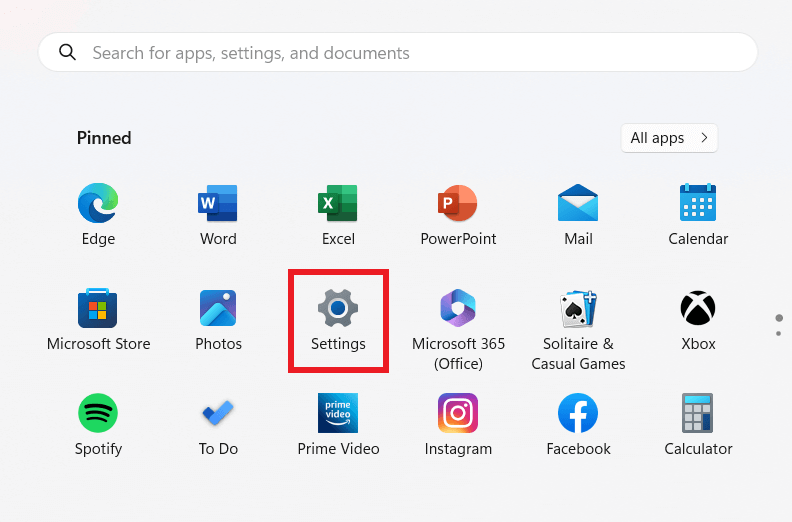
Method 1: Using the Settings ApplicationStep 1: Click on the Start button, and then choose Settings. You can also right-click on My Computer and select Properties to access Settings.
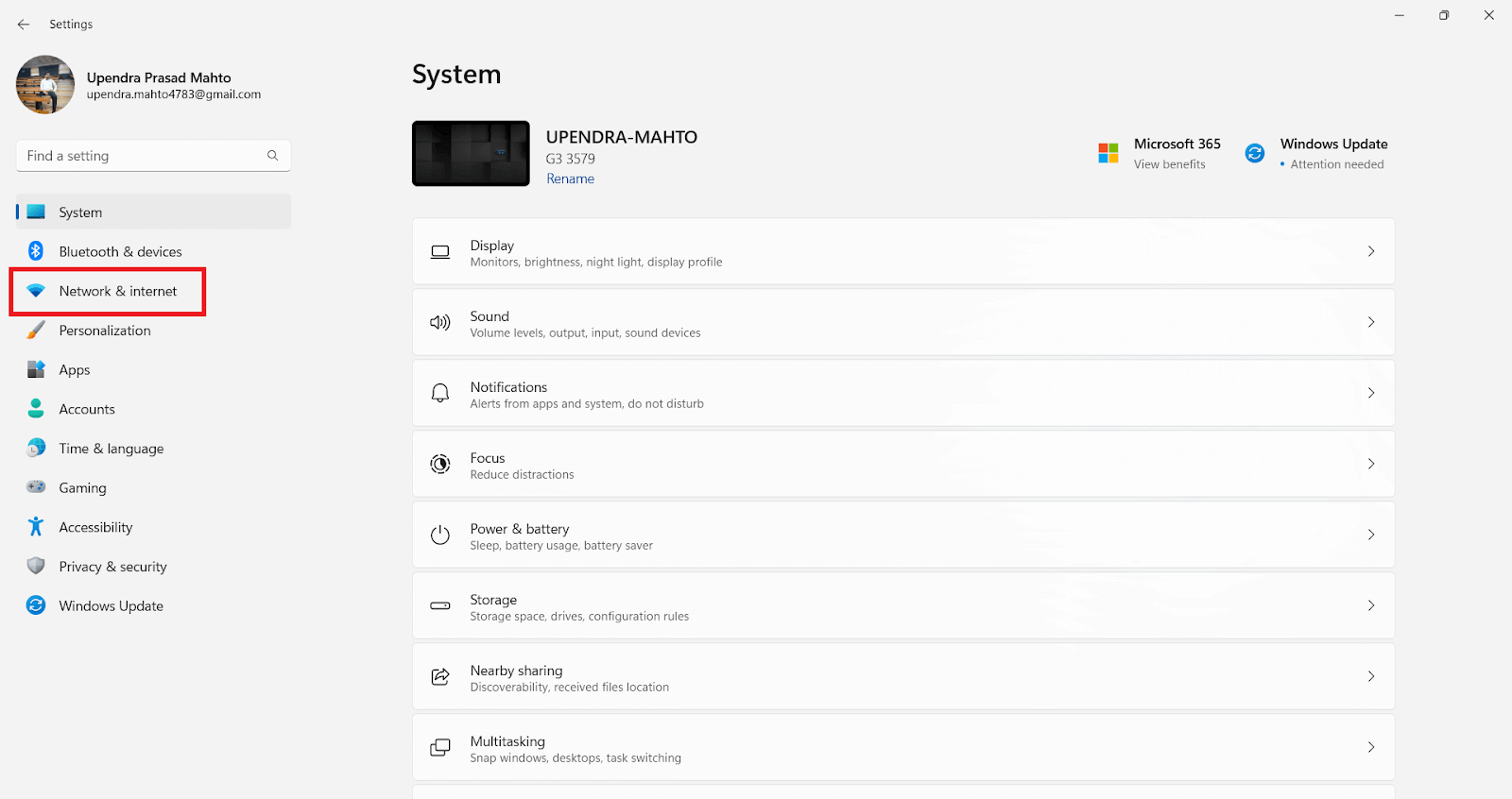
Step 2: On the left-hand side, select “Network & internet.”
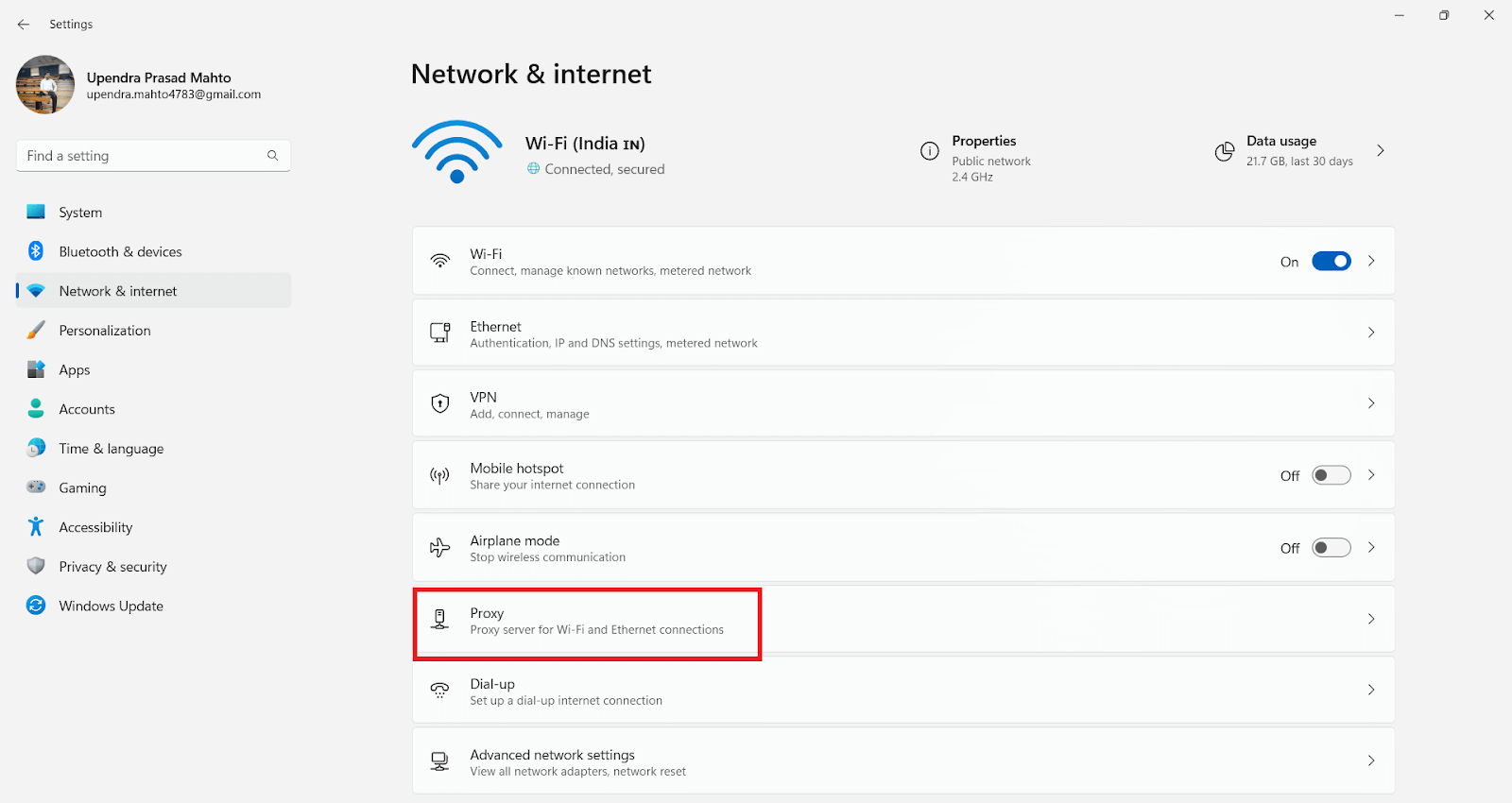
Step 3: Click on “Proxy.”
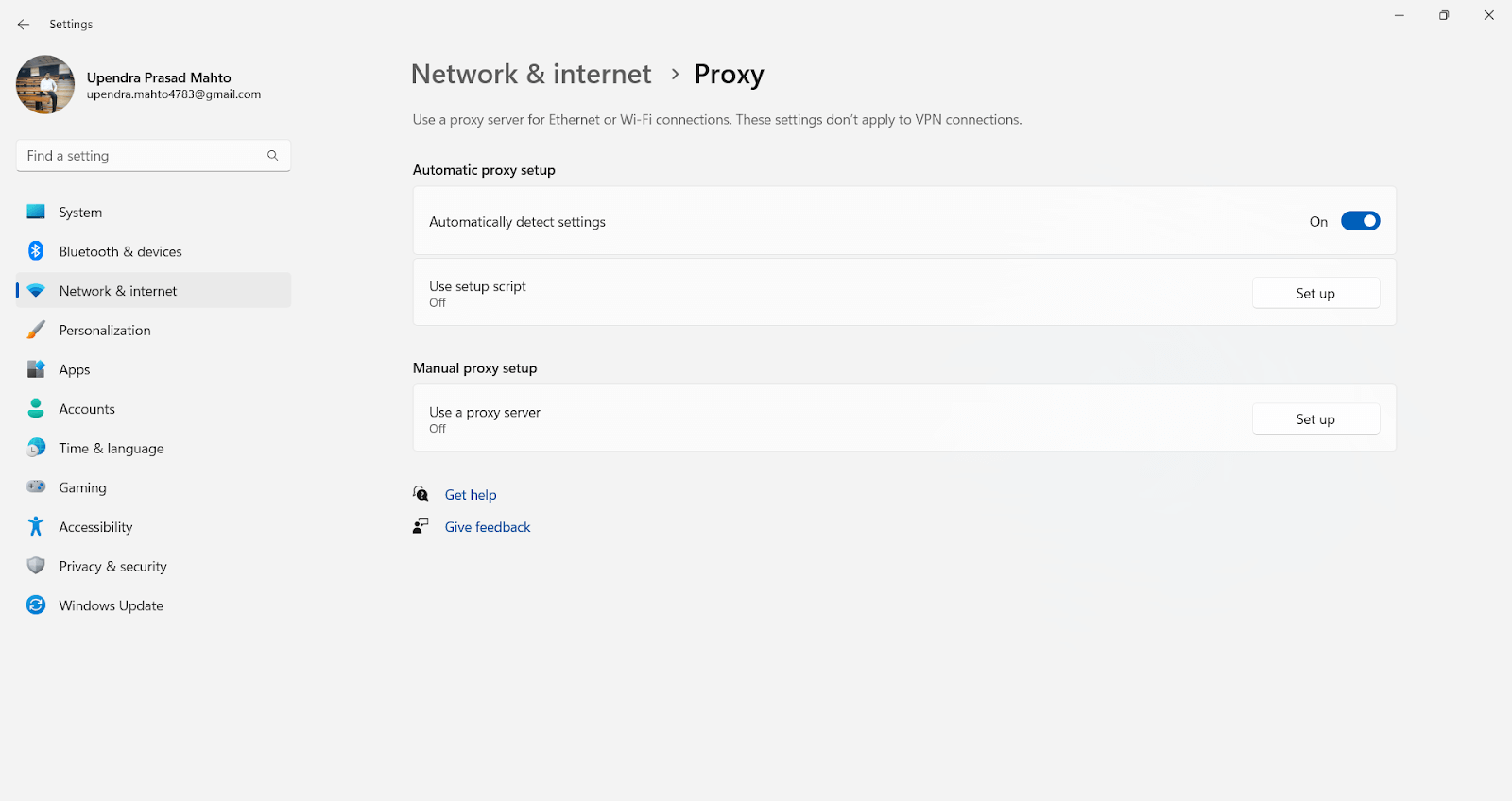
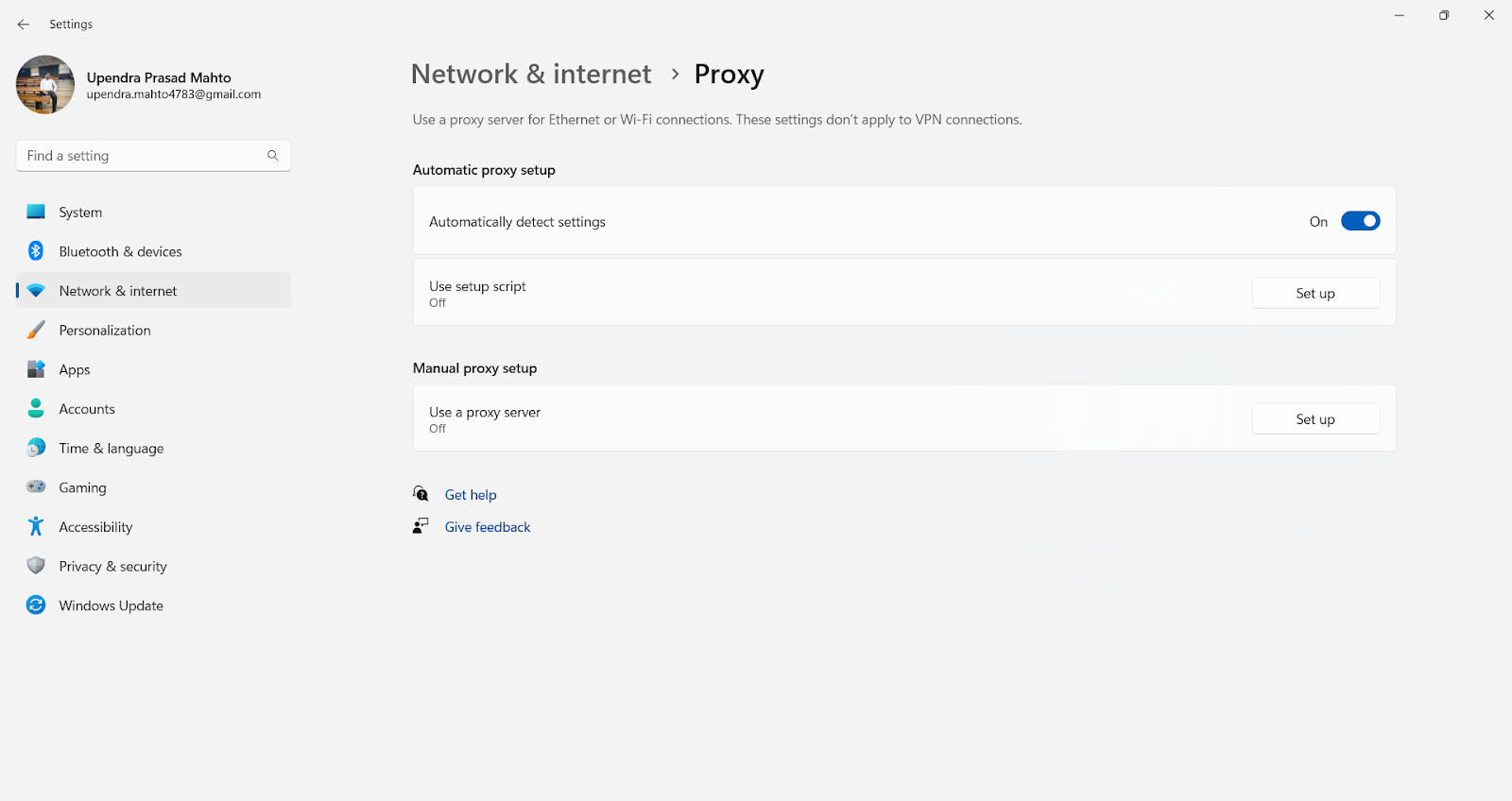
Now, you’ll find various options for configuring your proxy settings based on your requirements.
Setting up local testing connections by using configuration details.
If the “Use setup script” option is enabled, you have set up a PAC proxy on your system. You can find the path to the PAC file in the “Script address” section.
Note: If you want to use the PAC file to establish a local test connection, make sure that the PAC file is stored on your computer and that the path is absolute.
If the “Manual proxy setup” option is enabled, things are pretty simple. You can easily find the proxy host and port in the “Address” and “Port” sections.
Method 2: Using Control Panel
- Step 1: Open the Control Panel.
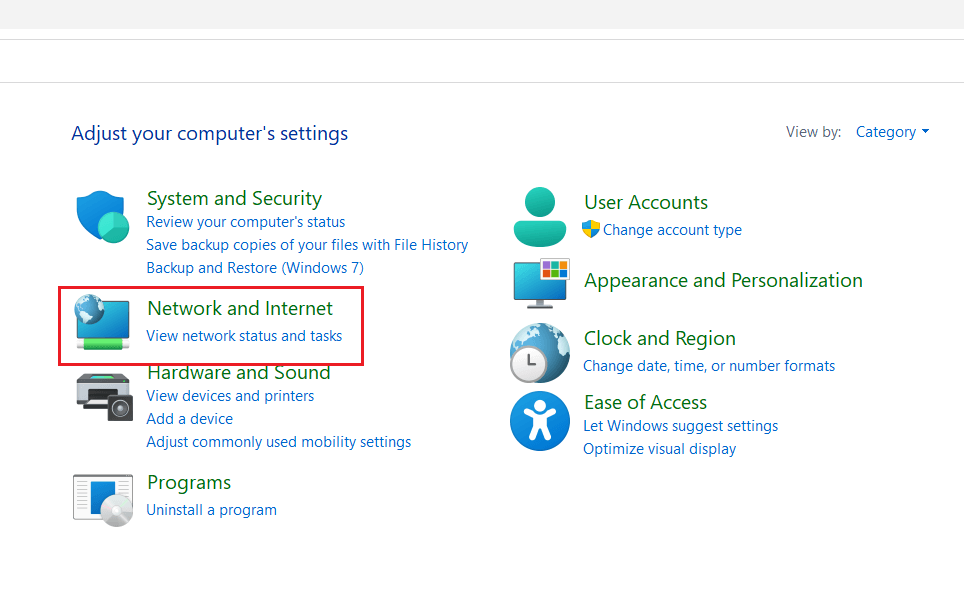
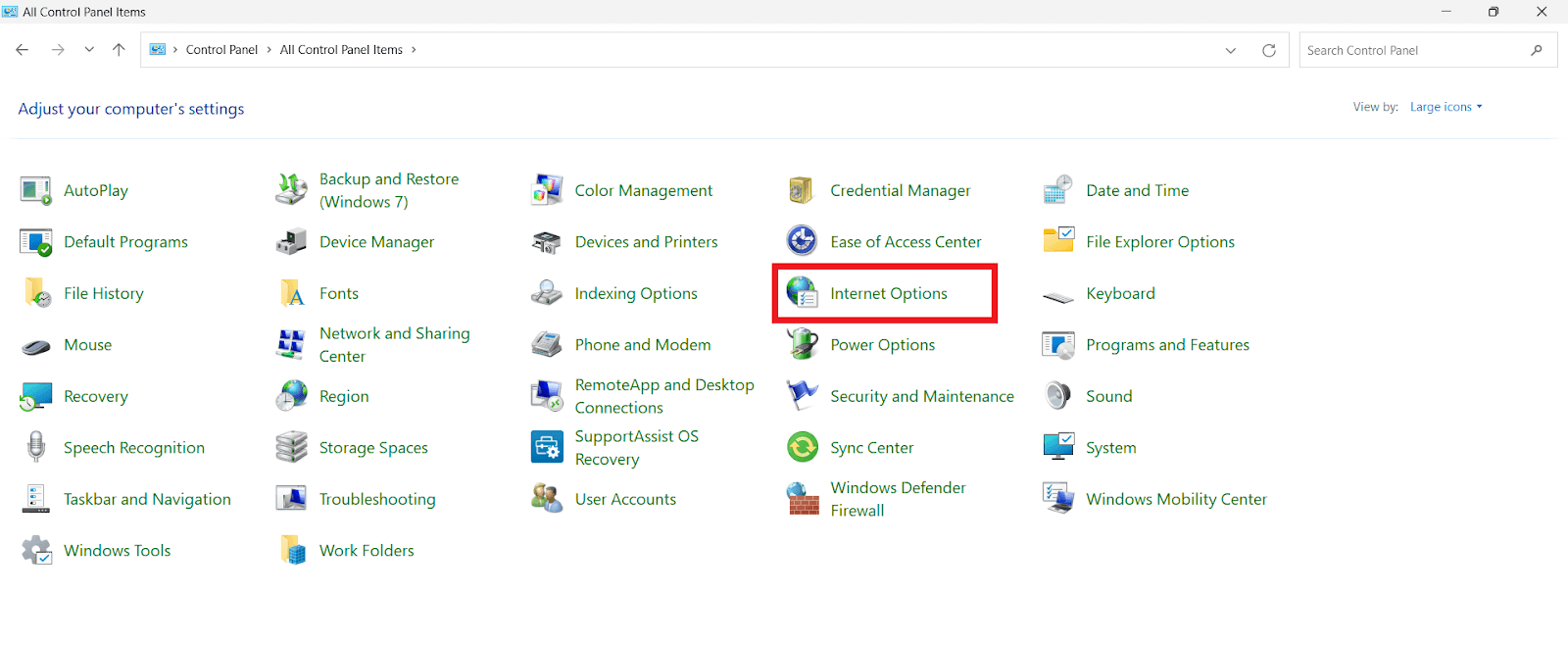
- Step 2: Depending on how the Control Panel window appears, either select “Network & Internet” and then choose “Internet Options” or directly select “Internet Options.”
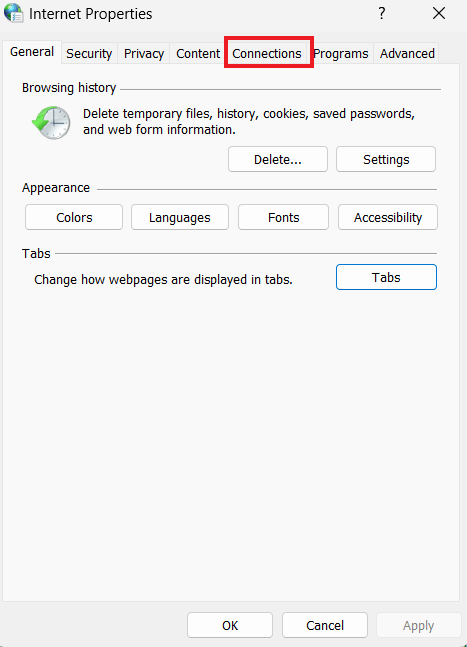
Step 3: Click on “Connections,” then select “LAN Settings.”
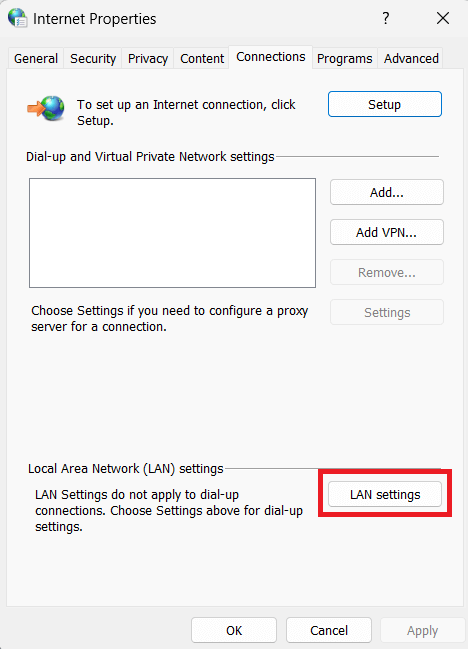
Now, you’ll find all the settings for setting up a proxy in Windows. It’s typically divided into two configurations: Automatic configuration or Proxy Server setup.
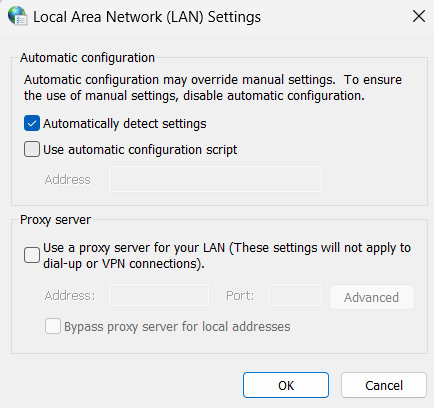
Setting up local testing connections by using configuration details.
If the “Use setup script” option is enabled, you have set up a PAC proxy on your system. You can find the path to the PAC file in the “Script address” section.
Note: If you want to use the PAC file to establish a local test connection, make sure that the PAC file is stored on your computer and that the path is absolute.
If the “Manual proxy setup” option is enabled, things are pretty simple. You can easily find the proxy host and port in the “Address” and “Port” sections.
How to Check Proxy Settings on Mac?
Setting up a proxy server on Mac computers is a straightforward process. With just a few simple steps, you can set up your own proxy server to improve the performance, security, and privacy of your network.
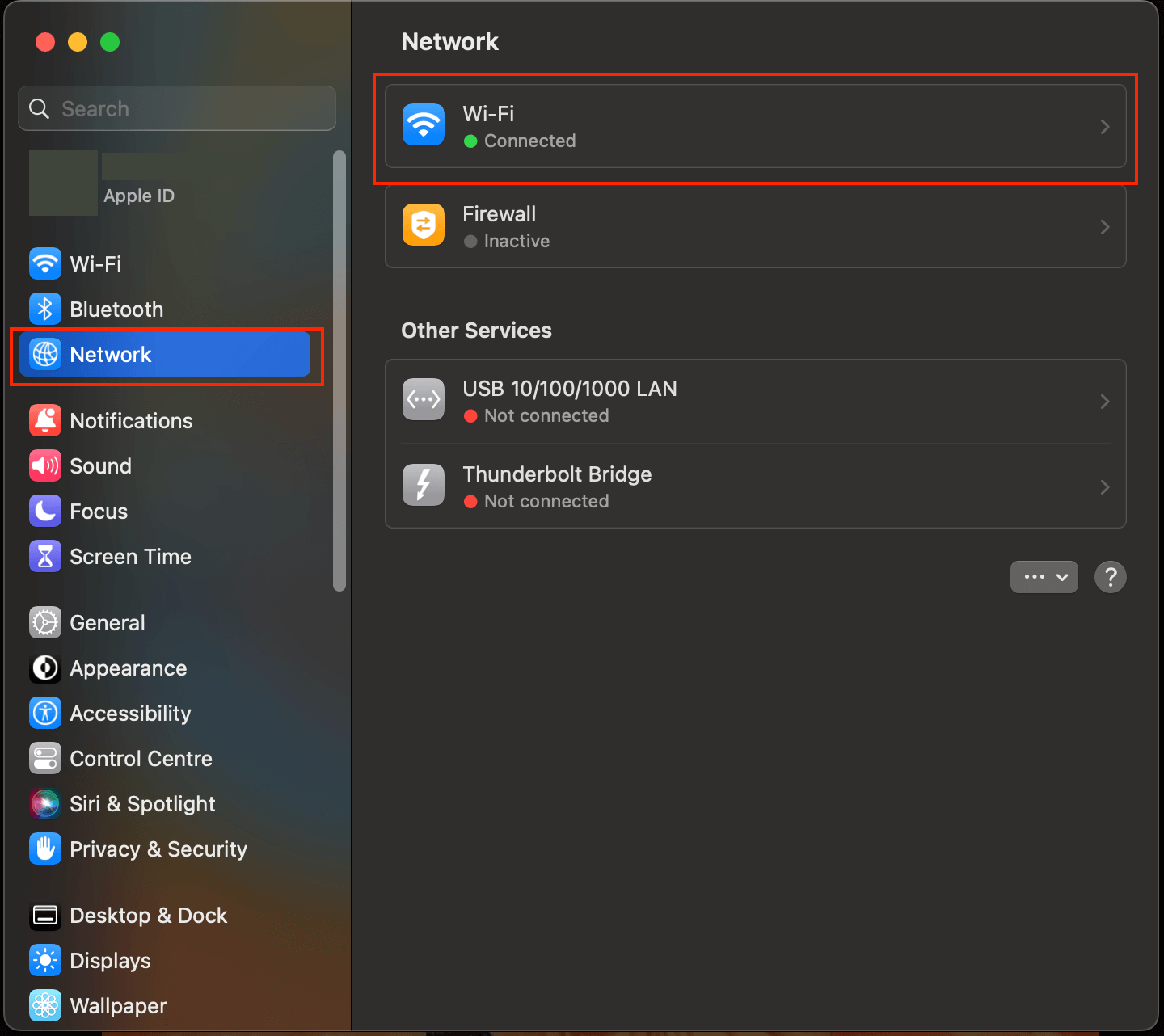
- Step 1: Open the menu and Select System Preferences.
- Step 2: Select the Network Tab
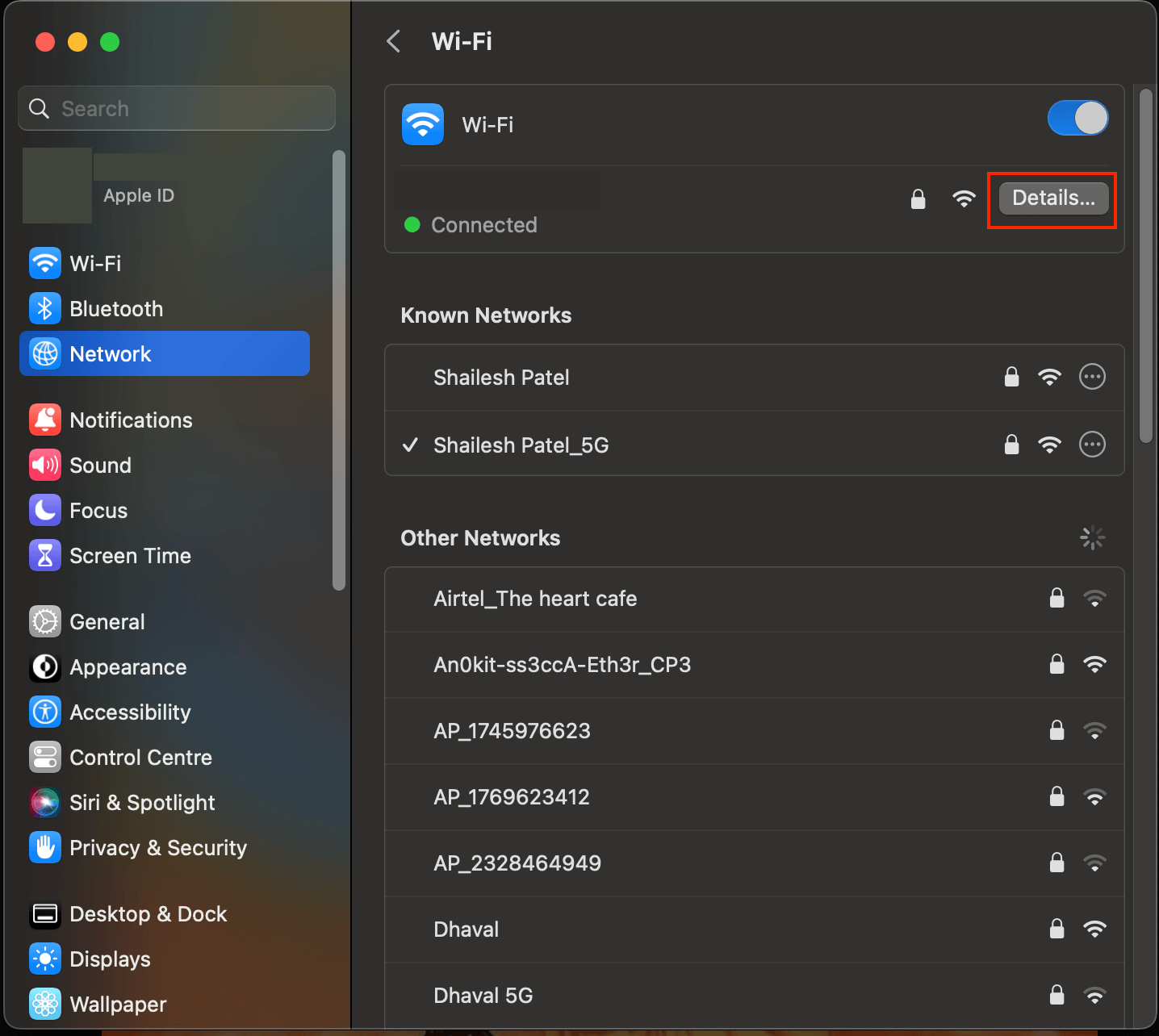
Step 3: Select Details.
Step 4: Then, Select Proxies.
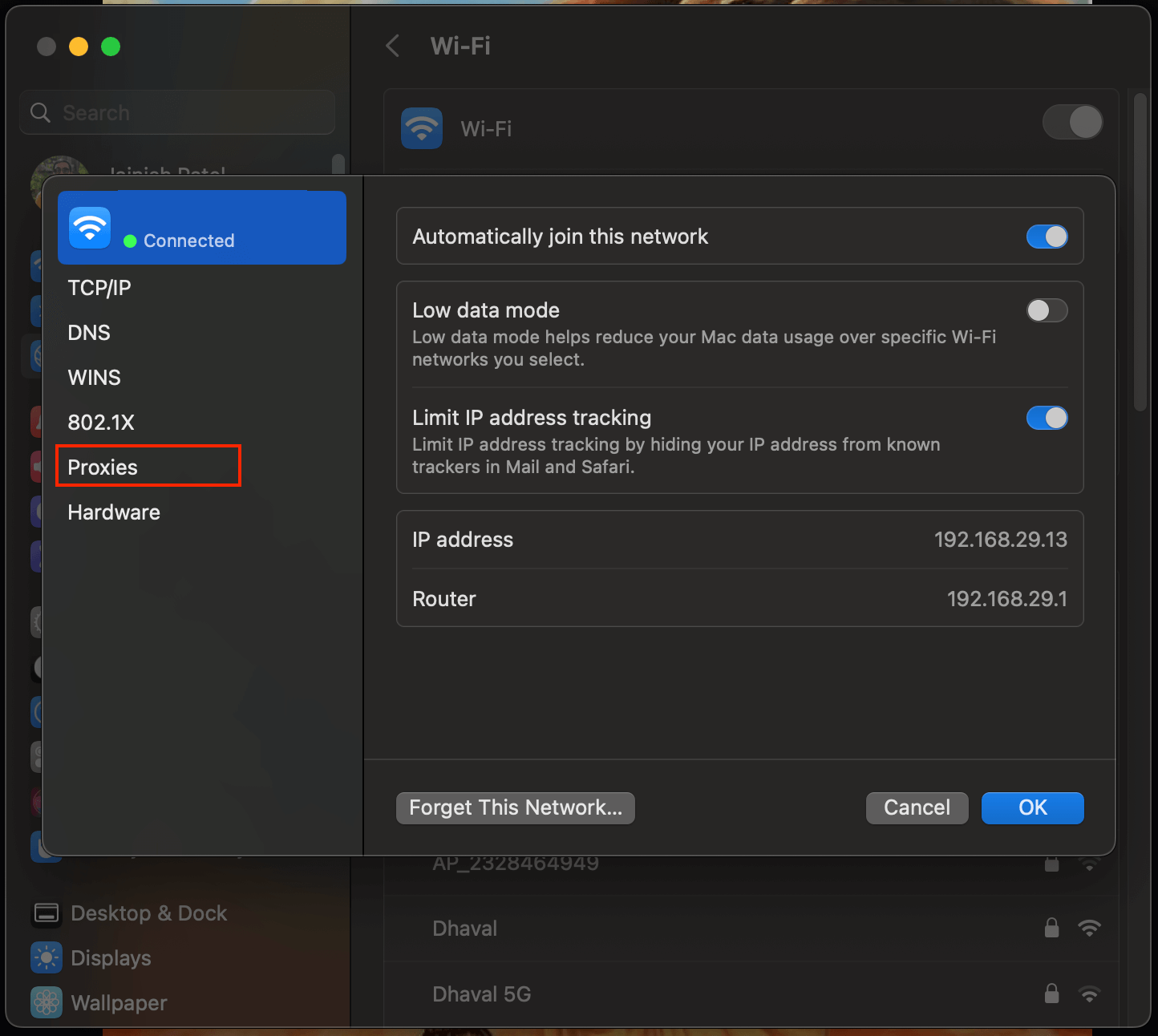
Now, you’ll find all the settings related to setting up a proxy in macOS.
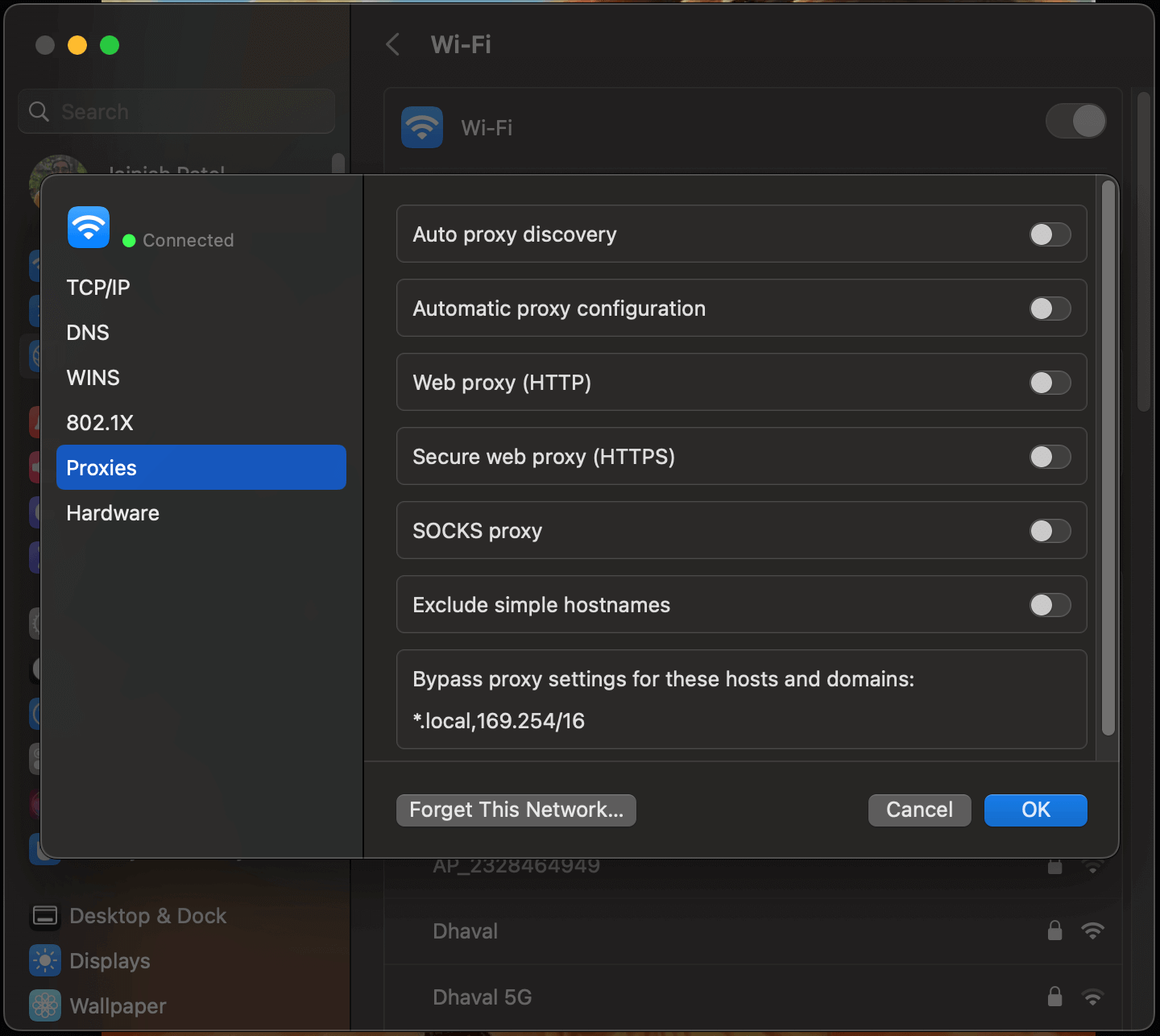
You have two options here. If you don’t want to set up yourself, select “Auto Proxy Discovery” and leave the configuration to your computer.
If you want more control, you can also make the settings manually. In this case, you must specify the proxy type and enter both the port and the address (remember that the port is the smaller number). If the proxy server requires authentication, you must enter the necessary credentials, especially if it is password-protected.
How to Check Proxy Settings Through a Web Browser?
Checking your proxy settings through a web browser is a simple process. To check your proxy settings directly from the browser, follow the below steps. We are using Google Chrome as an example.
Step 1: Open Web Browser (Ex- Chrome)
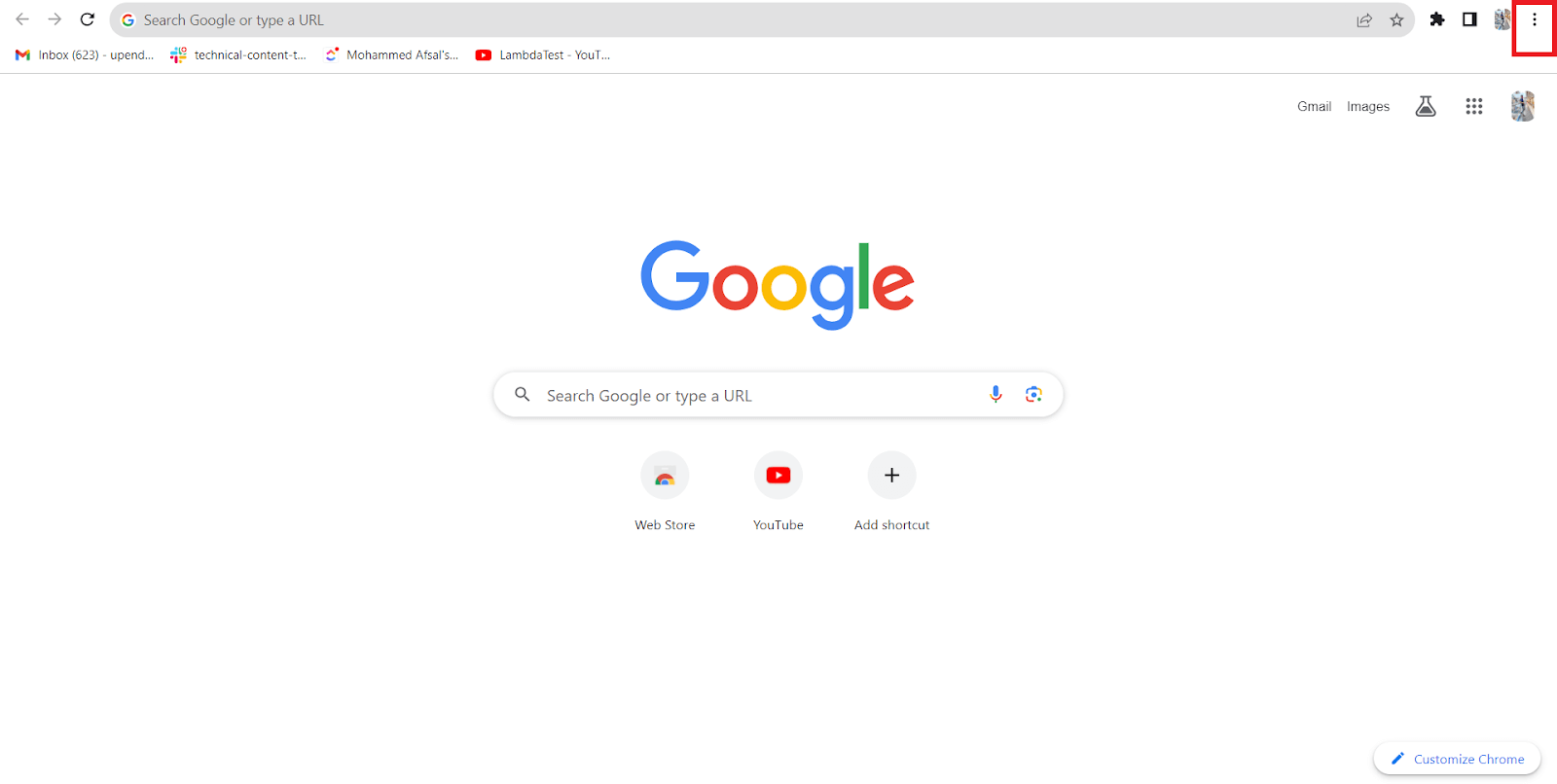
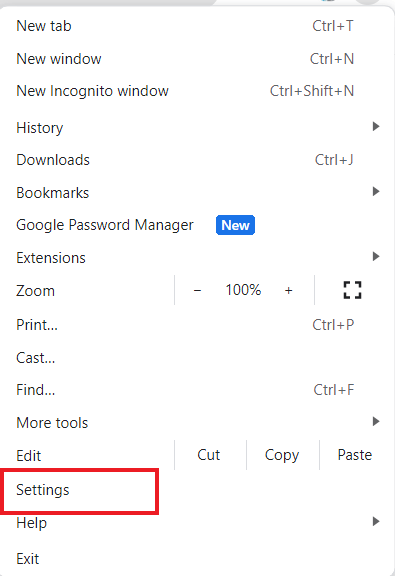
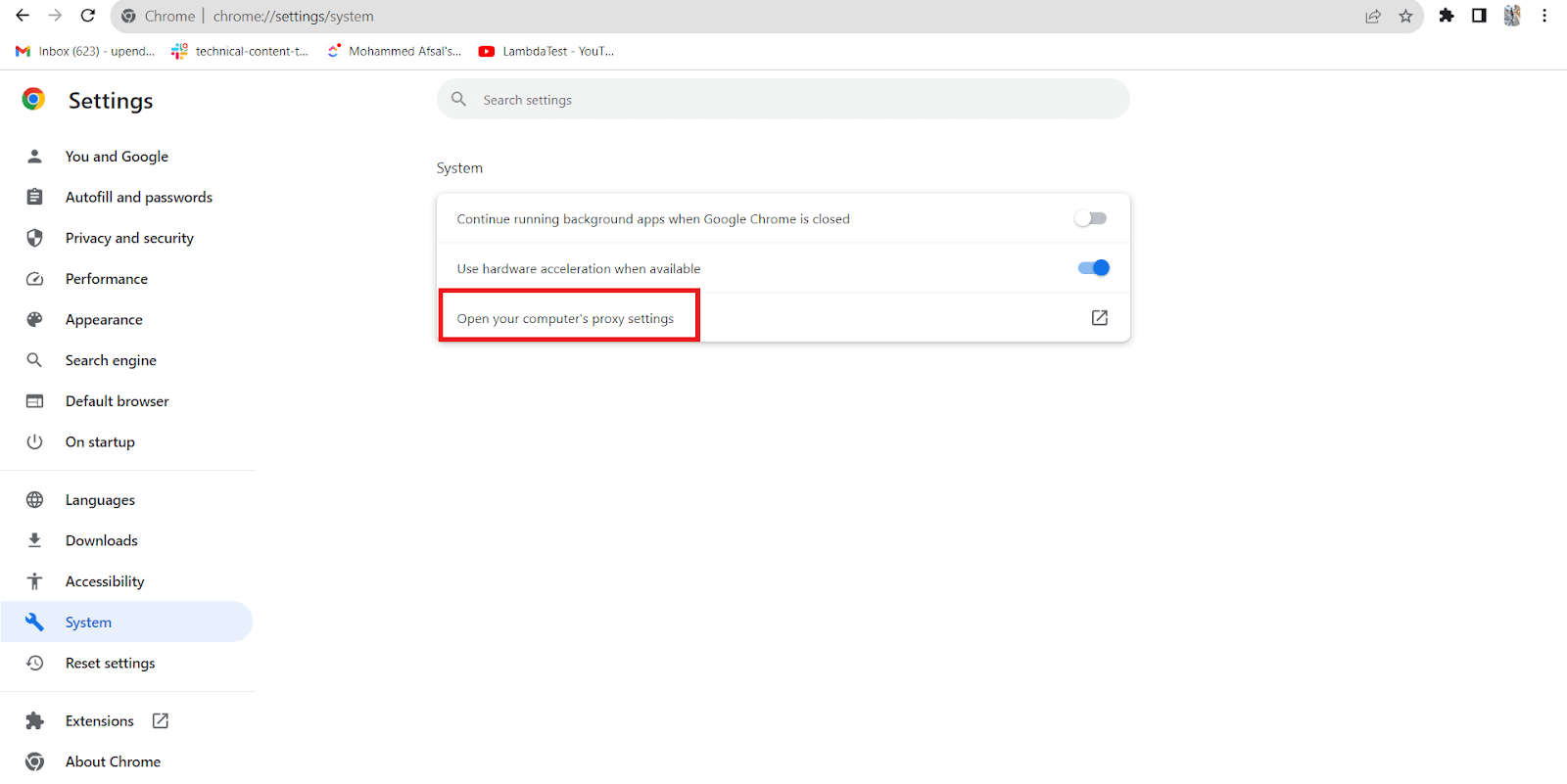
Step 2: Right-click on the Menu Bar (Kebab – three vertical dots) and then Click on Settings.
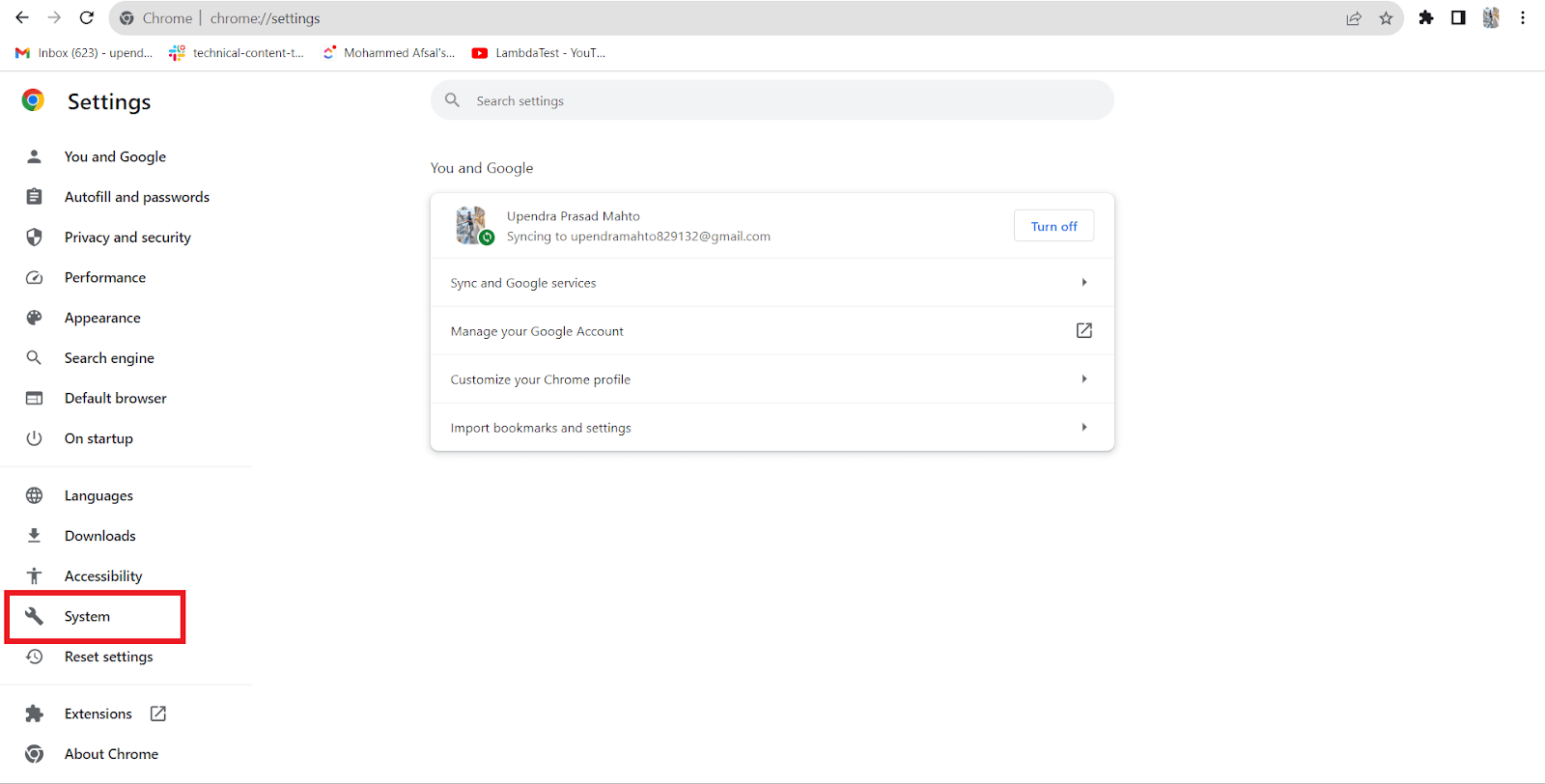
Step 3: Select System and then click on the option “Open your computer’s proxy settings”
A new window is opened where you’ll find various options for configuring your proxy settings based on your requirements.
Conclusion
Checking proxy settings in Windows is essential for ensuring online security, privacy, and access control. It allows users to configure their Internet connection according to their specific needs, whether to improve privacy, bypass restrictions, or optimize network performance.
This article provides insights into the fundamental methods for how to check proxy settings. Firstly, we talked about how to check proxy settings on Windows and macOS. Then, we discussed how to check proxy settings through a web browser, offering a comprehensive guide for users seeking a seamless online experience.


Frequently asked questions
Did you find this page helpful?
More Related Hubs
TestMu AI forEnterprise
Get access to solutions built on Enterprise
grade security, privacy, & compliance
- Advanced access controls
- Advanced data retention rules
- Advanced Local Testing
- Premium Support options
- Early access to beta features
- Private Slack Channel
- Unlimited Manual Accessibility DevTools Tests