

Next-Gen App & Browser Testing Cloud
Trusted by 2 Mn+ QAs & Devs to accelerate their release cycles


On This Page
- Why Take Screenshot in Selenium?
- How To Take Screenshot in Selenium?
- Simple Program To Capture A Screenshot In Selenium WebDriver
- How To Take Multiple Screenshot in Selenium?
- How To Capture Selenium Screenshot using Cloud Based Grid
- Capture Automated Screenshots Without Selenium Scripts
- Capture Screenshots Behind Login
- Conclusion

How To Take Screenshot In Selenium Java?
Learn to take screenshot in Selenium Java and get in depth knowledge of why it is critical in the software testing lifecycle.

Tanay Kumar Deo
February 16, 2026
Selenium is an open-source automation tool widely used for testing web applications. It enables developers to create scripts that automate browser activities, evaluate expected results, and ensure application functionality.
When working with automated tests with Selenium, we frequently need to capture a screenshot of the web page or a portion of a web page. This can be useful, especially when debugging test failures or ensuring our application behavior is consistent across browsers.
In this article, we’re going to deep dive into Selenium Screenshots. We will learn about the different ways to capture screenshots in Selenium. If you are preparing for an interview you can learn more through Selenium interview questions.
Overview
Why Is Taking Screenshots Important in Selenium Testing?
In Selenium testing, capturing screenshots helps testers track application states, detect issues, and improve reporting accuracy efficiently.
- Debugging Support: Screenshots help identify layout problems, rendering glitches, or unexpected behaviors, enabling testers to quickly locate and resolve errors.
- Visual Regression Testing: By comparing screenshots before and after updates, testers can detect unintended UI changes or regressions accurately and consistently.
- Documentation of Test Results: Screenshots provide visual evidence of test outcomes, improving clarity and communication of issues to developers and stakeholders.
- Bug Reporting: Screenshots visually illustrate encountered problems, simplifying bug reporting and helping developers understand and fix issues faster.
How to Capture Screenshots in Selenium?
In Selenium, screenshots are captured using the TakesScreenshot interface, allowing testers to save images for debugging efficiently.
- Initialize WebDriver: Start the browser session using WebDriver, like ChromeDriver or FirefoxDriver, to begin automation and test execution.
- Downcast to TakesScreenshot: Cast the WebDriver instance to the TakesScreenshot interface to enable screenshot capture during test execution.
- Capture Screenshot: Use the getScreenshotAs(OutputType.FILE) method to capture the current page view and store it temporarily.
- Save Screenshot: Copy the captured file to a specified folder with a proper filename using file-handling utilities like FileUtils.copyFile().
- Capture Multiple Screenshots (Optional): For multiple tabs, switch between tabs, capture screenshots sequentially, and save them in the desired folder path.
- Close Browser: After capturing screenshots, quit the WebDriver session to release resources and finalize test execution.
How To Take Selenium Screenshots Using a Cloud Platform?
Cloud-based Selenium grids, like TestMu AI Smart UI, enable automated screenshots across 3000+ real desktop and mobile browsers efficiently.
- Enable Visual Capability: Toggle the ‘visual’ option in the Desired Capabilities Generator to automatically capture screenshots during Selenium test execution.
- Pass Capability in Script: Include the visual capability in your Selenium Desired Capabilities class when running tests on TestMu AI Grid remotely.
- Access Automation Dashboard: Screenshots are available in Automation Logs → Metadata where you can view and download all step-by-step screenshots.
- Set Environment Variables: Specify your TestMu AI username and access key as environment variables to route Selenium tests to the cloud grid.
- Capture Without Selenium Scripts: Use Screenshot Testing to generate full-page screenshots across multiple browsers without writing any Selenium code.
- Capture Screenshots Behind Login: Create a Login Profile by entering URL, username, password, and field locators to capture screenshots behind authentication pages.
- Select Browsers and Platform: Toggle the Login Profile, choose browsers and platform, then click Capture to generate cross-browser Selenium screenshots automatically.
- Download and Verify Screenshots: After execution, download the screenshots for review, documentation, or visual regression testing purposes.
Why Take Screenshot in Selenium?
In Selenium testing, screenshots serve as crucial elements for various purposes. They provide visual evidence of the web application’s state, aid in debugging, support visual regression testing, and facilitate test results and bug reporting documentation. Mentioned below are a few importance of taking screenshots in Selenium:
- Debugging Support: Screenshots are instrumental in identifying layout issues, rendering errors, or other anomalies within the application. By visually inspecting screenshots, testers can pinpoint and address potential problems efficiently.
- Visual Regression Testing: Screenshots are indispensable for conducting visual regression tests. By comparing screenshots taken before and after changes to the application, testers can detect any unintended visual alterations or regressions introduced by the modifications.
- Documentation of Test Results: Screenshots serve as tangible evidence of test outcomes. They enhance test documentation by visualizing encountered issues, making it easier for developers and stakeholders to comprehend the test results.
- Bug Reporting: Screenshots simplify the process of reporting bugs. They offer a clear visual representation of encountered issues, enabling developers to quickly understand and address reported bugs.
How To Take Screenshot in Selenium?
To achieve seamless screenshot capture in Selenium, leverage the TakesScreenshot() method. This instructs WebDriver to snapshot and store within the Selenium testing script. The foundation lies in smart typecasting and effective file handling, ensuring precise storage at your designated location.
While automating a web application, we can use an interface TakesScreenshot which signals the WebDriver to take a screenshot during test execution. The TakesScreenshot interface is extended by the WebElement interface (an interface extends another interface) and the browser driver classes such as FirefoxDriver, ChromeDriver, OperaDriver, etc implement the same interface (a class implements an interface).
RemoteWebDriver() class implements interfaces like WebDriver(), TakesScreenshot() etc and to access these methods we have to downcast the driver object.
WebDriver driver = new ChromeDriver();
TakesScreenshot ts = (TakesScreenshot)driver;
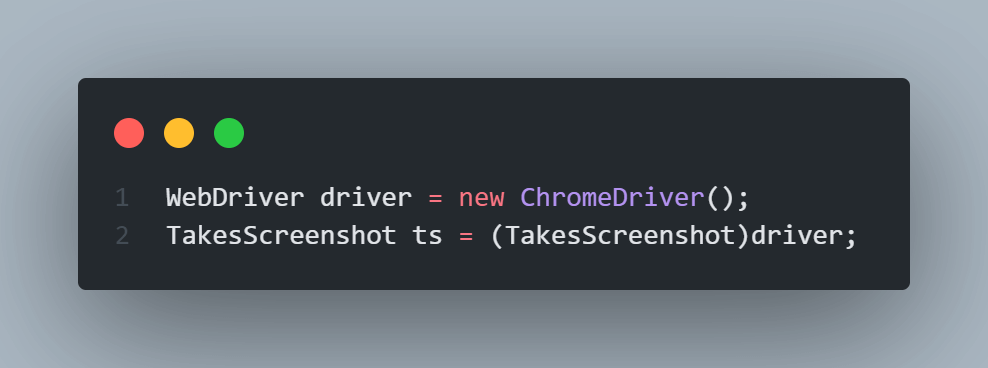
The method getScreenshotAs() in the interface TakesScreenshot helps in capturing the screenshots and storing it in a specified path. We have another interface OutputType, which is used to specify the output format of the screenshot such as FILE, BYTES, etc.
File file = ts.getScreenshotAs(OutputType.FILE);
FileUtils.copyFile(file,new File ("./ScreenShot_Folder/Test1_Login.png"));

In the above destination path “./” indicates the current directory and we can specify the subfolder to hold the screenshots taken and the name in which the screenshots have to be saved. As per the above line, the screenshot taken would be stored in ScreenShot_Folder subfolder inside the current working directory in the name of Test1_Login.png file. If the given subfolder doesn’t exist, then on first-time execution of the script the folder gets automatically created.
Simple Program To Capture A Screenshot In Selenium WebDriver
Now we will explore an example to capture a screenshot and store it in our local directory using Selenium and Java. For our example, we will open TestMu AI’s playground website (https://ecommerce-playground.lambdatest.io/) in the Firefox browser.
Code:
import java.io.File;
import java.io.IOException;
import org.openqa.selenium.OutputType;
import org.openqa.selenium.TakesScreenshot;
import org.openqa.selenium.WebDriver;
import org.openqa.selenium.firefox.FirefoxDriver;


public class Main {
   public static void main(String[] args) {
   	// Initialize the FireFox WebDriver using Selenium Manager
       WebDriver driver = new FirefoxDriver();
       // Open the plaground webside in a browser session
       driver.get("https://ecommerce-playground.lambdatest.io/");

       // Initialize an instance to the TakeScreenshot class
       TakesScreenshot ts = (TakesScreenshot)driver;
       // Capture screenshot as output type FILE
		File file = ts.getScreenshotAs(OutputType.FILE);

		try {
		    //save the screenshot taken in destination path
			FileUtils.copyFile(file, new File("./ScreenShot_Folder/ecommerce_plaground.png"));
			// Print the title after screenshot capture
	        String title = driver.getTitle();
	        System.out.println("Captured Screenshot for: " +title);
		} catch (IOException e) {
			// Catch any unexpected errors
			e.printStackTrace();
		}

       // Close the driver
       driver.quit();
   }
This Java code utilizes Selenium WebDriver to automate web browser actions. It opens a website, captures a screenshot, and saves it to a specified directory. It initializes a Firefox WebDriver instance, navigates to a webpage, takes a screenshot, saves it with a filename “ecommerce_plaground.png” and prints the webpage title, and closes the browser.
Captured Screenshot:

How To Take Multiple Screenshot in Selenium?
Now let’s take an advanced example to capture multiple screenshots and save them in Selenium. In this example, we will open multiple URLs in the Firefox browser and capture screenshots for each of them one by one.
Code:
import org.openqa.selenium.WebDriver;
import org.openqa.selenium.firefox.FirefoxDriver;


import java.io.File;
import java.util.Iterator;
import java.util.Set;


import org.openqa.selenium.JavascriptExecutor;
import org.openqa.selenium.OutputType;
import org.openqa.selenium.TakesScreenshot;


public class CaptureAllTapsScreenshots {
    // Global declaration for chrome driver
    private static WebDriver driver;

    // Function to open multiple tab
    private static void openMultipleTabsAndCaptureScreenshots(String[] urls) throws InterruptedException {
        // Finding no. of urls
        int listLength = urls.length;

        // Creating a JavascriptExecutor reference.
        JavascriptExecutor js = (JavascriptExecutor) driver;

        // LAst open tab name
        String last = driver.getWindowHandle();
        // Iterating over all url to open new tab
        for(int i=0; i<listLength ; i++) {
            // Javascript command to open url in new tab
            String link = "window.open('" + urls[i] + "', '_blank')";
            js.executeScript(link);

            // Get all open tabs
            Set<String> allTabs = driver.getWindowHandles();
            // find Last open tab in allTabs
            Iterator<String> iterator = allTabs.iterator();
            while(iterator.hasNext()){
                last = iterator.next();
            }
            // Initialize an instance to the TakeScreenshot class
            TakesScreenshot ts = (TakesScreenshot)driver;


            // Capture screenshot as output type FILE
            File file = ts.getScreenshotAs(OutputType.FILE);

            //save the screenshot taken in destination path
            FileUtils.copyFile(file, new File("./ScreenShot_Folder/screenshot" + i +".png"));

            // Switch to new tab
            driver.switchTo().window(last);

            // Print page title
            System.out.println("New Tab = " + driver.getTitle());

            // Add time delay for proper loading
            Thread.sleep(1000);
        }
    }

    // Function to close all tab except the Current tab
    private static void closeMultipleTabs() throws InterruptedException {
        // Get all open tabs
        Set<String> allTabs = driver.getWindowHandles();

        // Get Current tab
        String currentTab = driver.getWindowHandle();

        Iterator<String> iterator = allTabs.iterator();

        while(iterator.hasNext()) {
            // Condition to check if the selected tab is not current tab
            String selectedTab = iterator.next();
            if(!selectedTab.equals(currentTab)) {
                // Switch to new tab
                driver.switchTo().window(selectedTab);

                // Print title of tabs to be closed
                System.out.println("Closing Tab = "+driver.getTitle());

                // Close the selected tab
                driver.close();

                // Time delay
                Thread.sleep(1000);
            }
        }
    }


    public static void main(String[] args) {
        // No need for setProperty as ChromeDriver() will auto install
        // required browser driver for firefox using Selenium Manager
        driver = new FirefoxDriver();

        // Initializing urls to open in new tab
        String[] urlList = new String[3];
        urlList[0] = "https://ecommerce-playground.lambdatest.io/";
        urlList[1] = "https://ecommerce-playground.lambdatest.io/index.php?route=product/special";
        urlList[2] = "https://ecommerce-playground.lambdatest.io/index.php?route=extension/maza/blog/home";

        // Surround with try catch block to handle exception
        try {


            // Calling function to open new tab and capture screenshots using Selenium
            openMultipleTabsAndCaptureScreenshots(urlList);

            // Print Current Tab name
            System.out.println("Current Tab = "+driver.getTitle());
            Thread.sleep(2000);

            // Calling function to close all tabs
            closeMultipleTabs();

        } catch (InterruptedException e) {
            // Catch block to handle exception
            e.printStackTrace();
        }

        // Quit the current browser session
        driver.quit();
    }
}
This Java code utilizes Selenium WebDriver to open multiple tabs, capture screenshots of each tab, and then close all tabs except the current one. It initializes a FirefoxDriver instance, defines URLs to open in new tabs, opens each URL in a new tab, captures screenshots, and closes the extra tabs. The code demonstrates handling multiple tabs using Selenium WebDriver in Java, along with capturing and saving screenshots for each tab. Additionally, it ensures the current tab remains active after the process. Finally, it quits the browser session.
You can refer to the below video tutorial on How To Take Screenshots In Selenium testing.
You can also boost your Selenium automation process with KaneAI by TestMu AI—a GenAI native software testing assistant that empowers teams to create, debug, and refine tests using natural language. Designed specifically for high-speed quality engineering teams, it seamlessly integrates with TestMu AI’s suite of tools for test execution, orchestration, and analysis.

How To Capture Selenium Screenshot using Cloud Based Grid
The easiest way to capture screenshots in Selenium is by using a cloud based Selenium grid like TestMu AI that supports 3000+ real browsers for desktop and mobile. At TestMu AI, we want to make the Selenium testing experience as convenient as possible. This is why we provide a toggle button in our Selenium Desired Capabilities Generator.
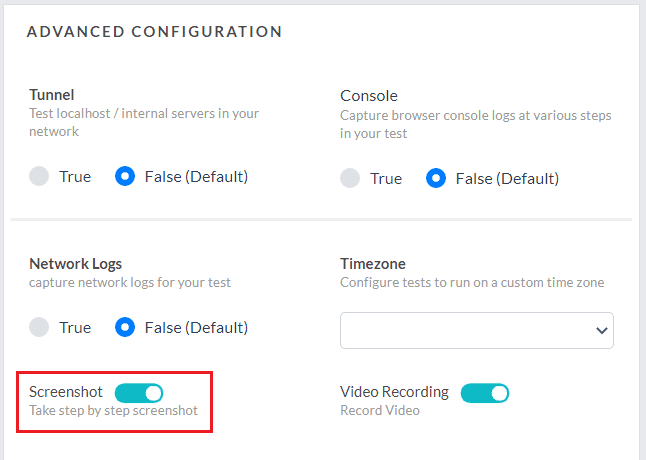
This button when turned on will add a capability called ‘visual’ in the desired capabilities class and set its value as true.
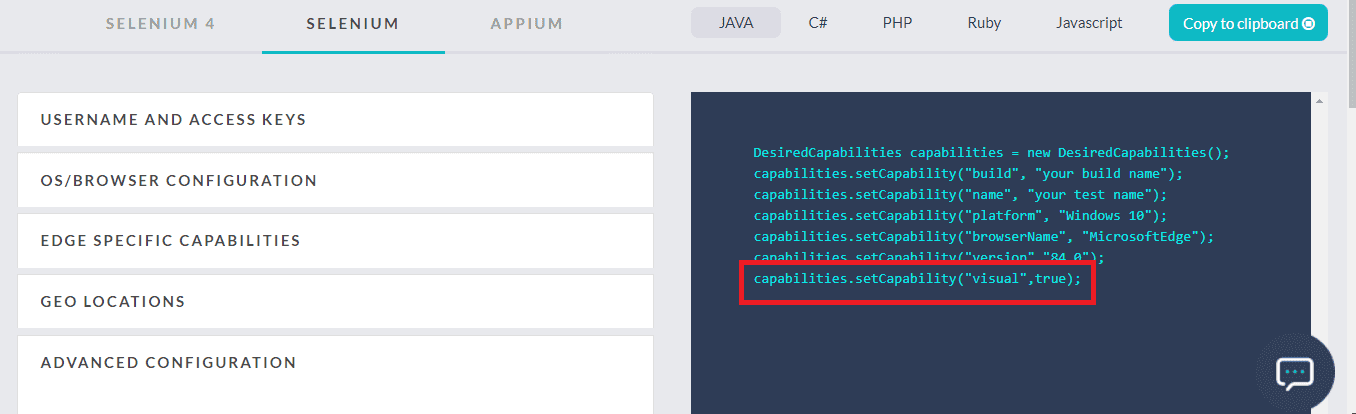
If you pass this capability in your Desired Capabilities class while running your Selenium testing script on TestMu AI Selenium Grid then we will generate step by step screenshots for you Selenium automation script.
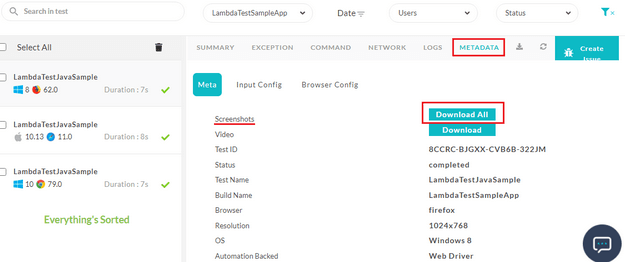
You can find these step by step screenshots on the Automation dashboard, by going to Automation Logs – > Metadata.
In the Metadata tab, you will find the button to Download All screenshots.
Porting your Selenium testing scripts to TestMu AI is easy. All you need to do is specify your TestMu AI username and access key as the environment variables to route your Selenium tests on a Remote WebDriver. Refer to our documentation on TestNG with Selenium.
We also offer RESTful API for capturing Selenium Screenshots for automated browser testing.
Capture Automated Screenshots Without Selenium Scripts
We also offer a feature called Screenshot testing which allows you to capture full page screenshots of your website across 25 different browsers and operating systems. The tests can be executed either in Desktop or Mobile browsers.
You can create full page screenshots without writing any Selenium script in simply two steps.
Step 1: Once logged in, click Visual UI Testing > Screenshot. Step 2: Enter the URL of the website you want to test, select the browsers and hit the capture button.
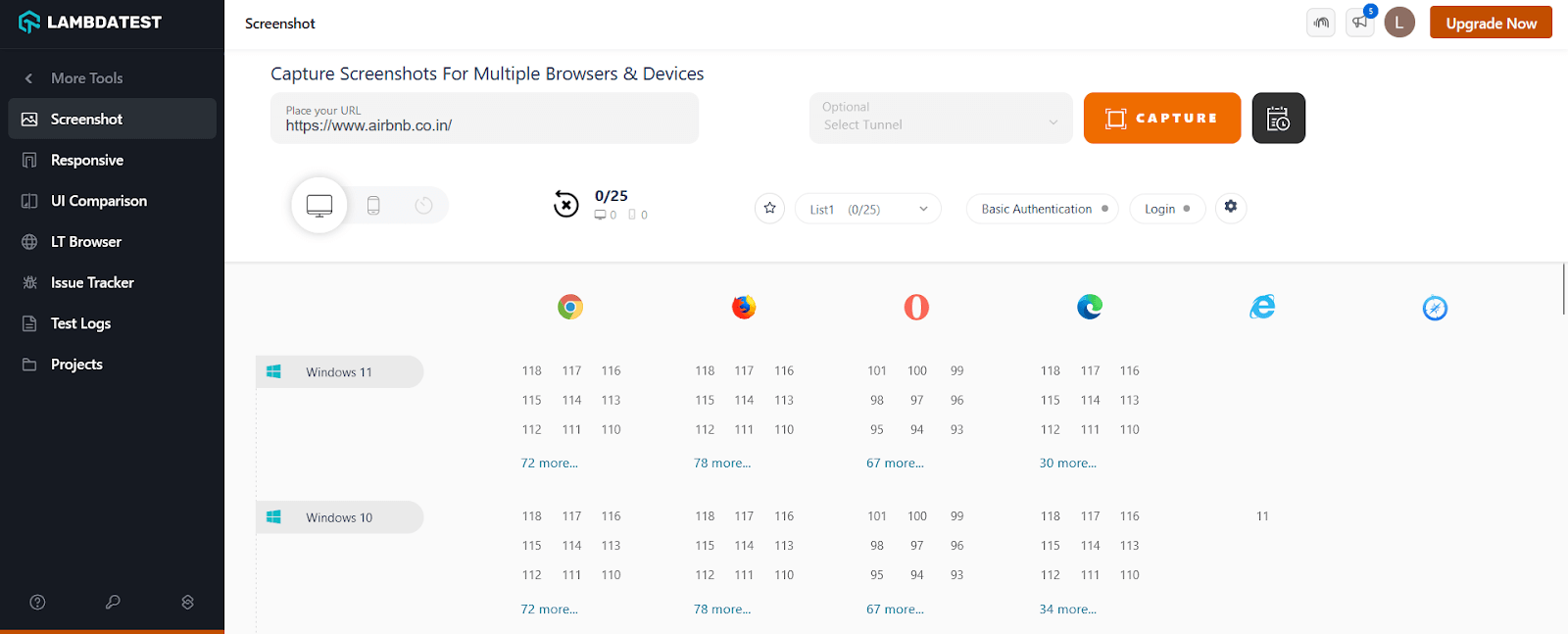
This will automatically generate screenshots of your web application on your selected browsers and operating systems.
Capture Screenshots Behind Login
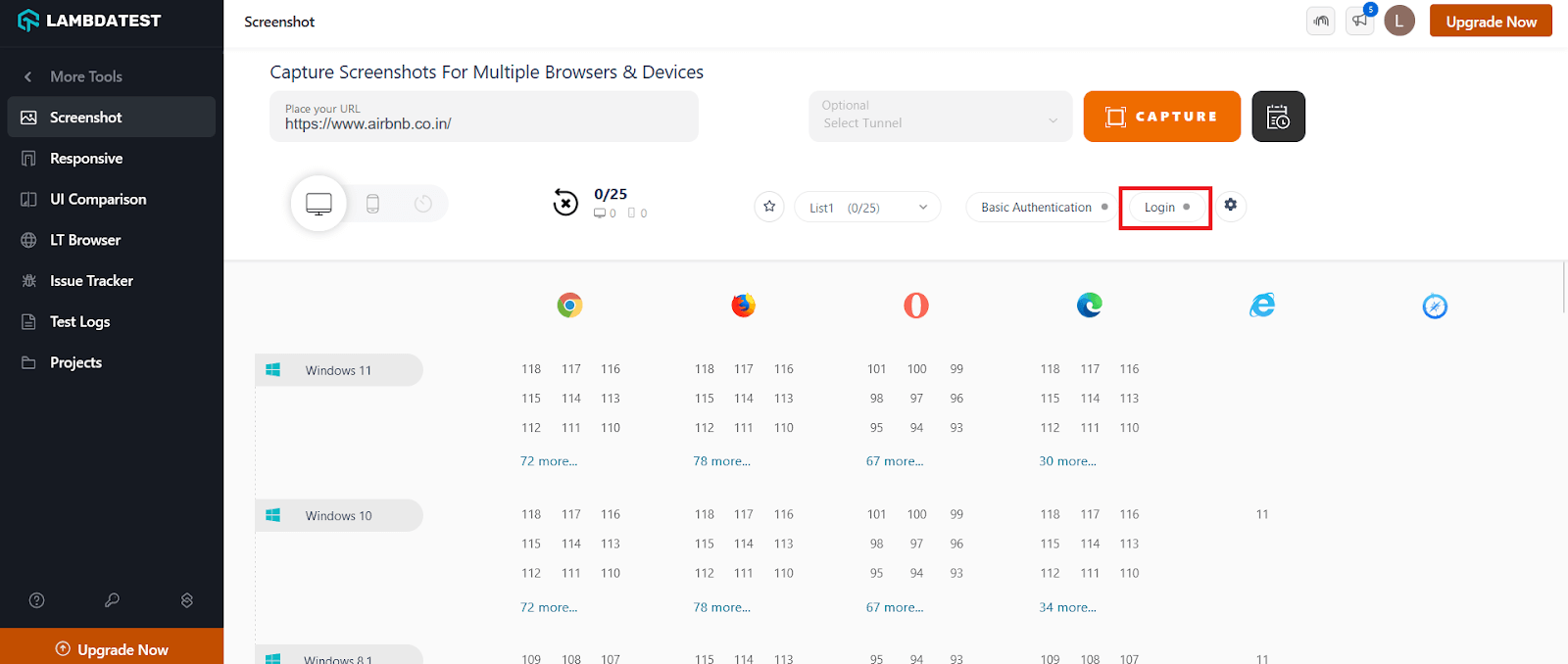
Step 1: To capture a screenshot behind login functionality, click the Login button and create a New Login profile.
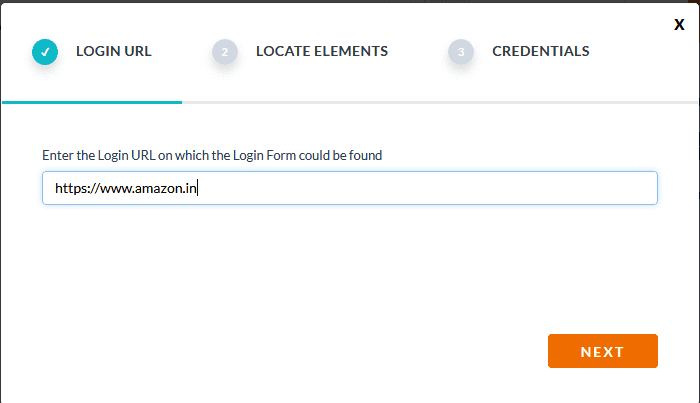
Step 2: Enter the URL of the webpage and click Next.
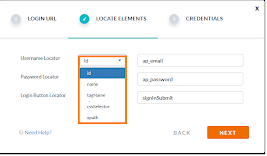
Step 3: Enter the locators of the username, password, and login button fields. Click Next.
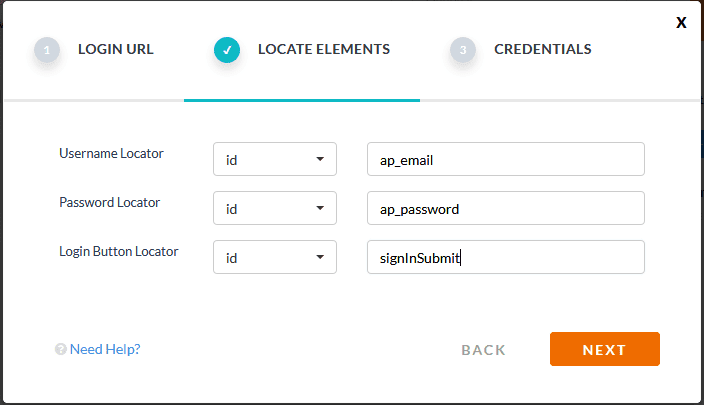
You can select any of the locators as shown below:
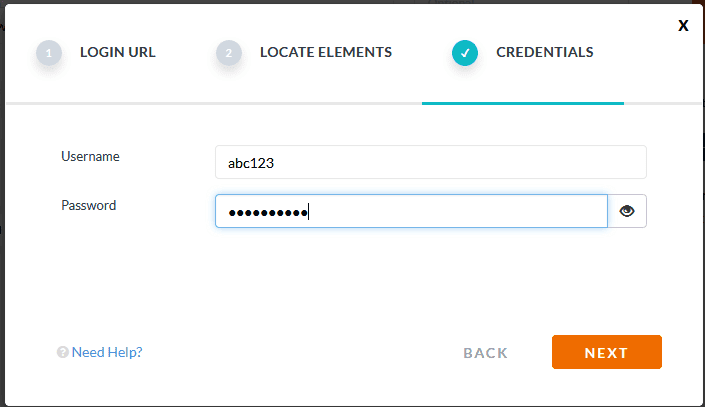
Step 4: Enter a valid username and password and click Next.
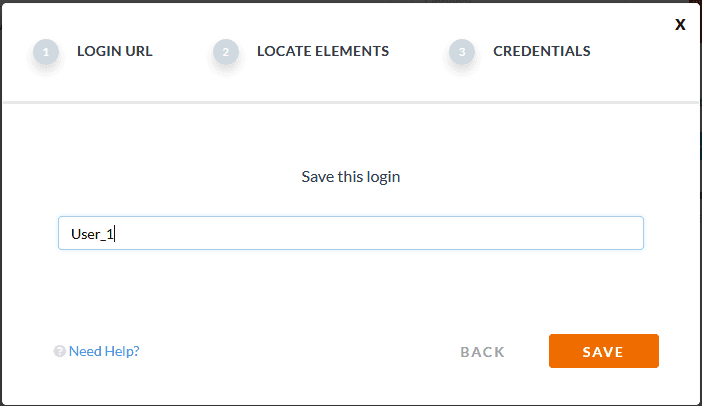
Step 5: Save the Login Profile
Step 6: Once saved, a profile would be created.
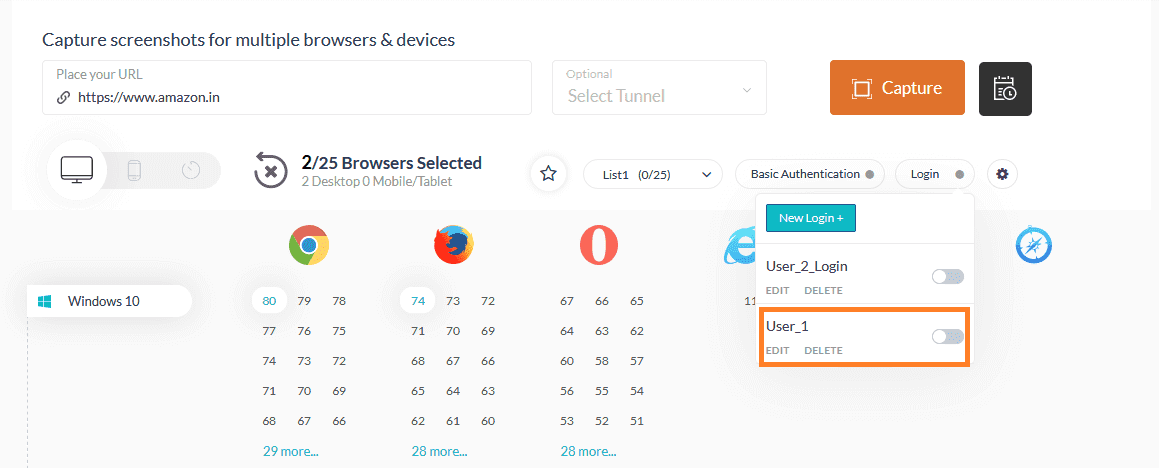
For capturing a screenshot for the same webpage with the same credentials you can just toggle the user profile.
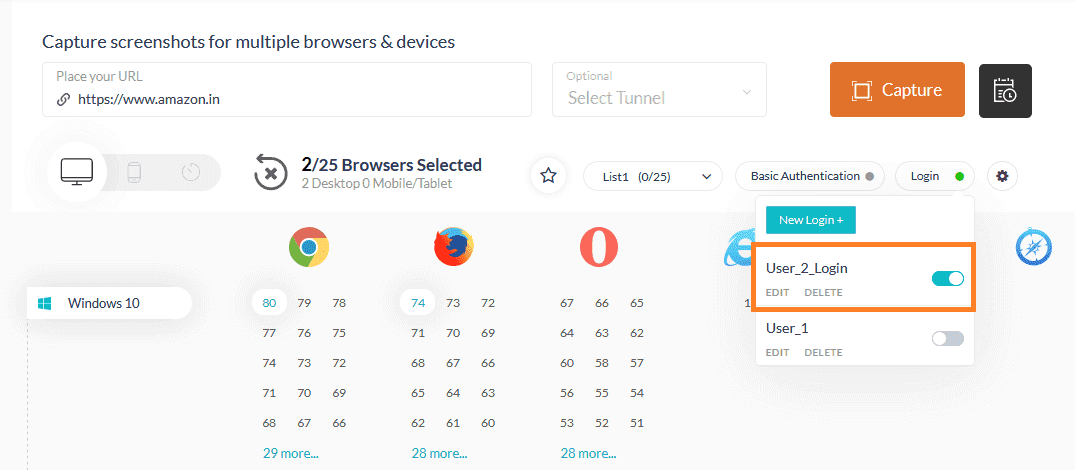
Step 7 : Select the browsers and the platform to execute the test and click Capture. Once the test is executed in different browsers and platforms, the Selenium screenshots would be captured and displayed.
The screenshots can also be downloaded and verified.
Also Read: 12 Must-Try Features Of Automated Screenshot Testing On TestMu AI.
Conclusion
Selenium screenshots empower efficient test automation. They provide visual proof of application states, aiding in debugging, regression testing, and documenting results. Selenium’s robust features allow capturing screenshots throughout test execution, ensuring comprehensive coverage.
Selenium offers flexibility. Capture entire pages or specific elements. Whether for assertions, exceptions, or UI checks, Selenium streamlines the process. Advanced features like capturing failed test screenshots, taking multiples, and integrating with cloud solutions further enhance capabilities.


Frequently asked questions
Did you find this page helpful?
More Related Hubs
TestMu AI forEnterprise
Get access to solutions built on Enterprise
grade security, privacy, & compliance
- Advanced access controls
- Advanced data retention rules
- Advanced Local Testing
- Premium Support options
- Early access to beta features
- Private Slack Channel
- Unlimited Manual Accessibility DevTools Tests