

Next-Gen App & Browser Testing Cloud
Trusted by 2 Mn+ QAs & Devs to accelerate their release cycles


How to Allow Pop-Ups on Safari
Learn how to allow pop-ups on Safari for Mac and iPhone with simple steps. Enable pop-ups for specific sites or all websites easily.

Bhavya Hada
December 25, 2025
Pop-ups often get a bad reputation due to their association with intrusive ads, but not all pop-ups are harmful. Many websites use pop-ups for legitimate reasons, like login prompts, surveys, and important notifications. Safari, Apple’s default web browser, has a pop-up blocker enabled by default to keep the browsing experience smooth and secure. However, there are times when you might want to allow pop-ups, especially when a trusted site requires them for functionality.
If you’re wondering how to allow pop-ups on Safari on a Mac or iPhone, this guide will walk you through the process step by step. You’ll learn how to allow pop-ups for all websites or just for certain sites.
Steps to Allow Pop-Ups on Safari for Mac
If you are wondering how to allow pop-ups on Safari on your MacBook, iMac, or Mac mini, below are the simple steps that you can follow:
- Launch Safari on your MacBook, iMac, or Mac mini.
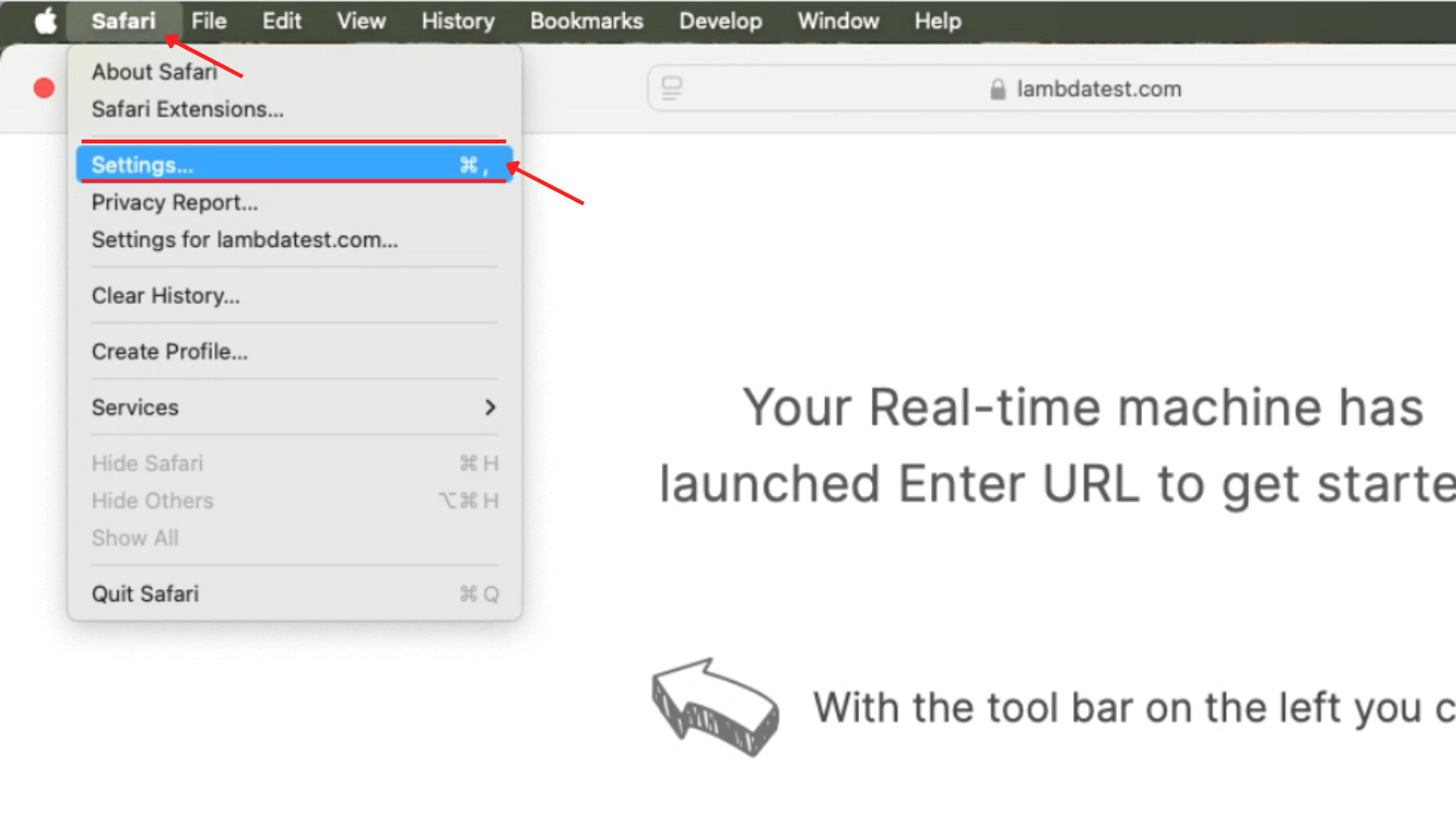
- Click on Safari in the top menu bar and select Settings (or Preferences on older macOS versions) from the dropdown menu.
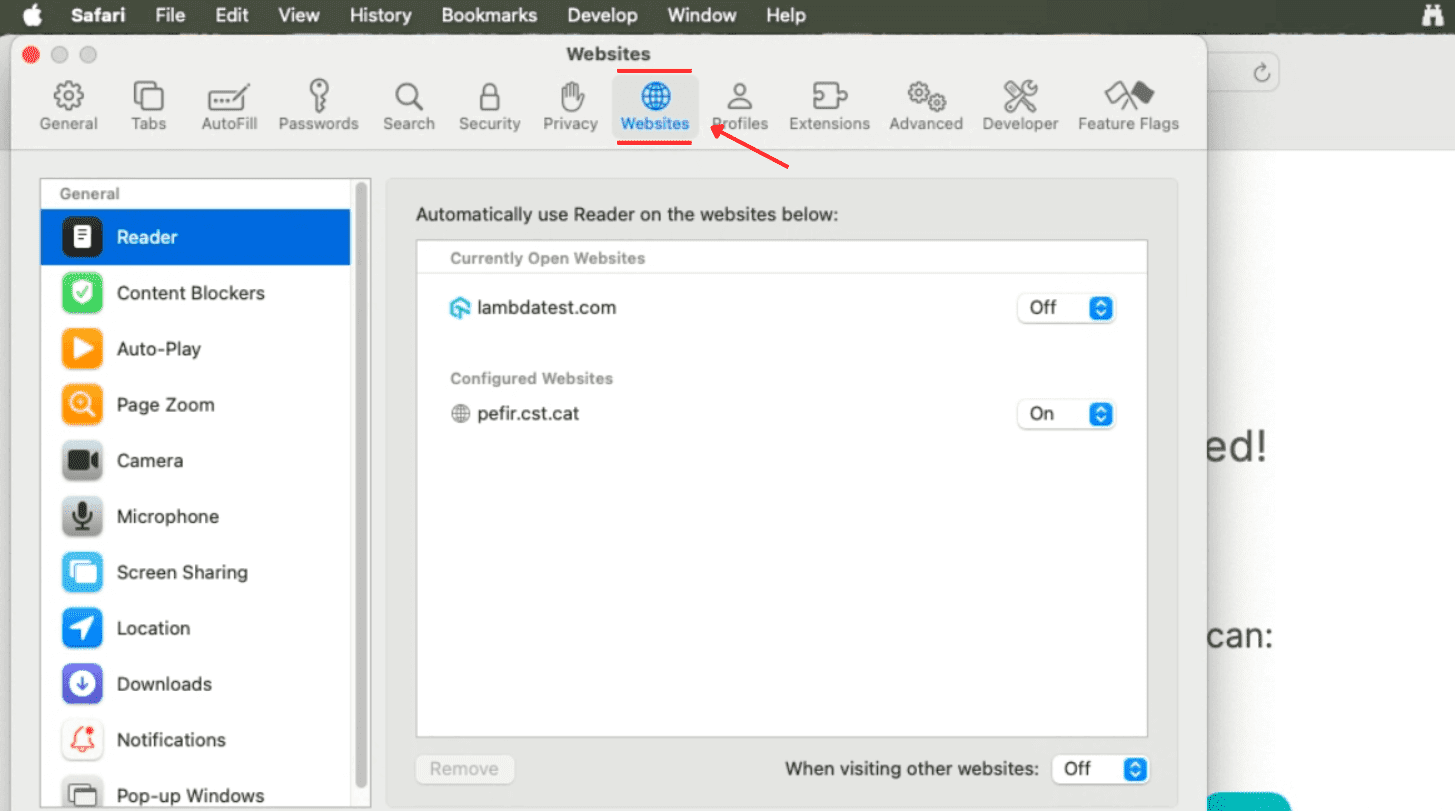
- In the Settings window, navigate to the Websites tab at the top.
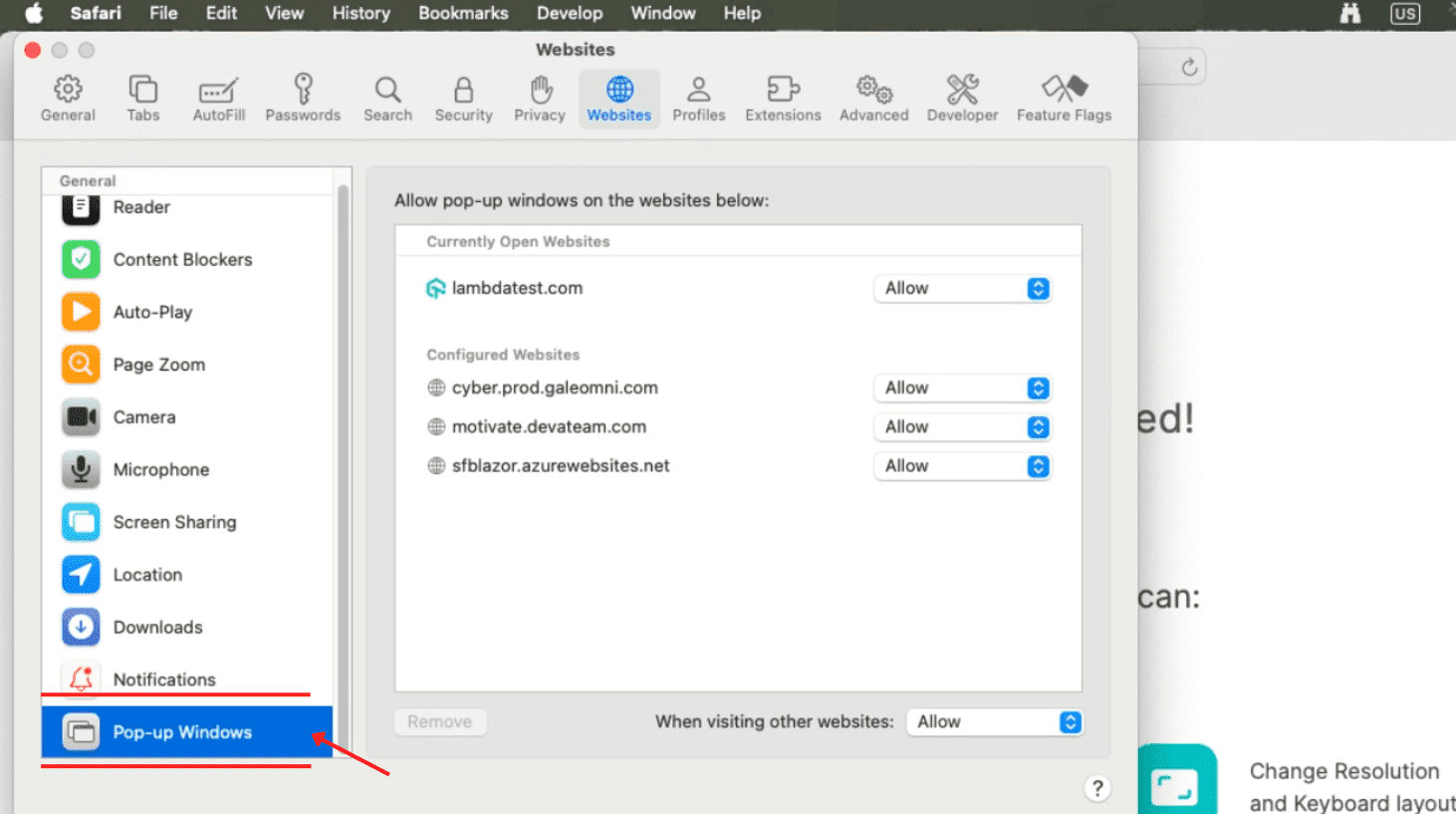
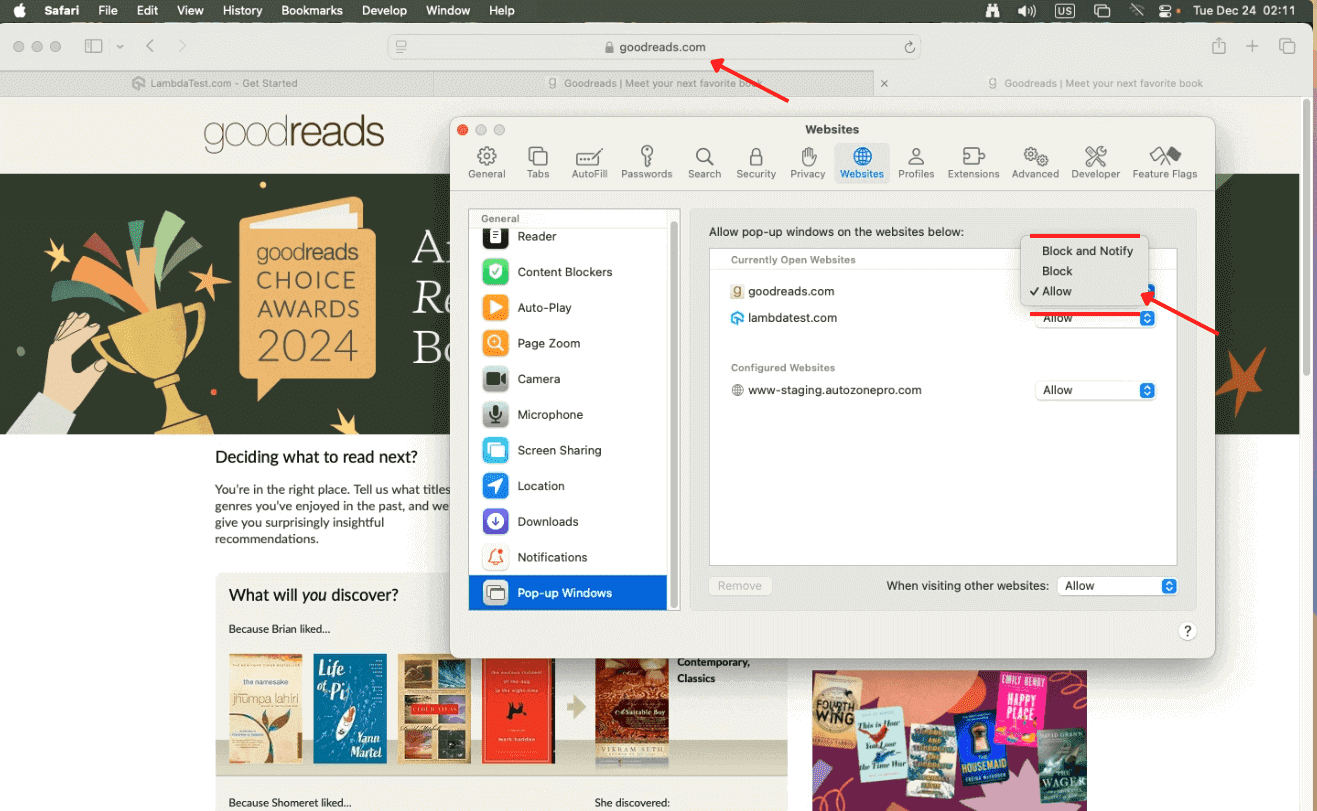
- From the left-hand sidebar, scroll down and select Pop-up Windows. A list of websites you have visited or currently have open in Safari will appear, showing their current pop-up preferences.
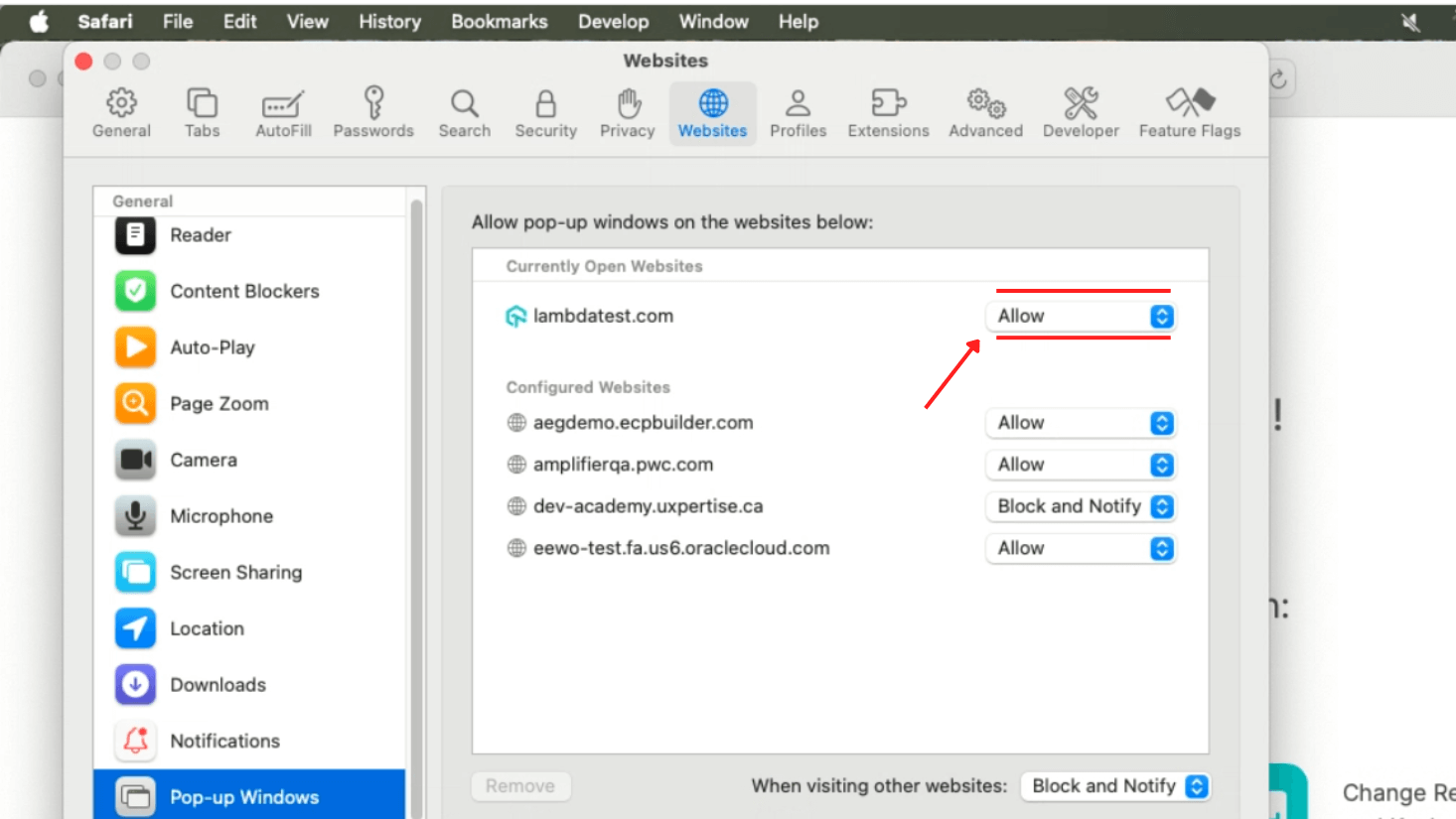
- Next to each website, use the dropdown menu to choose one of the following options:
- Block and Notify: Block pop-ups but notify you when they are blocked.
- Block: Blocks all pop-ups for the website.
- Allow: Enables all pop-ups for the selected website.
- For websites not listed, you can visit the site directly and adjust its settings from the dropdown menu in the Pop-up Windows section.
Select Allow only for websites you trust and want to enable pop-ups for.
Steps to Disable Pop-Ups on Safari for Mac
If you’ve allowed pop-ups on Safari but now want to block them again, below are the simple steps:
- Navigate to the Pop-up Windows section in Safari’s Settings (as explained earlier).
- In the Pop-up Windows settings, locate the list of websites displayed and use the dropdown menu next to each site to select Block and Notify or Block to disable pop-ups for individual websites.
- To block all pop-ups by default for websites not listed, adjust the setting at the bottom of the window by selecting Block for the option “When visiting other websites.”
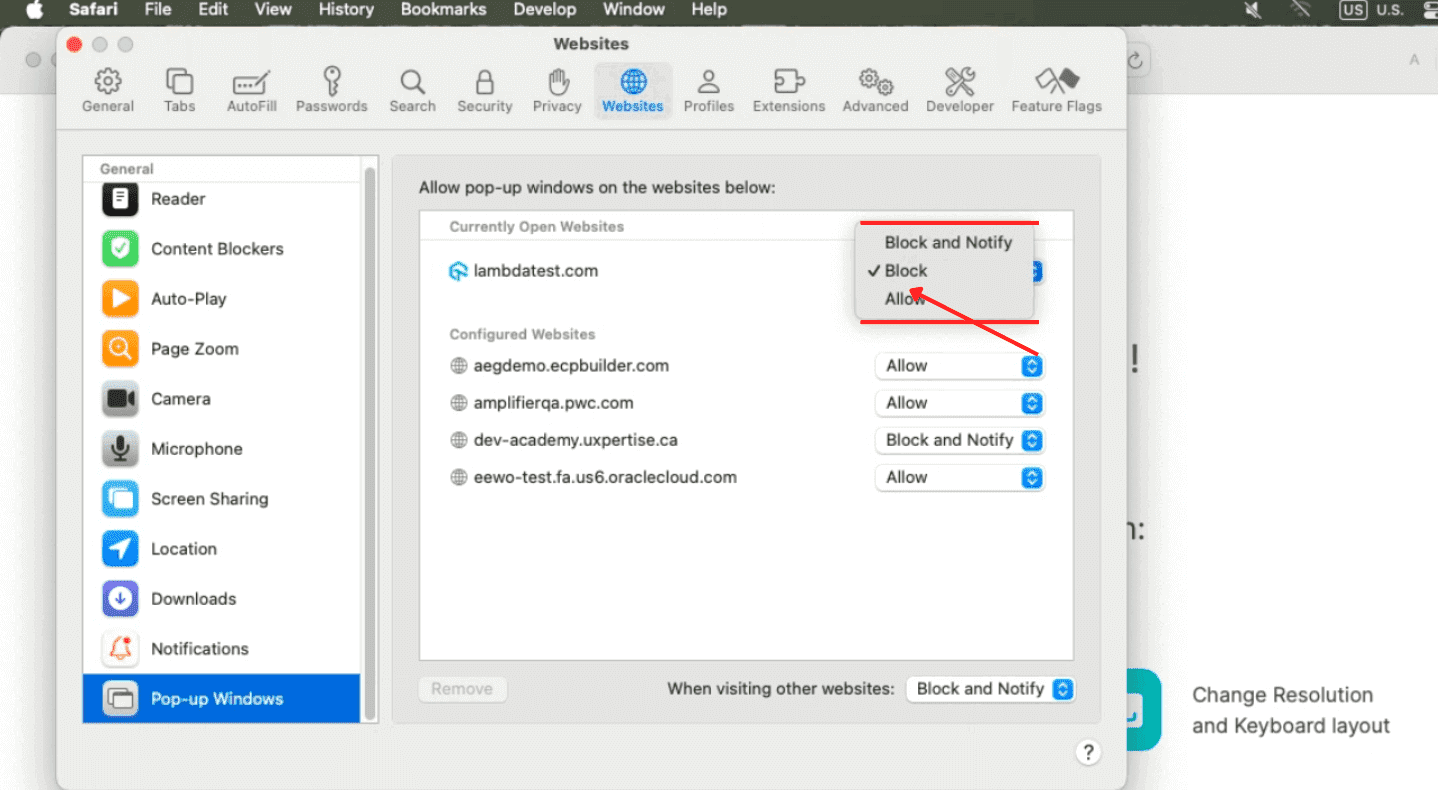
These changes will reinstate Safari’s pop-up blocker, keeping your browsing experience secure and interruption-free.
Steps to Allow or Block Pop-Ups on Safari for iPhone and iPad
If you’re trying to figure out how to allow pop-ups on Safari while browsing on your iPhone or iPad, below are the simple steps that you can follow:
To Allow Pop-Ups:
- Open the Settings app on your iPhone or iPad.
- Scroll down the Settings menu and tap on Safari to access its settings.
- In the General section, find the Block Pop-ups option.
- Toggle the switch off to allow pop-ups. This setting will enable pop-ups on all websites you visit.
- If you want to block pop-ups, toggle the switch ON instead. This will prevent pop-ups from appearing on any website.
To Block Pop-Ups:
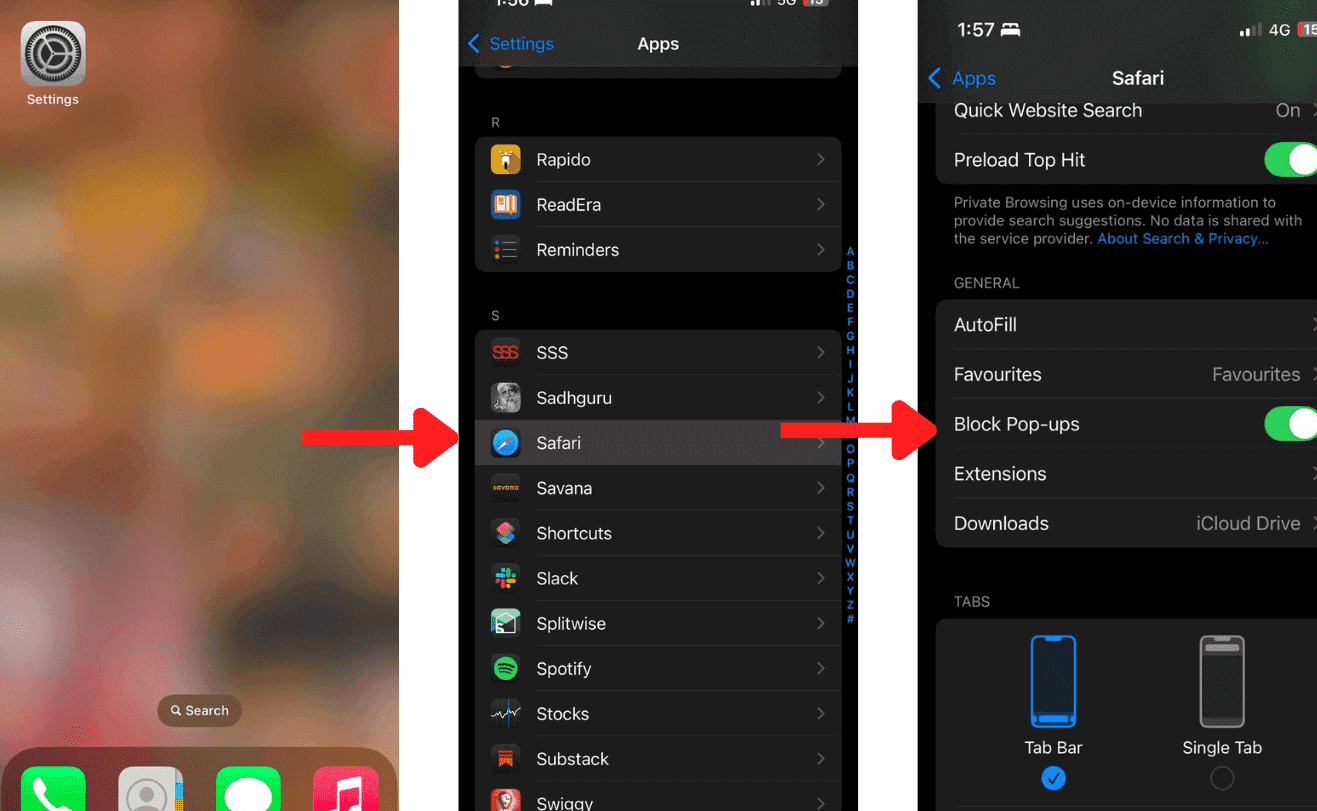
This setting will allow or block pop-ups on all websites you visit in Safari on your iPhone and iPad.

Conclusion
Enabling pop-ups on Safari is important for some websites and online tools. If you are wondering how to allow pop-ups on Safari, the steps outlined earlier make it easy to configure this on both Mac and iOS devices. Safari lets you choose whether to allow pop-ups for all websites or only trusted ones, giving you complete control over your browsing experience.
While pop-ups can be helpful, always ensure that you’re enabling them on trusted websites only to avoid security risks.


Frequently asked questions
Did you find this page helpful?
More Related Hubs
TestMu AI forEnterprise
Get access to solutions built on Enterprise
grade security, privacy, & compliance
- Advanced access controls
- Advanced data retention rules
- Advanced Local Testing
- Premium Support options
- Early access to beta features
- Private Slack Channel
- Unlimited Manual Accessibility DevTools Tests