

Next-Gen App & Browser Testing Cloud
Trusted by 2 Mn+ QAs & Devs to accelerate their release cycles


How to Get Microsoft Edge Updates
Learn how to get Microsoft Edge updates, fix common issues, check version info, and understand the Edge Update Service in this comprehensive guide.
December 22, 2025
Microsoft Edge, like other modern browsers, receives regular updates to fix bugs, patch security vulnerabilities, and enhance overall functionality. Running a Microsoft Edge update ensures you’re using the most secure and efficient version available.
If you’re not sure whether your Edge browser is up to date or how to perform an Edge update manually or automatically, this guide will walk you through the entire process, step by step.
Steps to Perform Microsoft Edge Update Manually
Sometimes, it’s good to take control and check for updates yourself.
Here’s how you can perform an Edge update manually:
- Open Microsoft Edge on your desktop or laptop. Make sure you’re connected to the Internet.
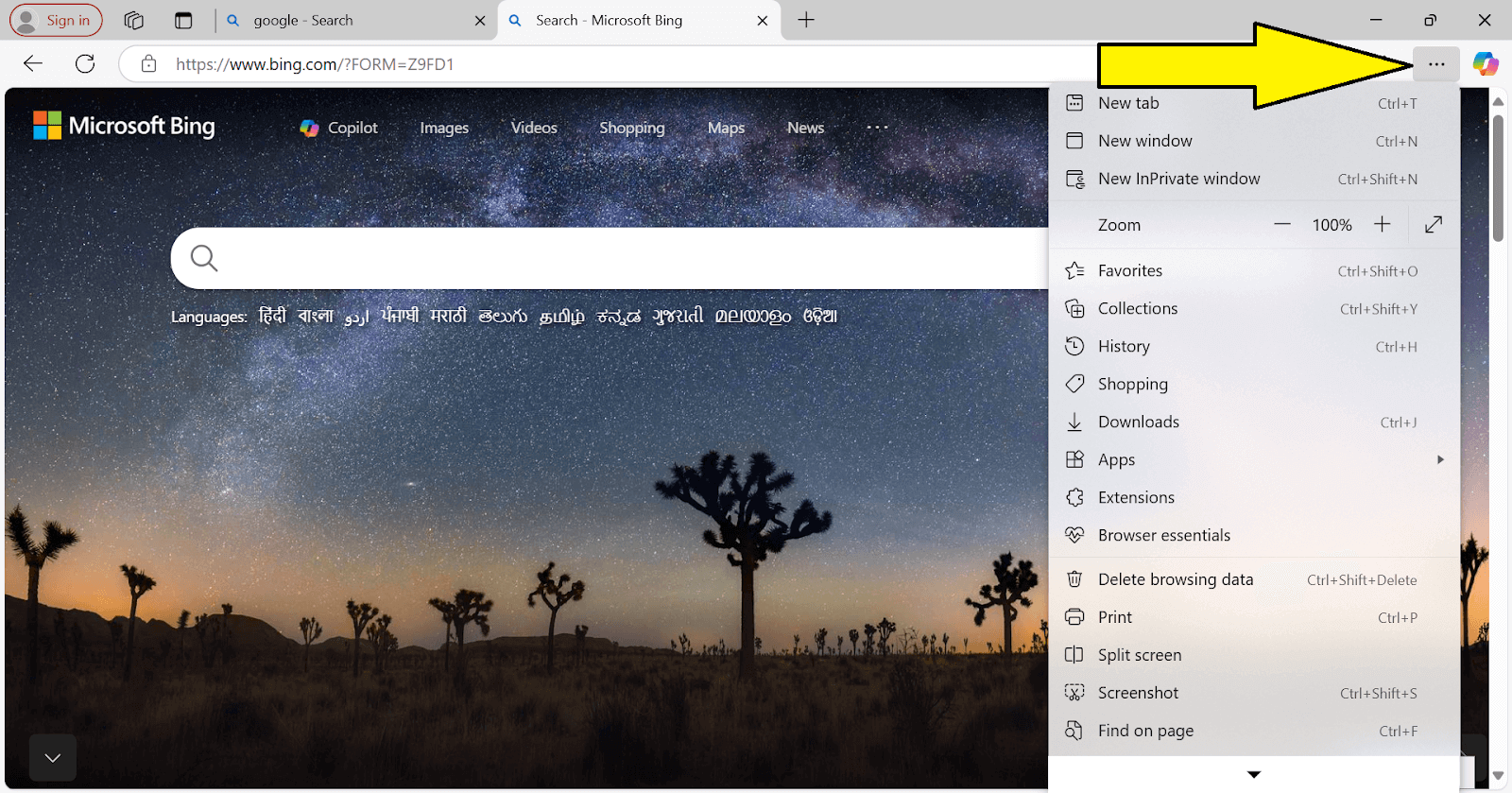
- Click the three-dot menu (⋯) in the top-right corner of the browser window.
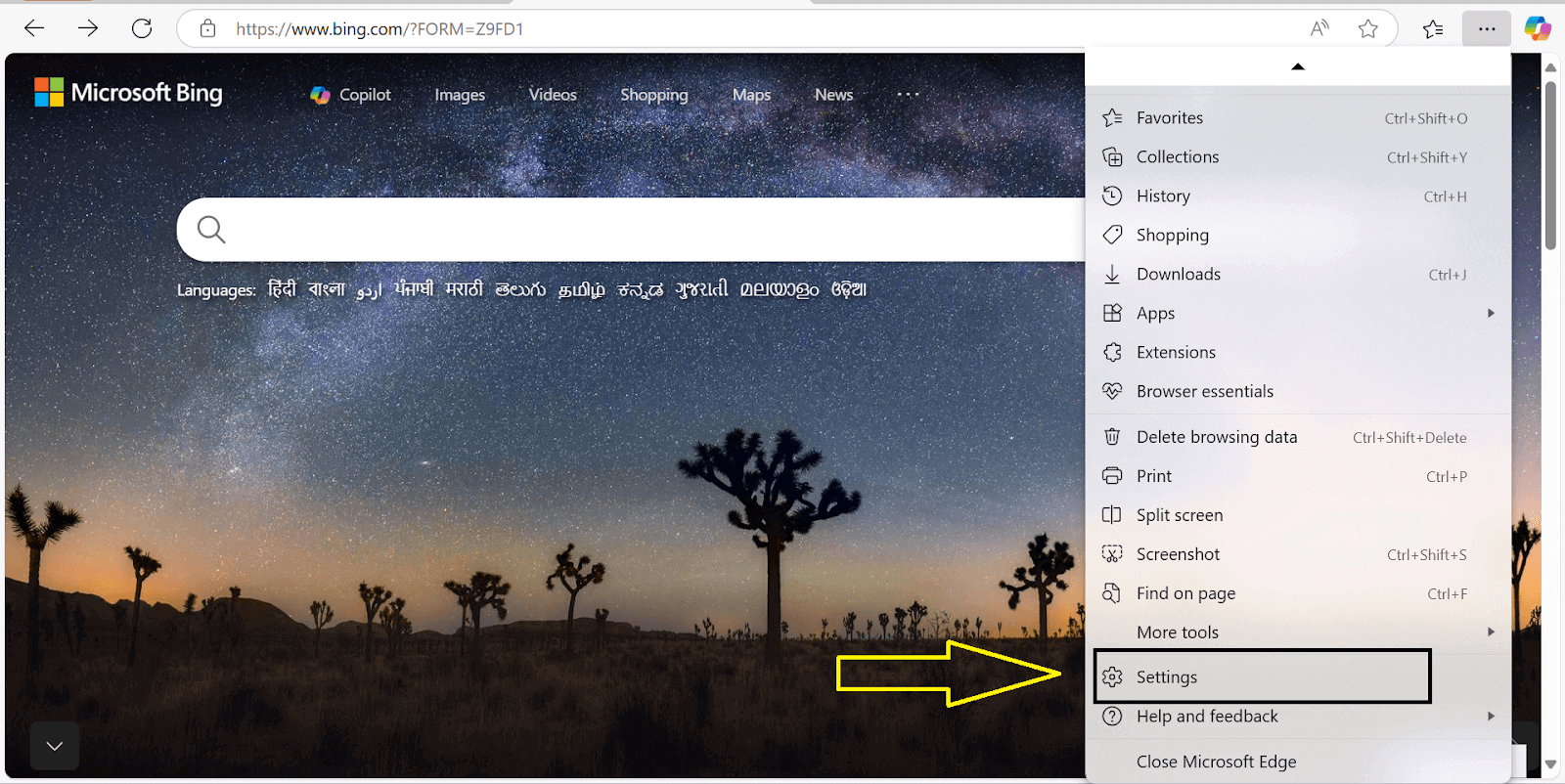
- From the drop-down, select Settings options.
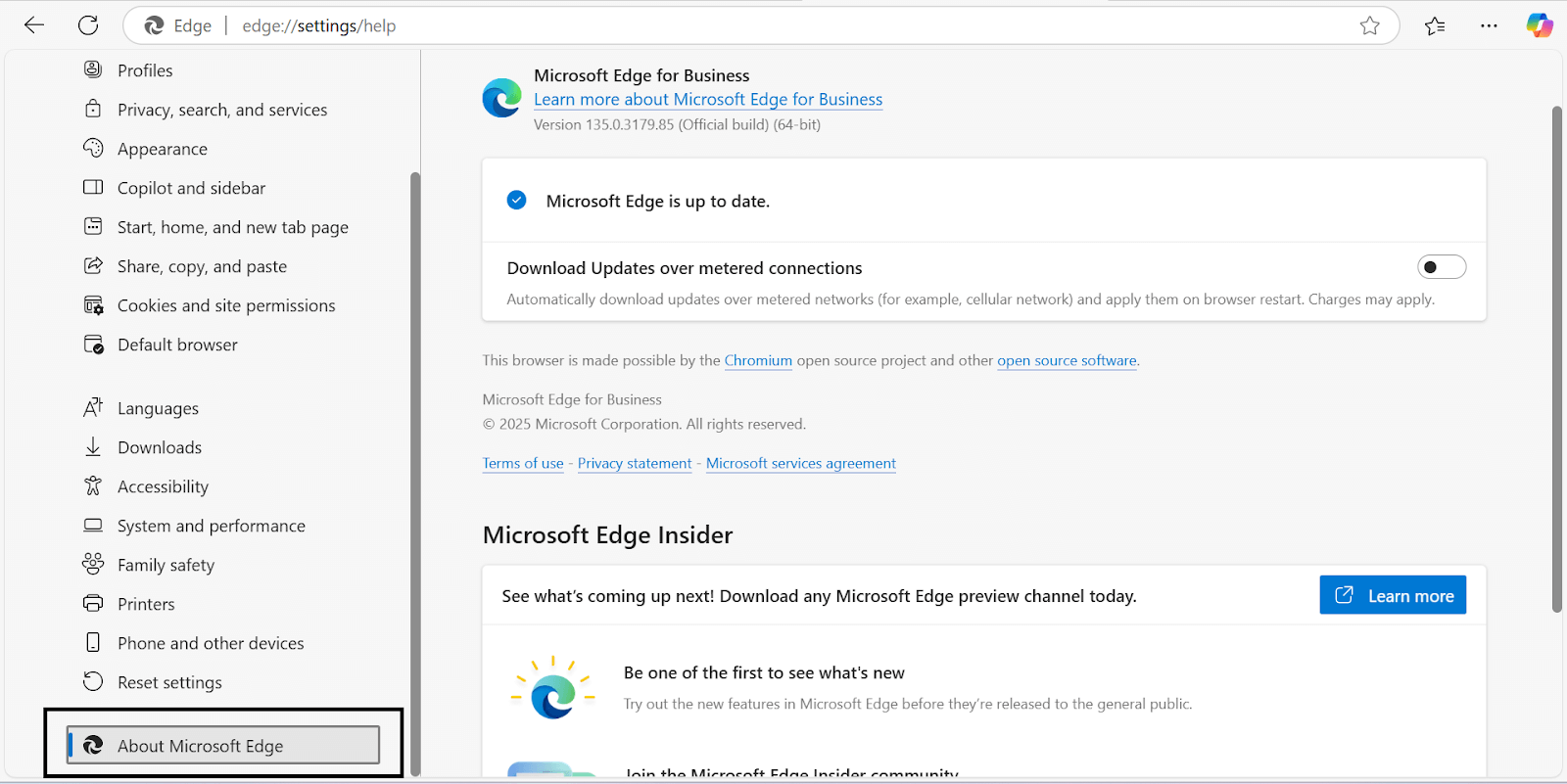
- On the left panel, scroll down and click on About Microsoft Edge.
- Edge will automatically check for updates. If an update is available, it will download and install it automatically.
- Once the update has been installed, restart the browser to apply the changes.

Steps to Perform Microsoft Edge Update Automatically
Microsoft Edge automatically handles updates in the background, ensuring you always have the latest features and security patches.
Here’s how to ensure automatic updates are working:
- Open Microsoft Edge on your desktop or laptop and ensure you’re connected to the Internet.
- Click the three-dot menu (⋯) in the top-right corner of the browser.
- From the drop-down menu, select Settings.
- In the left-hand panel, click About Microsoft Edge.
- Check the version number displayed under About Microsoft Edge. If Edge is up to date, you’ll see a message stating “Microsoft Edge is up to date.”
- Automatic updates are enabled by default, but you can always check the update status by visiting the About Microsoft Edge page. This ensures Edge is regularly checking and applying updates on its own.
- Restart the browser if prompted to apply the update.
Conclusion
An updated browser ensures better performance, enhanced security, and a smoother browsing experience. Whether you prefer to manually check for updates or rely on automatic updates running in the background, keeping Microsoft Edge up to date is essential.
Make it a habit, perform an Edge update regularly, just like you would with any other critical software on your device.
Author


Frequently asked questions
Did you find this page helpful?
More Related Hubs
TestMu AI forEnterprise
Get access to solutions built on Enterprise
grade security, privacy, & compliance
- Advanced access controls
- Advanced data retention rules
- Advanced Local Testing
- Premium Support options
- Early access to beta features
- Private Slack Channel
- Unlimited Manual Accessibility DevTools Tests