

Next-Gen App & Browser Testing Cloud
Trusted by 2 Mn+ QAs & Devs to accelerate their release cycles


How to Clear History on Safari
Learn how to clear history on Safari in just a few simple steps. Protect your privacy and manage your browsing data efficiently.

Tahneet Kanwal
December 24, 2025
Your Safari browser contains various histories about your interests and browsing patterns. It also helps you quickly access your accounts through your saved logins. This is convenient, but it becomes an issue if others get their hands on your personal information.
In such cases, an ideal approach is to clear history on Safari. Since we carry our iOS devices everywhere and connect to many public networks, this makes it easier for someone to access your sensitive information.
In this blog, let’s look at how to clear history on Safari.
Steps to Clear History on Safari for macOS
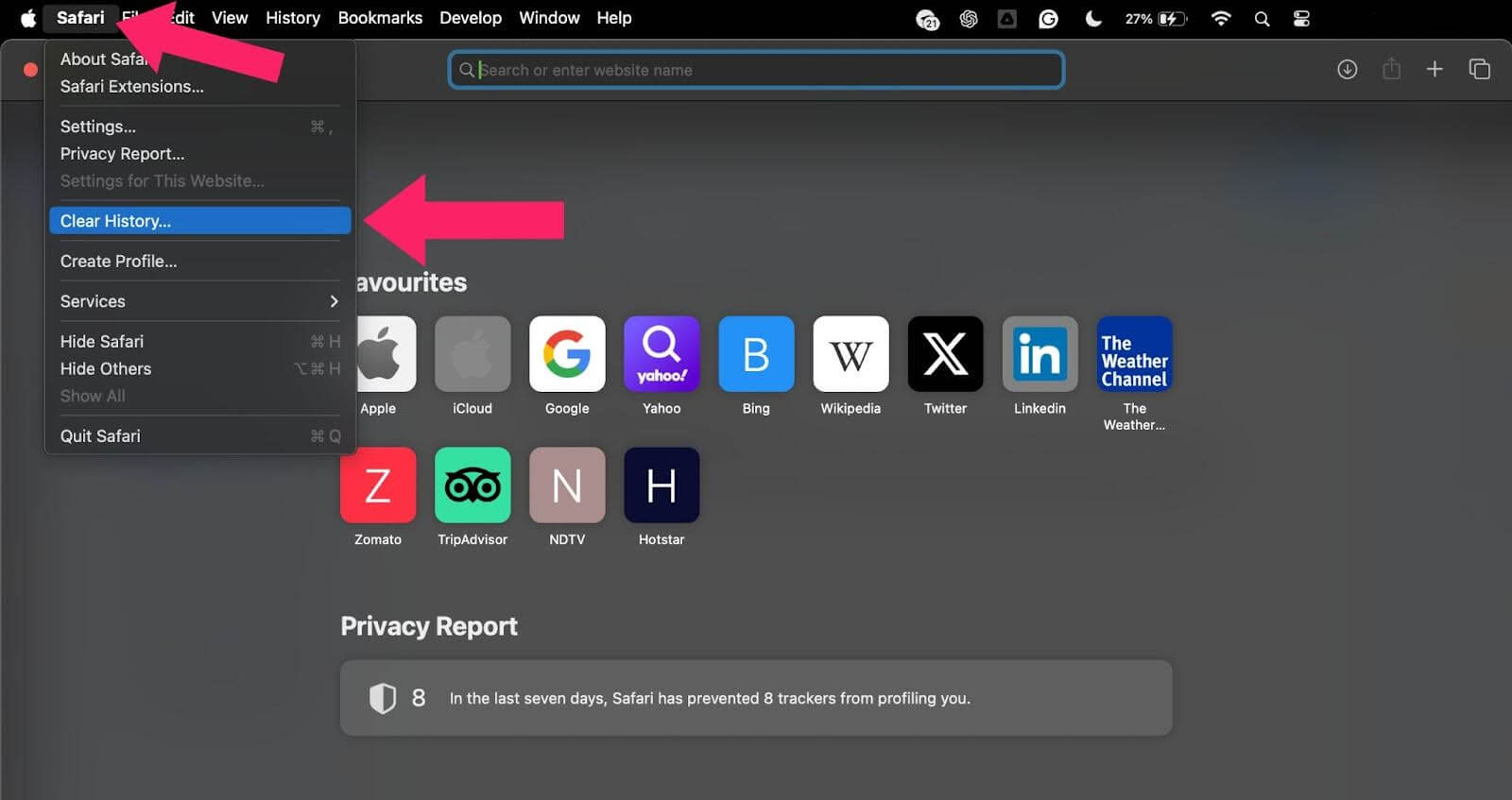
It’s simple to clear history on Safari for macOS. Here’s how to do it:
- Open Safari on your macOS.
- Click on Safari and then Clear History.
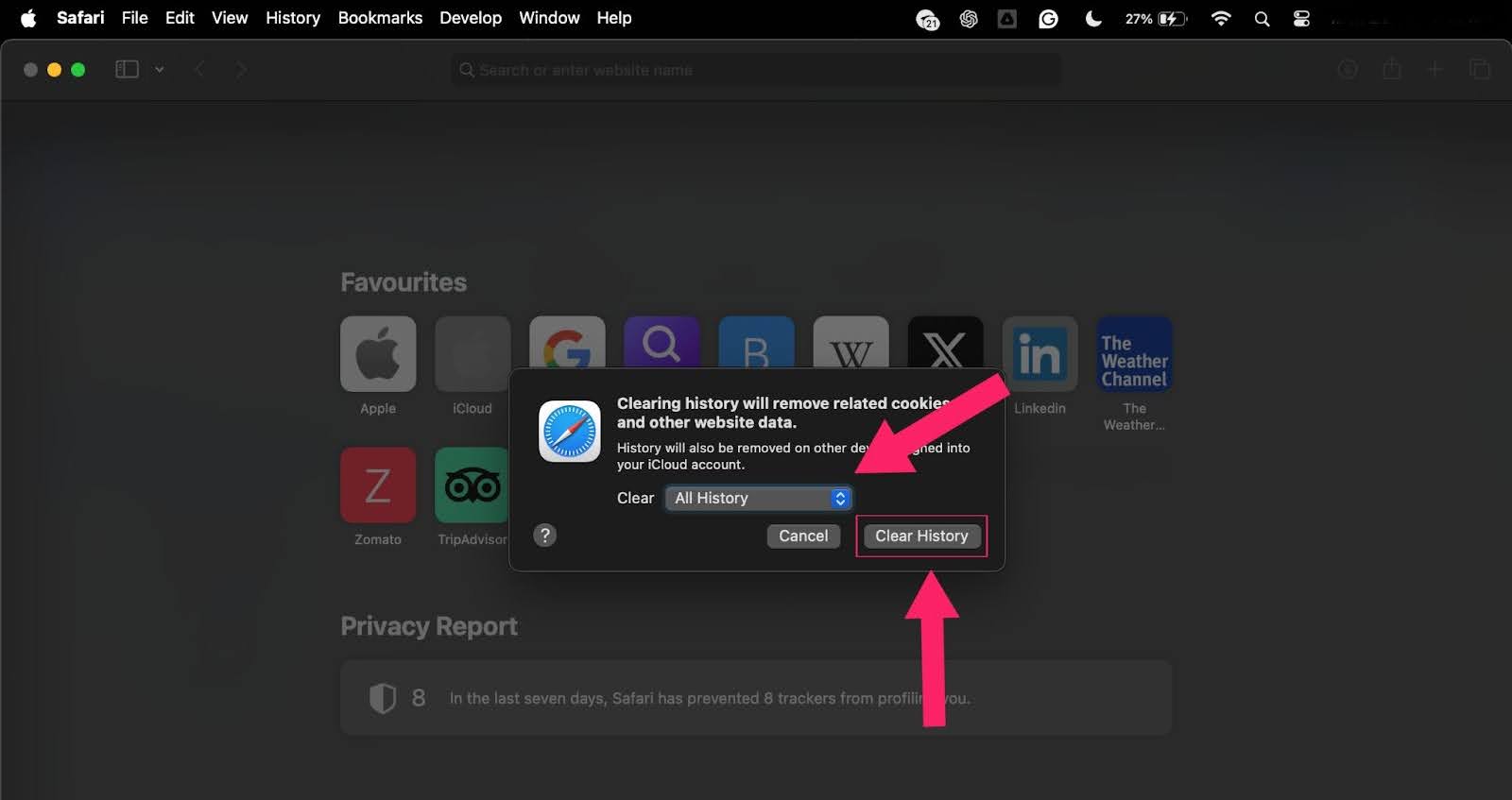
- A pop-up window will appear. Use the dropdown menu to choose the desired time range to clear. After that, click Clear History to confirm.

Note: Test websites on real Safari and macOS. Try TestMu AI Now!
Steps to Clear History on Safari for iPhone or iPad
There are two different methods to clear history on Safari for iPhone or iPad:
- Setting app – If you clear browser history via the Settings app, all the data will be cleared.
- Browser’s settings – If you clear browser history via the browser settings, only the browser history will be cleared.
Clearing All Safari History
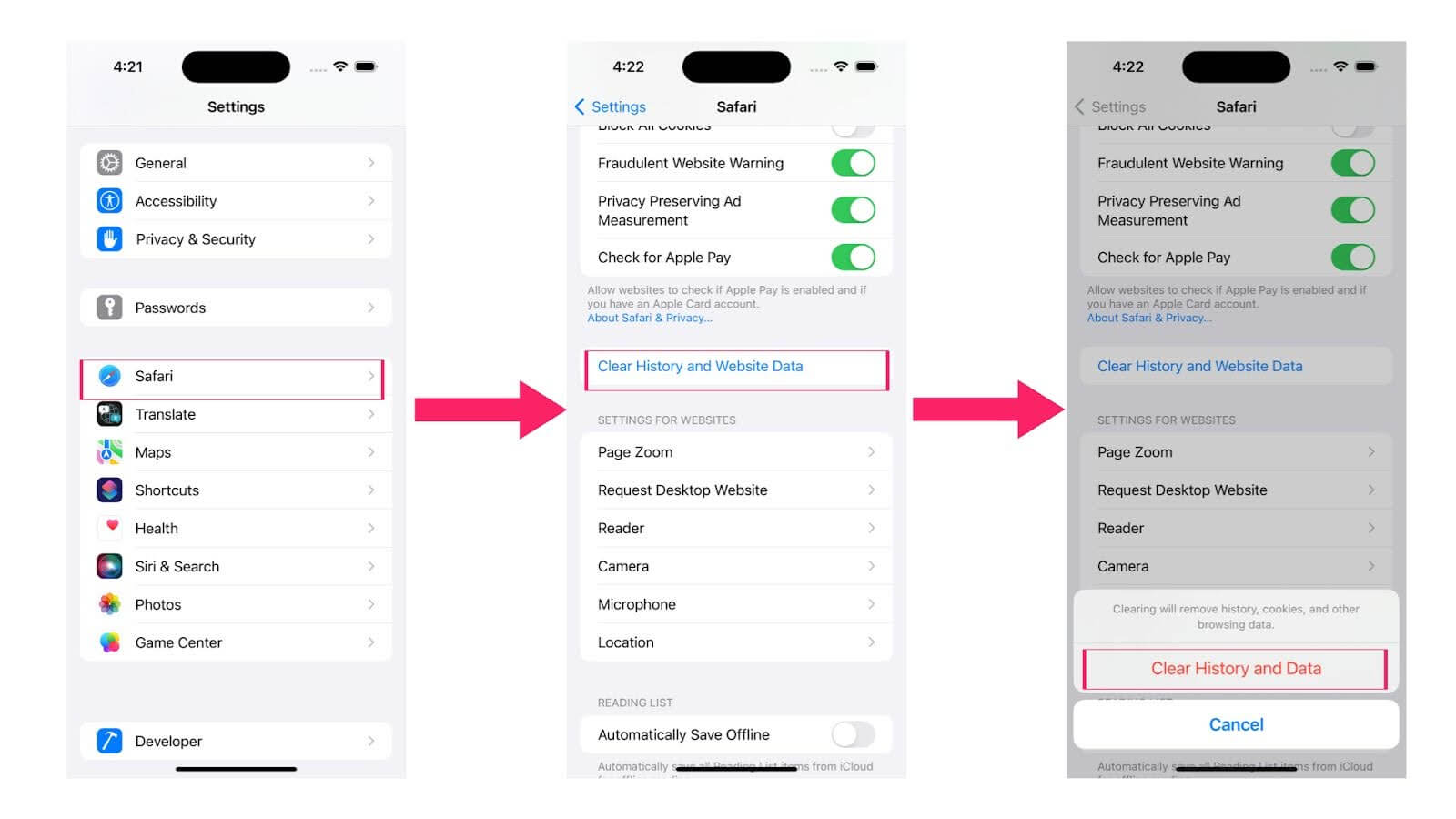
Let’s look at how to clear all history from your Safari browser:
- Go to the Settings app of your iPhone or iPad device.
- Scroll down and select Safari.
- Tap on the Clear History and Website Data option and then Clear History and Data.
Clearing Specific Website Data in Safari
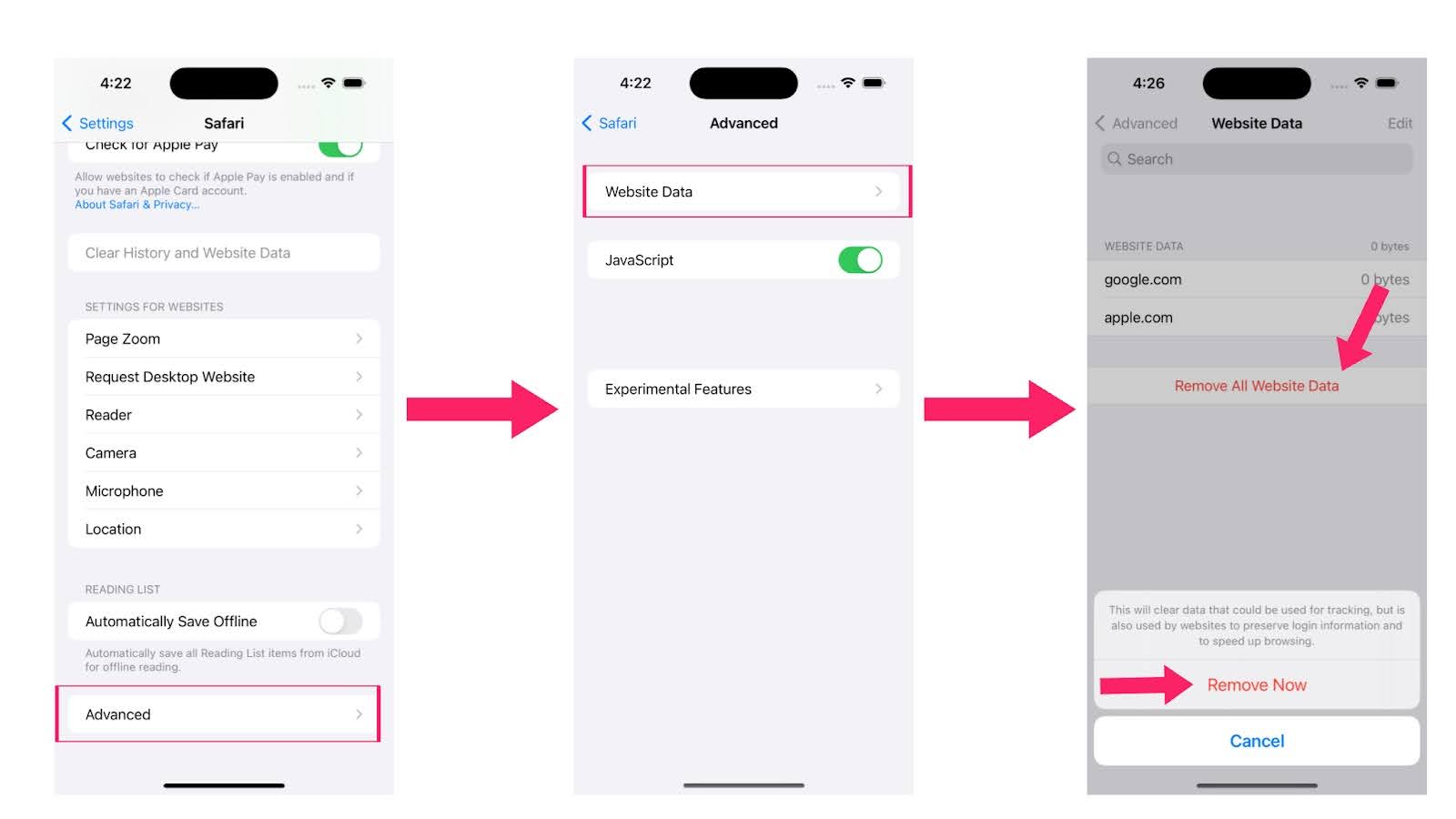
If you’re looking to clear just the search data in Safari, then proceed with the following steps.
- Go to the Settings app on your iPhone or iPad device.
- Scroll down and select Safari.
- Go to the Advanced section and tap Website Data.
- Tap on Remove All Website Data and then Remove Now.
Steps to Clear History on Safari With Keyboard Shortcuts
To clear your browsing history in Safari using keyboard shortcuts on macOS, follow these steps:
- Open Safari on your macOS.
- Press Command + Y to open the History menu.
- Press Command + Shift + Delete to clear your browsing history.
- A pop-up window will appear. Use the dropdown menu to choose the desired time range to clear.
- Click Clear History to confirm.
This will delete your browsing history based on the time range you selected.

Conclusion
Having a browsing history in Safari can be useful, but if you care more about privacy and how your device runs, clearing your Safari history is an ideal choice. This blog demonstrates how to clear Safari history on macOS and iOS devices to protect your personal info and stay in control of your web activity.


Frequently asked questions
Did you find this page helpful?
More Related Hubs
TestMu AI forEnterprise
Get access to solutions built on Enterprise
grade security, privacy, & compliance
- Advanced access controls
- Advanced data retention rules
- Advanced Local Testing
- Premium Support options
- Early access to beta features
- Private Slack Channel
- Unlimited Manual Accessibility DevTools Tests