

Next-Gen App & Browser Testing Cloud
Trusted by 2 Mn+ QAs & Devs to accelerate their release cycles


Automated Cross Browser Testing
Testing a website in a single browser using automation script is clean and simple way to accelerate your testing. With a single click you can test your website for all possible errors without manually clicking and navigating to web pages.

Deeksha Agarwal
December 24, 2025
Testing a website in a single browser using automation script is clean and simple way to accelerate your testing. With a single click you can test your website for all possible errors without manually clicking and navigating to web pages. A modern marvel of software ingenuity that saves hours of manual time and accelerate productivity. However for all this magic to happen, you would need to build your automation script first.
In our previous post we focused on setting up complete test suite environment for running selenium scripts. But that script had a major drawback. That setup was focused on testing on only a single browser. Cross browser compatibility testing is a major pain point for all testers and it’s also a major test case for all functionality testing cycles.
In this post we will focusing on running testing scenarios on Chrome, Firefox, and Opera browsers simultaneously. We would be focusing on cross browsers issues along with functional issues.
It will not only save your time and efforts but will also help you deliver a seamless experience to the user of your website. Well, that’s the idea behind cross browser testing. Isn’t it?
Before starting, I would highly recommend going through our previous post on writing automation testing scripts.
Since we last left, you may now need to continue that further by some more modifications. Get started step by step.
Installing Maven
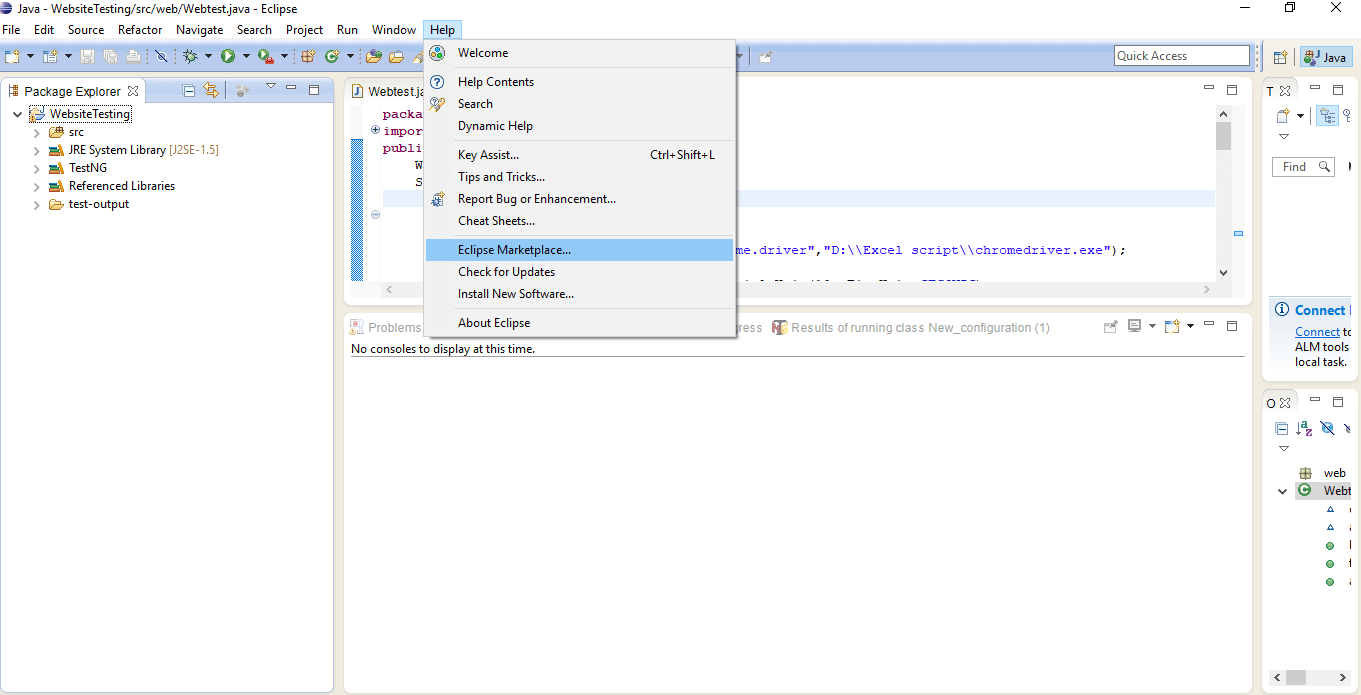
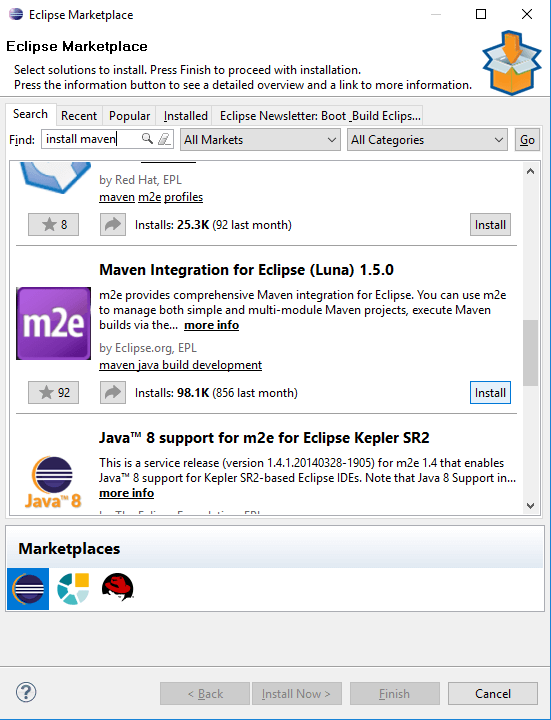
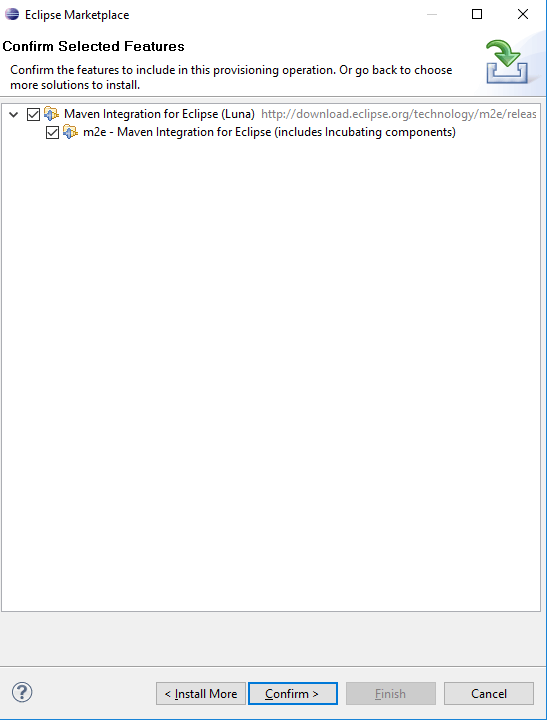
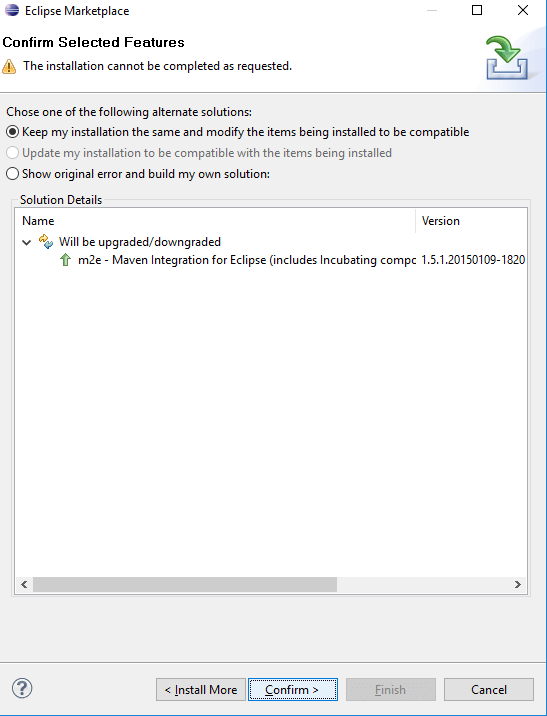
Step 1: Go to Marketplace and install Maven.
Go to help → Eclipse Marketplace → search for Maven→ confirm → confirm → Finish
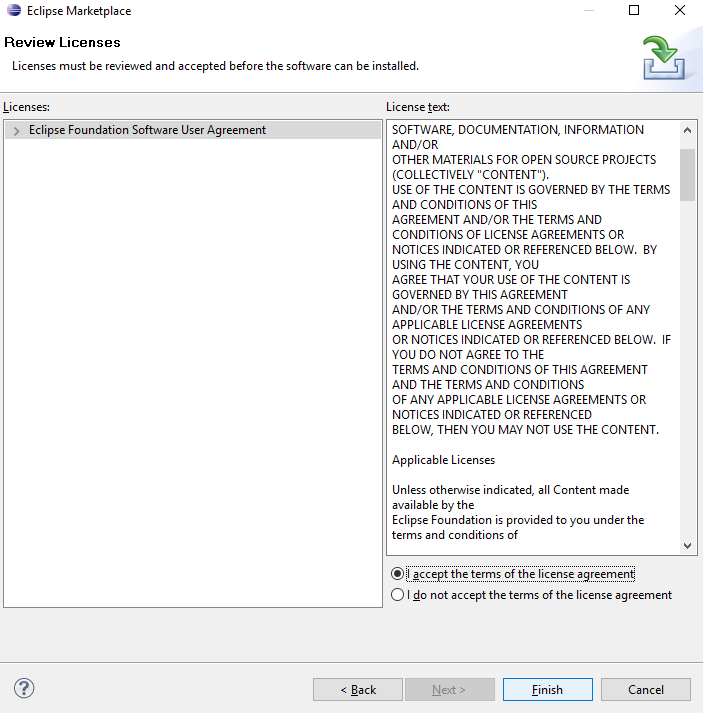
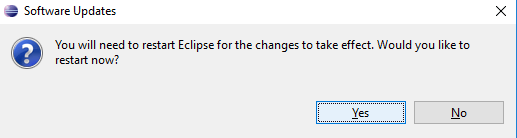
Restart Eclipse
Step 2: Restart the Eclipse to make changes effective. Once you restart the eclipse, it’s time to start with creating the project.
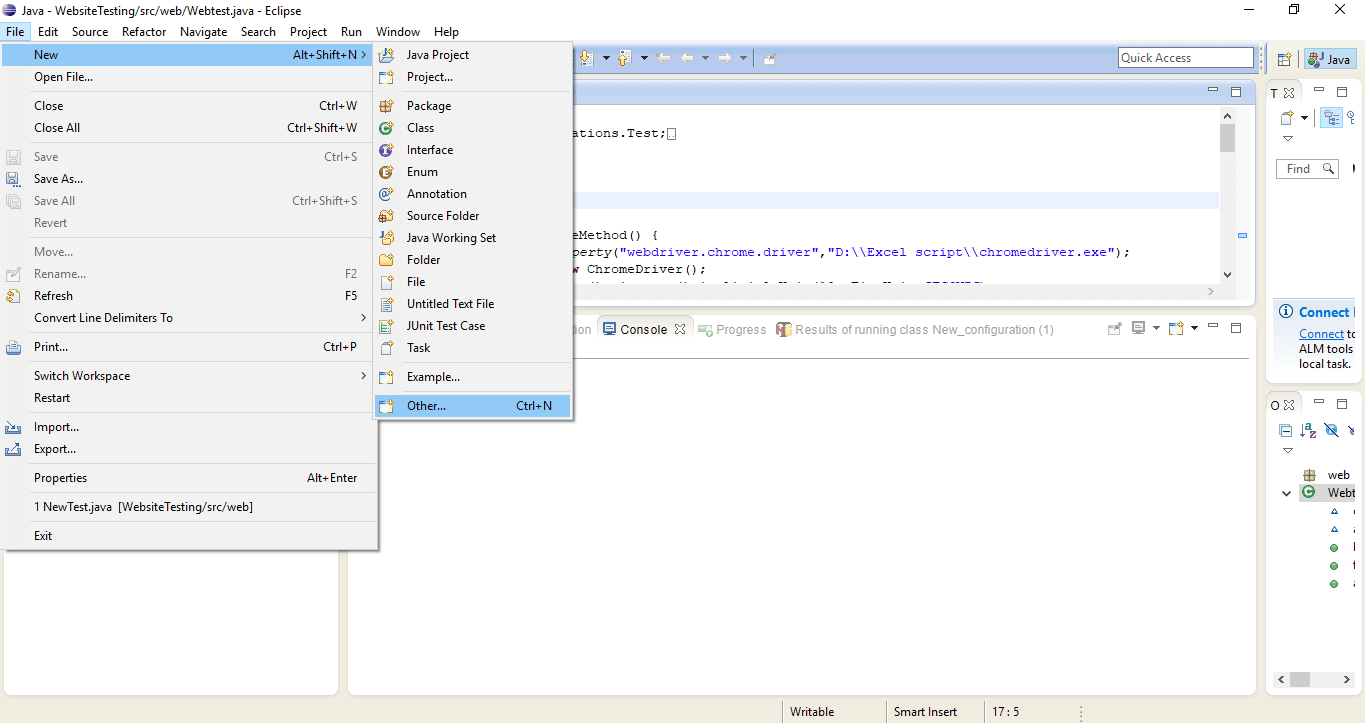
Create a Maven Project
Step 3: To create project, go to File→ New→ Other→ Maven→ Project You are now all set to create a maven project.
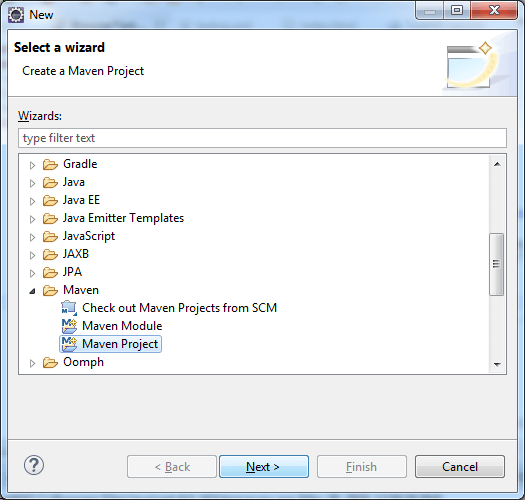
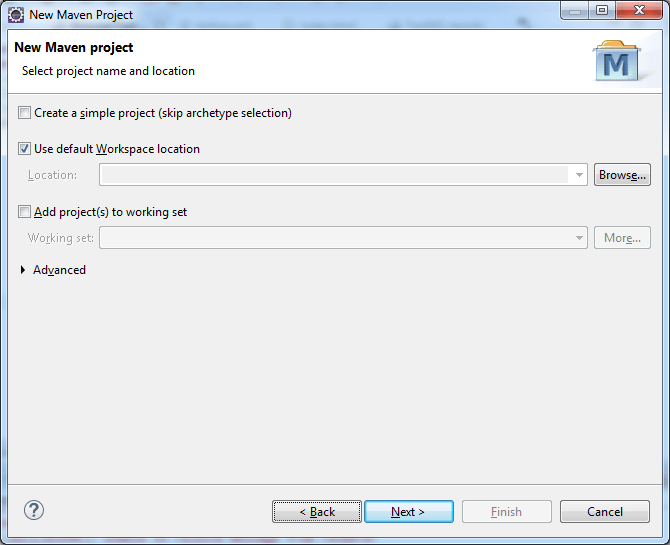
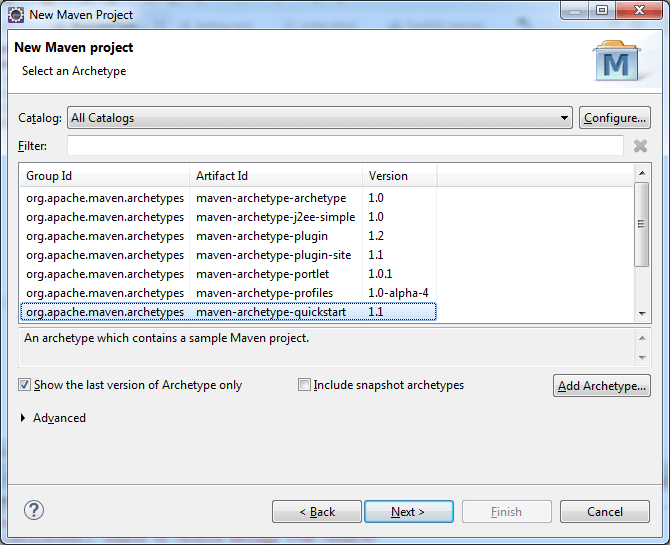
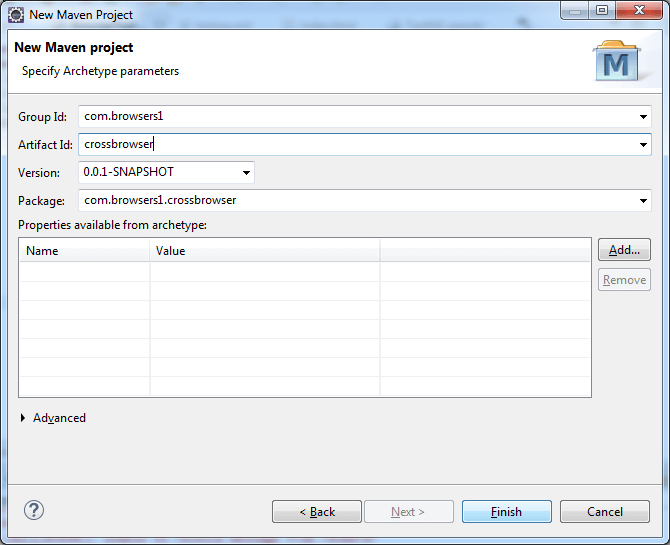
Here you need to enter the group ID and artifact ID. Let’s say group ID is com.browsers1 and artifact ID is crossbrowser.
After entering the IDs click on Finish and your maven project will be created.
On the left hand side, you’ll find two folders namely src/main/java and src/test/java. Under src/test/java you’ll find com.browsers1.crossbrowser. Right click on com.browsers1.crossbrowser select new and then create a class.
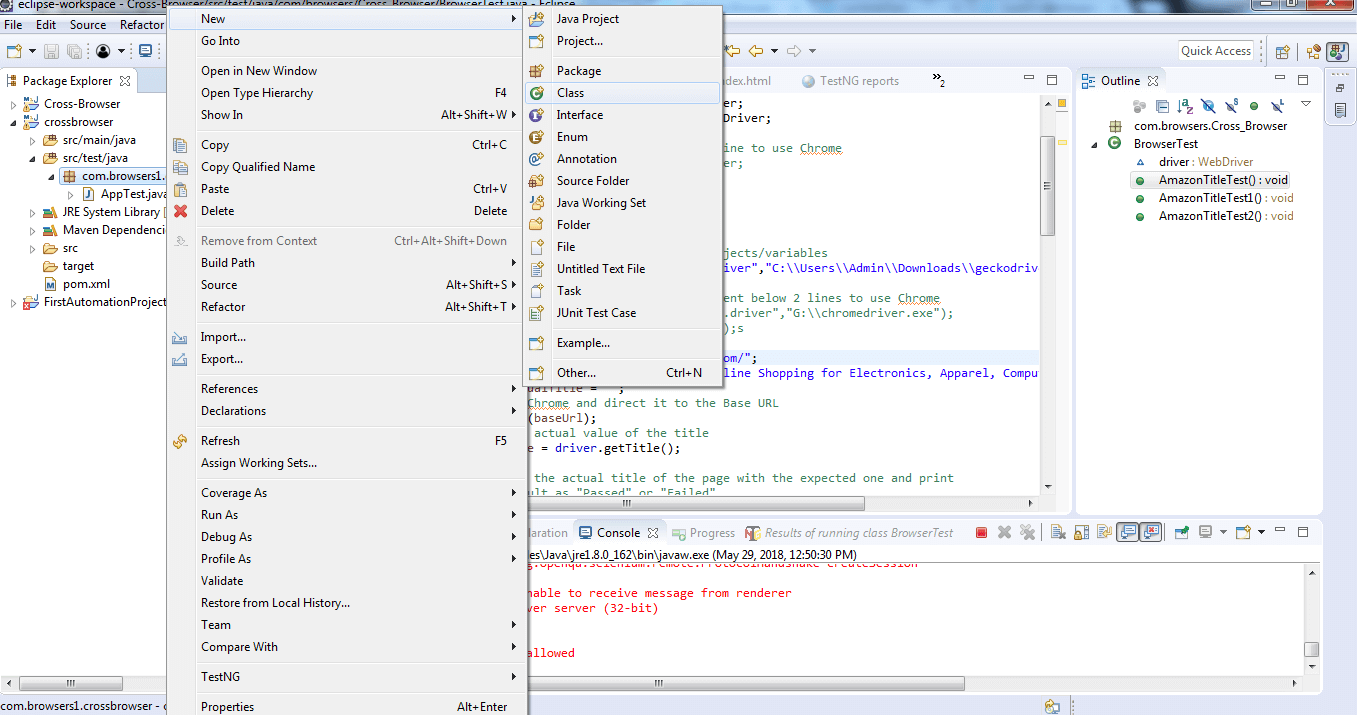
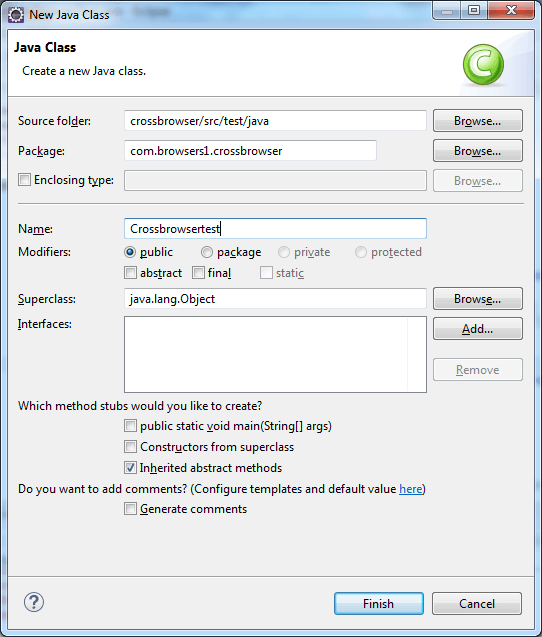
Enter the name as CrossbrowserTest and click on finish.
Note: Make sure you start your class name with uppercase and end it with test.
Download drivers
The next step is to install drivers for browsers. Since you are going to control your browsers using automated softwares so you need to make sure that the browsers that you’re going to use in your script should have their drivers installed.
For firefox you need to install Geckodriver. For chrome, chromedriver and for opera install operachromiumdriver. Since we are going to use these three browsers in our script so we’ll need to install these. However, if you plan to add more browsers to your script make sure to have their drivers installed.
After you download and install drivers, let’s start with adding dependency files. It is necessary to have dependency files for every framework that you are making use of. So we need to download dependency files for Selenium, Testng in pom.xml file.
Select pom.xml and delete the lines between to and add your dependency files using:
org.testng
   testng
   6.14.3
   test

<!-- https://mvnrepository.com/artifact/org.apache.maven.plugins/maven-surefire-plugin -->

   org.apache.maven.plugins
   maven-surefire-plugin
   2.19.1

<!-- https://mvnrepository.com/artifact/javax.mail/mail -->

            javax.mail
            mail
            1.5.0-b01


            org.seleniumhq.selenium
            selenium-htmlunit-driver
            2.52.0


            junit
            junit
            4.12


            info.cukes
            cucumber-java
            1.2.5
            test


            info.cukes
            cucumber-picocontainer
            1.2.5
            test


            info.cukes
            cucumber-junit
            1.2.5
            test


            org.seleniumhq.selenium
            selenium-java
            3.11.0


            org.seleniumhq.selenium
            selenium-firefox-driver
            3.5.3


            org.seleniumhq.selenium
            selenium-chrome-driver
            3.5.3


            org.seleniumhq.selenium
            selenium-ie-driver
            3.5.3


            org.seleniumhq.selenium
            selenium-edge-driver
            3.5.3


            org.apache.maven.plugins
            maven-resources-plugin
            3.0.2


            org.seleniumhq.selenium
            selenium-support
            3.5.3
This code will add all your dependency files to your project.
Write Final Code
Now save this and move to creating a script for final step.
Again go to src/test/java select crossbrowsertest.java and then copy the code to its workplace.
package com.browsers.Cross_Browser;

	import org.testng.annotations.Test;
    import org.testng.AssertJUnit;
	import org.openqa.selenium.WebDriver;
	import org.openqa.selenium.chrome.ChromeDriver;
	import org.openqa.selenium.firefox.FirefoxDriver;
    import org.openqa.selenium.ie.InternetExplorerDriver;
import org.openqa.selenium.opera.OperaDriver;
	//comment the above line and uncomment below line to use Chrome
	//import org.openqa.selenium.chrome.ChromeDriver;
	public class BrowserTest {
	    WebDriver driver;

	    @Test
	    public void AmazonTitleTest() {
	        // declaration and instantiation of objects/variables
	        System.setProperty("webdriver.gecko.driver","C:\Users\Admin\Downloads\geckodriver.exe");
	        driver = new FirefoxDriver();
	        //comment the above 2 lines and uncomment below 2 lines to use Chrome
	        //System.setProperty("webdriver.chrome.driver","G:\chromedriver.exe");
	        //WebDriver driver = new ChromeDriver();s

	        String baseUrl = "https://www.amazon.com/";
	        String expectedTitle = "Amazon.com: Online Shopping for Electronics, Apparel, Computers, Books, DVDs & more";
	        String actualTitle = "";
	        // launch Chrome and direct it to the Base URL
	        driver.get(baseUrl);
	        // get the actual value of the title
	        actualTitle = driver.getTitle();
	        /*
	         * compare the actual title of the page with the expected one and print
	         * the result as "Passed" or "Failed"
	         */
	        AssertJUnit.assertEquals(expectedTitle, actualTitle);

	        //close Fire fox
	        driver.close();

	    }

	    @Test
	    public void AmazonTitleTest1() {
	        // declaration and instantiation of objects/variables

	        //comment the above 2 lines and uncomment below 2 lines to use Chrome
	        System.setProperty("webdriver.chrome.driver","C:\Users\Admin\Downloads\chromedriver_win32\chromedriver.exe");
	        WebDriver driver = new ChromeDriver();

	        String baseUrl = "https://www.amazon.com/";
	        String expectedTitle = "Amazon.com: Online Shopping for Electronics, Apparel, Computers, Books, DVDs & more";
	        String actualTitle = "";
	        // launch Chrome and direct it to the Base URL
	        driver.get(baseUrl);
	        // get the actual value of the title
	        actualTitle = driver.getTitle();
	        /*
	         * compare the actual title of the page with the expected one and print
	         * the result as "Passed" or "Failed"
	         */
	        AssertJUnit.assertEquals(expectedTitle, actualTitle);

	        //close Fire fox
	        driver.close();

	    }

	    @Test
	    public void AmazonTitleTest2() {
	        // declaration and instantiation of objects/variables

	        //comment the above 2 lines and uncomment below 2 lines to use Chrome
	    	System.setProperty("webdriver.ie.driver", "C:/Users/Admin/Downloads/IEDriverServer.exe");
			driver = new InternetExplorerDriver();
	        String baseUrl = "https://www.amazon.com/";
	        String expectedTitle = "Amazon.com: Online Shopping for Electronics, Apparel, Computers, Books, DVDs & more";
	        String actualTitle = "";
	        // launch Chrome and direct it to the Base URL
	        driver.get(baseUrl);
	        // get the actual value of the title
	        actualTitle = driver.getTitle();
	        /*
	         * compare the actual title of the page with the expected one and print
	         * the result as "Passed" or "Failed"
	         */
	        AssertJUnit.assertEquals(expectedTitle, actualTitle);

	        //close Fire fox
	        driver.close();

	    }

	}
Once you paste this code,you now need to convert it to testng.xml.
To proceed with that Right click on Crossbrowsertest.java click on testng→ convert to testng→ next→ click the checkbox→ finish.
Now a new file, testng.xml will be created.
Run testng.xml as a testng suite and you’re all set to perform automated cross browser test.
This code will run amazon.com on chrome, mozilla, and opera and test if the website opens or not. If it opens, it will show pass else will show fail.
You’ll soon see an automation software controlling your three browsers and you’ll also see the test being performed on your screen.
You can also add more browsers and change the URL you want to perform the test on.
If you want to cross check the same using manual cross browser testing, you can always do so using TestMu AI. It provides you 3000+ browsers and OS combinations to test on. Soon, you’ll also find TestMu AI to help you perform automated cross browser testing.
Till then stay tuned and Happy Testing!



Did you find this page helpful?
More Related Hubs
TestMu AI forEnterprise
Get access to solutions built on Enterprise
grade security, privacy, & compliance
- Advanced access controls
- Advanced data retention rules
- Advanced Local Testing
- Premium Support options
- Early access to beta features
- Private Slack Channel
- Unlimited Manual Accessibility DevTools Tests