

Next-Gen App & Browser Testing Cloud
Trusted by 2 Mn+ QAs & Devs to accelerate their release cycles


How to Allow Pop-ups in Mozilla Firefox
Learn how to allow pop-ups in Mozilla Firefox on Windows and macOS with step-by-step instructions.

Bhawana
December 24, 2025
Pop-ups are essential for certain website features, such as forms or notifications, but browsers like Mozilla Firefox often block them. Therefore, to use some website features, it’s necessary to allow pop-ups.
In this blog, we will look at how to allow pop-ups in Mozilla Firefox on both Windows and macOS.
Steps to Allow Pop-ups in Mozilla Firefox
In order to provide an uninterrupted browsing experience, pop-ups are frequently prevented by default in Mozilla Firefox. However, in some cases, enabling them is required.
Let’s look at how to allow pop-ups in Mozilla Firefox on Windows and macOS:
Allow Pop-ups in Mozilla Firefox on Windows
Follow these steps to enable popups in Mozilla on Windows:
- Open Mozilla Firefox on your Windows operating system.
- Click on the menu button (three horizontal lines) on the top-right corner. Then, select Settings from the dropdown menu.
- Go to Privacy & Security, and then navigate to the Permissions section.
- Look for the checkbox labeled Block pop-up windows. Uncheck this box to allow popups globally, or click on Exceptions… to manage specific websites.
- In the Exceptions dialog box, enter the URL of the website for which you want to enable popups. Click Allow and then Save Changes.
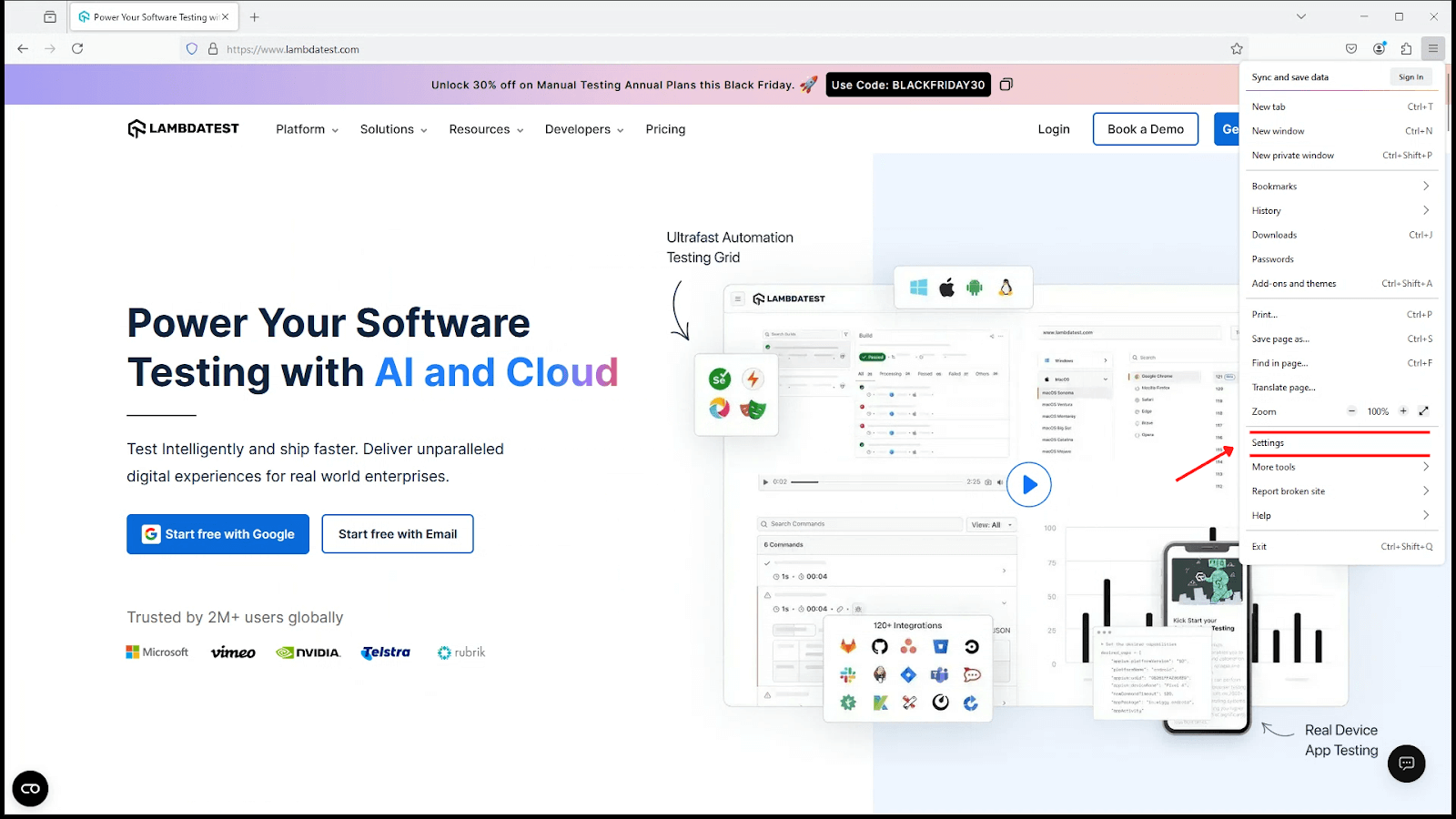
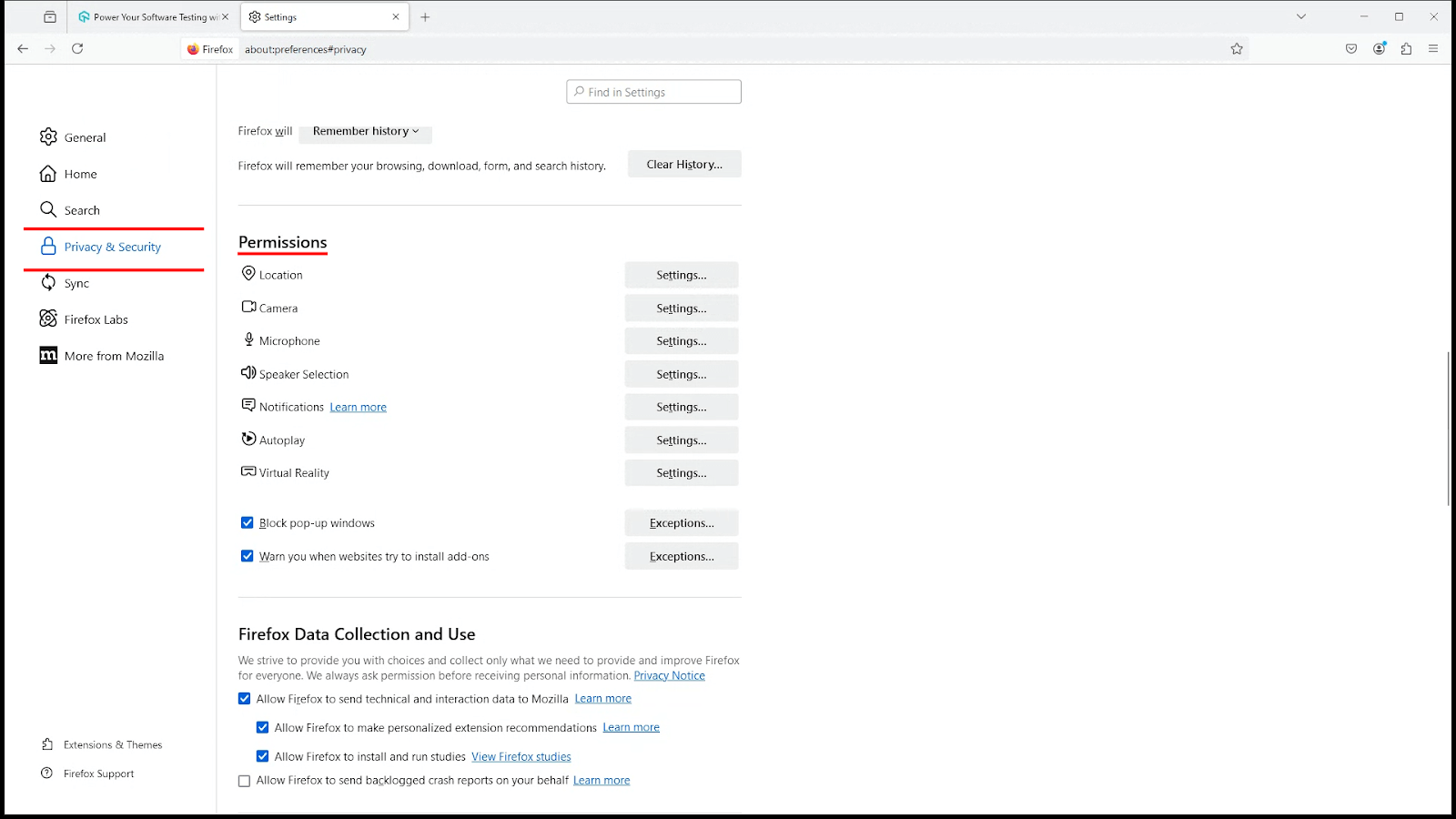
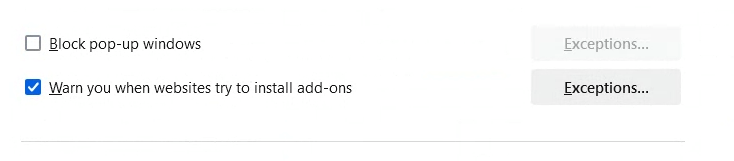
This will enable popups for the selected websites while keeping other popups blocked.

Note: Test your websites across real Firefox browsers. Try TestMu AI Today!
Allow Pop-ups in Mozilla Firefox on macOS
If you are using a macOS, the steps are similar but tailored for macOS users:
- Launch Mozilla Firefox on your macOS.
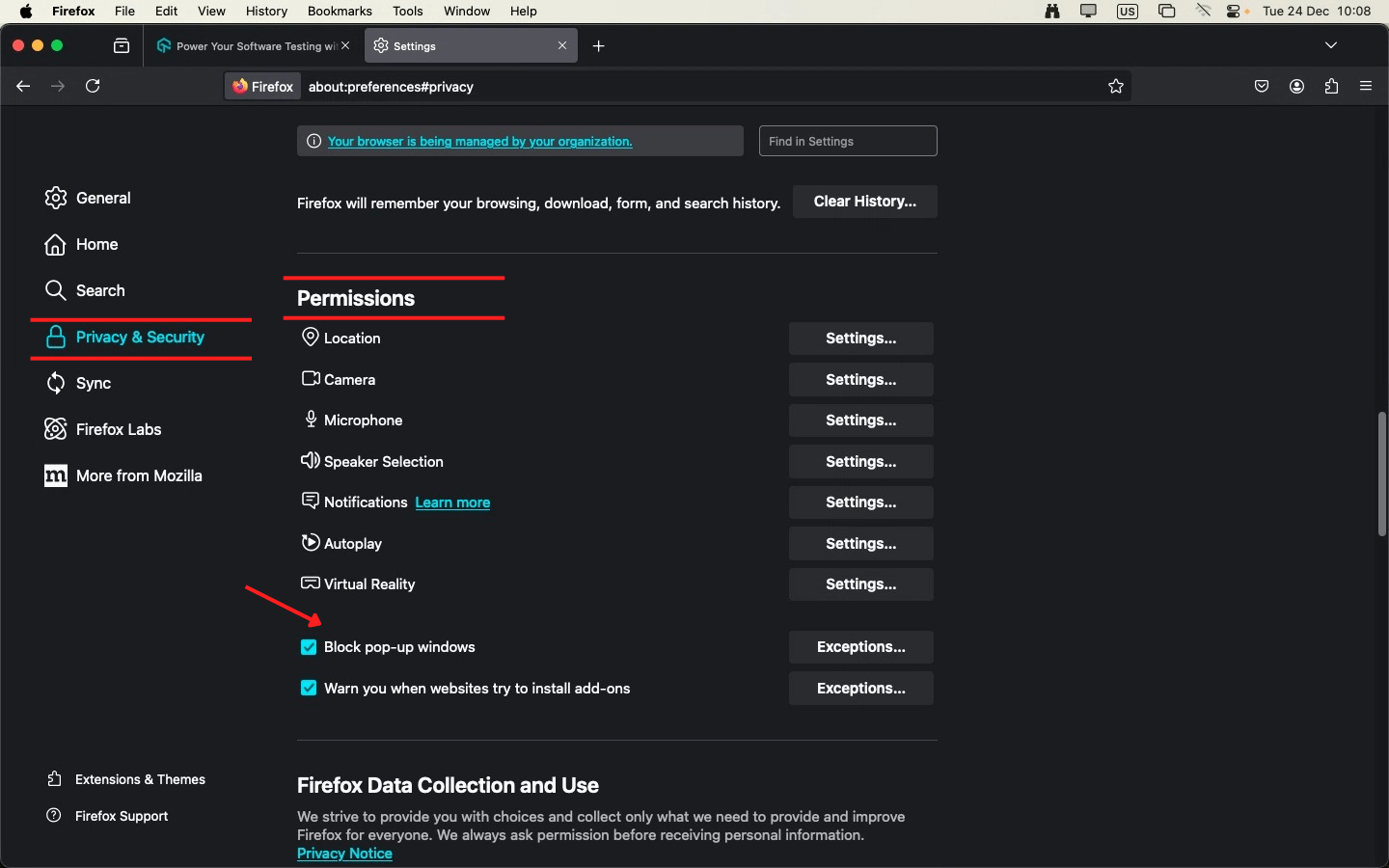
- Go to Privacy & Security and navigate to the Permissions section.
- Uncheck Block pop-up windows to allow popups universally. To allow pop-ups for specific sites, click Exceptions…
- Enter the URL of the website you trust and want to allow pop-ups for. Then, click Allow and Save Changes.
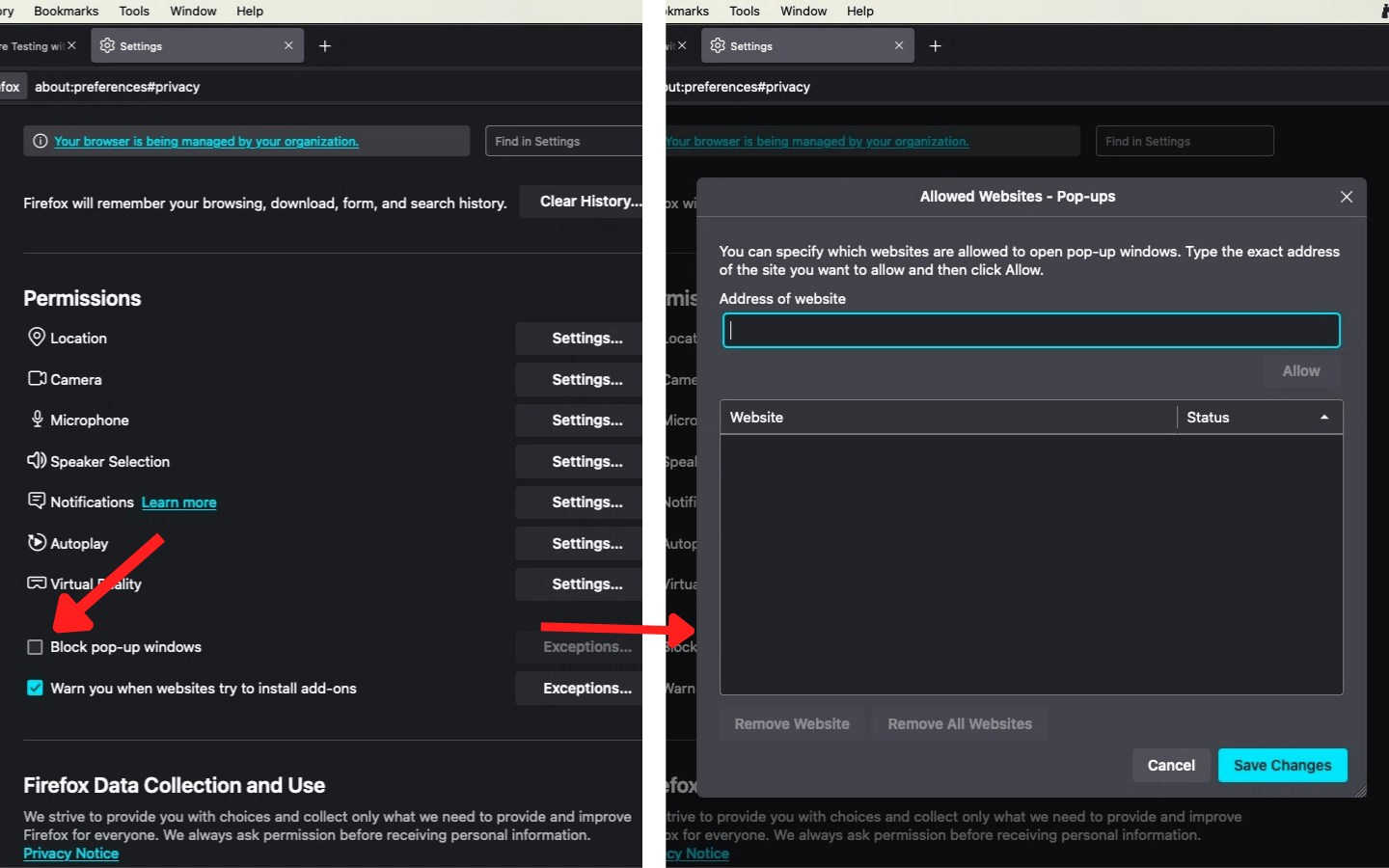
Steps to Block Pop-ups in Mozilla Firefox
Blocking pop-ups in Mozilla Firefox on Windows and macOS is simple and involves the same steps.
Here are the following steps to block pop-ups in Mozilla Firefox:
- Go to the Settings and click on Privacy & Security.
- Scroll down to the Permissions section.
- Ensure the Block pop-up windows checkbox is ticked.
- Click Exceptions… next to Block pop-up windows, then add or remove websites to customize pop-up permissions.


Conclusion
Managing pop-ups effectively in Mozilla Firefox is crucial for enhancing your browsing experience. Whether you need to allow pop-ups for specific trusted websites or block intrusive ones, Mozilla Firefox offers intuitive controls to suit your preferences.
Following the steps above, you can easily allow or block pop-ups on Windows and macOS, ensuring the right balance between functionality and security.


Frequently asked questions
Did you find this page helpful?
More Related Hubs
TestMu AI forEnterprise
Get access to solutions built on Enterprise
grade security, privacy, & compliance
- Advanced access controls
- Advanced data retention rules
- Advanced Local Testing
- Premium Support options
- Early access to beta features
- Private Slack Channel
- Unlimited Manual Accessibility DevTools Tests