

Next-Gen App & Browser Testing Cloud
Trusted by 2 Mn+ QAs & Devs to accelerate their release cycles


How to Block or Allow Pop-Ups in Edge
Learn how to block or allow pop-ups in Edge with simple steps. Customize your browser settings to manage pop-ups efficiently for a better browsing experience.

Bhawana
December 22, 2025
Some pop-ups are quite useful when, for instance, you need to log in or confirm payment. But others can be irritating and distracting. With Microsoft Edge, you can regulate pop-ups, blocking the unsolicited ones and allowing the ones that are necessary for tasks like logging in, completing payments, or accessing important site features.
Follow the steps below to manage the pop-up settings for a better experience while browsing.
Steps to Allow Pop-Ups in Edge
There are some sites, such as payment gateways or log-in pages, that need to enable pop-ups to function correctly. If you’re enabling pop-ups in Edge for a specific site that you trust, follow these steps:
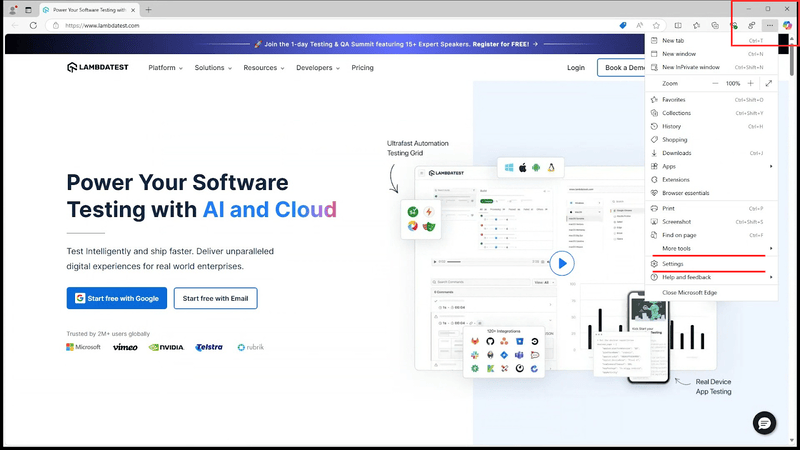
- Open Microsoft Edge on your PC.
- Click the three dot menu icon at the top right of the browser.
- Select “Settings” from the dropdown menu.
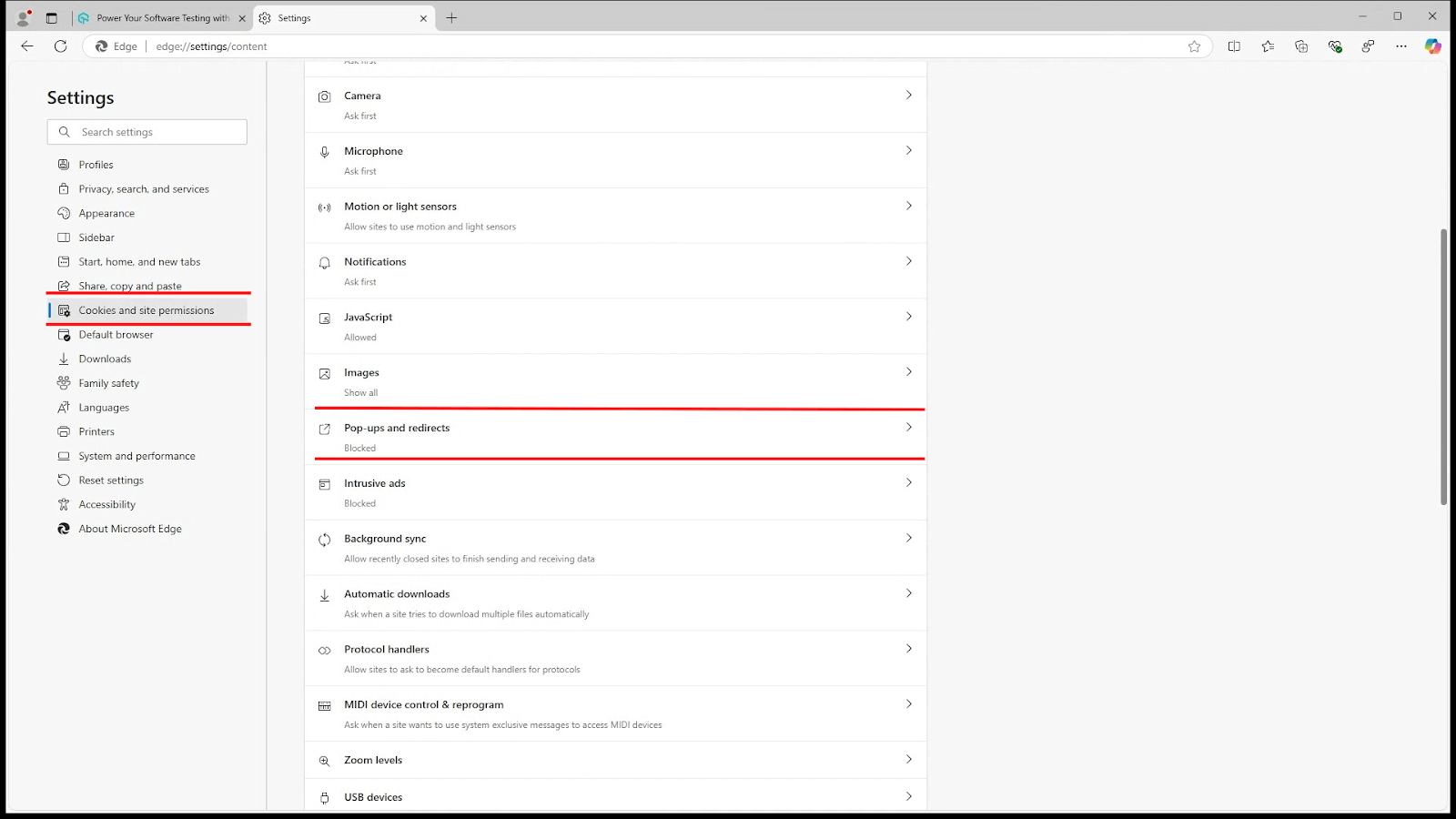
- Click “Cookies and site permissions” from the left-hand panel.
- Scroll down and click “Pop-ups and redirects.”
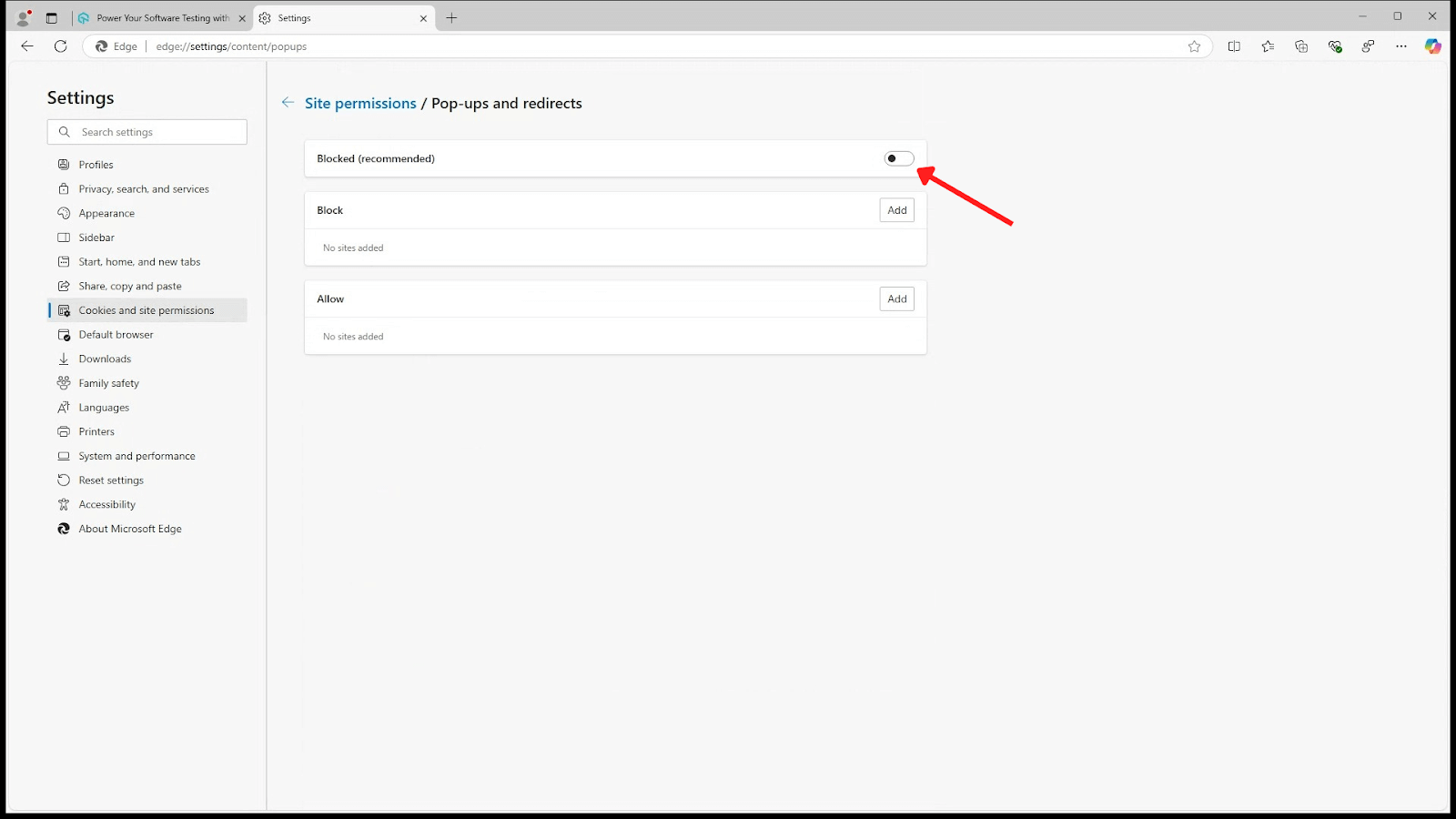
- To allow pop-ups, turn off the ‘Block’ toggle under the ‘Blocker (recommended)’ section.
- To allow pop-ups, turn off the ‘Block’ toggle under the ‘Blocker (recommended)’ section.
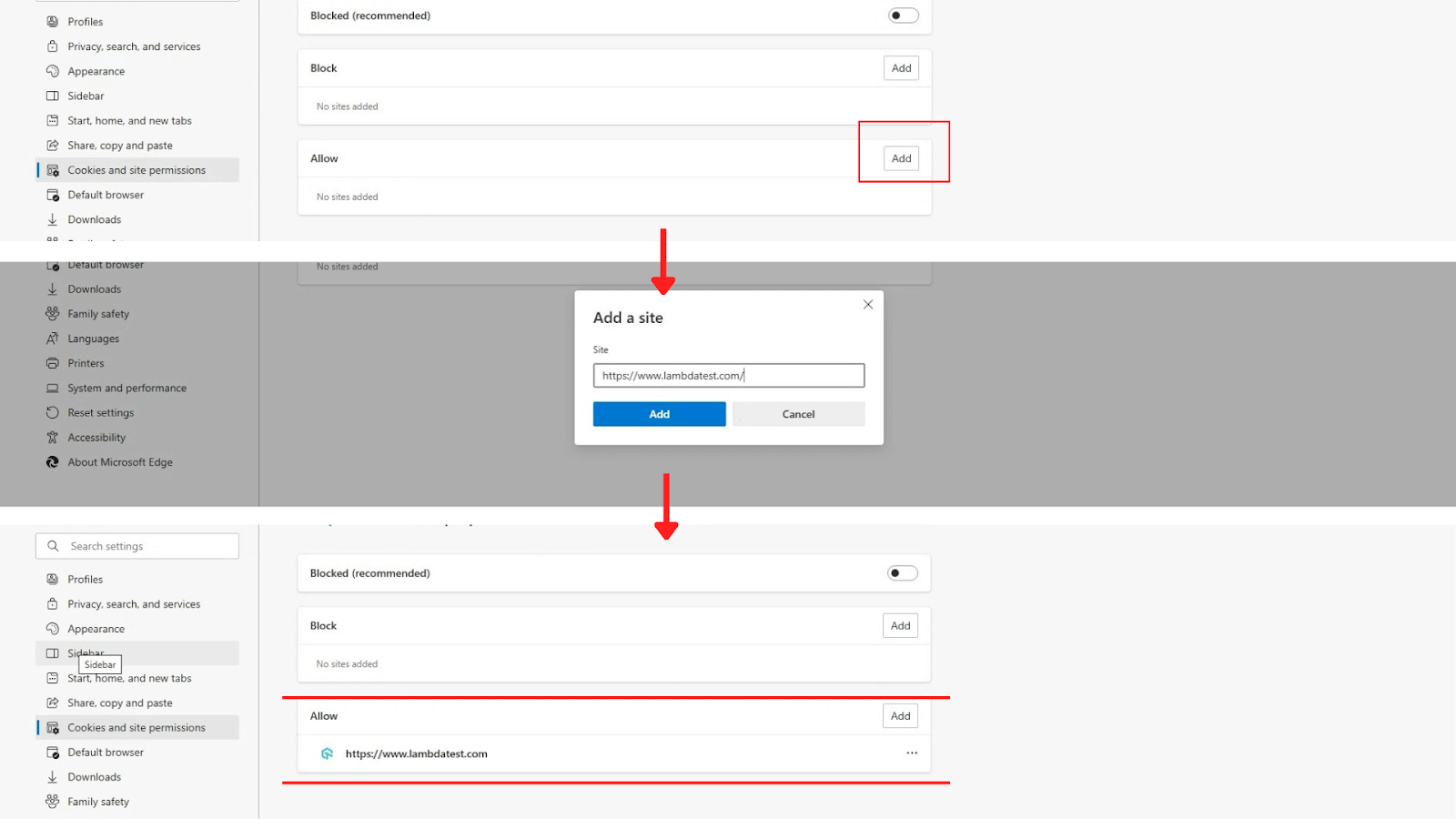
- To allow pop-ups for specific websites, click the ‘Add’ button in the ‘Allow’ section, then paste the URL of the website you want to enable pop-ups for.
Steps to Block Pop-Ups in Edge
Pop-ups can be really annoying at times, and those annoying little boxes will intrude on your browsing experience. To block pop-ups, the steps are pretty much the same with just one exception, let’s see:
- Open Microsoft Edge.
- Click on the three dot menu in the top-right corner.
- From the dropdown list, go to “Settings.”
- Select “Cookies and site permissions” from the left-hand panel.
- Click “Pop-ups and redirects.”
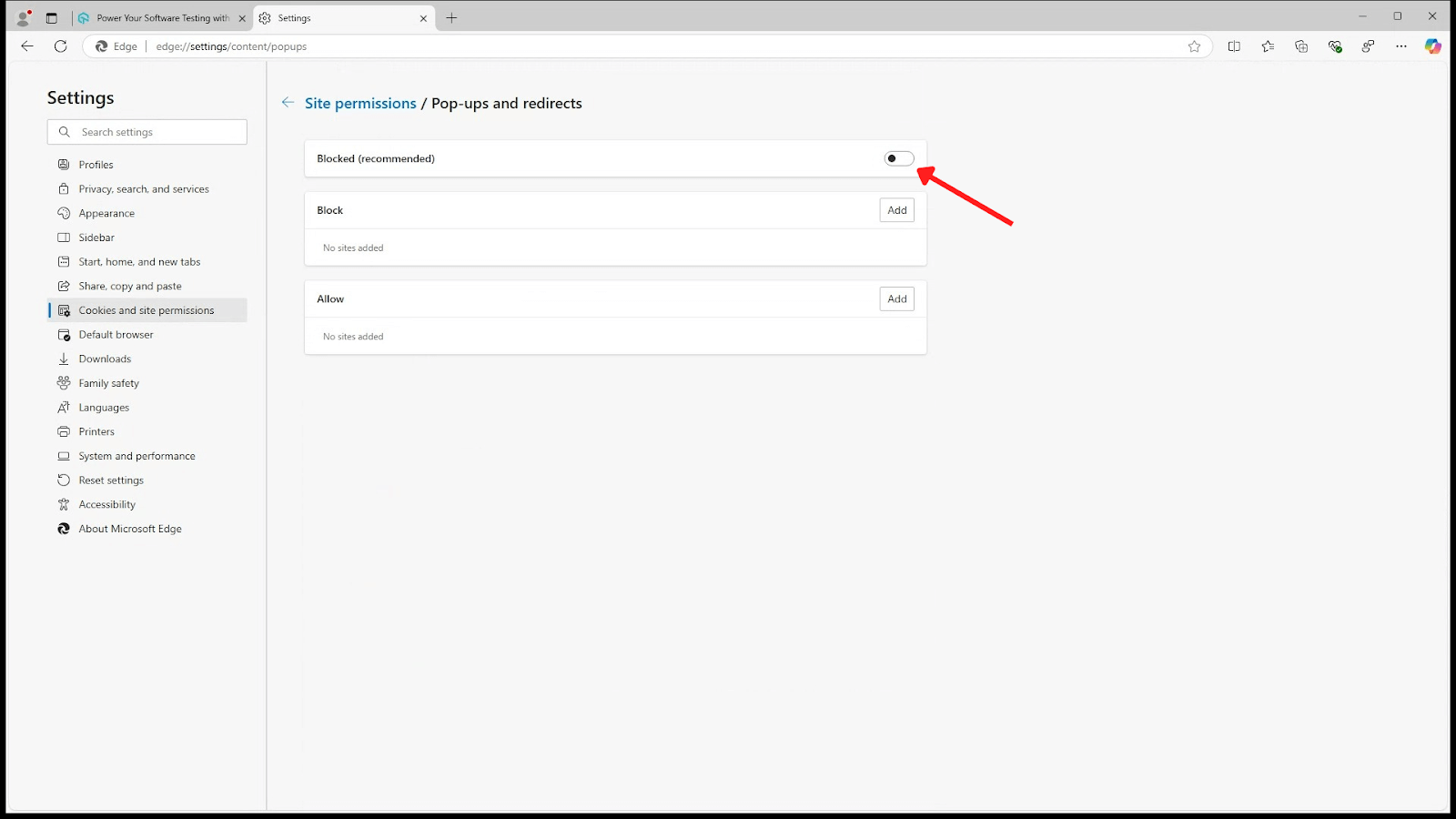
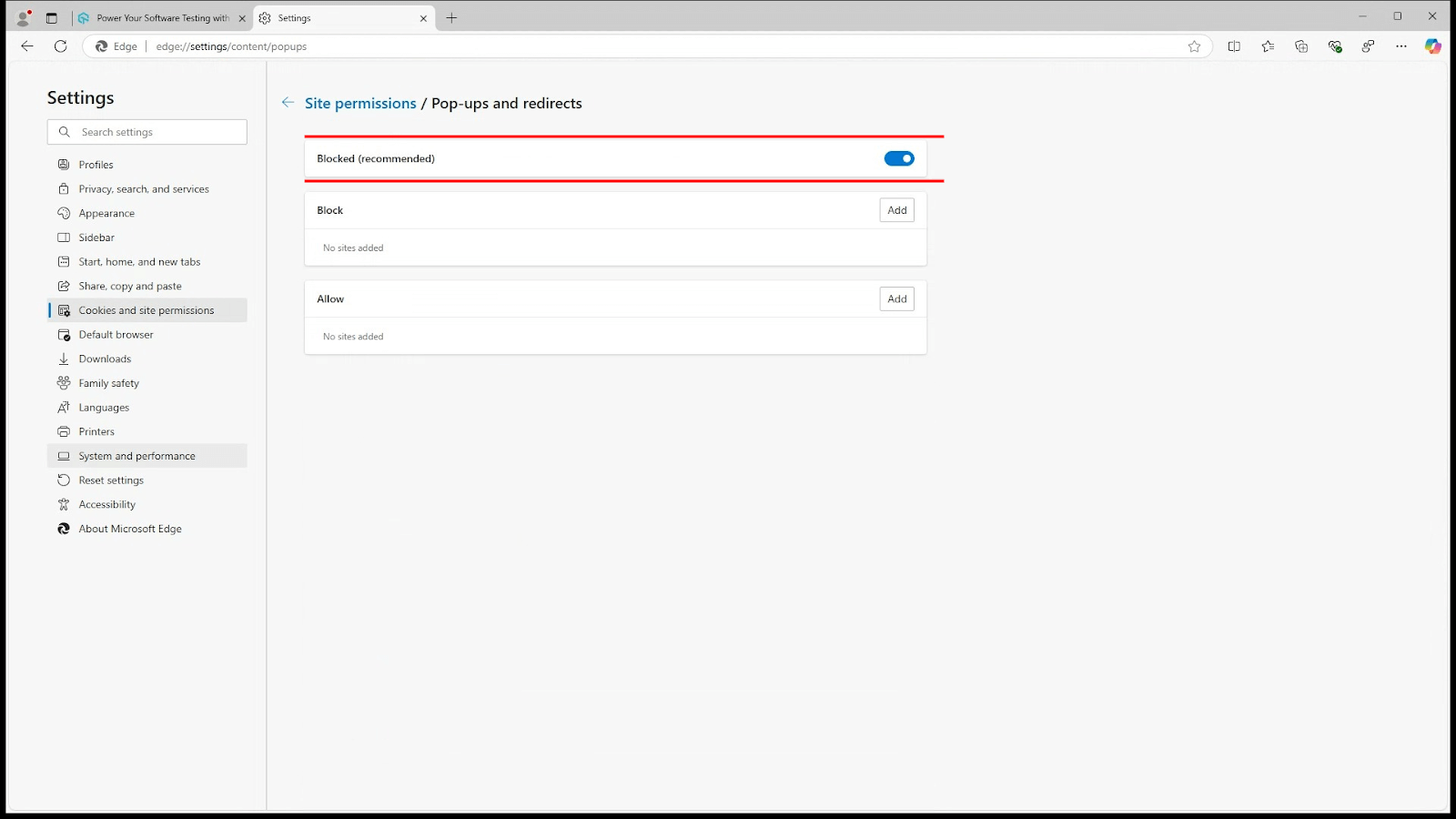
- To block pop-ups, turn on the ‘Block’ toggle under the ‘Blocker (recommended)’ section.
Conclusion
Pop-up controls on Microsoft Edge are easy to manage and will let you have more control over your browsing experience. This would be useful if you want to block all the pop-ups or allow pop-ups on certain trusted sites.


Frequently asked questions
Did you find this page helpful?
More Related Hubs
TestMu AI forEnterprise
Get access to solutions built on Enterprise
grade security, privacy, & compliance
- Advanced access controls
- Advanced data retention rules
- Advanced Local Testing
- Premium Support options
- Early access to beta features
- Private Slack Channel
- Unlimited Manual Accessibility DevTools Tests