

Power Your Software Testing with AI Agents and Cloud
The Native AI-Agentic Cloud Platform to Supercharge Quality Engineering. Test Intelligently and Ship Faster.


- TestMu AI (Formerly LambdaTest)
- /
- Learning Hub
- /
- How to View Desktop Site on iPhone: 2026 Edition
How to View Desktop Site on iPhone: 2026 Edition
One tap gets you the desktop site on iPhone, one setting keeps it that way. Safari, Chrome, and Firefox steps for every iOS version, plus testing tips.
Last Updated on:
Viewing the desktop version of a site on iPhone or iPad takes a single tap in the browser's menu, useful for comparing layouts or checking features that desktop mode hides on mobile. Chrome and Firefox surface the option in their three-dot menu, and Safari can make the switch permanent for a site under Settings, Apps, Safari.
Quick Answer (TL;DR)
| Browser | Steps |
|---|---|
| Safari (iOS 13-17) | Tap the AA icon in the address bar -> tap Request Desktop Website |
| Safari (iOS 18+) | Tap the page settings icon -> three dots -> Request Desktop Website |
| Chrome (any iOS) | Tap the ... (three-dot) menu -> Request Desktop Site |
| Firefox (any iOS) | Tap the ... menu -> Request Desktop Site |
| Make it permanent | Settings -> Apps -> Safari -> Request Desktop Website -> enable All Websites |
Method 1: Safari on iPhone
Safari is the default browser for iPhones, and the most common browser people use. The steps vary significantly based on your iOS version.
Safari on iOS 13 to iOS 17
This is the most widely used version of the flow.
- Open Safari and navigate to any website.
- Tap the AA icon on the left side of the address bar.

- In the pop-up menu, tap Request Desktop Website.
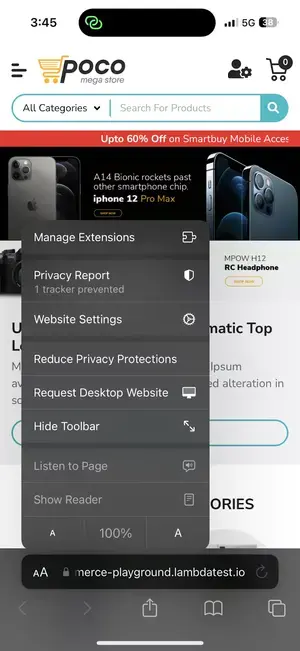
- The page will reload and serve the desktop version.
That's it. Safari sends a new HTTP request with a desktop user agent, and the server responds accordingly.
To go back to mobile view: Repeat the same steps. The menu will now show Request Mobile Website instead.
Note: These steps apply to iOS 13, 14, 15, 16, and 17. The UI is the same across all these versions.
Safari on iOS 18 and Above
Apple redesigned Safari's interface in iOS 18, moving several controls around. If you upgraded to iOS 18 and cannot find the AA icon in the same place, here's what changed:
- Open Safari and navigate to your desired website.
- Tap the page settings icon (sliders icon) in the bottom-left corner.

- Tap the three dots (...) icon in the bottom-right of the popup panel.
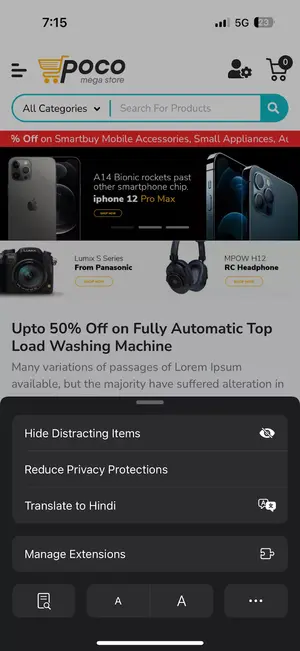
- Under PAGE ACTIONS, tap Request Desktop Website.
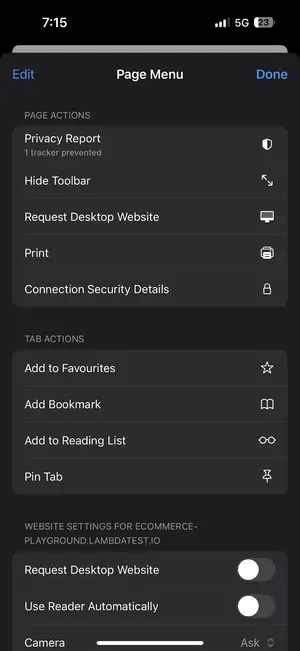
- The page will reload in desktop mode.
iOS 26: The same flow applies in iOS 26. If you are on a beta and see differences, use the page settings and ellipsis approach described above.
Safari on iOS 12 and Below
If you're on an older device stuck on iOS 12 or earlier:
- Open Safari and go to your website.
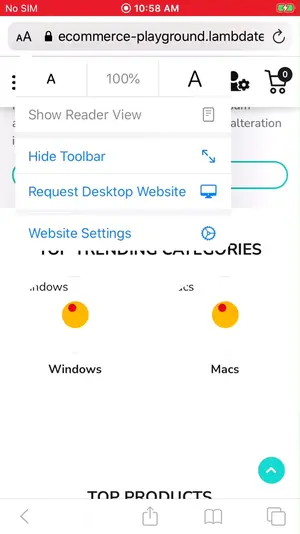
- Tap the AA icon in the top-left corner of the address bar.

- Tap Request Desktop Website to view the desktop version.
Make Desktop Site Permanent in Safari (iOS 18+)
Manually requesting desktop mode every time can be slow during repeated testing.
- Open the Settings app.
- Scroll down and tap Apps.
- Tap Safari.
- Tap Request Desktop Website.
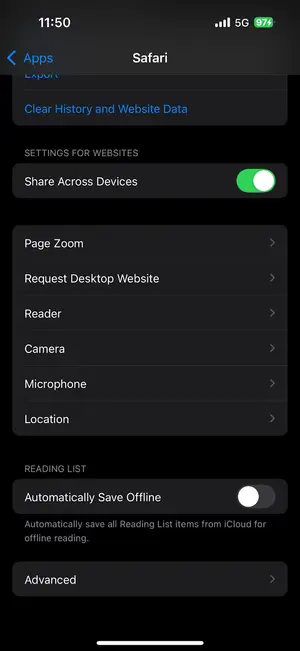
- Toggle on All Websites.
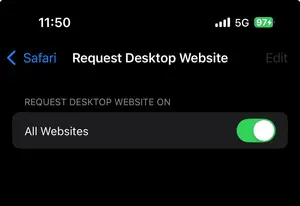
From this point, Safari will request desktop mode for all sites until you turn this off.
Method 2: Google Chrome on iPhone
- Open Chrome and navigate to your website.
- Tap the three-dot menu in the bottom-right corner.
- Tap Request Desktop Site.
- The page reloads in desktop mode.
To switch back: Tap the menu and choose Request Mobile Site.
Method 3: Firefox on iPhone
- Open Firefox and navigate to your website.
- Tap the three-dot menu in the bottom-right corner.
- Tap Request Desktop Site.
- The page reloads.
Comparison Table: All Browsers at a Glance
| Browser | Where to Tap | Persistence |
|---|---|---|
| Safari (iOS 18+) | Page settings icon -> Three dots -> Request Desktop Website | Per visit |
| Safari (iOS 13-17) | AA icon -> Request Desktop Website | Per visit |
| Safari (iOS 12 and below) | AA icon in top-left -> Request Desktop Website | Per visit |
| Chrome (iOS) | Three-dot menu -> Request Desktop Site | Per domain (persistent) |
| Firefox (iOS) | Three-dot menu -> Request Desktop Site | Per domain (persistent) |
Now that you know how to request desktop mode across every browser, there's one more thing worth knowing - it doesn't always work. Here's why, and what to do about it.
Why Isn't the Desktop Site Loading? (Troubleshooting)
This is one of the most common frustrations, and almost no guide addresses it properly. Here's the truth:
Requesting a desktop site is a request, not a command. Your browser changes the user agent string it sends with the HTTP request, essentially telling the server "I'm a desktop browser." But the server decides how to respond. And many modern websites don't actually use the user agent to determine which version to serve.
Common reasons desktop mode still shows a mobile layout:
1. The site uses responsive design (CSS-based), not server-side redirection
Most modern websites detect your screen size via CSS media queries, not your user agent. Changing the user agent does nothing to screen width. So even though you requested the desktop site, the site's CSS still detects a narrow viewport and serves the mobile layout.
Fix: There's no workaround from the browser on a real iPhone because the viewport is what it is. This is exactly why real device cloud testing matters for QA teams: you can test how CSS media queries actually behave on specific screen sizes across device models.
2. The site has a separate mobile subdomain (e.g., m.example.com)
Some older sites redirect mobile visitors to a dedicated m. subdomain. The desktop site request may not override the redirect logic on those servers.
Fix: Manually type www. in the URL and remove the m. prefix.
3. The site is detecting touch input rather than screen size
A few sites check whether a device supports touch and serve mobile layouts to touch-capable browsers regardless of screen size.
4. Your iOS/browser cache is serving a cached mobile version
Try force-closing Safari, clearing website data, and trying again.
5. The browser didn't register the tap properly
Especially on iOS 18+ with the new Safari layout, this happens. Try again from the beginning of the steps above.
For Developers and QA Testers: Go Further Than the Browser Toggle
The desktop toggle is useful, but it has limits when validating across devices and versions.
- You can only test on devices you physically own.
- Cross-version iOS coverage is limited without many devices.
- Side-by-side comparisons and parallel testing are harder.
- Automation coverage is limited without cloud infrastructure.
Testing Desktop View on iPhone with TestMu AI
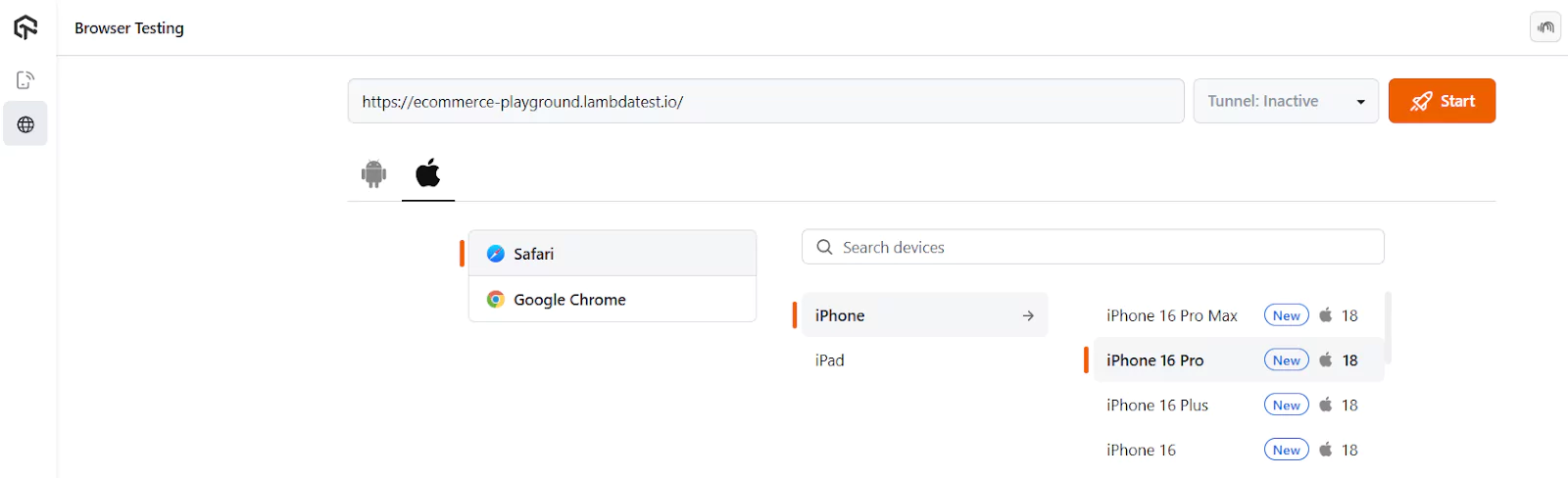
Use TestMu AI to run real iPhone sessions without a device lab.

- Log in to the dashboard.
- Go to Real Device > Browser Testing.
- Enter the target URL.
- Select iOS and a browser.
- Pick model and iOS version.
- Click Start.

Understanding What's Actually Happening (User Agent Switching Explained)
Every browser sends a user agent string with each request. Requesting desktop mode swaps the mobile user agent for a desktop-style one.
Mozilla/5.0 (iPhone; CPU iPhone OS 18_0 like Mac OS X) AppleWebKit/605.1.15
(KHTML, like Gecko) Version/18.0 Mobile/15E148 Safari/604.1
Mozilla/5.0 (Macintosh; Intel Mac OS X 14_0) AppleWebKit/605.1.15
(KHTML, like Gecko) Version/18.0 Safari/605.1.15
The physical viewport and touch input do not change. That is why user-agent switching can have limited effects on responsive CSS layouts.
The Bottom Line
The steps are simple once you know where to look and now you do, across every browser and iOS version Apple has thrown at us lately.
One thing worth keeping in mind: if you request desktop mode and the site still looks mobile, it's not you. Most modern sites use responsive CSS that responds to screen width, not user agent, so the layout adapts to your iPhone's viewport regardless of what the browser requests. The troubleshooting section above explains exactly what's going on there.
For developers and QA teams, this is also a good reminder that "request desktop site" is a user-facing feature worth actually testing, not just assuming it works. A quick session on a real device cloud across a few iPhone models can surface issues that a desktop browser never would.
Citations
Browse the web using Safari on iPhone: https://support.apple.com/en-in/guide/iphone/iph1fbef4daa/ios
Author

Deepak Sharma
Blogs: 15

Deepak Sharma is a B2B SaaS content strategist with 5+ years of experience creating valuable content in the tech space. He has authored 100+ technical articles. At TestMu, he is a content lead, where he develops high-value content for readers. He believes writing isn't about sounding impressive it's about clarity and structure. He holds certifications in Cypress, Appium, Playwright, Selenium, Automation Testing and Kane AI.
Reviewer

Shivam Singh
Reviewer
Shivam Singh is a Lead Member of Technical Staff at TestMu AI (formerly LambdaTest), architecting the Real Device Cloud that runs automated app and web tests on real Android and iOS devices. He designed the architecture for real-device app and web automation and wrote the microservices from scratch in Golang, including the XCUITest and Espresso execution layers for iOS and Android. His platform reached peak parallel concurrency of 150+ for app automation while handling roughly 500,000 tests a month, and he leads the team that keeps the automation grid running. He brings over eight years of engineering experience and holds a B.Tech in Computer Science.


Desktop Site on iPhone FAQs
Did you find this page helpful?
More Related Learning Hubs
TestMu AI forEnterprise
Get access to solutions built on Enterprise
grade security, privacy, & compliance
- Advanced access controls
- Advanced data retention rules
- Advanced Local Testing
- Premium Support options
- Early access to beta features
- Private Slack Channel
- Unlimited Manual Accessibility DevTools Tests