 Decode AI-Powered Quality Engineering from AI & QA Leaders,Register for Free!

Next-Gen App & Browser Testing Cloud
Trusted by 2 Mn+ QAs & Devs to accelerate their release cycles

- Home
- /
- Learning Hub
- /
- Request Desktop Site On iPhone: A Comprehensive Guide With Examples
Request Desktop Site On iPhone: A Comprehensive Guide With Examples
In this tutorial, we look at different methods to request desktop sites on iPhone devices.

Harish Rajora
January 11, 2026
There can be times when you want to request the desktop site on iPhone or iPad to see how a web page looks, or check some specific details or functionality that are only available in desktop mode.
This can be especially helpful if you want to compare the desktop and mobile views or test how desktop-specific features behave on mobile devices.
How to View the Desktop Site on iPhone?
Now let’s look at how to request desktop site on iPhone. You can request the desktop site on an iPhone or iPad using the following methods:
- Using a native browser.
- Using a real device cloud.
Method 1: Using a Native Browser
This method focuses on requesting the desktop site on iPhone using a native browser.
For demonstration, let’s use the Safari browser. However, the steps will remain the same for other browsers too.
- Open your desired website on the Safari browser and tap on the AA icon.
- Tap on Request Desktop Website, and the Safari browser will reload the website in desktop mode.

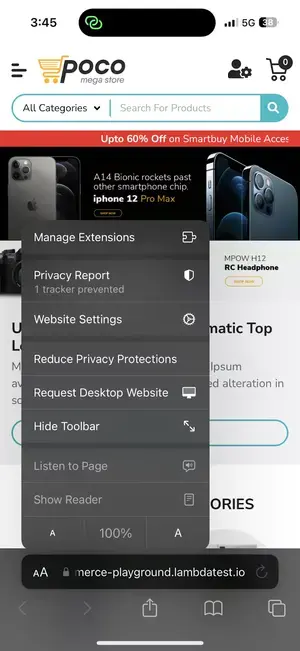
Note: These steps are applicable from iOS 13 to iOS 17.

Note: Test web apps on real iPhones and iPads. Try TestMu AI Now!
View Desktop Sites in iOS 18 and Above Versions
Follow these steps to request a desktop site on iPhone in iOS 18 and above versions:
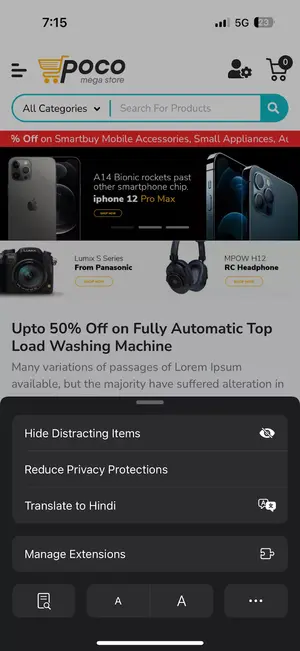
- Open your desired website on the Safari browser and navigate to the page settings icon in the bottom-left corner.
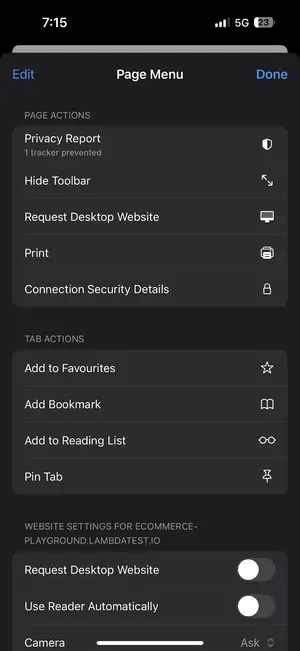
- Tap on the three dots icon from the bottom-right corner.
- Tap on Request Desktop Website from the PAGE ACTIONS section.

View Desktop Sites in iOS 12 and Below Versions
Follow these steps to request a desktop site on iPhone in iOS 12 and below versions:
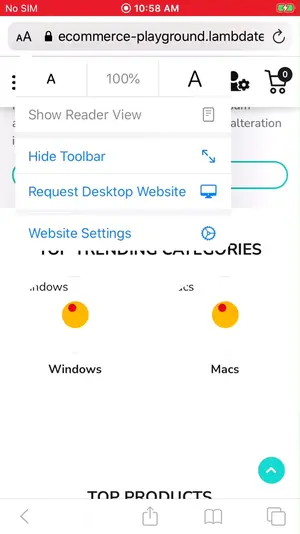
- Open your desired website on the Safari browser and navigate to the AA icon in the top-left corner.
- Tap Request Desktop Website to view the desktop version of the website.

Method 2: Using a Real Device Cloud
In this method, let’s see how to request desktop site on iPhone using a real device cloud.
With a real device cloud, you can request the desktop site on an iPhone and also test how that site behaves across various iPhone models and iOS versions without needing physical devices.
For demonstration, we will use the real device cloud offered by TestMu AI - an AI-native testing platform that lets you test mobile web apps across real iOS devices.

- From the TestMu AI Home dashboard, navigate to Real Device > Browser Testing.
- Enter the URL that you wish to test. Select iOS, choose Safari browser and then click on iPhone. After that, select the iPhone model, and click Start.
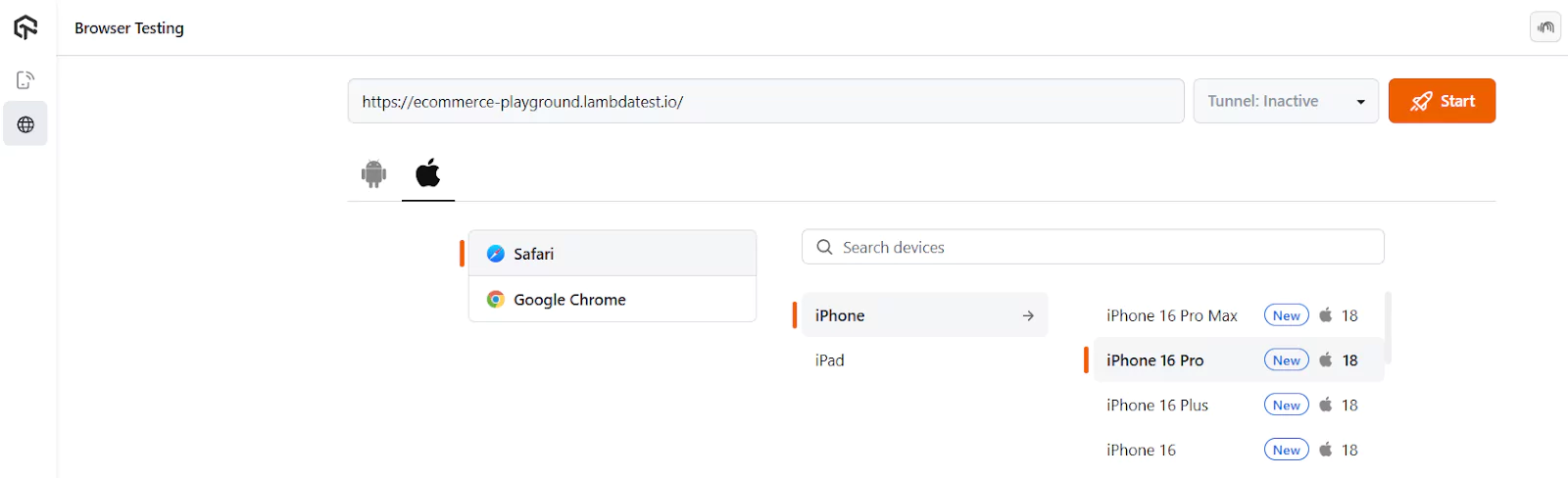
A cloud-based real iOS device will spin up based on your selected combinations.

The remaining steps to request a desktop website on iPhones will be the same as mentioned above.
How to Enable Desktop Website Permanently?
While using the methods described above, the server might start sending the mobile version of the web page when you visit other websites or web pages.
Also, you might have to repeat the process of pressing “Request Desktop Website” if you are navigating to a different domain URL.
A better solution is to permanently turn on the desktop website feature until the testing part is complete. You can achieve this by making some changes in the settings as follows.
- Go to your Settings app, scroll down and tap on Apps.
- Tap on Safari and then Request Desktop Website.
- Enable the All Websites toggle.
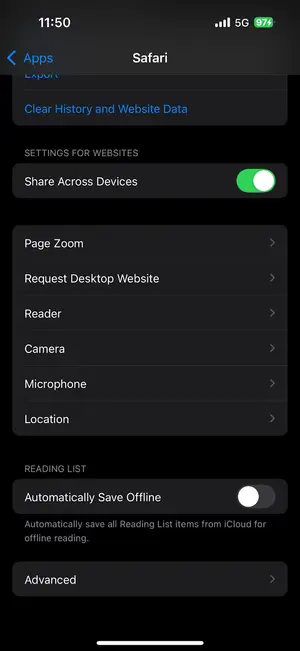
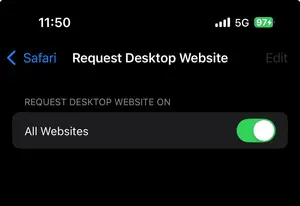
Note: These steps are applicable for iOS 18 and above versions.
Conclusion
A user requests a desktop website on their iPhone for several reasons. The desktop website will get things done if you cannot accomplish the task on a mobile device. Hence, as a tester, you must ensure that your website grants access to the desktop version whenever requested.
In this guide on how to request desktop site on iPhone, we kept in mind both users and testers to highlight three methods of requesting a desktop site on an iPhone.
Citations
Browse the web using Safari on iPhone: https://support.apple.com/en-in/guide/iphone/iph1fbef4daa/ios


Summarize with AI


Frequently asked questions
Did you find this page helpful?
TestMu AI forEnterprise
Get access to solutions built on Enterprise
grade security, privacy, & compliance
- Advanced access controls
- Advanced data retention rules
- Advanced Local Testing
- Premium Support options
- Early access to beta features
- Private Slack Channel
- Unlimited Manual Accessibility DevTools Tests