

Next-Gen App & Browser Testing Cloud
Trusted by 2 Mn+ QAs & Devs to accelerate their release cycles


WebdriverIO Tutorial For Handling Dropdown In Selenium
While dealing with access forms, you'd often have to handle dropdown. Here's how you can handle them with WebDriverIO in Selenium using 'Select' class.

Aditya Dwivedi
January 27, 2026
While performing automated browser testing, there’ll be plenty of times when you’d have to handle the dropdown menu. Often used in forms, dropdown works great when it comes to conserving space and preventing users from choosing the wrong option in a form.
I’d have rarely come across a form without dropdown to select a field from multiple options. Thereby, it becomes vital that while testing any website or access form, we know how to handle dropdown with WebdriverIO as well.
In order to perform operations on the dropdown, the ‘Select’ class can be used in Selenium WebdriverIO. In this WebDriverIO tutorial, I’ll explore how to use ‘Select’ to handle dropdown with WebdriverIO and Selenium WebDriver.
Overview
In WebdriverIO, dropdowns are common web elements used to select one or more options from a list. They can appear in different forms depending on implementation.
What Are the Types of Dropdown in WebdriverIO?
WebdriverIO typically handles two main types of dropdowns found on websites – Normal Dropdowns and Custom Dropdowns. Each type behaves differently based on its HTML structure and styling approach.
- Normal Dropdown: Normal dropdowns are standard HTML elements usually found in forms. You can identify them by checking if the HTML tag is <select> with an assigned id attribute, such as dropdown.
- Custom Dropdown: Custom dropdowns are built using <div> or other elements instead of <select>. They offer more styling flexibility but require different handling in automation scripts.
How to Handle Dropdown in WebdriverIO?
WebdriverIO provides built-in methods to interact with dropdowns using standard selectors like id, name, or CSS. These methods help select options efficiently and reliably.
- selectByIndex(): Selects an option based on its numerical index in the dropdown list. Indexing begins at zero, making it suitable for static dropdown structures.
- selectByVisibleText(): Selects an option by its visible text label. This approach is safer when dealing with dynamic dropdowns or frequently changing value orders in test environments.
- selectByAttribute(): Selects an option using any attribute and corresponding value defined within the <option> tag, offering flexibility beyond the standard “value” attribute.
What Are The Different Types Of Dropdown In WebDriverIO?
There are majorly two kinds of dropdowns you would often find on a website.
- Normal dropdown
- Custom dropdown
Normal Dropdown

Normal dropdowns are the ones we usually encounter while handling access forms in Selenium. It’s easy to identify a normal dropdown, you just have to open the element tab in the browser and see that dropdown HTML tag. HTML tag should be < select > and the ‘id’ should be ‘dropdown’.
Here is an example of a normal dropdown:
<select id="dropdown">
    <option value="" disabled="disabled" selected="selected">Please select an option</option>
    <option value="1">Option 1</option>
    <option value="2">Option 2</option>
  </select>
Custom Dropdown
Since with < Select > there aren’t many styling options, developers use custom dropdowns. As we discussed, custom dropdowns are not developed using the < Select > tag but with < div > tag or some other custom tag-based on the frontend framework.
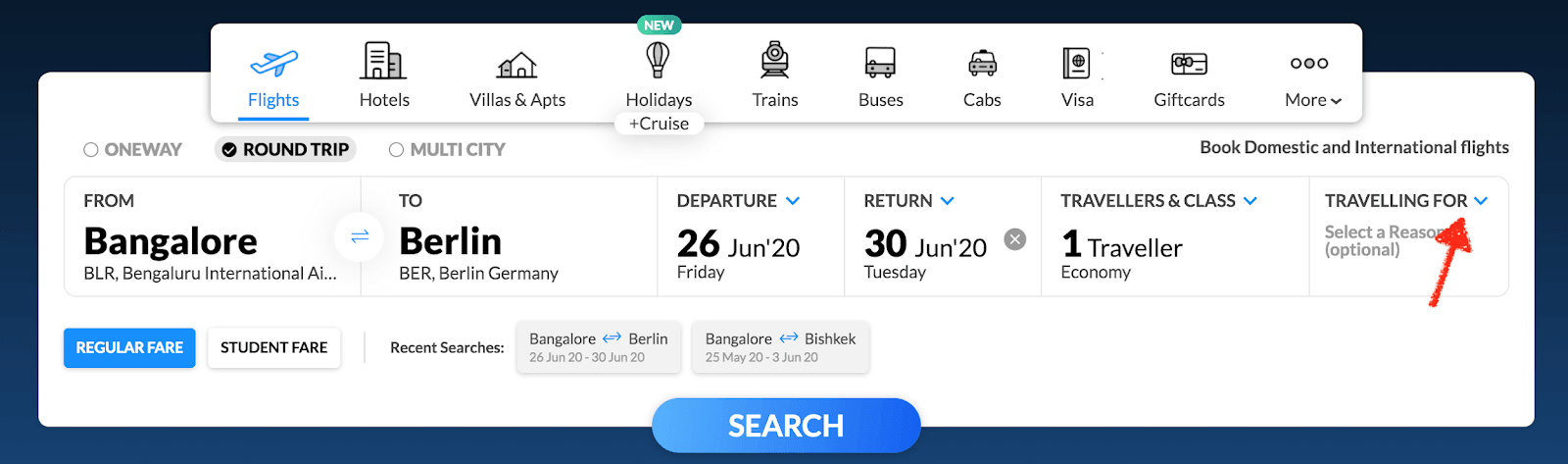
Here is an example for custom dropdown:
<div class="fsw_inputBox travelFor inactiveWidget ">
   <label data-cy="travellingFor" for="travelFor">
      <span class="lbl_input latoBold appendBottom10">Travelling For</span><input data-cy="travelFor" id="travelFor" type="text" class="hsw_inputField font20" readonly="" value="">
      <div class="code latoBold font14 blackText makeRelative">
         <p></p>
         <p class="font14 greyText">Select a Reason (optional)</p>
      </div>
   </label>
</div>
Now, you know the difference between these two dropdowns. In Test automation, custom dropdowns are handled based on the event defined by the developer while normal dropdowns are handled by a special Selenium class object called ‘Select’ class.

Austin Siewert
CEO, Vercel
Discovered @TestMu AI yesterday. Best browser testing tool I've found for my use case. Great pricing model for the limited testing I do 👏
2M+ Devs and QAs rely on TestMu AI
Deliver immersive digital experiences with Next-Generation Mobile Apps and Cross Browser Testing Cloud

How To Handle Dropdown With WebDriverIO?
It’s pretty straight forward to handle dropdown in WebDriverIO! There isn’t a separate class object like Java or any other programming language. Here, WebDriverIO dropdown is also accessed by the simple selector.
Read More: What are Selenium Locators In WebDriverIO?
With the given HTML example on the normal dropdown, you can find dropdown objects using below syntax using ID selector.
Const drp = $("#dropdown");
There are two options for dropdowns.
- Single value dropdown
- Multiple value dropdown
There is no difference to access single or multiple value dropdowns except multiple value dropdowns allow the user to select multiple values from dropdown options.
WebDriverIO provides the following operation on the dropdown.
- selectByIndex
- selectByVisibleText
- selectByAttribute
selectByIndex
You can select the dropdown in value by providing the index of the value. The index is nothing but the position of the dropdown value. The index always starts at 0. So, the first value is considered as the 0th Index.

Here, Option 1 is considered as index 0 and Option 2 is index 1
Syntax:
$("selector").selectByIndex(index)
If you want to select Option 1 then you can use below code.
$("#dropdown").selectByIndex(0)
Note: Avoid using selectByIndex when the dropdown value changes dynamically as the value index gets changed frequently.
selectByVisibleText
Another option is selectByVisibleText. This option is very safe to use as we need to use dropdown visible text displayed in the dropdown value.

We can use Option 1 or Option 2 as a selection
Syntax:
$("Selector").selectByVisibleText(text)
If you want to select option 2 using selectByVisibleText() then use below code;
$("#dropdown").selectByVisibleText("Option 2")
Note: When you use selectByVisibleText() keep the visible text as it is or else the element will not identify.
selectByAttribute
selectByAttribute() is something new compared to other frameworks for Selenium test automation. Usually, in other Selenium test automation framework, you’d be using selectByValue option which allows the user to select dropdown using value attribute only. However, WebDriverIO provides a feature to use any attribute and its value exists in the dropdown.

Syntax:
$("Selector").selectByAttribute(attribute, value)
Here, the attribute parameter could be any attribute from < option > tag, and value parameter is the value of the provided attribute.
If you consider normal HTML dropdown code, you can see only one attribute that is “value”. In case, any other attribute provided then you can use that as well.
$("#dropdown").selectByAttribute("value", "1")
Multiple Value Dropdown
If you see the < select > tag has multiple="true" attribute then this dropdown has the capability to select multiple options. When you automate multiple value dropdowns, you have to call the above-explained methods multiple times.
WebDriverIO as of now does not provide a selectAll() or deSelectAll() method option for multiple value dropdown. You need to write custom code for the same as shown below.
Austin Siewert
CEO, Vercel
Discovered @TestMu AI yesterday. Best browser testing tool I've found for my use case. Great pricing model for the limited testing I do 👏
2M+ Devs and QAs rely on TestMu AI
Deliver immersive digital experiences with Next-Generation Mobile Apps and Cross Browser Testing Cloud
You can take this certification as proof of expertise in the field of test automation with JavaScript to empower yourself and boost your career.
Here’s a short glimpse of the Selenium JavaScript 101 certification from TestMu AI:
How To Select All Dropdown Methods?
 it("select all dropdown value", function () {
       browser.url("https://html.com/attributes/select-multiple/");
       browser.pause(5000);
       const list = $$("select option");
       list.forEach((element) => {
           element.click();
       });
       browser.pause(5000);
   });
A similar way you can deselect the all value by running the same code two times. If you want to select a particular dropdown value from multiple value dropdown then you can use if condition within for loop.
Also read: WebdriverIO Tutorial With Examples For Selenium Testing
All In All
In this WebDriverIO tutorial, I explored how to handle dropdown with WebDriverIO and it’s methods. It’s easy to handle dropdown with WebDriverIO as you don’t have to use any additional class object. When you compare with Selenium there is one class that is a select class and using it you can perform actions on the dropdown also.
There is no dedicated method to deselect dropdown values in WebDriverIO but by custom code logic, you can perform Selenium test automation as shown in the above example in this WebDriverIO tutorial.
Enhance your WebdriverIO interview proficiency with our meticulously curated compilation of questions and answers. Explore the comprehensive list of WebdriverIO Interview Questions and Answers for valuable insights.
That’s all folks, I hope you liked this WebDriverIO tutorial for Selenium test automation. Help us reach out to more of your peers by retweeting us and sharing this article on social media. Happy Testing!!!?
Austin Siewert
CEO, Vercel
Discovered @TestMu AI yesterday. Best browser testing tool I've found for my use case. Great pricing model for the limited testing I do 👏
2M+ Devs and QAs rely on TestMu AI
Deliver immersive digital experiences with Next-Generation Mobile Apps and Cross Browser Testing Cloud


Did you find this page helpful?
More Related Hubs
TestMu AI forEnterprise
Get access to solutions built on Enterprise
grade security, privacy, & compliance
- Advanced access controls
- Advanced data retention rules
- Advanced Local Testing
- Premium Support options
- Early access to beta features
- Private Slack Channel
- Unlimited Manual Accessibility DevTools Tests