

Next-Gen App & Browser Testing Cloud
Trusted by 2 Mn+ QAs & Devs to accelerate their release cycles


Taking Automated Screenshot Of Locally Hosted Pages With TestMu AI Tunnel
Since its inception, the main aim of TestMu AI has been to help users fastrack their testing and development, especially their cross browser testing workflow. Each TestMu AI feature, whether it be real time testing feature or whether it be integrations

TestMu AI
January 10, 2026
Since its inception, the main aim of TestMu AI has been to help users Fastrack their testing and development, especially their cross browser testing workflow. Each TestMu AI feature, whether it be real time testing feature or integrations, was built from ground up with the specific aim to ease the life of a developer and tester.
It took overcoming a lot of development and deployment challenges and required a complete rethinking of the architecture of the feature but we did that too. Now users can connect their local or private servers with TestMu AI via TestMu AI Tunnel and take screenshots of pages hosted there. Now you can be more confident than ever about your user interface’s experience on different browsers with every release cycle before you deploy a change into a Production environment or set it live.
We know this sounds exciting. Before we roll into changes, here is a quick rundown to reflect the basic purpose of these type of testing through a local test environment.
What is Automated Screenshot Testing?
This type of testing will help you in capturing bulk screenshots through different desktops and mobile devices running on various OS in a single go! This is achieved using instrumented UI test cases to help you realize how seamlessly does a web app render through different screen sizes using different browsers. At TestMu AI, you can capture screenshots of upto 25 different configurations of browser versions with respect to OS in a single test.
What is Responsive Testing?
As the word responsive suggests, this type of testing is used to check the appearance of a website with RWD(Responsive Web Design). This design helps a website to render the content in a flexible yet appropriate manner on the basis of the devices & OS on which it gets summoned. At TestMu AI, you can check RWD through 44 different devices in a single go!
What is TestMu AI Tunnel?
TestMu AI Tunnel is a feature that allows you to test your development thoroughly in a secure shell testing environment, hosted on TestMu AI cloud servers. It provides you the flexibility to securely test your from 2000+ browsers and their assorted versions, running on real OS code for cross browser and cross platform compatibility, even before it is deployed overproduction environment.
Setting up TestMu AI Tunnel for testing your locally hosted webapps?
Step 1 → Go to Real Time Test from the left navigation menu & hit the button ‘Configure Tunnel’.
Step 2 → Download the binary file and copy the presented string.
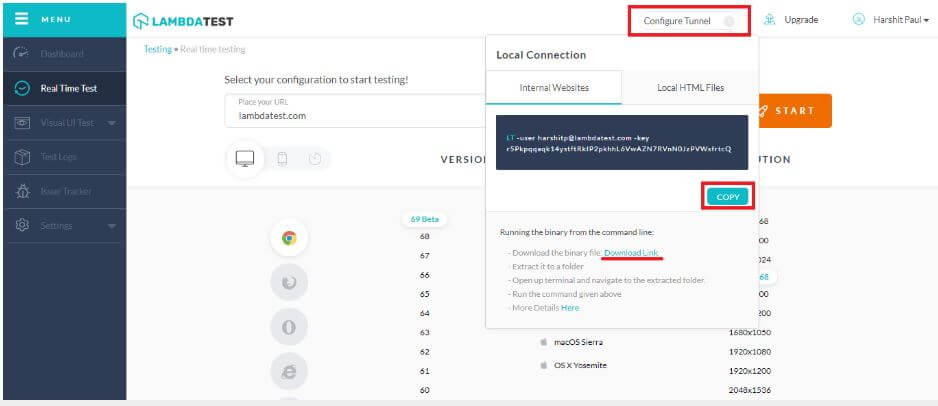
Step 3 → Extract the downloaded zip file. Go to cmd(Command Prompt) and route your pointer to the same directory where you extracted the zip file.
Step 4 → Paste the copied string.
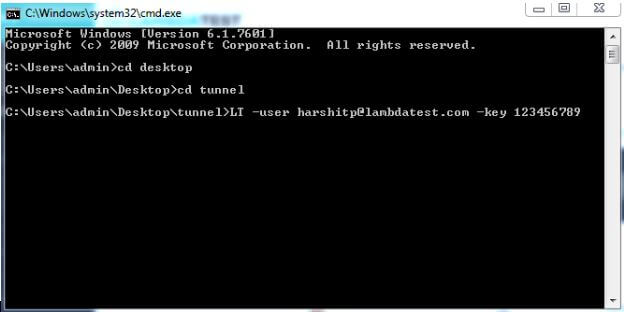
Step 5 → Hit Enter and wait till you get the message saying “You may start your tests now”.

Taking a screenshot of privately or locally hosted pages with TestMu AI Tunnel
Till now, as an end-user you were able to perform cross browser compatibility testing of locally hosted webpages or web app in real-time testing only. Which was more detailed but time-consuming if your aim is just to identify visual interface bugs quickly. That’s where our Screenshot testing and Responsive testing feature came in.
Screenshot Testing is now available through TestMu AI Tunnel. After you have connected TestMu AI Tunnel it just becomes a matter of selecting the connected machine before initiating the screenshots.
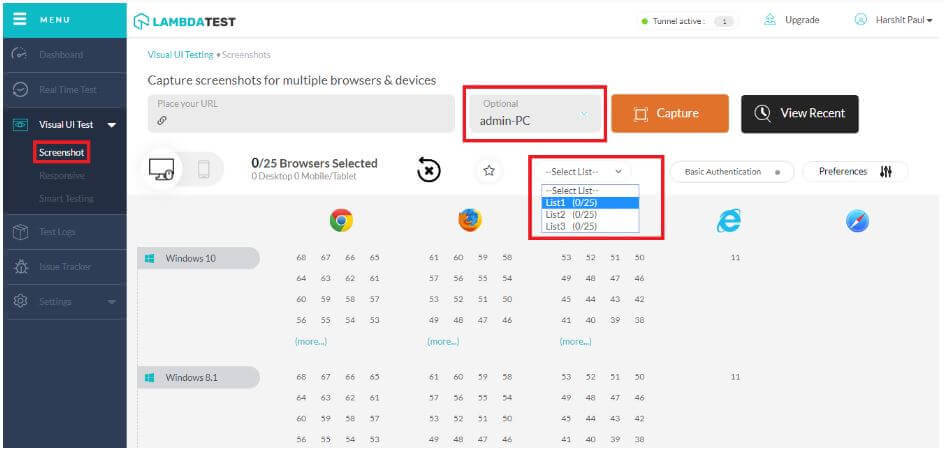
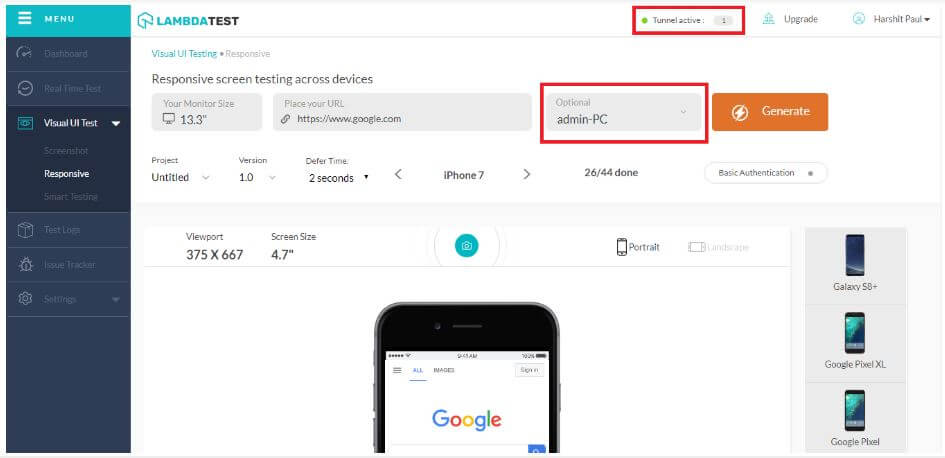
The same translates to Responsive testing as well. After you have successfully connected the tunnel, which you can verify by checking the tunnel status icon at the top navigation bar, you can start generating responsive testing screenshot of locally hosted pages as well.
Testing Locally Hosted Pages on Mac and iOS
Native macOS and iOS browse Safari, does not translate URL string Localhost. This is an issue that is endemic to all new and old safari browsers. Because of this anyone generating screenshot for the page localhost, or for example localhost:3000, may get an error in Mac and iOS devices. The workaround for this is simple. Instead of using the string localhost, just replace it with your local computer’s IP. For example, if the URL you wanted to test is https://localhost:3000/dashboard, and your local system’s IP is 192.168.5.6, the URL you would have to enter for testing will be https://192.168.5.6:3000/dashboard. This will give perfect results in all browsers including windows and android ones as well.
Save Selected Browsers For Quick Screenshot Testing
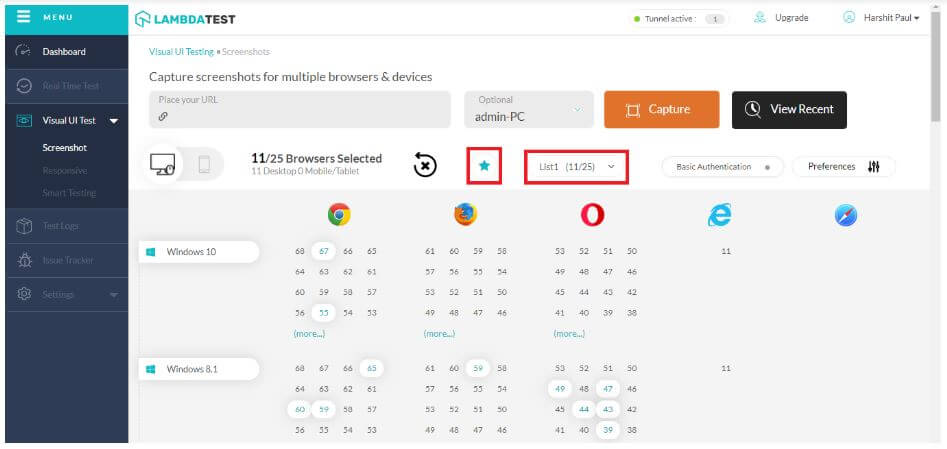
Apart from adding the tunnel feature, we have also launched a new save favorite browser feature that will allow you to save a specific list of browsers for testing. This was the second most requested feature in Automated Screenshots after testing of locally hosted pages. 😀
After selecting the list click on the star button to save those particular browsers. Once you save a list the star will highlight in blue. So the next time you visit our platform for screenshot testing on the same browsers then you just need to select that list from the drop-down and voila! You can also save 3 different lists.
More Features to Come
We are constantly upgrading and expanding our platform to facilitate a complete testing ecosystem. Thanks to our customers’ valuable feedback and suggestions, they have acted as pillars for making our cloud-based platform more robust.
Hope you like our latest addition to TestMu AI Tunnel. Feel free to comment about what attracted you the most and where you feel we can do better! Let us know about your thoughts on the latest update & help us improve with your valuable input. You can also leave us a message here or chat with us. Our product experts are always delighted to help you with any roadblock.
Happy Testing! ?



Did you find this page helpful?
More Related Hubs
TestMu AI forEnterprise
Get access to solutions built on Enterprise
grade security, privacy, & compliance
- Advanced access controls
- Advanced data retention rules
- Advanced Local Testing
- Premium Support options
- Early access to beta features
- Private Slack Channel
- Unlimited Manual Accessibility DevTools Tests