

Next-Gen App & Browser Testing Cloud
Trusted by 2 Mn+ QAs & Devs to accelerate their release cycles


On This Page

Smart Baseline Strategy and Overwrite Screenshot for Smart UI
Optimize testing with Smart Baseline and Overwrite Screenshot features. Streamline workflows and enhance accuracy in managing baselines with Smart UI project settings.

Mythili Raju
January 29, 2026
In the dynamic world of user interface testing, testers must develop creative strategies to deal with the challenges of managing baselines and handling various screenshots effectively. Simplifying the process is essential since lengthy tasks such as scrolling through multiple images and manually managing baselines reduce workflow productivity.
We’ve addressed these issues and made managing your UI testing baseline management a lot easier with our latest features, Smart Baseline and Overwrite Screenshot. The Smart Baseline feature efficiently filters out the clutter in your test results, while Overwrite Screenshot offers a streamlined process of updating and managing screenshots, especially when dealing with multiple screenshots with identical names.
Moreover, we have enhanced the settings configuration, providing a more structured and user-friendly approach to managing various aspects of your testing project. It ensures a more organized and controlled testing environment, aligning with your unique testing needs.
Dive in to explore these new features in detail!
Smart Baseline
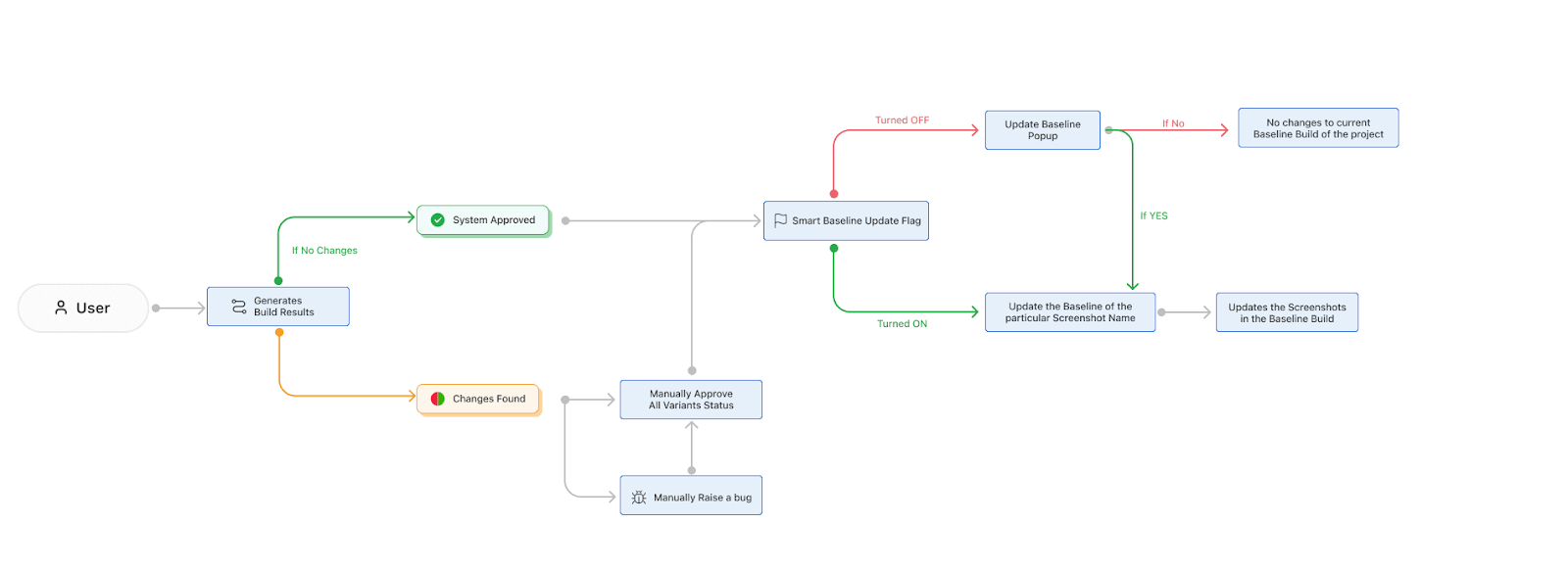
Smart Baseline is a feature designed to improve the management of UI testing baselines. Manual intervention is no longer an issue with Smart Baseline. It ensures verified changes are automatically reflected in your baseline, facilitating workflow efficiency and ease. By establishing a new benchmark, the feature frees users from the monotonous effort of making frequent changes to maintain precise and accurate baselines. Here’s a breakdown of how Smart Baseline operates:
Baseline Branch
A baseline branch build comprises screenshots captured using Smart UI. All screenshots within this build serve as the reference point for comparison against non-baseline branch builds. This precise baseline is retained, ensuring that any changes in the UI are accurately reflected and can be reviewed efficiently.
Non-Baseline Branches
Non-baseline branch builds are collections of screenshots, also captured using Smart UI. Every screenshot in these builds is compared against the baseline build, matching them based on screenshot names. This systematic comparison helps identify discrepancies between the approved baseline and the current UI, facilitating swift and accurate evaluations.
The introduction of Smart Baseline signifies the beginning of a new era in baseline management, allowing teams to focus on their main roles and streamline operations. At the same time, the system maintains the baseline up to date with given modifications.
Overwrite Screenshot

Navigating through numerous screenshots and ensuring their relevance in a continually evolving application UI can be daunting. This is where the Overwrite Screenshot feature comes into play, helping ease the screenshot management process, especially in non-baseline builds.
Unlike the conventional approach, where duplicate screenshots with the same name are typically discarded, this feature supports users by providing a platform for seamless replacement and updated comparisons. It’s not just about managing screenshots; it’s about enabling you to guide your visual validation tests as per your preferences. Here’s a more detailed look at the features that make Overwrite Screenshot a noteworthy addition:
- Seamless Replacement: The task of replacing old screenshots with new ones in your baseline becomes a breeze. This simple yet effective feature is all about streamlining the process, eliminating the typical hurdles that might come with managing visual validations.
- Enhanced Comparison: This capability facilitates adding and updating screenshots captured in your non-baseline builds for a thorough comparison, aligning them by the same screenshot name.
- User-Controlled Updates: Users can update and overwrite screenshots sharing the same name, ensuring that the most recent version is always considered for comparison and regression testing. This break from the norm, where only the first screenshot is retained, grants users a greater say in managing their visual validation tests.
- Efficient Change Tracking: Maintain precise visual records and efficiently track any changes in the application’s user interface over time. This keeps the visual validation tests up-to-date and provides a clear visual history of the changes, making regression testing and review processes more effective and manageable.

Note: Explore various Project settings features in our Smart UI Project Settings documentation.
Conclusion
Features like Smart Baseline and Overwrite Screenshot significantly elevate the ease and accuracy of managing your UI testing baselines. These features contribute to a more controlled and organized testing environment. The categorization of settings like basic, comparison, build, notifications, and delete projects ensures a user-centric approach to project management and testing.
We’re continuously working to enhance your Smart UI experience, and can’t wait for you to try out these new features and settings and share your insightful feedback. Reach out to our attentive in-app Chat Support, or drop us an email at [email protected]. We’re here to assist you at every step of your journey.
Happy testing!


Did you find this page helpful?
More Related Hubs
TestMu AI forEnterprise
Get access to solutions built on Enterprise
grade security, privacy, & compliance
- Advanced access controls
- Advanced data retention rules
- Advanced Local Testing
- Premium Support options
- Early access to beta features
- Private Slack Channel
- Unlimited Manual Accessibility DevTools Tests