

Next-Gen App & Browser Testing Cloud
Trusted by 2 Mn+ QAs & Devs to accelerate their release cycles


How to Run Parallel Tests Using Pabot With Robot Framework
Learn how to perform parallel testing using Pabot with Robot Framework. Enhance efficiency and optimize your test automation workflow!

Himanshu Sheth
December 24, 2025
Python is one of the widely preferred languages for front-end automated testing. One of the primary reasons for its adoption is the support for frameworks that offer TDD and BDD. Robot Framework is one such Python automation framework that makes a cut above the rest.
You can also leverage SeleniumLibrary in the Robot Framework to automate interactions with WebElements in the Document Object Model (DOM). Apart from automating tests, you can also accelerate test execution by harnessing Pabot with Robot Framework for parallel test execution. Pabot is a parallel executor that helps parallelize test execution at different levels – test suite, test case, and resource file.
In this blog, we will look at how to perform parallel test execution using Pabot with Robot Framework.
Overview
Parallel testing in Robot Framework, enabled through Pabot, allows multiple test suites or test cases to run simultaneously. This reduces total execution time, increases efficiency, and supports scaling automation runs in CI/CD environments. When combined with cloud grids like TestMu AI, teams can run tests across real browsers and operating systems in parallel for faster feedback and broader coverage.
What Is Parallel Testing in Robot Framework?
How parallel execution is enabled using Pabot:
- Parallel Execution: Runs multiple tests at the same time instead of sequential execution.
- Pabot Integration: Acts as the parallel executor for Robot Framework to manage concurrent test runs.
- Configurable Levels: Supports parallel execution at the suite level, test level, or both based on configuration.
Key Benefits
Why teams use Pabot for parallel Robot Framework execution:
- Faster Test Execution: Running tests simultaneously significantly shortens overall test cycle duration.
- Higher Scalability in CI/CD Pipelines: Designed for modern automation workflows where rapid feedback is critical.
- Better Resource Utilization: Uses isolated processes per test or suite ensuring stable and efficient parallel runs.
- Works Seamlessly With Cloud Grids: Enables execution across real browsers and operating systems on platforms like TestMu AI for wide environment coverage.
Parallel execution using Pabot boosts testing efficiency and reduces execution time while maintaining stability. When combined with cloud platforms like TestMu AI, teams achieve wider coverage and accelerated release cycles for modern continuous testing environments.
What Is Pabot?
Pabot is a parallel executor for Robot test suites. It helps execute multiple test suites concurrently, thereby reducing the overall test execution time. Since it offers parallelization at different levels (e.g., test suite, test case, and resource file), parallel execution with Pabot must be leveraged if you have a significantly large test suite.
By default, Pabot does parallelization at the test suite level. Each process has its own memory space and runs a single test suite. In this case, individual tests within the test suite run sequentially, whereas all the test suites (e.g., test1.robot, test2.robot, etc.) run in parallel.
Resource files normally contain reusable components such as high-level keywords, variables, libraries, and other settings commonly used across test suites.
Now that we have covered all the essentials of Pabot, let’s look at using the Robot Framework for parallel test execution on the local grid and the TestMu AI cloud grid.
You can also check out our detailed Robot Framework tutorial to dig deeper into the ins and outs of the Robot Framework.
Parallel Testing Using Pabot With Robot Framework
The primary prerequisite for the demonstration is Python, you can refer to getting started with Selenium Python to get a quick recap of Python for Selenium automated testing.
To demonstrate parallel testing with Pabot and Robot Framework, we will run the same test scenarios across the local grid and TestMu AI cloud grid.
Project Prerequisites
Note: Please replace pip3 with pip depending on the pip version installed on your machine.
Here is the basic setup requirement for running parallel tests with Pabot and Robot Framework:
- Install the VS Code (preferred) or PyCharm Community Edition.
- Install the IntelliBot plugin in case you opt for PyCharm Community Edition.
- Install Robot Framework, SeleniumLibrary, Pabot, and other external libraries required for automated web testing.
- To better manage dependencies and environments, it is recommended to use a virtual environment (venv). To create the virtual environment, run the commands virtualenv venv and source venv/bin/activate on the terminal.
- Install Pabot by triggering pip3 install robotframework-pabot on the terminal. For our example project, we will add all the required libraries in the requirements.txt file.
- Invoke the pip3 install -r requirements.txt command to install the project dependencies (or packages).
- Run the pip3 show robotframework-pabot command to check whether the Pabot installation was successful. At the time of writing this blog, the latest version of the Pabot executor is 4.0.6. However, we are using the 2.18.0 version in this blog on parallel testing with Pabot and Robot Framework.
- Apart from Robot and SeleniumLibrary, install the webdriver-manager and robotframework-pabot libraries.
Test execution with the Robot Framework and SeleniumLibrary will be performed with frameworks installed on the local machine and the cloud grid like TestMu AI. We will touch upon the integral nuances of cloud execution in further sections of the demo.
TestMu AI is an AI-powered test execution platform that lets you run Python automated tests in parallel using Pabot with Robot Framework on an online Selenium Grid of real browsers and operating systems.

Note: Run parallel tests using Pabot with Robot Framework across 3000+ real browsers. Try TestMu AI Today!
Project Structure
Shown below is the project structure where the tests demonstrating the usage of the Pabot and SeleniumLibrary with Robot Framework are located in the following locations:
- Tests/LocalGrid: Implementation of Robot Selenium tests executed on local machine.
- Tests/CloudGrid: Implementation of Robot Selenium tests executed on TestMu AI cloud grid.
Let’s do a deep dive into the project structure:
- Resources/PageObject: Consists of three sub-directories mentioned below:
- Common: Contains the file TestMu AIStatus.py that helps in updating test execution status on the TestMu AI Web Automation dashboard.
- KeyDefs/Common.robot: Common.robot houses custom keywords for realizing actions like opening/closing browsers, clicking menu items, and more
- KeyDefs/SeleniumDrivers.robot: This solution (inspired by this Robot Community Thread) is required only if you are using Selenium (v 4.9 and above).
- Locators/Locators.py: As the name indicates, this file contains all the locators used to locate elements on the document under test. In the following sections of this blog, we will discuss a few of these locators.
SeleniumDrivers.robot houses custom keywords for managing WebDrivers for Chrome, Firefox, and Edge browsers. The management is done using the webdriver-manager library.
- pyproject.toml: Configuration file for build management purposes.
- requirements.txt: File that contains dependencies (or external libraries) to be installed for the project.
- Common: Contains the file TestMu AIStatus.py that helps in updating test execution status on the TestMu AI Web Automation dashboard.
- KeyDefs/Common.robot: Common.robot houses custom keywords for realizing actions like opening/closing browsers, clicking menu items, and more
- KeyDefs/SeleniumDrivers.robot: This solution (inspired by this Robot Community Thread) is required only if you are using Selenium (v 4.9 and above).
- Locators/Locators.py: As the name indicates, this file contains all the locators used to locate elements on the document under test. In the following sections of this blog, we will discuss a few of these locators.
After creating a virtual environment (venv), run the commands poetry install –no-root and pip3 install -r requirements.txt to install the required dependencies.
Lastly, all the tests of this Robot project can be executed on the local machine and TestMu AI cloud grid.
- Execution on the local machine: export EXEC_PLATFORM=local
- Execution on the TestMu AI cloud grid: export EXEC_PLATFORM=cloud
When executing tests on the TestMu AI cloud grid, you also need to export environment variables LT_USERNAME and LT_ACCESS_KEY, which can be obtained from your TestMu AI Security page. The combination of LT_USERNAME and LT_ACCESS_KEY are used for authentication when tests are run on TestMu AI.
The Common. robot file contains all the user-defined keywords and resources. A separate file named Locators.py separates the locators from the core test logic. This helps realize the benefits offered by the Page Object Model to a certain extent.
Implementation
To demonstrate parallel execution of the Pabot and Robot framework, we will execute 3 tests in 2 test suites simultaneously. The test implementation will remain unchanged, regardless of whether the tests are executed on the local machine or TestMu AI cloud grid.
Test Scenario 1:
- Navigate to the TestMu AI Selenium Playground website.
- Click on Input Form Submit.
- Enter all the required details in the newly opened form.
- Submit the items.
Implementation:
Filename: test_sel_playground.robot
*** Settings ***


Resource    ../../Resources/PageObject/KeyDefs/Common.robot
Resource    ../../Resources/PageObject/KeyDefs/SeleniumDrivers.robot
Variables   ../../Resources/PageObject/Locators/Locators.py


Library     SeleniumLibrary
Library     OperatingSystem
Library     BuiltIn


# Test Teardown  Common.Close test browser


*** Variables ***


${site_url}         https://www.lambdatest.com/selenium-playground/


*** Comments ***
# Configuration for first test scenario


*** Variables ***


${EXEC_PLATFORM}  %{EXEC_PLATFORM}


&{lt_cloud_options}
   ...  browserName=Chrome
   ...  platformName=Windows 11
   ...  browserVersion=latest-1
   ...  visual=true
   ...  console=true
   ...  w3c=true
   ...  geoLocation=US
   ...  name=[Playground - 1] Parallel Testing with Robot framework
   ...  build=[Playground Demo - 1] Parallel Testing with Robot framework
   ...  project=[Playground Project - 1] Parallel Testing with Robot framework


${BROWSER_CLOUD}        ${lt_cloud_options['browserName']}
&{CAPABILITIES_CLOUD}     LT:Options=&{lt_cloud_options}


*** Keywords ***


Test Teardown
   IF  '${EXEC_PLATFORM}' == 'local'
       Log To Console  Closing the browser on local machine
       Common.Close local test browser
   ELSE IF     '${EXEC_PLATFORM}' == 'cloud'
       Log To Console  Closing the browser on cloud grid
       Common.Close test browser
   END


*** Test Cases ***


Example 2: [Playground] Parallel Testing with Robot framework
   [tags]  Selenium Playground Automation
   [Timeout]   ${TIMEOUT}
   # Before the introduction of Selenium Manager
   # Open test browser ${site_url}     ${BROWSER}      ${CAPABILITIES}


   # After the introduction of Selenium Manager
   Open test browser   ${site_url}     ${BROWSER_CLOUD}        ${lt_cloud_options}
   Maximize Browser Window
   Page should contain element  xpath://a[.='Input Form Submit']


   Click link  ${SubmitButton}
   Page should contain element  ${Name}
   # Enter details in the input form


   # Name
   Input text  ${Name}   TestName
   # Email
   Input text  ${email}       [email protected]
       # Password
   Input text  ${passwd}       Password1
   # Company
   Input text  ${company}      LambdaTest
   # Website
   Input text  ${website}      https://wwww.lambdatest.com
   # Country
   select from list by value    ${country}     US
       # City
   Input text  ${city}       San Jose
   # Address 1
   Input text  ${address1}      Googleplex, 1600 Amphitheatre Pkwy
   # Website
   Input text  ${address2}       Mountain View, CA 94043
   # State
   Input text  ${state}          California
   # Zip Code
   Input text  ${zipcode}      94088
   Sleep  5s


   Click button      ${FinalSubmission}
   Execute JavaScript    window.scrollTo(0, 0)
   Page should contain  ${SuccessText}
   Sleep  2s


       Log    Completed - Example 2: [Playground] Parallel Testing with Robot framework

   [Teardown]  Test Teardown
Code Walkthrough:
To get started, we first use the Resource keyword to include the external resources (e.g., libraries, user-defined keywords, etc.) in the test suite. The Common.robot file contains all the user-defined keywords. Also, the Variables keyword is used to define the variables that will be used throughout the course of tests and test suites.
The value of the environment variable EXEC_PLATFORM is assigned to a local variable that is accessible across the test. To execute on the TestMu AI cloud grid, we first create a local dictionary variable named lt_cloud_options, which consists of browser options (or capabilities) generated with the TestMu AI Automation Capabilities Generator.
Next up, we assign the value of &{lt_options_cloud} to the LT:Options key within the &{CAPABILITIES_CLOUD} dictionary. Hence, &{lt_options_cloud} is nested inside &{CAPABILITIES_CLOUD} under the key LT:Options.
The user-defined Test Teardown keyword calls the other user-defined keyword – Close local test browser or Close test browser depending on whether the test is executed on a local machine or TestMu AI cloud grid.
All the test cases (or test scenarios) are added in the Test Cases section. If the tests are executed on the local machine, the first step is to set the path of the respective browser driver (i.e., ChromeDriver, EdgeDriver, or GeckoDriver). As stated earlier, this step is only necessary if you are using Selenium 4.9 (and above).
Depending on the point of execution (i.e., Robot Framework on the local machine or TestMu AI cloud), the respective browser is instantiated so that automated tests can be performed on the URL under test.
Two user-defined Open test browser and Open local test browser keywords are created to instantiate respective browser(s) on the local machine and TestMu AI cloud grid respectively.
The Open test browser keyword takes three input arguments – test URL, browser name, and additional options ${lt_options}. The line ${options}= Evaluate sys.modules[‘selenium.webdriver’].${BROWSER}Options() sys, selenium.webdriver helps in creating an instance of browser-specific options in Robot Framework dynamically. The Evaluate keyword of the BuiltIn Robot library helps in executing Python code directly within a Robot test.
In order to set the capabilities (or browser-specific options), the set_capability method of the selenium.webdriver package is used in the Robot Framework. The method is invoked on the ${options} object (created in the earlier step), and it sets the custom capability LT:Options with the value ${lt_options}.
Lastly, the Open browser method of SeleniumLibrary is finally invoked for instantiating the corresponding browser on the required platform (or operating system). The remote_url option in the Open browser keyword is set to TestMu AI hub URL (i.e., @hub.lambdatest.com/wd/hub) when tests have to be executed on the TestMu AI cloud grid.
The Open local test browser keyword also takes three input arguments: TEST_URL, BROWSER, and DRIVER_PATH. To get the corresponding driver path, we have created keywords like Update Chrome Webdriver, Update Firefox Webdriver, etc., to read and return the path to the required browser driver.
The webdriver-manager library helps in the automatic management of drivers for different browsers. For example, ${driverpath}= Evaluate ${CHROME_DRIVER_MANAGER}().install() modules=webdriver_manager.chrome uses the webdriver_manager for automatically downloading and installing the latest ChromeDriver.
Once the Selenium Playground website is opened, a check is performed to validate if Input Form Submit is present on the page. The WebElement is located using the XPath property, and its presence is validated using the Page should contain element keyword of SeleniumLibrary.
After the click is performed, the Input Form Demo page opens up. Here, entries in the text boxes (e.g., Name, Email, Password, etc.) are populated using the Input text keyword in SeleniumLibrary.
Lastly, the select from list by value keyword is used to select the US from the country drop-down. Once the input data is submitted by clicking the Submit button, the Execute JavaScript keyword in SeleniumLibrary triggers a window scroll to the start of the page.
Finally, the presence of the text Thanks for contacting us, we will get back to you shortly. is checked to verify if the page submission was successful.
Test Scenario 2:
- Navigate to the TestMu AI Sample ToDo App.
- Select the first, second, and fifth checkboxes.
- Send Yey Let’s add it to list in the textbox with id = sampletodotext.
- Click the Add Button and verify whether the text has been added or not.
Implementation:
Filename: test_todo_app.robot
*** Settings ***


Resource    ../../Resources/PageObject/KeyDefs/Common.robot
Resource    ../../Resources/PageObject/KeyDefs/SeleniumDrivers.robot
Variables   ../../Resources/PageObject/Locators/Locators.py


Library     SeleniumLibrary
Library     OperatingSystem
Library     BuiltIn
Resource    ../../Resources/PageObject/Common/ExceptionHandler.robot


# Test Teardown  Common.Close test browser


*** Variables ***


${site_url}         https://lambdatest.github.io/sample-todo-app/


${EXEC_PLATFORM}  %{EXEC_PLATFORM}


*** Keywords ***
Capture Exception A Report
   [Arguments]    ${exception_message}
   ${formatted_message}=    Set Variable    ${exception_message}
   Log Many    ${formatted_message}    console=True
   Execute JavaScript    lambda-exceptions(arguments[0]);    ARGUMENTS     ${formatted_message}


*** Comments ***
# Configuration for first test scenario


*** Variables ***


&{lt_options_1}
   ...  browserName=Chrome
   ...  platformName=Windows 11
   ...  browserVersion=latest-1
   ...  visual=true
   ...  console=true
   ...  w3c=true
   ...  geoLocation=US
   ...  name=[ToDoApp - 1] Parallel Testing with Robot framework
   ...  build=[ToDoApp Demo - 1] Parallel Testing with Robot framework
   ...  project=[ToDoApp Project - 1] Parallel Testing with Robot framework


${BROWSER_1}          ${lt_options_1['browserName']}
&{CAPABILITIES_1}     LT:Options=&{lt_options_1}


*** Keywords ***


Test Teardown
   IF  '${EXEC_PLATFORM}' == 'local'
       Log To Console  Closing the browser on local machine
       Common.Close local test browser
   ELSE IF     '${EXEC_PLATFORM}' == 'cloud'
       Log To Console  Closing the browser on cloud grid
       Common.Close test browser
   END


*** Comments ***
# Configuration for second test scenario


*** Variables ***


&{lt_options_2}
   ...  browserName=Chrome
   ...  platformName=MacOS Ventura
   ...  browserVersion=latest
   ...  visual=true
   ...  console=true
   ...  w3c=true
   ...  geoLocation=US
   ...  name=[ToDoApp - 2] Parallel Testing with Robot framework
   ...  build=[ToDoApp Demo - 2] Parallel Testing with Robot framework
   ...  project=[ToDoApp Project - 2] Parallel Testing with Robot framework


${BROWSER_2}          ${lt_options_2['browserName']}
&{CAPABILITIES_2}     LT:Options=&{lt_options_2}


&{lt_options_3}
   ...  browserName=Chrome
   ...  platformName=Windows 11
   ...  browserVersion=latest-1
   ...  visual=true
   ...  console=true
   ...  w3c=true
   ...  geoLocation=US
   ...  name=[ToDoApp Exception] Exception: Parallel Testing with Robot framework
   ...  build=[ToDoApp Exception] Exception: Parallel Testing with Robot framework
   ...  project=[ToDoApp Exception] PException: Parallel Testing with Robot framework


${BROWSER_3}          ${lt_options_3['browserName']}
&{CAPABILITIES_3}     LT:Options=&{lt_options_3}


*** Test Cases ***


Example 1: [ToDo] Parallel Testing with Robot framework
   [tags]  ToDo App Automation - 1
   [Timeout]   ${TIMEOUT}
   # Before the introduction of Selenium Manager
   # Open test browser ${site_url}     ${BROWSER_1}        ${CAPABILITIES_1}


   # After the introduction of Selenium Manager
   Open test browser   ${site_url}     ${BROWSER_1}        ${lt_options_1}


   Maximize Browser Window
   Sleep  3s
   Page should contain element  ${FirstItem}
   Page should contain element  ${SecondItem}


   Click button  ${FirstItem}
   Click button  ${SecondItem}

   Input text  ${ToDoText}  ${NewItemText}
   Click button  ${AddButton}
   ${response}    Get Text    ${NewAdditionText}
   Should Be Equal As Strings    ${response}    ${NewItemText}
   Sleep  5s
       Log    Completed - Example 1: [ToDo] Parallel Testing with Robot framework


   [Teardown]  Test Teardown


Example 2: [ToDo] Parallel Testing with Robot framework
   [tags]  ToDo App Automation - 2
   [Timeout]   ${TIMEOUT}
   # Before the introduction of Selenium Manager
   # Open test browser ${site_url}     ${BROWSER_2}        ${CAPABILITIES_2}


   # After the introduction of Selenium Manager
   Open test browser   ${site_url}     ${BROWSER_2}        ${lt_options_2}
   Maximize Browser Window
   Sleep  3s
   Page should contain element  ${FirstItem}
   Page should contain element  ${SecondItem}
   Page should contain element  ${FifthItem}


   Click button  ${FirstItem}
   Click button  ${SecondItem}
   Click button  ${FifthItem}

   Input text  ${ToDoText}  ${NewItemText}
   Click button  ${AddButton}
   ${response}    Get Text    ${NewAdditionText}
   Should Be Equal As Strings    ${response}    ${NewItemText}
   Sleep  5s
       Log    Completed - Example 2: [ToDo] Parallel Testing with Robot framework


   [Teardown]  Test Teardown
Code Walkthrough:
Except for the browser and OS combinations, both the tests in the test suite have similar implementations. The Page should contain element keyword of SeleniumLibrary is used for checking the presence of the checkboxes (for the first and second items) on the page. The items are checked using the Click button keyword in SeleniumLibrary.
Once the TestMu AI ToDo App is opened, The Name locator is used to locate the elements FirstItem and SecondItem.
On similar lines, the ID locator is used for locating the Add button on the page. The Input text keyword is used for inputting Yey Let’s add it to list as the new item in the ToDo app. The Add button is clicked to add the said item to the list.
Lastly, once the new item is added to the ToDo list, it is located using the XPath locator. The Get Text keyword in SeleniumLibrary returns the text value of the element identified by the XPath property.
The Should Be Equal As Strings keyword in the BuiltIn library compares the string value assigned to ${response} with the expected value. The test fails if both the string objects are unequal.
Important: SeleniumLibrary is not thread-safe. Hence, there is no safety-net for concurrent access to browser instances or parallel test execution across multiple threads.
The Pabot runner eliminates the thread-safety issue, as parallelism is performed at the process level (not the thread level). Each process in Pabot has its own memory space, which allows parallel processes to run in isolation without interfering with each other.
Test Execution
Before using Pabot and Robot Framework for parallel test execution, let’s run the same tests sequentially. This will allow us to benchmark the test execution time (or performance) when the same test scenarios are run in parallel using the Pabot runner.
After completing the steps mentioned in the Project Prerequisites section of this blog on using the Pabot and Robot framework for parallel test execution.
Serial Test Execution:
Invoke the following command to run the test scenarios located in the Tests/CloudGrid folder serially.
It is essential to note that the time taken for execution also depends on factors like machine performance, browser performance, network connectivity, and more. Hence, the numbers being showcased might vary depending on the factors mentioned above.
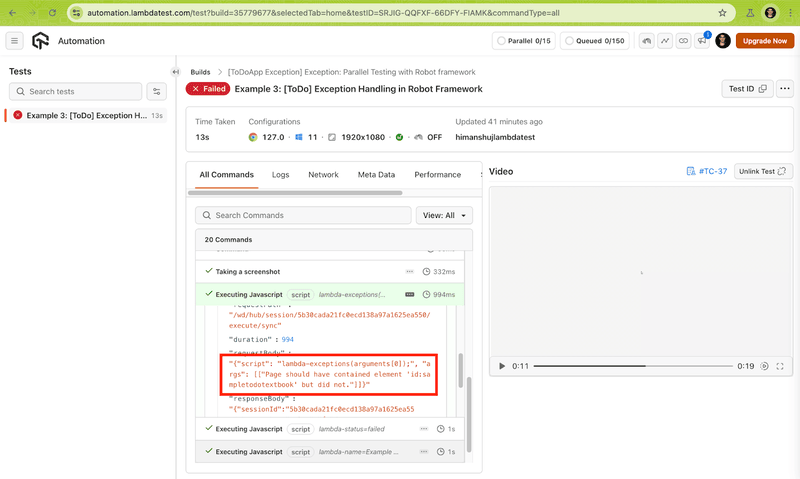
Run the robot Tests/CloudGrid/ command on the terminal to trigger the serial execution of Robot Framework tests on the TestMu AI cloud grid. As seen below, one test failure was added to demonstrate the usage of logging TestMu AI exceptions for handling Selenium exceptions in Robot Framework tests.
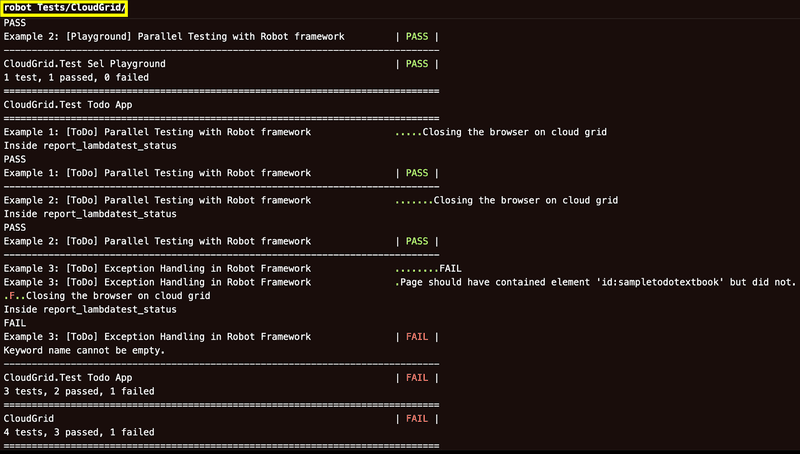
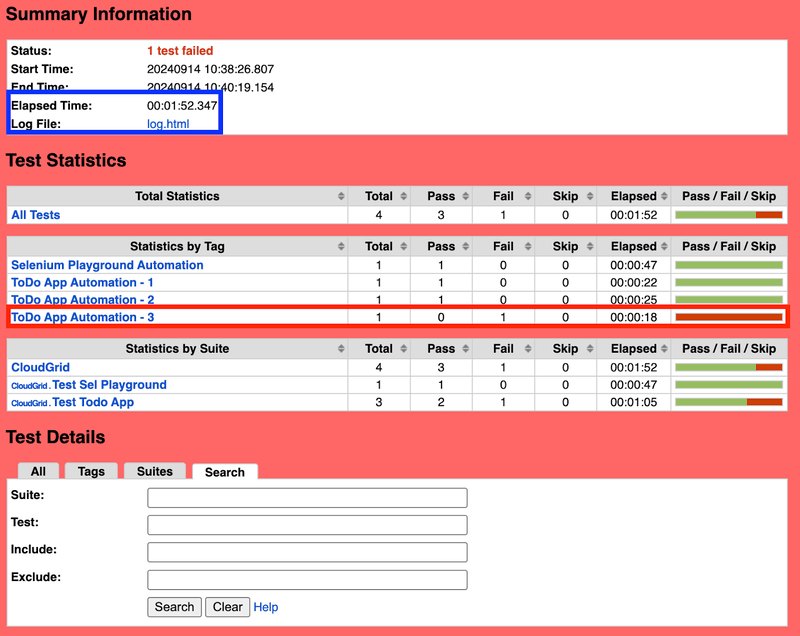
The total execution time is 1.52 seconds, where three tests (in two test suites) pass, whereas a test expectedly fails.
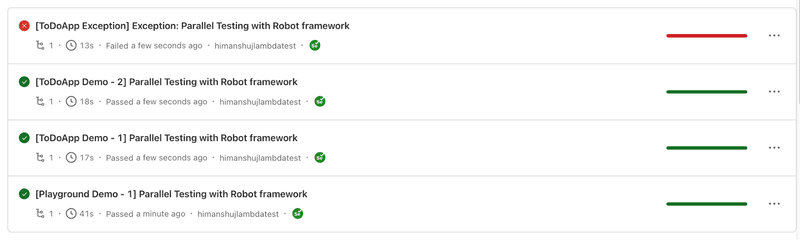
Shown below is the execution snapshot from the TestMu AI Web Automation dashboard. All four tests spread across two test suites execute successfully.
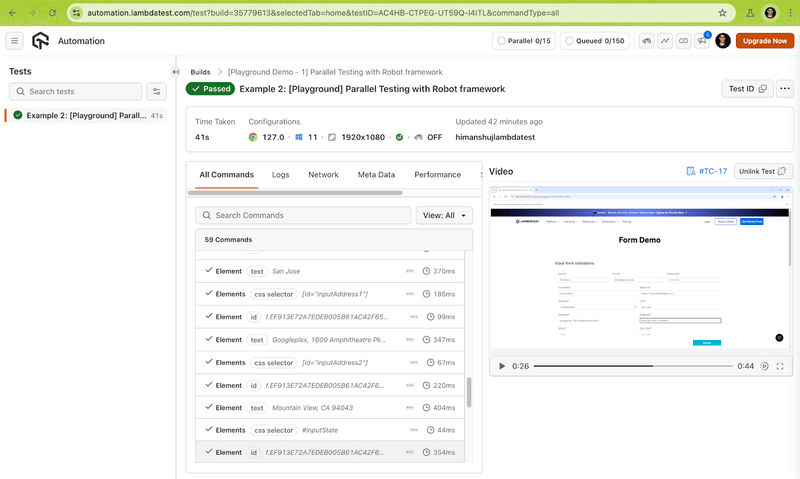
Test Execution Snapshot (Result – Passed):
Test Execution Snapshot (Result – Failed):
Let’s see what happens when the tests and/or test suites are run in parallel using Pabot runner.
Parallel Test Execution (Default – Suite-Level):
By default, Pabot splits the test execution at the test-suite level, with each process running a separate suite. Tests inside a test-suite (i.e., *.robot files) run in series, whereas the suites run in parallel.
In our case, we have two test suites where test_todo_app.robot file consists of three test scenarios, whereas test_sel_playground.robot file consists of a single test scenario.
Invoke the following command on the terminal:
pabot --verbose --outputdir results --log local_test_parallel_log.html --report local_test_parallel_report.html Tests/CloudGrid/
Shown below is the execution snapshot, which indicates the test execution was successful:
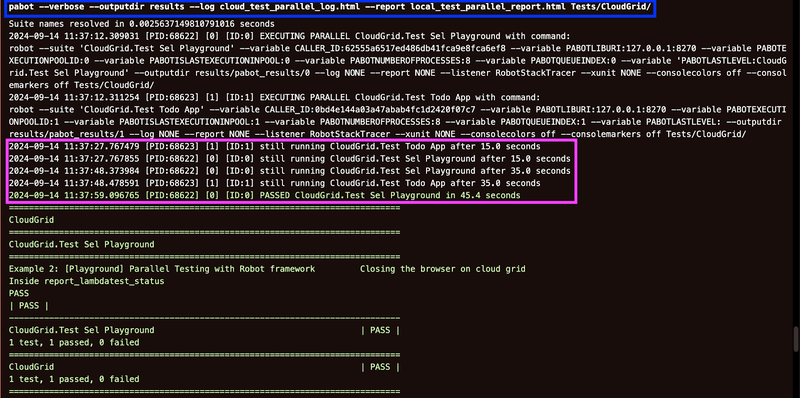
Here are some interesting things to notice from the test execution:
- Test suites are executing in parallel, with each process (PID: 68622 and PID:68623) running a separate suite.
- During test execution, a .pabotsuitenames file is automatically generated. It contains information about test suites when they are executed in parallel.
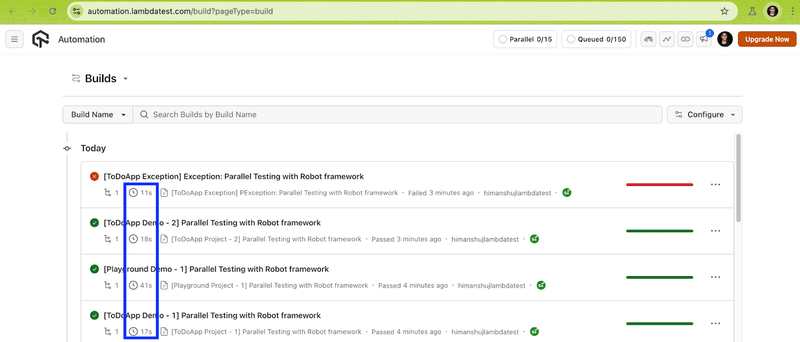
Shown below is the execution snapshot from the TestMu AI Web Automation dashboard. The total test execution time has come down from 1.52 seconds (with serial execution) to 1.27 seconds (with suite-level parallelism).
Parallel Test Execution (Test-Level):
Pabot lets you achieve parallel execution at the test-level through the —testlevelsplit option. In case the .pabotsuitenames file contains both tests and test suites, then the –testlevelsplit option will only affect new suites and split them.
Here, each process runs a single test case. For instance, if the test suite(s) have four tests (e.g. T1, T2, T3, T4), then four separate processes (P1, P2, P3, P4) will run each test in parallel.
Test-level parallelism must be preferred over suite-level parallelism in cases where suite(s) have a large number of independent tests that can run concurrently. In our case, four test scenarios can run in parallel.
Invoke the following command on the terminal to run individual tests in parallel using Pabot.
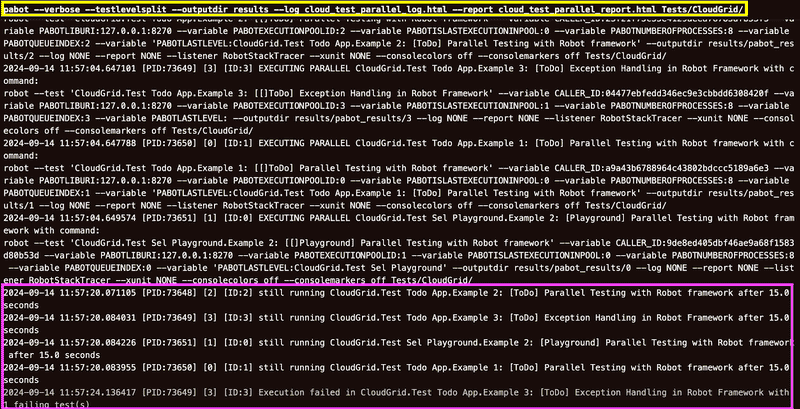
pabot --verbose --testlevelsplit --outputdir results --log cloud_test_parallel_log.html --report cloud_test_parallel_report.html Tests/CloudGrid/
Since there are three tests in total, three parallel processes are invoked with each running a single test. As seen in the test execution screenshot, four parallel processes (PID: 73648, 73649,73650, and 73651) handle one test scenario each.
As seen from the TestMu AI Web Automation dashboard, all four tests are executed in parallel:
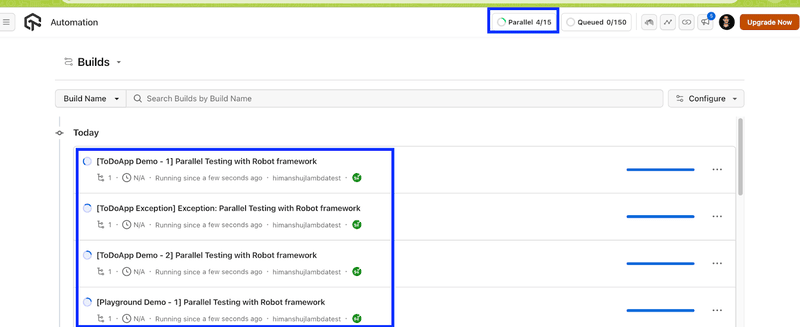
Test execution time when tests are parallelized at the test level is 1.24 seconds, whereas suite-level parallelized tests are also executed in 1.27 seconds.
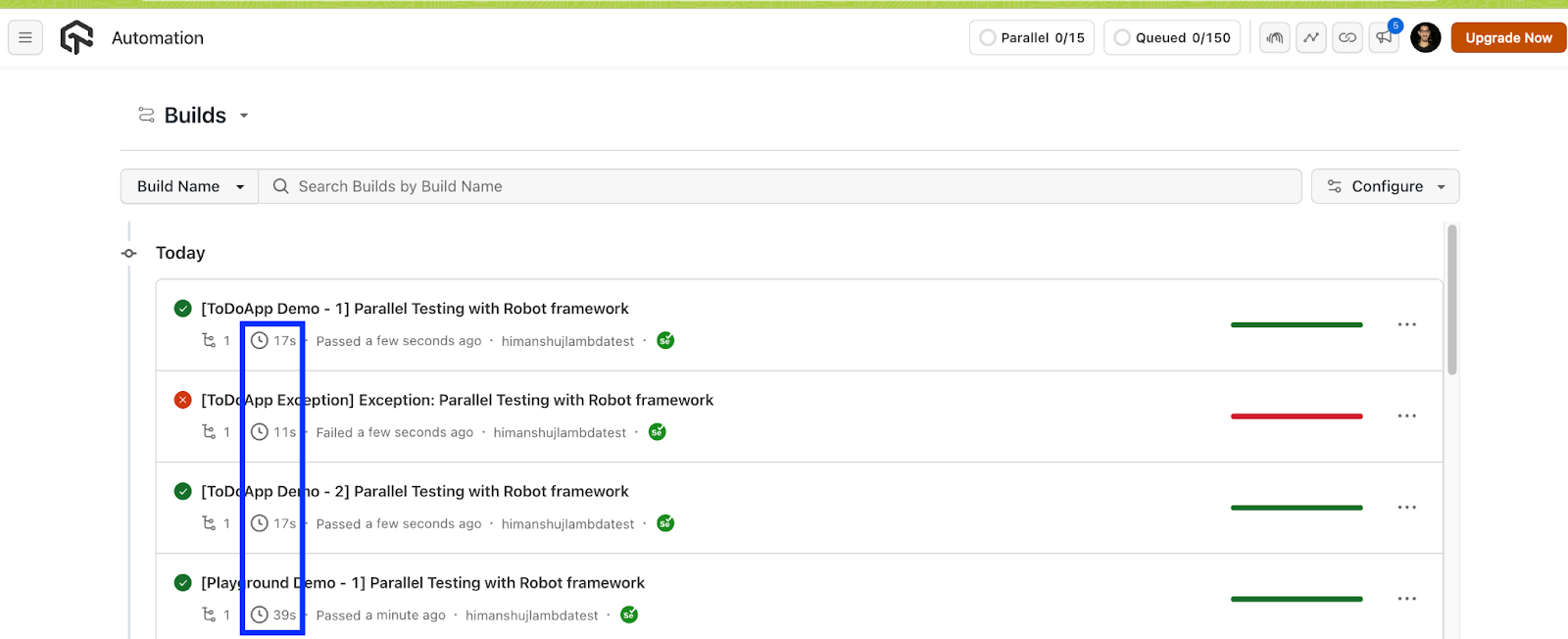
Since the execution time might vary, it is important to choose a parallelism mechanism that yields ideal savings over subsequent runs.
There are scenarios where you might want to invoke more/less parallel executors to achieve more out of parallelism with the Robot Framework. This is where the –processes option lets you customize the number of parallel executors for test case execution.
When customizing the number of parallel executors, it is recommended to consider the available resources (physical CPU cores, memory, etc.). For this, you can invoke the below command in the terminal:
pabot --processes <num_parallel_processes>
Let’s do a test split execution with 2 parallel processes and see the difference. Invoke the following command on the terminal:
pabot --verbose --testlevelsplit --processes 2 --outputdir results --log cloud_test_parallel_log.html --report cloud_test_parallel_report.html Tests/CloudGrid/
As seen from the execution snapshot, at a time, only two tests (in different test suites) are executed in parallel across two processes (PID: 77111 and 77112).
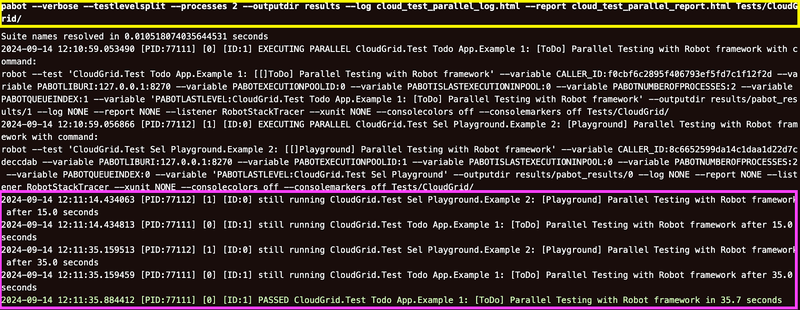
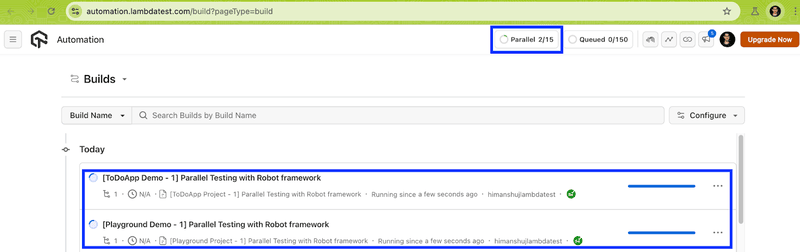
The total execution time is 1.31 seconds, which is slightly reduced (as expected) when the same tests are parallelized across 4 processes.
Setting the environment variable EXEC_PLATFORM to local helps in executing tests located in the Tests/LocalGrid folder with Robot Framework on the local machine.
To summarize, both thread-level and suite-level parallelism can potentially accelerate test execution time. However, you must keep a watchful eye on test dependencies and available resources (i.e., CPU cores, memory, etc.) to avoid conflicts or flaky tests (or unexpected results).
Conclusion
Thanks for getting this far! Though the Robot Framework supports sequential test execution (out-of-the-box), tests can be run in parallel by leveraging the Pabot with Robot Framework. Pabot lets you parallelize test-suites as well as tests, that too without major code modifications.
As we all know, excessive parallelism can cause test flakiness if the tests are not designed to handle concurrent execution. It becomes essential to follow Selenium’s best practices when opting for parallel test execution using Pabot and Robot Framework. You can also leverage the benefits of a cloud grid like TestMu AI in case you are looking to capitalize on the benefits of cloud testing and continuous integration.
Until next time, happy testing!
Citations
- Robot Framework: https://robotframework.org/
- Pabot GitHub Repository: https://github.com/mkorpela/pabot


Frequently asked questions
Did you find this page helpful?
More Related Hubs
TestMu AI forEnterprise
Get access to solutions built on Enterprise
grade security, privacy, & compliance
- Advanced access controls
- Advanced data retention rules
- Advanced Local Testing
- Premium Support options
- Early access to beta features
- Private Slack Channel
- Unlimited Manual Accessibility DevTools Tests