

Next-Gen App & Browser Testing Cloud
Trusted by 2 Mn+ QAs & Devs to accelerate their release cycles


Best Practices for React Native Development to Improve Appium Test Automation
Explore top React Native best practices to boost Appium test automation efficiency, reliability, and cross-platform performance in mobile app testing.

Srinivasan Sekar
December 24, 2025
React Native has evolved into a pillar for creating cross-platform apps effectively in the fast-paced realm of mobile app creation. But as apps get more sophisticated, the challenges of implementing robust test automation increase.
Not following React Native best practices, like incorrectly identifying elements, having overly complicated DOM structures, and unintentional clashes between accessibility and testability, leads to unreliable tests, slower performance, and incorrect results in tools like Appium.
This blog explores three React Native development pillars directly influencing your Appium test suite dependability:
- Element Identification Hierarchy: Separating platform-specific hazards to guarantee Appium always finds elements.
- DOM Reduction Techniques: Optimizing render logic to eliminate “ghost nodes” to accelerate test execution.
- Strategic Use of Accessibility Features: Balancing test automation requirements with screen reader compliance
These battle-tested techniques will enable you to create apps that are both user-friendly and automation-friendly without sacrificing either front, regardless of your struggle with inconsistent test failures or slow-moving automation pipelines.
Element Identification Hierarchy
A well-structured Element Identification Hierarchy is crucial in React Native apps, as it directly impacts the reliability and precision of your Appium test suite.
Core Problem: Platform-Sensitive Property Collision
On Android, both testID and accessibilityLabel map to different native properties, but developers often misuse them interchangeably. This leads to:
- Appium Element Detection Failures: If accessibilityLabel overrides testID-related properties on Android.
- Accessibility Conflicts: Screen readers might read testing identifiers instead of user-friendly labels.
- Fragile Selectors: Tests break when accessibility needs change.
Technical Breakdown
Platform-Specific Mappings
| Property | Android Native Property | iOS Native Property |
|---|---|---|
| testID | View Tag (view.setTag()) | accessibilityIdentifier |
| accessibilityLabel | contentDescription | accessibilityLabel |
Key Conflicts
- Android:
- testID sets a view tag or resource-id.
- accessibilityLabel sets contentDescription, which Appium can see.
- Risk: Developers use accessibilityLabel as a testID workaround, polluting accessibility metadata.
- iOS:
- No collision – testID and accessibilityLabel map to separate properties.
Robust Solution
Separation of Concerns
- testID: Exclusively for Appium element identification.
- accessibilityLabel: Exclusively for screen reader announcements.
<Button
  testID="login-submit-btn" // For Appium
  accessibilityLabel="Submit login form" // For screen readers
  accessibilityRole="button"
/>
Platform-Specific Appium Strategies
Configure Appium to use the correct property for each platform:
- Android: Use custom locators to target viewTag(maps totestID)
// Custom "test-id" locator strategy for Android - For Espresso
driver.findElement(AppiumBy.androidViewTag("login-submit-btn"));
// UIAutomator2
driver.findElement(AppiumBy.androidUIAutomator("new UIAutomator().description('login-submit-btn')"));
driver.findElement(AppiumBy.accessibilityId("login-submit-btn"))
Validation Workflow
- Android:
adb shell uiautomator dump


    adb shell cat /sdcard/window_dump.xml | grep 'login-submit-btn'
- iOS: Use Xcode’s Accessibility Inspector to check Identifier and Label.
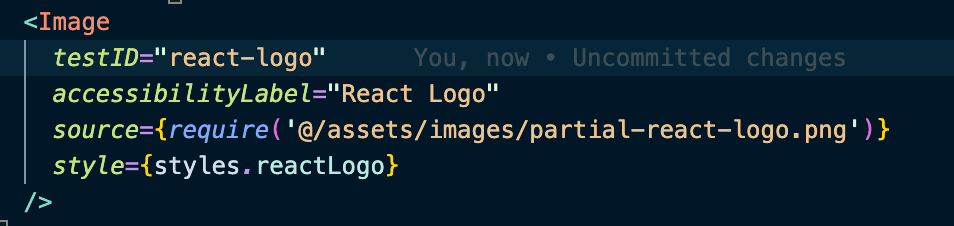
Here is another real-world example: below is a React component called Image with the testID set as react-logo and the accessibility label set as React Logo.
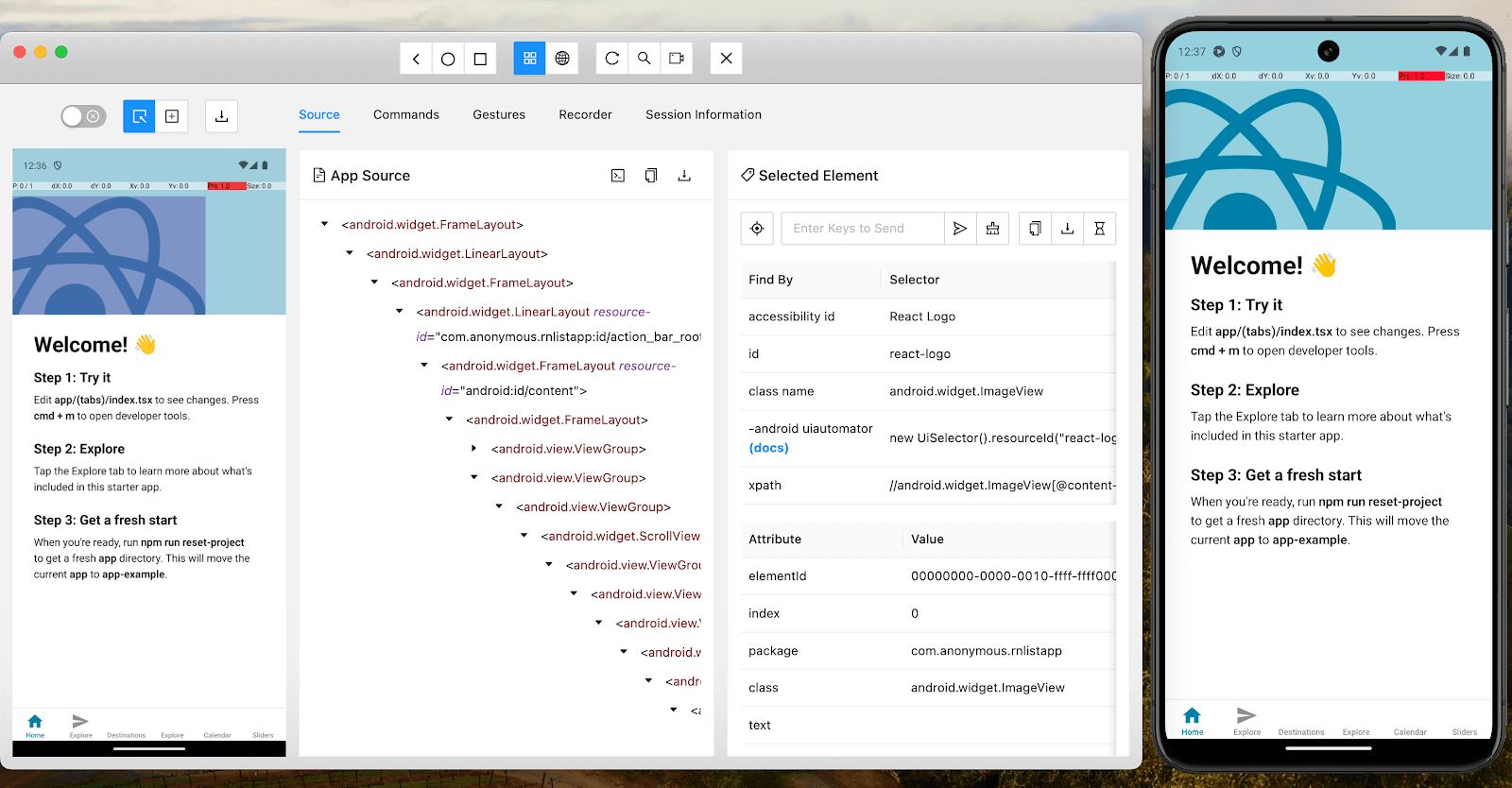
Let’s see how these attributes are being mapped in the Android app using Appium Inspector:
Let’s see how these attributes are being mapped in the iOS app using Appium Inspector:
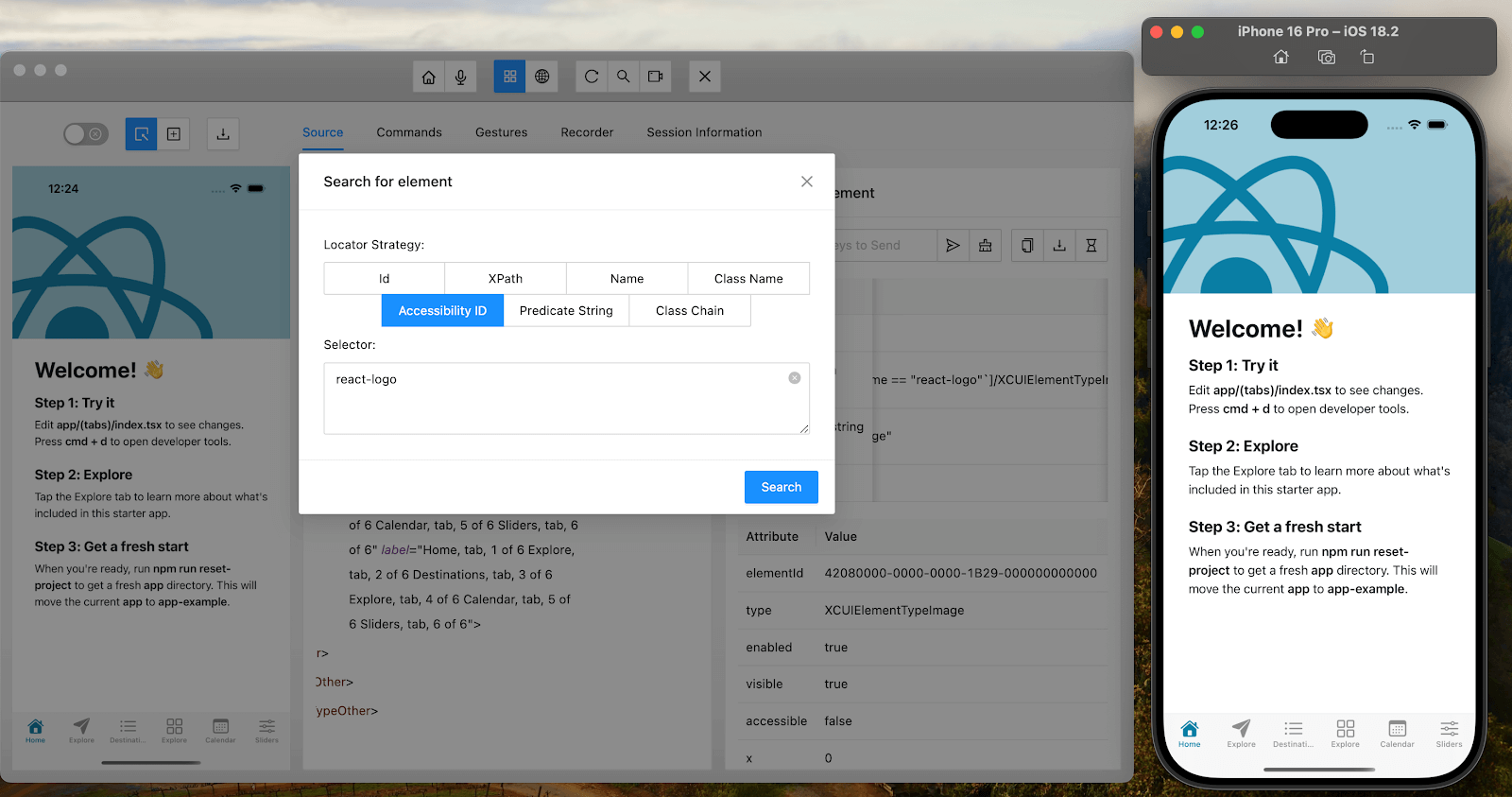
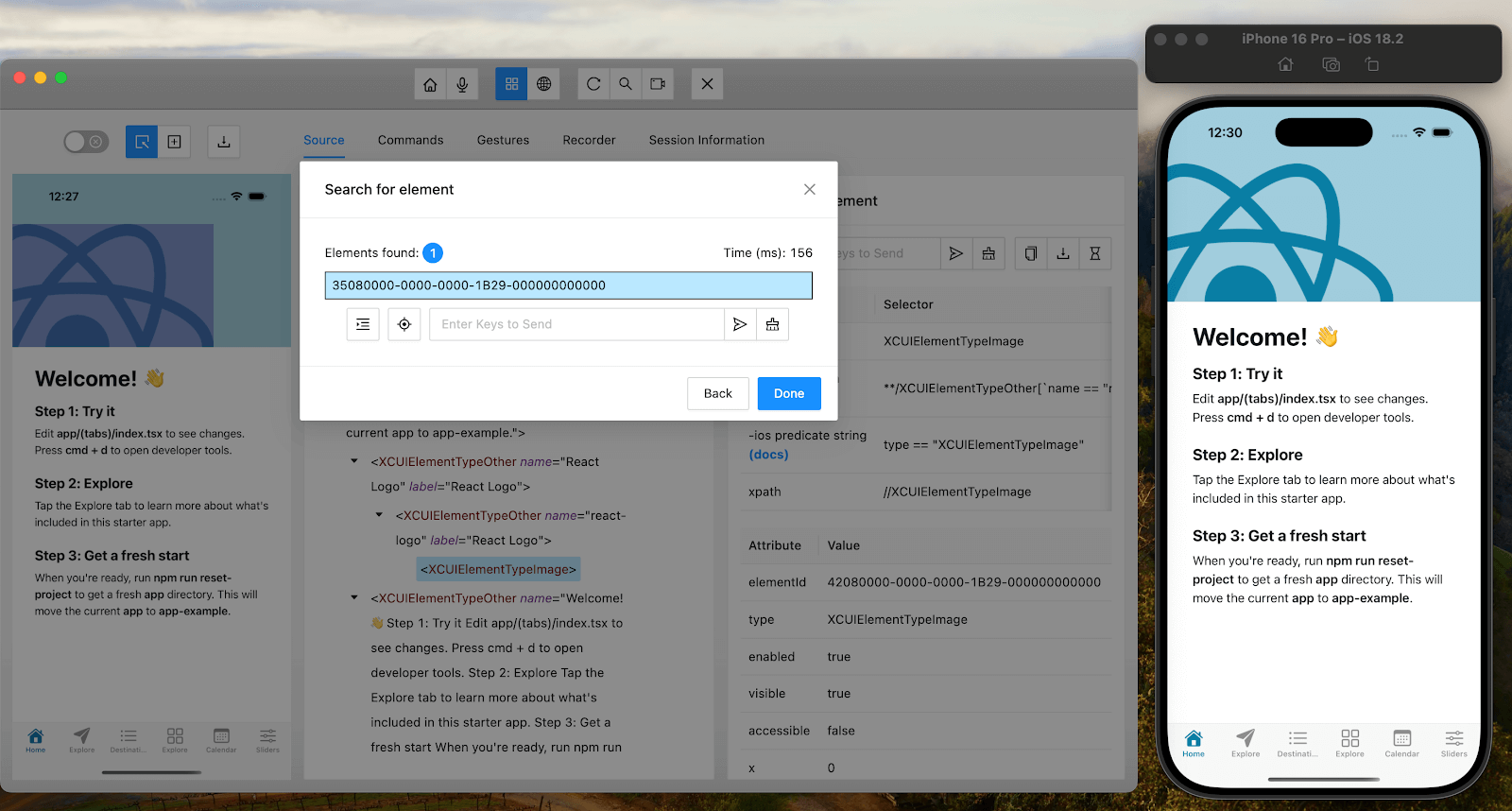
Result
| Platform | Appium Locates By | Screen Reader Announces |
|---|---|---|
| Android | testID → View Tag (via custom strategy) or Resource ID | accessibilityLabel → contentDescription |
| iOS | testID → accessibilityIdentifier | accessibilityLabel |
Outcome:
- Appium Reliability: 99%+ element detection rate across platforms.
- Clean DOM: No redundant properties or hidden elements.
- True Accessibility: Screen readers get human-friendly labels, not test IDs.

Note: Test React Native apps with Appium on real Android and iOS devices. Try TestMu AI Now!
When to Deviate
Only combine testID and accessibilityLabel on the same element if:
- The element has no visual text (e.g., an icon button).
- You explicitly want screen readers to announce the test ID (rare). Recommendation in this case is to not clutter the accessibilityLabel and testID to have some very meaningful names.
<Button
  testID="Submit login form" // For Appium
  accessibilityLabel="Submit login form" // For screen readers
  accessibilityRole="button"
/>
DOM Reduction Techniques
DOM Reduction Techniques help streamline the app’s UI structure, minimizing unnecessary nodes and making your Appium test suite faster, more stable, and easier to maintain.
Core Problems and Solutions
Non-Essential Elements Clutter DOM
Decorative elements (e.g., background images, separators) remain in the accessibility tree, causing:
- False Appium Element Detection: Tests may accidentally interact with hidden/decorative elements.
- Performance Issues: Large DOM trees slow down Appium’s XPath/CSS selector queries.
- Screen Reader Noise: Non-interactive elements pollute accessibility focus.
Solution:
<Image
  source={bg}
  importantForAccessibility="no-hide-descendants" // Android
  accessibilityElementsHidden={true} // iOS
/>
- Android: importantForAccessibility=”no-hide-descendants” removes the element and its children from TalkBack’s focus.
- iOS: accessibilityElementsHidden={true} hides the element from VoiceOver.
- Result: ~40-60% reduction in “ghost nodes” per screen.
List Rendering Overhead
ScrollView with 1000 items creates 1000 DOM nodes immediately:
- Memory Bloat: ~5KB per node → 5MB overhead for 1000 items.
- Appium Timeouts: driver.findElements() takes O(n) time to traverse nodes.
- Flaky Tests: Virtualised lists may not render off-screen items, causing element-not-found errors.
Solution:
Replacing ScrollView with FlatList reduces DOM nodes and improves Appium performance.
<FlatList
  data={data}
  renderItem={({item}) => (
    <Item
      testID={`item-${item.id}`}  // Unique selector
      accessibilityLabel={item.name}  // Screen reader context
    />
  )}
  keyExtractor={item => item.id}
  initialNumToRender={10}  // Only 10 nodes mounted initially
  windowSize={21} // 10 above + 10 below + 1 current
/>
- DOM Node Reduction: From 1000 → ~21 nodes (for 1000-item list).
- Appium Optimization: initialNumToRender controls how many items are available for immediate testing.
Retained Screen State
React Navigation’s default behaviour keeps previous screens mounted:
- DOM Bloat: 5 screens × 200 nodes each = 1000 nodes in memory.
- Stale Element Risks: Appium may find elements from hidden screens.
- Memory Leaks: Unreleased event listeners/network requests.
Solution:
<Stack.Screen
 name="Details"
 component={DetailsScreen}
 options={{
    unmountOnBlur: true,  // Full cleanup
    detachPreviousScreen: true  // Android-specific optimization
  }}
/>
- DOM Node Reduction: From 1000 → ~200 nodes (single-screen DOM).
- State Cleanup: useEffect cleanup runs when the screen unmounts:
useEffect(() => {
    const subscription = NetInfo.addEventListener(...);
    return () => subscription.remove(); // Cleanup on unmount
  }, []);
Implementation Checklist
- Audit Elements with React DevTools → Identify decorative nodes.
- Replace All ScrollView Lists with FlatList/SectionList.
- Add unmountOnBlur: true to React Navigation screens.
- Verify with Appium Inspector:
# Check Android DOM size
     adb shell uiautomator dump && adb shell cat /sdcard/window_dump.xml | wc -l
# Check iOS DOM via WDA
     appium:showIOSLog: true
The result: A 500-node screen, with these optimizations, achieves the following:
- Smaller DOM (500 → 85 nodes)
- Faster Appium Tests
Adjust Appium’s DOM Traversal Settings
Deeply nested elements or large DOMs may cause Appium to truncate the element hierarchy during inspection.
Increase DOM Depth
driver.setSetting("snapshotMaxDepth", 60);
driver.setSetting("customSnapshotTimeout", 30000);
As per Appium, snapshotMaxDepth changes the value of maximum depth for traversing the elements in the source tree. It may help to prevent out-of-memory or timeout errors while getting the element’s source tree, but it might restrict its depth.
Please consider restricting this value if you observed an error like Timed out snapshotting com.apple.testmanagerd… message or The current application’s XML source cannot be retrieved from your Appium log, possibly due to a timeout. A part of the elements’ source tree might be lost if the value is too small. Defaults to 50
According to Appium, the customSnapshotTimeout parameter determines the maximum time in float seconds for resolving a single accessibility snapshot with custom attributes. Page source generation, XML lookup, and the retrieval of custom attributes (both visibility and accessibility) primarily use snapshots.
It might be necessary to increase this value if the actual page source is enormous and contains hundreds of UI elements. The default value is set to 15 seconds.
Since Appium 1.19.1, if this timeout expires and no custom snapshot can be made, then WDA tries to calculate the missing attributes using its own algorithms, so setting this value to zero might speed up, for example, page source retrieval, but at the cost of the precision of some element attributes.
Optimize the DOM Payload
Reduce XML size using Appium settings as below:
driver.setSetting("pageSourceExcludedAttributes", "type,index,visible"); // Exclude non-critical attributes
driver.setSetting("useJSONSource", true); // Use lightweight JSON instead of XML
Strategic Use of accessible Property
The strategic use of the accessible property in React Native enhances both accessibility and test automation by enabling Appium to accurately identify and interact with UI elements.
Core Problem: Accessibility Grouping vs. Testability Conflict
When a parent container uses accessible={true}, React Native flattens its children into a single accessibility node. While this feature improves screen reader UX by grouping related elements, it hides individual child elements from Appium, making them untestable.
Technical Breakdown
- iOS: Combines children into one UIAccessibilityElement via isAccessibilityElement=true
- Android: Sets focusable=true on the parent, hiding child contentDescription/testID values.
Demonstration of Failure
Shopping Cart List (Problematic Approach)
// BAD FOR TESTING: List items become untestable
function ShoppingCartScreen() {
  const cartItems = [
    { id: 1, name: "Headphones", price: "$99" },
    { id: 2, name: "Phone Case", price: "$29" },
    { id: 3, name: "Charger", price: "$19" }
  ];

  return (
    <View accessible={true} accessibilityLabel="Shopping cart items">
      {cartItems.map(item => (
        <View key={item.id} testID={`cart-item-${item.id}`}>
          <Text>{item.name}</Text>
          <Text>{item.price}</Text>
          <Button
            testID={`remove-item-${item.id}`}
            title="Remove"
            onPress={() => removeItem(item.id)}
          />
        </View>
      ))}
    </View>
  );
}
What happens:
- For screen readers: The entire list is announced as “Shopping cart items.”
- For Appium: Appium can ONLY see one element (the parent View), NOT individual cart items.
- DOM Impact: 100 list items → 1 visible node for Appium.
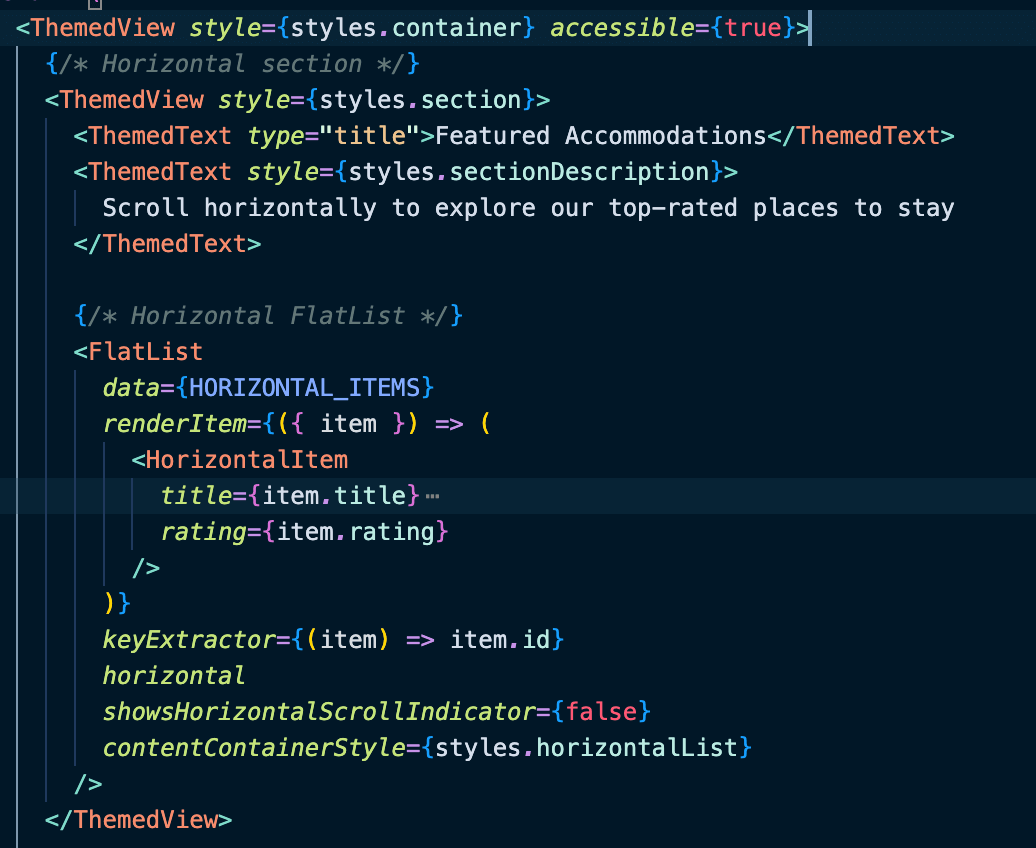
Here’s an example of a React component named ThemedView with numerous components inside, set to accessible true.
Let’s see how the parent element blocks child elements in the DOM using Appium Inspector:
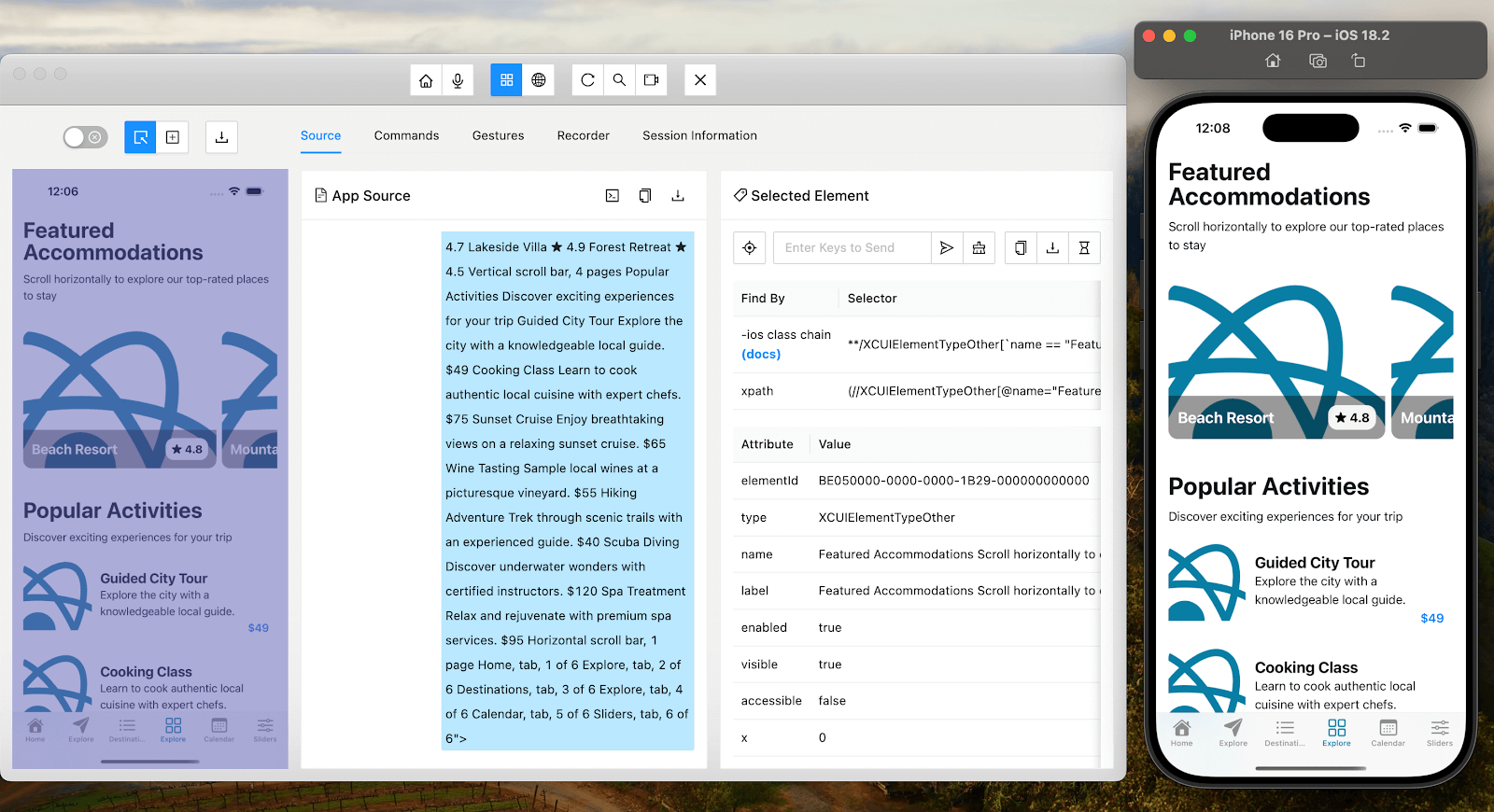
None of the child elements are accessible, and React Native flattens them into a single node.
Robust Solution
Never Use accessible on Scrollables/Lists
For Lists:
// GOOD FOR TESTING: Each list item remains testable
function ShoppingCartScreen() {
  const cartItems = [
    { id: 1, name: "Headphones", price: "$99" },
    { id: 2, name: "Phone Case", price: "$29" },
    { id: 3, name: "Charger", price: "$19" }
  ];

  return (
    <FlatList
      data={cartItems}
      renderItem={({item}) => (
        <View
          key={item.id}
          testID={`cart-item-${item.id}`}
          accessibilityLabel={`${item.name}, ${item.price}`}
        >
          <Text>{item.name}</Text>
          <Text>{item.price}</Text>
          <Button
            testID={`remove-item-${item.id}`}
            accessibilityLabel={`Remove ${item.name}`}
            title="Remove"
            onPress={() => removeItem(item.id)}
          />
        </View>
      )}
    />
  );
}
FlatList, by default, exposes accessible elements within it.
What happens:
- For screen readers: Each item is announced individually with its details.
- For Appium: Appium can find each cart item by its testID.
Key Behaviours:
- iOS: Each list item becomes its own .accessibilityElement.
- Android: Children retain individual contentDescription (from testID).
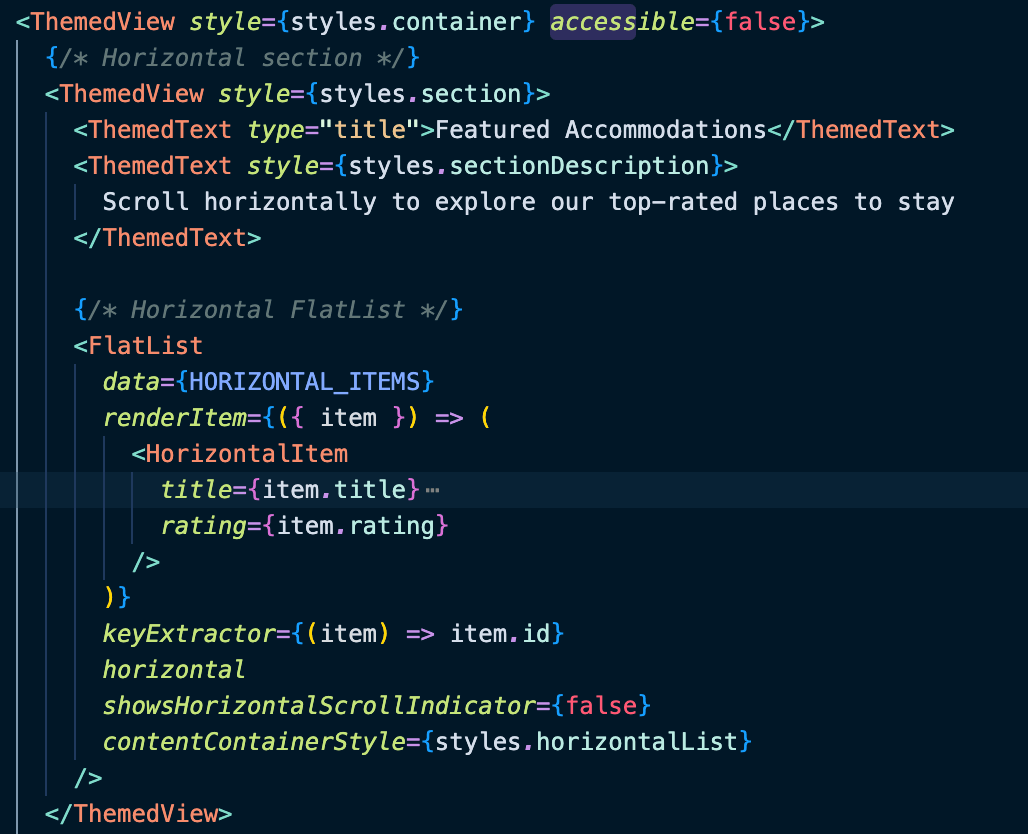
Here is a real-world example again, with accessible property set to false for the themed view containing many child elements:
Let’s examine how Appium Inspector presents the parent element and child elements in the DOM.
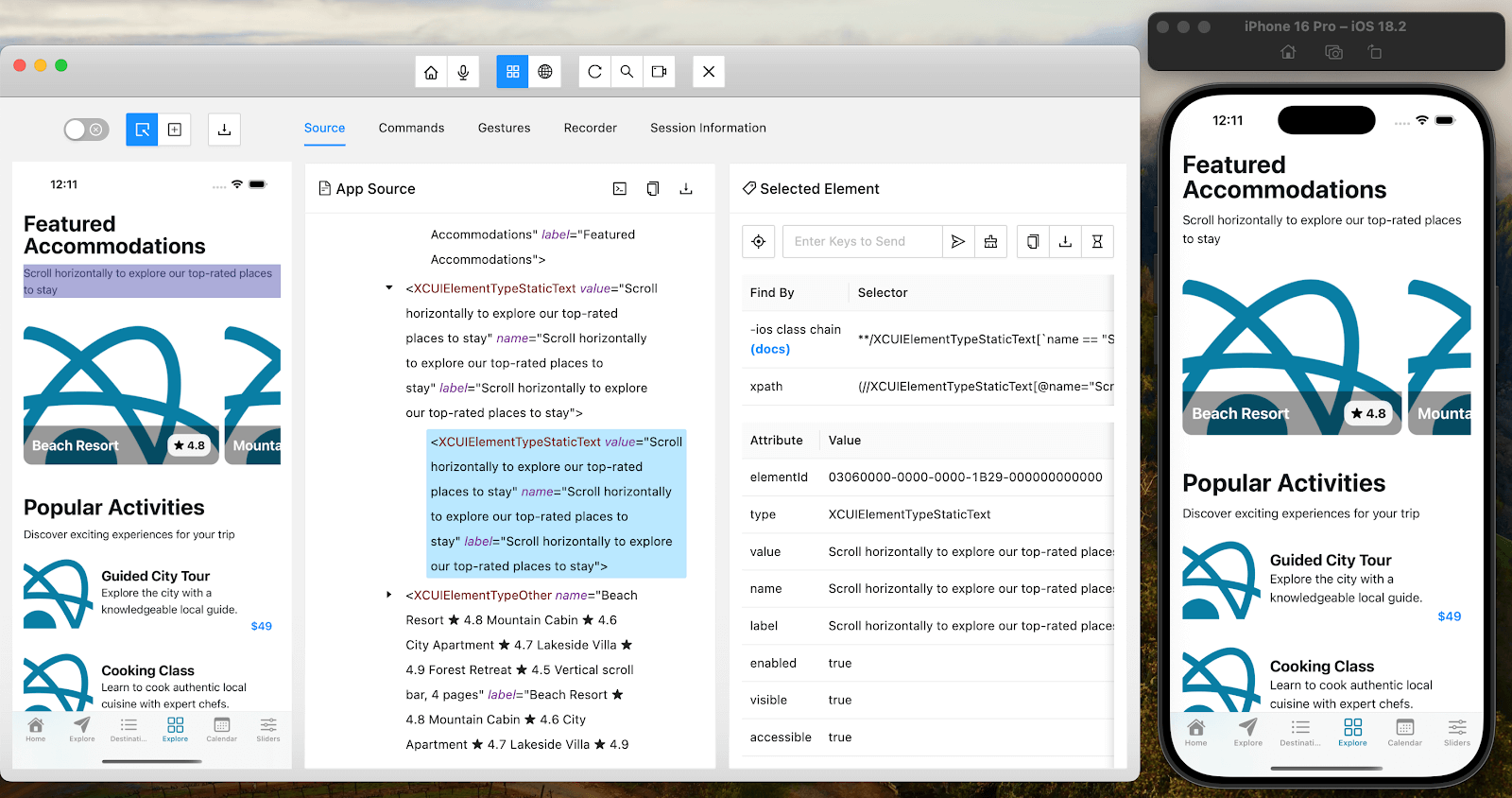
Setting the accessible property of the parent view to false (default) clearly presents both the parent and child elements in the DOM.
Key Takeaways
- Accessibility ≠ Testability: What’s good for screen readers (grouping) can break Appium tests.
- For lists and collections: Never use accessible={true} on the container
- For form inputs: Group only if the fields truly form a single logical unit
- For buttons with icons: Use accessible={true} to merge the icon and label together
- Test early: Use Appium Inspector to verify your elements are visible before writing tests
By strategically limiting accessible=true usage, you maintain both accessibility compliance and test automation reliability.
Enhancing Appium Tests With TestMu AI Real Device Cloud
Even with robust element identification and DOM optimizations, tests may fail on real devices due to platform fragmentation, OS-specific quirks, or hardware variations. Emulators/simulators cannot replicate real-world conditions like battery states, network fluctuations, or sensor interactions.
Solution: Integrate TestMu AI’s real device cloud into your React Native testing workflow to validate Appium scripts across 10,000+ real Android/iOS devices. This service ensures your optimizations hold up in production-like environments.
After auditing DOM nodes with React DevTools, run tests on TestMu AI to verify performance gains on low-memory devices (e.g., older Android models)

Conclusion
Designing with empathy for both your users and your QA processes is more than just a matter of writing better code; it is also a matter of mastering the nuances of React Native best practices with respect to test automation.
Remember this: what’s good for automation is frequently good for accessibility, and vice versa when you restructure your React Native components. Use the checklist on this site to audit your app right now and see for yourself how small changes can lead to significant improvements in quality and performance. The finest programs, after all, are created to be tested rather than merely created. 🚀
Are you prepared to modify the React Native testing process? Choose one section from this guide, apply it, and see how your Appium test starts to stabilize.
Co-Author: Sai Krishna
Sai Krishna is a Director of Engineering at TestMu AI. As an active contributor to Appium and a member of the Appium organization, he is deeply involved in the open-source community. He is passionate about innovative thinking and love to contribute to open-source technologies. Additionally, he is a blogger, community builder, mentor, international speaker, and conference organizer.


Frequently asked questions
Did you find this page helpful?
More Related Hubs
TestMu AI forEnterprise
Get access to solutions built on Enterprise
grade security, privacy, & compliance
- Advanced access controls
- Advanced data retention rules
- Advanced Local Testing
- Premium Support options
- Early access to beta features
- Private Slack Channel
- Unlimited Manual Accessibility DevTools Tests