

Next-Gen App & Browser Testing Cloud
Trusted by 2 Mn+ QAs & Devs to accelerate their release cycles


Pytest Tutorial: Executing Multiple Test Cases From Single File
With pytest you can run multiple test cases from a single file, or even run selective tests with custom markers or by grouping tests. Learn more with this pytest tutorial!

Himanshu Sheth
December 19, 2025
As web applications grow in complexity, managing large Selenium test suites can become challenging. This pytest tutorial for executing multiple test cases from a single file explains how you can efficiently organize and run specific tests without executing the entire suite. Using pytest’s features like custom markers and substring filters, you can easily control which tests to execute, improving test focus and execution time.
In this part of the Selenium Python tutorial series, I’ll take a look at the following areas related to with pytest framework.
Note: This should not be confused with parallel testing, a topic that would be covered later in the Python tutorial series.
Overview
What Is pytest?
pytest is a powerful Python testing framework designed for simplicity, scalability, and readability. It supports fixtures, parameterization, and plugins, making it ideal for organizing, running, and managing automated test cases efficiently, from small units to large-scale Selenium test suites.
What Are the Steps to Run Multiple Test Cases From a Single File?
You can execute multiple test cases from a single file in pytest by defining functions that start with test_ and ensuring the file name follows pytest’s naming conventions. The framework automatically detects and runs all valid test functions in that file.
- Define Tests Clearly: Write multiple test functions within the same file using the test_ prefix for pytest detection.
- Organize File Naming: Save the test file with a name that starts or ends with _test to ensure pytest recognizes it.
- Navigate to Directory: Open your terminal and move to the folder containing the test file.
- Run the File: Execute all tests in the file using pytest test_file_name.py.
- View Detailed Output: Add –verbose to the command to display each test’s execution status.
- Filter Specific Tests: Use the -k option followed by a substring to run specific tests from the same file.
- Review Results: Analyze the test summary in the terminal to confirm which tests passed, failed, or were skipped.
What Are the Steps to Run Multiple Tests From Single & Multiple Files?
pytest lets you execute tests from a single or multiple files effortlessly. You can trigger all test cases across folders or choose specific ones using simple terminal commands.
- Test File Organization: Place all your test files under a common root directory to simplify execution and test discovery.
- Run All Tests: Execute every test recursively across folders using pytest –verbose –capture=no for detailed results.
- Execute Specific File: Run tests from a single file using pytest path/to/test_file.py when targeting specific modules.
- Selective Test Execution: Use markers (-m marker_name) or substring filters (-k substring) to run only specific tests.
- Marker Registration: Register all custom markers in the pytest.ini file to prevent warning messages during execution.
- Review Test Output: Analyze the terminal output or generated reports to verify execution status and test outcomes.
What Is the Purpose of pytest Markers?
Markers categorize and organize tests based on their functionality or priority. For instance, you can assign a marker like @pytest.mark.smoke for quick validation tests or @pytest.mark.regression for broader checks. Later, you can execute only specific categories by referring to their marker name. This structured approach improves test management in complex automation projects.
How to Create A pytest Project To Run Multiple Test Cases From A Single File?
First thing first, while naming your test files in the Python pytest framework, you need to make sure that the file names start or end with _test. Even the test methods should start with test else those test methods would be ignored while execution of the Selenium test automation script.
In case you want to learn more about how to get started with pytest, you can refer to our previous Selenium Python tutorial.
To start with the demonstration for this Selenium Python tutorial, I’ll create a simple folder structure that contains two subfolders (Test_1, Test_2) each containing a single Python pytest file (test_cross_browser_1.py, test_cross_browser_2.py).
Shown below is the detailed directory structure to run multiple test cases in python with pytest:
Root Folder (Test)
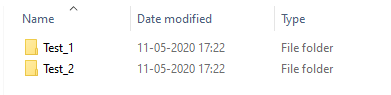
Sub-folders containing tests
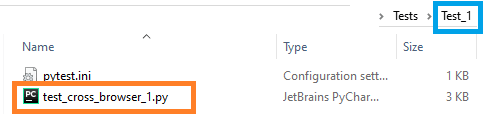
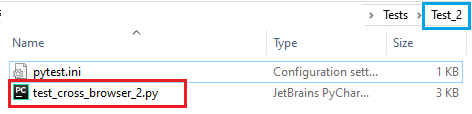
The test implementation in both the test files for this Selenium Python tutorial is almost the same, except the method name and additional markers that have been before the start of each test method. We would touch upon pytest markers in subsequent sections. The test cases for Selenium test automation are below:
Test Case 1
- Navigate to the URL https://lambdatest.github.io/sample-todo-app/
- Select the first two checkboxes
- Send ‘Happy Testing at TestMu AI’ to the textbox with id = sampletodotext
- Click the Add Button and verify whether the text has been added or not
Test Case 2
- Navigate to the URL https://www.google.com
- Search for “TestMu AI”
- Click on the first test result
- Raise an Assert if the Page Title does not match the expected title
Implementation
Test Case 1:
#Sample_to_do_app for Selenium test automation with Python in pytest for multiple test cases in python with pytest
import pytest
from selenium import webdriver
import sys
from selenium.webdriver.chrome.options import Options
from selenium.webdriver.common.keys import Keys
import time
from time import sleep

@pytest.mark.lambdatest1_1
def test_lambdatest1_1():
    chrome_driver = webdriver.Chrome()

    chrome_driver.get('https://lambdatest.github.io/sample-todo-app/')
    chrome_driver.maximize_window()

    chrome_driver.find_element_by_name("li1").click()
    chrome_driver.find_element_by_name("li2").click()

    title = "Sample page - lambdatest.com"
    assert title == chrome_driver.title

    sample_text = "Happy Testing at LambdaTest"
    email_text_field = chrome_driver.find_element_by_id("sampletodotext")
    email_text_field.send_keys(sample_text)
    time.sleep(5)

    chrome_driver.find_element_by_id("addbutton").click()
    time.sleep(5)

    output_str = chrome_driver.find_element_by_name("li6").text
    sys.stderr.write(output_str)

    time.sleep(2)
    chrome_driver.close()

@pytest.mark.lambdatest1_2
def test_lambdatest1_2():
    chrome_driver = webdriver.Chrome()

    chrome_driver.get('https://www.google.com/')
    chrome_driver.maximize_window()

    title = "Google"
    assert title == chrome_driver.title

    search_text = "LambdaTest"
    search_box = chrome_driver.find_element_by_xpath("//input[@name='q']")
    search_box.send_keys(search_text)

    time.sleep(5)

    # Option 1 - To Submit the search
    # search_box.submit()

    # Option 2 - To Submit the search
    search_box.send_keys(Keys.ARROW_DOWN)
    search_box.send_keys(Keys.ARROW_UP)
    time.sleep(2)
    search_box.send_keys(Keys.RETURN)

    time.sleep(5)

    # Click on the LambdaTest HomePage Link
    title = "Cross Browser Testing Tools | Free Automated Website Testing | LambdaTest"
    lt_link = chrome_driver.find_element_by_xpath("//h3[.='LambdaTest: Cross Browser Testing Tools | Free Automated ...']")
    lt_link.click()

    time.sleep(10)
    assert title == chrome_driver.title

    chrome_driver.close()
Test Case 2:
#Automated browser testing for Selenium test automation with Python in pytest multiple test cases in python with pytest
import pytest
from selenium import webdriver
import sys
from selenium.webdriver.chrome.options import Options
from selenium.webdriver.common.keys import Keys
import time
from time import sleep

@pytest.mark.lambdatest2_1
def test_lambdatest2_1():
    .........................
@pytest.mark.lambdatest2_2
def test_lambdatest2_2():
    .........................
    .........................
    chrome_driver.close()
Code Walkthrough
Step 1 – To get started, we import all the required Python packages.
import pytest
from selenium import webdriver
import sys
from selenium.webdriver.chrome.options import Options
from selenium.webdriver.common.keys import Keys
import time
from time import sleep
Step 2 – A proper test name is given to the method depending on whether it is present in the test_cross_browser_1.py or test_cross_browser_2.py. Below are the test methods for test_cross_browser_1.py and test_cross_browser_2.py for this Selenium Python tutorial respectively.
@pytest.mark.lambdatest1_1
def test_lambdatest1_1()
...........................
...........................
@pytest.mark.lambdatest1_2
def test_lambdatest1_2()
...........................
...........................
@pytest.mark.lambdatest2_1
def test_lambdatest2_1()
...........................
...........................
@pytest.mark.lambdatest2_2
def test_lambdatest2_2()
...........................
...........................
Step 3 – The actual test implementation is added to the respective methods. We would not divulge into minute details of the test implementation as this Selenium Python tutorial focuses on the execution aspects.
For both the Selenium test automation scripts, an instance of Chrome WebDriver is instantiated at the start. Details of the respective web elements are obtained using the Inspect feature available in the Chrome browser.
Once the web elements are located, the appropriate Selenium methods [find_element_by_name(), find_element_by_id()] and necessary operations [i.e. click(), submit(), send_keys(), etc.] are performed on those elements.
#Run multiple test cases in python with pytest
@pytest.mark.lambdatest1_1
def test_lambdatest1_1():
    chrome_driver = webdriver.Chrome()

    chrome_driver.get('https://lambdatest.github.io/sample-todo-app/')
    chrome_driver.maximize_window()

    chrome_driver.find_element_by_name("li1").click()
    chrome_driver.find_element_by_name("li2").click()
    .........................
    .........................
    chrome_driver.find_element_by_id("addbutton").click()
    sleep(5)

    output_str = chrome_driver.find_element_by_name("li6").text
    .........................
    chrome_driver.close()

@pytest.mark.lambdatest1_2
def test_lambdatest1_2()
    chrome_driver = webdriver.Chrome()

    .........................
    search_box = chrome_driver.find_element_by_xpath("//input[@name='q']")
    search_box.send_keys(search_text)

    .........................
    search_box.send_keys(Keys.ARROW_DOWN)
    search_box.send_keys(Keys.ARROW_UP)
    time.sleep(2)
    search_box.send_keys(Keys.RETURN)

    .........................
    lt_link.click()

    .........................
    chrome_driver.close()
Step 4 – The Chrome WebDriver instance is closed after every Selenium test automation case so that the resources used during the testing phase are released.
chrome_driver.close()

This PyTest Tutorial for beginners and professionals will help you learn how to use PyTest framework with Selenium and Python for performing Selenium automation testing.
How To Run Multiple Test Cases From Single & Multiple Files with Python in pytest?
To execute the test implementation from all the files in the folder & sub-folders, we first switch to the root folder (i.e. Test), post which we simply execute the following command on the terminal:
pytest --verbose --capture=no
This command will navigate to every subfolder and execute tests in the files that start with test_ or end with _test. In the Selenium test automation scenario mentioned above, the command will execute totally of four tests collectively located in test_cross_browser_1.py and test_cross_browser_2.py
Here is the execution snapshot where we can see that all the four tests have executed and passed.

To execute the tests located in a particular file (e.g Test_1\ test_cross_browser_1.py), the command py.test
You can refer to TestMu AI documentation, to run pytest scripts using the TestMu AI platform. In case you want to explore other Python frameworks for Selenium, you can check out our blog on top python testing frameworks for Selenium test automation in 2020.
You can watch this video to learn how to run multiple tests in pytest.
Running Subset Of A Particular Test With Python In pytest
While performing Selenium test automation with pytest, you might come across cases where you do not want to execute all the tests present in the test folder i.e. only a subset of tests needs to be executed. The feature is particularly useful when the test file contains a number of tests and only a few tests have to be executed.
There are two ways in which a subset of tests can be executed in pytest.
Using Custom Markers In Python pytest
In pytest, pytest.mark helper is used to set metadata on the test functions. Some of the in-built markers in pytest are skip, xfail, skipif, and parameterize. Apart from these built-in markers, pytest also enables creation of custom markers that can be applied to test classes or modules.
Custom markers can be added to the test names using:
@pytest.mark.<marker_name>
In the current example, we define four markers on the test methods and the same markers have to be registered in the pytest.ini which is present in the root (i.e. Test) directory.
@pytest.mark.lambdatest1_1
def test_lambdatest1_1()
...........................
...........................
@pytest.mark.lambdatest1_2
def test_lambdatest1_2()
...........................
...........................
@pytest.mark.lambdatest2_1
def test_lambdatest2_1()
...........................
...........................
@pytest.mark.lambdatest2_2
def test_lambdatest2_2()
...........................
Custom markers have to be registered in the pytest.ini file. If the registration is not done, the error (You can register custom marks to avoid this warning – for details, see (https://docs.pytest.org/en/latest/mark.html) is displayed and execution does not go through.
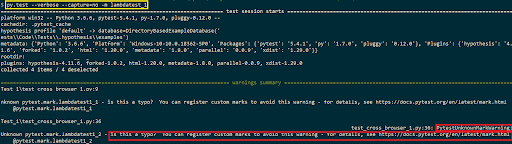
To avoid the above error, custom markers have to be registered in pytest.ini which should be present in the folder from where you plan to perform the execution i.e. Test folder in our case. More details about Custom markers in pytest are available in the official documentation of pytest.
Below are the contents of pytest.ini where markers are added under the markers field. Everything after the colon (:) is an optional description.
# content of pytest.ini
[pytest]
markers =
   lambdatest1_1: test_1 for ToDoApp
   lambdatest1_2: test_1 for Google Search
   lambdatest2_1: test_2 for ToDoApp
   lambdatest2_2: test_2 for Google Search
Custom markers can also be used by plugins. These markers are also used to selectively choose tests for execution via the command-line option –m (along with py.test command).
py.test -m <marker_name>
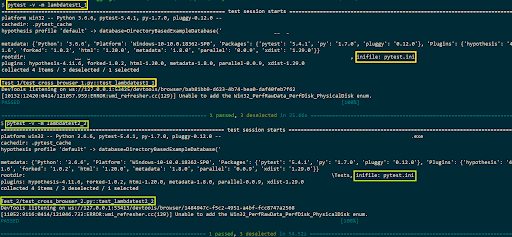
For executing the methods defined under the custom markers lambdatest1_1 and lambdatest2_2, the following commands are executed on the terminal (in different terminals as tests are executed serially).
py.test -v -m lambdatest1_1
    py.test -v -m lambdatest2_2
Shown below is the snapshot of the Selenium test automation script execution.
Grouping Tests By Complete Or Partial Matching Of Substring Expression With Python in pytest
pytest enables selective execution of test methods by executing tests via matching substring expression. An expression is a Python evaluable expression where all names are substring matched against test names and parent classes.
The string to be matched (i.e. substring) is passed via the -k option available with the py.test command.
py.test -v -k <test_method>
The -k ‘not test_method’ matches those test methods that do not contain test_method in their names.
py.test -v -k not <test_method>
Shown below in this Selenium Python tutorial is the detailed description available with the py.test –help command.

To execute test methods, to run multiple test cases in python with pytest, that contains TestMu AI in the method-name, we execute the following command on the terminal.
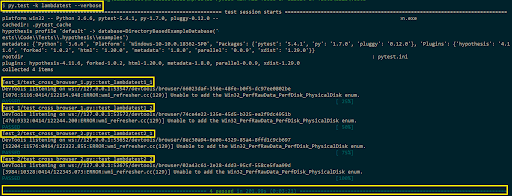
py.test -k lambdatest --verbose
Test methods test_lambdatest1_1(), test_lambdatest1_2(), test_lambdatest2_1(), and test_lambdatest2_2() present in Test_1\ test_cross_browser_1.py and Test_2\ test_cross_browser_2.py contain the required substring. Hence, all the four test methods run multiple test cases in python with pytest in a serial manner. Shown below is the execution snapshot:
Also Read: Selenium Python Tutorial: Getting Started With Pytest

Austin Siewert
CEO, Vercel
Discovered @TestMu AI yesterday. Best browser testing tool I've found for my use case. Great pricing model for the limited testing I do 👏
2M+ Devs and QAs rely on TestMu AI
Deliver immersive digital experiences with Next-Generation Mobile Apps and Cross Browser Testing Cloud

This certification is for professionals looking to develop advanced, hands-on expertise in Selenium automation testing with Python and take their career to the next level.
Here’s a short glimpse on how you can group tests in pytest:
Wrapping It Up!
In this article of the ongoing Selenium Python tutorial series, I had a look at different execution scenarios where you can run multiple test cases in python with pytest from a single file. The py.test command, when executed on a folder, executes the valid test methods present in the folder (and its subfolders).
The Python pytest scripts were used to perform Selenium test automation on TestMu AI ToDoApp and Google search, using the Selenium ChromeDriver. Selective execution of test methods in python pytest can be achieved by substring matching and using custom markers. Custom markers have to be registered in pytest.ini else the markers would not be recognized during execution.
This brings an end to this Selenium Python tutorial! Do share this article with your peers who’d like to know how to run multiple test cases in python with pytest. A retweet is always welcome! That’s all folks. Happy Testing!!!?
Austin Siewert
CEO, Vercel
Discovered @TestMu AI yesterday. Best browser testing tool I've found for my use case. Great pricing model for the limited testing I do 👏
2M+ Devs and QAs rely on TestMu AI
Deliver immersive digital experiences with Next-Generation Mobile Apps and Cross Browser Testing Cloud


Frequently asked questions
Did you find this page helpful?
More Related Hubs
TestMu AI forEnterprise
Get access to solutions built on Enterprise
grade security, privacy, & compliance
- Advanced access controls
- Advanced data retention rules
- Advanced Local Testing
- Premium Support options
- Early access to beta features
- Private Slack Channel
- Unlimited Manual Accessibility DevTools Tests