

Next-Gen App & Browser Testing Cloud
Trusted by 2 Mn+ QAs & Devs to accelerate their release cycles


On This Page
- What Is Puppeteer?
- Setting Up Puppeteer and Node.js
- Puppeteer Browser Automation Examples
- Puppeteer MCP Server: AI-Powered Browser Automation
- Puppeteer vs Playwright: Which Should You Choose?
- Puppeteer vs Selenium: Key Differences
- Advanced Puppeteer Techniques
- Running Puppeteer in CI/CD Pipelines
- Performing Puppeteer Browser Testing on TestMu AI
- Best Practices for Puppeteer Automation

Puppeteer Browser Automation: The Complete Node.js Guide [2026]
Master Puppeteer browser automation with Node.js. Learn setup, web scraping, testing, screenshots, PDFs, and cloud execution. Includes Puppeteer vs Playwright vs Selenium comparisons.

Ini Arthur
March 9, 2026
If you've ever found yourself clicking through the same web pages over and over, filling out forms, taking screenshots, or scraping data manually, you already know why browser automation exists. And if you're a JavaScript developer looking for a powerful way to control browsers programmatically, Puppeteer is probably already on your radar.
Puppeteer browser automation has become the go-to choice for developers who need to automate Chrome or Chromium-based browsers. Whether you're building a web scraper, running end-to-end tests, generating PDFs, or even integrating AI agents with browser control, Puppeteer gives you the tools to make it happen.
In this guide, we'll walk through everything you need to know about Puppeteer, from basic setup to advanced techniques. We'll also cover the new Puppeteer MCP integration for AI-powered automation (yes, that's a thing now), compare Puppeteer with Playwright and Selenium, and show you how to run your tests at scale on cloud infrastructure.
Let's dive in.
Overview
Puppeteer is a Node.js library developed by Google's Chrome DevTools team for automating Chrome, Chromium, and Firefox browsers via the DevTools Protocol.
Key Capabilities of Puppeteer
- Web Scraping: Extract data from JavaScript-rendered pages, SPAs, and dynamically loaded content.
- Automated Testing: Run end-to-end UI tests, form submissions, and user flow validations.
- Screenshot & PDF Generation: Capture full-page screenshots or convert pages to PDF programmatically.
- Network Interception: Modify HTTP requests and responses on the fly for mocking and testing.
- Performance Monitoring: Measure page load times, Core Web Vitals, and runtime performance metrics.
Puppeteer vs Playwright vs Selenium
- Puppeteer: Best for Chrome-focused automation with simple setup and fast execution via direct DevTools Protocol connection.
- Playwright: Supports Chrome, Firefox, Safari, and Edge with built-in auto-wait and parallel testing capabilities.
- Selenium: Ideal for multi-browser, multi-language testing at enterprise scale with the widest browser and language support.
What Is Puppeteer?
Puppeteer is a Node.js library that provides a high-level API for controlling Chrome, Chromium, and Firefox browsers. Developed by the Chrome DevTools team at Google, it communicates with browsers through the Chrome DevTools Protocol (CDP), which means you get direct access to the same debugging and automation capabilities that Chrome's built-in DevTools use.
Unlike some other automation tools that rely on WebDriver, Puppeteer's direct connection to the browser makes it faster and more reliable for many use cases. You're essentially talking to the browser without any middleware getting in the way.
What Can You Do with Puppeteer?
Here's a quick rundown of common Puppeteer use cases:
- Web scraping: Extract data from websites, including JavaScript-rendered content
- Automated testing: Run UI tests, form submissions, and user flow validations
- Screenshot and PDF generation: Capture full-page screenshots or convert web pages to PDFs
- Performance monitoring: Measure page load times and Core Web Vitals
- Network interception: Modify requests and responses on the fly
- Chrome extension testing: Load and test browser extensions programmatically
The best part? All of this happens in Node.js with async/await syntax, making your automation scripts clean and readable.
How Puppeteer Works Under the Hood
When you launch Puppeteer, it starts a Chrome or Chromium browser instance. It then establishes a WebSocket connection to that instance. Every command you send travels through this connection using the DevTools Protocol. That includes navigating to a URL, clicking a button, or taking a screenshot.
This architecture gives Puppeteer capabilities that WebDriver-based tools struggle with. It can intercept network requests. It can access browser internals for performance profiling. All without any middleware in the way.
Setting Up Puppeteer and Node.js
Getting started with Puppeteer is straightforward. Here's what you need:
Prerequisites
Before you begin, make sure you have:
- Node.js (version 18 or higher recommended): Download from nodejs.org
- npm or yarn: Comes bundled with Node.js
Check your versions by running:
node -v
npm -v
Installing Puppeteer
Create a new project directory and initialize it:
mkdir puppeteer-project && cd puppeteer-project
npm init -y
Now install Puppeteer:
npm install puppeteerHere's what happens during installation: Puppeteer automatically downloads a compatible version of Chromium that works with the library. This is one of its nicest features. You don't have to worry about browser version compatibility issues.
Puppeteer vs Puppeteer-Core: Which Should You Use?
Puppeteer comes in two flavors:
puppeteer: The full package that downloads Chromium automatically. This is what you want for most projects.
puppeteer-core: A lightweight version without the bundled browser. Use this when:
- You want to connect to an existing Chrome installation
- You're running in environments where you manage browsers separately
- You're connecting to remote browsers (like cloud testing platforms)
To install puppeteer-core:
npm install puppeteer-coreThe import is slightly different:
import puppeteer from 'puppeteer-core';
Note: Run Puppeteer browser tests across 50+ real environments. Try TestMu AI Today!
Puppeteer Browser Automation Examples
Let's get practical. Here are working examples of the most common Puppeteer automation tasks.
Using Puppeteer With Chrome
The simplest Puppeteer script launches a browser, opens a page, and does something useful:
import puppeteer from 'puppeteer';

(async () => {
  // Launch Chrome in headless mode (no visible window)
  const browser = await puppeteer.launch();

  // Create a new page
  const page = await browser.newPage();

  // Navigate to a website
  await page.goto('https://developer.chrome.com/');

  // Get and print the page title
  console.log(await page.title());

  // Clean up
  await browser.close();
})();
Run this with node index.js and you'll see the page title printed to your console.
Want to actually see the browser? Add { headless: false } to the launch options:
const browser = await puppeteer.launch({ headless: false });This is super helpful during development when you want to watch what your script is doing.
Using Puppeteer With Firefox
Puppeteer now supports Firefox through the WebDriver BiDi protocol. This is relatively new (added in version 23.0.0), and while Chrome support is more mature, Firefox automation works well for most use cases.
First, install Firefox for Puppeteer:
npx puppeteer browsers install firefoxThen launch with Firefox:
import puppeteer from 'puppeteer';

(async () => {
  const browser = await puppeteer.launch({
    browser: 'firefox'
  });

  const page = await browser.newPage();
  await page.goto('https://example.com');

  console.log(await page.title());
  await browser.close();
})();
Keep in mind that Firefox support is improving but may not have 100% feature parity with Chrome yet.
Running Puppeteer in Headless Mode
Headless mode runs the browser without any visible UI. This is the default behavior and is ideal for:
- CI/CD pipelines
- Server-side automation
- Web scraping at scale
- Performance testing
import puppeteer from 'puppeteer';

(async () => {
  // Headless is the default, but you can be explicit
  const browser = await puppeteer.launch({
    headless: true
  });

  const page = await browser.newPage();
  await page.goto('https://example.com');

  // Your automation logic here

  await browser.close();
})();
The newest versions of Puppeteer use Chrome's "new headless" mode, which is more reliable than the old headless implementation. If you need the classic headless mode for some reason, you can use headless: 'shell'.
Taking Screenshots and Generating PDFs
One of Puppeteer's most popular features is capturing visual output from web pages.
Taking a Screenshot:
import puppeteer from 'puppeteer';

(async () => {
  const browser = await puppeteer.launch();
  const page = await browser.newPage();

  await page.goto('https://example.com');

  // Capture the entire page
  await page.screenshot({
    path: 'screenshot.png',
    fullPage: true
  });

  console.log('Screenshot saved!');
  await browser.close();
})();
Generating a PDF:
import puppeteer from 'puppeteer';

(async () => {
  const browser = await puppeteer.launch();
  const page = await browser.newPage();

  await page.goto('https://example.com', {
    waitUntil: 'networkidle0' // Wait for network to be idle
  });

  await page.pdf({
    path: 'page.pdf',
    format: 'A4',
    printBackground: true,
    margin: {
      top: '20mm',
      bottom: '20mm',
      left: '15mm',
      right: '15mm'
    }
  });

  console.log('PDF generated!');
  await browser.close();
})();
The printBackground: true option is important if your page has background colors or images you want to preserve in the PDF.
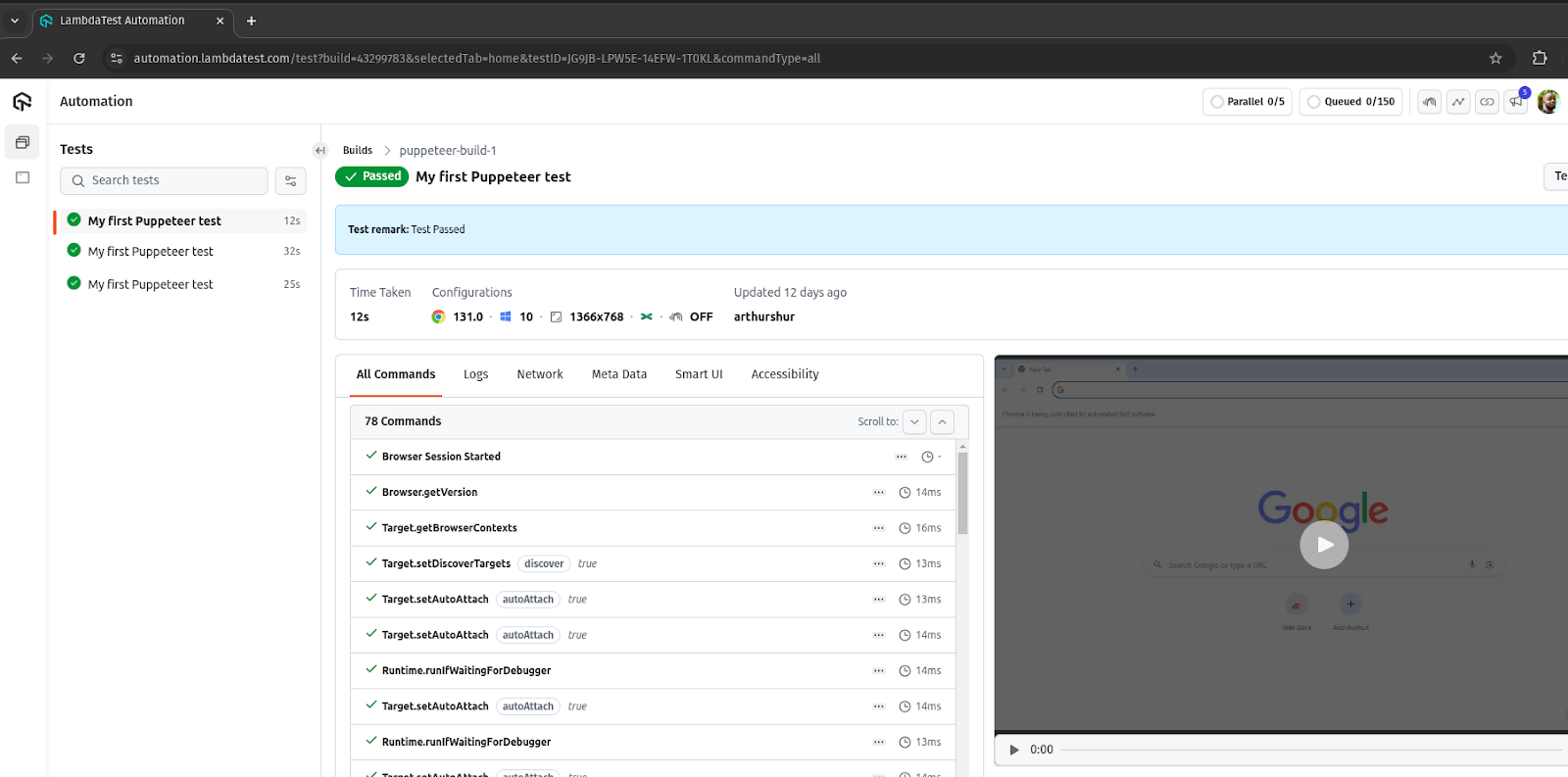
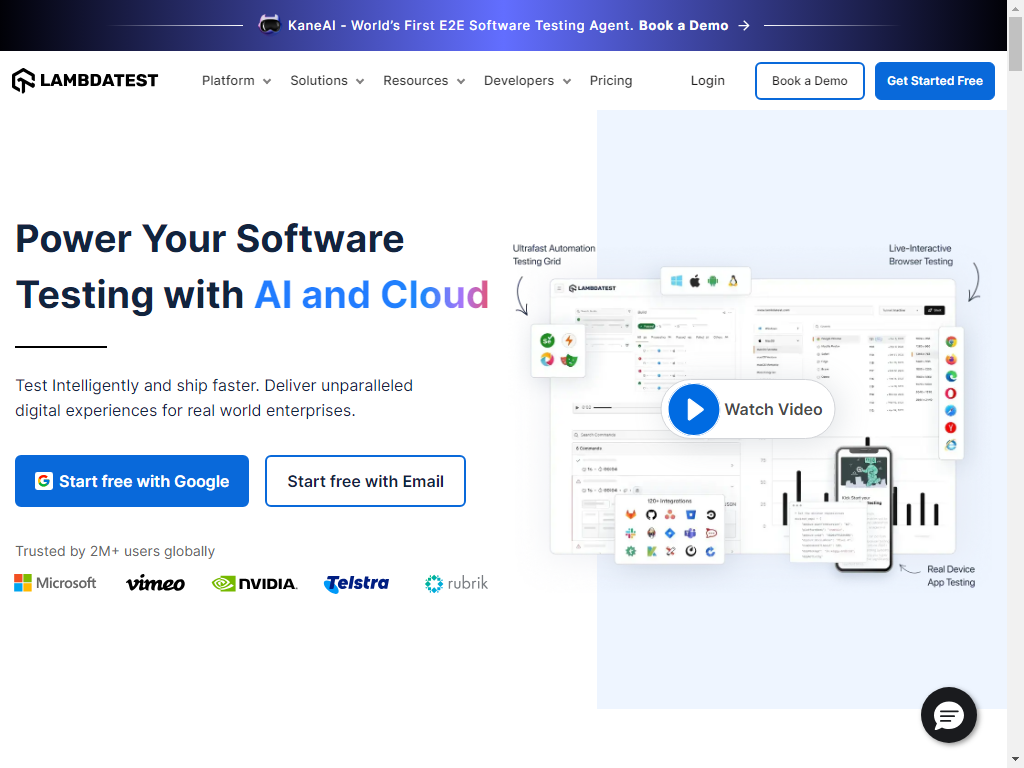
Here is a sample homepage screenshot captured by Puppeteer after executing the script:
Web Scraping With Puppeteer
Puppeteer really shines for scraping JavaScript-heavy websites that traditional HTTP scrapers can't handle.
Here's an example that scrapes product information from an e-commerce site:
import puppeteer from 'puppeteer';

(async () => {
  const browser = await puppeteer.launch();
  const page = await browser.newPage();

  await page.goto('https://ecommerce-playground.lambdatest.io/');

  // Wait for product elements to load
  await page.waitForSelector('.product-thumb');

  // Scroll to trigger lazy-loaded images
  await page.evaluate(async () => {
    await new Promise((resolve) => {
      let totalHeight = 0;
      const distance = 100;
      const timer = setInterval(() => {
        const scrollHeight = document.body.scrollHeight;
        window.scrollBy(0, distance);
        totalHeight += distance;

        if (totalHeight >= scrollHeight) {
          clearInterval(timer);
          resolve();
        }
      }, 100);
    });
  });

  // Extract product data
  const products = await page.evaluate(() => {
    const items = document.querySelectorAll('.product-thumb');
    return Array.from(items).map(item => ({
      name: item.querySelector('.title')?.innerText?.trim(),
      price: item.querySelector('.price')?.innerText?.trim(),
      image: item.querySelector('img')?.src
    }));
  });

  console.log(products);
  await browser.close();
})();
The key here is using page.evaluate() to run JavaScript inside the browser context. This lets you access the DOM directly and extract whatever data you need.
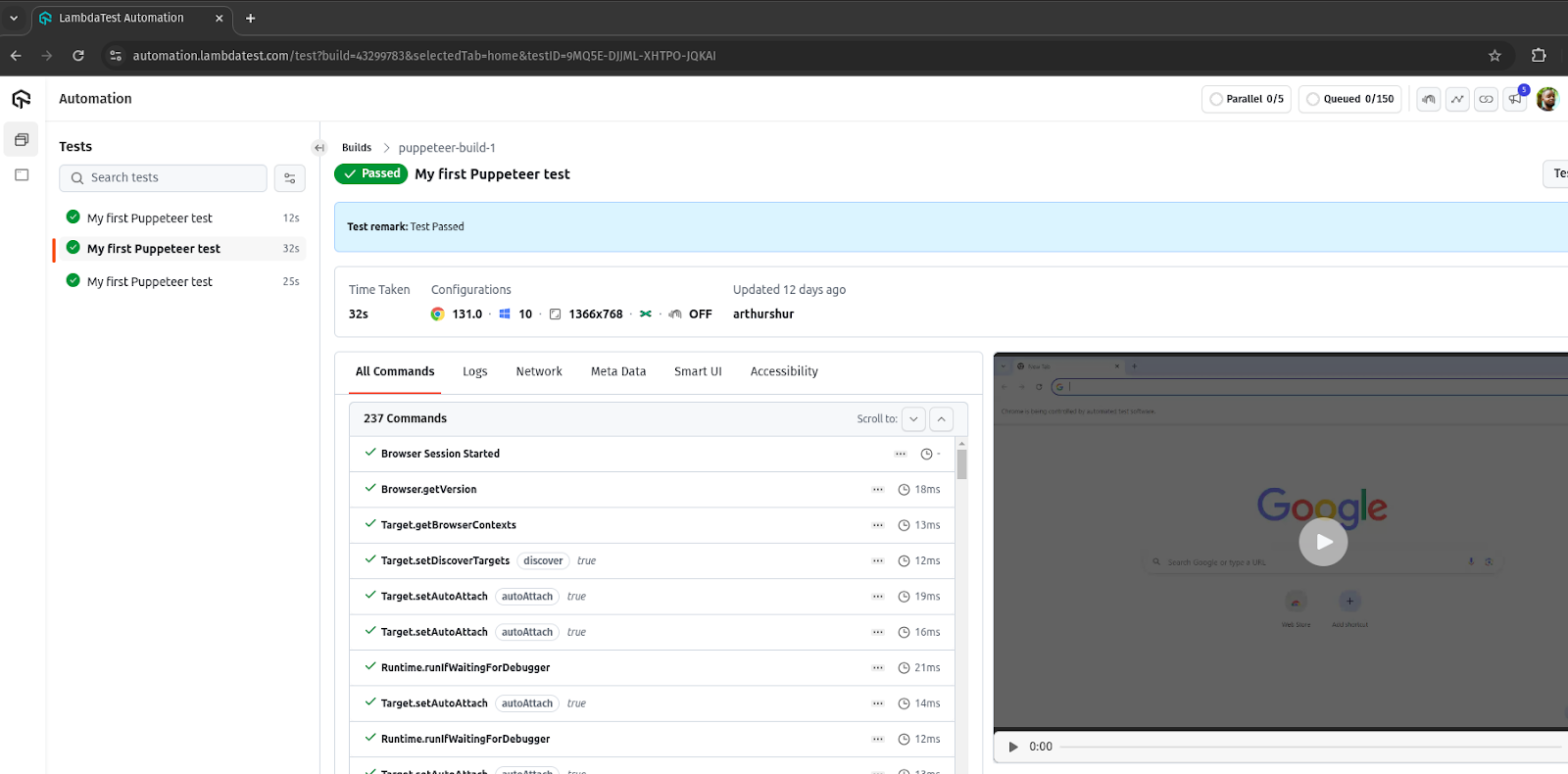
Automating Form Submission
Need to automate login flows, form submissions, or multi-step processes? Puppeteer handles this elegantly:
import puppeteer from 'puppeteer';

(async () => {
  const browser = await puppeteer.launch({ headless: false });
  const page = await browser.newPage();

  await page.goto('https://www.lambdatest.com/selenium-playground/ajax-form-submit-demo');

  // Fill in the form fields
  await page.type('input#title', 'John Doe');
  await page.type('textarea#description', 'I need customer support for my account.');

  // Click the submit button
  await page.click('.btn-primary');

  // Wait for the success message
  await page.waitForSelector('#submit-control');

  console.log('Form submitted successfully!');
  await browser.close();
})();
Notice how we use page.type() for text input and page.click() for buttons. These methods automatically wait for elements to be visible and interactive before proceeding.
Puppeteer MCP Server: AI-Powered Browser Automation
Here's where things get really interesting. The Model Context Protocol (MCP) is a new standard that allows AI assistants like Claude or Cursor IDE to interact with external tools and services. And yes, there's now a Puppeteer-based MCP server that lets AI agents control browsers.
Once configured with your AI assistant, you can give natural language commands like:
- "Navigate to example.com and take a screenshot"
- "Fill out the contact form with my information"
- "Scrape all product prices from this page"
The AI translates these into Puppeteer commands behind the scenes.
Why This Matters for Test Automation
AI-powered browser automation opens up some fascinating possibilities:
- Natural language test creation: Describe what you want to test in plain English
- Self-healing tests: AI can adapt to minor UI changes automatically
- Exploratory testing: Let an AI agent browse your app and find edge cases
- Visual validation: Ask the AI to verify that the page "looks right"
This is still early days, but the combination of Puppeteer's browser control and AI's reasoning capabilities is genuinely exciting. Platforms like TestMu AI are already integrating these capabilities with features like KaneAI, their GenAI-native testing agent.
Now that we've covered what Puppeteer can do and how to use it, you might be wondering how it stacks up against other popular browser automation tools. Let's compare.
Puppeteer vs Playwright: Which Should You Choose?
If you're evaluating browser automation tools, you've probably heard of Playwright. Let's break down the key differences.
Feature Comparison
| Feature | Puppeteer | Playwright |
|---|---|---|
| Maintained by | Google (Chrome team) | Microsoft |
| Browser support | Chrome, Chromium, Firefox | Chrome, Firefox, WebKit (Safari) |
| Language support | JavaScript/TypeScript | JavaScript, Python, Java, .NET |
| Auto-wait | Manual (waitForSelector, etc.) | Built-in smart waiting |
| Parallel testing | Requires custom setup | Native support |
| Test runner | None (use Jest, Mocha) | Built-in test runner |
| Mobile emulation | Yes | Yes |
| Network interception | Excellent | Excellent |
| Debugging tools | Chrome DevTools | Trace viewer, inspector |
When to Choose Puppeteer
Pick Puppeteer if:
- You only need Chrome/Chromium support: Puppeteer's Chrome integration is rock-solid
- You want minimal dependencies: Puppeteer is lightweight and focused
- You're doing web scraping: Less overhead for simple automation tasks
- You need DevTools Protocol access: Direct CDP integration is Puppeteer's specialty
- Your team already uses it: No need to switch if it's working
When to Choose Playwright
Pick Playwright if:
- You need true cross-browser testing: Safari (WebKit) support is a big deal
- You want built-in test infrastructure: The Playwright Test runner is excellent
- You need parallel execution out of the box: Playwright handles this natively
- You're using Python, Java, or .NET: Playwright supports multiple languages
- You want advanced debugging tools: Playwright's trace viewer is fantastic
Key Takeaway: Both are excellent tools. Puppeteer is simpler and more focused. Playwright is more comprehensive but with a larger surface area. If you're already invested in Puppeteer and don't need Safari testing, there's no urgent reason to switch.
Puppeteer vs Selenium: Key Differences
Selenium has been the browser automation standard for over a decade. How does Puppeteer compare?
Architecture Comparison
Selenium uses WebDriver, a W3C standard that communicates with browsers through a driver executable (ChromeDriver, GeckoDriver, etc.). This adds a layer between your code and the browser.
Puppeteer connects directly to Chrome via the DevTools Protocol. No intermediate driver needed.
This architectural difference has practical implications:
| Aspect | Puppeteer | Selenium |
|---|---|---|
| Speed | Faster (direct connection) | Slower (WebDriver overhead) |
| Setup | Automatic (browser downloads) | Manual (driver management) |
| Browser support | Chrome, Firefox | Chrome, Firefox, Safari, Edge, IE |
| Languages | JavaScript only | Java, Python, C#, Ruby, JavaScript |
| Network control | Excellent (request interception) | Limited |
| DevTools access | Full | Limited |
When to Migrate from Selenium to Puppeteer
Consider switching if:
- Your tests are primarily Chrome-focused
- You want faster test execution
- You need advanced features like network interception
- Your team is JavaScript-native
- You're frustrated with ChromeDriver version management
When to Stick with Selenium
Keep using Selenium if:
- You need Safari, Edge, or IE testing
- Your existing test suite is large and stable
- Your team uses Java, Python, or C#
- You're using Selenium Grid for distributed testing
- Your organization has standardized on Selenium
Key Takeaway: Selenium remains the go-to choice for multi-browser, multi-language testing at scale. Puppeteer wins on speed, simplicity, and DevTools integration. Choose based on your browser coverage needs and team's language preferences.
Advanced Puppeteer Techniques
Once you've got the basics down, these advanced techniques will help you build more robust automation.
Network Request Interception
Intercepting network requests lets you mock API responses, block resources, or modify requests on the fly:
import puppeteer from 'puppeteer';

(async () => {
  const browser = await puppeteer.launch();
  const page = await browser.newPage();

  // Enable request interception
  await page.setRequestInterception(true);

  page.on('request', (request) => {
    // Block images and stylesheets for faster scraping
    if (['image', 'stylesheet', 'font'].includes(request.resourceType())) {
      request.abort();
    } else {
      request.continue();
    }
  });

  await page.goto('https://example.com');
  // Page loads faster without images/CSS

  await browser.close();
})();
You can also modify responses to test how your application handles different API scenarios:
page.on('request', (request) => {
  if (request.url().includes('/api/users')) {
    request.respond({
      status: 200,
      contentType: 'application/json',
      body: JSON.stringify({ users: [] })
    });
  } else {
    request.continue();
  }
});
Parallel Test Execution
Running tests in parallel dramatically reduces execution time. Here's a simple approach:
import puppeteer from 'puppeteer';

async function runTest(url) {
  const browser = await puppeteer.launch();
  const page = await browser.newPage();

  try {
    await page.goto(url);
    const title = await page.title();
    console.log(`${url}: ${title}`);
  } finally {
    await browser.close();
  }
}

// Run multiple tests in parallel
const urls = [
  'https://example.com',
  'https://google.com',
  'https://github.com'
];

await Promise.all(urls.map(runTest));
For more sophisticated parallel execution, consider using a test runner like Jest with the jest-puppeteer preset.
Performance Optimization Tips
Make your Puppeteer scripts faster and more reliable:
1. Reuse browser instances:
// Instead of launching a new browser for each test
const browser = await puppeteer.launch();

// Create new pages within the same browser
const page1 = await browser.newPage();
const page2 = await browser.newPage();
2. Disable unnecessary features:
const browser = await puppeteer.launch({
  args: [
    '--disable-gpu',
    '--disable-dev-shm-usage',
    '--disable-setuid-sandbox',
    '--no-sandbox'
  ]
});
3. Block non-essential resources:
As shown in the network interception example, blocking images and fonts can significantly speed up page loads during scraping.
4. Use appropriate wait strategies:
// Bad: Fixed delays are unreliable
await page.waitForTimeout(5000); // Don't do this

// Good: Wait for specific elements
await page.waitForSelector('.loaded-content');

// Better: Wait for network idle
await page.goto(url, { waitUntil: 'networkidle0' });
Error Handling and Retry Logic
Production-ready Puppeteer scripts need proper error handling:
async function scrapeWithRetry(url, maxRetries = 3) {
  let lastError;

  for (let attempt = 1; attempt <= maxRetries; attempt++) {
    const browser = await puppeteer.launch();

    try {
      const page = await browser.newPage();

      // Set timeout for navigation
      await page.goto(url, {
        timeout: 30000,
        waitUntil: 'domcontentloaded'
      });

      // Your scraping logic here
      const data = await page.evaluate(() => {
        // Extract data
      });

      return data;

    } catch (error) {
      lastError = error;
      console.log(`Attempt ${attempt} failed: ${error.message}`);

    } finally {
      await browser.close();
    }
  }

  throw new Error(`Failed after ${maxRetries} attempts: ${lastError.message}`);
}
Debugging Puppeteer Scripts
When things go wrong, these techniques help you figure out what's happening:
1. Run in headed mode with slow motion:
const browser = await puppeteer.launch({
  headless: false,
  slowMo: 250 // Slow down actions by 250ms
});
2. Take screenshots on failure:
try {
  await page.click('.non-existent-button');
} catch (error) {
  await page.screenshot({ path: 'error-screenshot.png' });
  throw error;
}
3. Enable verbose logging:
const browser = await puppeteer.launch({
  dumpio: true // Pipes browser console to your terminal
});
4. Use Chrome DevTools directly:
const browser = await puppeteer.launch({
  headless: false,
  devtools: true // Opens DevTools automatically
});
Running Puppeteer in CI/CD Pipelines
Puppeteer works great in automated pipelines, but requires some configuration.
GitHub Actions Integration
Here's a basic GitHub Actions workflow for Puppeteer tests:
name: Puppeteer Tests

on: [push, pull_request]

jobs:
  test:
    runs-on: ubuntu-latest

    steps:
      - uses: actions/checkout@v4

      - name: Setup Node.js
        uses: actions/setup-node@v4
        with:
          node-version: '20'

      - name: Install dependencies
        run: npm ci

      - name: Run tests
        run: npm test
Docker Setup for Puppeteer
Running Puppeteer in Docker requires some extra dependencies:
FROM node:20-slim

# Install Chrome dependencies
RUN apt-get update && apt-get install -y \
    chromium \
    fonts-liberation \
    libasound2 \
    libatk-bridge2.0-0 \
    libatk1.0-0 \
    libcups2 \
    libdrm2 \
    libgbm1 \
    libgtk-3-0 \
    libnspr4 \
    libnss3 \
    libxcomposite1 \
    libxdamage1 \
    libxrandr2 \
    xdg-utils \
    --no-install-recommends \
    && rm -rf /var/lib/apt/lists/*

WORKDIR /app
COPY package*.json ./
RUN npm ci

COPY . .

ENV PUPPETEER_SKIP_CHROMIUM_DOWNLOAD=true
ENV PUPPETEER_EXECUTABLE_PATH=/usr/bin/chromium

CMD ["npm", "test"]
Headless Mode Best Practices for CI
In CI environments, always:
- Use headless mode (it's the default, but be explicit)
- Set appropriate timeouts for slower CI runners
- Capture screenshots/videos on failure for debugging
- Use sandbox flags as shown in the optimization section
Performing Puppeteer Browser Testing on TestMu AI
Running Puppeteer tests locally works fine for development, but it has limitations:
- Limited browser versions
- No parallel execution across different environments
- Local machine resources get maxed out quickly
- No easy way to test on different operating systems
Cloud testing platforms like TestMu AI solve these problems by giving you access to thousands of browser and OS combinations, with built-in parallel execution and real-time debugging tools.
Why Use Cloud Testing?
Here's what you get with a cloud testing platform:
- Massive parallelization: Run hundreds of tests simultaneously
- Real browser diversity: Test on actual Chrome, Firefox, Edge versions
- No infrastructure management: No Docker, no browser installations
- Built-in debugging: Screenshots, videos, network logs for every test
- CI/CD integration: Works with Jenkins, GitHub Actions, GitLab CI, etc.

Setting Up Remote Connection
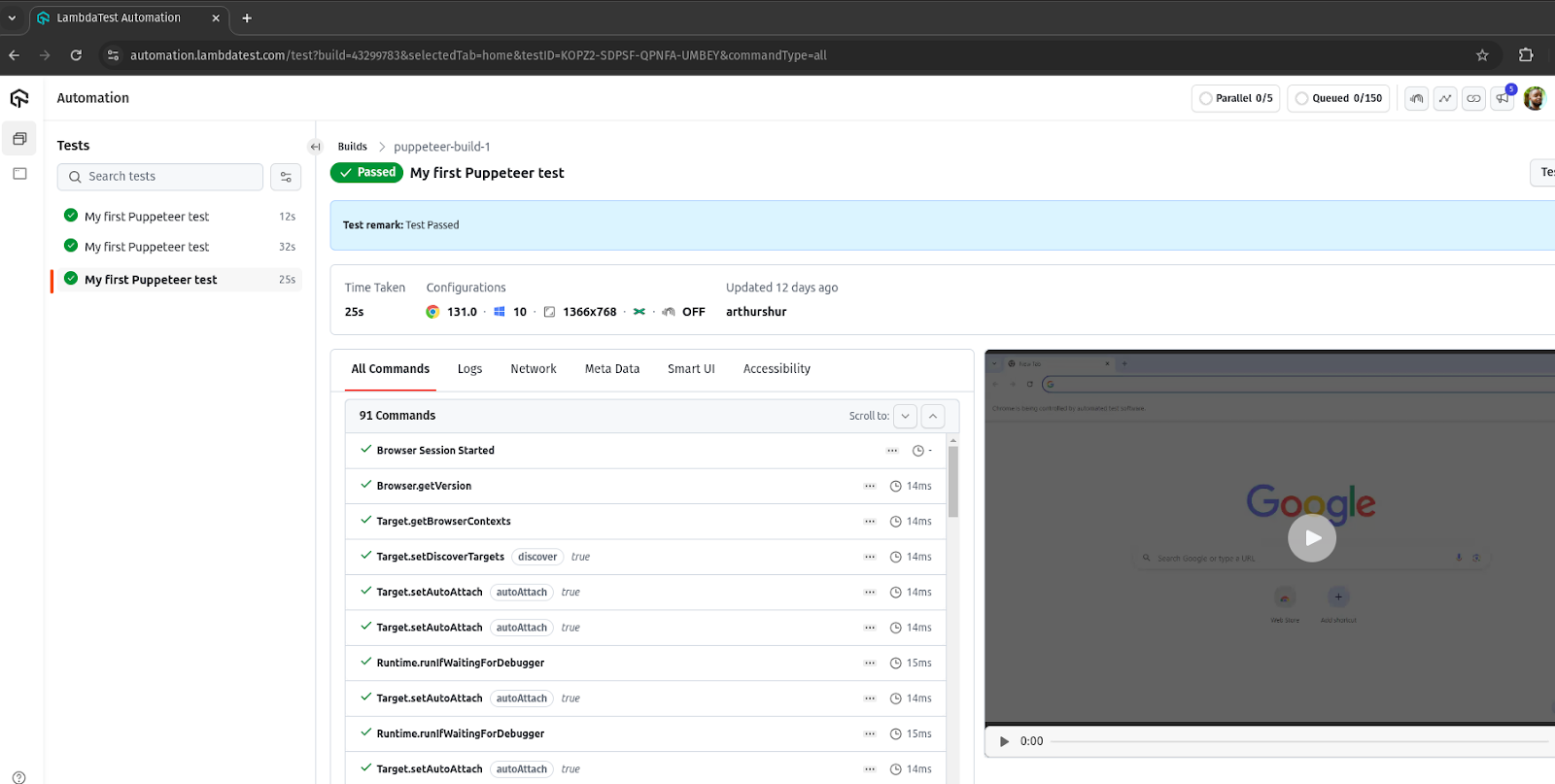
To run Puppeteer tests on TestMu AI's cloud, you'll use puppeteer-core to connect to a remote browser:
import { connect } from 'puppeteer';

const capabilities = {
  'browserName': 'Chrome',
  'browserVersion': 'latest',
  'LT:Options': {
    'platform': 'Windows 10',
    'build': 'puppeteer-cloud-test',
    'name': 'My Puppeteer Test',
    'resolution': '1920x1080',
    'user': process.env.LT_USERNAME,
    'accessKey': process.env.LT_ACCESS_KEY,
    'network': true,
    'video': true,
    'console': true
  }
};

(async () => {
  const browser = await connect({
    browserWSEndpoint: `wss://cdp.lambdatest.com/puppeteer?capabilities=${encodeURIComponent(JSON.stringify(capabilities))}`
  });

  const page = await browser.newPage();
  await page.setViewport({ width: 1920, height: 1080 });

  try {
    await page.goto('https://your-app.com');
    // Run your tests

    // Mark test as passed
    await page.evaluate(() => {}, `lambdatest_action: ${JSON.stringify({
      action: 'setTestStatus',
      arguments: { status: 'passed', remark: 'Test completed successfully' }
    })}`);

  } catch (error) {
    // Mark test as failed
    await page.evaluate(() => {}, `lambdatest_action: ${JSON.stringify({
      action: 'setTestStatus',
      arguments: { status: 'failed', remark: error.message }
    })}`);
    throw error;

  } finally {
    await browser.close();
  }
})();
Running Tests at Scale
Once you're connected to the cloud, scaling is straightforward:
- Parallel execution: Run multiple browser instances simultaneously
- Cross-browser testing: Test on Chrome, Firefox, Edge in one run
- OS coverage: Windows, macOS, Linux without maintaining VMs
- Analytics: See trends, flaky test detection, and performance metrics
Check out the TestMu AI Puppeteer documentation for detailed setup instructions and advanced configuration options.
Best Practices for Puppeteer Automation
After working with Puppeteer extensively, here are the practices that make the biggest difference:
Do's
- Use explicit waits: Always wait for elements with waitForSelector() instead of fixed delays
- Handle errors gracefully: Wrap critical sections in try/catch and capture screenshots on failure
- Reuse browser instances: Creating new pages is faster than launching new browsers
- Clean up resources: Always close browsers in a finally block
- Use environment variables: Never hardcode credentials or API keys
- Set realistic timeouts: Network conditions vary; be generous with timeouts
- Log meaningful messages: Future you will thank present you
Don'ts
- Don't use waitForTimeout(): Fixed delays are slow and unreliable
- Don't ignore errors: Silent failures lead to flaky tests
- Don't hardcode selectors: Use data attributes like data-testid when possible
- Don't skip cleanup: Orphaned browser processes consume resources
- Don't run headed mode in CI: It's slower and requires display configuration
Checklist Before Going to Production
- All tests pass in headless mode
- Error handling is in place for all critical paths
- Screenshots/videos capture on failure
- No hardcoded credentials
- Timeouts are appropriate for your environment
- Tests run successfully in CI/CD
- Resource cleanup happens even on failures
Conclusion
Puppeteer browser automation has earned its place as a go-to tool for JavaScript developers who need reliable, fast browser control. Whether you're building test suites, scraping data, generating PDFs, or exploring the frontier of AI-powered automation with MCP, Puppeteer provides the foundation to make it happen.
The key takeaways from this guide:
- Puppeteer connects directly to Chrome via the DevTools Protocol, making it fast and powerful
- Setup is painless: npm install and you're ready to go
- Advanced features like network interception and parallel execution are built in
- Puppeteer MCP opens new possibilities for AI-driven browser automation
- Cloud platforms like TestMu AI let you scale without infrastructure headaches
The browser automation landscape keeps evolving, but Puppeteer's combination of simplicity, performance, and Google's continued investment makes it a solid choice for the foreseeable future.
Ready to try Puppeteer at scale? Check out TestMu AI's Puppeteer testing to run your tests on 50+ real browser environments with built-in debugging and parallel execution.
Citations
- Puppeteer Official Documentation: https://pptr.dev/
- Chrome DevTools Protocol: https://developer.chrome.com/docs/devtools/
- Puppeteer GitHub Repository: https://github.com/puppeteer/puppeteer
- Model Context Protocol: https://modelcontextprotocol.io/


Frequently asked questions
Did you find this page helpful?
More Related Hubs
TestMu AI forEnterprise
Get access to solutions built on Enterprise
grade security, privacy, & compliance
- Advanced access controls
- Advanced data retention rules
- Advanced Local Testing
- Premium Support options
- Early access to beta features
- Private Slack Channel
- Unlimited Manual Accessibility DevTools Tests