 Decode AI-Powered Quality Engineering from AI & QA Leaders,Register for Free!

Next-Gen App & Browser Testing Cloud
Trusted by 2 Mn+ QAs & Devs to accelerate their release cycles

Jira Test Management: How to Manage Test Cases in Jira (2026 Guide)
Learn Jira test management with TestMu AI Test Manager. Covers setup, test plans, execution cycles, CI/CD integration, and best practices.

Bhavya Hada
February 18, 2026
Jira is the default project management tool for agile teams, but it lacks native test management features like test case creation, execution cycles, and coverage reporting.
Jira test management tools extend Jira with dedicated apps so teams can plan, execute, and track testing within their existing workflows. The challenge is choosing the right approach. Custom issue types do not scale, and marketplace add-ons can be complex or siloed.
Many teams now prefer unified platforms like TestMu AI Test Manager that combine test management, real-device execution, and Jira integration in a single workflow.
What is Jira Test Management?
Jira test management involves extending Jira's native project management functionality with dedicated apps from the Atlassian Marketplace to plan, execute, and report on software tests.
While Jira doesn't include built-in test management features out of the box, marketplace tools TestMu AI Test Manager enable teams to link test cases directly to user stories, requirements, and bugs, providing end-to-end traceability within a single dashboard.
At its core, Jira test case management transforms Jira from a pure issue tracker into a comprehensive quality assurance hub where test planning, design, execution, and reporting coexist alongside development work.
Test cases become native Jira issue types, inheriting all of Jira's tracking, assignment, and workflow capabilities while gaining specialized testing features through the installed app.
Core capabilities that Jira test case management apps provide:
- Traceability: Linking requirements to test cases and bugs for complete coverage visibility across the SDLC.
- Test Repository: Organizing test cases in hierarchical folders, with tagging, search, and version control.
- Test Execution & Cycles: Running tests individually or grouped into execution cycles tied to sprints, releases, or milestones.
- Reporting: Real-time dashboards showing test coverage, execution progress, pass/fail rates, and defect trends.
- Automation: Integrating with CI/CD pipelines to automatically trigger test runs, collect results, and update Jira issues via REST APIs.
This approach lets agile teams keep testing and development in sync without leaving the Jira environment, reducing context switching and improving collaboration between QA engineers, developers, and product managers.
Why Use Jira for Test Case Management?
Most development teams already use Jira for sprint planning, bug tracking, and backlog management. Extending it for test management, rather than adopting a completely separate tool, offers several practical advantages.
- Reduced Context Switching: Test cases, bugs, user stories, and execution results are all in one platform, minimizing the need to switch between tools.
- Agile Alignment: Test plans are tied to sprints, epics, and releases, providing visibility into test results and coverage gaps.
- Familiar Interface: Teams use a familiar Jira interface for test management, reducing adoption friction and enabling productivity without extensive training.
- Centralized Traceability: Every test case is linked to its requirement, and defects are connected to the test that found them, crucial for compliance.
- Cost Consolidation: Manage project and test management in one Atlassian subscription, reducing the total cost of ownership.
Setting Up Test Management in Jira
Teams typically choose one of two approaches to managing test cases in Jira, depending on their team size, testing maturity, and budget.
Option 1: Using Native Jira Issues (Basic)
For very small teams or those just starting with structured testing, you can create test cases using Jira's built-in customization:
- Create a custom issue type called "Test Case" in Jira Settings → Issues → Issue Types.
- Add custom fields for test steps, expected results, preconditions, and test data.
- Link test cases to user stories using Jira's standard issue linking feature.
- Track execution by creating sub-tasks for each test run or using custom status fields (Pass, Fail, Blocked, Not Run).
This approach works in a pinch but has major limits. You can’t organize test cases, manage cycles, generate reports, or integrate automation easily. Most teams outgrow it quickly, so using a Jira test management app from the start is better.
Option 2: Using Atlassian Marketplace Apps (Recommended)
For any team serious about test management, installing a dedicated app from the Atlassian Marketplace is the recommended path. Here's the general setup process:
- Install the app from the Atlassian Marketplace (most offer free trials of 30 days).
- Configure issue types, and the app will create test-specific issue types (Test Case, Test Plan, Test Execution) in your Jira instance.
- Set up your test repository, organize test cases into folders by module, feature, or test type for easy navigation.
- Create your first test plan, link test cases to a sprint or release, define execution environments, and assign testers.
- Establish traceability, link test cases to the requirements (stories, tasks, or epics) they validate.
- Configure CI/CD integration, connect your automation framework to report results back to Jira via REST API.
Most marketplace apps can be fully configured within a day, and teams typically see immediate value from the centralized repository, traceability links, and execution tracking features.
Key Jira Test Management Tools Compared
The Atlassian Marketplace offers numerous test management apps. Here are the most widely used options, along with their key differentiators:
| Tool | Jira Integration | Test Management Features | Automation & CI/CD | Reporting & Traceability |
|---|---|---|---|---|
| TestMu AI Test Manager | Deep two-way sync with Jira | Test case authoring, plans, executions, defect tracking, AI-assisted test creation | Native cloud execution + CI/CD integrations | Real-time dashboards, coverage tracking, traceability |
| TestLink | Plugin/API-based Jira integration | Manual test case management, plans, and executions | Limited automation integrations | Basic reports and requirement traceability |
| Kiwi TCMS | REST API-based integration | Test plans, test runs, case management | Works with open-source automation frameworks | Basic reporting and history tracking |
| Squash TM (Community Edition) | Jira issue tracking integration | Structured test repositories, execution campaigns | CI/CD integrations available | Built-in reporting and requirement traceability |
Set Up and Manage Test Cases in Jira Using TestMu AI Test Manager
TestMu AI Test Manager is a test management platform with seamless two-way Jira integration, so test cases, executions, defects, and statuses sync automatically between TestMu AI and Jira. This lets teams manage testing workflows without manual updates.
Unlike Jira-only add-ons, TestMu AI is a unified platform that combines test management with large-scale cloud execution and deep Jira integration. It offers AI-native test case authoring, cloud execution across 10,000+ real devices and browser/OS combinations, and real-time Jira-integrated dashboards.
Teams can author, organize, execute, and report on tests from a single platform.
Here's a step-by-step walkthrough of setting up and managing test cases in Jira using TestMu AI Test Manager.
Step 1: Connect TestMu AI Test Manager to Jira
TestMu AI supports both Jira Cloud and self-hosted Jira instances. The integration takes just a few minutes:
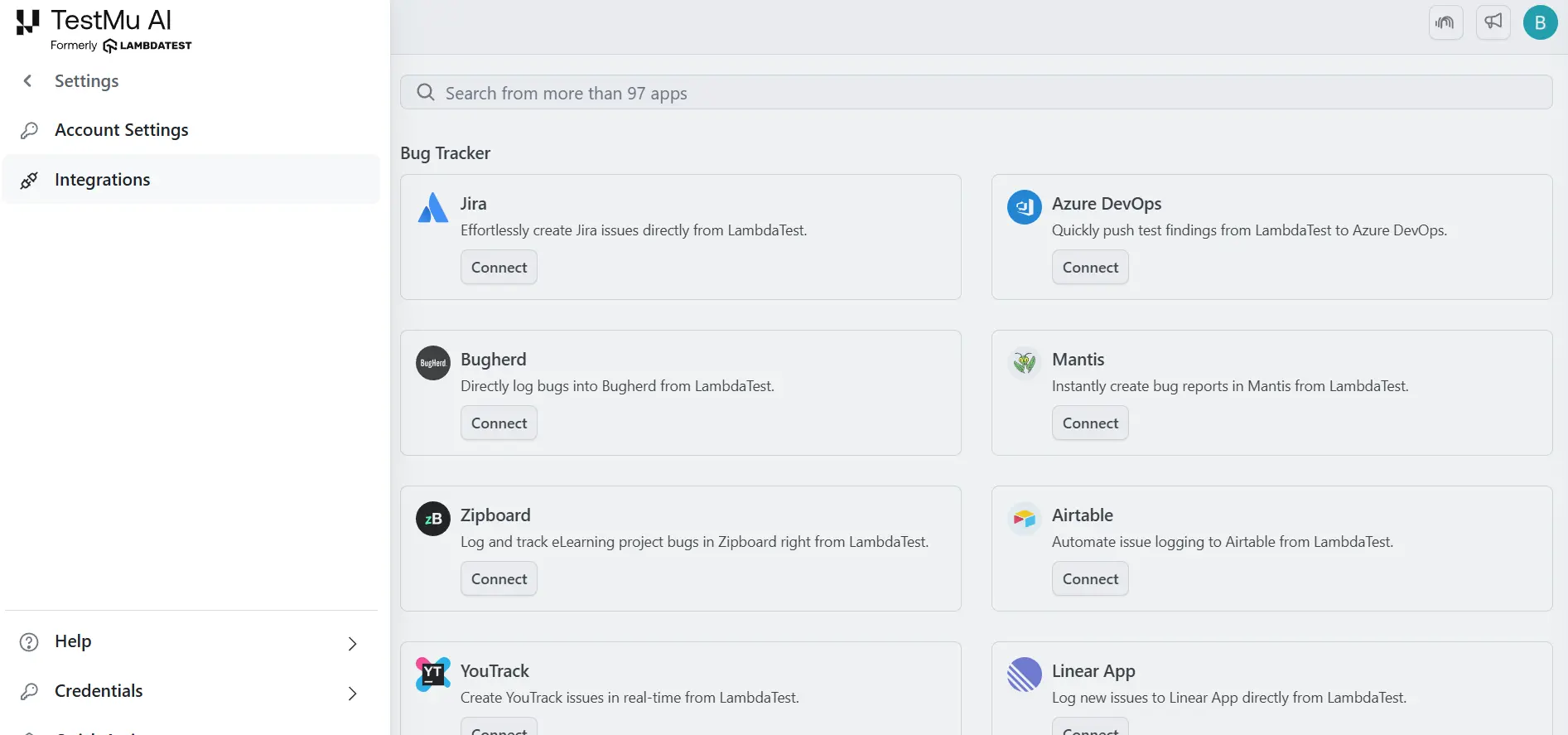
- Log in to TestMu AI, go to Integrations, add Jira, authorize or enter credentials, select projects, and confirm the green tick to verify the connection.
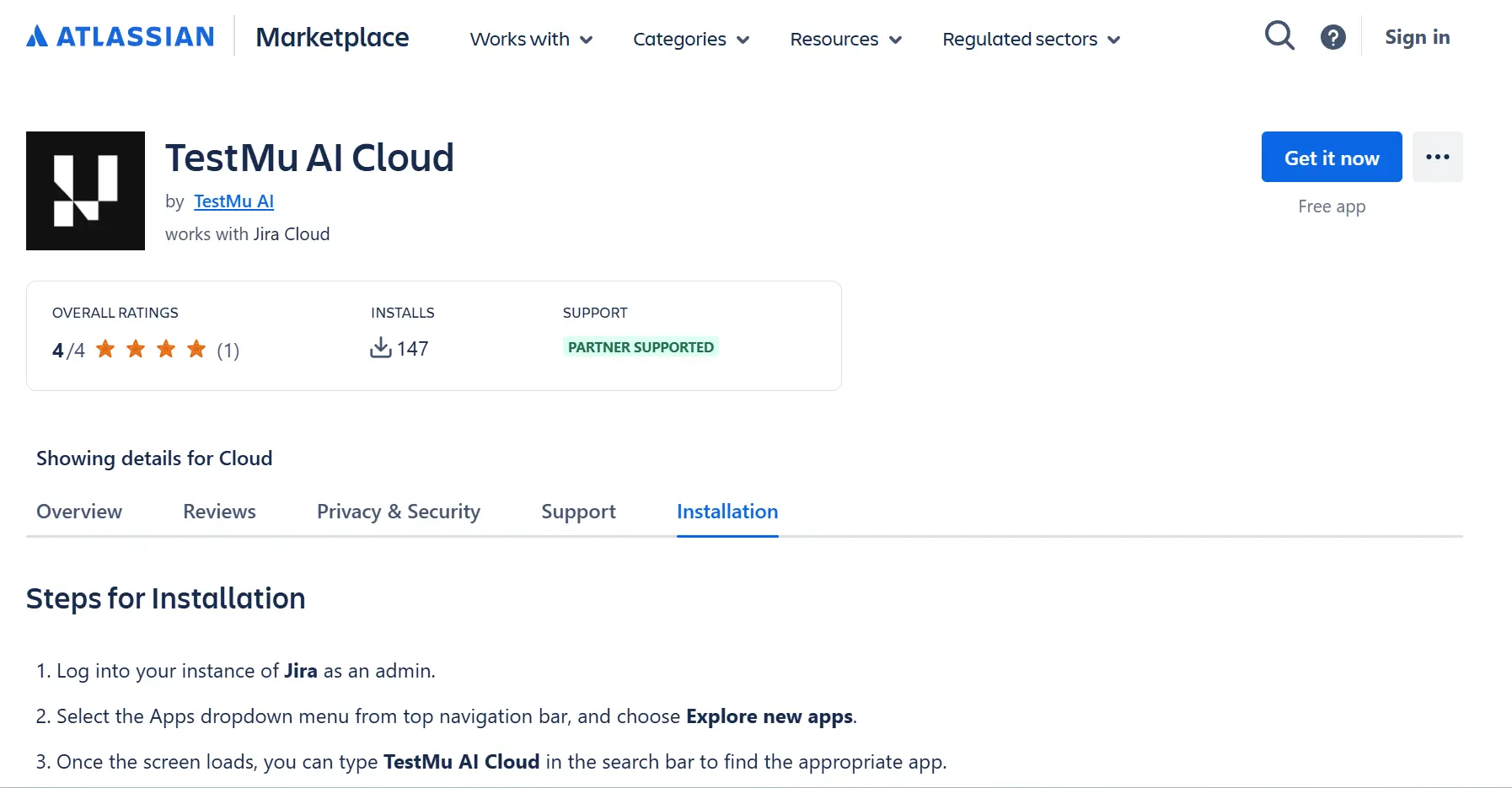
- You can install the TestMu AI Jira App from the Atlassian Marketplace to view linked test cases and test runs directly inside Jira issues.
Only Jira projects with the BUG work type enabled will appear in the project dropdown for bug logging. If a project is missing, add the BUG work type in your Jira project settings and resync the integration from the TestMu AI Integrations page.
Step 2: Create and Import Test Cases
TestMu AI Test Manager offers multiple ways to build your test repository:
- Manual authoring with hotkeys: Create structured test cases quickly using keyboard shortcuts, with steps, data, and expected results included.
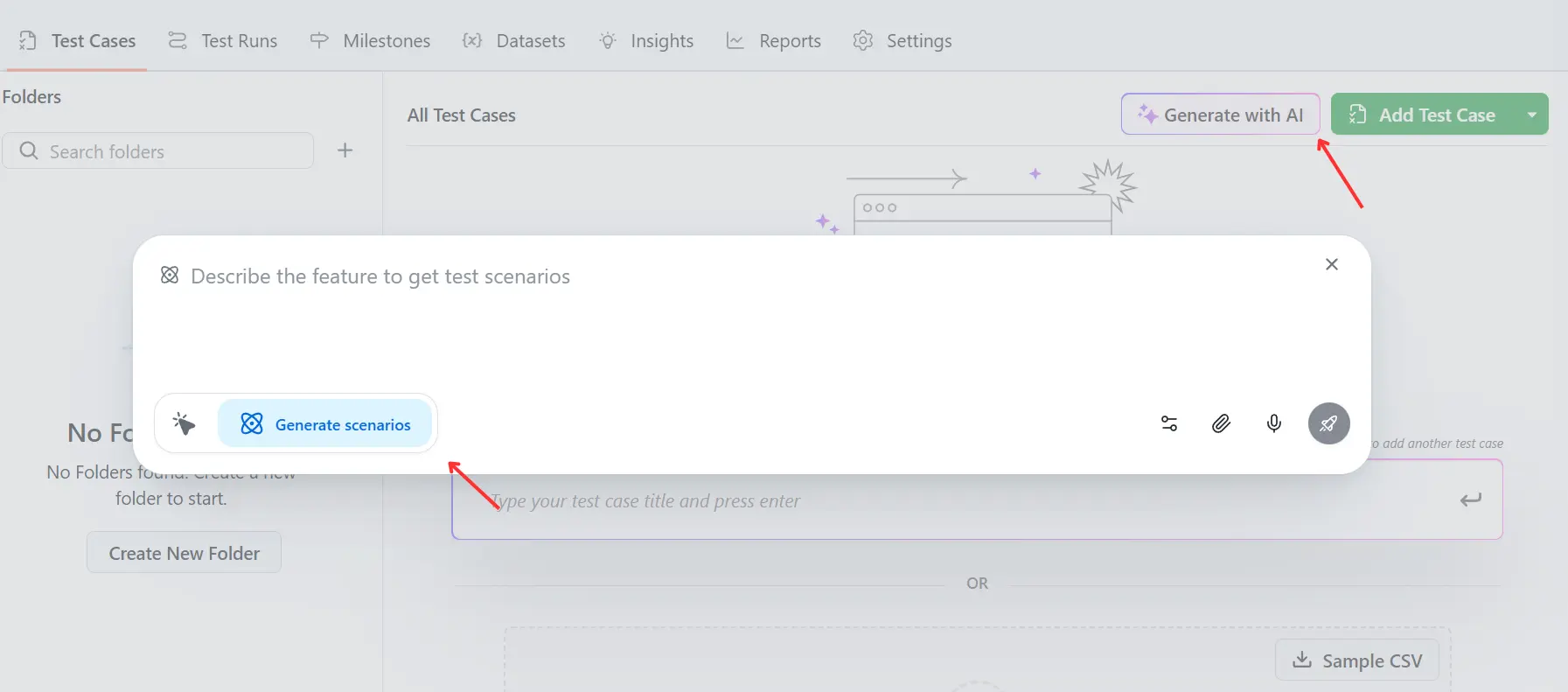
- AI-native test case generation: Describe scenarios in plain language and auto-generate structured test cases and plans from Jira user stories.
- Reusable modules: Share common test steps across cases to avoid duplication and keep updates consistent across test suites.
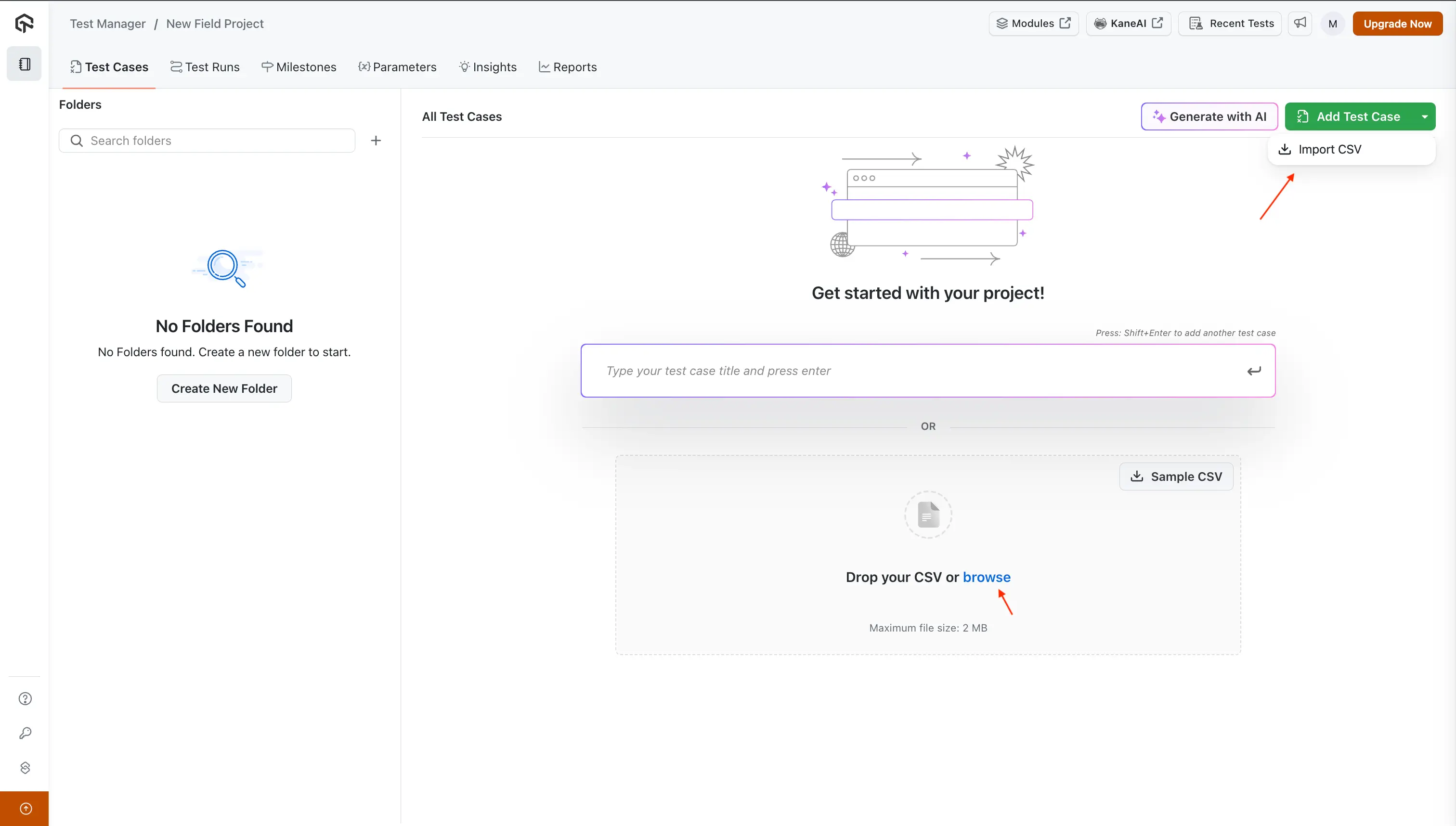
- CSV and API import with mapping: Import test cases from other tools with automated field mapping to reduce manual migration effort.
Step 3: Link Jira Issues with Test Cases
The two-way Jira integration is where TestMu AI Test Manager creates real value for teams working in Jira.
- Link tests to Jira requirements: Connect test cases to Jira stories or bugs with real-time two-way sync for full requirement traceability.
- Log bugs from test execution: Create Jira bugs in one click with environment details, screenshots, videos, and linked failing steps.
- View test status in Jira: See linked test cases and execution status directly in Jira issues and update results without leaving Jira.
Step 4: Build Test Plans and Execute Tests
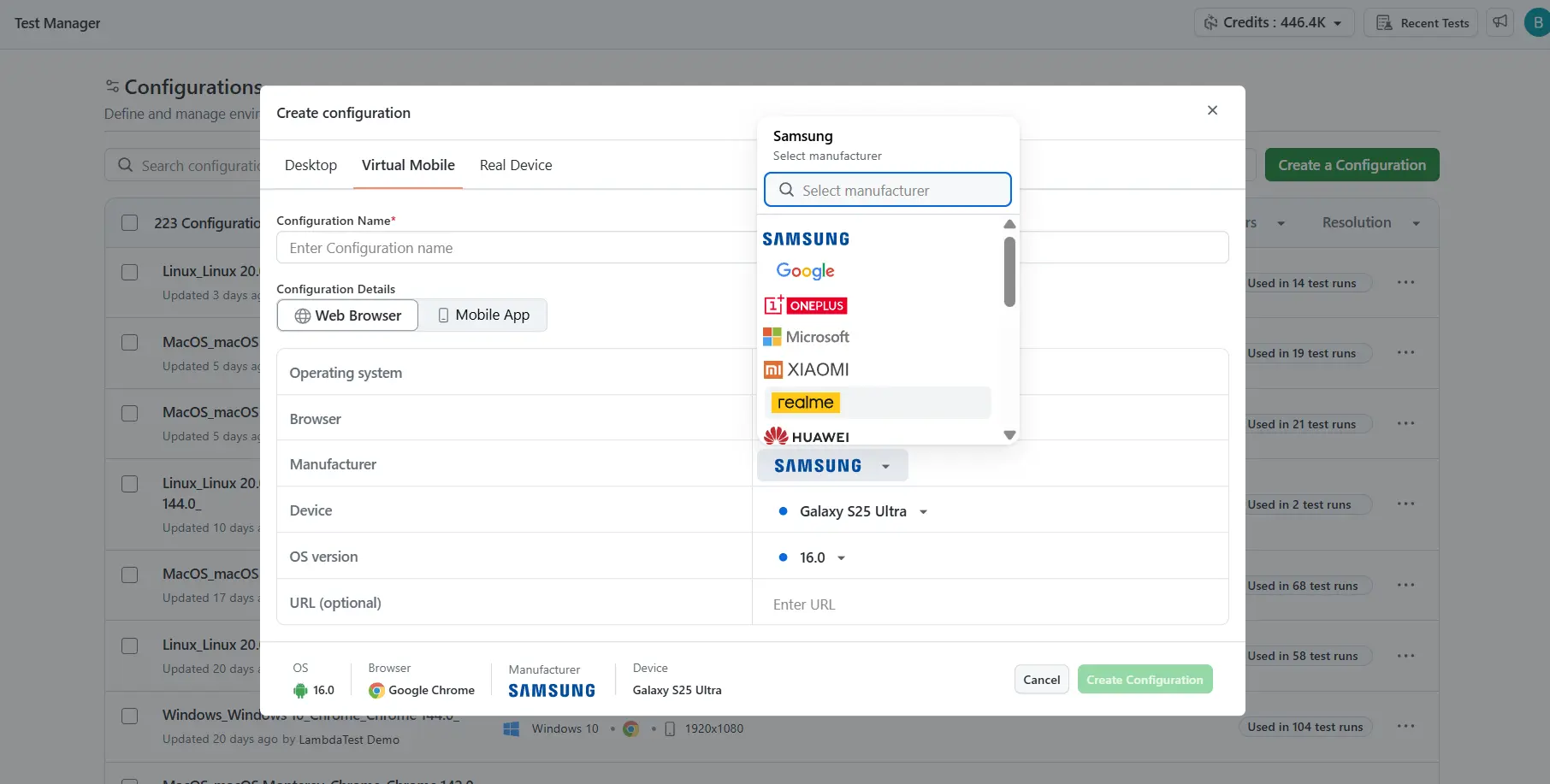
- Create multi-configuration test plans: Group test cases by sprint, feature, or release, assign owners, and set browser, OS, and device configurations.
- Execute tests with live monitoring: Run tests with step tracking, screenshots, videos, cloud execution on 10,000+ devices, and one-click Jira bug logging.
Step 5: Track Results and Report from Jira
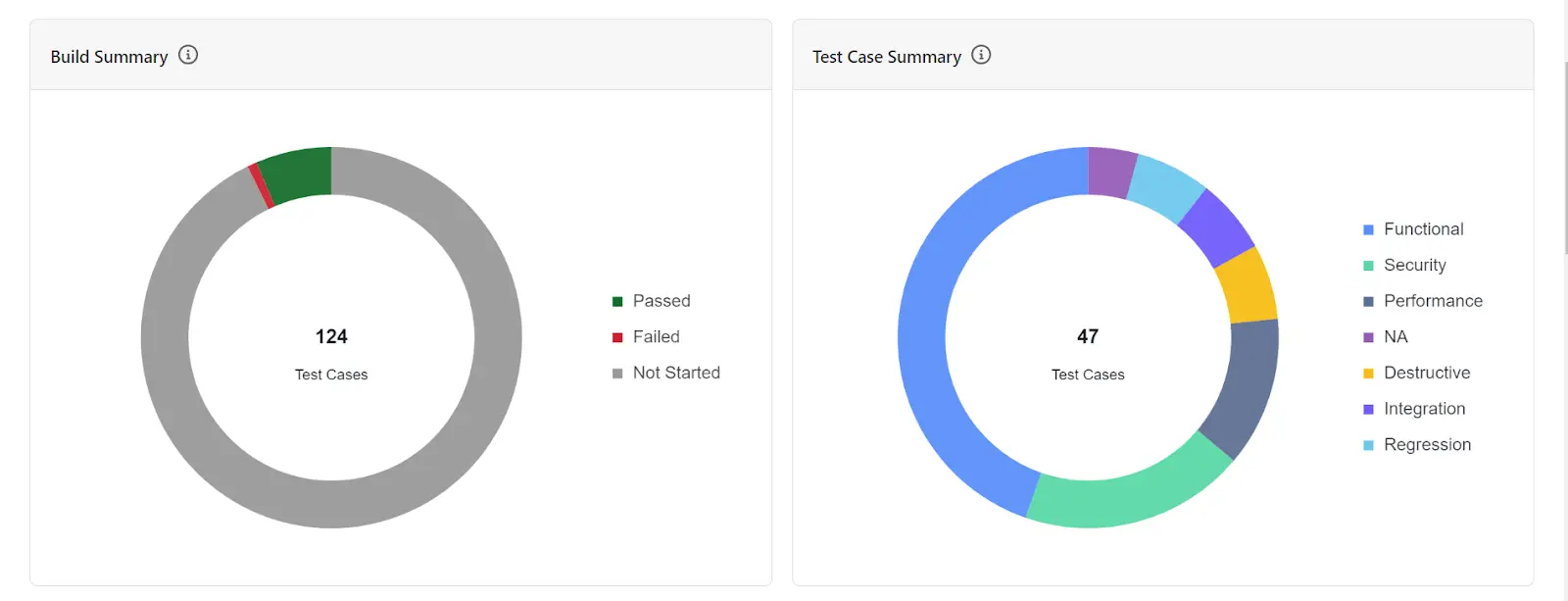
- Real-time Jira dashboards: View execution progress, pass/fail rates, defect trends, and coverage metrics directly inside Jira.
- Build history and trend analysis: Track results across builds to spot flaky tests, regressions, and recurring failures with full evidence.
- End-to-end traceability reports: Map requirements to tests, executions, and defects with filters for project, sprint, or component.
Integrating Jira Test Management with CI/CD Pipelines
CI/CD integration is what transforms Jira test case management from a documentation tool into a real-time quality feedback system. Here's how the integration typically works:
- Run automated tests on every commit or pull request using Jenkins, GitHub Actions, GitLab CI, or Azure DevOps.
- Push test results to Jira via REST APIs or automatic sync from cloud testing platforms.
- Link automated tests to Jira test cases so each CI run updates execution status automatically.
- Set quality gates to fail builds if pass rates drop below defined thresholds.
- Auto-create Jira defects when tests fail, with logs, screenshots, and commit context attached.
This integration ensures that test results are never more than one commit behind development, providing the rapid feedback loop that continuous delivery demands.
Best Practices for Test Management in Jira
Effective test management in Jira requires structure, traceability, and automation. Following these best practices helps teams scale testing and maintain quality visibility.
- Separate QA projects: Use a dedicated Jira project for test cases and link them to development stories for clean boards and traceability.
- Standardize naming: Use consistent naming conventions to improve search, filtering, and reporting.
- Design reusable tests: Create modular test cases and shared preconditions to reduce duplication.
- Maintain traceability: Link tests to requirements, executions to releases, and defects to test cases.
- Automate dashboards: Use Jira dashboards to track progress, coverage, and defect trends in real time.
- Review regularly: Remove outdated tests, update changed flows, and fill coverage gaps quarterly.
- Use test workflows: Define clear test lifecycle states with review gates before execution.
Common Challenges and How to Solve Them
Jira test management can face scalability, traceability, and adoption issues. These fixes help teams keep testing efficient and consistent.
- Jira performance issues: Use a separate QA project, archive old cycles, and rely on the test tool’s optimized repository.
- Broken traceability: Review links each sprint and run coverage reports to find missing or outdated test links.
- Fragmented test metrics: Use a tool that combines manual and automated results in one dashboard.
- Low team adoption: Start with a pilot, show quick wins, and provide simple workflow-focused training.
- Scaling across teams: Use cross-project sharing and standard templates for naming, workflows, and test cases.
Conclusion
Jira test management bridges the gap between development tracking and quality assurance, enabling teams to plan, execute, and report on testing without leaving the platform they already use daily.
For teams evaluating options, focus on three factors: integration depth, automation support, and scalability. Choose tools with strong Jira integration, CI/CD result syncing, and scalable test repositories with advanced search and reporting.
Regardless of which tool you choose, the fundamentals remain the same: link every test to a requirement, organize tests into reusable plans and cycles, integrate with your CI/CD pipeline for continuous feedback, and use dashboards to keep stakeholders informed.


Frequently asked questions
Did you find this page helpful?
More Related Hubs
TestMu AI forEnterprise
Get access to solutions built on Enterprise
grade security, privacy, & compliance
- Advanced access controls
- Advanced data retention rules
- Advanced Local Testing
- Premium Support options
- Early access to beta features
- Private Slack Channel
- Unlimited Manual Accessibility DevTools Tests