

Next-Gen App & Browser Testing Cloud
Trusted by 2 Mn+ QAs & Devs to accelerate their release cycles


On This Page
- What is an HTML Page Source?
- What is an HTML Web Element?
- How to Get HTML Page Source in Selenium WebDriver Using Python?
- How to Get HTML Source of WebElement in Selenium WebDriver Using Python?
- How to Retrieve JSON Data From an HTML Page in Selenium WebDriver Using Python?
- Retrieving The Earlier JSON Data From an HTML Page Source Using Selenium Cloud Grid
- Conclusion

How To Get HTML Source Of A Web Element In Selenium Using Python?
Learn to retrieve HTML source of a web element using Selenium WebDriver in Python

Aman Chopra
February 19, 2026
Retrieving the page source of a website under scrutiny is a day-to-day task for most test automation engineers. Analysis of the page source helps eliminate bugs identified during regular website UI testing, functional testing, or security testing drills. In an extensively complex application testing process, automation test scripts can be written so that if errors are detected in the program, then it automatically.
- saves that particular page’s source code.
- notifies the person responsible for the URL of the page.
- extracts the HTML source of a specific element or code-block and delegates it to responsible authorities if the error has occurred in one particular independent HTML WebElement or code block.
This is an easy way to trace, and fix logical and syntactical errors in the front-end code. In this article, we first understand the terminologies and then explore how to get the page source in Selenium WebDriver using Python.
If you’re looking to improve your Selenium interview skills, check out our curated list of Selenium interview questions and answers.
Overview
What Is an HTML Page Source?
HTML Page Source is the complete HTML code of a webpage, defining its structure and content. It’s essential for testing and debugging.
What Is an HTML Web Element?
HTML Web Elements are tags, code blocks, media, or scripts with unique IDs, names, or classes. They can be extracted using XPath or CSS Selectors.
How to Get HTML Page Source in Selenium Using Python?
- driver.page_source: Fetch full page HTML.
- driver.execute_script: Run JavaScript to get HTML.
- XPath: Locate elements and extract outer HTML.
How Does KaneAI Enhance HTML Source Testing?
KaneAI integrates with Selenium to detect element issues, give real-time suggestions, and optimize testing and debugging.
What is an HTML Page Source?
An HTML (Hypertext Markup Language) Page Source refers to the complete set of HTML code that constitutes a web page.
HTML source code of a webpage can be accessed by right-clicking on the page within most web browsers and choosing the option “View Page Source”. This allows users to inspect the underlying code that defines the structure and content of the webpage. Most importantly, testing HTML code in a cross browser testing environment becomes vital for testers and developers.
It is worth noting that the HTML <source> tag is not the same as the HTML page source.
What is an HTML Web Element?
An HTML Web Element is any HTML tag that constitutes the HTML page source code. It can be an HTML code block, an independent HTML tag like </br>, a media object on the web page – image, audio, video, a JS function, or even a JSON object wrapped within <script> </script> tags. These HTML web elements may have unique identifiers like IDs, names, or unique classes.
These elements can be extracted for testing using mechanisms like XPath in Selenium or CSS Selectors.
How to Get HTML Page Source in Selenium WebDriver Using Python?
Selenium WebDriver is a set of open-source APIs used to automate web application testing. It enables developers and testers to interact programmatically with various web elements to mimic user interaction and perform actions like clicking buttons, filling out forms, and navigating web pages.
Selenium WebDriver’s Python bindings offer three ways to retrieve the HTML source code of the web page. To download the Selenium Python bindings:
- You may visit the official downloads page of Selenium
- As an alternative, the Selenium package can be installed using pip. The pip is included in the standard library of Python 3.6. Use pip to install Selenium using the syntax as follows:
pip install selenium
While you can retrieve the HTML source of specific web elements using Selenium WebDriver, using KaneAI by TestMu AI enhances this process.
KaneAI assists in identifying element-specific issues, such as incorrect locators or timing issues, and provides actionable insights for improving test accuracy across different browsers.
This GenAI native test agent works seamlessly with Selenium, supporting Python, and helps in optimizing test cases with real-time suggestions, making debugging and execution smoother.

Let’s explore examples illustrating the three methods to get an HTML page source in Selenium WebDriver with Python.
Selenium Get HTML Page Source using driver.page_source
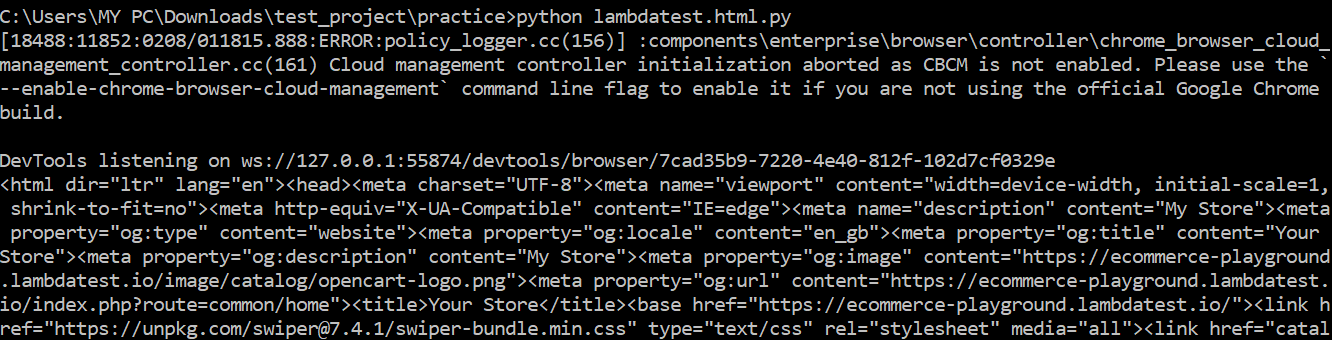
Selenium Python WebDriver provides an attribute, `page_source`, which allows us to retrieve the HTML page source code of a web page. Let’s see an example of fetching the page source of the TestMu AI E-commerce Website. This is a dummy website for automation testing, allowing us to practice and perform automation testing techniques. We use the `page_source` attribute to fetch the html page source code and save its content to a file named “page_source.html.” This filename could be anything of your choice. Next, we read the file’s content and print it on the terminal before closing the driver.
Code:
test.py
from selenium import webdriver

# Create a new Chrome WebDriver instance
driver = webdriver.Chrome()
driver.maximize_window()

# Navigate to a website
driver.get("https://ecommerce-playground.lambdatest.io/")

# Get the html page source of the current page
page_source = driver.page_source

# Print the page source
print(page_source)

fileToWrite = open("page_source.html", "w")
fileToWrite.write(page_source)
fileToWrite.close()

# Close the browser window
driver.quit()
Output Screen:
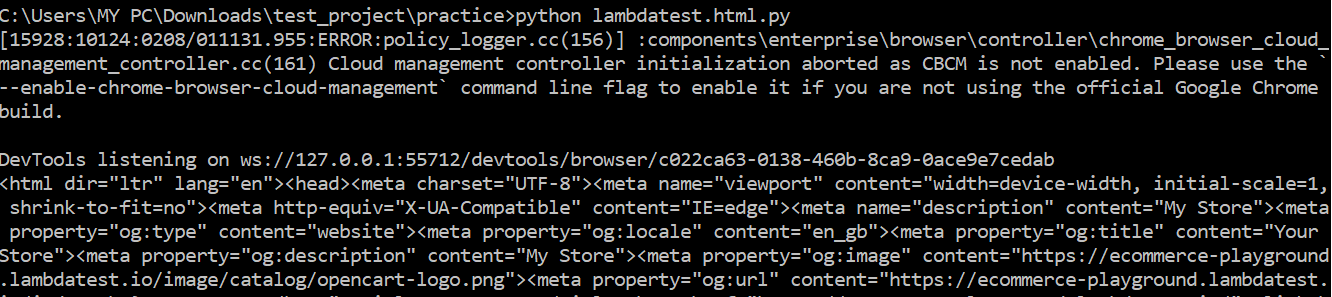
Code Walkthrough:
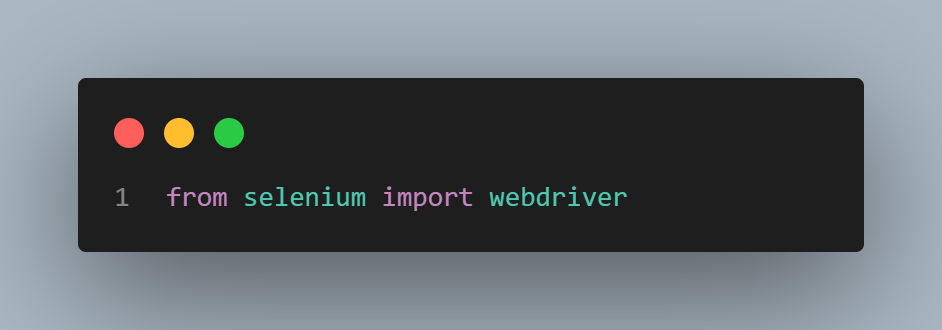
We will import the webdriver library to get the HTML page source.
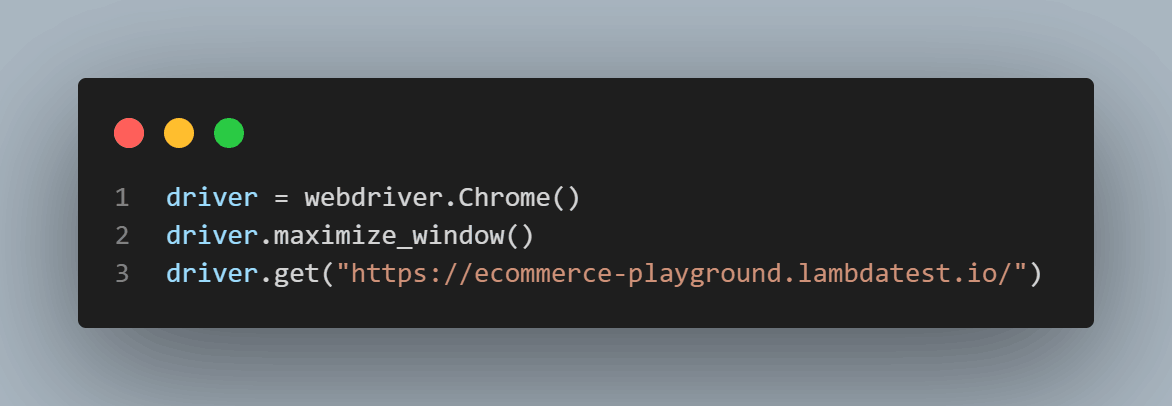
We will create a new instance of the Chrome WebDriver and maximize the browser window to ensure the entire webpage is visible. The driver then opens the specified URL.
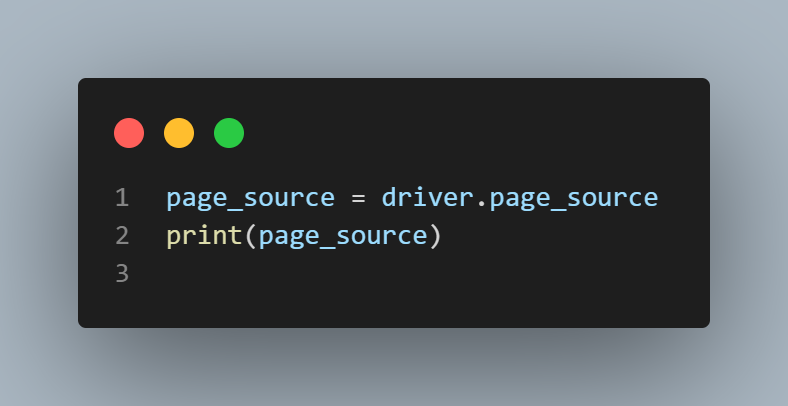
We will retrieve the HTML source code of the current webpage using driver.page_source and store it in the variable page_source. Then, we will print the page_source.
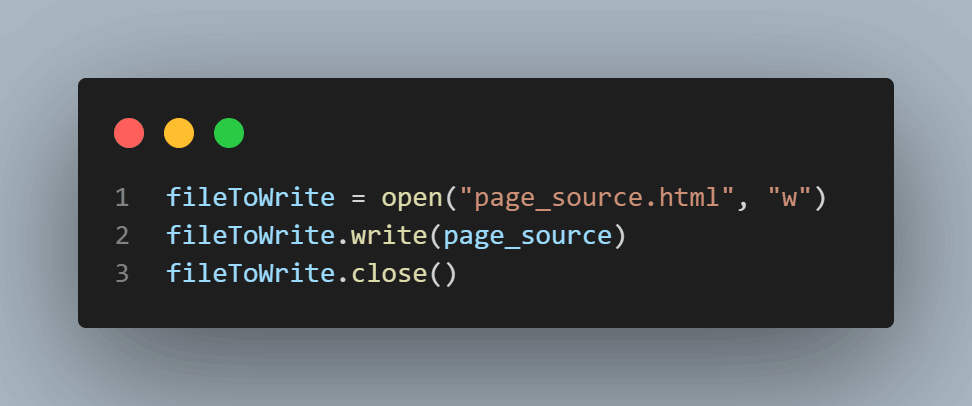
We will create a new file named “page_source.html” and write the webpage’s HTML source code into it, then close the file.
We will close the Chrome browser window and end the WebDriver session.
Selenium Get HTML Page Source using driver.execute_script
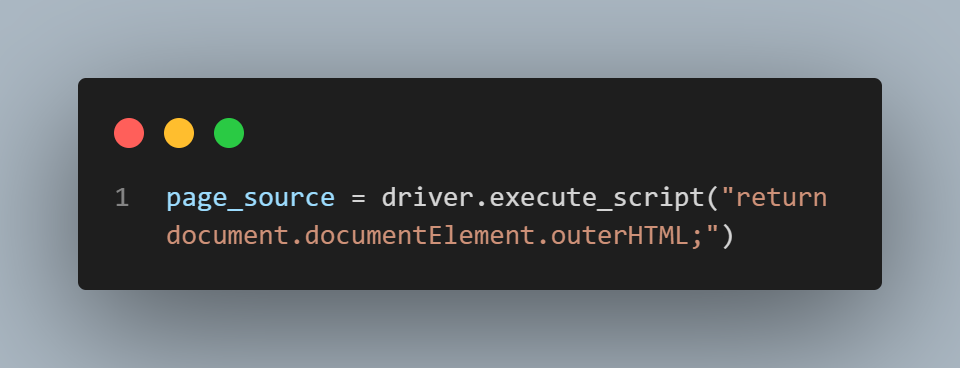
The execute_script method in Selenium Python WebDriver executes JavaScript in the current browser window or frame to get the HTML page source code of the web page. Here, we will execute a JavaScript that returns an HTML body element.
Code:
test.py
from selenium import webdriver

# Create a new Chrome WebDriver instance
driver = webdriver.Chrome()
driver.maximize_window()

# Navigate to a website
driver.get("https://ecommerce-playground.lambdatest.io/")

# Get the html page source of the current page
page_source = driver.execute_script("return document.documentElement.outerHTML;")

# Print the page source
print(page_source)

fileToWrite = open("page_source.html", "w")
fileToWrite.write(page_source)
fileToWrite.close()
# Close the browser window
driver.quit()
Output Screen:
Code Walkthrough:
We will use Selenium’s execute_script method to run JavaScript code that fetches the HTML content of the current page and assigns it to the variable page_source.
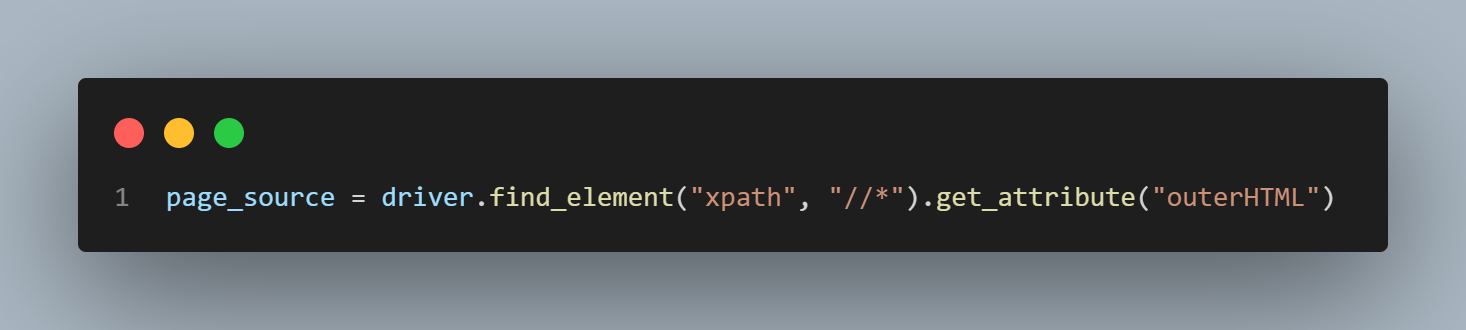
Selenium Get HTML Page Source Using XPath
The XPath in Selenium Python WebDriver extracts the HTML page source by identifying the source element i.e. <html>. Let’s see the example of extracting the HTML page source code by identifying the source element using XPath.
Code:
test.py
from selenium import webdriver

# Create a new Chrome WebDriver instance
driver = webdriver.Chrome()
driver.maximize_window()

# Navigate to a website
driver.get("https://ecommerce-playground.lambdatest.io/")

# Get the html page source of the current page
page_source = driver.find_element("xpath", "//*").get_attribute("outerHTML")

# Print the page source
print(page_source)

fileToWrite = open("page_source.html", "w")
fileToWrite.write(page_source)
fileToWrite.close()

# Close the browser window
driver.quit()
Output Screen:
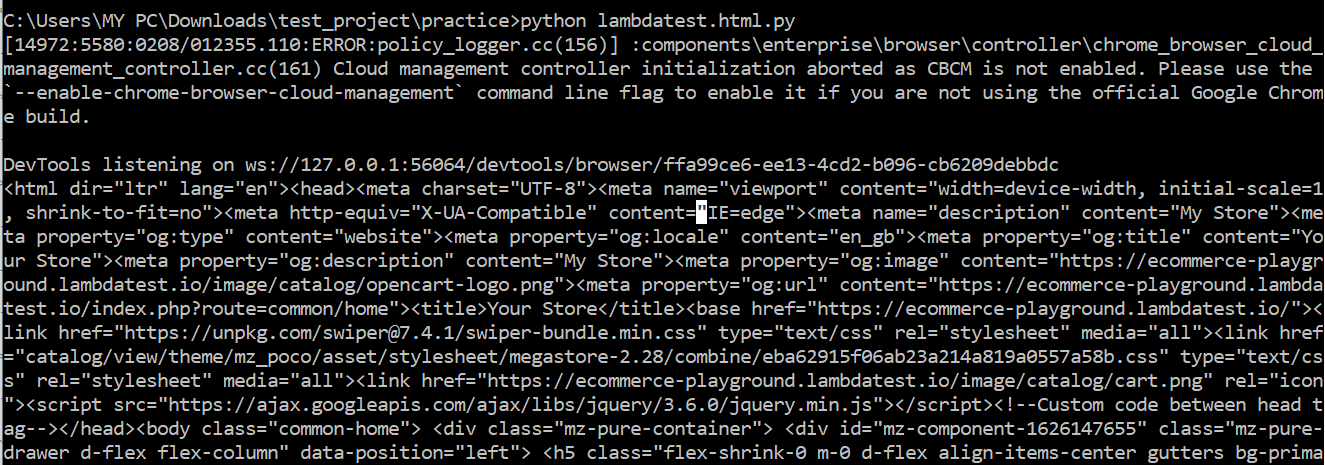
Code Walkthrough:
We will locate the first HTML element on the page using the XPath “//*” i.e. <html>, then extract the outer HTML content of the found element (which in our case entire html page source code).
How to Get HTML Source of WebElement in Selenium WebDriver Using Python?
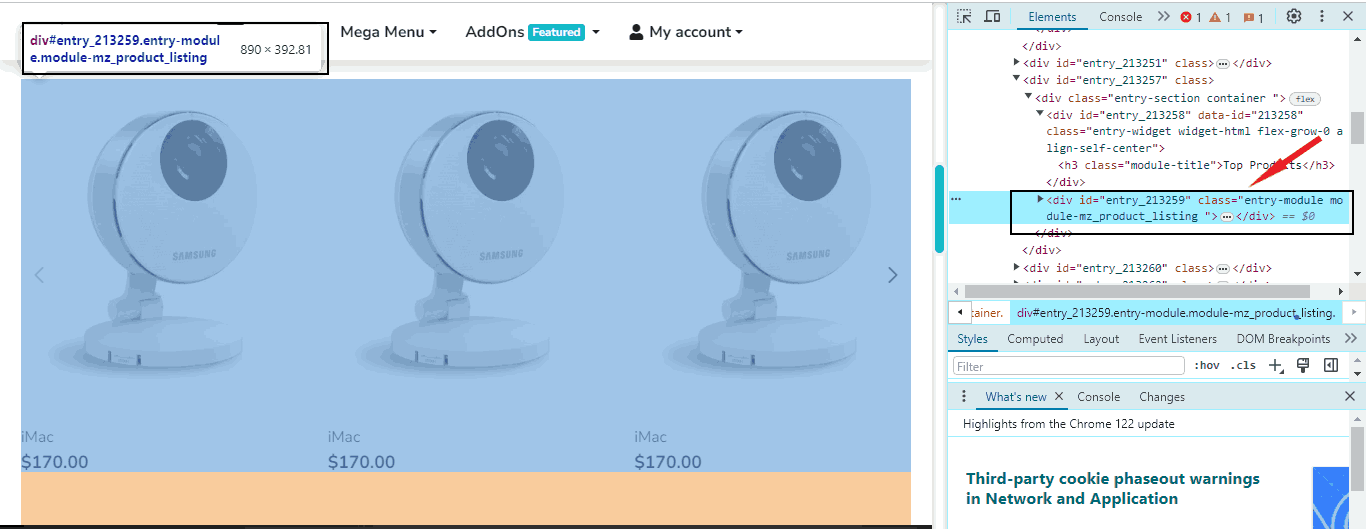
The get_attribute method in Selenium Python WebDriver is used to get the HTML source of the Web Element. Let’s understand by example in which we will grab and print the source code of the div containing the categories of products with id “entry_213259” as shown below in the given image.
Code:
test.py
from selenium import webdriver

driver = webdriver.Chrome()
driver.maximize_window()
driver.get("https://ecommerce-playground.lambdatest.io")
element_Source = driver.find_element("id","entry_213259").get_attribute("outerHTML")
print(element_Source)
driver.quit()
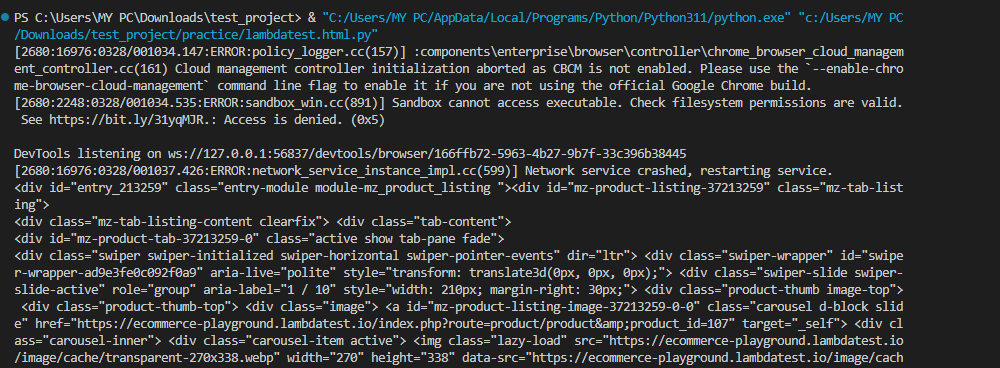
Output Screen:
Code Walkthrough:
We will use Selenium’s find_element method to locate an HTML element by its ID. This line extracts the outer HTML content of the found element (in our case, the element with ID “entry_213250”) and assigns it to the variable element_Source.

Note: We can use various locators, such as id, name, XPath, and CSS Selector, to find the element depending on requirements.
How to Retrieve JSON Data From an HTML Page in Selenium WebDriver Using Python?
Modern applications often rely on multiple APIs, with dynamic content updates using JSON objects instead of XML responses. As a proficient Selenium Python tester, it’s essential to handle JSON objects, particularly those embedded within `<script>` HTML tags. Python offers a built-in JSON library for effective experimentation with JSON objects. Let’s see an example of fetching the JSON data from an HTML Page Source.
Code:
test.py
from selenium import webdriver
import json

# Initialize Selenium WebDriver (you need to specify the path to your webdriver executable)
driver = webdriver.Chrome
driver.maximize_window()
# Load the website
driver.get("https://ecommerce-playground.lambdatest.io")

# Extract the HTML source
html_source = driver.page_source

# Locate JSON data within the HTML source
start_index = html_source.find("window.PRODUCTS = ")
end_index = html_source.find("};", start_index) + 1

# Extract the JSON data
json_str = html_source[start_index + len("window.PRODUCTS = "):end_index]

# Parse the JSON data
json_data = json.loads(json_str)

# Now you can work with the JSON data
print(json_data)

# Close the WebDriver
driver.quit()
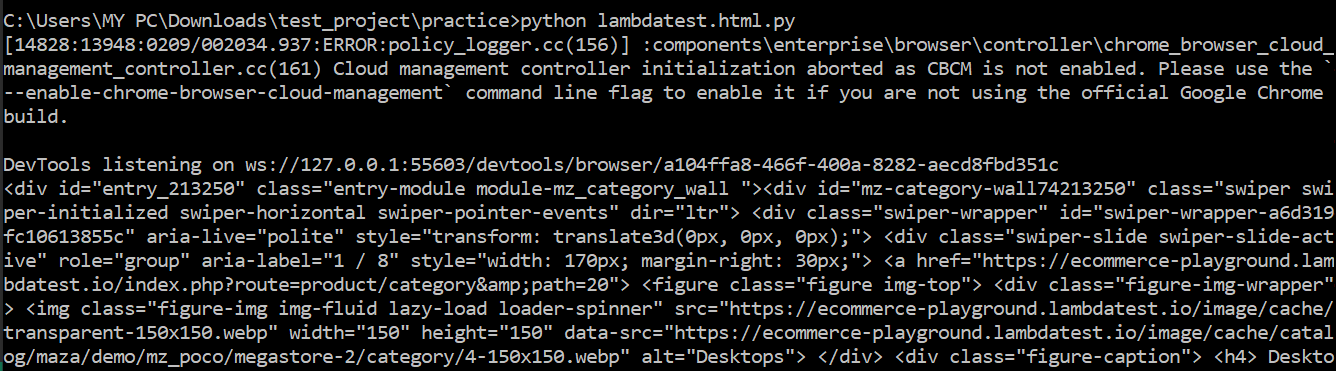
Output Screen:
Code Walkthrough:
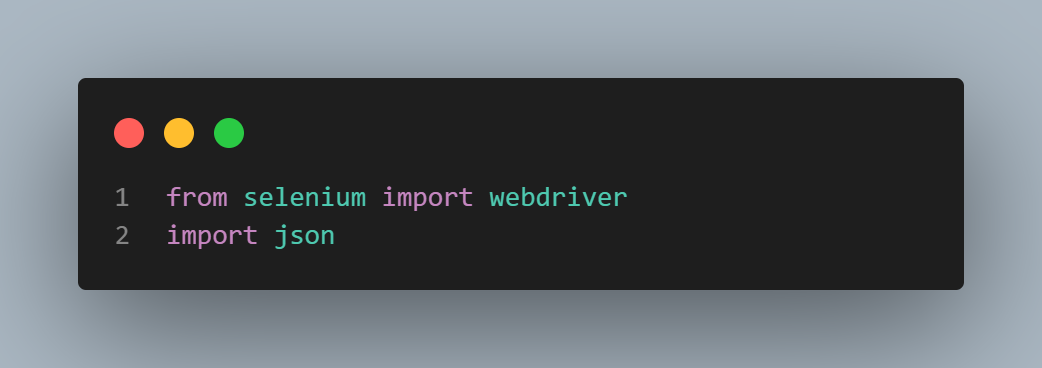
We will import all the libraries to get the JSON data from an HTML page source.
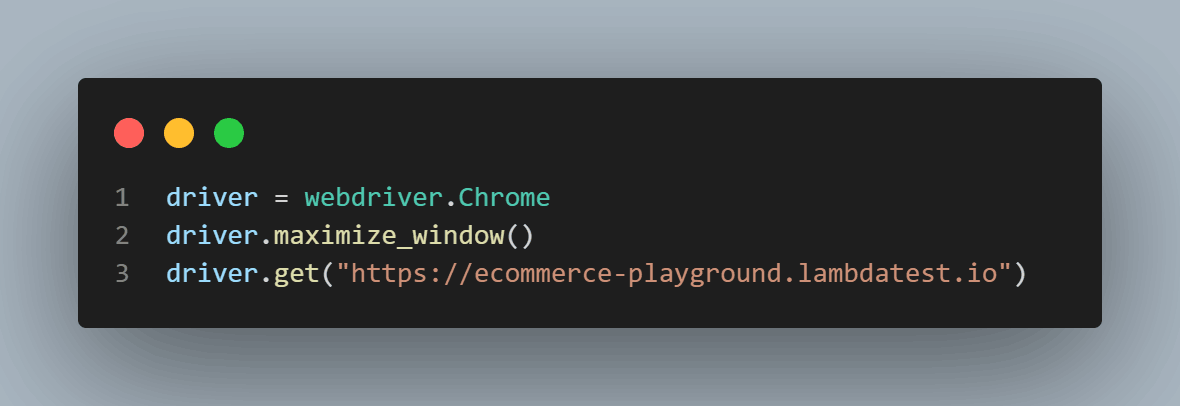
We will create a new instance of Chrome driver, launch the driver in full-screen mode, and load the TestMu AI E-commerce Website home page.
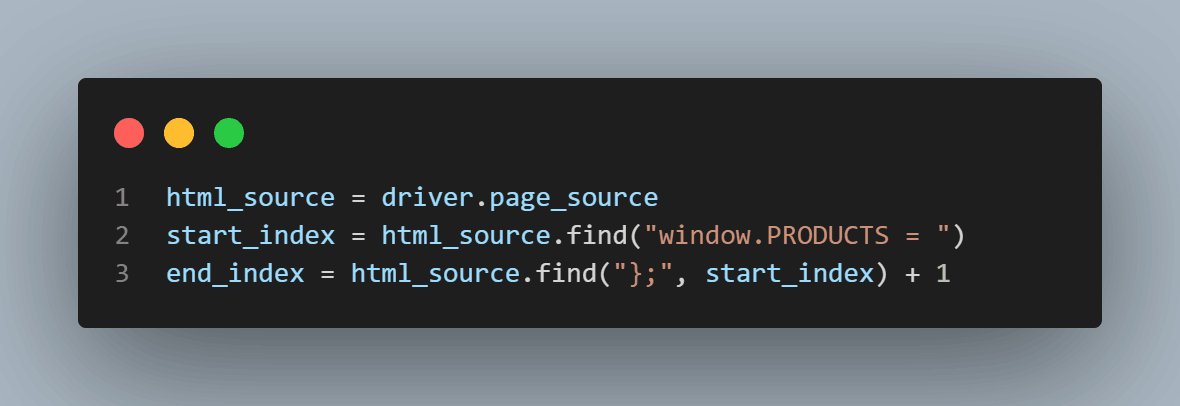
We will find the JSON objects in the HTML page source of the TestMu AI E-commerce Website.
Now, we will load and print the JSON data from the HTML page source.
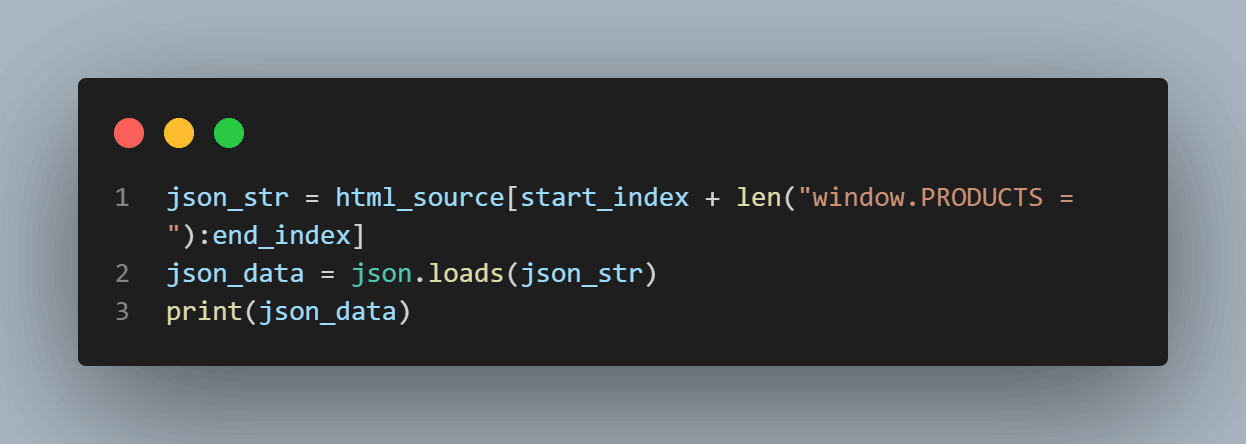
Lastly, we will quit the driver.
Retrieving The Earlier JSON Data From an HTML Page Source Using Selenium Cloud Grid
Cloud Selenium services automatically update their browser environments. Extracting HTML page source from up-to-date browsers ensures compatibility and helps identify issues related to the latest browser versions. We will maintain a hybrid testing approach, enabling seamless transitions between local and cloud-based environments, such as TestMu AI cloud platform.
TestMu AI is an AI-powered test orchestration and execution platform. TestMu AI’s scalable infrastructure make it a reliable and cost-effective solution for obtaining HTML source code with the latest compatibility and efficiency.
Follow these easy steps before running a Python test on TestMu AI:
- Create an account on TestMu AI.
- Navigate to your TestMu AI build directory.
- Select “Access Key” located at the top-right corner.
- Copy both your Username and Access Key from the displayed popup modal.
Code:
test.py
from selenium import webdriver
from selenium.webdriver.chrome.options import Options as ChromeOptions
import json

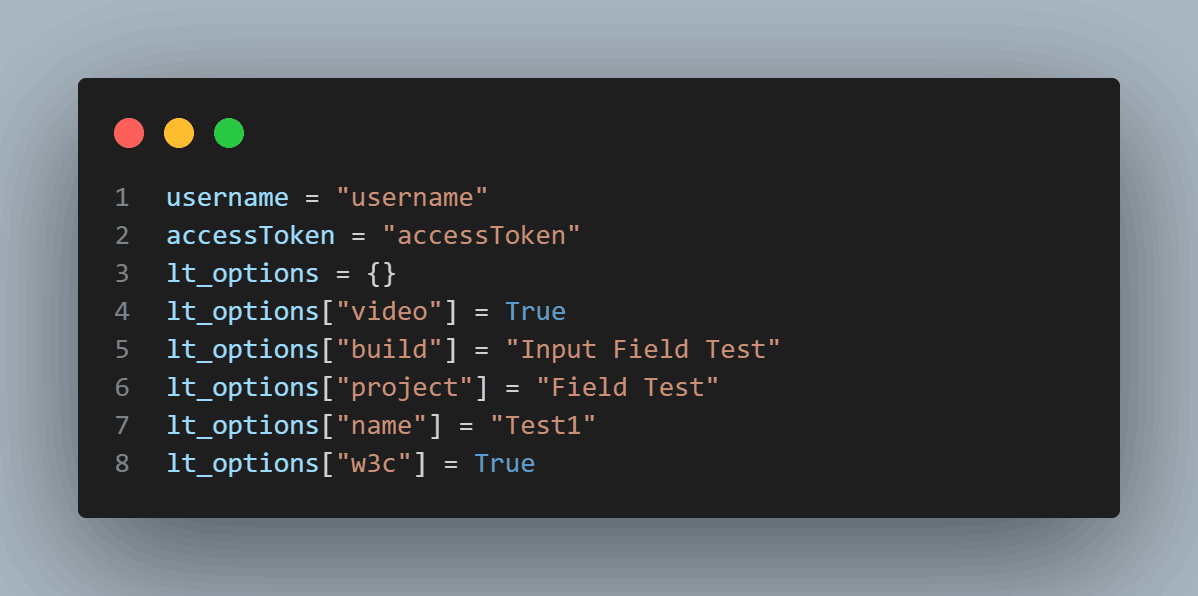
username = "username"
accessToken = "accessToken"

lt_options = {}
lt_options["video"] = True
lt_options["build"] = "Input Field Test"
lt_options["project"] = "Field Test"
lt_options["name"] = "Test1"
lt_options["w3c"] = True

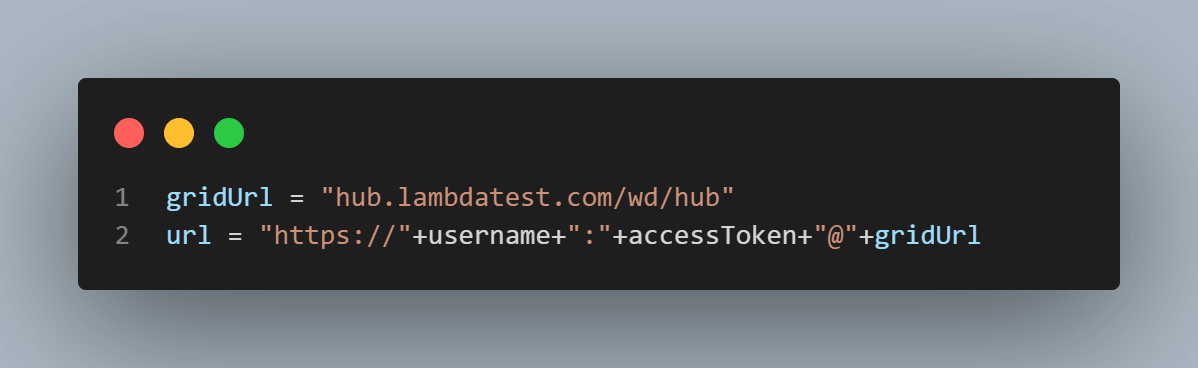
gridUrl = "hub.lambdatest.com/wd/hub"

url = "https://"+username+":"+accessToken+"@"+gridUrl

options = ChromeOptions()
options.set_capability('LT:Options', lt_options)

driver = webdriver.Remote(  command_executor= url, options=options)
driver.maximize_window()
driver.get("https://ecommerce-playground.lambdatest.io/")
html_source = driver.page_source

# Locate JSON data within the HTML source
start_index = html_source.find("window.PRODUCTS = ")
end_index = html_source.find("};", start_index) + 1

# Extract the JSON data
json_str = html_source[start_index + len("window.PRODUCTS = "):end_index]

# Parse the JSON data
json_data = json.loads(json_str)

# Now you can work with the JSON data
print(json_data)

# Close the WebDriver
driver.quit()
Output Screen:
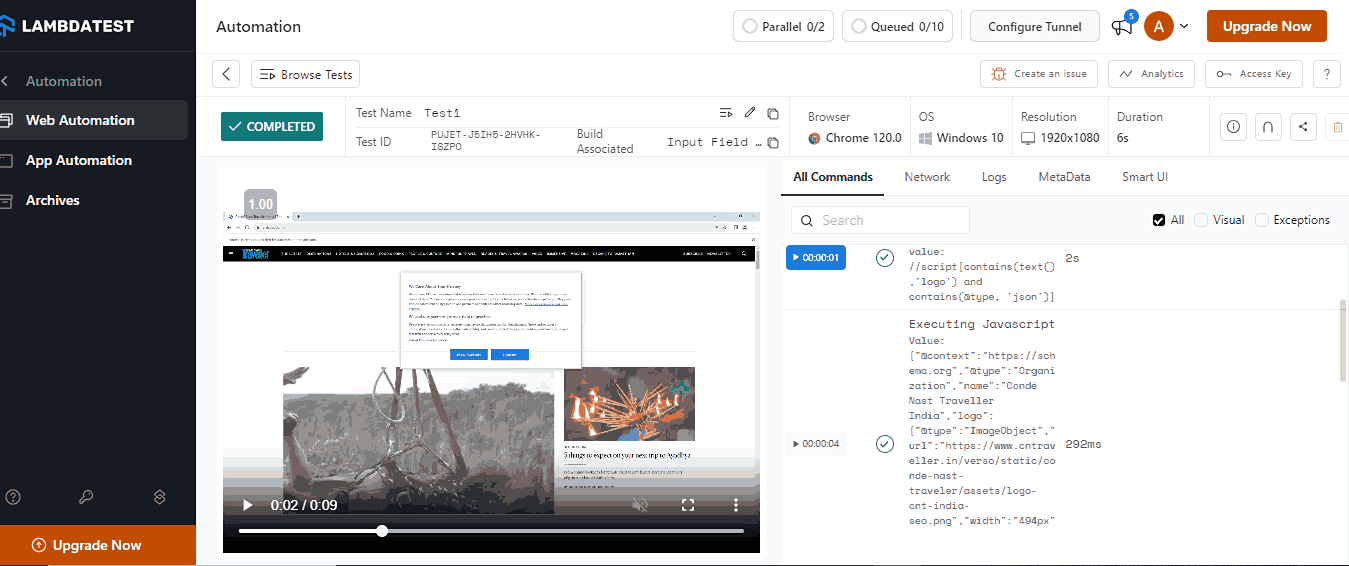
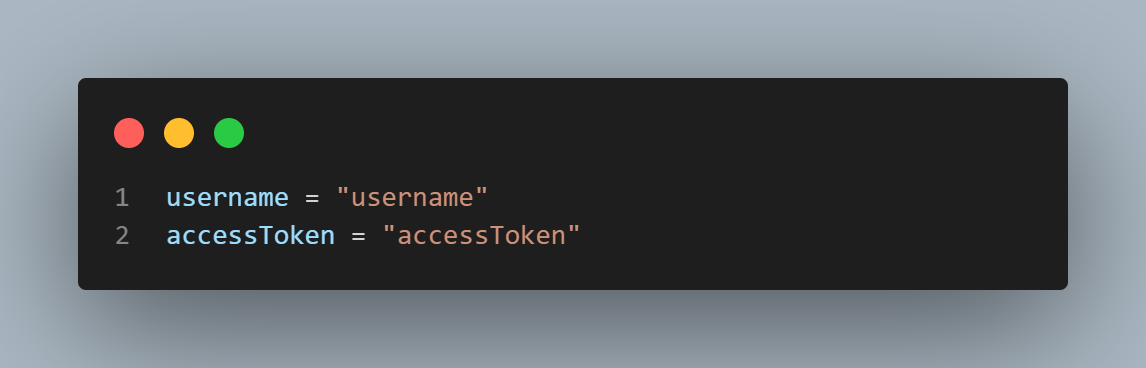
Code Walkthrough:
Add your credentials in this section to enable TestMu AI to execute tests using your account. Get the username and access key from the TestMu AI Dashboard, then copy and paste them into your code.
Access your desired capabilities that can be generated from the TestMu AI capabilities generator.
Provide the remote URL for running a test over the TestMu AI Selenium Cloud.
Conclusion
In conclusion, retrieving HTML page sources in Selenium using Python is essential for identifying and rectifying issues across various website testing scenarios. The ability to dissect and analyze the HTML page source provides testers with a powerful tool to enhance the reliability and resilience of web applications. This blog covered all the essential ways to extract the HTML page source and web element in Selenium using Python to enhance the quality and resilience of modern web systems.


Frequently asked questions
Did you find this page helpful?
More Related Hubs
TestMu AI forEnterprise
Get access to solutions built on Enterprise
grade security, privacy, & compliance
- Advanced access controls
- Advanced data retention rules
- Advanced Local Testing
- Premium Support options
- Early access to beta features
- Private Slack Channel
- Unlimited Manual Accessibility DevTools Tests