 Decode AI-Powered Quality Engineering from AI & QA Leaders,Register for Free!

Next-Gen App & Browser Testing Cloud
Trusted by 2 Mn+ QAs & Devs to accelerate their release cycles

How to Clear Cookies in Windows
Learn how to clear cookies in Windows across all major browsers like Chrome, Firefox, Edge, and more. Boost performance and protect privacy today.

Tahneet Kanwal
January 11, 2026
Cache helps websites load faster by storing temporary files, while cookies remember your preferences and login details. However, over time, these files can slow down your browser, display outdated pages, or raise privacy concerns.
Knowing how to clear cookies in Windows and regularly maintaining them helps improve browser performance, ensures you’re viewing the latest content, and keeps your personal information secure.
Steps to Clear Cookies in Windows on Chrome
Below are the steps to clear cookies in Windows on Chrome :
- Open Chrome and click on the three-dots menu in the upper-right corner. Then, select Settings.

- Scroll down to Privacy and security and click on Delete browsing data.
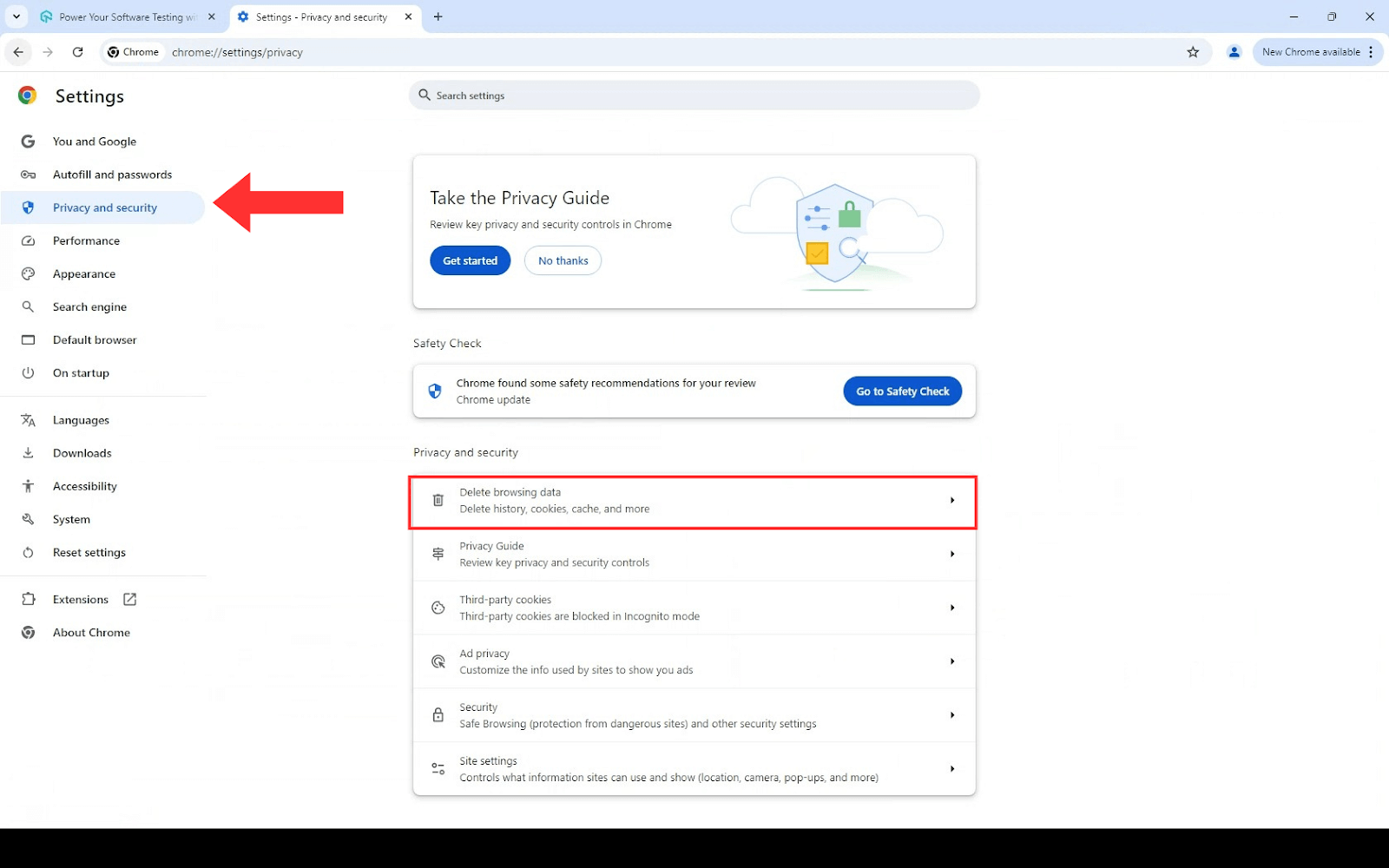
- Choose the desired time frame for clearing data. Make sure to check the box for Cookies and other site data, along with any other data you wish to remove.
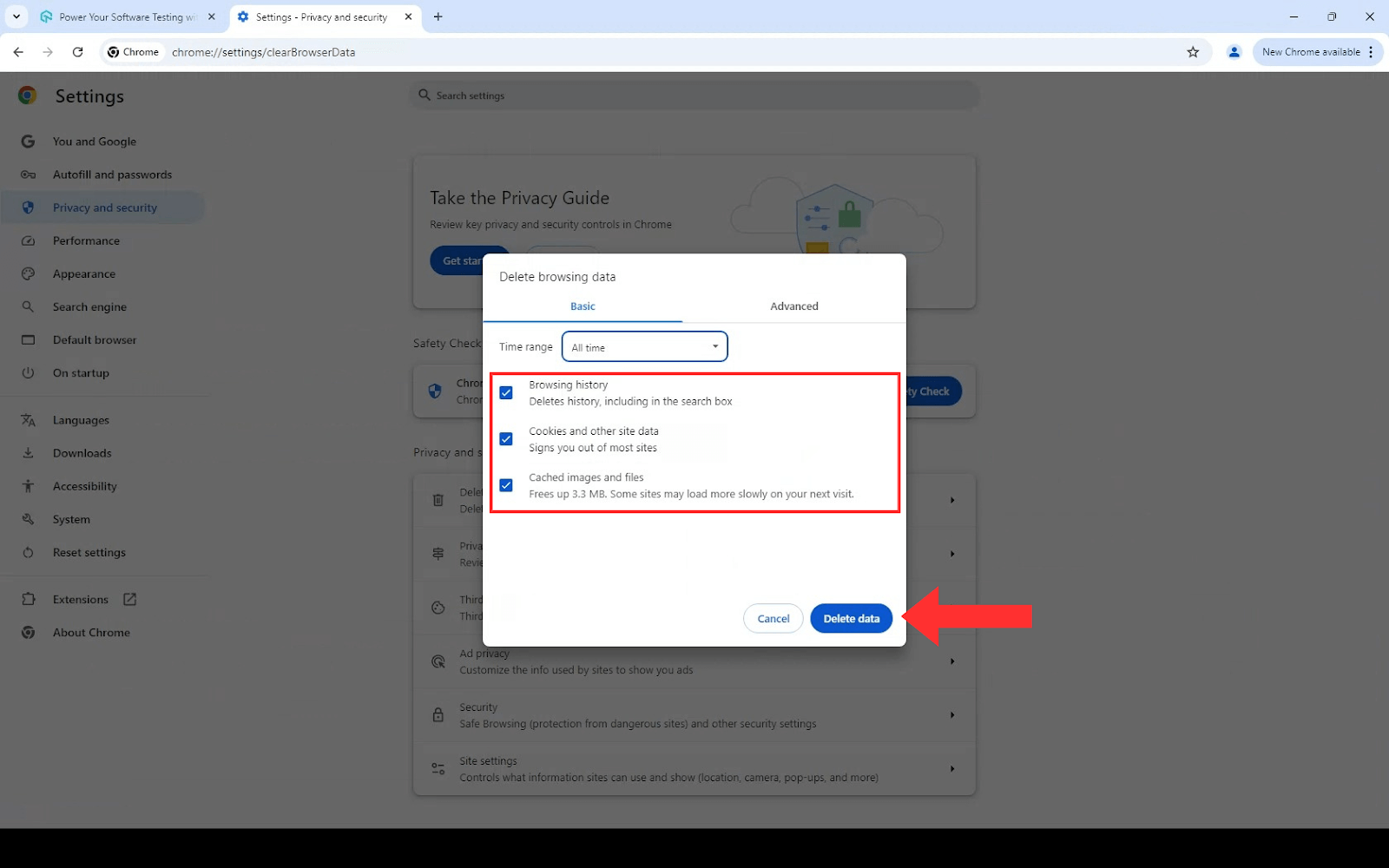
- Click Delete data to remove the selected items.
Steps to Clear Cookies in Windows on Firefox
Below are the steps to clear cookies in Windows on Firefox :
- Open Firefox, click on the Hamburger menu in the upper-right corner and select Settings from the drop-down menu.

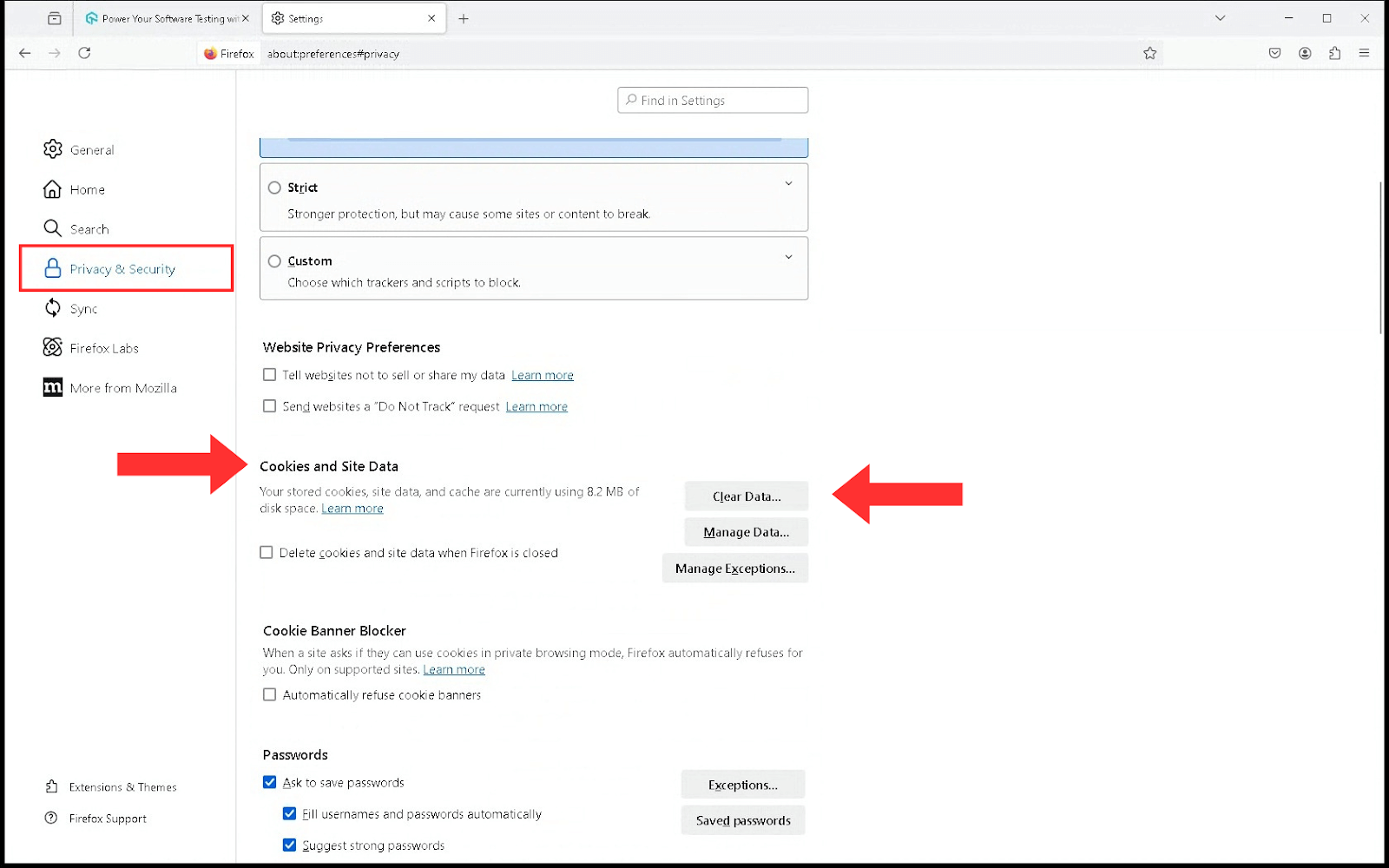
- Go to Privacy & Security on the left panel. Then, click on Cookies and Site Data and then click on the Clear Data button.
- Check the boxes for Cookies and Site Data, and Temporary cached files and pages.
- Use the drop-down to select the Time range to clear the menu to choose the desired timeframe.
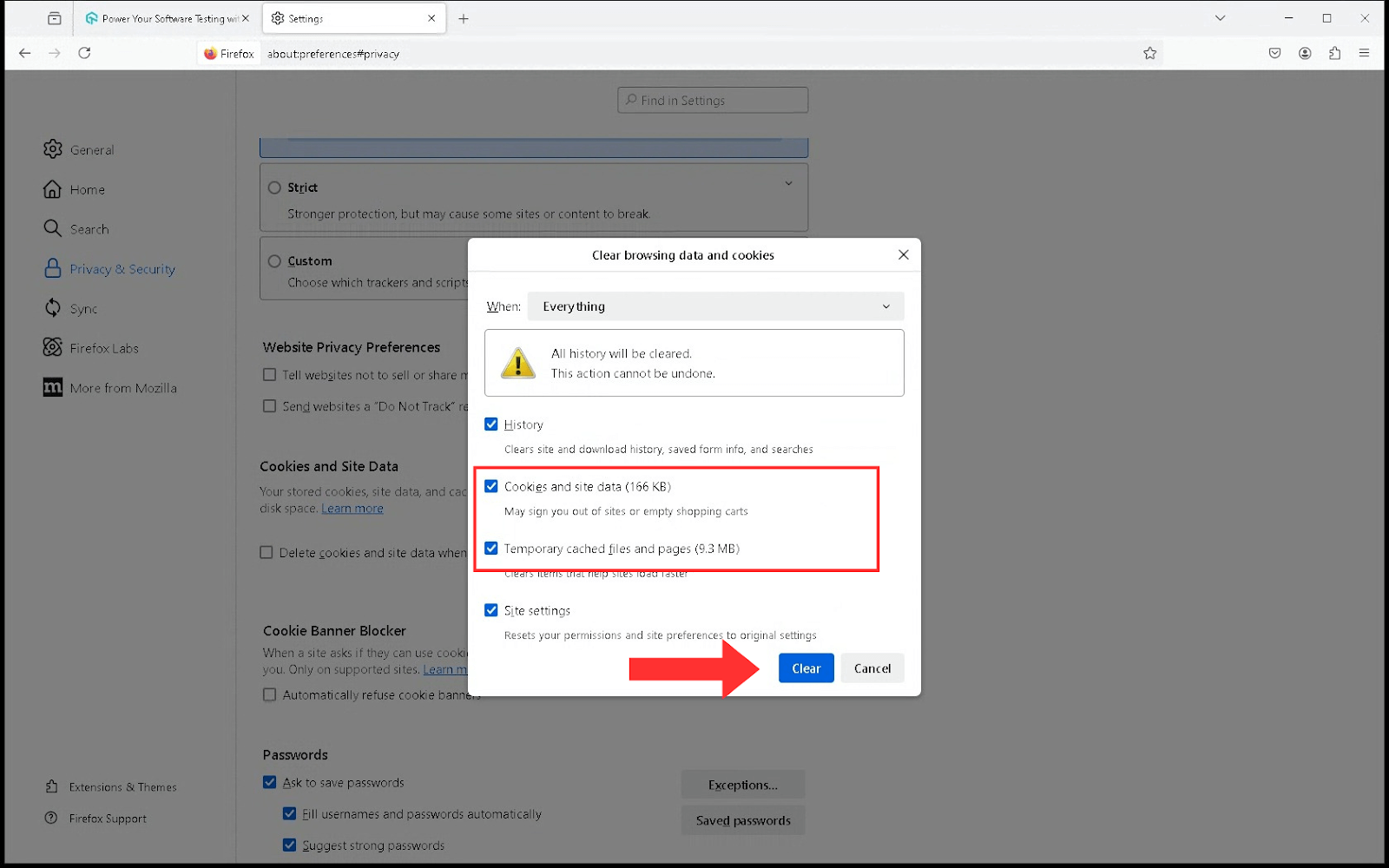
- Click the Clear button to delete the data.
Steps to Clear Cookies in Windows on Microsoft Edge
Below are the steps to clear cookies in Windows on Microsoft Edge:
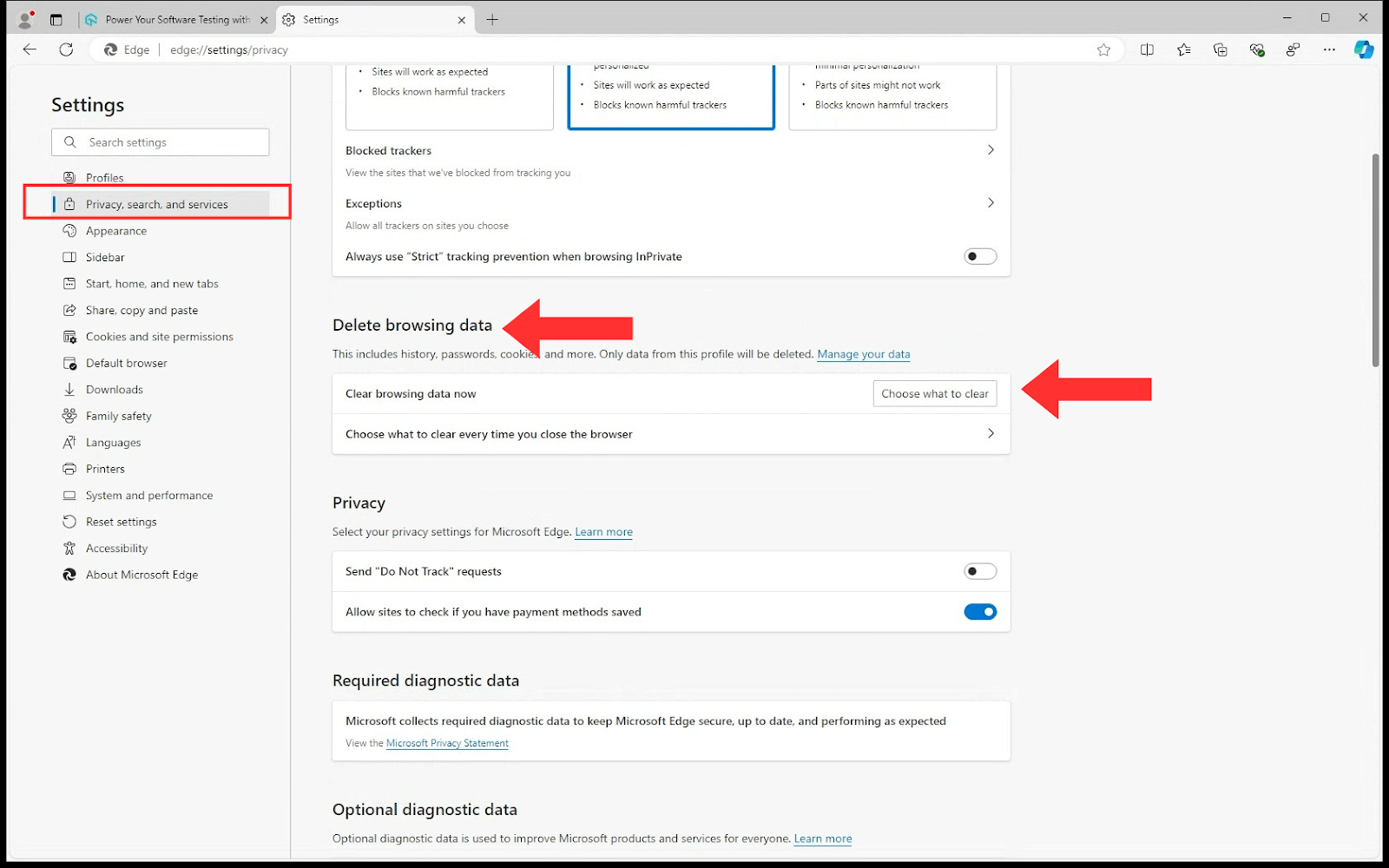
- Open Edge and click on the three dots in the upper-right corner.

- Select Settings and go to Privacy, search, and services.
- Under Delete browsing data, click on Choose what to clear.
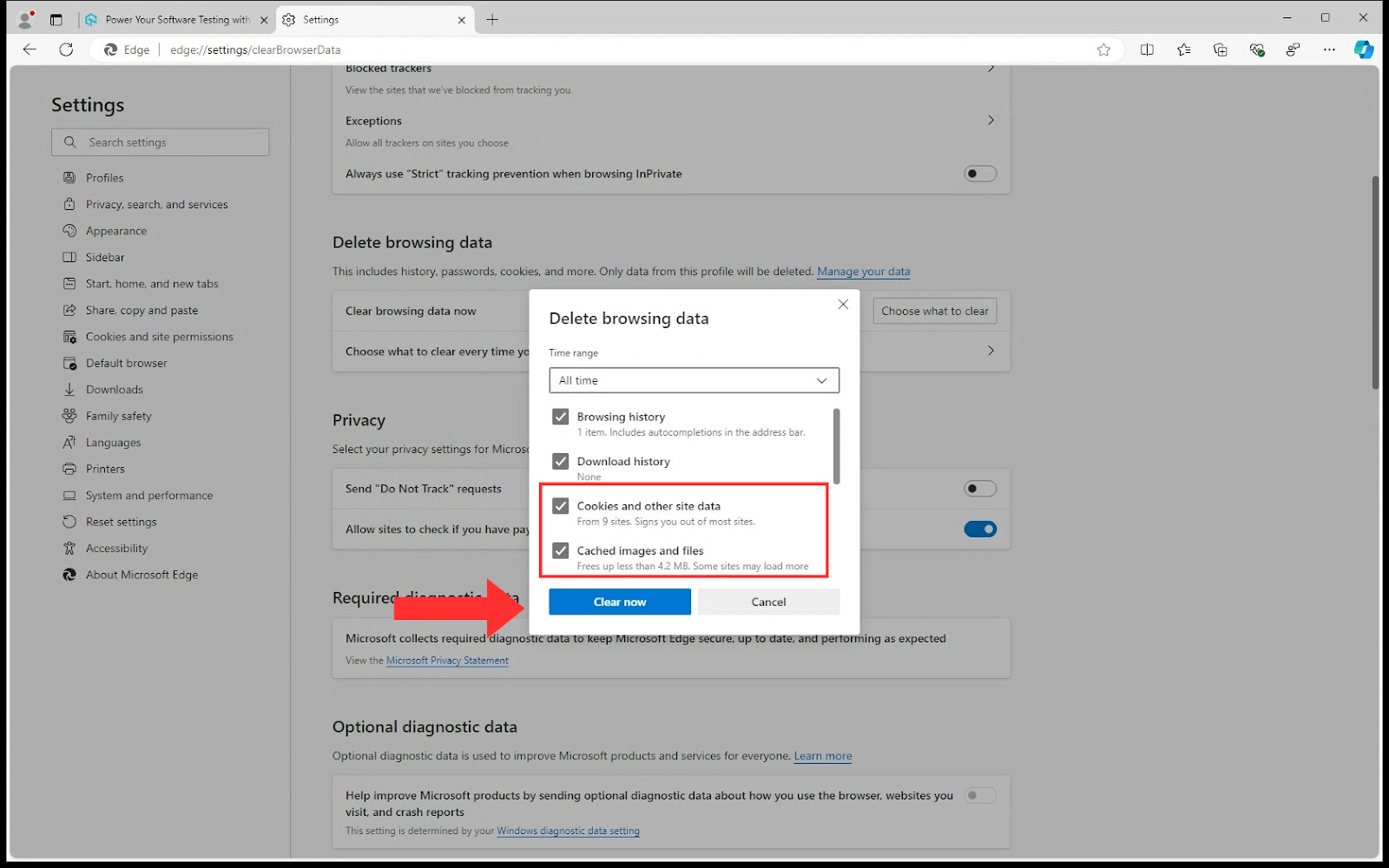
- Select the time frame from the Time range section for which you want to clear your browsing data.
- Make sure that Cookies and other site data, and Cached images and files are checked. You can also select other types of data.
- Click the Clear now button to confirm your selection.
Steps to Clear Cookies in Windows on Opera
Below are the steps to clear cookies in Windows on Opera:
- Open Opera and click on the O Menu in the upper-left corner.
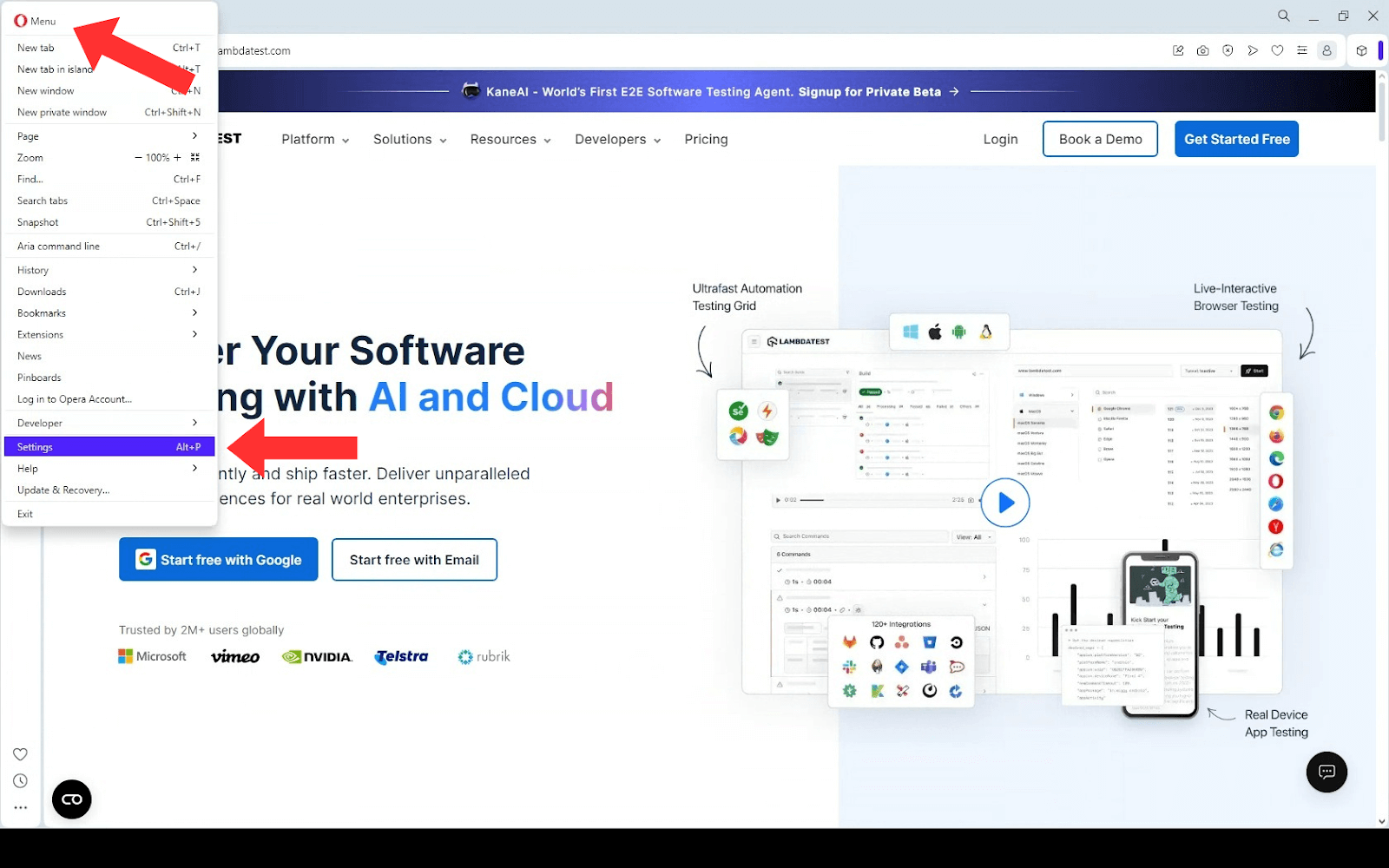
- Select Settings and navigate to the Privacy & security section.
- Click Clear browsing data.
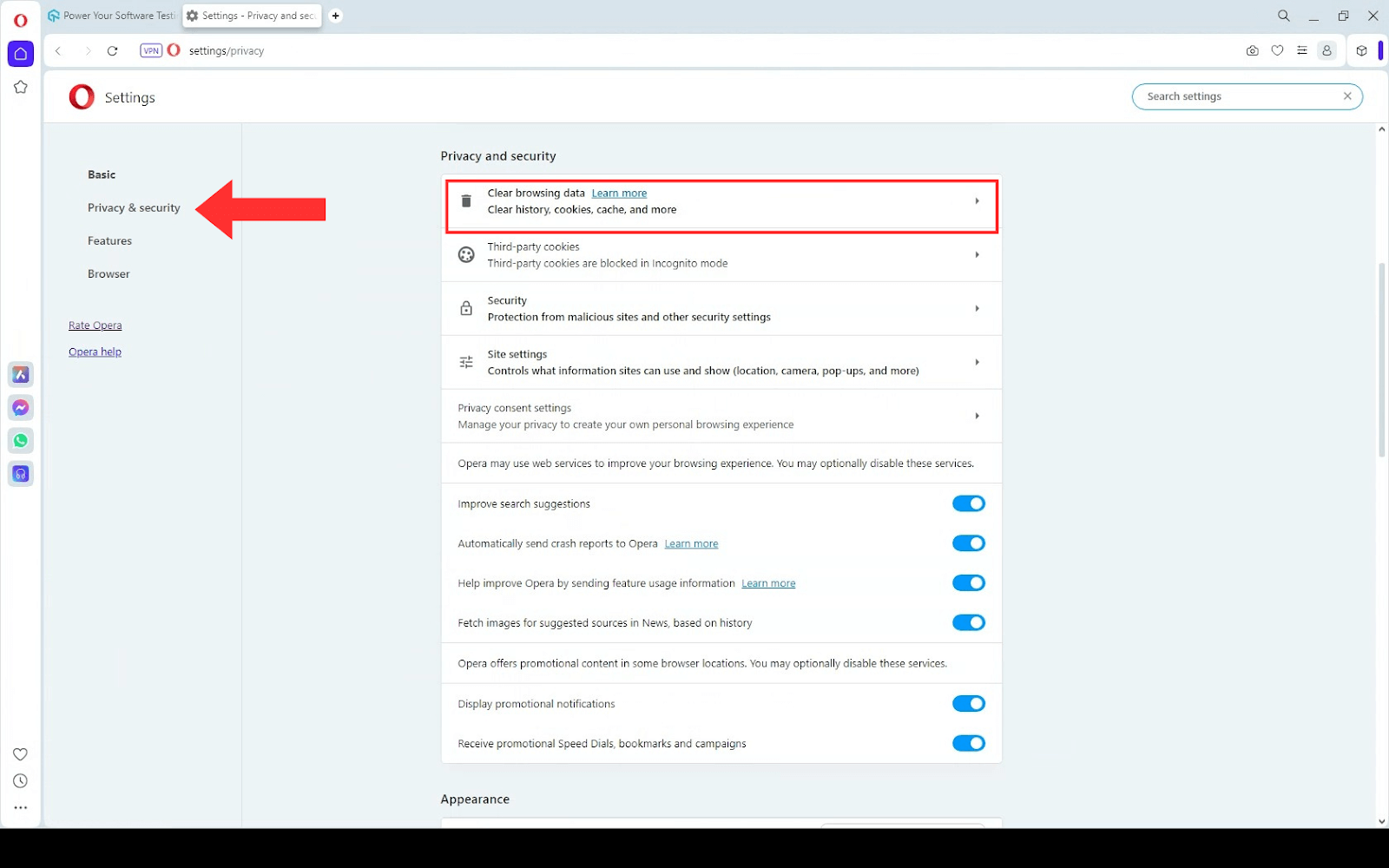
- In the pop-up window, check the Cookies and other site data and the Cached images and files option.
- Select the Time range as desired from the drop-down option.
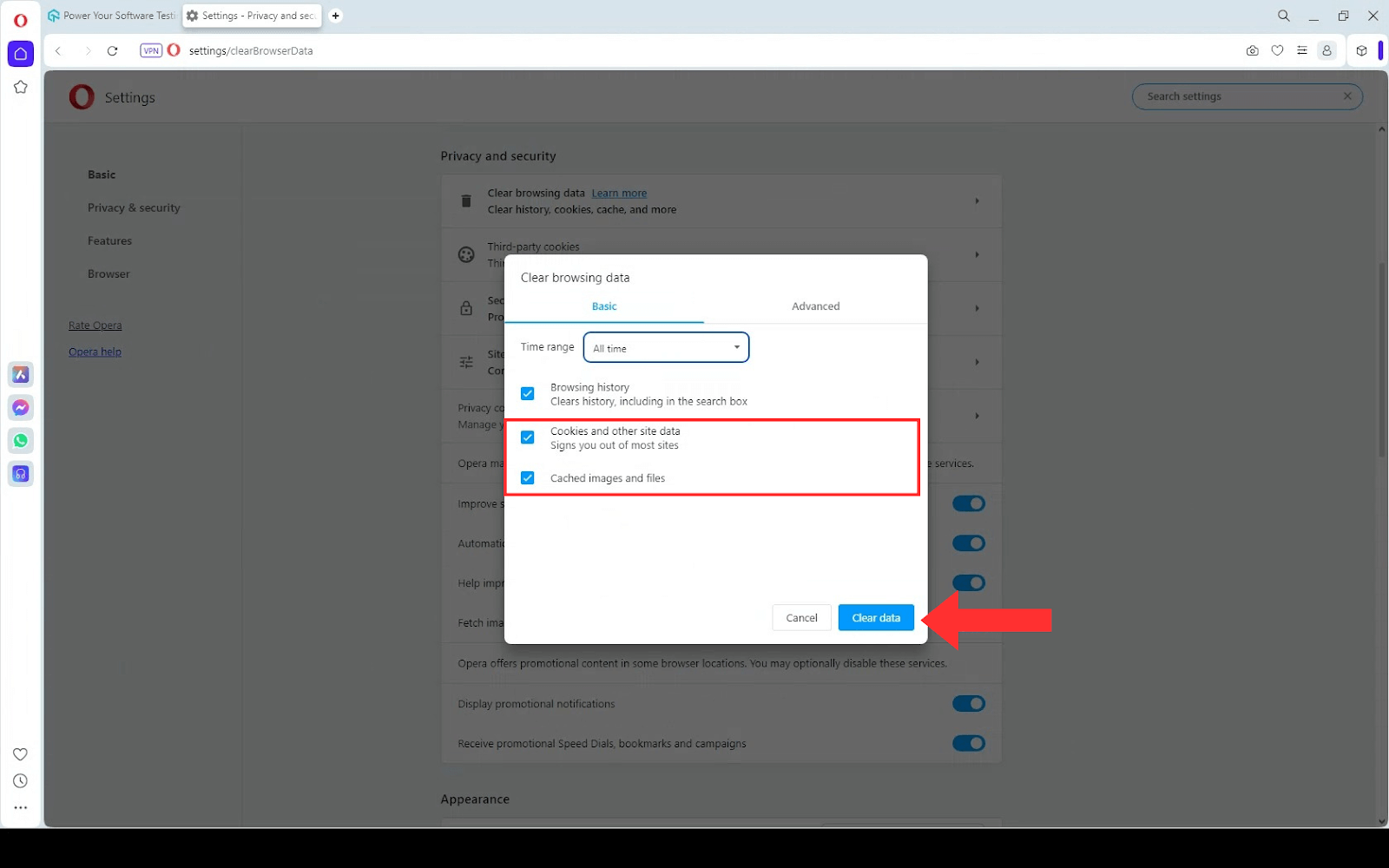
- Click the Clear data button to clear cache and cookies on Windows in Opera.
Steps to Clear Cookies in Windows on Brave
Below are the steps to clear cookies in Windows on Brave:
- Click the hamburger menu in the top right corner of your browser window and select Settings from the submenu.

- Alternatively, use the keyboard shortcut:
- Windows: Ctrl + Shift + Delete
- Mac: Command + Shift + Delete
- Scroll down to Privacy and security and click on Delete browsing data.
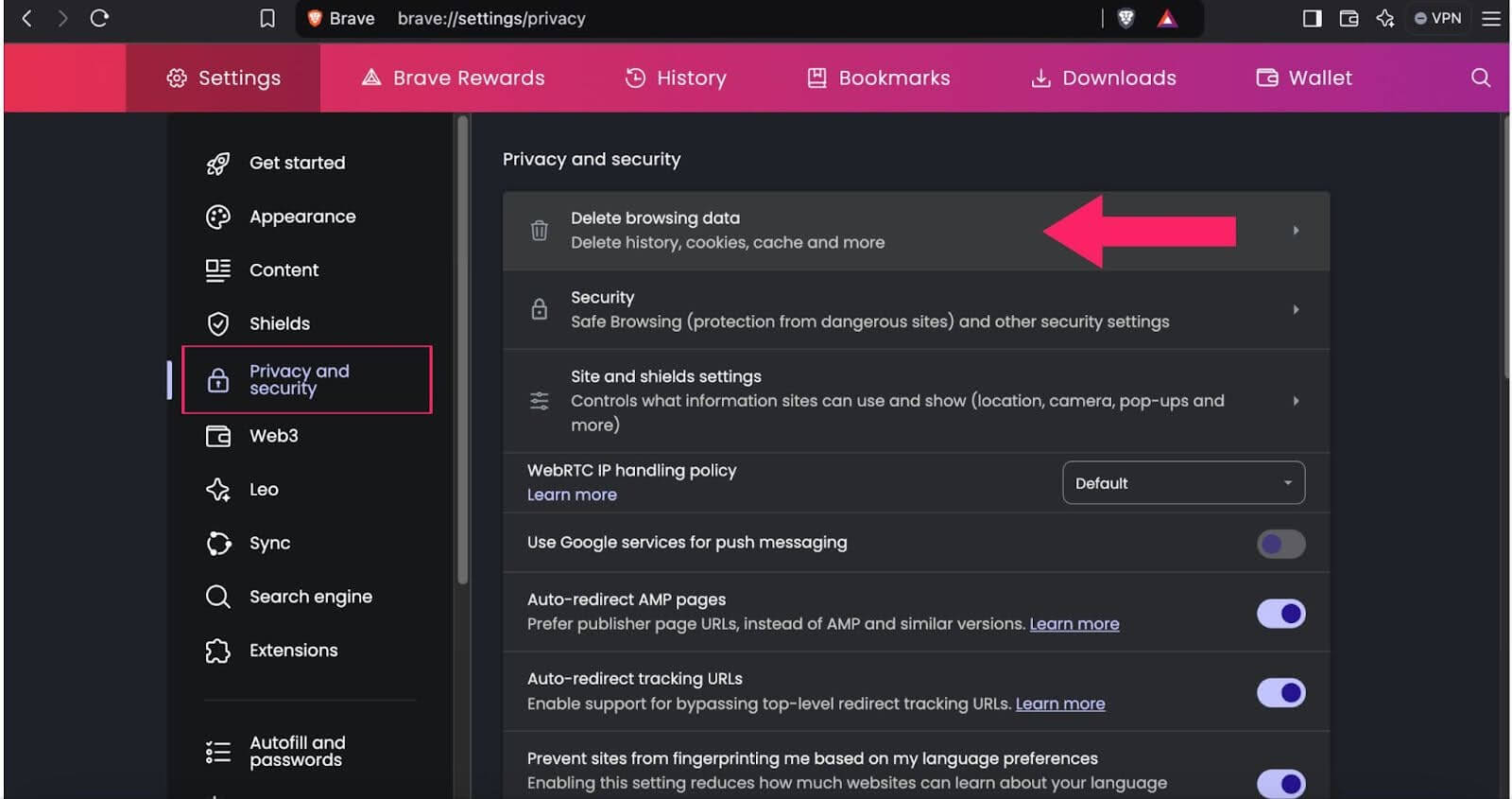
- A popup window will open. Select the Cache image and files and Cookies and other site data options and any other items you would like to remove from your browser’s saved files, such as browsing history.
- Use the Time range to clear the menu to choose the desired timeframe.
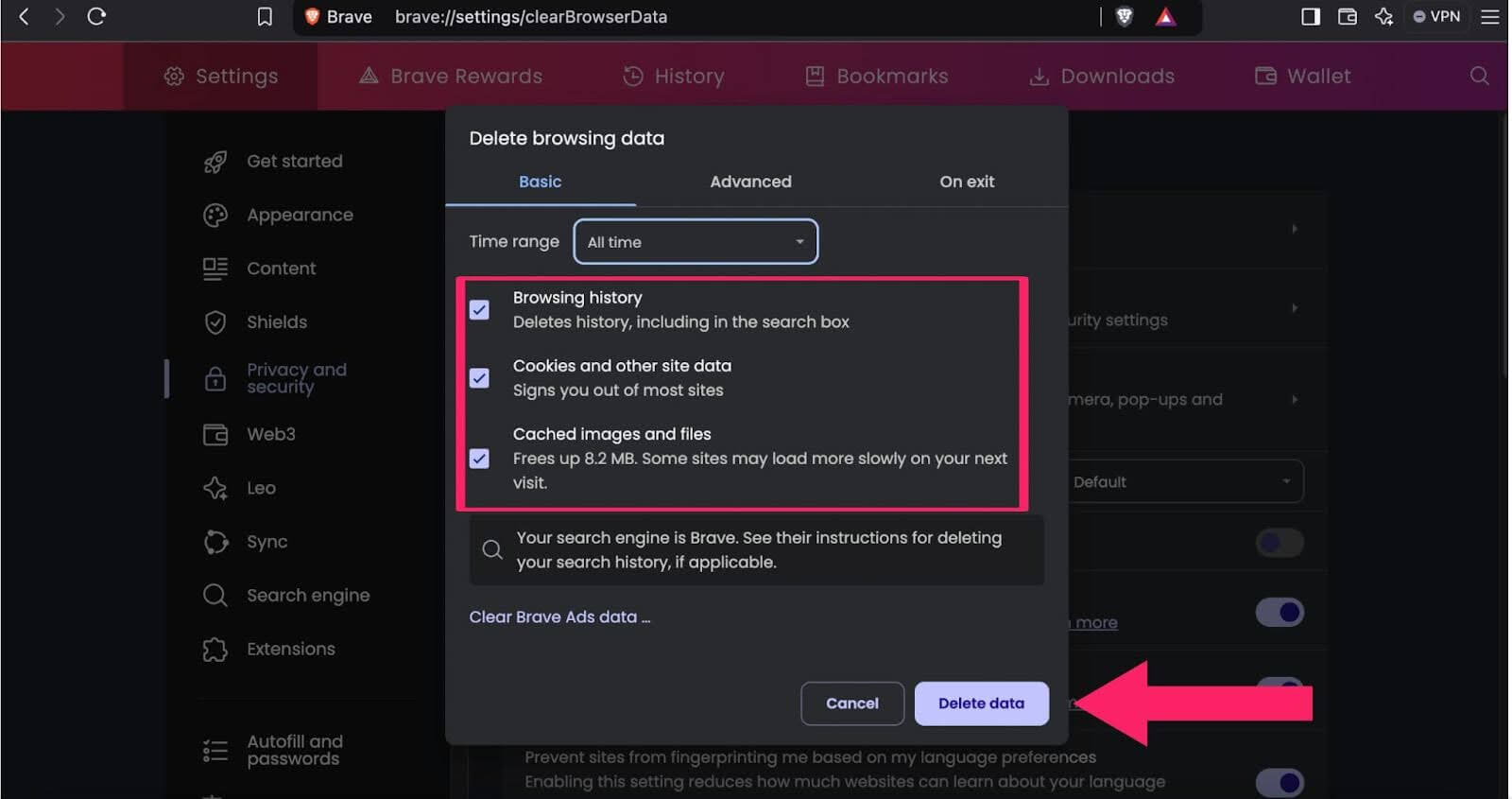
- Click the Clear data button to clear cache and cookies on Windows in Brave.
Steps to Clear Cookies in Windows on Internet Explorer
Below are the steps to clear cookies in Windows on Internet Explorer:
- Launch Internet Explorer.
- Click the gear icon (Tools) in the top right corner or press Alt + X.
- Select Internet options from the dropdown menu.
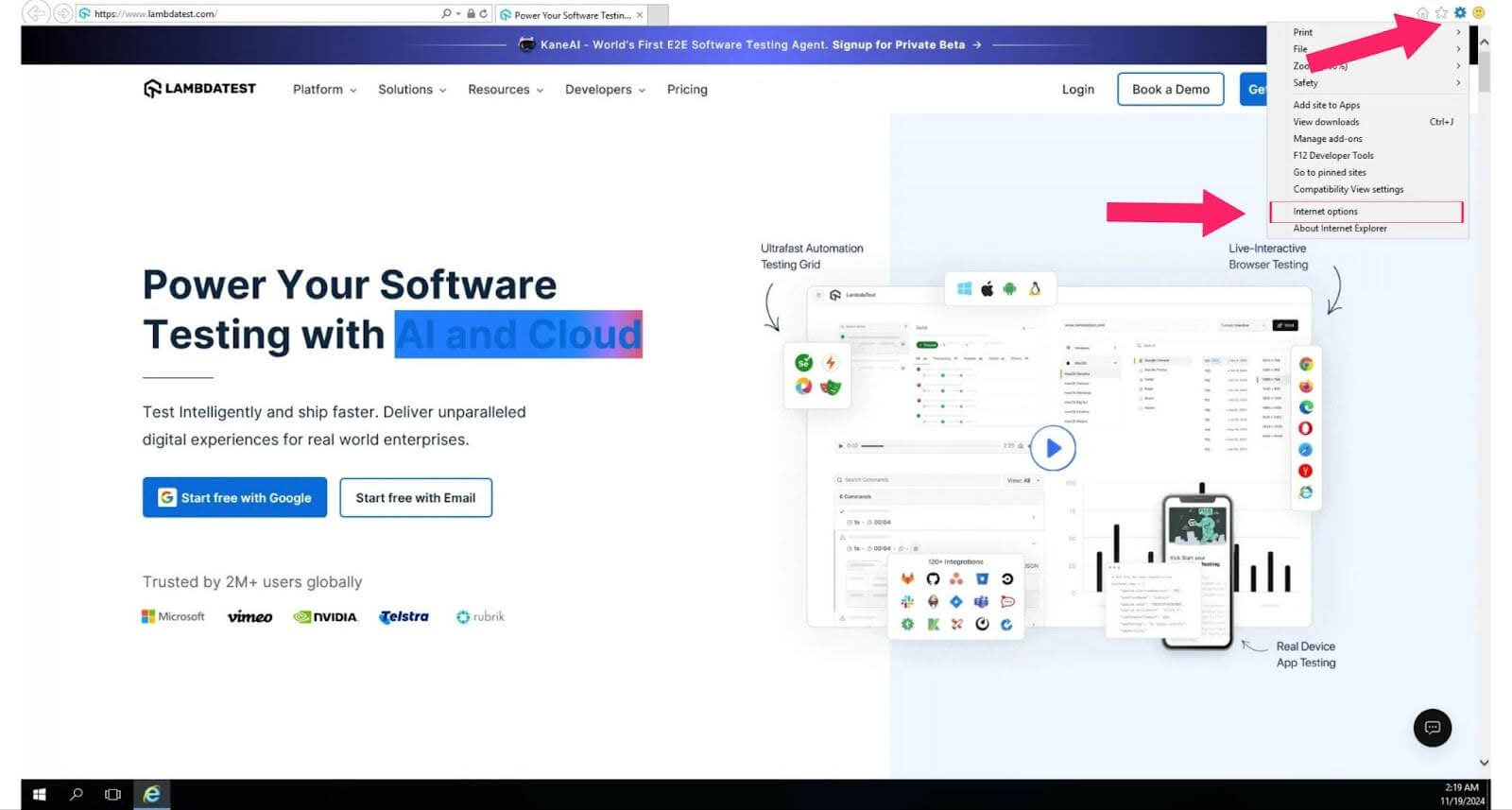
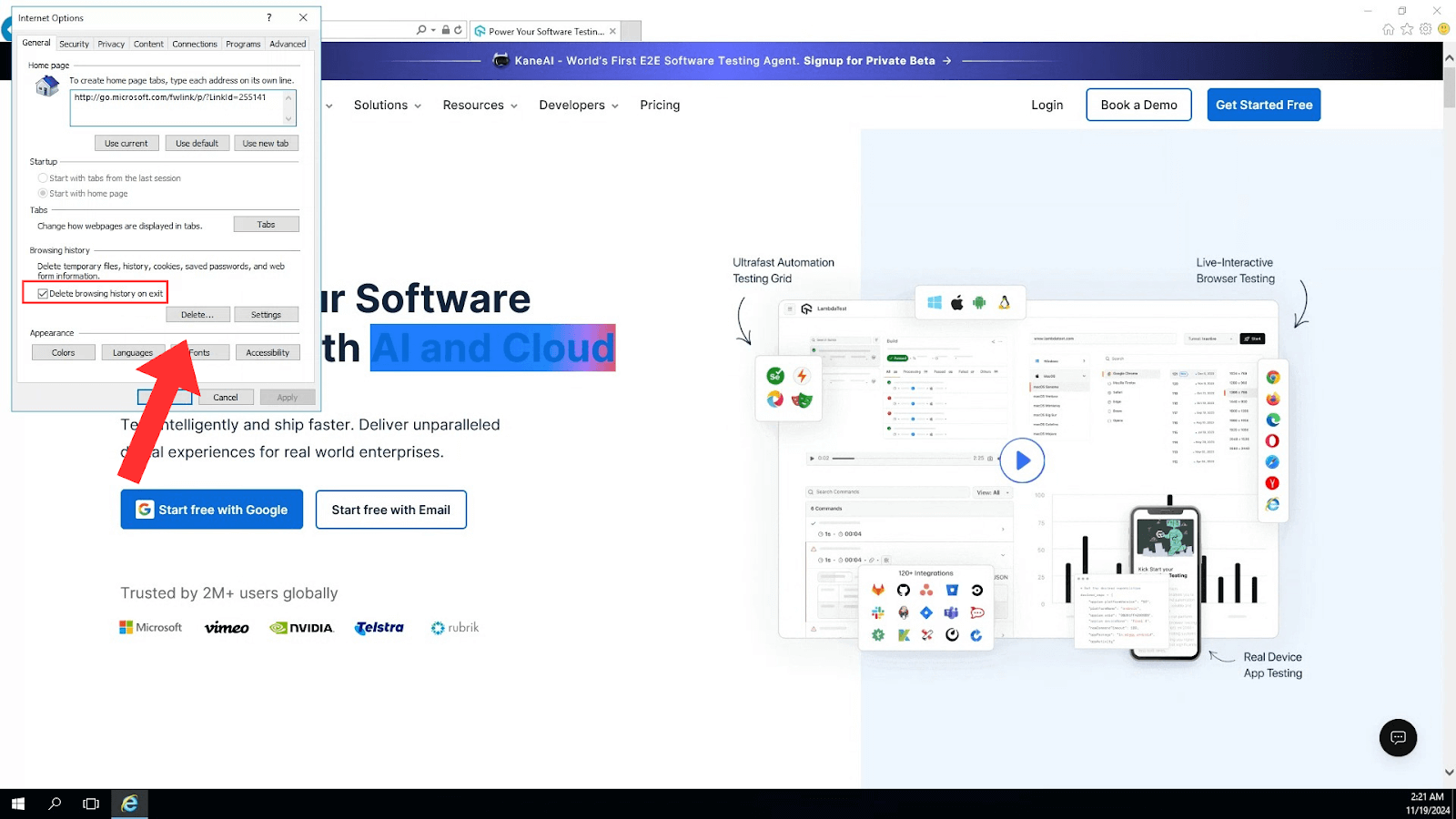
- Go to the General tab and click Delete under Browsing history.
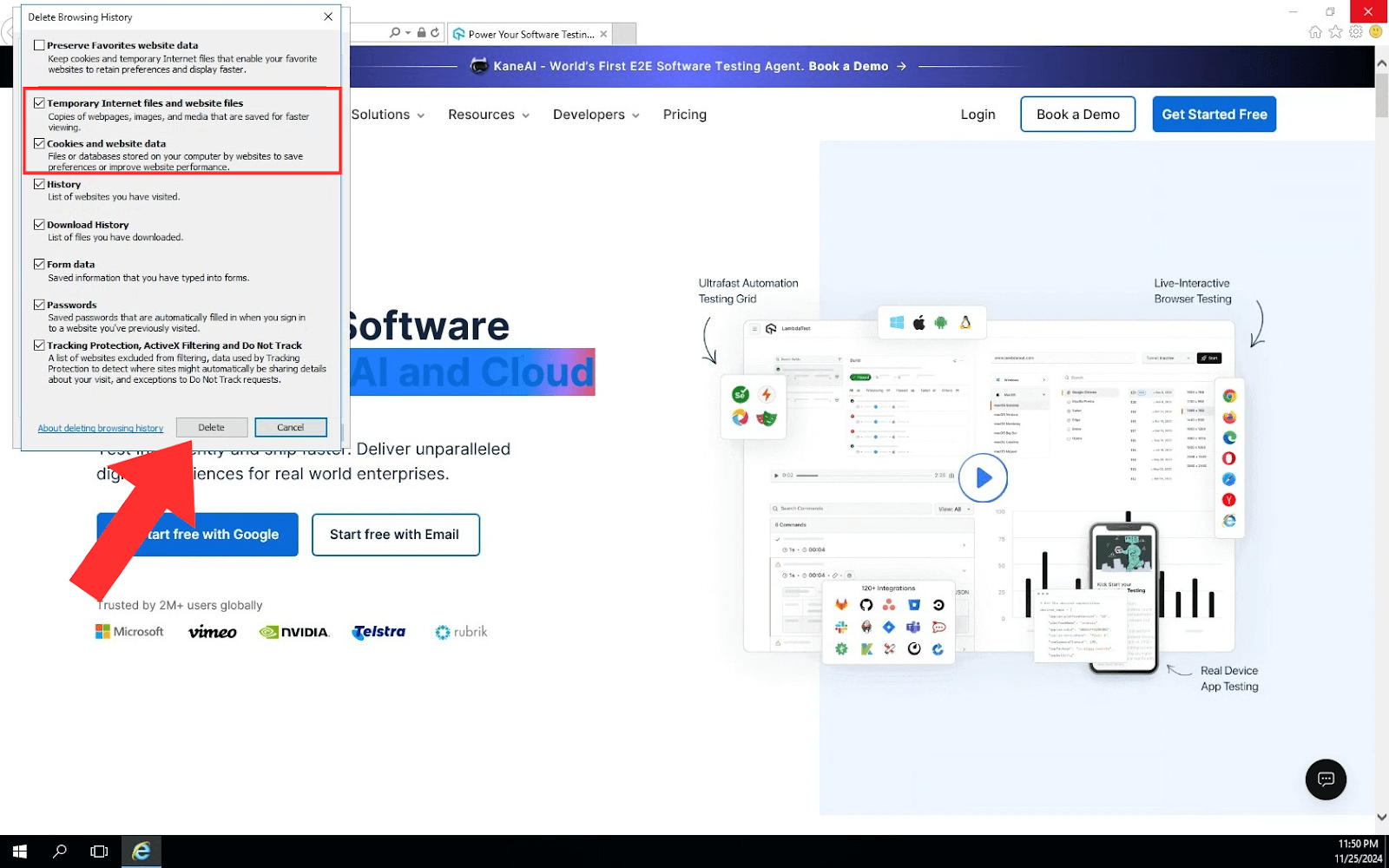
- Uncheck Preserve Favorites website data and check the options for Temporary Internet Files and website files and Cookies and website data. Finally, click Delete to proceed.
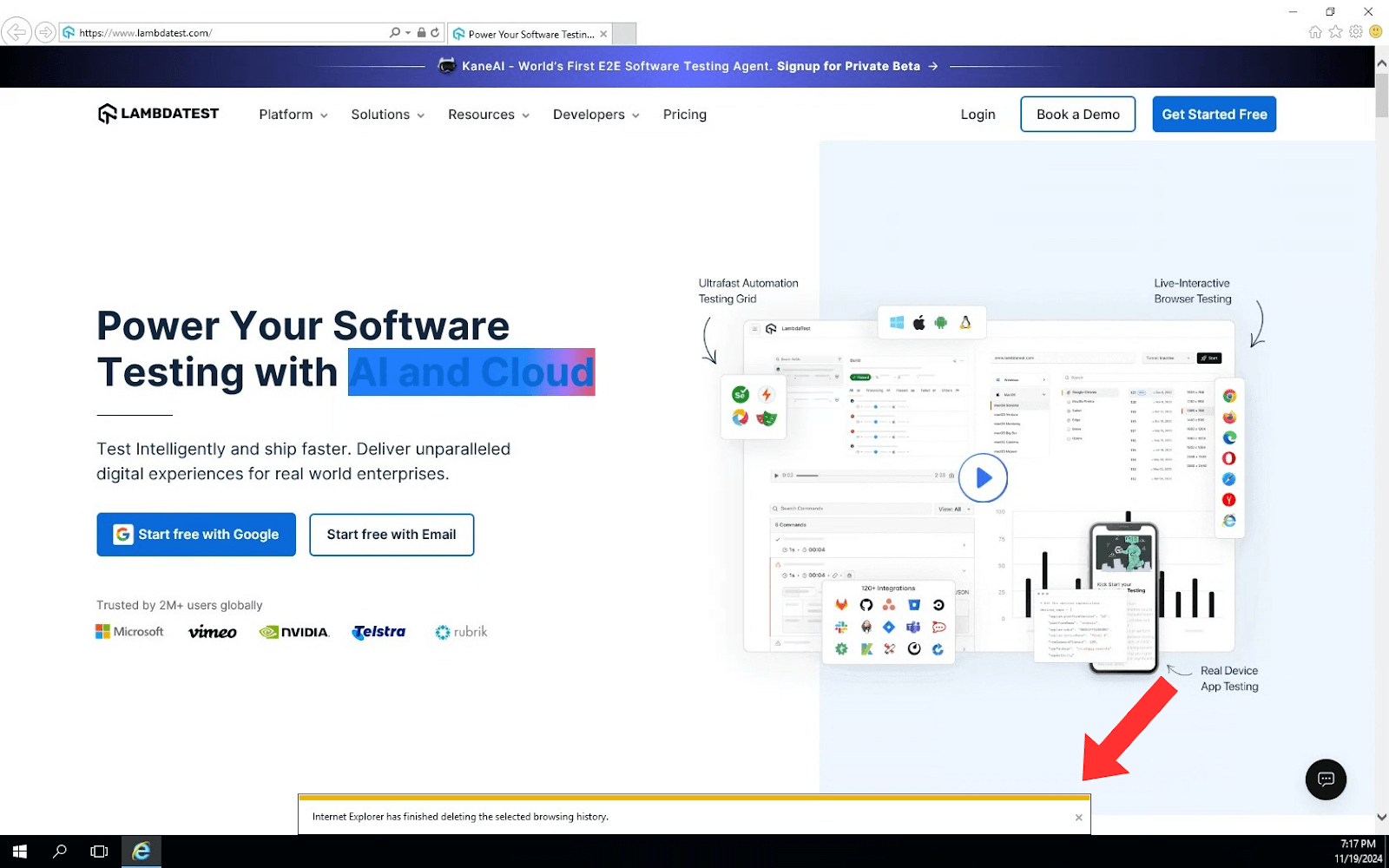
- Once the cache and cookies are cleared, a confirmation message will display at the bottom of the screen.
Conclusion
Clearing cache and cookies is a simple yet effective way to enhance browser performance and safeguard your privacy. This guide on how to clear cookies in Windows for all major browsers ensures a smoother, more secure online experience. Regularly clearing cookies and cache not only speeds up your browser but also protects your personal information. Make it a habit and enjoy a faster, safer browsing experience.


Summarize with AI


Frequently asked questions
Did you find this page helpful?
More Related Hubs
TestMu AI forEnterprise
Get access to solutions built on Enterprise
grade security, privacy, & compliance
- Advanced access controls
- Advanced data retention rules
- Advanced Local Testing
- Premium Support options
- Early access to beta features
- Private Slack Channel
- Unlimited Manual Accessibility DevTools Tests