

Next-Gen App & Browser Testing Cloud
Trusted by 2 Mn+ QAs & Devs to accelerate their release cycles


Tutorial On Handling Keyboard Actions In Selenium WebDriver [With Example]
With keyboard actions, you can perform activities such as keys up, keys down, etc. Learn how to use them with action class in Selenium WebDriver!

Himanshu Sheth
December 29, 2025
During the course of automated cross browser testing, you might come across scenarios that may not have been thought about during the product development phase. For example, when using Selenium automation testing, you could open a new browser tab instead of a new browser instance. Implementing that change would need proper usage of Keyboard Actions in Selenium WebDriver. This will also depend on whether the browser on which testing is performed and whether the Selenium WebDriver for the corresponding browser supports those functionalities.
A common Selenium testing scenario is entering information in a text-box by passing a combination of keys to the Selenium WebDriver. This can be achieved using the send_keys() API in Selenium which can be termed a Simple Keyboard interaction. Advanced keyboard events in Selenium automation testing are handled using Advanced User Interactions API. Using those APIs, you can perform the following:
- Invoke keyboard interactions by passing key combinations to the Selenium WebDriver, e.g., CTRL + SHIFT, CTRL + A, etc.
- Invoke typical keyboard-related interactions, e.g., Key Up, Key Down, etc.
- Invoke actions on the browser instance using Function (F) keys, e.g., F5 to refresh the current browser page, etc.
Keyboard Actions in Selenium WebDriver are handled using the Actions class. In our previous blogs on Selenium automation testing, we have already highlighted the key challenges & vital tips in Selenium automation that can be used to handle automated Selenium testing scenarios. To get detailed information about the Selenium WebDriver building blocks and its detailed architecture, please refer to our earlier blogs where those aspects are explained in depth.
Before we have a detailed look at Keyboard Actions in Selenium WebDriver, it is required that you download the Selenium WebDriver for the browser on which testing is performed.
Starting your journey with Selenium WebDriver? Check out this step-by-step guide to perform Automation testing using Selenium WebDriver.
Browser | Download location |
|---|---|
Opera | https://github.com/operasoftware/operachromiumdriver/releases |
Firefox | |
Chrome | |
Internet Explorer | https://github.com/SeleniumHQ/selenium/wiki/InternetExplorerDriver |
Microsoft Edge | https://developer.microsoft.com/en-us/microsoft-edge/tools/webdriver/ |
Keyboard actions in Selenium using Actions Class
Action Class in Selenium is used for low-level interactive automation involving input devices like keyboard, mouse, etc. When using Selenium automation testing, it is recommended that Actions Class is used rather than using the input devices (e.g., keyboard, mouse) directly. Before an interaction is performed with the web element, the element should be a part of the DOM; else, the interaction might not be successful.
Watch this video to learn what the Actions Class is in Selenium and how to use it.
Some of the commonly used keyboard actions are KeyUp, KeyDown, and sendKeys(). Keyboard actions can also be used in combination with Mouse actions, e.g., Mouse Hover to a particular menu on the page and perform a combination of KeyUp & KeyDown on that menu. To perform keyboard actions in Selenium WebDriver, the Selenium ActionChains/Actions class should be imported into the source code.
Shown below is the definition of Selenium ActionChains class:
class selenium.webdriver.common.action_chains.ActionChains(driver)
    driver   - WebDriver instance which performs the user actions.
Since the Selenium ActionChains class is used to automate low-level mouse & keyboard interactions, it needs to queue the corresponding requests and execute those requests on a priority basis. For that purpose, the methods defined for actions on the ActionChains object are queued in the ActionChains object. For example, to refresh contents of the webpage, you can make use of the combination of (KeyUp + KeyDown) actions along with (CONTROL + F5) keys. The sample implementation is shown below.
ActionChains(driver) .key_down(Keys.CONTROL) .send_keys(Keys.F5) .key_up(Keys.CONTROL) .perform()
As seen in the snippet shown above, the actions are queued in the ActionChains object and a perform() is finally used to fire the actions that were queued in the object. A chain-based approach can also be used instead of a queue-based approach. Irrespective of the approach being used, the actions are fired in the order in which they were queued (like a FIFO).
Commonly used Keyboard events
Keyboard events can be used appropriately when Selenium is performed on the test web page/web application. Shown below are some of the commonly used keyboard events provided by the ActionChains class:
Action | Arguments | Description |
|---|---|---|
send_keys(*keys_to_send) | keys_to_send – The keys to send. Modifier keys constants can be found in the Keys class. | Send keys to the element that is currently in focus. |
key_down(value, element=None) | value – Modifier key to send. element – It is an optional argument. It represents the element on which keys need to be sent. If it is not specified, i.e., None, the key is sent to the currently focused element. | Sends a key press without performing the release. It should only be used with modifier keys like Control, Alt, and Shift. |
key_up(value, element=None) | value – Modifier key to send. element – It is an optional argument. It represents the element on which keys need to be sent. If it is not specified, i.e., None, the key is sent to the currently focused element. | Releases a key. It should only be used with modifier keys like Control, Alt, and Shift. |
perform | None | Perform the chain of actions stored in the ActionChains object |
To use ActionChains for performing keyboard actions in Selenium WebDriver, you need to first import the ActionChains module.

Keyboard Actions – Demonstration
Now that we have looked at the basics of Keyboard actions, ActionChains class, and operations that can be performed using the keyboard, let’s look at examples that demonstrate its usage.
Keyboard Actions (send_keys)
To demonstrate Keyboard actions in Selenium automation testing, we use a simple example where search term, e.g., TestMu AI, is passed to the DuckDuckGo search engine. The inspect tool in Chrome (browser on which testing is performed) is used to get details about the web element.

Once the details of the web element, i.e., search_form_input_homepage in the DuckDuckGo web page, are identified, we make use of the send_keys action to input the search term. For simplification, we have not used Selenium WebDriverWait that ensures the loading of web elements with ID seach_form_input_homepage is completed before the subsequent set of operations can be executed.
FileName – 1-send_keys-example.py
# Demonstration of send_keys using search on DuckDuckGo

    import unittest
    from selenium import webdriver
    import time
    from time import sleep

    # Import the ActionChains class
    from selenium.webdriver.common.action_chains import ActionChains

    class SeachTest(unittest.TestCase):
        def setUp(self):
            # Creation of Opera WebDriver instance
            self.driver = webdriver.Chrome()

        def test_Search(self):
            driver = self.driver
            driver.maximize_window()
            driver.get("https://duckduckgo.com/")

            # Send search keyboard to the Text Box element on DuckDuckGo

            driver.find_element_by_id("search_form_input_homepage")
            ActionChains(driver)                 .send_keys("Lambdatest")                 .perform()

            sleep(5)

        def tearDown(self):
            # Close the browser.
            self.driver.close()

    if __name__ == '__main__':
        unittest.main()
To execute the code, use the command python <file-name.py> on the shell/terminal.The standard pytest test framework is used for demonstration where the operations for initialization & de-initialization being performed in setUp() & tearDown() methods. As shown in the example, send_keys action (with input-value = TestMu AI) is performed on the search box (ID = search_form_input_homepage). Since send_keys is the only action that has to be queued in the ActionChains object, perform action is fired after the same.
Keyboard Actions (key_up & key_down)
To demonstrate the usage of key_down and key_up actions, we perform a button click on TestMu AI homepage where the link-text is ‘Start Free Testing’. The Keyboard Actions in Selenium WebDriver, which are used in this particular scenario, are key_down & key_up along with .click() on the matching web element.
To start with, we use the Inspect Tool to get the XPATH of the web element with the text ‘Start Free Testing’ on the TestMu AI homepage.
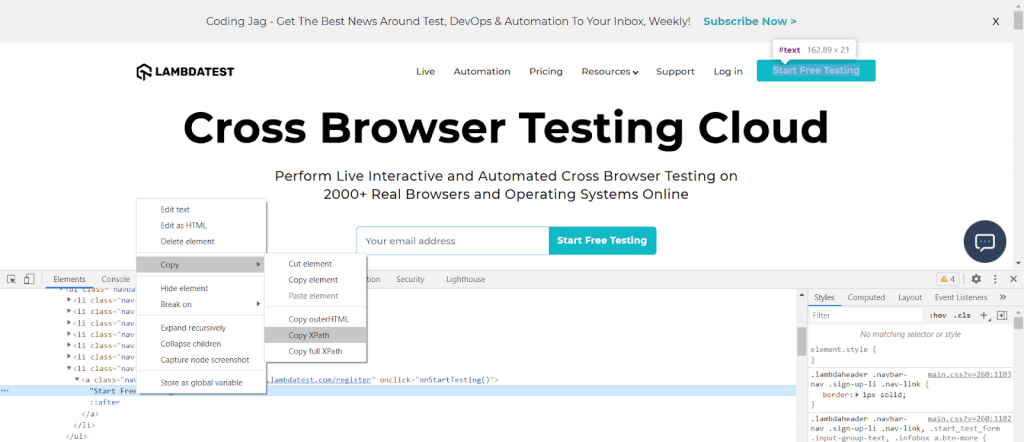
Once we have located the element, the next step in this usecase that demonstrates Selenium testing is to perform CONTROL + CLICK on ‘Start Free Testing’ button so that the TestMu AI Dashboard opens in a new tab. Using the switch_to.window() method with the window handle of the newly opened tab, we switch the focus to that window.
FileName – 2-key-up-example.py
import time
    from time import sleep
    from selenium import webdriver
    from selenium.webdriver.common.action_chains import ActionChains
    from selenium.webdriver.common.keys import Keys

    from selenium.webdriver.support.ui import WebDriverWait
    from selenium.webdriver.support import expected_conditions as EC
    from selenium.webdriver.common.by import By
    from selenium.common.exceptions import TimeoutException

    # XPATH of the button with link text = Start Free Testing
    sign_up_xpath = "//*[@id='bs-example-navbar-collapse-1']/ul/li[7]/a"

    driver = webdriver.Chrome()
    driver.maximize_window()
    driver.get('http://lambdatest.com')

    delay = 5 # Delay in seconds

    try:
        myElem = WebDriverWait(driver, delay).until(EC.presence_of_element_located((By.XPATH, sign_up_xpath)))
        print("LambdaTest page is loaded")
    except TimeoutException:
        print("[Error] - TimeOut occured")
        driver.quit()

    element = driver.find_element_by_link_text('Start Free Testing')

    ActionChains(driver)         .key_down(Keys.CONTROL)         .click(element)         .key_up(Keys.CONTROL)         .perform()

    child_window = driver.window_handles[1]

    #The Parent window will go in the background
    #Child window comes to Foreground
    driver.switch_to.window(child_window)
    title2 = driver.title
    print(title2)

    time.sleep(5) # Pause to allow you to inspect the browser.

    driver.quit()
Once the webpage is loaded, we search for the element with the link text as ‘Start Free Testing’
element = driver.find_element_by_link_text('Start Free Testing')
Next step is to add necessary actions to the ActionChains object. In this scenario, the actions that are queued to the ActionChains object are:
- key_down(keys.CONTROL)
- .click(element)
- key_up(keys.CONTROL)
The intention of these combination of actions is to perform CONTROL + CLICK on the button with the matching link-text. The .perform() method is fired to execute these actions.
ActionChains(driver) .key_down(Keys.CONTROL) .click(element) .key_up(Keys.CONTROL) .perform()
For more information about window_handles and switch_to.window(), please refer to the blog where we have discussed tips & tricks for Selenium automation testing.

Keyboard Actions in Selenium WebDriver on the Cloud
Selenium testing on local Selenium Grid can be useful and scalable as long as the local setup covers all the combinations of web browsers, operating systems, and devices. However, the setup can turn out to be extensive in case automated cross browser testing has to be performed on a huge number of combinations. Cross browser testing on the cloud can be more efficient and scalable in such cases as minimal code changes are required to make it work with the remote Selenium Grid. Tests can also be executed at a faster pace by utilizing the power of parallel execution/parallelism on the automated cross browser testing platform.
TestMu AI is one such platform through which you can perform live cross interactive browser testing on 3000+ real browsers and operating systems online. The implementation used for Selenium automation testing and Python can be ported to their setup with minimal code changes. TestMu AI also supports development using major programming languages like Python, C#, Java, Ruby on Rails, etc.
Since we would be demonstrating keyboard actions in Selenium WebDriver on the TestMu AI platform, it is important to keep a track of the status of Automation tests. We port the Selenium testing example to the TestMu AI platform, and the desired browser capabilities are generated using the TestMu AI capabilities generator.
FileName – 3-LT-key-up-example.py
# Porting Keyboard interactions example to LambdaTest Cloud

    import time
    from time import sleep
    from selenium import webdriver
    from selenium.webdriver.common.action_chains import ActionChains
    from selenium.webdriver.common.keys import Keys

    from selenium.webdriver.support.ui import WebDriverWait
    from selenium.webdriver.support import expected_conditions as EC
    from selenium.webdriver.common.by import By
    from selenium.common.exceptions import TimeoutException
    import urllib3
    import warnings

    # Changes for porting to the LambdaTest cloud

    #Set capabilities for testing on Chrome
    browser_capabilities = {
        "build" : "Keyboard interactions on Chrome",
        "name" : "Keyboard interactions on Chrome",
        "platform" : "Windows 10",
        "browserName" : "Chrome",
        "version" : "76.0",
    }
    #End - Set capabilities for testing on Chrome

    # Get details from https://accounts.lambdatest.com/profile
    user_name = "[email protected]"
    app_key = "app-token"

    urllib3.disable_warnings(urllib3.exceptions.InsecureRequestWarning)
    remote_url = "https://" + user_name + ":" + app_key + "@hub.lambdatest.com/wd/hub"

    # XPATH of the button with link text = Start Free Testing
    sign_up_xpath = "//*[@id='bs-example-navbar-collapse-1']/ul/li[7]/a"

    # Local Selenium Grid
    # driver = webdriver.Chrome()

    # Remote Selenium Grid being used for cross browser testing
    driver = webdriver.Remote(command_executor=remote_url, desired_capabilities=browser_capabilities)

    driver.maximize_window()
    driver.get('http://lambdatest.com')

    delay = 5 # Delay in seconds

    try:
        myElem = WebDriverWait(driver, delay).until(EC.presence_of_element_located((By.XPATH, sign_up_xpath)))
        print("LambdaTest page is loaded")
    except TimeoutException:
        print("[Error] - TimeOut occured")
        driver.quit()

    element = driver.find_element_by_link_text('Start Free Testing')

    ActionChains(driver)         .key_down(Keys.CONTROL)         .click(element)         .key_up(Keys.CONTROL)         .perform()

    child_window = driver.window_handles[1]

    #The Parent window will go in the background
    #Child window comes to Foreground
    driver.switch_to.window(child_window)
    title2 = driver.title
    print(title2)

    time.sleep(5) # Pause to allow you to inspect the browser.

    driver.quit()
Let us do a code walkthrough of the implementation that demonstrates keyboard actions in Selenium WebDriver on the TestMu AI infrastructure. Selenium testing is performed on the Chrome browser (version 76.0) that is installed on Windows 10. The combination of user-name and access token (which can be obtained from the TestMu AI account profile page) are passed to the remote URL on which the test will be performed.
remote_url = "https://" + user_name + ":" + app_key + "@hub.lambdatest.com/wd/hub"
The execution is performed on the Remote Selenium Grid on TestMu AI and combination of remote-url & desired browser capabilities is passed to the Selenium WebDriver.
# Remote Selenium Grid being used for cross browser testing
    driver = webdriver.Remote(command_executor=remote_url, desired_capabilities=browser_capabilities)
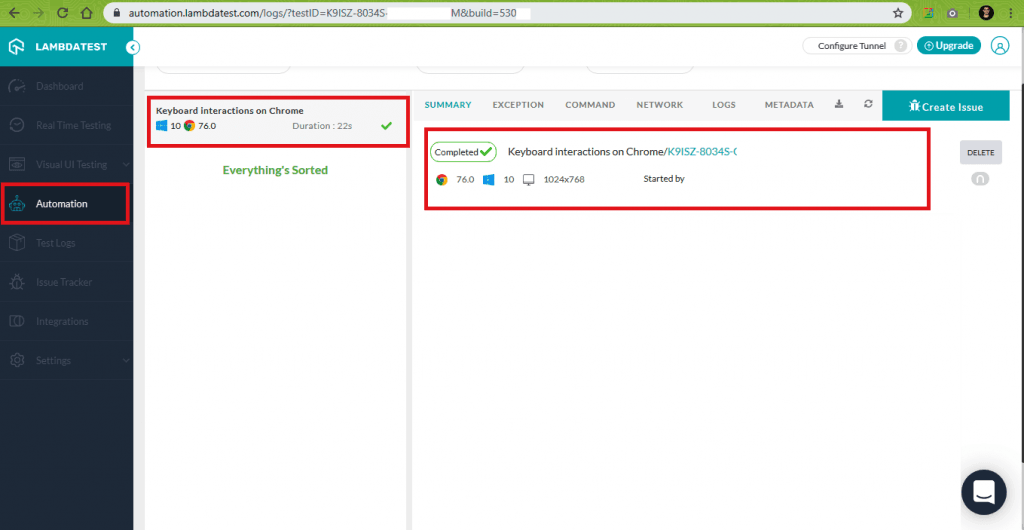
The execution is done in a similar manner, the only difference being that the test is now executed on TestMu AI’s remote Selenium grid setup. Every test is identified by a test-id, and each build has a unique build-id. To check the status of the test, you should visit https://automation.lambdatest.com/logs/?testID=<test-id>&build=<build-id> where <test-id> & <build-id> should be replaced with the corresponding ids. Test status can be Error, TimeOut, or Completed. As seen in the screenshot below, the test was successfully executed, and the end status was Completed.
Conclusion
In Selenium testing with Python, low level keyboard interactions like key up, key down, send_keys are automated using the ActionChains object. Depending on the usecase, the necessary actions are queued to the ActionChains object. The actions are executed in the sequence in which they were received i.e. like a FIFO (First In First Out). Keyboard actions in Selenium WebDriver are frequently used when Selenium automation testing is performed. .pause() method can be added to the actions in the ActionChains object if a delay is required between subsequent actions. Selenium testing on local Selenium Grid can have limitations in terms of test coverage since test suites/test cases cannot be executed on different combinations of devices, operating systems, and web browsers. In such a scenario, test code that uses keyboard actions in Selenium WebDriver can be ported to TestMu AI’s remote Selenium Grid. With minimal porting changes in the Selenium testing code, you can achieve better results using Selenium automation testing executed on a scalable & efficient Selenium Grid.
Also,If you’re new to Selenium and wondering what it is then we recommend checking out our guide – What is Selenium Grid?



Frequently asked questions
Did you find this page helpful?
More Related Hubs
TestMu AI forEnterprise
Get access to solutions built on Enterprise
grade security, privacy, & compliance
- Advanced access controls
- Advanced data retention rules
- Advanced Local Testing
- Premium Support options
- Early access to beta features
- Private Slack Channel
- Unlimited Manual Accessibility DevTools Tests