

Next-Gen App & Browser Testing Cloud
Trusted by 2 Mn+ QAs & Devs to accelerate their release cycles


How To Find Broken Links Using Cypress [With Examples]
Want to find broken links on your website? Here's how you can do broken link testing on your website using Cypress.

Enrique
January 30, 2026
Have you ever encountered a 404 error? From an end user’s perspective, a broken link can be a major turn-off. Beyond frustrating users, dead links can negatively impact your website’s SEO, increase bounce rates, and reduce site credibility. Regularly detecting and fixing broken links is crucial for maintaining a professional, reliable site. Cypress simplifies this process with its cy.request() function, allowing you to check the status of each link and quickly identify any that aren’t working.
Overview
Why Find Broken Links On A Website?
Broken links can frustrate users and reduce engagement, while also impacting how search engines view your site. Regularly checking links ensures smooth navigation and maintains website credibility.
- User Retention: Users encountering broken links are more likely to leave your site immediately.
- Bounce Rate: High bounce rates from dead links can indirectly affect search engine rankings.
- Trust & Credibility: Broken links reduce trust and professionalism, affecting your brand reputation.
- Content Accessibility: Preventing 404 errors ensures all content is accessible and functional.
- Navigation Experience: Helps maintain a seamless navigation experience across all pages.
How To Find Broken Links Using Cypress?
Cypress allows you to automate link verification across your website, helping you quickly identify pages that don’t load correctly or return errors. By leveraging its modern testing capabilities, you can streamline checks and reduce manual effort.
- Collect Links: Gather all anchor elements (<a> tags) on the page and extract their URLs.
- Check Response: Loop through each URL and send a request to check the HTTP response code.
- Flag Errors: Identify links that return error codes (like 404 or 500) to flag broken pages.
- Use Configs: Utilize configuration files to manage multiple URLs and scale tests across different site sections.
- Log Results: Record results for easy debugging and track which links need updates.
- Handle Exceptions: Integrate exception handling to avoid test failures from non-critical errors.
How Can Error Handling Prevent Cypress Tests From Failing Due to Minor Issues?
Error handling in Cypress, such as ignoring uncaught exceptions, ensures that non-critical errors like temporary link failures do not stop the entire test. This makes the testing process more robust and allows teams to focus on actionable failures rather than being blocked by minor issues.
Why Find Broken Links On A Website
Search engine algorithms pay special attention to how users behave on your website. As a result, their online behavior has a significant role in the ranking process. HTTP 404 code is one of the most frustrating things your visitors can come across, and the chances are that they might never revisit your website. It is like handing over your customer base to your competition.
Apart from a negative user experience, high bounce rates due to broken links can negatively affect your SEO. So although Google’s algorithm may not directly consider bounce rate, it can indeed hurt your online rankings. This is where a broken link checker using Cypress framework can be handy, as it can be regularly triggered to ensure that the website is free from broken links.

Major Reasons For Broken Links
You can find broken links on a website only when you have clarity about the various conditions that might result in broken links. There are umpteen reasons that result in 404 errors (or broken links/dead links); the major ones are mentioned below:
- The page has been removed from the website
- The page is moved to another URL, and the redirection is done incorrectly
- You entered the wrong URL address
- Server malfunctions (though it is a rarity)
- You have entered an expired domain address
Broken links are often left for long periods after the page has been deleted or moved. This is because websites that link to this page are not informed that the site doesn’t exist anymore or can be found under a new URL. In addition, broken HTML tags, JavaScript errors, and broken embedded elements can also lead to broken (or dead) links on a website.
Irrespective of the criticality of the ‘page’ from the larger scheme of things (of your website), it is essential to keep a regular check for broken links on the website. Though you can find broken links using Selenium, finding broken links on a website using Cypress is recommended due to the simplicity involved in the implementation process.
Essential HTTP Status Codes To Detect Broken Links
Whenever a user visits a website, the server responds to the request sent by the browser with a three-digit response code. This code is called ‘HTTP Response Status Code,’ which indicates the status of the HTTP request.
Here are the five major classes of HTTP status codes:
- Informational responses (100–199)
- Successful responses (200–299)
- Redirects (300–399
- Client errors (400–499)
- Server errors (500–599)
Though it is important to have a top-level understanding of all the HTTP status codes, our interest mainly lies in HTTP 404 status, which indicates whether a particular link on the website is broken. A 404 error means that although the server is reachable, the specific page you are looking for is not present (or available) on the server. Essentially, it’s a page that doesn’t exist, or it’s broken. The 404 error code can appear in any browser, regardless if you’re using Google Chrome or Firefox.
Here are some of the many ways in which 404 errors are shown to the end user:
- 404 Not Found Error
- 404 HTTP 404
- 404 Page Not Found
- Error 404 Not Found
- HTTP 404 Not Found
- The requested URL was not found on this server
- 404 File or Directory Not Found
If you want a quick walk-through of the Cypress framework, check out our blog that explains the architecture of Cypress automation framework. Alternatively, you can also check out TestMu AI YouTube Channel, where we have a video that explains how you can get started with Cypress.
Starting your journey with Cypress End-to-End Testing? Check out how you can test your Cypress test scripts on TestMu AI’s online cloud.
How To Find Broken Links Using Cypress
Till now, you would have understood the importance of checking broken links on your website? So, with the platform all set, let’s look at how to find broken links using Cypress. For starters, Cypress is a next-generation front-end testing tool built for the modern web; Cypress testing enables you to write faster, easier, and more reliable tests.
In case you are coming from a Selenium automation background, make sure to check out the differences between Selenium and Cypress from our blog that covers Cypress vs Selenium comparison. Saying that, let’s focus on our problem about broken links and how to build some tests to validate that using Cypress test automation.
Let’s take a sample HTML page that contains four relative hyperlinks:
<a href="/at-home-coronavirus-testing">Testing</a>
    <a href="/paying-for-covid-19-testing/">Paying for covid Testing</a>
    <a href="/covid-19-antibody-testing">Covid19 antibody Testing</a>
    <a href="/covid-19-testing-statistics">Testing Statistics</a>
As you can see, we have four links, and we need to click on each link, check the redirect URL, and then go back to our main page. So, how do you find broken links using Cypress considering the above HTML page.
What if we come up with an implementation that is limited to finding which out of the four are broken in nature. If the implementation is hardcoded for four links, it will lead to scalability issues, especially if the checker is used on a different web page.
Here is the sample code that uses the Cypress framework to find broken links on the website. As mentioned earlier, this is not a scalable approach and should be avoided when finding broken links on large-scale websites.
describe('Test Navigation', () => {
  it('can navigate and test the pages', () => {
    cy.visit('https://www.testing.com/at-home-coronavirus-testing/');

    cy.get('main:contains("Testing")');
    cy.go('back');

   cy.visit('https://www.testing.com/paying-for-covid-19-testing/');
   cy.get('main:contains("Test")');
   cy.go('back');

   cy.visit('https://www.testing.com/covid-19-antibody-testing/');
   cy.get('main:contains("Testing")');
   cy.go('back');


   cy.visit('https://www.testing.com/covid-19-testing-statistics/');
   cy.get('main:contains("Testing")');
   cy.go('back');

  });
});
In our example below, we are clicking on every page and checking the specific assertion, it does not follow the design patterns, and we can improve the way we get the links on our website.
Let’s take a look at the following example.
it('Navigate through the links using loops', () => {

  const pages = ['Testing Covid', 'Paying for Covid19 Test', 'Test Antibody Covid19', 'Testing Statistics']

  cy.visit('/')

  pages.forEach(page => {

    cy.contains(page).click()
    cy.location('pathname').should('eq', `/${page}`)
    cy.go('back')

  })

})
As you can deduce from the code above, we are looping against the specific pages and validating the page information. We created a ‘forEach’ loop that will iterate through the array where the entire procedure is repeated. Particularly useful if, for any reason, our navigation bar changes items. We’ll add an item to the array, and our test works.

Navigating to subdomains works fine, but Cypress will throw an error if you visit two different superdomains. Thus, you can see different superdomains in other tests but not in the same test.
Instead of opening every link on the test website, we can simply check links with the href attribute and check their HTTP status code. If the return code is 404, it means that that particular link is a broken (or dead) link.

Austin Siewert
CEO, Vercel
Discovered @TestMu AI yesterday. Best browser testing tool I've found for my use case. Great pricing model for the limited testing I do 👏
2M+ Devs and QAs rely on TestMu AI
Deliver immersive digital experiences with Next-Generation Mobile Apps and Cross Browser Testing Cloud

Demonstration: Finding Broken Links With Cypress
In order to demonstrate how to find broken links on your website using Cypress, let’s perform a broken links test on the TestMu AI Blog. There are close to 500+ posts on the TestMu AI blog, and our broken link checker using Cypress will check every link (i.e., under href attribute).
Here is the test scenario used for finding broken links on a website using Cypress:
Test Scenario
- Go to TestMu AI Blog on Chrome.
- Collect all the links present on the page.
- Send HTTP requests for each link.
- Print whether the link is broken or not on the terminal.
Project Structure
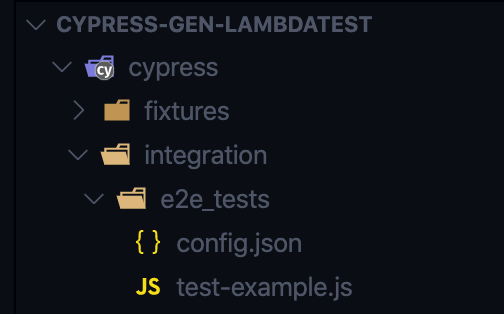
It is time to create our test under the integration folder; as you can see below, we have a test called test-example.js. Shown below is the directory structure:
Implementation
For ensuring that the code is extensible and maintainable to check for broken links on the ‘N’ number of websites, we keep the test URL in a separate JSON file (e.g., config.json).
{
    "URL1": "https://www.lambdatest.com/blog",
    "URL2": "https://www.lambdatest-playground.com"
}
As seen above, we have two test URLs (i.e., URL1 and URL2); however, we would run the test only on URL1. Shown below is the implementation (that uses JavaScript).
import config from './config.json'

describe('Test Broken Links', () => {

    it('verify navigation accross the pages', () =>{

        cy.visit(`${config.URL1}`)
        cy.on('window:confirm', cy.stub().as('confirm'))
        Cypress.on('uncaught:exception', (err, runnable) => {
            // returning false here prevents Cypress from
            // failing the test
        return false
        })

        cy.wrap('passed').as('ctrl')
        cy.get("a:not([href*='mailto:]']").each($el => {

                if ($el.prop('href').length > 0) {
                    const message = $el.text()
                    expect($el, message).to.have.attr("href").not.contain("undefined")
                    cy.log($el.attr('href'))
                }
        })
    })
})
Code Walkthrough
Step 1:
We first import config.json since it contains the test links.
import config from './config.json'
Step 2:
We now visit a remote URL. The base URL is stored in Cypress.json to ensure better portability and maintainability.
cy.visit(`${config.URL1}`)
Step 3:
We need to ignore some uncaught exceptions when we are testing some websites. In this case, we can use the following code to turn off uncaught exception handling for specific errors. Cy.on is to catch a single exception or event; in this case, we have used this code to fail a test on purpose, using a small hack.
cy.on('window:confirm', cy.stub().as('confirm'))
        Cypress.on('uncaught:exception', (err, runnable) => {
            // returning false here prevents Cypress from
            // failing the test
        return false
   })
Step 4:
cy.wrap is used for logging purposes in Cypress. In this case, we are using it as a control variable to test or fail the test depending on our parameters.
cy.wrap('passed').as('ctrl')
Step 5:
We use “each” to get the elements, excluding “mailto:” and empty ones. With this, we will get the URLs that we want to monitor for broken links with Cypress.
cy.get("a:not([href*='mailto:]']").each($el => {
Step 6:
We are validating head links, and one of those always presents anchors for the code block shown below. As a part of the process, we validate them all. We combine the selectors wherever possible.
if ($el.prop('href').length > 0) {
      const message = $el.text()
      expect($el, message).to.have.attr("href").not.contain("undefined")
      cy.log($el.attr('href'))
}
Execution
Now, let’s add to Cypress and run it from there; if you already have an npm project, please open a terminal using VS Code and run the following command:
npm install cypress
Now that Cypress is installed, let’s run the following command to get the Cypress folder:
npx Cypress open
For configuring Cypress, we open Cypress Test Runner, which creates Cypress.json. This JSON file is used to store any configuration values you supply.
{
    "watchForFilesChanges": false,
    "chromeWebSecurity": false,
    "viewportWidth": 1000,
    "viewportHeight": 600,
    "waitForAnimation": true,
    "defaultCommandTimeout": 6000,
    "execTimeout": 60000,
    "pageLoadTimeout": 60000,
    "requestTimeout": 150000,
    "responseTimeout": 150000,
    "video": true,
    "failOnStatusCode": false
}
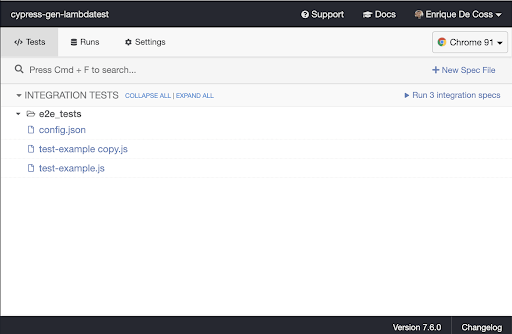
Open Cypress test runner and click on the corresponding test to execute the same.
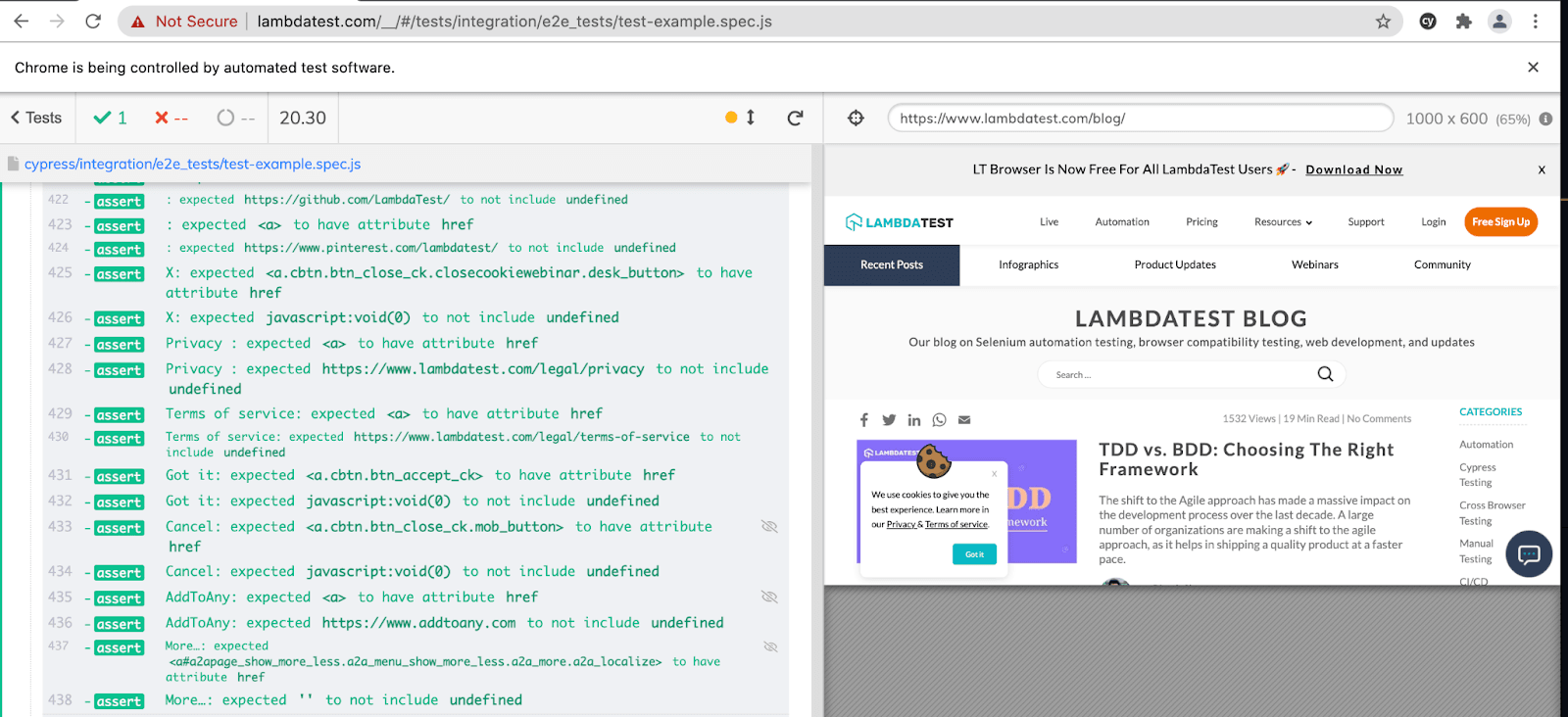
Here is the test execution, which indicates that there are zero broken links on the test website:
Austin Siewert
CEO, Vercel
Discovered @TestMu AI yesterday. Best browser testing tool I've found for my use case. Great pricing model for the limited testing I do 👏
2M+ Devs and QAs rely on TestMu AI
Deliver immersive digital experiences with Next-Generation Mobile Apps and Cross Browser Testing Cloud
Take this certification to showcase your expertise with end-to-end testing using Cypress automation framework and stay one step ahead.
Here’s a short glimpse of the Cypress 101 certification from TestMu AI:
Perform Cypress Parallel Testing on TestMu AI and speed up the testing and release process. Check out how you can test your Cypress test scripts on TestMu AI’s online cloud.
How to find broken links using Cypress on Cloud Grid
Cypress testing on cloud grid like TestMu AI helps in running tests on a wide range of browser and OS combinations. Parallel execution helps in accelerated test execution as well as achieving optimal browser coverage.
Cypress on TestMu AI helps you run Cypress tests at scale. You can check out our earlier blog that deep dives into the essentials on how to perform Cypress testing at scale with TestMu AI.
To get started, you have to install TestMu AI Cypress CLI on your machine. Trigger the following command to install the same:
npm install -g lambdatest-cypress-cli
After installation is completed, setup the configuration using the below command:
lambdatest-cypress init
Once the command is completed, lambdatest-config.json is created in the project folder. Next, enter the TestMu AI credentials from the TestMu AI profile section.
"lambdatest_auth": {
      "username": "<Your LambdaTest username>",
      "access_key": "<Your LambdaTest access key>"
Here is how you can configure the required browser & OS combinations in lambdatest-config.json:
"browsers": [
      {
         "browser": "Chrome",
         "platform": "Windows 10",
         "versions": [
            "latest-2"
         ]
      },
      {
         "browser": "Firefox",
         "platform": "Windows 10",
         "versions": [
            "latest"
         ]
      },
      {
         "browser": "MicrosoftEdge",
         "platform": "Windows 10",
         "versions": [
            "latest"
         ]
      }
   ],
run_settings section in the JSON file contains the desired Cypress test suite capabilities, including Cypress_version, build_name, visual feedback settings, number of parallel sessions, etc.
"run_settings": {
      "Cypress_config_file": "Cypress.json",
      "build_name": "build-broken-links",
      "parallels": 1,
      "specs": "./Cypress/integration/e2e_tests/*.spec.js",
      "ignore_files": "",
      "feature_file_suppport": false
   },
Tunnel_settings in the JSON file lets you connect your local system with TestMu AI servers via an SSH-based integration tunnel. Once this tunnel is established, you can test your locally hosted pages on all the browsers currently supported by Cypress on TestMu AI.
"tunnel_settings": {
    "tunnel": false,
    "tunnelName": null
}
Now that the setup is ready, it’s time to run the tests by triggering the following command:
lambdatest-cypress run
Shown below is the test execution status from the Automation Dashboard:
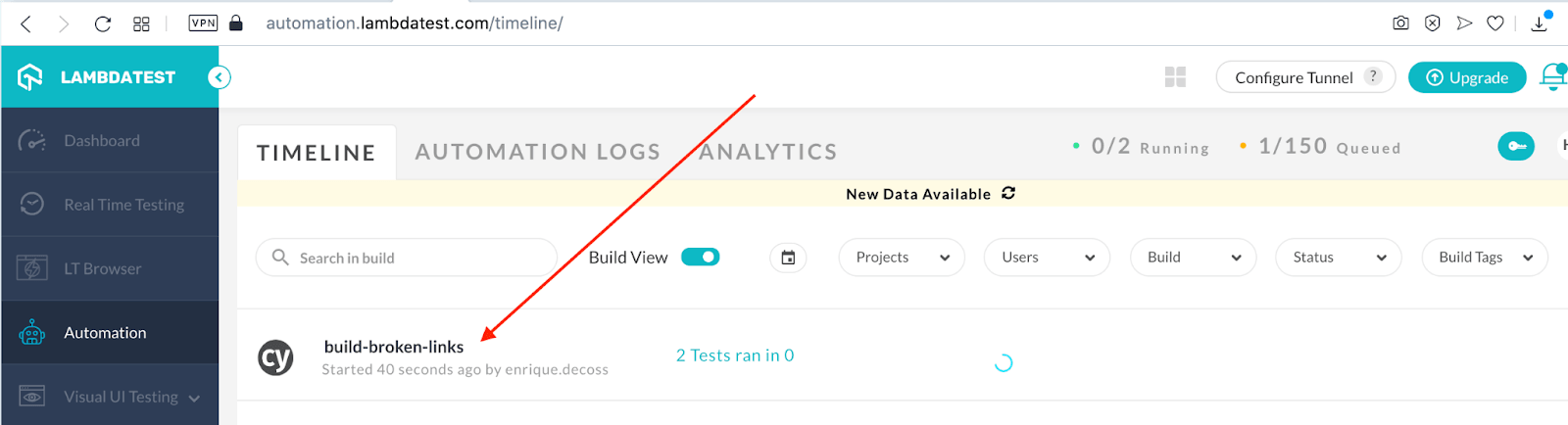
After the test execution, click on the test name to view the automation logs for debugging the respective test.
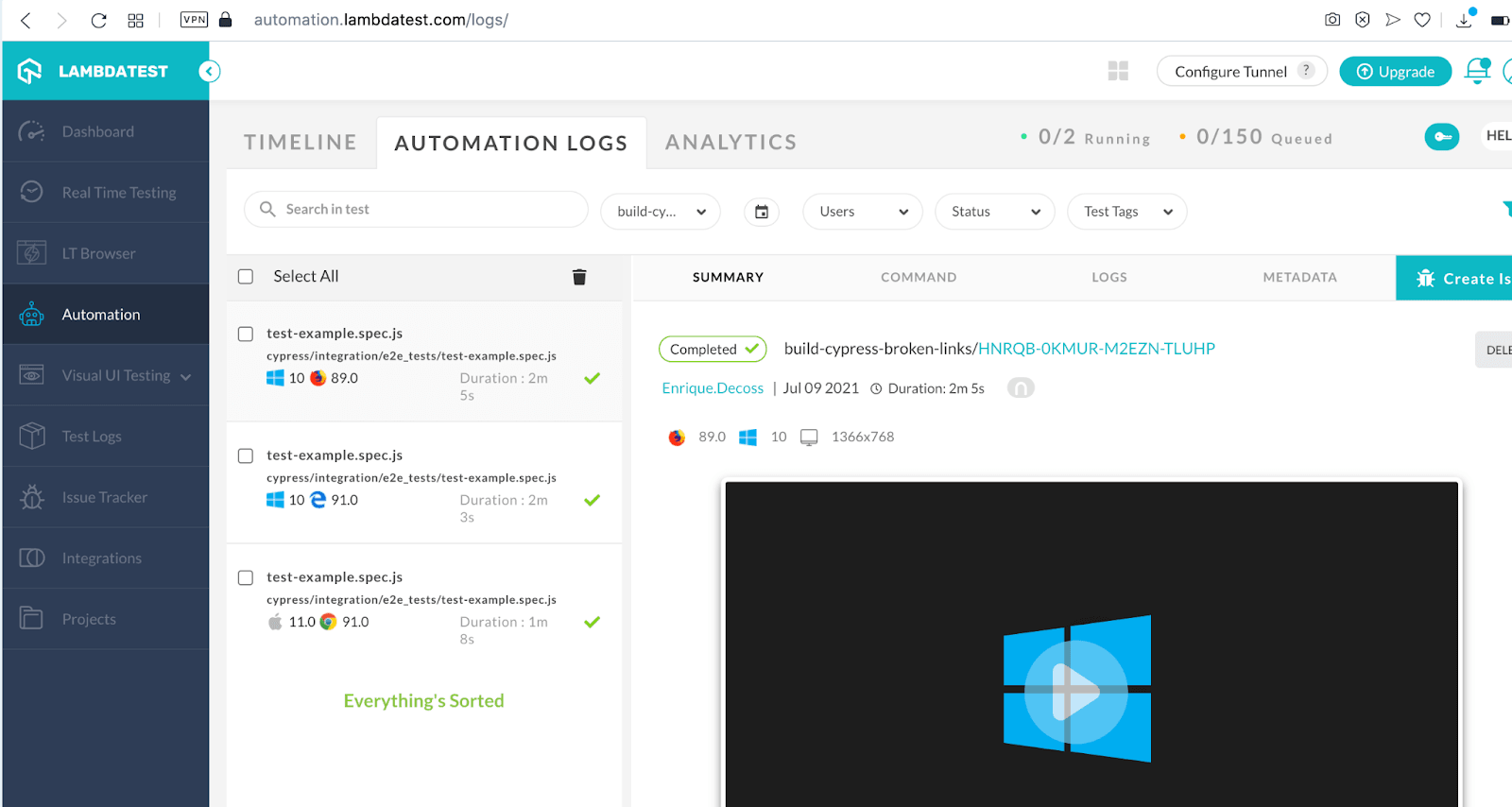
You can view the live video feed, screenshots for each test run, view console logs, terminal logs, and do much more using Cypress on TestMu AI.
One crucial aspect of running the tests using TestMu AI and Cypress is parallel testing. This can be achieved using two methods. The first option is passing the parallelization level from the command line:
lambdatest-cypress run --parallels 5
The other option is to set the parallelization level using the parallels key in lambdatest-config.json.
{
  "run_settings": {
    ...
    "parallels": 5,
    ...
  }
}
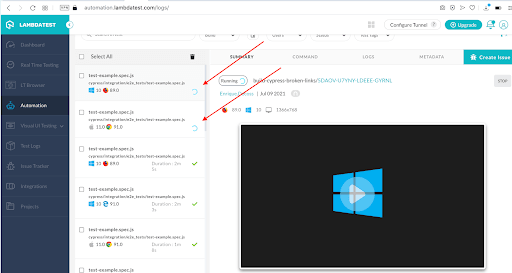
Here is the execution snapshot, which indicates the progress of test execution:
Here’s quick video if you have doubts regarding how to handle iframes in Cypress.
To summarize, the major benefit of Cypress testing on the cloud is achieving optimal test coverage without making modifications to the core logic of the test code.
It’s A Wrap
It’s inevitable 404 errors will appear on your site. Broken links can also impact the rankings on search engines; make sure you proactively monitor the links of your website. Finding broken links on your website or an HTTP 404 is as vital as posting unique and high-quality content.

Check your 404s as a part of continuous testing, and you can include Cypress tests as part of your testing tools. Putting time aside to update your website and perform technical testing will help you stay ahead of the competition.
We know that we must enable, nurture, and foster an ecosystem that includes high-quality success. Every line of test code is an investment in our codebase. Tests will be able to run and work independently always. Lastly, in this Cypress tutorial, we saw how TestMu AI and Cypress integration ensure seamless user experience across different browsers on 40+ browser versions simultaneously.
Happy Bug Hunting with Cypress!!


Frequently asked questions
Did you find this page helpful?
More Related Hubs
TestMu AI forEnterprise
Get access to solutions built on Enterprise
grade security, privacy, & compliance
- Advanced access controls
- Advanced data retention rules
- Advanced Local Testing
- Premium Support options
- Early access to beta features
- Private Slack Channel
- Unlimited Manual Accessibility DevTools Tests