

Next-Gen App & Browser Testing Cloud
Trusted by 2 Mn+ QAs & Devs to accelerate their release cycles


Easy Cross Browser Testing with TestMu AI Screenshots Chrome Extension
Introduced in 2010, google chrome store has more than 50,000 chrome extensions. One of the main reason behind popularity and increased use of chrome extensions is the ease to use an extension. Just a simple install and you now have otherwise complex functionalities available with a single click.

Deeksha Agarwal
January 11, 2026
Introduced in 2010, google chrome store has more than 50,000 chrome extensions. One of the main reasons behind the popularity and increased use of chrome extensions is the ease to use an extension. Just a simple install and you now have otherwise complex functionalities available with a single click.
To make browser compatibility testing of web apps and websites a little bit easier and faster, we decided to launch TestMu AI cross browser testing screenshot plugin to Chrome marketplace.
With TestMu AI Chrome Extension, you can easily generate screenshots of the page that you have opened, directly by just selecting just the browser combinations. That’s what you can call Cross Browser Testing made super easy!
All you have to do is to just select the browser combinations (max. upto 25 at a time) and just click on the capture and you’ll find screenshots across various browsers without even going on to TestMu AI platform.
How TestMu AI Screenshots Chrome Extension Works?
To use TestMu AI Screenshots Chrome Extension, you need to have a TestMu AI account. After you create an account (if you already have one, the steps are already less for you), just go to chrome web store and search for TestMu AI Screenshots, or you can use the direct link for Chrome Extension: TestMu AI Screenshots
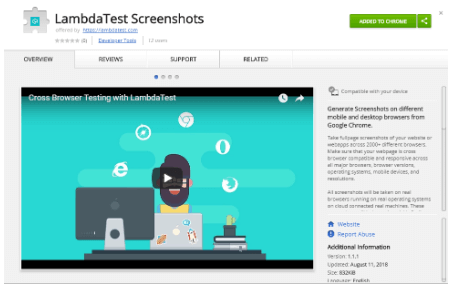
Just ‘Add to Chrome’ like you do for any extension. And you’re all set to use it.
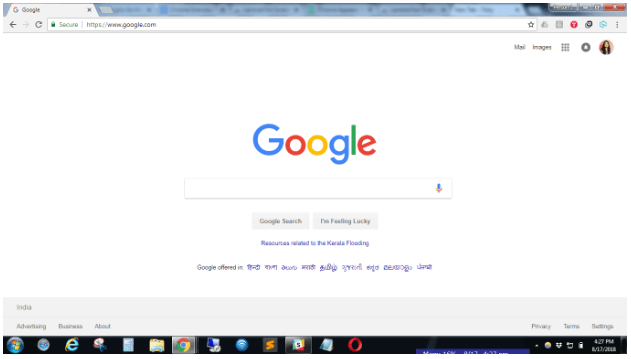
You’ll find it, on the top right corner in your chrome browser.
With this Screenshot Testing Tutorial, you will learn how to perform Automated Screenshot Testing on the TestMu AI platform.
Just go to the page you want to take screenshots for and click on the TestMu AI Extension icon. Enter your email address with which you have created your TestMu AI account and enter your access key.
Where can I find my access key?
Go to your profile section under settings section in your TestMu AI account, you’ll find your access key there.
Alternative to avoid entering of Access key.
The other way around to avoid this login process is to go the TestMu AI dashboard after installing the TestMu AI chrome extension and to reload the page. This way your access key will be automatically configured to the extension.
Once you are done with this, you’ll be redirected to the Screenshots page:
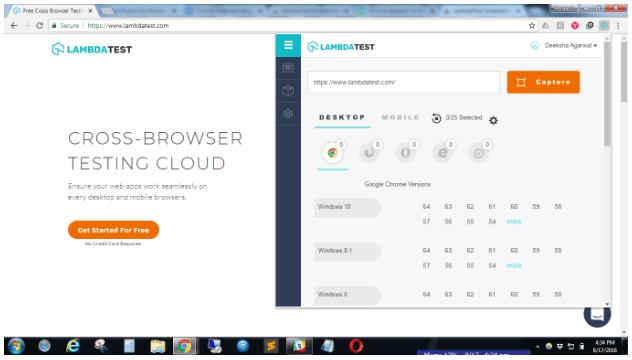
You don’t even need to enter the URL for which you want to take screenshots, it automatically takes the URL on which you have opened the extension (we are not restricting you, you can also enter manually though!).Just select the configurations (you can select from a wide range of Chrome, Firefox, IE, Edge, Safari browsers) and click on Capture.
You are on the page with the Screenshots! Download them as individuals or all in a zip file, find cross browser issues and take more screenshots.
Easy navigation, user friendly, and easy to use TestMu AI Chrome Extension is a must you should have is you care about cross browser compatibility testing of your website.
Note: If you are on a freemium plan, you can perform 10 test sessions using TestMu AI Screenshots Chrome extension but if you love it and want to use more, switch to any of our paid plans.
See how to use TestMu AI Screenshots Chrome Extension step by step on our support page.
You can watch the complete video here
Have questions or suggestions? Leave us a message in the chat or comment below!
Happy Testing!


Did you find this page helpful?
More Related Hubs
TestMu AI forEnterprise
Get access to solutions built on Enterprise
grade security, privacy, & compliance
- Advanced access controls
- Advanced data retention rules
- Advanced Local Testing
- Premium Support options
- Early access to beta features
- Private Slack Channel
- Unlimited Manual Accessibility DevTools Tests