

Next-Gen App & Browser Testing Cloud
Trusted by 2 Mn+ QAs & Devs to accelerate their release cycles


Developing Cross Browser Compatible Web Apps With Modernizr
This article is for developers who are not that much comfortable in using JavaScript, but are comfortable in using HTML and CSS for web development. There is an incredible open source JavaScript library called Modernizr that can efficiently solve challenges faced in cross browser web development.

Arnab Roy Chowdhury
December 28, 2025
This article is for developers who are not that much comfortable in using JavaScript, but are comfortable in using HTML and CSS for web development. There is an incredible open source JavaScript library called Modernizr that can efficiently solve challenges faced in cross browser web development and based on test case scenarios, conditionally load JS or CSS files. Modernizr detects the CSS3 and HTML5 features supported by the browser of the end user. If you are smart, and have time to use this data, then you can develop webpages that behave differently based on this detection. For example you can detect if the rendering browser is Edge version 15 which does not support a specific function of your master CSS and based on that give a fallback CSS for not supported browsers
It allows developers to test the new features and also provide fallback measures for browsers where the features are not supported. This process is a little bit more efficient and surgical than traditional browser sniffing and is called Feature detection.
What is Feature detection?
When UI development was in the dark ages, developers had to write conditional scripts in order to make sure whether the new HTML or CSS feature they are about to use is supported by the browser. But what if an updated version of the browser is released that supports the feature. The code will remain the same, and the script will run unnecessarily, increasing the complexity of the code. The worst case being, you will stay uninformed that the code works in the updated browser and will go on writing conditional scripts for future codes.
Modernizr introduces Feature Detection. That will check whether the browser supports the code and gives you a “false” or “true” result. Based on that result, you need to update the code. Let’s take a look into how to install and use Modernizr and some of its features that makes much easier.

Let’s Get Started
In the previous versions, developers needed to download and add the modernizr.js file in their code. But a lot has changed. Now you can select the features that are needed in your code and invoke Modenizer from cloud url.
- First of all, you need to add the following line in your HTML document
- You can also use npm to download and install modernizr by entering the following line in command prompt.
- Based on the features you want to detect, you need to build and download the modernizr.js file.
- Modernizr does its job by adding classes in your HTML tag and finds out which classes are supported by the browser and which are not.
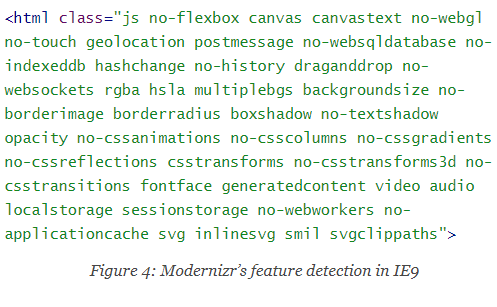
The features which are not supported by the browser are prefixed with a “no-“ as mentioned in the above figure. The class “csscoloumns” is not supported by IE9. Hence it is stated as no-csscolumns.
script src="modernizr.js">/script npm install -g modernizr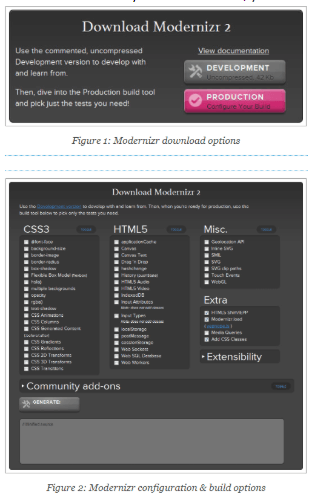
Fallback Procedures in CSS
Because of the extra classes that have been added, we now have an option to add alternative styles through CSS. For example, let’s suppose we are using font-face in CSS to add a custom font and set its size by 2em. However, when font face is not supported by a browser, the custom font is replaced by standard web safe font of size 2em. What happens in that case is, the default font may look odd when its size is 2em. In that case, a fallback can be set by the following code
.no-fontface h1 {
font-size: 1.2em;
}
This feature is known as CSS specificity that can override the standard sizing of browsers that need a different protocol. This is a simple example of how cross browser issues can be solved using Modernizr. The conclusion is, for CSS issues, instead of adding browser specific hacks, Modernizr can be used for a more secure procedure for styling a webpage.
Polyfilling With Conditional Loader
- Suppose you are using canvas in your code, and since it is not supported by IE8, a fallback is needed.
- Traditionally it can be done by downloading and importing flashcanvas.js in your code.
- The problem is, all browsers will download it, even those which supports canvas.
- Instead of wrapping the script with conditional elements, YepNope can be used. It can test whether the browser supports canvas and if not, it will allow the browser to download flashcanvas.
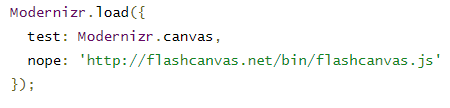
By now, you should have a clear understanding of some interesting features by which modernizr makes browser compatibility tests much easier. However, before installing it should be kept in mind that, like all other scripts, Modernizr can also be loaded at the bottom of the page for saving the loading time. However, some of its tests causes reflows and the browser has to perform some recalculation to check whether certain styles are supported. A better approach is the check the complexity of the page. In case of multiple internal CSS, the calculations are more complicated and it is better to load modernizr in the “head” of the html. However, if the body is empty, like all other external JS scripts, it makes sense to load modernizr at the bottom of the page.


Did you find this page helpful?
More Related Hubs
TestMu AI forEnterprise
Get access to solutions built on Enterprise
grade security, privacy, & compliance
- Advanced access controls
- Advanced data retention rules
- Advanced Local Testing
- Premium Support options
- Early access to beta features
- Private Slack Channel
- Unlimited Manual Accessibility DevTools Tests