 Decode AI-Powered Quality Engineering from AI & QA Leaders,Register for Free!

Next-Gen App & Browser Testing Cloud
Trusted by 2 Mn+ QAs & Devs to accelerate their release cycles

How to Clear Safari Browser History on iPhone
Learn how to clear Safari browser history on iPhone to maintain privacy and free up space. Discover simple steps for clearing all or specific website data.

Tahneet Kanwal
January 11, 2026
As the default browser on Apple devices, Safari stores your browser history on iPhone, which can accumulate over time. Knowing how to clear Safari browser history on iPhone is essential for maintaining privacy and freeing up space on your device.
Steps to Clear Safari Browser History on iPhone
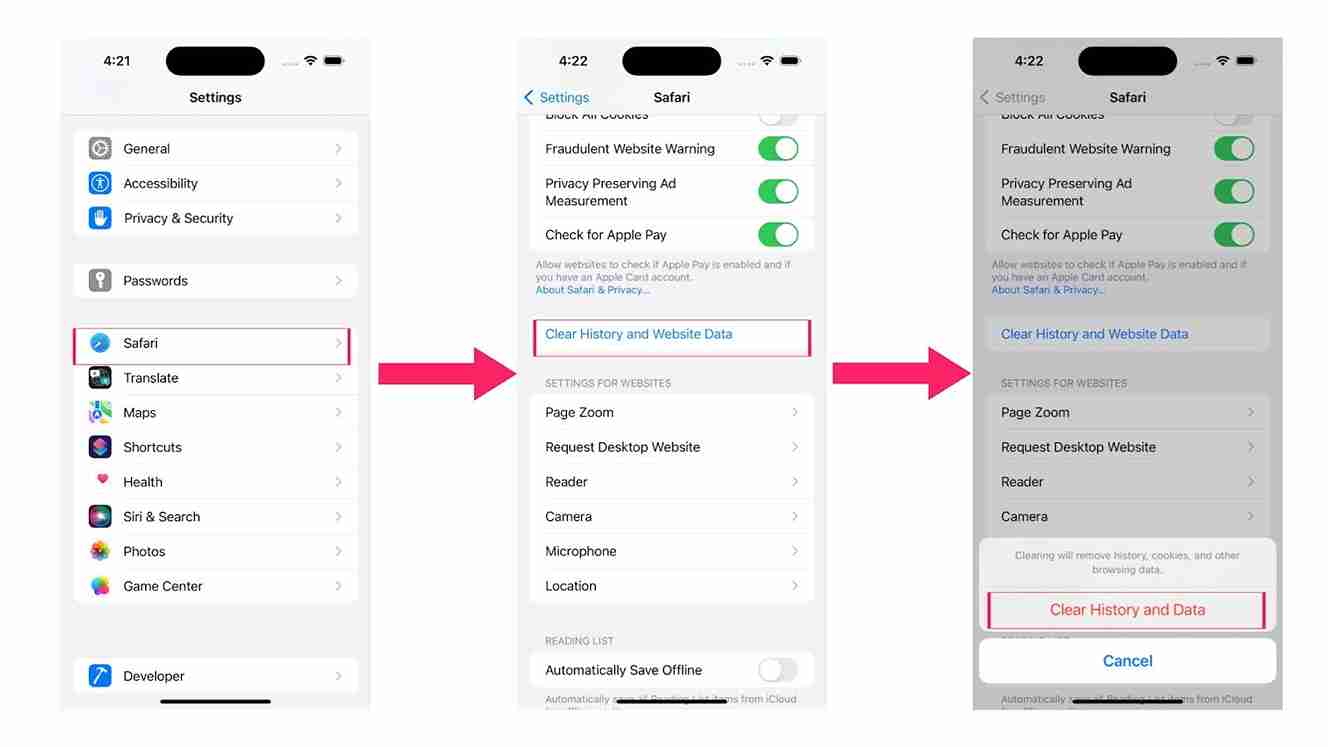
Below are the steps that must be followed to clear Safari’s browsing history.
- Go to the Settings app on your device.
- Scroll down and select Safari.
- Click on the Clear History and Website Data option.
- A prompt appears, then click on the Clear History and Data option to clear your browsing data; if you choose not to clear the data, you can choose Cancel (or press the Home button) to stop the process.
Deleting Specific Website Data On Safari
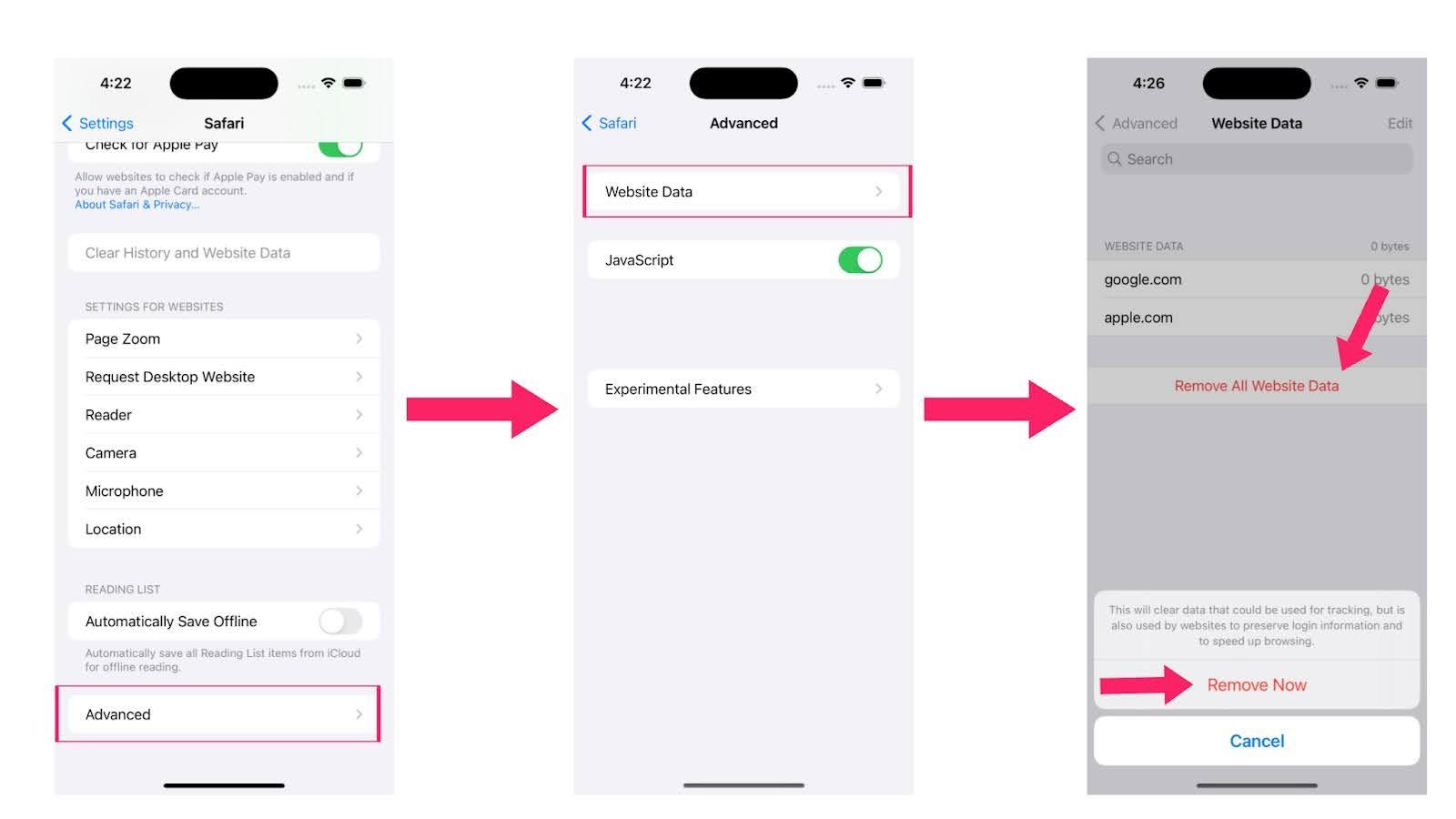
If you’re looking to delete just a specific search data in Safari, then proceed with the following steps.
- Open the Settings app on your device.
- Select Safari Settings.
- Go to the Advanced section and select Website Data.
- Click on Remove All Website Data.
- Click on Remove Now to confirm the action.
Note: When you clear Safari browser history directly from the browser on your iPhone, it only clears the list of websites and pages you’ve visited. It does not remove your search data, caches, or cookies. However, if you clear Safari browser history on your iPhone through Settings in iOS, it removes all data, including caches and cookies.

Final Thoughts
Clearing your Safari browser history on your iPhone is a straightforward and very important step that helps enhance your privacy and optimize device performance. You can follow the simple steps shared above and efficiently manage your browsing history and specific website data, ensuring that your personal information remains secure.
Regularly clearing your history not only helps free up storage space but also improves your browsing experience by removing outdated information. Whether you choose to clear all history or selectively remove data, maintaining a clean browsing environment is essential for a smoother and more secure online experience. Take control of your Safari browser history today and enjoy a faster, more private browsing experience on your iPhone.


Summarize with AI


Frequently asked questions
Did you find this page helpful?
More Related Hubs
TestMu AI forEnterprise
Get access to solutions built on Enterprise
grade security, privacy, & compliance
- Advanced access controls
- Advanced data retention rules
- Advanced Local Testing
- Premium Support options
- Early access to beta features
- Private Slack Channel
- Unlimited Manual Accessibility DevTools Tests