 Decode AI-Powered Quality Engineering from AI & QA Leaders,Register for Free!

Next-Gen App & Browser Testing Cloud
Trusted by 2 Mn+ QAs & Devs to accelerate their release cycles

How to Clear Cache in Firefox
When you clear cache in Firefox, it can help improve browsing speed by removing unnecessary stored files. The cache stores temporary website data to load

Tahneet Kanwal
January 11, 2026
When you clear cache in Firefox, it can help improve browsing speed by removing unnecessary stored files. The cache stores temporary website data to load pages faster, but with time, these files can slow down your system. Since the cache doesn’t hold important data, there’s little risk in clearing it.
However, personal information, like login details, could be accessible to others if left in the cache. Regularly clearing the cache helps maintain browser performance and security.
In this blog, let’s look at how to clear cache in Firefox browser.
Steps to Clear Cache in Firefox Manually
Here’s how to clear cache in Firefox browser manually:
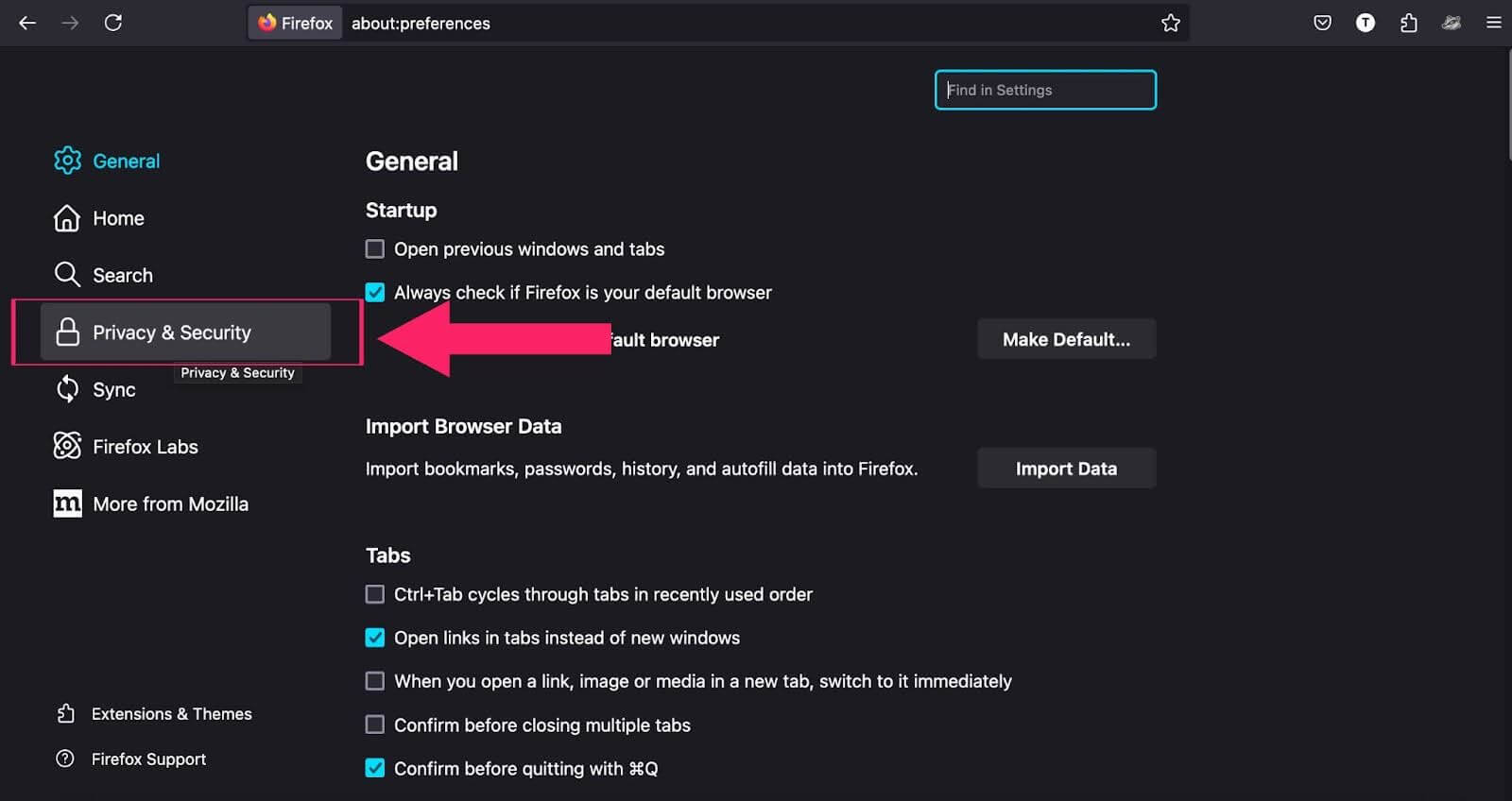
- Open the Firefox browser and click on the three horizontal lines in the top-right corner.
- Click Settings from the menu.
- Click on the Privacy & Security option from the left sidebar.
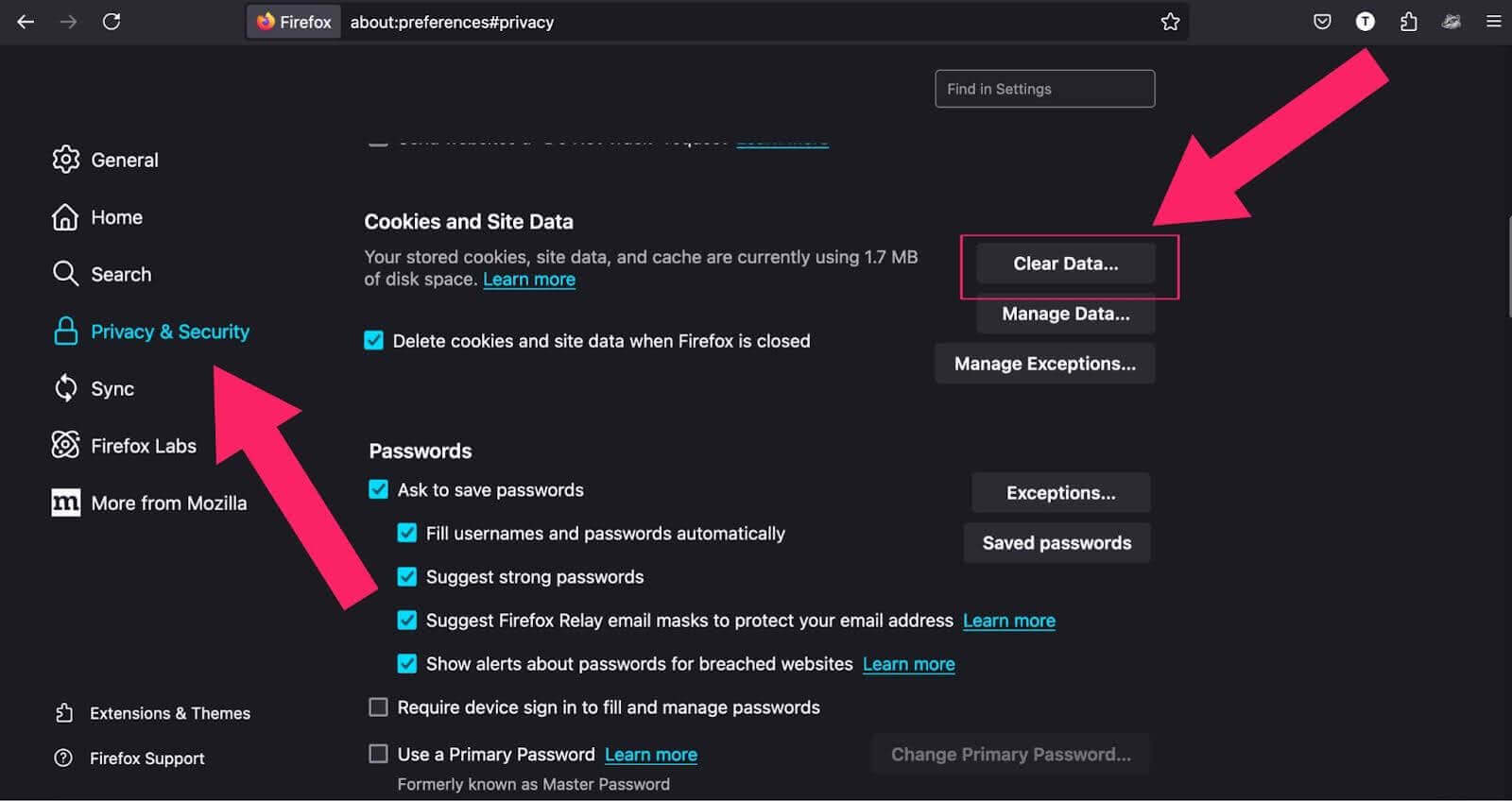
- Scroll down to the Cookies and Site Data section and click Clear Data.
- Click Clear to confirm.

Note: Test websites on real Firefox browsers. Try TestMu AI Today!
Steps to Clear Cache in Firefox Automatically
To clear your cache automatically, Firefox can be set up to remove all cached data each time you close the browser.
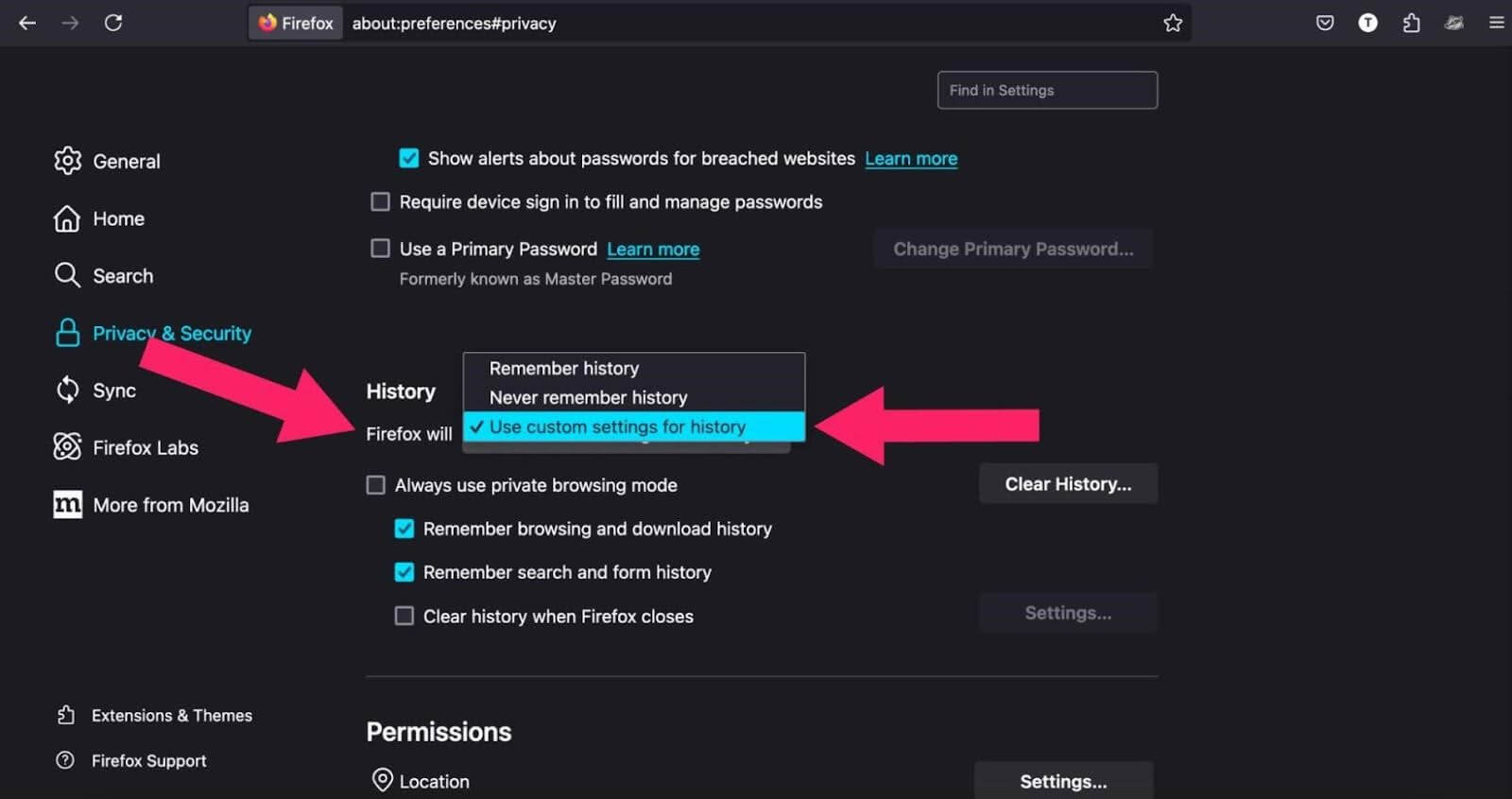
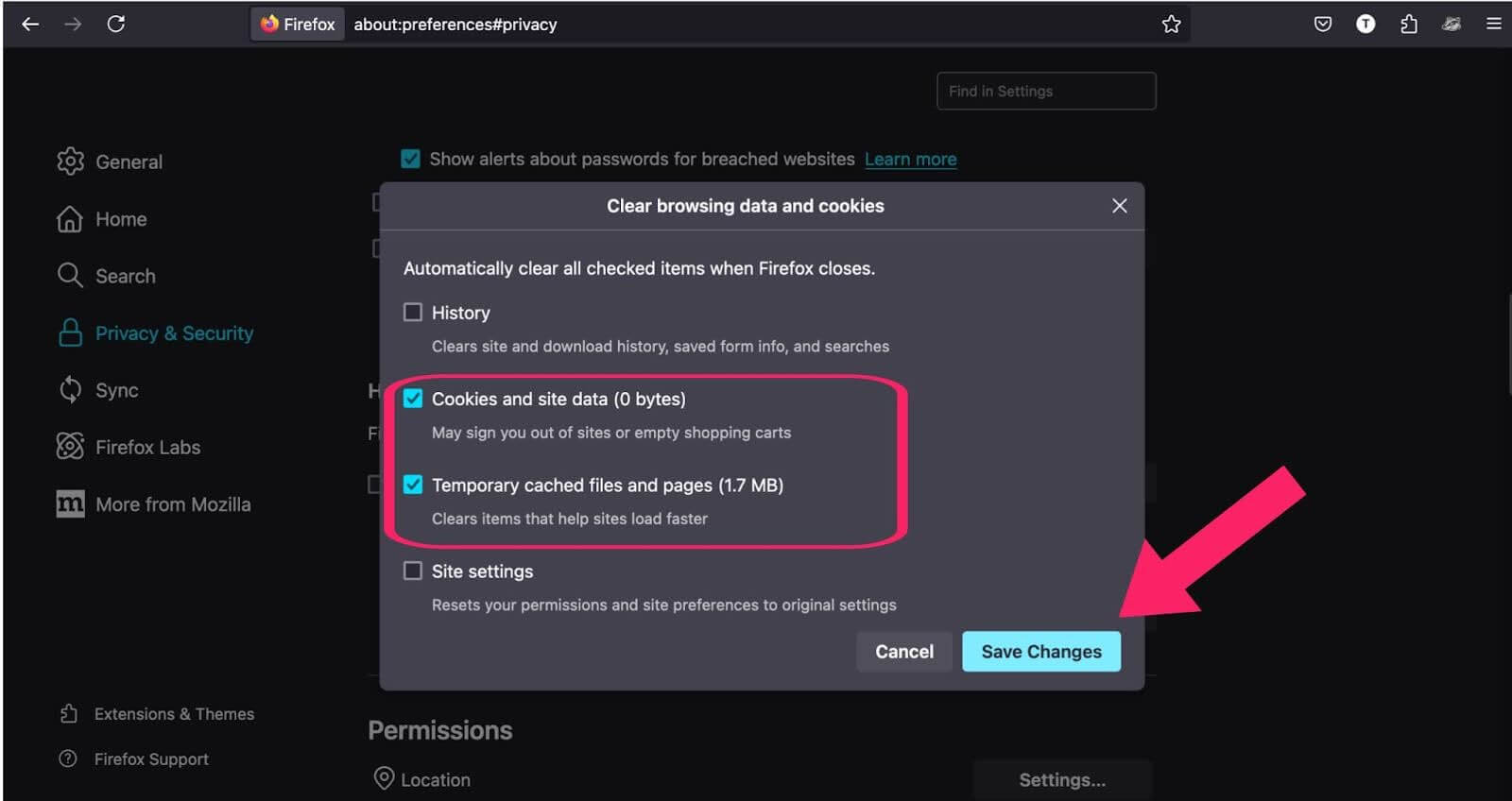
- Start by opening Firefox Settings, then, click Privacy & Security and scroll to the History section. In the field next to Firefox will, choose Use custom settings for history.
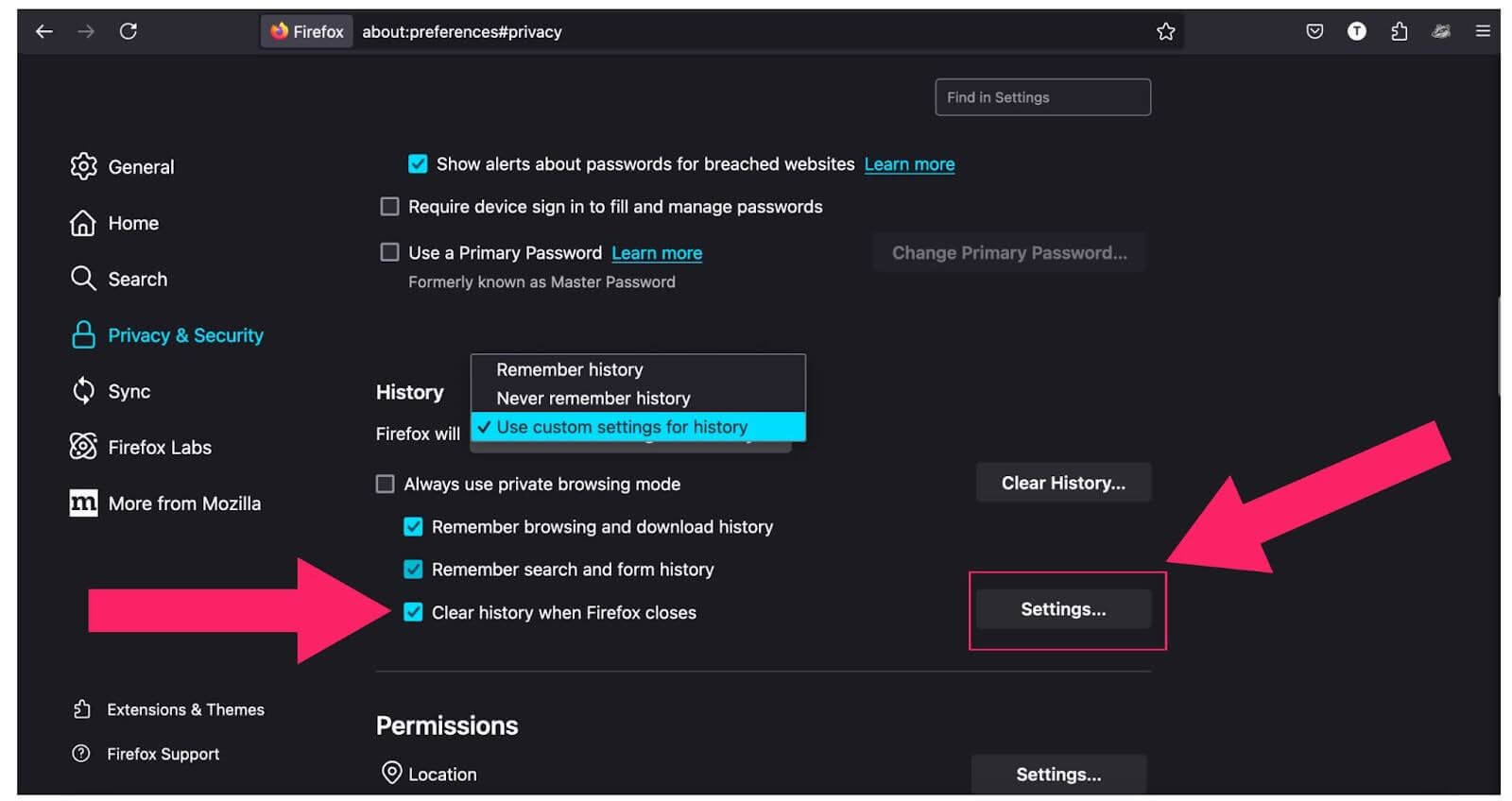
- Once additional options appear, tick the checkbox labeled Clear history when Firefox closes. Click Settings located beside this checkbox.
- Finally, click Save Changes. From now on, Firefox will remove your cache data whenever you close the browser.
Steps to Clear Cache in Firefox With Keyboard Shortcuts
To clear the cache in Firefox with keyboard shortcuts, follow these steps:
- Open the window to clear history by pressing Ctrl + Shift + Delete (Windows/Linux) or Command + Shift + Delete (macOS)
- Press the Tab key to navigate to the When dropdown and select the desired range.
- Again, press the Tab key to navigate to the list of data options, then use the arrow keys to scroll to the Temporary cached files and pages option and press the Space key to select it.
- Press the Enter key to clear the cache.
Conclusion
Now you know how to keep Firefox running smoothly by clearing its cache, either manually or automatically. While cached files help websites load faster, too many old files can slow down your browser and might expose your private information. Whether you choose to clear your cache manually or set Firefox to do it automatically when you close it, the process is quick and easy.


Summarize with AI


Frequently asked questions
Did you find this page helpful?
More Related Hubs
TestMu AI forEnterprise
Get access to solutions built on Enterprise
grade security, privacy, & compliance
- Advanced access controls
- Advanced data retention rules
- Advanced Local Testing
- Premium Support options
- Early access to beta features
- Private Slack Channel
- Unlimited Manual Accessibility DevTools Tests